
ChatGPT “Upload Video” Feature (2026): What Works, Why Uploads Fail, and the Production-Safe Link → Transcript Workflow
 Video To Text AI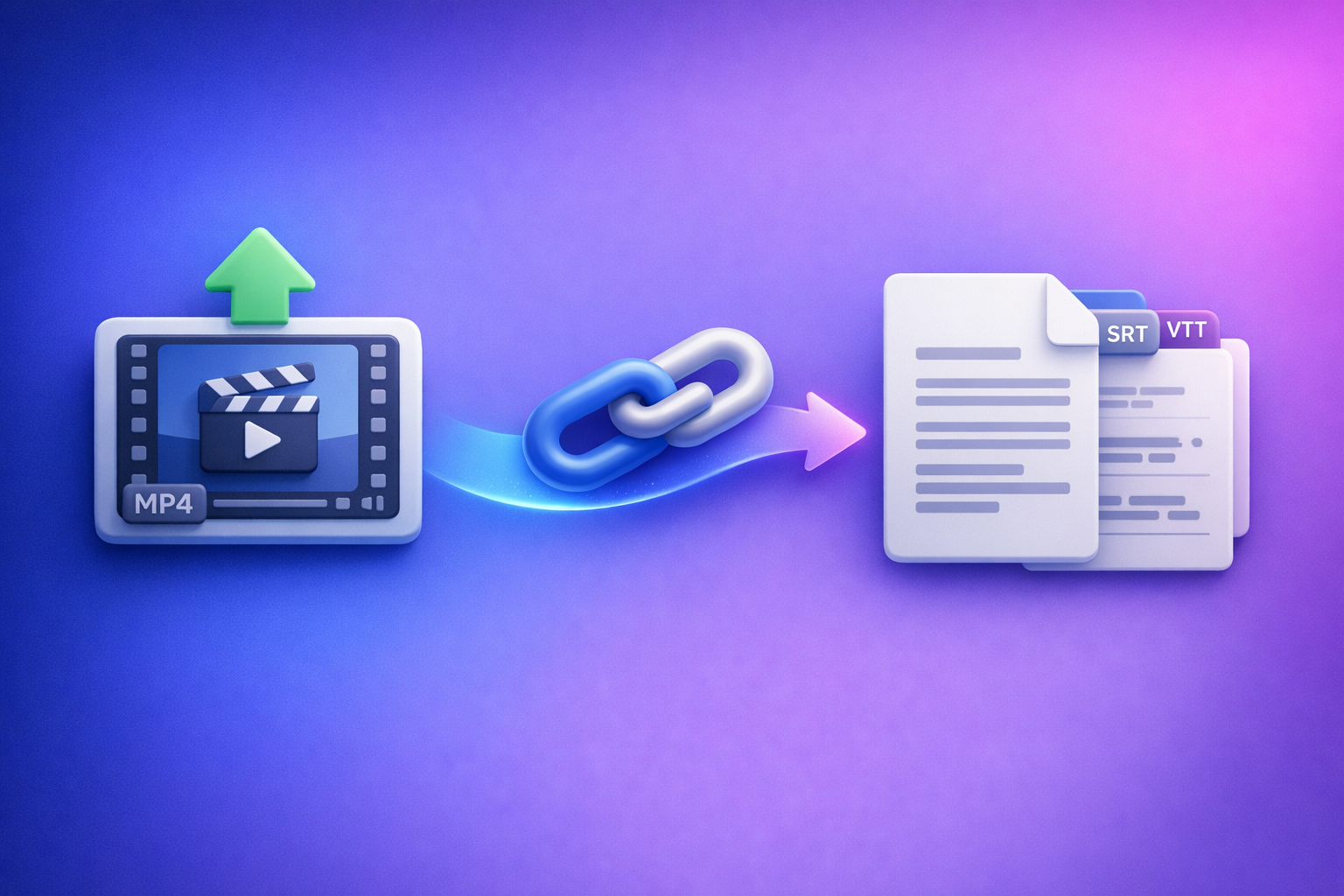
If you need export-ready transcripts/captions, don’t rely on the ChatGPT “upload video” feature—generate TXT/SRT/VTT artifacts first, then use ChatGPT on the text. If you only need quick understanding of a short clip, native upload can work (when it’s available).
This guide explains what people mean by “upload video,” why it fails in real workflows, and the production-safe link → transcript/captions → ChatGPT-on-text approach.
What People Mean by “ChatGPT Upload Video”
File upload vs. link sharing vs. “watching” a video
When someone says “upload video to ChatGPT,” they usually mean one of these:
- File upload: attaching an MP4/MOV directly in ChatGPT.
- Link sharing: pasting a YouTube/Drive link and expecting ChatGPT to access it.
- “Watching”: expecting frame-by-frame comprehension plus accurate speech-to-text with timecodes.
These are not the same capability, and mixing them up causes most “it doesn’t work” reports.
What ChatGPT can realistically do with video (and what it can’t)
What tends to work (when enabled):
- Summaries of short clips
- Q&A about what’s said or shown
- High-level extraction (topics, action items, key moments)
What’s unreliable for production delivery:
- Deterministic transcripts (complete, consistent, repeatable)
- Deliverable-grade captions with SRT/VTT timecodes
- Multi-speaker accuracy and stable speaker attribution
When “upload video” is the wrong default for transcripts/captions
If your goal is any of the following, “upload video” is the wrong default:
- Shipping TXT + SRT/VTT to a client
- Building a repeatable team workflow (QA, handoffs, re-exports)
- Avoiding rework when outputs change between runs
Downloading video files is an outdated workflow. Link-based extraction is the future of creator productivity because it removes download/upload loops and standardizes outputs.
Quick Answer: Does ChatGPT Allow Video Uploads?
Availability varies by plan, client (web/iOS/Android), region, and rollout
In 2026, the practical answer is: sometimes.
Availability can change based on:
- Your plan
- The client you’re using (web vs iOS vs Android)
- Region and staged rollouts
- Workspace/admin policies that disable attachments
Best-fit use cases (short clip understanding, quick Q&A)
Use native upload when you need:
- A fast summary
- A quick “what happened here?”
- A short Q&A about a clip
Not production-safe use cases (export-ready transcripts, captions, timecodes, repeatability)
Avoid native upload when you need:
- TXT transcript you can QA and reuse
- SRT/VTT captions you can upload to platforms
- Timecodes that must be consistent
- Repeatability across a team or client deliverable
What Works vs. What Fails (Real-World Scenarios)
Works reliably (lowest risk)
Short clips + simple analysis prompts
Lowest-risk scenario:
- Short clip
- One clear question
- Output is analysis, not “perfect transcript”
Clear audio + single speaker + minimal background noise
You’ll get better results when:
- One speaker talks at a time
- Minimal music beds
- Clean mic signal (high signal-to-noise ratio)
Often fails or degrades (highest risk)
Long videos, large files, high resolution, variable frame rates
Common failure triggers:
- Long duration
- Large file size
- High resolution (unnecessary for speech tasks)
- Variable frame rate encodes
Multi-speaker, cross-talk, music beds, low SNR audio
Accuracy drops fast with:
- Overlapping speakers
- Room echo
- Background music
- Low-quality recordings
Needing deterministic outputs (TXT/SRT/VTT) for delivery
If you need deliverable formats, the risk isn’t just “accuracy”—it’s inconsistency:
- Missing sections
- Different wording between runs
- No stable timecodes
Supported Formats, Limits, and Common Error Messages (Triage First)
Formats users try (MP4/MOV) and why “supported” still fails
Even if MP4/MOV is “supported,” uploads can fail due to:
- File size limits (varies)
- Processing timeouts
- Encoding quirks
- Network instability
Constraints that break first (size, duration, bandwidth, device storage, permissions)
The usual bottlenecks:
- Size/duration: long videos are the first to break
- Bandwidth: mobile networks stall more often
- Device storage: not enough space to stage the upload
- Permissions: browser/app can’t access files
Common symptoms → likely cause mapping
“Upload button missing” / “Attachments disabled”
Likely causes:
- Feature not enabled on your account/client
- Workspace/admin policy disables attachments
- Outdated app version
Upload stalls / fails / processing never completes
Likely causes:
- File too large/long
- Network instability
- Encoding issues (variable frame rate, unusual codec)
“Can’t access link” / private video / geo-restricted content
Likely causes:
- Private/unlisted permissions
- Login wall
- Region restrictions
Output is incomplete, inconsistent, or missing timecodes
Likely causes:
- Model summarizing instead of transcribing
- Long content exceeding internal processing limits
- Multi-speaker complexity
Step-by-Step: How to Upload a Video to ChatGPT (When You Must)
Step 1 — Confirm you’re in a client that supports attachments
Web vs iOS vs Android differences to check
Check for:
- An attachment/paperclip icon
- A UI option to add files in the chat composer
- Updated app version (especially on mobile)
Account/workspace restrictions that disable attachments
If you’re in a managed workspace, attachments may be disabled by policy.
If you hit this, jump to the transcript-first workflow or see:
“Attachments Disabled” in ChatGPT Image Upload: Causes, Fixes, and a Production-Safe Link → Transcript Workflow (VideoToTextAI)
Step 2 — Prepare the video for the highest chance of success
Reduce risk: trim length, lower resolution, stabilize encoding, improve audio
Do this before uploading:
- Trim to the smallest segment that answers your question
- Lower resolution (audio tasks don’t need 4K)
- Re-encode to a standard codec and constant frame rate
- Improve audio if possible (reduce noise, normalize levels)
If you need text: extract audio track first (optional fallback)
If your real goal is text, extracting audio can reduce upload size and failure rate.
Step 3 — Upload and ask for the right output (analysis-only prompts)
Prompt templates for: summary, key moments, Q&A, action items
Use prompts that match what native upload does best:
- Summary
- “Summarize this clip in 7 bullets. Include only what you can directly observe or hear.”
- Key moments
- “List the top 5 moments and why they matter. If you’re unsure, say so.”
- Q&A
- “Answer: What is the speaker’s main claim? Quote the exact sentence(s) that support your answer.”
- Action items
- “Extract action items with owner (if stated) and due date (if stated). If missing, write ‘not specified’.”
Prompt constraints to reduce hallucinations (ask for uncertainty + quotes)
Add constraints:
- “If you can’t confirm something from the clip, write ‘cannot confirm from the video’.”
- “Include short quotes for key claims.”
Step 4 — Validate the output (fast QA)
Spot-check against timestamps / key phrases
Do a quick check:
- Verify 3–5 key phrases
- Confirm the conclusion matches what was actually said
Red flags: missing sections, invented claims, speaker confusion
Treat these as “stop signs” for production use:
- Missing middle sections
- Confident claims with no support
- Speaker mix-ups
The Production-Safe Workflow (Recommended): Link/MP4 → TXT/SRT/VTT → ChatGPT-on-Text (VideoToTextAI)
Why “artifact-first” beats native video upload
Native upload is a convenience feature. Production workflows need artifacts.
Artifact-first means you generate:
- TXT transcript (editable, searchable)
- SRT/VTT captions (timecoded, platform-ready)
Then you use ChatGPT on the text for:
- Summaries
- Chapters
- Repurposed content
This is how you get deterministic deliverables you can QA and ship.
Step-by-step implementation (10–15 minutes)
Step 1 — Choose input type: paste a link or upload MP4
Use link-based input whenever possible. Download/upload loops are outdated and slow teams down.
If you need help choosing the right approach, see:
Give Me the Text: How to Extract Text From Any Video Link (Transcripts, Captions, and Repurposing) with VideoToTextAI
Step 2 — Generate transcript (TXT) and captions (SRT/VTT)
Generate the artifacts you actually deliver:
- Transcript: MP4 to Transcript
- Captions: MP4 to SRT and MP4 to VTT
Step 3 — QA the artifacts (accuracy, speaker turns, punctuation, timecodes)
QA checklist:
- Names, acronyms, jargon
- Speaker turns (if needed)
- Punctuation and paragraphing
- Timecode alignment (spot-check a few lines)
Step 4 — Use ChatGPT on the transcript for structured outputs
Once the transcript is clean, ChatGPT becomes predictable and fast.
Use it for:
- Chapters + titles
- Blog outline + draft
- Social clips plan + hooks + captions
For a direct repurposing path, see:
YouTube to Blog
Step 5 — Export and ship (deliverables checklist by format)
Deliverables to ship/store together:
- Source link (or MP4 filename/version)
- TXT transcript
- SRT captions
- VTT captions
- Repurposed outputs (doc/markdown)
If you want to implement the link-first workflow end-to-end, use VideoToTextAI: VideoToTextAI
Example “ChatGPT-on-text” prompt pack (copy/paste)
Transcript → executive summary + bullets
“You are editing a deliverable. Using only the transcript below, write: (1) a 3-sentence executive summary, (2) 8 bullet takeaways, (3) 5 ‘notable quotes’ copied verbatim. If something is unclear, write ‘unclear from transcript.’”
Transcript → chapter markers (timecode-aware if provided)
“Create 8–12 chapters. If the transcript includes timecodes, include them. If not, estimate sections by topic and label them ‘no timecode available.’ Return as a table: Chapter Title | Start | What’s covered.”
Transcript → repurposed assets (LinkedIn post, X thread, blog sections)
“Repurpose the transcript into: (1) a LinkedIn post (150–220 words), (2) an X thread (8 tweets), (3) a blog outline with H2/H3s. Use only claims supported by the transcript; include 2 short quotes.”
Troubleshooting: “Can’t Upload Videos to ChatGPT” (Fixes by Symptom)
Symptom: Upload button missing / attachments disabled
Client/app version checks
- Update the app
- Try web vs mobile (or vice versa)
- Check you’re in the correct account/workspace
Workspace/admin policy checks
- Ask your admin if attachments are disabled
- Test in a personal account (if allowed)
Temporary workaround: use transcript-first workflow
If attachments are blocked, don’t fight it—switch to artifacts first. Related:
Upload Video to ChatGPT in 2026: What Actually Works (and the Production-Safe Link → Transcript Workflow)
Symptom: Upload fails or stalls
File size/duration reduction steps
- Trim to a smaller segment
- Lower resolution
- Remove extra audio tracks
Network/browser storage permissions
- Switch networks
- Try a different browser
- Ensure file access permissions are enabled
Re-encode guidance (constant frame rate, standard codec)
Re-encode to a standard MP4 with constant frame rate to reduce processing failures.
Symptom: Link won’t open / “can’t access”
Private/unlisted permissions
- Confirm the link is accessible without your login
- Test in an incognito window
Region restrictions and login walls
- Geo restrictions and paywalls block access
- “Works for me” isn’t a reliable test—use a clean browser session
Workaround: use a downloadable MP4 or transcript-first extraction
If the link can’t be accessed reliably, use a downloadable source or extract text via an artifact-first workflow.
Symptom: Output is incomplete or inconsistent
Chunking strategy (split by time ranges)
- Split the video into smaller segments
- Ask questions per segment, then merge insights
Ask for quotes + uncertainty + “what you can’t confirm”
- Require quotes for claims
- Require “cannot confirm” language
Switch to artifact-first workflow for deliverables
If you need TXT/SRT/VTT, stop iterating on native upload and standardize artifacts.
Checklist: Fastest Reliable Path to Transcript + Captions + Repurposing
If your goal is understanding a short clip
- Confirm attachments are available
- Trim to the smallest segment that answers the question
- Use analysis-only prompts (avoid “perfect transcript” requests)
- Spot-check for omissions or invented details
If your goal is production deliverables (recommended)
- Generate TXT + SRT/VTT artifacts first
- QA transcript + captions (names, jargon, timecodes)
- Run ChatGPT on text for summaries/chapters/repurposing
- Store exports alongside the source link for repeatability
VideoToTextAI vs Competitors
Below is a fair, workflow-focused comparison using only publicly signaled positioning from the researched pages.
| Tool | Link-based input (paste a URL) | Export-ready artifacts (TXT + SRT/VTT) | Repurposing pipeline (transcript → blog/social) | Best suited for |
|---|---|---|---|---|
| VideoToTextAI | Yes (core workflow) | Yes (core deliverables) | Yes (artifact-first → ChatGPT-on-text) | Teams/creators who want fast link → transcript/captions and repeatable handoffs |
| Reduct Video (reduct.video) | Not a strong public signal | Transcript export is emphasized; subtitle exports not strongly signaled | Summaries are mentioned; repurposing positioning is limited | Collaborative transcript-based review/editing and searchable archives |
| Canva (canva.com) | Not a strong public signal | Transcript/captions features are positioned; export specifics vary by workflow | Not positioned primarily for repurposing pipelines | Design/editor-first captioning inside a broader creative suite |
| Zapier roundup (zapier.com) | Not applicable (it’s a list) | Not applicable | Not applicable | Researching options and categories, not a single workflow tool |
Why VideoToTextAI wins for production: it’s built around link-based extraction and artifact-first exports, which makes the workflow faster than download/upload loops and more repeatable than “upload video and hope.”
Where others can be better: if you need a collaborative video editing/archive environment, an editor-first platform may fit better—then you still export text artifacts for delivery.
Competitor Gap
What top-ranking pages miss
Most pages about the “chatgpt upload video feature” miss operational reality:
- They treat uploading as the goal instead of shipping TXT/SRT/VTT artifacts
- They don’t provide a deterministic, QA-able transcript/captions workflow
- They under-specify failure modes (missing button, stalls, link access, incomplete output)
What this post adds (differentiators)
This guide is designed for production outcomes:
- Symptom-based triage map + fixes
- Artifact-first workflow with explicit deliverables (TXT/SRT/VTT)
- Implementation steps + prompt pack + ship-ready checklist
FAQ
Does ChatGPT allow video uploads?
Sometimes. It depends on plan, client, region, rollout, and workspace policies.
Why can’t I upload videos to ChatGPT anymore?
Common causes are feature rollbacks, app/client differences, outdated versions, or workspace/admin policies disabling attachments.
Can ChatGPT watch videos that I upload?
It can analyze some uploaded video content in certain configurations, but it’s not a guaranteed “watch anything perfectly” capability—especially for long videos and deliverable-grade transcription.
Can I upload a video to ChatGPT to analyze?
Yes for short clips and low-stakes tasks like summaries, Q&A, and key moments—when attachments are enabled.
Can ChatGPT transcribe video to text?
It may produce text from video, but it’s often incomplete or inconsistent and usually not deliverable-grade for captions/timecodes. For production, generate TXT/SRT/VTT first, then use ChatGPT on the transcript.
Internal Link Plan (Related Reading)
- ChatGPT “Upload Video” Feature (2026): What Works, Why Uploads Fail, and the Production-Safe Link → Transcript Workflow
- Upload Video to ChatGPT in 2026: What Actually Works (and the Production-Safe Link → Transcript Workflow)
- “Attachments Disabled” in ChatGPT Image Upload: Causes, Fixes, and a Production-Safe Link → Transcript Workflow (VideoToTextAI)
- Give Me the Text: How to Extract Text From Any Video Link (Transcripts, Captions, and Repurposing) with VideoToTextAI
- MP4 to Transcript
- MP4 to SRT
- MP4 to VTT
- YouTube to Blog
Related posts
Reel Analyser (Instagram Reels): Transcript‑First Competitor Research, Hook/CTA Extraction, and Repurposing Workflow (VideoToTextAI)
Video To Text AI
A 2026 reel analyser should turn Instagram Reel links into a searchable transcript library you can tag for hooks, CTAs, objections, and topic clusters—then export into repurposing-ready drafts without a download/upload loop.
Traducir video de Instagram (Reels) en 2026: workflow transcript-first para traducir, sacar hooks/CTAs y repurpose (con VideoToTextAI)
Video To Text AI
Aprende a traducir un Reel de Instagram con un flujo URL→transcripción→traducción→subtítulos, y a convertir esa traducción en un activo de investigación para hooks, CTAs, objeciones y clusters de contenido.
Reel Analyzer: Transcript‑First Instagram Reels Research (Hooks, CTAs, Objections) + Workflow Guide (VideoToTextAI)
Video To Text AI
A reel analyzer should turn any public Instagram Reel link into a searchable transcript library you can mine for hooks, CTAs, objections, and topic clusters—then repurpose into original drafts with a repeatable SOP.