
Upload Video to ChatGPT in 2026: What Actually Works (and the Production-Safe Link → Transcript Workflow)
 Video To Text AI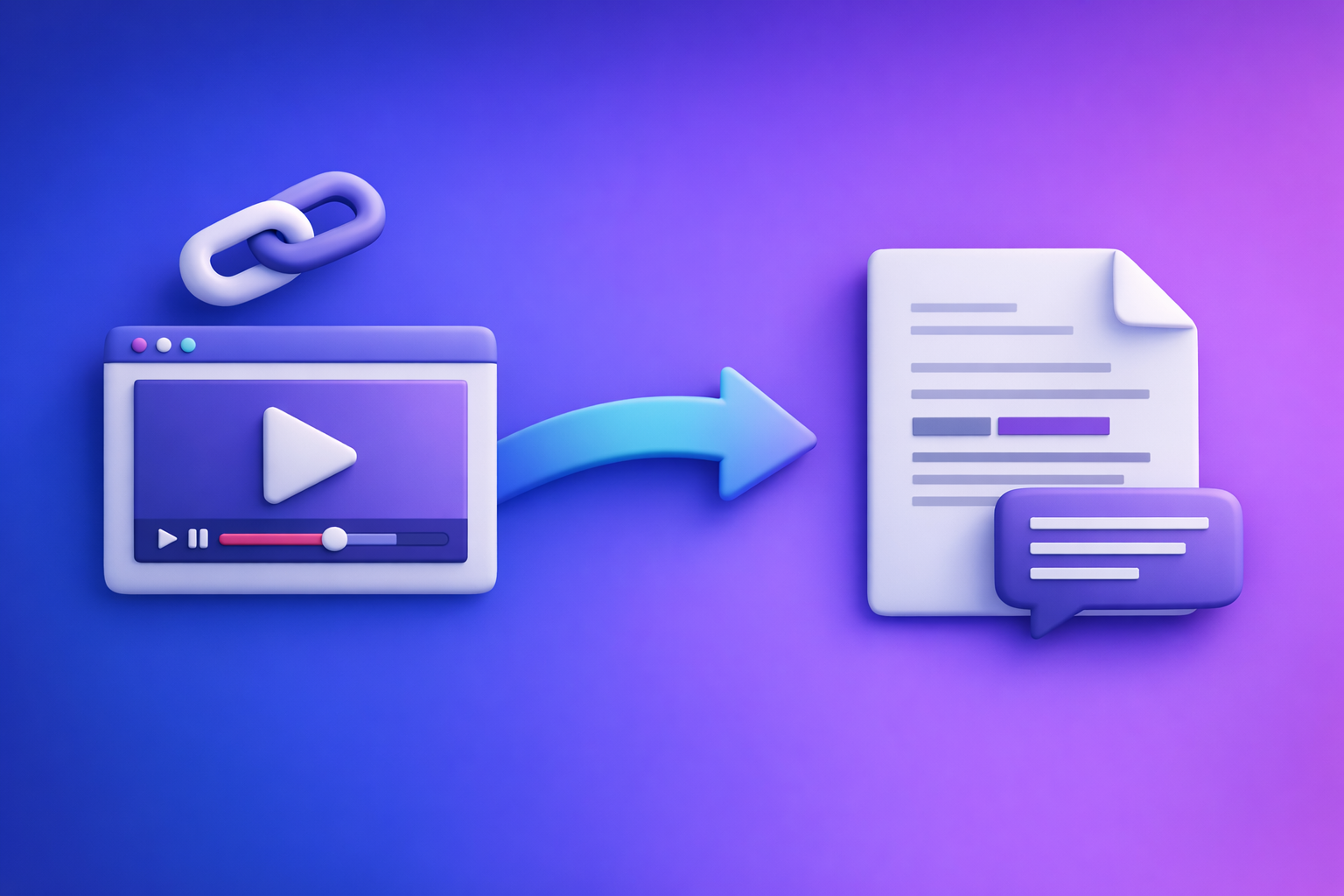
Trying to upload video to ChatGPT is only dependable for short, low-stakes analysis. For transcripts, captions, and repurposing, the production-safe approach is link/MP4 → transcript/captions artifacts → ChatGPT on text.
Downloading video files is an outdated workflow for most creator teams. Link-based extraction is the future of creator productivity because it’s faster, more repeatable, and easier to QA across tools.
Quick Answer: Can You “Upload Video” in ChatGPT?
Yes—sometimes—but “upload video” can mean three different things, and only one is remotely stable.
What “upload video” can mean (file upload vs link vs frames)
- File upload: attaching an MP4/MOV directly in chat.
- Link access: pasting a YouTube/Drive/IG/TikTok link and expecting ChatGPT to fetch it.
- Frames-only: providing screenshots/frames (or a short clip) for visual Q&A.
When it works (short clips, analysis-only) vs when it breaks (production deliverables)
Works best when:
- You’re asking a few questions about a short clip.
- You don’t need timecodes, SRT/VTT, or a complete transcript.
- You can tolerate partial/incomplete outputs.
Breaks in production when:
- You need exportable deliverables (TXT + SRT/VTT).
- The video is long, has multiple speakers, or needs high accuracy on names/numbers.
- The link is permissioned, geo-restricted, or behind login.
The reliable default: generate transcript/captions first, then use ChatGPT on text
If your end goal is transcripts, subtitles, captions, or content repurposing, treat video as an input and text artifacts as the source of truth. Then use ChatGPT for what it’s best at: rewriting, structuring, and generating variants from clean text.
For a deeper companion post, see: ChatGPT “Upload Video” Feature (2026): What Works, Why Uploads Fail, and the Production-Safe Link → Transcript Workflow
What Works vs. What Fails (Real-World Scenarios)
Works reliably
Uploading short clips for quick Q&A (non-export, non-timecoded)
Use this when you need:
- “What is happening in this clip?”
- “List the objects on screen.”
- “Summarize the main point in 5 bullets.”
Avoid asking for:
- “Create a full transcript with timestamps.”
- “Generate SRT/VTT captions.”
- “Extract every spoken word accurately.”
Using ChatGPT on a transcript you provide (best for repeatability)
This is the most repeatable pattern:
- You control the input text.
- You can re-run prompts and get consistent formatting.
- You can store and reuse the transcript across teams.
If you want a standardized approach, start with: Give Me the Text: How to Extract Text From Any Video Link (Transcripts, Captions, and Repurposing) with VideoToTextAI
Often fails or is inconsistent
MP4/MOV uploads that stall, error, or silently downgrade quality
Common outcomes:
- Upload starts, then fails with a generic error.
- Processing completes, but output is incomplete.
- Quality varies between attempts.
Links ChatGPT can’t access (YouTube/Drive/IG/TikTok permissions, geo, auth)
Typical blockers:
- Login required (Drive, private YouTube, IG/TikTok).
- Geo restrictions.
- Expired links or tokenized URLs.
- “Unlisted” still blocked by platform policies or embedding rules.
Long videos (timeouts, truncation, partial processing)
Long-form is where “upload video” workflows collapse:
- Timeouts.
- Truncated analysis.
- Partial transcripts missing sections.
Decision rule: choose “ChatGPT upload” only when you can tolerate failure
If you can’t tolerate failure, don’t start with video upload. Start with deterministic artifacts (TXT + SRT/VTT), then run ChatGPT on those.
Why You Might Not See the Upload Button (or Why Uploads Fail)
Client + plan + rollout variability (web vs iOS vs Android vs desktop)
Upload capability can vary by:
- Web vs mobile app vs desktop wrapper.
- Account tier and feature flags.
- Workspace/admin settings (especially in team environments).
- Regional rollout timing.
Common failure modes mapped to symptoms
“Upload failed” / “Something went wrong”
Usually caused by:
- File too large or too long.
- Network instability.
- Unsupported codec/encoding edge case.
“Attachments disabled”
Often caused by:
- Workspace policy/admin restriction.
- Client limitations or temporary feature removal.
Related troubleshooting: “Attachments Disabled” in ChatGPT Image Upload: Causes, Fixes, and a Production-Safe Link → Transcript Workflow (VideoToTextAI)
Stuck on processing / never completes
Common causes:
- Long duration.
- Mobile backgrounding (app suspended).
- Server-side throttling or transient outages.
“I can’t access that link”
Common causes:
- Private/permissioned link.
- Geo restrictions.
- Login wall.
- Platform blocks automated fetching.
Privacy/security reality check before uploading media to an LLM
Before uploading any media:
- Assume it may be retained for service improvement depending on settings and policy.
- Don’t upload sensitive client footage without explicit approval.
- Prefer artifact-first workflows where you can redact text before sharing.
Supported Formats, Limits, and Pre-Flight Checks (Before You Try Uploading)
File formats people try (MP4, MOV) and why “supported” still fails
Even if MP4/MOV is “supported,” failures happen due to:
- Variable bitrates and unusual audio tracks.
- Nonstandard codecs (HEVC edge cases, odd container metadata).
- Corrupt headers from exports or screen recordings.
The constraints that break first
File size and duration
The bigger/longer the file, the more likely:
- Upload fails.
- Processing times out.
- Output truncates.
Codec/encoding edge cases
If you see repeated failures:
- Re-encode to a standard H.264 + AAC profile.
- Test a short clip first.
Network stability and backgrounding on mobile
Mobile uploads fail when:
- You switch apps.
- Screen locks.
- Wi-Fi changes to cellular mid-upload.
Pre-flight checklist (60 seconds)
- Confirm link permissions: public/unlisted, not login-gated.
- Export a 30–60s test clip to validate the path.
- If you need captions/transcripts: stop here and switch to an artifact-first workflow.
Step-by-Step (10–15 Minutes): Production-Safe Link/MP4 → Transcript/Captions → ChatGPT Workflow (VideoToTextAI)
Goal: deterministic artifacts you can QA and reuse (TXT + SRT/VTT)
The production-safe workflow is:
- Generate transcript (TXT) and captions/subtitles (SRT/VTT).
- QA the artifacts.
- Use ChatGPT on text for repurposing and formatting.
This avoids the “download the video, re-upload it, hope it works” loop—which is increasingly outdated. Link-based extraction is faster and scales better across creators, editors, and marketers.
Step 1 — Choose your input type
Option A: Paste a video link (YouTube/Instagram/TikTok/etc.)
Best when:
- The video already exists on a platform.
- You want a repeatable workflow without file handling.
Option B: Upload an MP4 you already have
Best when:
- The video is not published yet.
- You’re working from a local export.
Step 2 — Generate text with VideoToTextAI
Use VideoToTextAI to generate export-ready artifacts from a link or MP4. Start here (single CTA): https://videototextai.com
Pick output targets: transcript (TXT) vs subtitles/captions (SRT/VTT)
- TXT: best for summarization, SEO, documentation, and repurposing.
- SRT/VTT: best for timecoded captions/subtitles and publishing.
If you already know your target format:
Choose language needs (single-language vs translation)
Decide upfront:
- Single-language transcript/captions.
- Translation output (and whether you need bilingual deliverables).
Step 3 — Export the right deliverable for the job
TXT for summarization, search, and repurposing
Use TXT when you need:
- A clean “source of truth” script.
- A base for blog posts, emails, and docs.
- Searchable internal knowledge.
SRT/VTT for timecoded captions and publishing
Use SRT/VTT when you need:
- YouTube captions (often SRT).
- Web player subtitles (often VTT).
- Editor handoff with timecodes.
Step 4 — Run ChatGPT on the text (what it’s best at)
Once you have TXT/SRT/VTT, ChatGPT becomes reliable because the input is stable.
Summaries that don’t hallucinate timestamps (because timestamps come from SRT/VTT)
Prompt example:
- “Summarize this transcript in 8 bullets. Do not invent timestamps. If you reference timing, quote the exact timecodes from the SRT I provide.”
Chapters, titles, hooks, and social posts from the transcript
Prompt example:
- “Create 6 YouTube chapter titles with short descriptions. Use the transcript content only. If you need timecodes, ask me for the SRT.”
Cleanup prompts: speaker labels, terminology, formatting rules
Prompt example:
- “Rewrite the transcript with speaker labels (Host/Guest). Preserve meaning. Keep domain terms exactly as written: {list}.”
Step 5 — Quality control (QA) before you ship
Spot-check names, numbers, and domain terms
Do a fast QA pass on:
- Proper nouns (people, companies, products).
- Numbers (prices, dates, metrics).
- Acronyms and jargon.
Verify caption timing after edits (don’t reflow SRT lines blindly)
If you edit caption text heavily, you can break:
- Line lengths.
- Reading speed.
- Sync perception (even if timecodes are unchanged).
Keep a “source of truth” transcript version for future reuse
Store:
- Raw transcript (as-generated).
- Clean transcript (edited).
- Final SRT/VTT used in production.
Implementation Walkthrough: Turn One Video Into 5 Assets
Asset 1: Clean transcript (TXT) for documentation and SEO
- Remove filler words where needed.
- Add headings and speaker labels.
- Keep a versioned file name (date + video title).
Asset 2: Captions (SRT) for YouTube and editors
- Export SRT.
- Spot-check the first 60 seconds and a mid-video section.
- Hand off to editors without retyping.
Asset 3: Subtitles (VTT) for web players
- Export VTT for web embeds.
- Validate in your player (some are strict about formatting).
Asset 4: Blog draft from transcript (structure + headings + key takeaways)
Use the transcript to generate:
- H2/H3 outline.
- Key takeaways section.
- FAQ candidates based on repeated questions.
If your workflow is specifically “video → blog,” use: youtube to blog
Asset 5: Repurposed social posts (LinkedIn + X) with quotes pulled from transcript
- Extract 5–10 quotable lines.
- Rewrite into platform-native formats.
- Keep quotes verbatim when attribution matters.
Troubleshooting: “ChatGPT Video Upload Failed” Fixes by Symptom
Symptom: No upload button
What to check (client, plan, workspace settings)
- Try web vs mobile vs desktop.
- Check workspace/admin attachment policies.
- Confirm you’re in a chat mode that supports attachments.
Fast workaround: use transcript-first workflow
If the button isn’t there, don’t wait on rollout. Generate TXT/SRT/VTT first and proceed.
Symptom: Upload stuck / processing never finishes
Reduce duration, re-encode, retry on desktop, avoid mobile backgrounding
- Cut a 30–60 second test clip.
- Re-encode to H.264/AAC.
- Retry on desktop with stable Wi‑Fi.
- Keep the app in the foreground on mobile.
If you need deliverables: generate TXT/SRT/VTT first
If you need captions by end of day, don’t gamble on video upload.
Symptom: ChatGPT can’t access my link
Public/unlisted settings, auth walls, geo restrictions
- Make the link public/unlisted (not private).
- Remove login requirements.
- Check geo restrictions and age gates.
Use VideoToTextAI with the link (or MP4) and bring back artifacts
Link-based extraction avoids “can’t access” loops and gives you reusable outputs.
Symptom: Output is incomplete or misses words
Long-form truncation and partial processing
This is common when:
- The video is long.
- The system processes only part of the content.
Fix: artifact-first transcript + targeted re-check segments
- Generate a full transcript artifact.
- Re-check only the questionable segments (names, numbers, technical sections).
Symptom: Captions drift out of sync after editing
Why reflowing text breaks timecodes
SRT/VTT timecodes assume a specific reading cadence. Large edits can make captions feel late/early even if timestamps are unchanged.
Fix: edit with caption-aware tooling; regenerate SRT/VTT when content changes
- Keep edits minimal in caption files.
- If content changes materially, regenerate captions from the updated audio/video.
Checklist: Do This Instead of Trying to Upload Video to ChatGPT
If your goal is analysis-only (low stakes)
- Try a short clip upload (30–60 seconds).
- Ask 3–5 specific questions (don’t request full transcripts).
- Save outputs as notes, not deliverables.
If your goal is transcripts/captions/repurposing (production)
- Generate TXT + SRT/VTT artifacts first.
- QA names/numbers and timing.
- Use ChatGPT only on the text artifacts.
- Store artifacts for reuse across teams and channels.
Competitor Gap
What top-ranking pages miss
- A clear decision framework: analysis-only vs production deliverables.
- A deterministic artifact workflow: TXT/SRT/VTT with QA steps.
- Symptom-based troubleshooting mapped to real errors (e.g., “attachments disabled”, link access failures, processing stalls).
What this post adds
- Pre-flight checks to avoid wasted upload attempts.
- A repeatable 10–15 minute workflow with export formats and use-case mapping.
- A ship-ready checklist teams can standardize.
For related guidance, also see:
FAQ
Can I upload a video on ChatGPT?
Sometimes. It depends on your client/app, plan, and rollout status, and it’s most reliable for short clips and quick Q&A.
Can I upload a video to ChatGPT to analyze?
Yes, for lightweight analysis. For anything you must ship (transcripts/captions), use a transcript-first workflow.
Can ChatGPT watch videos that I upload?
In limited scenarios it can analyze video content, but results can be inconsistent with long videos, restricted links, or production-grade requirements.
Why won’t ChatGPT let me upload videos?
Common causes include missing attachment support, workspace restrictions, file size/duration limits, codec issues, unstable network, or link permission/geo/auth blocks.
Can you upload videos to ChatGPT for free?
Free availability is inconsistent and changes with product tiers and rollouts. If you need reliable outputs, treat video as input and standardize on text artifacts (TXT/SRT/VTT) for repeatable downstream use.
Related posts
Reel Analyser (Instagram Reels): Transcript‑First Competitor Research, Hook/CTA Extraction, and Repurposing Workflow (VideoToTextAI)
Video To Text AI
A 2026 reel analyser should turn Instagram Reel links into a searchable transcript library you can tag for hooks, CTAs, objections, and topic clusters—then export into repurposing-ready drafts without a download/upload loop.
Traducir video de Instagram (Reels) en 2026: workflow transcript-first para traducir, sacar hooks/CTAs y repurpose (con VideoToTextAI)
Video To Text AI
Aprende a traducir un Reel de Instagram con un flujo URL→transcripción→traducción→subtítulos, y a convertir esa traducción en un activo de investigación para hooks, CTAs, objeciones y clusters de contenido.
Reel Analyzer: Transcript‑First Instagram Reels Research (Hooks, CTAs, Objections) + Workflow Guide (VideoToTextAI)
Video To Text AI
A reel analyzer should turn any public Instagram Reel link into a searchable transcript library you can mine for hooks, CTAs, objections, and topic clusters—then repurpose into original drafts with a repeatable SOP.