
ChatGPT “Upload Video” Feature (2026): What Works, Why Uploads Fail, and the Production-Safe Link → Transcript Workflow
 Video To Text AI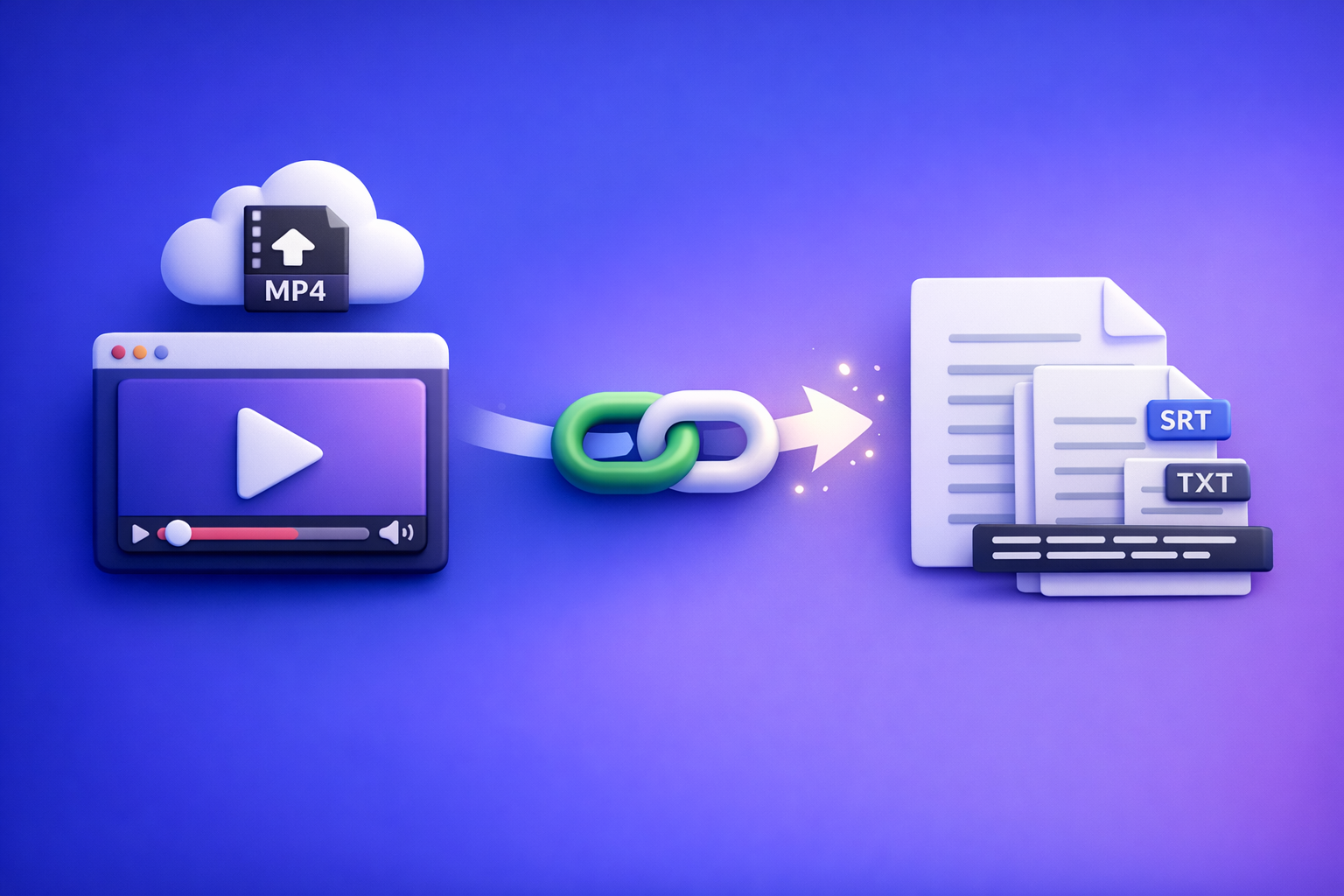
ChatGPT “Upload Video” Feature (2026): What Works, Why Uploads Fail, and the Production-Safe Link → Transcript Workflow
If you need export-ready transcripts/captions, don’t rely on ChatGPT’s “upload video” feature—generate TXT/SRT/VTT artifacts first, then use ChatGPT on the text. If you only need quick analysis of a short clip, native upload can work (when it’s available).
What People Mean by “ChatGPT Upload Video”
File upload vs. link sharing vs. “watching” a video
When people say “upload video to ChatGPT,” they usually mean one of three things:
- Upload a file (MP4/MOV) via an attachment button.
- Paste a link (YouTube/Drive/Dropbox) and expect ChatGPT to access it.
- Expect ChatGPT to “watch” the video end-to-end and produce a complete transcript with timecodes.
These are not the same capability, and confusing them causes most failures.
What ChatGPT can realistically do with video today (and what it can’t)
What tends to work (when the feature is enabled):
- Describe scenes and visible elements in short clips.
- Answer simple Q&A about what’s on screen.
- Extract rough notes or a high-level summary.
What is unreliable for production:
- Accurate, complete transcripts for long videos.
- Timecoded captions you can upload to platforms.
- Repeatable outputs across teams, devices, and accounts.
When “upload video” is the wrong tool for transcripts/captions
If your goal is any of the following, native upload is the wrong default:
- SRT/VTT captions for YouTube, TikTok, LinkedIn, LMS, or webinars.
- Compliance (auditability, consistent outputs, QA gates).
- Repurposing at scale (chapters, clips, blogs, newsletters).
For those, you want an artifact-first workflow: link/MP4 → transcript/captions → ChatGPT-on-text.
Quick Answer: Can You Upload Video to ChatGPT?
The practical reality: availability varies by plan, client, region, and rollout
In 2026, “video upload” is still not a universal, stable feature. Users commonly see differences across:
- Web vs iOS vs Android
- Work vs personal accounts
- Regions and staged rollouts
- Temporary feature toggles and safety restrictions
So “it works for my friend” is not a reliable benchmark.
Best use cases for native video upload (short analysis, quick Q&A)
Use native upload when you need:
- A quick description of a short clip
- A rough list of key moments
- A fast answer like “What does the slide say at 0:12?”
Treat it as analysis-only, not as a deliverable generator.
When to avoid it (export-ready transcripts, captions, compliance, repeatability)
Avoid native upload when you need:
- Exportable artifacts (TXT/SRT/VTT)
- Timecodes that must match playback
- Consistency across multiple videos and editors
- A workflow that survives missing buttons, stalled uploads, and link access errors
What Works vs. What Fails (Real-World Scenarios)
Works (most reliable)
Short clips + simple questions (scene description, rough notes)
Most reliable scenario:
- Clip length: seconds to a few minutes
- Question: single objective (describe, list, identify)
- Output: notes, not captions
Example asks:
- “List the on-screen text and the main objects.”
- “Summarize what happens in 5 bullets.”
Extracting insights when you don’t need exportable artifacts
If you don’t need SRT/VTT, you can use it for:
- Creative review (“What’s confusing in this intro?”)
- Content critique (“Is the hook strong?”)
- Rough topic extraction (“What are the main themes?”)
Often fails (or is inconsistent)
Long videos, high-res files, unstable networks
Common failure triggers:
- Long duration (processing timeouts)
- Large file size (upload limits, memory constraints)
- 4K/HEVC files (codec issues)
- Mobile uploads on weak Wi‑Fi/5G
Links behind logins (Drive, private YouTube, paid platforms)
ChatGPT often can’t access:
- Google Drive links requiring sign-in
- Private/unlisted videos with restricted permissions
- Geo-blocked content
- Paid course platforms and authenticated CDNs
“It uploaded but the output is incomplete / wrong”
Even when upload succeeds, you may see:
- Missing sections (skipped segments)
- Incorrect names/numbers
- No timecodes or inconsistent “timestamps”
- Confident-sounding guesses where audio is unclear
This is why production teams should not treat native upload as a transcript generator.
Supported Formats, Limits, and Common Error Messages (Triage First)
Formats users try (MP4/MOV) and why “supported” still fails
Users typically try:
- MP4 (best default)
- MOV (common from iPhone/macOS)
“Supported” doesn’t mean “reliably processed.” The codec inside the container matters.
The constraints that break first
File size and duration
The first limits you hit are usually:
- Max file size (varies by client/plan)
- Max duration (implicit timeouts even if size is allowed)
- Processing time (server-side failures)
Codec/container issues (H.264 vs HEVC, MOV quirks)
Most reliable encoding for uploads:
- MP4 + H.264 video + AAC audio
More failure-prone:
- HEVC/H.265 (common on iPhone “High Efficiency”)
- MOV files with unusual audio tracks or variable frame rate quirks
Mobile app vs web differences (iOS/Android)
Expect differences in:
- Whether the attachment button appears
- Background upload behavior
- File picker permissions
- Upload stability on mobile networks
Common symptoms → likely cause
No upload button / attachments missing
Likely causes:
- Feature not enabled for your account/client
- You’re in a restricted workspace
- Outdated app version
Upload stuck / processing failed
Likely causes:
- File too large/long
- Network instability
- Codec incompatibility
- Server-side processing timeout
“Can’t access this link”
Likely causes:
- Private link or login wall
- Geo restriction
- Tokenized/expiring URL
Output is missing sections / wrong names / no timecodes
Likely causes:
- Model didn’t fully process the clip
- Audio clarity issues
- Long-form content exceeds practical context limits
- You asked for a deliverable (captions) that the feature isn’t designed to guarantee
Step-by-Step: Upload Video to ChatGPT (When You Must)
Step 1 — Confirm you’re in a client that supports attachments
Before troubleshooting the file:
- Try web and mobile (one may have attachments enabled)
- Update the app, log out/in
- Check you’re using the correct account/workspace
If you’re blocked, skip ahead to the production-safe workflow.
Step 2 — Prepare the video for the highest chance of success
Keep a short clip (trim to the segment you need analyzed)
Don’t upload the whole episode if you only need one moment.
- Trim to 30–180 seconds when possible
- Remove dead air and long transitions
Prefer MP4 (H.264) when possible
If you can export/convert:
- Container: .mp4
- Video: H.264
- Audio: AAC
- Resolution: 1080p or lower for stability
Step 3 — Upload and ask for the right output (analysis-only)
Prompts that reduce ambiguity (what to ask for, what not to ask for)
Use prompts that match what uploads can do reliably:
-
Good (analysis-only):
“Watch this clip and list: (1) on-screen text, (2) key actions, (3) any product names mentioned. If unsure, say ‘uncertain’.” -
Avoid (production deliverables):
“Generate a perfect transcript with timecodes and speaker labels in SRT.”
Ask for citations to timestamps (and what to do when it can’t)
Try:
- “For each bullet, include the approx timestamp (mm:ss). If you can’t determine it, write ‘no timestamp’.”
If it can’t provide timestamps reliably, that’s your signal to switch to artifact-first captions.
Step 4 — Validate the output (fast QA)
Spot-check key moments
Do a fast verification:
- Check 2–3 moments you know well
- Verify names, numbers, and claims
Flag uncertainty and request re-checks on specific segments
Instead of “redo everything,” request targeted re-checks:
- “Re-check 0:40–1:05. What exactly is said about pricing?”
The Production-Safe Workflow (Recommended): Link/MP4 → Transcript/Captions → ChatGPT-on-Text (VideoToTextAI)
Downloading video files as the default workflow is outdated; it’s slow, brittle, and creates version chaos. Link-based extraction is the future of creator productivity because it’s faster to start, easier to repeat, and simpler to QA.
Why “artifact-first” beats native video upload
Deterministic deliverables you can export, QA, and reuse (TXT/SRT/VTT)
Production needs files you can ship and store:
- TXT for editing and LLM prompting
- SRT/VTT for platform caption uploads
- Versionable artifacts for teams and clients
Faster iteration: fix text once, repurpose everywhere
When you correct the transcript once, you can reuse it for:
- Captions
- Blog posts
- Chapters
- Social clips and hooks
Works even when ChatGPT uploads/links fail
Even if ChatGPT can’t upload or can’t access a link, you still have:
- A transcript you can paste
- Captions you can publish
- A stable base for repurposing
If you want a production-grade link/MP4 → transcript/captions pipeline, use VideoToTextAI.
Step-by-step implementation (10–15 minutes)
Step 1 — Choose input: paste a video link or upload MP4 into VideoToTextAI
Pick the fastest input:
- Paste a public video link (best for speed and repeatability)
- Or upload an MP4 if the link is not shareable
For related workflows, see:
Step 2 — Generate transcript + captions
Export TXT for editing and LLM prompts
TXT is your “source of truth” for:
- Editing
- Fact-checking
- Feeding into ChatGPT for repurposing
Useful tool pages:
Export SRT/VTT for publishing and platform uploads
Captions should be exported as:
- SRT (common for YouTube and many editors)
- VTT (common for web players)
Useful tool pages:
Step 3 — Run ChatGPT on the transcript (not the video)
Now use ChatGPT where it’s strongest: transforming text.
Use cases:
- Summaries, chapters, titles, hooks
- Repurposed posts (LinkedIn, X, newsletter)
- Meeting notes and action items
Prompt templates (copy/paste):
1) Chapters + titles (structured)
You are an editor. Using the transcript below, create:
1) A 1-sentence summary
2) 6–10 chapters with timestamps (use the transcript’s time markers if present; otherwise estimate and label as "approx")
3) 5 SEO-friendly titles (no clickbait)
Return as JSON with keys: summary, chapters, titles.

TRANSCRIPT:
[paste]
2) Blog brief + outline
Turn this transcript into a blog brief:
- target audience
- key takeaways (7 bullets)
- outline (H2/H3)
- suggested CTA placement (no links)
Keep it factual and avoid adding claims not in the transcript.

TRANSCRIPT:
[paste]
3) Social hooks + posts
Create:
- 10 hooks (max 12 words each)
- 3 LinkedIn posts (120–180 words)
- 5 tweet-length posts (max 280 chars)
Only use details present in the transcript. If something is unclear, write "uncertain".

TRANSCRIPT:
[paste]
For a related deep dive, see:
Step 4 — QA checklist before shipping
Transcript accuracy spot-check (names, numbers, jargon)
Check the highest-risk items:
- Proper nouns (people, brands, products)
- Numbers (pricing, dates, metrics)
- Technical terms and acronyms
Caption sync check (first 30s + 2 random midpoints)
Do a fast sync validation:
- First 30 seconds
- Two random midpoints (e.g., 30% and 70% of runtime)
Formatting check (line length, punctuation, speaker labels)
Ensure captions are publishable:
- Reasonable line length
- Consistent punctuation
- Speaker labels only if needed (and consistent)
Troubleshooting: “Can’t Upload Videos to ChatGPT” (Fixes by Symptom)
Symptom: “Upload” button missing / attachments disabled
Client/plan mismatch checks
- Try web if mobile doesn’t show attachments (or vice versa)
- Confirm you’re in the right workspace/account
- Check whether your plan/client currently supports attachments
App refresh steps (update, logout/login, cache)
- Update the app
- Force close + reopen
- Log out/in
- Clear cache (where applicable)
Workaround: use link → transcript artifacts first
If attachments are blocked, don’t wait—switch to artifacts. Related:
Symptom: Upload fails or stalls
Reduce duration, resolution, and bitrate
- Trim to the exact segment you need
- Export 1080p (or 720p)
- Lower bitrate if possible
Switch networks and retry on web
- Try a stable Wi‑Fi network
- Retry in a desktop browser
Convert to MP4 (H.264) and re-upload
- Convert HEVC → H.264
- Prefer MP4 container over MOV when possible
Symptom: Link won’t open / “can’t access”
Private links, geo restrictions, auth walls
Common blockers:
- Sign-in required
- Unshared Drive permissions
- Geo-blocked videos
- Expiring URLs
Fix: generate transcript from a shareable link or upload MP4 to VideoToTextAI
If the link can’t be made public, upload the MP4 to your transcript workflow and proceed with text artifacts.
Symptom: Output is incomplete or inconsistent
Chunking strategy: analyze segments using transcript sections
Instead of asking for “the whole video,” do:
- Segment-by-segment analysis (intro, section 1, section 2)
- Paste transcript chunks with clear boundaries
Require structured outputs and explicit uncertainty flags
Add constraints:
- “Return JSON”
- “If uncertain, write ‘uncertain’”
- “Do not invent names/numbers”
Checklist: The Fastest Reliable Path to Transcript + Captions + Repurposing
If your goal is understanding a short clip
- Use ChatGPT upload (if available) for quick Q&A only
- Ask for: key moments, objects, on-screen text, short summary
- Validate: 2–3 timestamp spot-checks
If your goal is production deliverables (recommended)
- Generate TXT + SRT/VTT first (artifact-first)
- QA transcript: names + numbers + jargon
- QA captions: sync first 30s + 2 midpoints
- Use ChatGPT on text for: blog draft, chapters, hooks, social posts
- Store artifacts for reuse and versioning
For more context and a parallel walkthrough, see:
- Upload Video to ChatGPT in 2026: What Actually Works (and the Production-Safe Link → Transcript Workflow)
- ChatGPT “Upload Video” Feature (2026): What Works, Why Uploads Fail, and the Production-Safe Link → Transcript Workflow
Competitor Gap
What top-ranking pages miss
Most pages ranking for “chatgpt upload video feature” still miss production realities:
- No production-grade QA steps (spot-checking, sync validation, artifact versioning)
- Weak troubleshooting by symptom (missing button vs stalled upload vs link auth)
- No clear separation between analysis-only outputs and export-ready deliverables
- No repeatable text-first workflow that survives client/plan/rollout variability
What this post adds
- A decision framework: when to upload vs when to generate artifacts
- A deterministic link/MP4 → TXT/SRT/VTT pipeline with QA gates
- Copy-paste prompt templates for ChatGPT-on-text repurposing
- A single checklist teams can follow to ship transcripts/captions reliably
FAQ
Does ChatGPT allow video uploads?
Sometimes. Availability varies by plan, client (web/iOS/Android), region, and rollout, so you may not see the option even if others do.
Why can’t I upload videos to ChatGPT anymore?
Most common causes are: attachments disabled in your client/workspace, app version issues, file size/duration limits, codec incompatibility (often HEVC), or processing/network failures.
Can ChatGPT watch videos that I upload?
It can analyze short clips in some configurations, but it’s not a production-safe way to “watch” long videos and generate complete, timecoded transcripts and captions.
Can I upload a video to ChatGPT to analyze?
Yes—when the upload feature is available. Keep clips short, use MP4 (H.264), ask analysis-only questions, and validate outputs with spot-checks.
Can you upload videos to ChatGPT for free?
It depends on the current rollout and account settings. In many cases, file/video uploads are limited to certain plans or clients, and free users may not have consistent access.
Related posts
Reel Analyser (Instagram Reels): Transcript‑First Competitor Research, Hook/CTA Extraction, and Repurposing Workflow (VideoToTextAI)
Video To Text AI
A 2026 reel analyser should turn Instagram Reel links into a searchable transcript library you can tag for hooks, CTAs, objections, and topic clusters—then export into repurposing-ready drafts without a download/upload loop.
Traducir video de Instagram (Reels) en 2026: workflow transcript-first para traducir, sacar hooks/CTAs y repurpose (con VideoToTextAI)
Video To Text AI
Aprende a traducir un Reel de Instagram con un flujo URL→transcripción→traducción→subtítulos, y a convertir esa traducción en un activo de investigación para hooks, CTAs, objeciones y clusters de contenido.
Reel Analyzer: Transcript‑First Instagram Reels Research (Hooks, CTAs, Objections) + Workflow Guide (VideoToTextAI)
Video To Text AI
A reel analyzer should turn any public Instagram Reel link into a searchable transcript library you can mine for hooks, CTAs, objections, and topic clusters—then repurpose into original drafts with a repeatable SOP.