
“Attachments Disabled” in ChatGPT Image Upload: Causes, Fixes, and a Production-Safe Link → Transcript Workflow (VideoToTextAI)
 Video To Text AI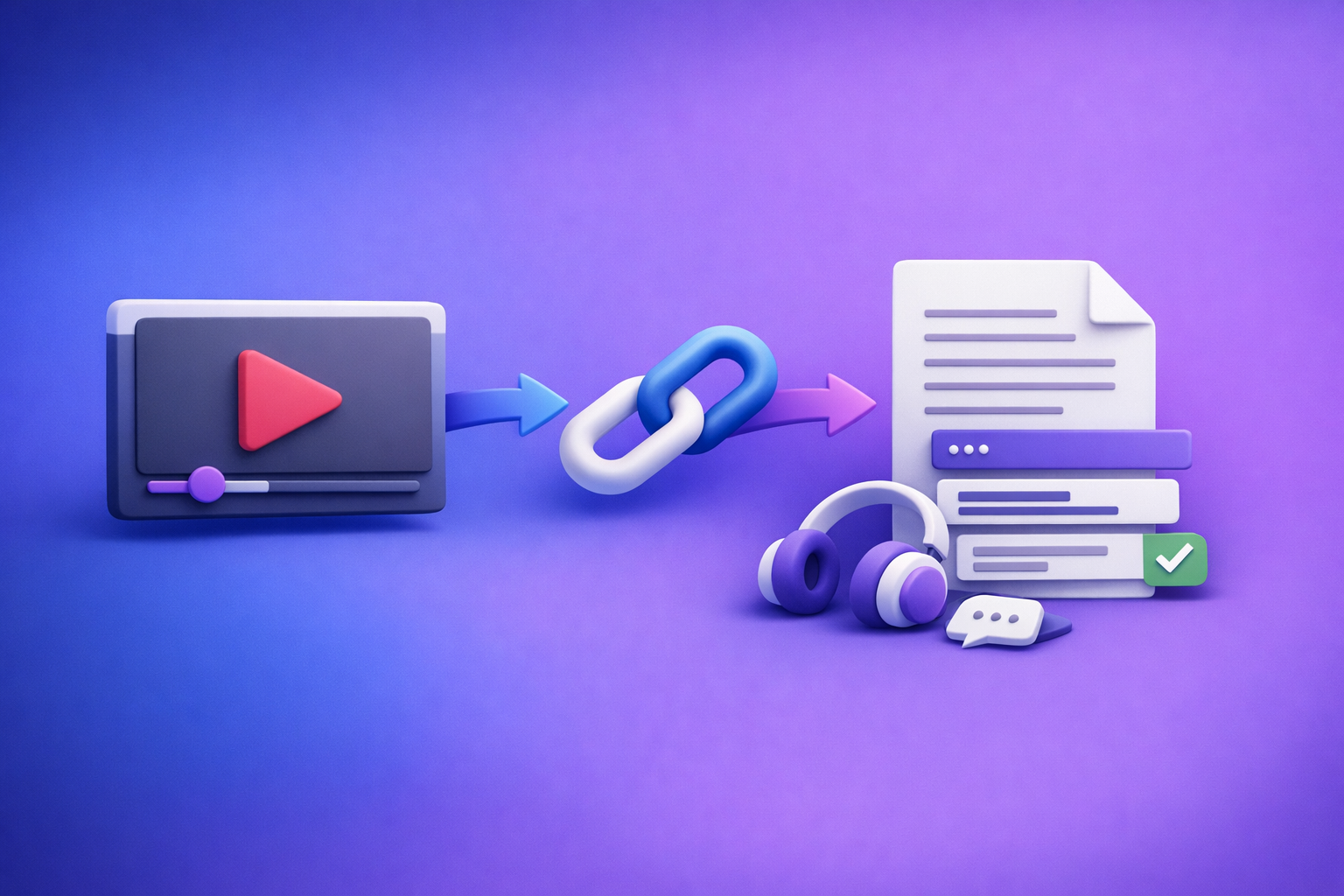
“Attachments Disabled” in ChatGPT Image Upload: Causes, Fixes, and a Production-Safe Link → Transcript Workflow (VideoToTextAI)
Fix “attachments disabled” by switching to an upload-capable client/model, clearing local state (cache/extensions), and removing network blockers (VPN/proxy). If your end goal is video/audio output (transcripts, captions, repurposing), skip fragile uploads and use a deterministic link → transcript/captions → ChatGPT-on-text workflow.
What “Attachments Disabled” Means (and What It Doesn’t)
“Attachments disabled” is a tooling/UI restriction, not a statement about whether the model can “understand images” in general. In practice, it means the current chat session can’t accept file inputs from your client/model/policy combination.
The UI states you’ll see (greyed-out paperclip, “Attachments disabled for…”, missing upload button)
Common symptoms include:
- Paperclip icon greyed out (can’t click)
- A banner like “Attachments disabled for …” (often truncated)
- No upload button where you normally see it
- Upload button appears, but fails instantly with no file picker
Attachments vs. vision: why image understanding can exist even when uploads are blocked
Two things can be true at once:
- The model may support vision/image reasoning.
- Your current environment may block file attachments (policy, client, model/tool selection).
So you might see image-capable marketing, but still have uploads disabled in your specific session.
When it’s your account vs. when it’s a platform-side restriction
Use this quick split:
- Account/workspace issue: happens consistently across time, often across devices, and may affect only your org.
- Platform-side restriction/outage: sudden change, many users report it, intermittent behavior, or only certain clients/models are impacted.
Fast Triage: Identify the Root Cause in 2 Minutes
Do these steps in order. Stop as soon as you find the cause.
Step 1 — Confirm where you’re using ChatGPT (Web vs iOS vs Android vs Desktop)
Write down:
- Web app (which browser + version)
- iOS app / Android app (app version)
- Desktop app (version)
Then test one alternate client (e.g., web ↔ mobile). If it works elsewhere, you’re dealing with a client/local state issue.
Step 2 — Check the model/tooling you selected (upload-capable vs not)
Uploads are tied to the model/tool configuration. If you’re in a model or mode that doesn’t expose attachments, the UI will disable them.
Quick test: start a new chat, then select a model known to support attachments in your environment, and re-check the paperclip.
Step 3 — Verify plan/workspace restrictions (personal, team, enterprise policies)
If you’re in a managed workspace, uploads may be disabled by policy. Confirm:
- Are you in a Team/Enterprise workspace?
- Does your org restrict file uploads for compliance?
Step 4 — Determine if you’re rate-limited or temporarily blocked
If you see:
- “Too many requests”
- repeated upload failures after many retries
- failures that resolve after waiting
…assume throttling and move to the rate-limit section below.
Step 5 — Test with a clean environment (incognito + no extensions)
On web:
- Open Incognito/Private window
- Sign in
- Try a single small PNG/JPG
- If it works: your normal profile has an extension/cache/policy conflict
Common Causes of “Attachments Disabled” for Image Upload
Account/plan limitations (feature not enabled for your tier or region)
Some accounts may not have attachments enabled due to:
- plan tier differences
- staged rollouts
- regional availability constraints
Workspace/admin policy blocks (enterprise compliance settings)
Enterprise controls can disable:
- file uploads
- external links
- data sharing features
If you’re on a corporate workspace, assume policy first.
Client-specific bugs (iOS app, mobile web, desktop app)
Common patterns:
- iOS app shows greyed paperclip after an update
- mobile web hides the upload control
- desktop app UI desync (button missing until relaunch)
Browser issues (extensions, tracking protection, cached UI state)
Typical culprits:
- ad blockers that block upload endpoints
- privacy extensions that modify requests
- strict tracking protection breaking session state
- stale cached UI assets
Network/security interference (VPN, corporate proxy, SSL inspection)
Uploads can fail or be disabled when:
- VPN routes through restrictive regions
- corporate proxy blocks multipart uploads
- SSL inspection breaks secure upload handshakes
Temporary service degradation (feature rollout, incident, partial outage)
Symptoms:
- works on one model but not another
- works on mobile but not web
- intermittent “attachments disabled” banners
Abuse-prevention triggers (too many requests, repeated failed uploads)
Repeated failures can trigger temporary restrictions. Retrying aggressively often makes it worse.
Step-by-Step Fixes (Do These in Order)
1) Switch to a known upload-capable environment
Web app: hard refresh + sign out/in
- Hard refresh the page (reload without cache)
- Sign out, then sign back in
- Start a new chat and re-check the paperclip
Try a different browser profile (no extensions)
- Create a fresh browser profile
- Install no extensions
- Test upload again
Try mobile app vs web (and vice versa)
If web fails, test mobile. If mobile fails, test web. This isolates client vs account/policy quickly.
2) Change the model/tool selection to one that supports attachments
Where to look in the UI
- In the chat header/model picker, select a model that explicitly supports attachments in your environment.
- Start a new chat after switching (some sessions keep old tool state).
How to confirm the attachment tool is actually enabled
You should see:
- a clickable paperclip
- a file picker opening
- the file preview “chip” before sending
If the paperclip is still disabled, move on—this is likely policy, local state, or network.
3) Clear the local state that commonly breaks uploads
Clear site data/cache for chat.openai.com
On web, clear:
- site data
- cookies
- cached images/files
Then restart the browser and sign in again.
Disable extensions that modify requests (ad blockers, privacy tools)
Temporarily disable:
- ad blockers
- script blockers
- privacy/tracker blockers
- antivirus “web shield” features
Turn off “strict” tracking protections for the session
If your browser has strict protections, set them to standard for the session and retest.
4) Remove network variables
Disable VPN temporarily
Turn off VPN and retry. If it works, your VPN route is the issue.
Try a different network (hotspot test)
Use a phone hotspot for a quick A/B test. If hotspot works, your primary network is interfering.
Corporate networks: what to ask IT to check (proxy/inspection)
Ask IT whether they:
- block multipart/form-data uploads
- perform SSL inspection on upload endpoints
- restrict file transfer categories
- require allowlisting for the upload domains
Provide the exact timestamp and client type to help them trace logs.
5) Rule out rate limits and temporary blocks
Signs you’re throttled (“too many requests”, repeated failures)
- errors after many rapid retries
- failures across multiple files
- success after waiting 10–30 minutes
What to do: wait window + reduce retries + smaller files
- Stop retries for 10–30 minutes
- Retry once with one small PNG/JPG
- Avoid batch uploads until stable
6) Update/reinstall the client (mobile/desktop)
iOS: update app + restart device
- Update the ChatGPT app
- Force close and reopen
- Restart device if the UI remains stuck
Android: clear cache + update
- Clear app cache
- Update app
- Re-test on a new chat
Desktop app: update + relaunch
- Update the desktop app
- Fully quit (not just close window)
- Relaunch and test
7) If you’re in a managed workspace: confirm admin settings
What to request from your admin (file uploads/attachments policy)
Ask whether your workspace disables:
- file attachments/uploads
- image inputs
- external content ingestion
Evidence to provide (timestamp, screenshot, client version)
Send:
- screenshot of the disabled UI
- timestamp + timezone
- client type + version
- whether it reproduces on another device/network
Image Upload Constraints That Trigger Failures (Even When Attachments Are Enabled)
Even with attachments enabled, uploads can fail silently due to file specifics.
File size limits and why “small” images can still fail (metadata, HEIC)
A “small” photo can carry large metadata or be in a format that triggers conversion. If uploads fail:
- export a fresh copy (strips metadata)
- reduce dimensions
- try a different format
Unsupported formats (HEIC/WEBP edge cases) and how to convert safely
If you’re on iPhone, HEIC is common. Convert to:
- PNG for screenshots/diagrams
- JPG for photos
Use your OS export/share options to “Save as” PNG/JPG.
Multi-image uploads vs single-image: when batching breaks
Batching can fail even when single uploads work. Troubleshoot with:
- one image only
- then two images
- then your full set
Filename/path issues (special characters) that cause silent failures
Rename files to something simple:
image-01.png- avoid emojis, quotes, and non-Latin characters
- keep paths short (avoid deep nested folders)
Workarounds When You Can’t Upload Images (Still Need Results)
Option A — Use a shareable link instead of an attachment (when supported)
If your environment allows links, host the image somewhere accessible and paste the URL. This avoids the attachment tool entirely (but depends on link access rules).
Option B — Convert the image to text locally (OCR) and paste the extracted text
If your goal is extracting text from a screenshot:
- run OCR locally (phone “copy text from image” or desktop OCR)
- paste the text into ChatGPT
- ask for cleanup, structuring, or summarization
Option C — If your real goal is video/audio: skip ChatGPT uploads and use a deterministic transcript pipeline
If you’re trying to upload a video frame, a slide deck screenshot, or anything tied to a video workflow, uploads are the wrong dependency. Downloading video files is an outdated workflow—it adds friction, breaks on device limits, and doesn’t scale for teams.
Use an artifact-first pipeline: link/MP4 → transcript/captions → ChatGPT-on-text.
Production-Safe Alternative for Video Work: Link/MP4 → Transcript/Captions → ChatGPT-on-Text (VideoToTextAI)
Why “upload to ChatGPT” is not a reliable transcription/captioning pipeline
For production work, you need:
- repeatable outputs
- timecodes (SRT/VTT)
- QA checkpoints
- exports you can store and reuse
Attachment UIs are inherently fragile: client bugs, policy blocks, rate limits, and file constraints can stop delivery at the worst time.
The artifact-first workflow (repeatable, QA-able, export-ready)
Step 1 — Start with a video link (YouTube, TikTok, Instagram, podcast host) or MP4
Prefer links over downloads. Link-based ingestion is the future of creator productivity because it removes device storage constraints and reduces handoffs.
If you need a starting point, see: Give Me the Text: How to Extract Text From Any Video Link (Transcripts, Captions, and Repurposing) with VideoToTextAI
Step 2 — Generate deliverables: TXT transcript + SRT/VTT captions (timecoded)
Create artifacts you can ship:
- TXT for editing and repurposing
- SRT/VTT for captions and accessibility
Related tools:
Step 3 — QA the artifacts (spot-check timestamps, speaker names, punctuation)
Do a fast QA pass:
- check 3–5 random timestamp segments
- verify speaker labels if needed
- correct obvious punctuation issues that affect readability
Step 4 — Paste transcript into ChatGPT for summaries, chapters, hooks, repurposing
Once you have clean text, ChatGPT becomes reliable:
- summaries and key takeaways
- chapter titles + timestamps (based on transcript timecodes)
- hooks, intros, and social snippets
- blog outlines and drafts
For deeper context on what works (and what doesn’t) with uploads, reference:
- Upload Video to ChatGPT in 2026: What Actually Works (and the Production-Safe Link → Transcript Workflow)
- ChatGPT “Upload Video” Feature (2026): What Works, Why Uploads Fail, and the Production-Safe Link → Transcript Workflow
Step 5 — Export and publish (captions to platform, transcript to CMS)
Ship outputs as files your team can reuse:
- upload SRT/VTT to YouTube/LinkedIn/etc.
- publish transcript to your CMS for SEO
- archive artifacts for future repurposing
Where VideoToTextAI fits (what you get that “uploads” don’t)
VideoToTextAI is built for link-based video-to-text workflows so you can stop depending on brittle attachment UIs.
- Deterministic outputs (TXT/SRT/VTT) you can store, version, and reuse
- Link-based ingestion (no fragile “paperclip” dependency)
- Repurposing workflows (blog/social drafts) from the same source text, e.g. YouTube to Blog and TikTok to Transcript
If you want a production-safe pipeline that starts from links (not downloads), use VideoToTextAI: VideoToTextAI
Checklist: Fix “Attachments Disabled” + Ship Your Output Anyway
Troubleshooting checklist (attachments)
- Confirm client (web/iOS/Android/desktop) and update it
- Switch to an upload-capable model/tool selection
- Hard refresh + sign out/in
- Disable extensions + clear site data
- Test without VPN + on a different network
- Retry with a single PNG/JPG under a conservative size
- If managed workspace: request admin policy confirmation
Delivery checklist (production-safe workflow)
- Use link/MP4 → generate TXT + SRT/VTT
- QA transcript accuracy + timestamps
- Use ChatGPT on the text for summaries/chapters/repurposing
- Publish captions + archive artifacts for reuse
Competitor Gap
What most “attachments disabled” answers miss (and what this post adds):
- A deterministic decision tree (client → model/tool → account/workspace → network) instead of “try again later”
- Concrete constraints (HEIC/metadata, batching, filenames) that cause silent failures even when uploads are enabled
- A production-safe fallback for video/audio deliverables: artifact-first outputs (TXT/SRT/VTT) you can QA and ship
- Reusable checklists teams can standardize for troubleshooting and delivery
FAQ
Why is my ChatGPT not allowing me to upload pictures?
Usually one of these:
- you’re in a client/model that doesn’t support attachments
- your workspace admin disabled uploads
- your browser extensions/cache broke the upload UI
- your network (VPN/proxy/SSL inspection) is interfering
- you’re temporarily rate-limited
Run the 2-minute triage and test incognito + hotspot to isolate the category fast.
Why are attachments disabled for ChatGPT?
Because attachments are controlled by tool availability and policy. If the model/tool selection doesn’t expose uploads—or your plan/workspace policy blocks them—the UI will show “attachments disabled.”
Why are my ChatGPT uploads disabled?
If it worked before and suddenly stopped, suspect:
- client bug after an update
- cached UI state
- extension interference
- partial outage/rollout
- rate limiting after repeated retries
Switch clients, clear site data, and test another network to confirm.
Why is ChatGPT not letting me attach files?
File attachments can be blocked by:
- enterprise compliance settings
- unsupported file formats (HEIC/WEBP edge cases)
- filename/path issues
- network security tools
Try a single image-01.png first to remove file variables.
What does “image upload greyed out” mean in the ChatGPT app?
It typically means the current session cannot use attachments due to model/tool selection, policy restrictions, or a client state bug. Switching models, updating the app, and restarting the session usually resolves client-side causes.
Related posts
Reel Analyser (Instagram Reels): Transcript‑First Competitor Research, Hook/CTA Extraction, and Repurposing Workflow (VideoToTextAI)
Video To Text AI
A 2026 reel analyser should turn Instagram Reel links into a searchable transcript library you can tag for hooks, CTAs, objections, and topic clusters—then export into repurposing-ready drafts without a download/upload loop.
Traducir video de Instagram (Reels) en 2026: workflow transcript-first para traducir, sacar hooks/CTAs y repurpose (con VideoToTextAI)
Video To Text AI
Aprende a traducir un Reel de Instagram con un flujo URL→transcripción→traducción→subtítulos, y a convertir esa traducción en un activo de investigación para hooks, CTAs, objeciones y clusters de contenido.
Reel Analyzer: Transcript‑First Instagram Reels Research (Hooks, CTAs, Objections) + Workflow Guide (VideoToTextAI)
Video To Text AI
A reel analyzer should turn any public Instagram Reel link into a searchable transcript library you can mine for hooks, CTAs, objections, and topic clusters—then repurpose into original drafts with a repeatable SOP.