
Give Me the Text: How to Extract Text From Any Video Link (Transcripts, Captions, and Repurposing) with VideoToTextAI
 Video To Text AI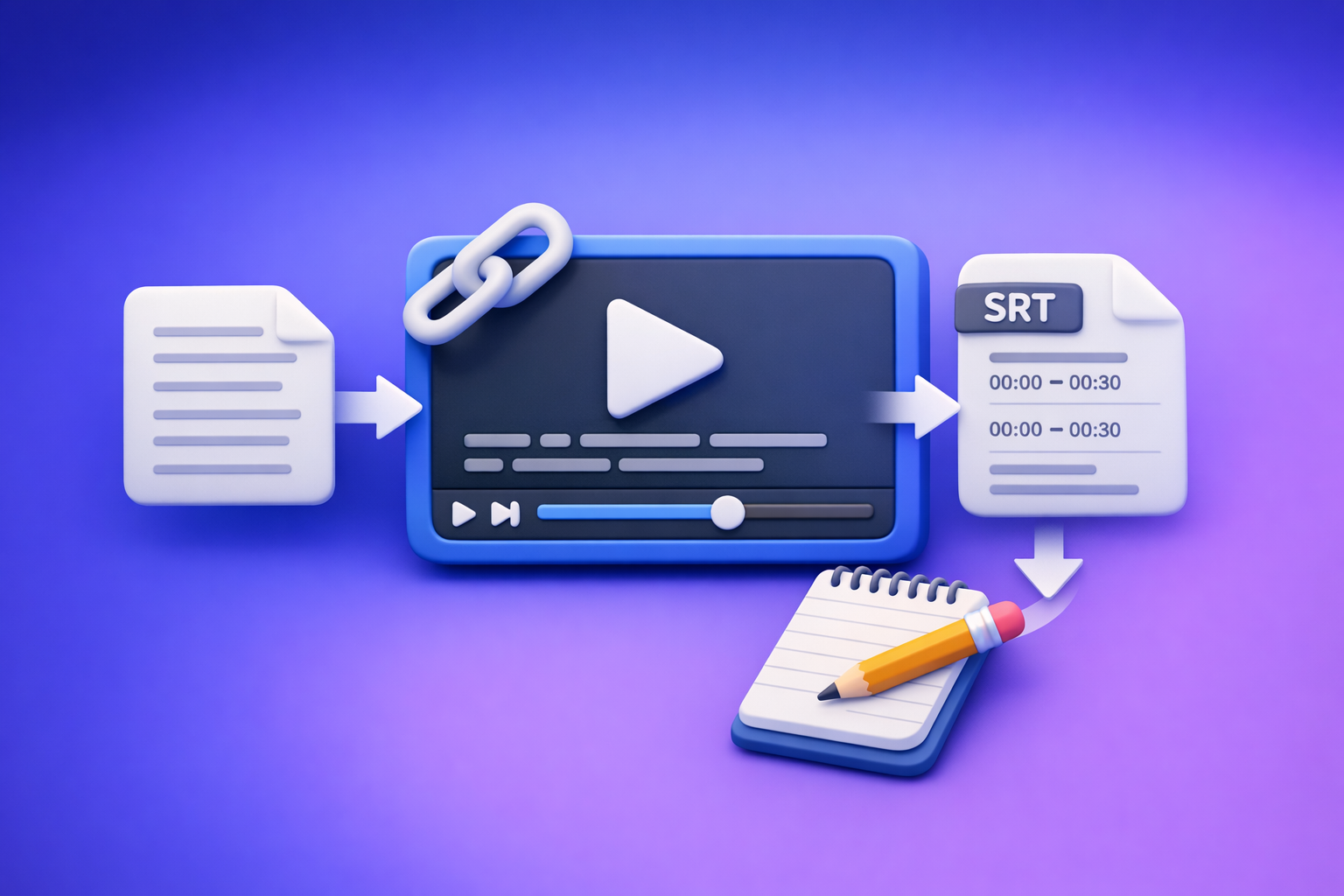
Give Me the Text: How to Extract Text From Any Video Link (Transcripts, Captions, and Repurposing) with VideoToTextAI
Paste a video link, generate a clean transcript, then export captions (SRT/VTT) and repurpose the text into posts, summaries, and chapters. The fastest production workflow is link → transcript (TXT) → captions (SRT/VTT) → repurposed assets, not downloading files and re-uploading them everywhere.
What “Give Me the Text” Usually Means (and Why Search Results Miss It)
Search results for “give me the text” often assume you mean phone messaging. In practice, people usually want one of three different outputs, and each requires a different workflow.
The 3 common meanings
-
“Show me my SMS texts” (phone messaging intent)
You’re trying to open Messages, recover threads, or fix sending/receiving. -
“Convert audio/video into text” (transcription intent)
You want the spoken words from a video as a transcript and captions. -
“Copy text from media” (OCR/screenshot intent)
You want text that appears inside video frames (slides, lower-thirds, on-screen quotes).
Quick self-check: which one you need (30 seconds)
- If you need messages → use your phone’s Messages app/settings.
- If you need words spoken in a video → you need transcription + captions.
- If you need text inside frames → you need OCR (different workflow).
This article focuses on the most common “creator/productivity” meaning: turning a video link into usable text.
The Fastest Way to “Get the Text” From a Video (Link → Transcript)
If your video exists on a platform (YouTube, TikTok, Instagram, etc.), downloading the file is an outdated workflow. Link-based extraction is the future of creator productivity because it removes file handling, version confusion, and upload failures.
What you’ll get (deliverables)
- Clean transcript (TXT) for editing, quoting, and SEO reuse
- Subtitles/captions (SRT/VTT) for publishing and editors
- Optional content assets:
- Summary
- Chapters / timestamps
- Hooks
- Social posts
What you need before you start
- A public or accessible video link (or an MP4 if access is restricted)
- A clear target output:
- Transcript (source-of-truth text)
- Captions (timestamped publishing format)
- Repurposed content (posts, blogs, show notes)
If your end goal is content repurposing, start with a transcript-first tool like youtube to blog rather than trying to “copy captions” manually.
Step-by-Step: Link → Transcript → Captions Using VideoToTextAI
This is a production-safe, repeatable workflow built around artifacts (files you can QA and ship). The key is to treat the transcript as the source-of-truth, then generate captions from that cleaned text.
Step 1: Choose your input type (link vs MP4)
-
Use a link when the platform hosts the video.
This is faster, cleaner, and avoids the “download → upload → fail” loop. -
Use MP4 when the video is private, unlisted without access, or locally stored.
If you’re working from a file, use mp4 to transcript to generate the base text.
If you’re converting a social video directly, start with purpose-built link workflows like tiktok to transcript or instagram to text.
Step 2: Generate the transcript (artifact-first)
Create the transcript first (TXT) to lock the source-of-truth text. This prevents caption timing issues caused by messy punctuation, unclear speaker turns, or incorrect language detection.
Do a quick setup check:
- Language: confirm the correct language (or verify auto-detect)
- Speaker clarity: identify overlapping speakers, music, or low volume
- Terminology: note brand names, product terms, acronyms
If you’re comparing workflows, see why upload-based approaches fail in production: ChatGPT “Upload Video” Feature: What Works, Why It Fails, and the Production-Safe Link → Transcript Workflow (VideoToTextAI).
Step 3: Export captions (SRT/VTT) for publishing
Once the transcript reads cleanly, export captions in the format your platform/editor expects.
-
Use SRT when you need broad compatibility (most editors/platforms).
If you’re starting from a file workflow, use mp4 to srt. -
Use VTT when you’re working with web players or platforms that prefer WebVTT.
For file-based exports, use mp4 to vtt.
Rule of thumb: if you’re unsure, export SRT first.
Step 4: QA the output (2-minute accuracy pass)
Do a fast, systematic check before you publish or hand off to a client.
- Names/brands/terms: correct spellings (people, companies, products)
- Punctuation: improve readability (especially for captions)
- Timestamps: confirm pacing and alignment with speech
You’re not trying to perfect every line. You’re trying to remove the errors that create rework downstream.
Step 5: Repurpose the transcript into content assets
Once you have a clean transcript, repurposing becomes deterministic (not “guessing what was said”).
Turn one transcript into:
- Blog post (SEO-friendly structure + headings)
- LinkedIn post (strong hook + 3–5 takeaways)
- Twitter/X thread (step-by-step points + quotes)
- Hooks (first 3 seconds / first 2 lines)
- Summaries + chapters (for navigation and retention)
For long-form YouTube, a direct workflow like youtube to blog is usually the fastest path from video to publishable text.
Implementation Options by Use Case (Pick One Workflow)
Choose the workflow based on where the video lives and what you’re shipping (transcript, captions, or repurposed content). The consistent theme: link-based extraction beats download-first for speed, reliability, and team handoffs.
YouTube link → transcript + blog content
Best for long-form repurposing and SEO.
- Generate transcript from the link
- Clean up headings/sections
- Convert into a blog draft with clear H2s and takeaways
- Pull quotes for social distribution
TikTok link → transcript + captions
Best for short-form editing, subtitle burn-ins, and quote extraction.
- Generate transcript from the TikTok link
- Export SRT for your editor
- Pull 3–5 quotable lines for overlays and descriptions
If TikTok is your pipeline, start here: tiktok to transcript.
Instagram Reel link → transcript + hooks + cross-post copy
Best for creators and social teams reusing the same video across channels.
- Generate transcript from the Reel link
- Extract hooks (first 1–2 sentences)
- Create platform-specific captions (IG, TikTok, Shorts, LinkedIn)
A direct Reel workflow reduces manual copying: instagram to text.
Podcast episode → transcript + show notes
Best for episode pages, summaries, and searchable archives.
- Generate transcript
- Create show notes with:
- Summary
- Key topics
- Timestamped chapters
- Links/resources mentioned
This turns audio into an indexable content library instead of a “listen-only” asset.
MP4 file → transcript + SRT/VTT
Best for internal recordings, webinars, trainings, and client deliverables.
- Upload MP4 only when link access isn’t possible
- Generate transcript (TXT) first
- Export SRT/VTT for the platform/editor
If you’re stuck with files, keep it simple: mp4 to transcript.
Troubleshooting: Why You Can’t “Get the Text” (and How to Fix It)
Most failures come from access, audio quality, or caption formatting expectations. Fix the root cause and the workflow becomes repeatable.
Link access failures
Common causes:
- Video is private
- Video requires login
- Video is geo-restricted
- Link is expired or not publicly reachable
Fix:
- Use an accessible link (correct permissions, no login wall), or
- Upload the MP4 if you have rights and access
Production note: if your team keeps “downloading to make it work,” you’re treating a permissions problem as a file problem. Solve access first.
Audio quality issues that reduce accuracy
Common causes:
- Background noise or music
- Multiple speakers talking over each other
- Low volume or distorted audio
- Re-uploads with compressed audio
Fix:
- Use the cleanest audio source available
- Prefer the original upload over re-uploads
- If possible, use a version with clearer mic capture
Caption timing looks wrong
Common causes:
- Fast speech + long sentences
- Missing punctuation in the transcript
- Wrong export format for the platform
Fix:
- Clean up the transcript first, then regenerate captions
- Verify whether you need SRT vs VTT
- Keep caption lines readable (avoid walls of text)
Checklist: Production-Safe “Give Me the Text” Workflow
Use this checklist to make the process QA-able and repeatable across a team. The goal is to ship consistent artifacts: TXT → SRT/VTT → repurposed assets.
Input checklist
- Video link is accessible (no login wall / permissions confirmed)
- Correct language selected (or auto-detect verified)
- Goal defined: TXT transcript, SRT/VTT captions, or repurposed content
Transcript QA checklist
- Names/brands corrected
- Paragraphing and punctuation readable
- Speaker changes marked (if needed)
Caption QA checklist
- Timestamps align with speech
- Line length readable (no walls of text)
- Export format matches platform (SRT vs VTT)
Repurposing checklist
- Summary matches the transcript (no invented claims)
- Chapters/hooks pulled from exact quotes
- Final assets mapped to channels (blog/social/email)
Competitor Gap
What top results focus on (and why it’s the wrong match)
Top results for “give me the text” are dominated by:
- App store listings for SMS texting
- Help docs for Messages setup and troubleshooting
That content is useful if you mean “open my texts,” but it doesn’t solve video-to-text extraction from a link.
What they don’t provide (and this outline includes)
- A deterministic artifact-first workflow: TXT → SRT/VTT → repurposing
- Troubleshooting for:
- link access (private/geo/login)
- audio quality issues
- caption timing and formatting
- A production checklist for repeatable, QA-able deliverables
How VideoToTextAI closes the gap
VideoToTextAI is built for link-based video-to-text workflows—transcripts, subtitles, captions, and repurposed content—without relying on inconsistent “download and upload” steps. If you want to stop managing files and start shipping text assets faster, use VideoToTextAI.
FAQ
How can I see all my text messages?
If you mean SMS/iMessage, open your phone’s Messages app and ensure the correct account/SIM is active. If you mean “text from a video,” you need a transcript workflow (link/MP4 → transcript).
Why won’t I receive texts?
For SMS/iMessage issues, check signal, airplane mode, carrier status, and messaging settings. If you’re trying to “receive text” from a video link, the issue is usually link access (private/geo/login) and you should use an accessible link or an MP4 upload.
How do I text from my phone?
Use your default Messages app (Android: Google Messages; iPhone: Messages) and confirm it’s set as the default SMS app (Android) or iMessage/SMS is enabled (iPhone).
How do I text for free?
Use internet-based messaging (e.g., iMessage over Wi‑Fi, RCS where supported, or messaging apps). If you meant “get the text for free” from a video, free tools often limit exports/accuracy; for production outputs (TXT + SRT/VTT), use a dedicated workflow.
Related posts
Reel Analyser (Instagram Reels): Transcript‑First Competitor Research, Hook/CTA Extraction, and Repurposing Workflow (VideoToTextAI)
Video To Text AI
A 2026 reel analyser should turn Instagram Reel links into a searchable transcript library you can tag for hooks, CTAs, objections, and topic clusters—then export into repurposing-ready drafts without a download/upload loop.
Traducir video de Instagram (Reels) en 2026: workflow transcript-first para traducir, sacar hooks/CTAs y repurpose (con VideoToTextAI)
Video To Text AI
Aprende a traducir un Reel de Instagram con un flujo URL→transcripción→traducción→subtítulos, y a convertir esa traducción en un activo de investigación para hooks, CTAs, objeciones y clusters de contenido.
Reel Analyzer: Transcript‑First Instagram Reels Research (Hooks, CTAs, Objections) + Workflow Guide (VideoToTextAI)
Video To Text AI
A reel analyzer should turn any public Instagram Reel link into a searchable transcript library you can mine for hooks, CTAs, objections, and topic clusters—then repurpose into original drafts with a repeatable SOP.