
Upload Video to ChatGPT in 2026: What Actually Works (and the Production-Safe Link → Transcript Workflow)
 Video To Text AI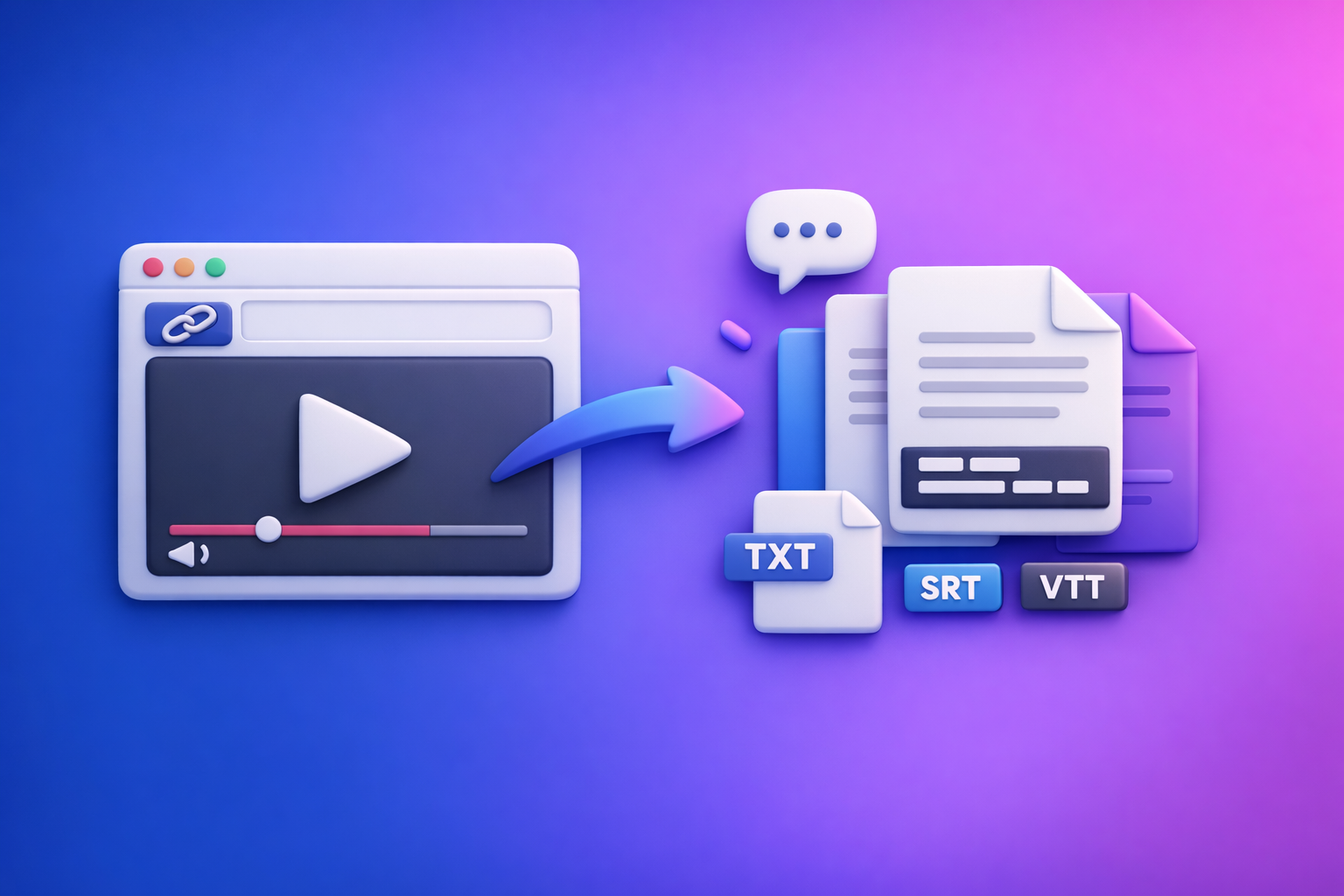
ChatGPT video uploads are unreliable in 2026, so the fastest “works every time” approach is link/MP4 → transcript/captions (TXT/SRT/VTT) → ChatGPT on text. If you need deliverables you can ship (captions, subtitles, quotes, chapters), treat the transcript files as the source of truth and use ChatGPT for formatting and repurposing.
What “Upload Video” in ChatGPT Really Means in 2026
Video upload vs. video understanding vs. transcript generation
People say “upload video to ChatGPT,” but they usually mean one of three different outcomes:
- Upload: You can attach a file in the chat UI.
- Understanding: The model can interpret frames/audio well enough to answer questions.
- Transcript generation: You get exportable text artifacts (clean transcript + captions).
In practice, upload ≠ guaranteed understanding, and understanding ≠ production-grade transcript/captions.
Why results vary by plan, client (web/mobile/desktop), and rollout
ChatGPT capabilities vary by:
- Plan: features can be gated or rate-limited.
- Client: web vs. iOS/Android vs. desktop can differ.
- Rollout timing: attachment/video features can be enabled gradually.
That’s why “it works for my friend” is common—and why production workflows shouldn’t depend on native upload availability.
When ChatGPT is “good enough” vs. not
ChatGPT video upload is often “good enough” when you need:
- A quick explanation of what happens in a short clip
- A rough list of topics or objects
- A sanity check on a moment you already know
It’s usually not good enough when you need:
- Export-ready transcript/captions (TXT/SRT/VTT)
- Reliable timestamps across longer videos
- Repeatable outputs for a team workflow
- Compliance-friendly handling of sensitive footage
Quick Answer: The Most Reliable Workflow (Link/MP4 → Transcript/Caption Files → ChatGPT-on-Text)
If your goal is transcripts, subtitles, captions, or repurposed content, the most reliable workflow is artifact-first:
- Generate TXT + SRT/VTT from a link or file.
- QA the text quickly (names, numbers, jargon).
- Use ChatGPT on the text for summaries, chapters, posts, and scripts.
Why “artifact-first” beats “upload-first” for production work
Upload-first fails in predictable ways: missing buttons, timeouts, partial analysis, and unverifiable “watched it” responses.
Artifact-first gives you:
- Deterministic files you can store, version, and reuse
- Easy QA (search within text)
- A clean input for ChatGPT that reduces hallucinations
This is also why downloading video files is an outdated workflow for creators and teams. Link-based extraction is the future of creator productivity because it removes the “download → convert → upload” loop.
Outputs you should generate first (TXT, SRT, VTT) and why each matters
Generate these artifacts up front:
- TXT transcript: best for editing, summarizing, SEO, and repurposing.
- SRT captions: common for social platforms and editors; includes timestamps.
- VTT captions: common for web players and accessibility workflows.
If you’re building a repeatable pipeline, these files become your single source of truth.
What you use ChatGPT for after you have text
Once you have a transcript, ChatGPT becomes extremely reliable for:
- Summaries and key takeaways
- Chapters and titles
- Quote extraction and highlights
- Blog posts and social threads
- Caption rewrites for retention
Step-by-Step: How to Upload a Video to ChatGPT (Web + Mobile) Without Wasting Time
If you insist on native upload, optimize for the highest chance of success.
Step 1 — Confirm you’re in a chat that supports attachments
Look for an attachment/paperclip or “+” button.
If it’s missing:
- Try a different client (web ↔ mobile).
- Confirm you’re logged into the correct account.
- Start a new chat (some tools/features are chat-specific).
Step 2 — Upload the smallest viable clip (trim first if needed)
Don’t start with a 20-minute file.
- Trim to 30–120 seconds that contains the moment you need analyzed.
- Remove dead air and long intros.
- If you need the whole video transcribed, skip upload and use an artifact-first workflow.
Step 3 — Use a prompt that forces structured output
Avoid “What happens in this video?” Use constraints that force verifiable structure.
Example prompt pattern:
- Output format (headings/bullets)
- Timestamp references (if possible)
- What to ignore (music, B-roll)
- What to extract (claims, steps, numbers)
Step 4 — Validate the output against the video (spot-check method)
Spot-check three moments:
- Early (first 10–20%)
- Middle (around 50%)
- Late (last 10–20%)
If the model invents details, treat the entire output as non-production.
Step 5 — Export/copy results and document constraints for repeatability
Document what worked:
- Client used (web/iOS/Android)
- Clip length
- Encoding settings
- Prompt template
This is the only way to make native upload semi-repeatable across a team.
Why ChatGPT Video Uploads Fail (Fast Diagnosis)
Missing upload button (account/plan/client mismatch)
Most “can’t upload” issues are not user error—they’re capability mismatch.
Common causes:
- Feature not enabled on your plan
- Mobile app supports it but web doesn’t (or vice versa)
- Temporary rollout/experiment state
File size, duration, codec, and container issues (MP4/MOV isn’t enough)
“MP4” describes a container, not the encoding.
Failures often come from:
- Unsupported codec (video/audio)
- Variable frame rate edge cases
- Multiple audio tracks
- High bitrates or unusual profiles
Slow processing, timeouts, and partial analysis on longer videos
Longer videos increase:
- Upload time
- Processing time
- Timeout risk
- Partial outputs (model stops early)
“Watched it” hallucinations vs. verifiable extraction
If the output includes:
- Specific claims you can’t find in the clip
- Confident descriptions of off-screen events
- Incorrect names/numbers
Assume hallucination and switch to transcript-first.
Privacy/security constraints (what not to upload)
Avoid uploading:
- Client confidential footage
- Medical/financial identifiers
- Internal product demos under NDA
- Anything you can’t risk being stored/processed externally
For sensitive content, use controlled transcription artifacts and minimize sharing raw media.
Troubleshooting Playbook: Fix “ChatGPT Video Upload Failed” in Under 10 Minutes
1) Reduce variables: trim to 30–120 seconds and retry
This isolates whether the issue is duration/size.
2) Re-encode to a baseline MP4 (H.264 + AAC) and retry
Use a baseline profile:
- Video: H.264
- Audio: AAC
- Container: .mp4
3) Remove subtitles/extra audio tracks; keep one audio stream
Extra tracks can break ingestion.
Export a “clean” file with:
- One video track
- One audio track
- No embedded subtitles
4) Switch client (web ↔ mobile) and retest
If web fails, try mobile (or the reverse). Client capability differences are common.
5) If you need transcripts/captions: stop uploading and switch workflows
If the goal is deliverables, don’t debug uploads endlessly. Generate TXT/SRT/VTT first and move on.
Production-Safe Workflow with VideoToTextAI (Recommended for Transcripts, Subtitles, Captions)
Native video upload is a convenience feature. Production work needs artifacts you can export, QA, and reuse.
VideoToTextAI is built for AI link-based video-to-text workflows—the modern alternative to downloading files just to re-upload them elsewhere. Use it when you need transcripts, subtitles, captions, and repurposed content at scale. Use it here: https://videototextai.com
Step-by-step: Link-based extraction (YouTube/TikTok/Instagram/Reels) → export files
Step 1 — Paste the video link (or upload MP4 if you must)
Link-based extraction removes the slowest steps:
- No “download → rename → upload”
- No local storage clutter
- Faster iteration for creators and teams
If you’re working from a platform link, start with a link.
Step 2 — Generate transcript (TXT) + captions (SRT/VTT)
Export the artifacts you’ll actually ship:
- TXT for editing/SEO/repurposing
- SRT/VTT for captions/subtitles
If you need tool-specific help, see:
Step 3 — QA pass: search for names, numbers, jargon; fix obvious errors
Do a fast QA sweep:
- Proper nouns (people, brands, products)
- Numbers (prices, dates, metrics)
- Acronyms and technical terms
This takes minutes and prevents downstream content errors.
Step 4 — Feed the transcript into ChatGPT for structured outputs
Now ChatGPT is operating on text, which is:
- Faster to process
- Easier to verify
- More consistent for structured outputs
For link-based repurposing workflows, also see:
- Give Me the Text: How to Extract Text From Any Video Link (Transcripts, Captions, and Repurposing) with VideoToTextAI
- YouTube to Blog
- TikTok to Transcript
Step-by-step: MP4-first extraction when you only have a file
Step 1 — Upload MP4 to VideoToTextAI
Use this when you truly don’t have a link (internal recordings, camera files).
Step 2 — Export TXT + SRT/VTT
Treat these exports as your master artifacts.
Step 3 — Use ChatGPT on the exported text (not the video)
This is the key shift: ChatGPT is your text intelligence layer, not your ingestion layer.
For more context on why this works, reference:
- Upload Video in ChatGPT (2026): What Works, Why It Fails, and the Production-Safe Link → Transcript Workflow
- ChatGPT “Upload Video” Feature: What Works in 2026, Why Uploads Fail, and the Production-Safe Link → Transcript Workflow (VideoToTextAI)
Copy/Paste Prompt Templates (Built for Repeatable Outputs)
Use these after you have a transcript (preferably timecoded).
Template A — Chapters + timestamps (requires timecoded transcript)
You are an editor. Create chapters from the transcript below.

Requirements:
- Output as a table with columns: Start time, Chapter title (max 60 chars), Summary (1–2 bullets).
- Use the existing timestamps in the transcript; do not invent times.
- Create 6–12 chapters depending on topic shifts.
- Keep titles action-oriented and specific.

Transcript:
[PASTE TIMECODED TRANSCRIPT]
Template B — Clean transcript formatting (speaker labels, punctuation rules)
Clean and format this transcript for publishing.

Rules:
- Add speaker labels as Speaker 1, Speaker 2 (do not guess names).
- Fix punctuation and capitalization.
- Remove filler words only when they do not change meaning (um, uh, like).
- Preserve technical terms, numbers, and quoted phrases exactly.
- Output in Markdown with short paragraphs (max 3 sentences).

Transcript:
[PASTE TRANSCRIPT]
Template C — Repurpose into blog + LinkedIn + X thread from transcript
Repurpose the transcript into 3 assets:

1) SEO blog post:
- 900–1200 words
- H2/H3 structure
- Include a concise intro (2–3 sentences) and a conclusion with next steps
- Use the transcript as the only source; do not add facts

2) LinkedIn post:
- 180–250 words
- 1 strong hook, 3–5 bullets, 1 question

3) X thread:
- 8–12 tweets
- Each tweet <= 240 characters
- Include 1 CTA tweet that points back to the blog (no external links)

Transcript:
[PASTE TRANSCRIPT]
Template D — Caption rewrite for retention (hook, pacing, line length constraints)
Rewrite these captions for retention.

Constraints:
- Keep meaning the same; do not add new claims.
- Max 2 lines per caption, max 32 characters per line.
- Prefer strong verbs and concrete nouns.
- Add a hook in the first 2 captions.
- Keep timestamps unchanged.

SRT/VTT text:
[PASTE CAPTION TEXT]
Implementation Checklist (Use This Before You Hit “Upload”)
Upload-to-ChatGPT checklist (when you insist on native upload)
- Confirm attachment support in your client/account
- Trim to the shortest clip that answers the question (30–120 seconds)
- Ensure baseline MP4 encoding (H.264/AAC)
- Write a structured-output prompt (headings + bullets + constraints)
- Spot-check 3 moments in the video against the output
Production deliverables checklist (recommended)
- Generate TXT transcript
- Generate SRT + VTT captions
- QA: names, numbers, acronyms, brand terms
- Run ChatGPT on text for: summary, chapters, titles, repurposed assets
- Store artifacts (TXT/SRT/VTT) as the source of truth
Use Cases: What to Do After You Have the Transcript
Turn a video into a blog post (SEO-first)
Use the transcript to produce:
- A keyword-targeted outline
- Clean H2/H3 structure
- Quote blocks and “key takeaway” sections
Text-first SEO is faster because you can search, edit, and validate without scrubbing a timeline.
Create subtitles/captions for publishing workflows
Export SRT/VTT and:
- Upload directly to platforms that support caption files
- Hand off to editors without rework
- Maintain consistent timing across versions
Create multilingual versions (translate from transcript, not from video)
Translate the transcript, then regenerate captions.
This avoids:
- Misheard phrases being “locked in”
- Timing drift from ad-hoc translation
- Unverifiable video-based translation guesses
Extract hooks, highlights, and short-form scripts
From the transcript, extract:
- 5–10 hooks
- 10–20 highlight lines
- Short-form scripts (15–45 seconds) with clear beats
This is where link-based extraction shines: you can repurpose at scale without managing piles of downloaded files.
Competitor Gap
Most competitor posts focus on “try uploading your video” and stop there. This post adds what production teams actually need:
- A deterministic artifact-first workflow that produces export-ready TXT/SRT/VTT (not just “upload and hope”)
- A 10-minute troubleshooting playbook with re-encode + client-switch steps
- Copy/paste prompt templates that enforce structured, reusable outputs
- A pre-flight checklist for repeatable results and QA
FAQ
Can I upload a video on ChatGPT?
Sometimes. If your client/account shows an attachment option, you may be able to upload short clips, but availability and reliability vary by plan and rollout.
Can I upload a video to ChatGPT to analyze?
Yes for limited analysis, especially on short clips. For anything you need to ship (transcripts/captions), generate TXT/SRT/VTT first and analyze the text.
Can ChatGPT watch videos you upload to it?
It can interpret some uploaded video content in supported environments, but outputs can be partial or inconsistent. Verifiable work is best done from transcript artifacts.
Why won’t ChatGPT let me upload videos?
Most common reasons: the upload feature isn’t enabled for your plan/client, the file is too large/long, or the encoding is unsupported (even if the file is “MP4”).
Related posts
Reel Analyser (Instagram Reels): Transcript‑First Competitor Research, Hook/CTA Extraction, and Repurposing Workflow (VideoToTextAI)
Video To Text AI
A 2026 reel analyser should turn Instagram Reel links into a searchable transcript library you can tag for hooks, CTAs, objections, and topic clusters—then export into repurposing-ready drafts without a download/upload loop.
Traducir video de Instagram (Reels) en 2026: workflow transcript-first para traducir, sacar hooks/CTAs y repurpose (con VideoToTextAI)
Video To Text AI
Aprende a traducir un Reel de Instagram con un flujo URL→transcripción→traducción→subtítulos, y a convertir esa traducción en un activo de investigación para hooks, CTAs, objeciones y clusters de contenido.
Reel Analyzer: Transcript‑First Instagram Reels Research (Hooks, CTAs, Objections) + Workflow Guide (VideoToTextAI)
Video To Text AI
A reel analyzer should turn any public Instagram Reel link into a searchable transcript library you can mine for hooks, CTAs, objections, and topic clusters—then repurpose into original drafts with a repeatable SOP.