
ChatGPT “Upload Video” Feature (2026): What Works, What Fails, and the Reliable Link → Transcript Workflow
 Video To Text AI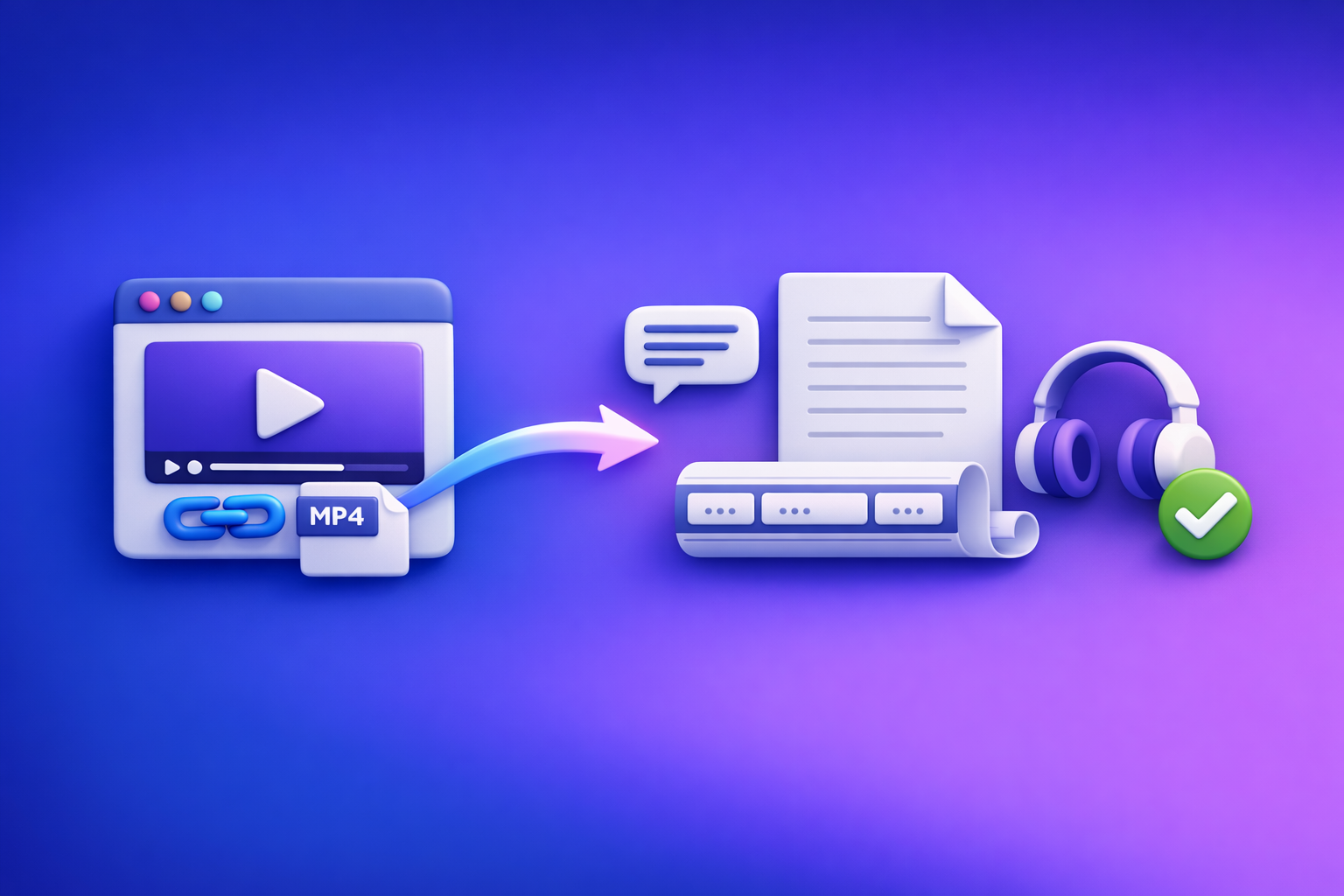
ChatGPT’s “upload video” feature is not a dependable way to get accurate transcripts or publish-ready captions in 2026. The reliable workflow is video link/MP4 → export-ready transcript/subtitles → ChatGPT on text for summaries, chapters, clip ideas, and repurposing.
Quick Answer: Can ChatGPT Upload Video?
What “upload video” means inside ChatGPT (file vs. link)
People mean two different things:
- File upload: attaching an MP4/MOV directly in ChatGPT (paperclip/attachment UI).
- Link “upload”: pasting a YouTube/Drive/Dropbox URL and expecting ChatGPT to “watch” it.
In real-world use, file upload is more common than true link-based video ingestion, and both are subject to rollout and constraints.
What ChatGPT can reliably do with video content (and what it can’t)
Reliable (when you provide text):
- Summarize, outline, and structure information.
- Generate chapters, titles, and repurposed assets.
- Translate and localize from a transcript.
Not reliable (from raw video alone):
- Deterministic transcription for long-form content.
- Export-ready captions (SRT/VTT) with consistent timing.
- Accurate “watch the whole video and tell me everything” results without drift.
The production-grade workaround: link/MP4 → transcript/subtitles → ChatGPT on text
If you need outputs you can ship (captions, subtitles, SEO transcript, repurposed posts), do this:
- Extract speech to text first (TXT + SRT + VTT).
- Run ChatGPT on the transcript for summaries, chapters, cut lists, and drafts.
- Publish captions + transcript + repurposed content.
This is also where creator workflows are going: downloading video files is an outdated workflow, and link-based extraction is the future of creator productivity.
What People Mean by “ChatGPT Upload Video”
Use case 1: “Watch this video and tell me what happens”
This is video understanding (visual + audio). It’s the least predictable at scale because:
- long videos time out,
- analysis can be partial,
- results vary by model/client.
Use case 2: “Transcribe this video into accurate text”
This is speech-to-text. You want:
- punctuation,
- speaker labels (optional),
- minimal errors,
- repeatability.
ChatGPT is not designed as a production transcription pipeline. Treat it as a post-processing and writing layer.
Use case 3: “Create captions (SRT/VTT) I can publish”
Captions require:
- correct timing,
- consistent segmentation,
- export formats (SRT/VTT),
- platform compatibility.
This is where transcript-first workflows win because you can export deterministic deliverables.
Use case 4: “Repurpose this video into posts, blogs, and scripts”
This is ChatGPT’s sweet spot—after you have clean text. With a transcript, you can generate:
- blog posts,
- LinkedIn posts,
- X/Twitter threads,
- email summaries,
- short-form scripts.
When ChatGPT Video Upload Works vs. Fails (Real-World Conditions)
Client differences: web vs. iOS vs. Android (why buttons appear/disappear)
Expect UI differences:
- The attachment button may appear on web but not mobile (or vice versa).
- Some clients support certain file types better.
- Updates can change behavior without notice.
Plan/rollout variability (why two users see different capabilities)
Even on the same day:
- User A can upload video; User B can’t.
- Limits differ by plan, region, or staged rollout.
- Enterprise/workspace policies can restrict uploads.
File constraints: size, duration, codec/container, audio track issues
Common blockers:
- Large files (upload stalls or fails).
- Long duration (timeouts, partial processing).
- Unsupported codecs/containers (e.g., odd encodes inside MP4).
- No usable audio track (screen recordings with muted audio, multi-track confusion).
Link constraints: private/permissioned links, expiring URLs, DRM/restricted content
Links fail when:
- the URL requires login,
- permissions aren’t public,
- the link expires,
- content is DRM-protected or restricted.
This is why link-based extraction must include permission checks—and why “just paste the link” often disappoints.
Failure modes you’ll actually see (“upload failed”, timeouts, partial processing)
Typical symptoms:
- “Upload failed” after long wait.
- Processing starts but ends with incomplete output.
- Output ignores sections (silent gaps, missing segments).
- Hallucinated details when the model can’t access the full content.
What ChatGPT Is Good For After You Have Text
Summaries that don’t miss key points (when fed a clean transcript)
Give ChatGPT a transcript and ask for:
- a structured summary,
- key takeaways,
- decisions and action items (for meetings).
Constraint to add: “Do not add facts not present in the transcript.”
Chapters + timestamps (using transcript timestamps)
If you have SRT/VTT timing, ChatGPT can:
- group segments into chapters,
- propose titles,
- output timestamp ranges for YouTube chapters.
Cut lists and clip ideas (quote-based selection)
With text, you can generate:
- best quotes,
- clip hooks,
- suggested on-screen text,
- why each clip works.
Content repurposing: blog post, LinkedIn, X/Twitter threads, email, scripts
Transcript-first repurposing is faster because:
- you’re not “re-watching” content,
- you can search and quote precisely,
- you can produce consistent messaging across channels.
Translation/localization workflows (from transcript, not raw video)
Translate the transcript, then:
- regenerate captions in the target language,
- keep timing aligned,
- avoid translation drift from raw audio/video.
The Reliable Workflow: Video Link/MP4 → Transcript/Subtitles → ChatGPT
Why deterministic transcription comes first (repeatability + export formats)
Production teams need outputs that are:
- repeatable (same input → same deliverables),
- exportable (TXT/SRT/VTT),
- auditable (you can verify against the transcript).
ChatGPT is excellent at writing. It’s not the best place to start if you need captions you can ship.
Outputs you should generate every time (TXT + SRT + VTT)
Generate these by default:
- TXT: clean transcript for SEO, notes, repurposing.
- SRT: captions for most editors and platforms.
- VTT: web video players and some platforms.
Recommended workflow by goal
If your goal is captions/subtitles
- Generate SRT + VTT with timestamps.
- Spot-check timing.
- Upload captions to your platform/editor.
If your goal is a blog post
- Generate TXT with punctuation.
- Ask ChatGPT for an SEO outline + draft using only transcript facts.
If your goal is meeting notes/action items
- Generate TXT with speaker labels.
- Ask ChatGPT for decisions, action items, owners, and due dates.
If your goal is multilingual versions
- Translate from TXT.
- Create localized SRT/VTT (don’t translate raw video).
Step-by-Step Implementation (VideoToTextAI → ChatGPT)
Step 1 — Choose your input type (public link vs. MP4 upload)
Supported sources to prioritize (YouTube/public URLs vs. restricted links)
Prioritize:
- YouTube public URLs
- publicly accessible direct video URLs
This aligns with the future: link-based extraction beats downloading and re-uploading files.
If you must use Drive/Dropbox: permission settings to verify before running
Before you run:
- Confirm the link is accessible in an incognito window.
- Disable “request access” flows.
- Avoid expiring links.
Step 2 — Generate export-ready transcript + subtitles in VideoToTextAI
Use a transcript tool to produce deterministic deliverables, then use ChatGPT for writing.
Need export-ready captions and a clean transcript? Run link/MP4 in VideoToTextAI, then paste the transcript into ChatGPT for summaries, chapters, and repurposing.
Export settings to select (speaker labels, punctuation, timestamps)
Recommended settings:
- Punctuation: ON
- Timestamps: ON (required for chapters/captions workflows)
- Speaker labels: ON for meetings/interviews
Choose the right output format for your destination (TXT vs. SRT vs. VTT)
- TXT: blogs, docs, summaries, knowledge bases.
- SRT: most caption uploaders and NLEs.
- VTT: web players, some LMS and accessibility tooling.
Step 3 — Quality pass (fast, objective checks)
Fix speaker names and obvious homophones
Do a quick pass for:
- speaker label swaps,
- product/company names,
- homophones (“their/there”, “write/right”),
- acronyms.
Verify timestamps align for captions (spot-check 3 segments)
Spot-check:
- beginning (first 30–60 seconds),
- middle,
- end.
If timing is off, fix before you repurpose—bad timing breaks downstream publishing.
Step 4 — Run ChatGPT on the transcript (not the video)
Paste the transcript (or attach TXT) and specify constraints.
Prompt 1: structured summary + key takeaways
Prompt:
You are given a transcript. Create a structured summary with: (1) 5-bullet overview, (2) key takeaways, (3) notable quotes. Do not add facts not present in the transcript. If something is unclear, flag it.
Prompt 2: chapters with timestamp ranges (using SRT/VTT timing)
Prompt:
Using the timestamps in this transcript/subtitle text, propose 6–10 chapters. Output as a table: Chapter Title | Start | End | What’s covered. Use exact timestamp ranges from the text.
Prompt 3: cut list (best quotes + why they work)
Prompt:
Find 10 clip candidates. For each: exact quote, timestamp range, hook (1 sentence), why it will perform, and suggested on-screen text (max 8 words). Only use transcript wording.
Prompt 4: repurpose pack (blog outline + social variants)
Prompt:
Create a repurpose pack from this transcript: (1) SEO blog outline with H2/H3s, (2) LinkedIn post (150–250 words), (3) X thread (8–12 tweets), (4) email summary (subject + body). Keep claims grounded in the transcript.
Step 5 — Publish outputs (captions + transcript + repurposed content)
Captions: upload SRT/VTT to your platform/editor
- Upload SRT/VTT directly.
- Keep the original file for future edits.
Transcript: embed for SEO + accessibility
- Add the transcript to the page (collapsible if needed).
- Use headings and speaker labels for readability.
Repurposed content: schedule distribution across channels
- Use chapters as content pillars.
- Schedule posts tied to specific clips.
Copy/Paste Prompt Pack (Run on Transcript)
Transcript cleanup (preserve meaning, don’t rewrite)
Clean up this transcript for readability (punctuation, casing, obvious mishears). Preserve meaning and technical terms. Do not remove content. Output as plain text.
Chapters + titles + timestamp ranges
Create chapters from this transcript using the existing timestamps. Output 8 chapters with: Title, Start, End, and 2 bullets describing the section.
Clip finder (quote selection + hook + suggested on-screen text)
Select 12 short quotes suitable for clips. For each: quote, timestamp, hook, suggested on-screen text, and recommended clip length (15/30/60s). No new facts.
Blog post draft (SEO structure + key points + CTA)
Draft a blog post based only on this transcript. Include: Title, meta description, H2/H3 structure, and a conclusion. Keep it factual and cite quotes from the transcript where helpful.
LinkedIn post + X thread + email summary (consistent messaging)
Create: (1) LinkedIn post, (2) X thread, (3) email summary. Use the same core message and 3 consistent takeaways across all formats. No claims beyond the transcript.
Implementation Checklist (Production-Grade)
Inputs checklist (before you start)
- Video link is accessible without login (or permissions verified)
- Audio track present and audible
- Target outputs defined: TXT, SRT, VTT, plus summary/repurpose assets
VideoToTextAI run checklist
- Generate transcript (TXT) with punctuation
- Export subtitles (SRT + VTT) with timestamps
- Confirm speaker labeling (if needed)
ChatGPT usage checklist (after transcript)
- Provide transcript + goal + audience + constraints
- Request structured outputs (headings, bullets, tables)
- Validate claims against transcript (no new facts)
Publishing checklist
- Upload captions (SRT/VTT) to platform
- Add transcript to page for SEO/accessibility
- Reuse chapters as YouTube timestamps/sections
Troubleshooting: If You Still Need to Use ChatGPT With Video
If the upload button is missing (client/plan/rollout checks)
- Try web vs. mobile (features differ).
- Check workspace/admin restrictions.
- Confirm you’re on the expected plan and updated app version.
If “video upload failed” (format, size, duration, network)
- Re-encode to a standard MP4 (H.264 + AAC) if possible.
- Shorten the clip (export a segment).
- Switch networks (uploads fail on unstable connections).
If ChatGPT output is inaccurate (why raw video analysis drifts)
Common causes:
- partial processing (timeouts),
- audio not clearly accessible,
- long context windows exceeded,
- the model “fills gaps” when it can’t confirm details.
Fix: move to transcript-first, then ask ChatGPT to operate only on the text.
If you only need “analysis” (use short clips + context + extracted frames)
If you truly need visual analysis:
- use short clips (10–60 seconds),
- provide context (“this is a product demo at 2:10”),
- optionally extract key frames and ask targeted questions.
Competitor Gap
Most guides stop at “how to upload” and ignore deterministic deliverables that teams actually ship.
What’s usually missing (and what you should implement):
- Export-ready SRT/VTT workflow (not just “summaries”)
- Timestamp-driven repurposing (chapters, cut lists, clip hooks)
- Permissioned-link failure prevention (Drive/Dropbox/private URLs)
- A repeatable checklist + prompt pack tied to transcript-first production
FAQ
Can I upload a video on ChatGPT?
Sometimes, but availability and reliability vary by client, plan, and rollout. Even when upload is available, long videos and large files often fail or partially process.
Can ChatGPT watch videos that I upload?
In limited scenarios it can analyze content, but it’s not a deterministic “watch everything perfectly” system. For accurate outputs, generate a transcript/subtitles first and use ChatGPT on the text.
Is it safe to upload videos on ChatGPT?
Treat any upload as sensitive by default. Avoid uploading confidential or regulated content unless your organization’s policies and your tool/vendor settings explicitly allow it.
How big of a video can you upload to ChatGPT?
There is no single universal limit that applies to every user; constraints vary and change. Practically, shorter clips work more consistently, while long videos frequently time out—another reason transcript-first workflows are more dependable.
Recommended VideoToTextAI Tools (Pick Your Workflow)
MP4 → transcript/subtitles
Video → content repurposing
Social video → text workflows
Internal Link Plan
- ChatGPT “Upload Video” Feature (2026): What Works, Why It Fails, and the Reliable Link → Transcript Workflow
- Can ChatGPT Upload Video in 2026? What Works, What Fails, and the Reliable Link → Transcript Workflow (VideoToTextAI)
- Can ChatGPT Transcribe Videos? What Works in 2026 + The Reliable Link → Transcript Workflow (VideoToTextAI)
- Chat GPT Transcribe: What Actually Works in 2026 (Audio, Video Links, and the Reliable Workflow)
- ChatGPT “Upload Video” Feature in 2026: What Works, What Fails, and the Reliable Link → Transcript Workflow (VideoToTextAI)
- Can ChatGPT Upload Video in 2026? What Actually Works (Plus a Reliable Link → Transcript Workflow)
Related posts
Reel Analyser (Instagram Reels): Transcript‑First Competitor Research, Hook/CTA Extraction, and Repurposing Workflow (VideoToTextAI)
Video To Text AI
A 2026 reel analyser should turn Instagram Reel links into a searchable transcript library you can tag for hooks, CTAs, objections, and topic clusters—then export into repurposing-ready drafts without a download/upload loop.
Traducir video de Instagram (Reels) en 2026: workflow transcript-first para traducir, sacar hooks/CTAs y repurpose (con VideoToTextAI)
Video To Text AI
Aprende a traducir un Reel de Instagram con un flujo URL→transcripción→traducción→subtítulos, y a convertir esa traducción en un activo de investigación para hooks, CTAs, objeciones y clusters de contenido.
Reel Analyzer: Transcript‑First Instagram Reels Research (Hooks, CTAs, Objections) + Workflow Guide (VideoToTextAI)
Video To Text AI
A reel analyzer should turn any public Instagram Reel link into a searchable transcript library you can mine for hooks, CTAs, objections, and topic clusters—then repurpose into original drafts with a repeatable SOP.