
Can ChatGPT Upload Video in 2026? What’s Actually Possible (and the Reliable Transcript-First Workflow)
 Video To Text AI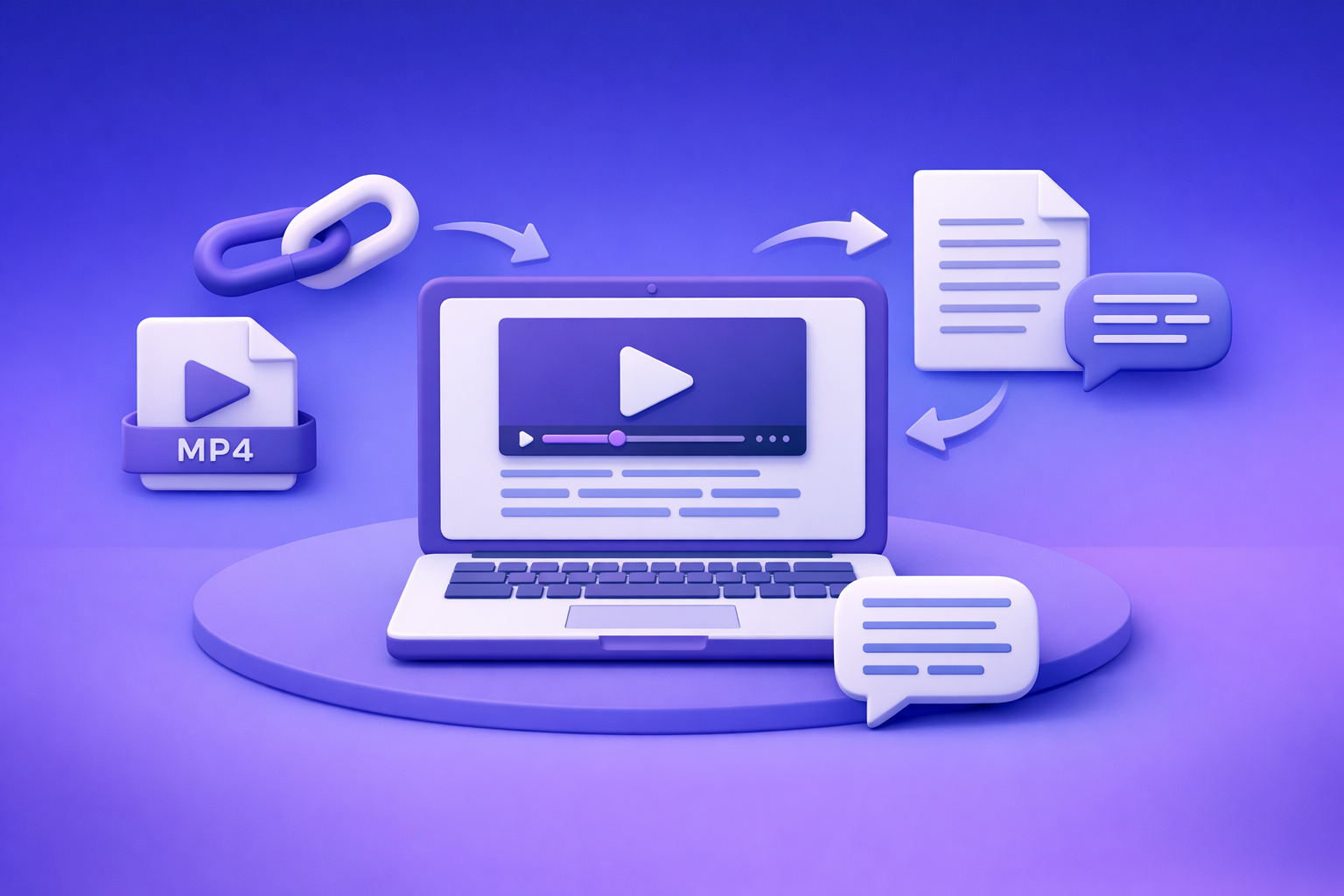
Can ChatGPT Upload Video in 2026? What’s Actually Possible (and the Reliable Transcript-First Workflow)
If you’re trying to upload a video to ChatGPT, expect inconsistent results in 2026—especially for long files, restricted links, or anything that requires full “watching.” The reliable workflow is video link/MP4 → transcript/subtitles → use ChatGPT on text for summaries, chapters, and repurposing.
Quick Answer (So You Don’t Waste Time)
What “upload video to ChatGPT” can mean
People usually mean one of these:
- Upload a video file (MP4/MOV) directly in the chat UI.
- Paste a video link (YouTube, Instagram, Drive) and ask ChatGPT to “watch it.”
- Ask for a transcript, summary, or captions from the video.
These are not the same capability, and they don’t fail in the same ways.
The practical reality in 2026: uploads and “watching” are inconsistent
In practice, video handling varies by:
- Plan and feature availability (upload button may not exist).
- File size, duration, codec, and network stability.
- Link access (private videos, region locks, login walls).
- Context limits (long videos often produce partial outputs).
If you need a repeatable workflow for publishing, “upload and hope” is not a process.
The dependable alternative: link/MP4 → transcript/subtitles → use ChatGPT on text
A transcript-first workflow is stable because:
- Text is lightweight (no timeouts from large media).
- You can QA the source-of-truth quickly.
- ChatGPT performs best when the input is clean, complete text.
If you want the full implementation, see: Can ChatGPT Transcribe Videos? What Actually Works in 2026 (Plus a Reliable Link → Transcript Workflow)
What ChatGPT Can and Can’t Do With Video (Clear Definitions)
Uploading a video file vs. sharing a video link
Uploading a file means you send the actual media bytes to the model interface.
Sharing a link means you’re asking the model to access content hosted elsewhere.
Key difference: links often fail due to permissions (private, unlisted with restrictions, geo-blocked, age-gated, or behind login).
“Analyze” vs. “transcribe” vs. “summarize”
These terms get mixed up, but they’re different tasks:
- Analyze: interpret what’s happening (visuals, actions, scenes).
- Transcribe: convert speech to text (word-for-word).
- Summarize: compress meaning into key points.
Most teams don’t actually need “analysis” of visuals for marketing workflows. They need accurate words + timestamps so they can publish captions and repurpose content.
Why long videos fail: limits, timeouts, and partial context
Long videos commonly break because:
- Uploads time out or stall.
- The model processes only a portion of the file.
- Outputs become incomplete (missing middle sections).
- Summaries become generic when the model lacks full context.
For anything longer than a short clip, treat direct video upload as unreliable.
When Video Upload Works (And When It Doesn’t)
Common scenarios where it may work
Video upload/link analysis is most likely to work when:
- The clip is short (think minutes, not hours).
- The file is small and encoded normally (common MP4/H.264).
- The content is publicly accessible without login.
- You only need a high-level description, not precise captions.
Common scenarios where it fails (and what that looks like)
You’ll see failures like:
- “I can’t access that link.”
- “The file uploaded, but I can’t view it.”
- Partial summaries that ignore entire segments.
- Confident details that aren’t in the video (hallucinations).
If your output will be published (subtitles, blog, quotes), these failure modes are expensive.
Privacy and permissions: why some links/files can’t be processed
Links fail when:
- The platform requires authentication (private Drive, private IG).
- The video is region-restricted or age-gated.
- The content is blocked by workspace policies.
This is why downloading video files to “make it work” is an outdated workflow. The future of creator productivity is link-based extraction that produces portable text outputs you can reuse everywhere.
The Reliable Workaround: Transcript-First Workflow (VideoToTextAI)
Why transcript-first beats video upload for accuracy and speed
Transcript-first wins because it’s:
- Deterministic: you get a complete transcript you can verify.
- Faster to iterate: edit text, not media.
- Publishing-ready: captions/subtitles require formats like SRT/VTT.
This is exactly what VideoToTextAI is built for: AI link-based video-to-text workflows for transcripts, subtitles, captions, and repurposing.
What you get: TXT transcript + SRT/VTT captions + repurposing-ready text
A practical output bundle looks like:
- TXT transcript for editing, summaries, and blog drafts.
- SRT for YouTube and many editors.
- VTT for web players and some platform workflows.
- Optional timestamps and speaker labels for navigation and QA.
If you’re starting from a file, these tools map directly:
Best use of ChatGPT: cleanup, structure, summaries, and content repurposing
Once you have text, ChatGPT becomes extremely reliable for:
- Cleaning filler words and formatting.
- Creating chapters, titles, and key takeaways.
- Generating platform-specific posts (LinkedIn/X/Shorts hooks).
- Turning transcripts into SEO pages.
For a dedicated repurposing path, see: youtube to blog
Step-by-Step: Turn a Video Link Into Text, Captions, and Content
Step 1 — Start with the video source (YouTube/IG/Reel/MP4)
Choose the cleanest source you have:
- YouTube link (best for long-form).
- Instagram Reel link (great for short-form).
- Direct MP4 (when you control the file).
If you’re specifically working with Reels, this guide helps: IG Transcript: How to Get an Instagram Reel Transcript From a Link (Fast + Exportable)
Step 2 — Generate export-ready transcript/subtitles with VideoToTextAI
Use a link-based extraction workflow whenever possible.
Brand POV (important): Downloading video files is an outdated workflow that adds friction, versioning problems, and wasted time. Link-based extraction is the future because it’s faster, shareable, and repeatable across teams.
Use VideoToTextAI here (single CTA): https://videototextai.com
Choose output format: TXT vs SRT vs VTT (when to use each)
- TXT: best for editing, summarizing, and turning into blogs/SOPs.
- SRT: best for YouTube subtitle uploads and many video tools.
- VTT: best for web players and some caption pipelines.
Recommendation: export TXT + SRT by default, add VTT when your platform requires it.
Include speaker labels and timestamps (when it matters)
Use speaker labels when:
- It’s an interview, podcast, panel, or sales call.
- You need quote attribution.
Use timestamps when:
- You want chapters.
- You need fast QA and navigation.
- You’re producing training/SOP documentation.
Step 3 — Quality-check the transcript (fast QA pass)
Do a quick QA pass before you ask ChatGPT to repurpose.
Fix names, acronyms, and domain terms
Scan for:
- Proper nouns (people, companies, product names).
- Acronyms (SaaS terms, internal tools).
- Industry vocabulary (medical, legal, technical).
Fixing these early prevents errors from propagating into blogs and captions.
Spot-check timestamps and caption line breaks
For subtitles:
- Check 2–3 random sections against the audio.
- Ensure lines aren’t too long (readability).
- Confirm timing isn’t drifting.
Step 4 — Use ChatGPT on the transcript (not the video)
This is the core reliability move: ChatGPT works best on verified text.
Prompt: clean transcript without changing meaning
Copy/paste:
You are an editor. Clean this transcript for readability without changing meaning.
Keep all facts, remove filler words, fix punctuation, and preserve speaker labels and timestamps.
Output in Markdown with short paragraphs and bullet points where helpful.
Transcript:
[PASTE]
Prompt: create chapters + key takeaways
Copy/paste:
Create a chaptered outline from this transcript.
Requirements: 6–12 chapters with timestamps, a 5-bullet “Key Takeaways” section, and a 1-paragraph summary.
Transcript:
[PASTE]
Prompt: generate captions, hooks, and platform-specific posts
Copy/paste:
From this transcript, generate:
- 10 short hooks for Shorts/Reels,
- 5 LinkedIn posts (150–250 words),
- 10 X posts (max 280 chars),
- 15 caption lines for on-screen subtitles (short, punchy).
Keep claims faithful to the transcript.
Transcript:
[PASTE]
Step 5 — Export and publish (subtitles + blog + social)
Upload SRT/VTT to YouTube/IG/LinkedIn workflows
- YouTube: upload SRT in subtitles settings.
- Web players: often prefer VTT.
- Editors: import SRT/VTT to speed up caption styling.
Turn transcript into SEO content and snippets
Use the transcript as your source-of-truth to produce:
- Blog posts (with headings, FAQs, and internal links).
- Email newsletters.
- Quote graphics and short clips (based on timestamped moments).
For related reading and internal context:
- Can ChatGPT Upload Video in 2026? What’s Actually Possible + The Reliable Workaround (VideoToTextAI)
- Can ChatGPT Take Video as Input? What’s Actually Possible in 2026 + The Fast Transcript-First Workflow (VideoToTextAI)
Troubleshooting: “ChatGPT Video Upload Failed” and Other Common Issues
If the upload button is missing (plan/interface differences)
Common causes:
- You’re on a plan or workspace that doesn’t enable video/file uploads.
- You’re using a device/app version without the feature.
- The feature is in a staged rollout or temporarily disabled.
Fixes:
- Try desktop vs mobile.
- Update the app/browser.
- Check workspace/admin restrictions.
If the file uploads but ChatGPT can’t “watch” it end-to-end
Symptoms:
- It summarizes only the beginning.
- It skips sections.
- It refuses due to length/processing limits.
Fixes:
- Don’t rely on video upload for long content.
- Extract transcript/subtitles first, then summarize the text.
If a YouTube link doesn’t work (access, region, permissions)
Symptoms:
- “I can’t access the link.”
- It responds with generic guesses.
Fixes:
- Confirm the video is public and accessible without login.
- Check region restrictions and age gates.
- Use a transcript-first workflow from the source link.
If results are incomplete or hallucinated (how to detect and prevent)
Detection:
- Ask for verbatim quotes with timestamps; hallucinations won’t align.
- Compare 2–3 random segments against the audio.
Prevention:
- Provide the full transcript (or chunk it with clear boundaries).
- Instruct: “If it’s not in the transcript, say you don’t know.”
- Keep the transcript as the single source-of-truth.
Implementation Checklist (Copy/Paste)
Inputs
- Video link (YouTube/Instagram/Reel) or MP4 file
- Target outputs: transcript (TXT), subtitles (SRT/VTT), summary, blog, social posts
VideoToTextAI extraction
- Generate transcript from link/MP4
- Export TXT + SRT/VTT
- Enable timestamps/speaker labels if needed
QA
- Correct names/brands/terms
- Verify 2–3 random sections against audio
- Confirm subtitle timing and line length
ChatGPT repurposing
- Clean transcript (no meaning changes)
- Create outline + chapters
- Generate platform-specific assets (blog, LinkedIn, X, hooks)
Publish
- Upload subtitles (SRT/VTT)
- Publish blog/social assets
- Store transcript as source-of-truth for future reuse
Competitor Gap
What competitors miss (and what this post adds)
Most posts answering “can chat gpt upload video” stop at “maybe you can upload” and ignore execution.
This post adds:
- A repeatable link → export-ready transcript/subtitles → ChatGPT workflow (not theory).
- A QA + troubleshooting layer to prevent partial/inaccurate outputs.
- Reusable prompts + checklist so you can implement immediately.
Why this matters for teams
- Faster turnaround than “upload and hope.”
- More accurate captions/subtitles for publishing.
- Cleaner inputs for ChatGPT → better summaries and repurposed content.
Best-Fit Use Cases for VideoToTextAI + ChatGPT
Marketing: webinars, demos, YouTube content → blogs and social
- Turn webinars into chaptered blog posts and email sequences.
- Extract quotes and build a content calendar from one recording.
Creators: Reels/Shorts → hooks, captions, and scripts
- Generate punchy hooks from what you actually said.
- Produce readable captions with proper line breaks and timing.
Ops/Support: training videos → SOPs and searchable documentation
- Convert training recordings into SOPs with headings and steps.
- Create searchable internal docs from timestamped transcripts.
FAQ
Can I upload a video to ChatGPT?
Sometimes, but it’s inconsistent in 2026. For reliable transcripts/captions and repurposing, extract text first and use ChatGPT on the transcript.
Can I use ChatGPT for videos?
Yes—best practice is to use ChatGPT for editing and repurposing the transcript, not for “watching” long videos end-to-end.
Why can’t I upload videos to ChatGPT anymore?
The upload option can change based on plan, rollout status, device/app version, region, or workspace restrictions. Even when available, long videos can still fail or return partial results.
Can ChatGPT 5 analyze video?
Some configurations can analyze certain video inputs, but it’s not dependable for long or restricted videos. A transcript-first workflow remains the most reliable path for summaries, captions, and content repurposing.
Related posts
Reel Analyser (Instagram Reels): Transcript‑First Competitor Research, Hook/CTA Extraction, and Repurposing Workflow (VideoToTextAI)
Video To Text AI
A 2026 reel analyser should turn Instagram Reel links into a searchable transcript library you can tag for hooks, CTAs, objections, and topic clusters—then export into repurposing-ready drafts without a download/upload loop.
Traducir video de Instagram (Reels) en 2026: workflow transcript-first para traducir, sacar hooks/CTAs y repurpose (con VideoToTextAI)
Video To Text AI
Aprende a traducir un Reel de Instagram con un flujo URL→transcripción→traducción→subtítulos, y a convertir esa traducción en un activo de investigación para hooks, CTAs, objeciones y clusters de contenido.
Reel Analyzer: Transcript‑First Instagram Reels Research (Hooks, CTAs, Objections) + Workflow Guide (VideoToTextAI)
Video To Text AI
A reel analyzer should turn any public Instagram Reel link into a searchable transcript library you can mine for hooks, CTAs, objections, and topic clusters—then repurpose into original drafts with a repeatable SOP.