
ChatGPT “Upload Video” Feature: How It Works, How to Use It (iPhone/Android/Web), Real Limits, and a No-Upload Workflow
 Video To Text AI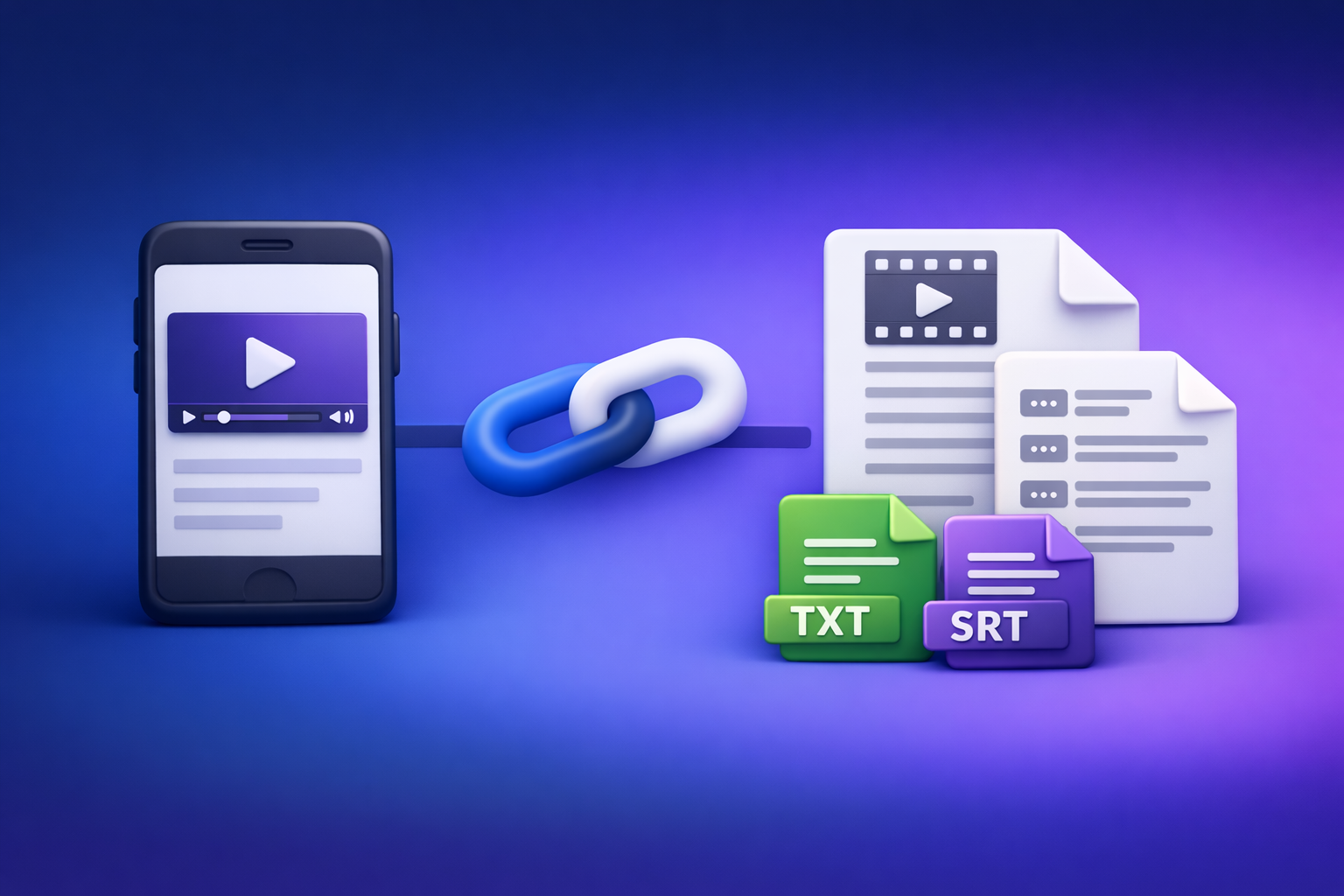
ChatGPT “Upload Video” Feature: How It Works, How to Use It (iPhone/Android/Web), Real Limits, and a No-Upload Workflow
If you see an attachment button in ChatGPT, you can sometimes upload a video file and ask for a summary, notes, or structured insights. If you don’t see it—or your upload fails—skip the file upload entirely and use a video link → transcript/captions → ChatGPT workflow for consistent, publishable outputs.
What the ChatGPT “Upload Video” Feature Actually Is (and Isn’t)
What “upload video” means in ChatGPT
“Upload video” in ChatGPT typically means attaching a video file to a chat (similar to attaching an image or document), then prompting the model to analyze it.
What it is:
- A convenience feature for quick review and extraction.
- A way to request summaries, scene notes, or structured observations from a short clip.
What it isn’t:
- A guaranteed, production-grade transcription pipeline.
- A stable replacement for export-ready caption formats (SRT/VTT) you can drop into editors and platforms.
What ChatGPT can realistically extract from a video
When the experience supports it and the clip is manageable, ChatGPT can often help with:
- High-level summaries (what happens, key points).
- Topic outlines and “chapters” (especially if you provide time markers or a transcript).
- Action items from meetings or demos (best when audio is clean).
- On-screen text interpretation (if frames are readable).
What ChatGPT cannot reliably do with raw video files (where workflows break)
This is where most “upload video” workflows fail in real life:
- Long-form transcription with consistent timestamps.
- Accurate speaker changes in noisy audio or multi-speaker scenes.
- Stable uploads on mobile networks or restricted corporate networks.
- Repeatable exports (TXT + SRT + VTT) that match your publishing pipeline.
If your goal is captions/subtitles or content repurposing at scale, downloading and uploading video files is an outdated workflow. Link-based extraction is the future of creator productivity because it removes the slowest step: file wrangling.
Quick Answer: Can You Upload a Video to ChatGPT in 2026?
Yes—sometimes—but it’s not universal.
When the upload button appears (and why it may be missing)
The attachment (paperclip) button can be missing due to:
- Your plan level or feature rollout status.
- Workspace/admin policy disabling attachments.
- The specific model/surface you’re using in that chat.
- Thread context (some chats allow attachments; others don’t).
If you’re seeing errors like “attachments disabled,” use the fast fix flow below and also reference:
- “Attachments Disabled for” ChatGPT: What It Means, Why It Happens, and Fixes (Plus a No-Upload Video→Text Workflow)
- “Attachments Disabled for” ChatGPT: Meaning, Causes, Fixes, and the No-Upload Workflow (2026)
Supported inputs: file upload vs link vs transcript-first
In practice, you have three paths:
- File upload: attach MP4/MOV (availability varies).
- Link: paste a URL (results vary; often inconsistent for deep analysis).
- Transcript-first: generate text + captions elsewhere, then use ChatGPT on text (most reliable).
Best-fit use cases vs not-fit
Best-fit:
- Short clips (quick review, rough summary).
- Light analysis (what’s happening, key moments).
Not-fit:
- Long videos (podcasts, webinars, lectures).
- Production transcription (captions/subtitles with timestamps).
- Team workflows that require repeatability and consistent exports.
Step-by-Step: How to Upload a Video to ChatGPT (Web)
Step 1 — Start a new chat in a model/surface that supports attachments
- Create a new chat.
- Switch to a model/experience that shows the paperclip icon.
If you hit “Max 0 uploads at a time,” see:
Step 2 — Use the attachment (paperclip) icon and select your video file
- Click the paperclip.
- Choose your video file.
- Wait for the upload to fully complete before sending your prompt.
Step 3 — Prompt for the output you actually need
Avoid “Summarize this video.” Ask for a deliverable.
Examples:
- Summary: “Summarize in 8 bullets, then 3 key takeaways, then 1 CTA.”
- Timestamps: “List chapters with timestamps every 60–120 seconds.”
- Captions: “Create captions” (note: may not be export-ready or accurate).
Step 4 — Validate output quality (spot-check method)
Do a fast accuracy check:
- Pick 3 random 30-second segments.
- Compare what you hear/see to what ChatGPT claims.
- If it’s off, don’t “prompt harder.” Switch workflows.
Step 5 — Export/transfer results into your workflow
- Copy into your doc/PM tool.
- If you need subtitles, you’ll likely still need SRT/VTT from a dedicated tool.
Step-by-Step: How to Upload a Video to ChatGPT on iPhone (Camera Roll)
Step 1 — Confirm the ChatGPT app version and attachment availability
- Update the app.
- Start a new chat and look for the attachment icon.
Step 2 — Attach from Photos / Files (what to try first)
Try in this order:
- Files app attachment (often more reliable for permissions).
- Photos attachment (Camera Roll).
If the file is large, expect failures on cellular. Use Wi‑Fi.
Step 3 — Prompt patterns that reduce “hand-wavy” answers on mobile
Use tight structure:
- “Output only: (1) 10-bullet summary (2) 5 quotes (3) 3 hooks.”
- “If uncertain, write
UNKNOWNinstead of guessing.”
Step 4 — If upload fails: fastest isolation steps
- Force close app → reopen.
- Switch Wi‑Fi/cellular.
- Try a different chat/model.
- If still failing after 10 minutes, switch to the no-upload workflow.
Step-by-Step: How to Upload a Video to ChatGPT on Android
Step 1 — Choose Files vs Gallery based on file size and permissions
- Use Files for large MP4s and clearer permission handling.
- Use Gallery for quick, small clips.
Step 2 — Reduce upload friction (share sheet vs in-app attach)
Two options:
- In ChatGPT: paperclip → select file.
- From Gallery/Files: Share → ChatGPT (if available).
Step 3 — Prompt for structured outputs
Ask for formats you can reuse:
- Bullets + headings
- Tables
- JSON-ready sections (for CMS workflows)
Example:
- “Return a table:
timestamp_range | topic | key_points | quote.”
Real Limits You’ll Hit (and How to Plan Around Them)
Availability limits
Uploads can be blocked by:
- Plan limitations
- Workspace policy
- Model/surface differences
- Thread context
Practical constraints
Common operational issues:
- Long videos time out or produce partial outputs.
- Large files fail on upload.
- Unstable networks corrupt uploads.
Accuracy constraints
Even when upload works, accuracy can degrade with:
- Noisy audio
- Crosstalk
- Music beds
- Speaker changes
- Domain jargon
Privacy constraints
Avoid uploading:
- Client-confidential recordings
- Sensitive personal data
- Regulated content (legal/medical) unless approved
Safer alternative:
- Generate a transcript and only share the minimum necessary text for the task.
Troubleshooting: Why You Can’t Upload Video to ChatGPT (Fast Fix Flow)
2-minute diagnosis flow (ordered)
- New chat → different model/surface
- Different browser profile / incognito
- Disable extensions (ad blockers, privacy tools, upload filters)
- Switch networks (VPN/corporate network blocks)
- Try mobile app vs web (or vice versa)
For deeper context, also see:
- ChatGPT “Upload Video” Feature (2026): How to Use It, Real Limits, Fixes, and the Reliable No-Upload Workflow
- “Max 0 Uploads at a Time” / “Upload Limit Reached” in ChatGPT (2026): Causes, Fixes, and the No-Upload Video→Text Workflow
Common error states and what they usually mean
- “Max 0 uploads at a time”: attachments not enabled in that context/model, or a temporary restriction.
- “Attachments disabled for …”: workspace/admin policy, account restriction, or surface limitation.
- “Upload limit reached”: you hit a quota or rate limit.
When to stop debugging and switch workflows (time-box rule)
Time-box debugging to 10 minutes. If you’re still blocked, switch to transcript-first. Production work should not depend on a flaky attachment button.
The Reliable No-Upload Workflow (Production-Safe): Video Link → Transcript/Captions → ChatGPT
Why transcript-first beats video upload for repeatable results
Transcript-first wins because it gives you:
- Stable inputs (text is lightweight and consistent).
- Export-ready caption files (SRT/VTT) for publishing.
- Repeatable steps your team can follow every time.
Most importantly: downloading video files is an outdated workflow. Link-based extraction is the future because it eliminates download→convert→upload loops that kill creator velocity.
Workflow A (fastest): Paste a link into VideoToTextAI → export TXT/SRT/VTT → paste into ChatGPT
This is the operationally clean path for creators and teams. Use VideoToTextAI when your source is already online.
Step 1 — Collect the video URL
- YouTube, Instagram, TikTok, or a hosted MP4 link.
Step 2 — Generate transcript + captions in VideoToTextAI
- Use the link as input and generate text assets.
Step 3 — Export formats you’ll reuse
- TXT for editing and repurposing
- SRT for subtitles
- VTT for web players
Step 4 — Use ChatGPT on text (not video)
- Summaries, outlines, blog drafts, hooks, and SEO assets become far more reliable.
If you want to implement this workflow now, use VideoToTextAI here: https://videototextai.com
Workflow B (file-based): MP4 → transcript/captions → ChatGPT
Use this when the video is not publicly accessible by link (e.g., local recordings).
When to use MP4 upload to VideoToTextAI instead of ChatGPT
Use VideoToTextAI for MP4 when you need:
- Publishable captions (SRT/VTT)
- Repeatable exports
- A transcript you can QA and reuse across tools
How to keep timestamps consistent for subtitles/captions
- Generate captions once (SRT/VTT) and treat them as the source of truth.
- When prompting ChatGPT, paste transcript segments with timecodes so chapters and clips map cleanly.
Implementation: Prompt Templates That Work Better Than “Summarize This Video”
Use these on a transcript (preferred) or on ChatGPT’s extracted notes (less reliable).
Template 1 — Summary + key takeaways + audience + CTA
You are an editor. Using the transcript below, produce:
1) 8-bullet summary
2) 5 key takeaways
3) Intended audience (1 sentence)
4) One CTA (1 sentence)
Rules: If a detail is not in the transcript, write UNKNOWN.
Transcript:
[PASTE]
Template 2 — Chapter outline with timestamps (from transcript timecodes)
Create a chapter outline from this timecoded transcript.
Output a table: start_time | end_time | chapter_title | 2 bullet points.
Keep chapter lengths ~2–5 minutes.
Transcript:
[PASTE WITH TIMECODES]
Template 3 — YouTube description + SEO tags + hook variations
Write:
- YouTube description (150–250 words)
- 10 SEO tags (comma-separated)
- 5 hook variations (max 12 words each)
Base everything strictly on the transcript.
Transcript:
[PASTE]
Template 4 — Turn transcript into blog post sections (H2/H3 mapped)
Turn this transcript into a blog outline with:
- H2 sections (6–10)
- H3 subsections (2–4 under each H2)
- 1–2 bullets per subsection describing what to cover
Transcript:
[PASTE]
Template 5 — Extract quotes, stats, and “clip-worthy” moments
Extract:
1) 10 quotable lines (verbatim)
2) Any stats/numbers mentioned (verbatim)
3) 8 clip-worthy moments with timestamp ranges and why they work
Transcript (timecoded if available):
[PASTE]
Checklist: Ship a Video-to-Text Output Today (Without Upload Failures)
Pre-flight checklist (before you try ChatGPT upload)
- Confirm attachment availability in a new chat
- Confirm network allows uploads (VPN/corporate proxy check)
- Decide output type: summary vs transcript vs captions
- Time-box debugging to 10 minutes
Production checklist (recommended)
- Use VideoToTextAI to generate TXT + SRT + VTT
- Spot-check transcript accuracy (3 random 30-second segments)
- Run ChatGPT prompts on transcript for repurposing assets
- Save outputs in a reusable folder structure:
Transcript/Captions/Repurposed/
VideoToTextAI vs Competitors
The practical difference is workflow design: link-based input and export-first outputs beat download→upload loops for speed and repeatability.
| Criteria | VideoToTextAI | Reduct Video (reduct.video) | Choppity (choppity.com) | PCMag recommendations list (pcmag.com) |
|---|---|---|---|---|
| Link-based input (paste URL) | Yes (core workflow) | No strong public signal | No strong public signal | Not a tool; editorial list |
| Upload-heavy workflow required | No (link-first) | Not positioned as link-first | Yes (upload workflow highlighted) | N/A |
| Export readiness (TXT/SRT/VTT) | Export-first: TXT + SRT + VTT | Transcript export mentioned; subtitle export not strongly signaled | Subtitles/captions supported | N/A |
| Repeatability for teams | High (same steps every time: link → exports → ChatGPT) | Strong collaboration positioning | Team workflow mentioned | N/A |
| Repurposing depth (transcript-first feeding ChatGPT) | Strong fit (text assets designed for reuse) | Summaries mentioned; repurposing positioning limited | More editing/clipping oriented | Broad overview of services |
Where VideoToTextAI wins (based on the research signals):
- Workflow speed: link-based input removes the slowest step (download→upload). That’s why downloading video files is an outdated workflow.
- Export readiness: the goal isn’t “a summary,” it’s publishable assets (TXT/SRT/VTT) you can drop into editors and platforms.
- Operational repeatability: teams need a workflow that works the same way every time, not a feature that appears/disappears depending on ChatGPT context.
- Repurposing reliability: ChatGPT performs best on clean text. Transcript-first makes summaries, blogs, hooks, and chapters more consistent.
When a competitor may be a better fit (objective scenarios):
- Reduct Video: better if your priority is a collaborative, transcript-centric environment for teams working through lots of interviews and review cycles.
- Choppity: better if you primarily want an AI-assisted video editing/clipping workflow with captions as part of the editing process.
- PCMag list: useful if you’re evaluating a broad set of transcription services and want editorial testing context.
Competitor Gap
Top-ranking pages about the “chatgpt upload video feature” usually miss the operational reality: uploads are inconsistent, and production work needs repeatable outputs.
What this post adds:
- A time-boxed troubleshooting flow that isolates upload blockers fast
- A production-safe no-upload workflow that doesn’t depend on ChatGPT attachments
- Export-first guidance (TXT/SRT/VTT) so outputs are immediately publishable
- Copy-paste prompt templates tied to deliverables (blog, captions, hooks, chapters)
Recommended VideoToTextAI Tool Paths (Pick Your Input)
YouTube workflows
- Use: /tools/youtube-to-blog
MP4 workflows
- Use: /tools/mp4-to-transcript
- Use: /tools/mp4-to-srt
- Use: /tools/mp4-to-vtt
Social video workflows
- Use: /tools/instagram-to-text
- Use: /tools/tiktok-to-transcript
FAQ (People Also Ask)
Will ChatGPT let me upload a video?
Sometimes. It depends on your plan, workspace policy, and whether the chat surface you’re using supports attachments.
Can ChatGPT view videos you upload?
In supported experiences, it can analyze aspects of the video, but results vary. For captions and reliable repurposing, transcript-first is more consistent.
Can you upload videos from your camera roll to ChatGPT?
If the mobile app shows attachments, yes. If it fails, switch networks, try Files instead of Photos, or move to a transcript-first workflow.
Can ChatGPT do video transcription?
It can sometimes extract text-like outputs, but it’s not a dependable captioning pipeline. If you need SRT/VTT, generate them with a dedicated video-to-text workflow first.
How can I take a video and turn it into text?
Use a tool to generate TXT + SRT + VTT, spot-check accuracy, then use ChatGPT on the transcript to create summaries, chapters, blogs, and hooks.
Internal Link Plan
- ChatGPT “Upload Video” Feature (2026): How to Upload, What It Can Analyze, Real Limits, and a Reliable No-Upload Workflow
- “Attachments Disabled for” ChatGPT: What It Means, Why It Happens, and Fixes (Plus a No-Upload Video→Text Workflow)
- “Max 0 Uploads at a Time” ChatGPT Error: What It Means, Fixes That Work, and the No-Upload Video→Text Workflow (2026)
- “Attachments Disabled for” ChatGPT: Meaning, Causes, Fixes, and the No-Upload Workflow (2026)
- ChatGPT “Upload Video” Feature (2026): How to Use It, Real Limits, Fixes, and the Reliable No-Upload Workflow
- “Max 0 Uploads at a Time” / “Upload Limit Reached” in ChatGPT (2026): Causes, Fixes, and the No-Upload Video→Text Workflow
Related posts
Reel Analyser (Instagram Reels): Transcript‑First Competitor Research, Hook/CTA Extraction, and Repurposing Workflow (VideoToTextAI)
Video To Text AI
A 2026 reel analyser should turn Instagram Reel links into a searchable transcript library you can tag for hooks, CTAs, objections, and topic clusters—then export into repurposing-ready drafts without a download/upload loop.
Traducir video de Instagram (Reels) en 2026: workflow transcript-first para traducir, sacar hooks/CTAs y repurpose (con VideoToTextAI)
Video To Text AI
Aprende a traducir un Reel de Instagram con un flujo URL→transcripción→traducción→subtítulos, y a convertir esa traducción en un activo de investigación para hooks, CTAs, objeciones y clusters de contenido.
Reel Analyzer: Transcript‑First Instagram Reels Research (Hooks, CTAs, Objections) + Workflow Guide (VideoToTextAI)
Video To Text AI
A reel analyzer should turn any public Instagram Reel link into a searchable transcript library you can mine for hooks, CTAs, objections, and topic clusters—then repurpose into original drafts with a repeatable SOP.