
“Max 0 Uploads at a Time” in ChatGPT: What It Means, Why It Happens, and the Fastest No-Upload Workflow (2026)
 Video To Text AI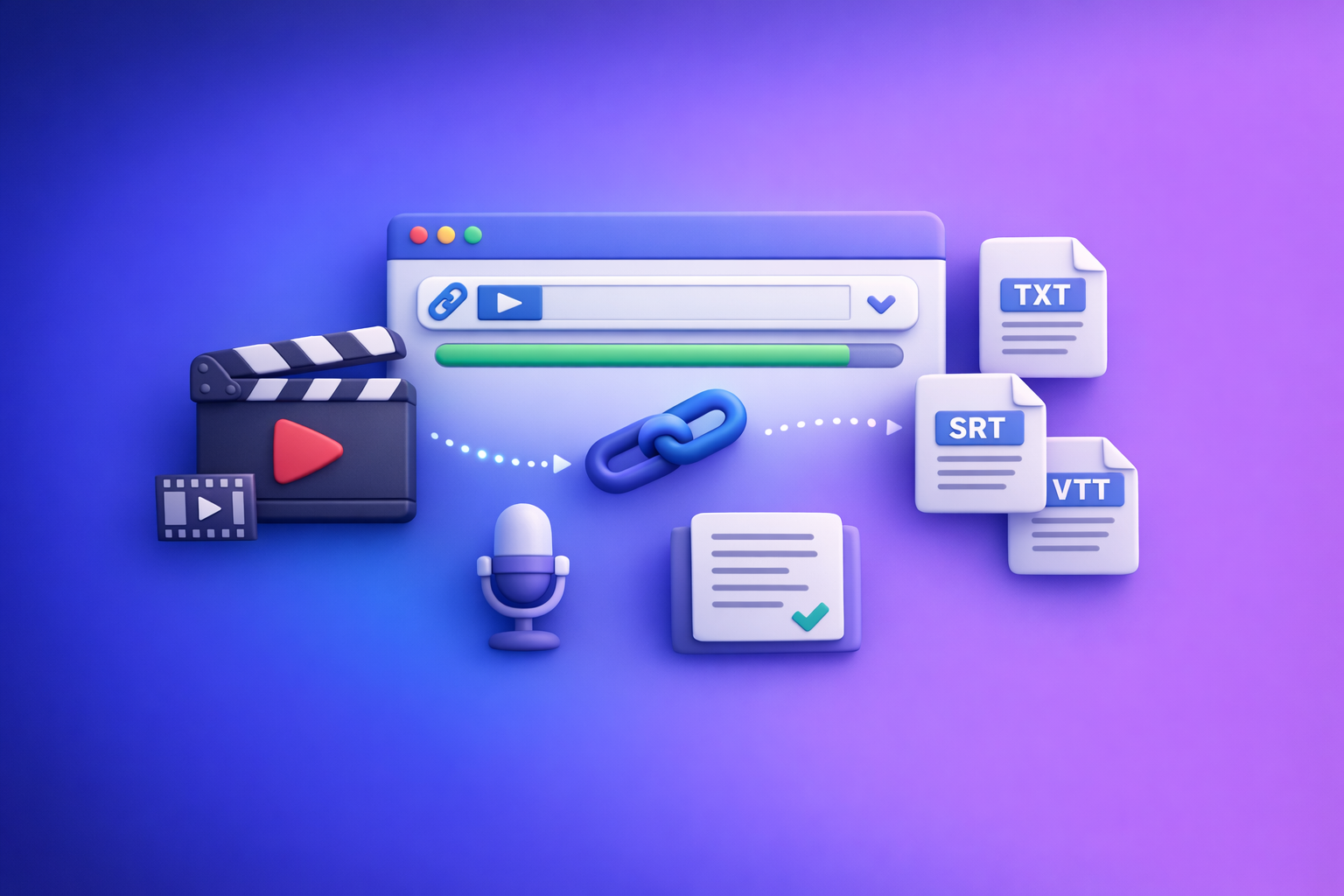
“Max 0 uploads at a time” in ChatGPT means your current chat context has file uploads disabled, so the UI blocks attachments. The fastest path is new chat → switch to an upload-capable model/surface → confirm workspace policy → eliminate browser/network blocks, or bypass uploads entirely with a no-upload video→text workflow.
TL;DR (for people stuck right now)
- “Max 0 uploads at a time” means uploads are set to zero in your current context (surface/app, model, thread, workspace policy, or network).
- Fix path: new chat → switch to an upload-capable model/surface → verify workspace policy → eliminate browser/network blocks.
- If you need to ship today: skip uploads entirely → generate TXT/SRT/VTT from a video link/MP4 in VideoToTextAI, then paste text into ChatGPT.
What “Max 0 Uploads at a Time” Means (and what it does not mean)
What the message is actually telling you
This message is a capability/permission signal, not a commentary on your file.
It means:
- The allowed concurrent uploads for the current context is 0
- The ChatGPT UI/API therefore refuses attachments in that chat
In practice, “context” can mean the surface (web/app), the model, the thread state, your workspace policy, or your network environment.
What it’s not
Don’t waste time debugging the wrong thing.
It is not:
- Proof your file is corrupted
- Automatically a global account ban
- Always a temporary rate limit (often it’s a capability/policy mismatch)
Common Root Causes (ranked by likelihood)
1) You’re on a surface that doesn’t allow uploads
Uploads can vary by where you’re using ChatGPT:
- Web vs mobile vs desktop app can expose different tools
- Embedded surfaces (inside another product) may disable attachments entirely
If the paperclip / Add files UI is missing, treat it as a surface limitation first.
2) The model in this chat doesn’t support uploads
Some model variants don’t expose file tools in certain contexts.
Even if your account supports uploads generally, this specific model selection may not.
3) Thread-level limitation (this specific chat is “stuck”)
A single thread can lose attachment capability after:
- switching modes/tools
- hitting an internal tool-state mismatch
- moving between surfaces
If uploads work in one chat but not another, assume thread state.
4) Workspace/org policy disables attachments
In Team/Enterprise environments, admins may disable attachments for compliance.
If policy disables uploads, you won’t fix it locally—your best move is a no-upload workflow.
5) Browser, extension, or network blocks the upload endpoint
Common culprits:
- privacy/ad-block extensions
- strict tracking protection settings
- corporate proxies
- VPNs that break upload endpoints
This often presents as missing UI, failed uploads, or “0 uploads” style limits.
2-Minute Diagnosis: Identify where uploads are being set to zero
Step 1 — Confirm it’s context-specific (30 seconds)
- Open a new chat
- Check whether the paperclip / Add files option appears
If it appears in a new chat: your old thread is likely stuck.
If it never appears: it’s surface/model/policy/network.
Step 2 — Switch surface (30 seconds)
Try ChatGPT in:
- another browser profile (no extensions)
- incognito/private window
- mobile app (or desktop app)
This isolates whether your current surface is the constraint.
Step 3 — Switch model (30 seconds)
In a new chat:
- select a model known (in your plan) to support file tools
- re-check the upload UI
If the upload button returns after a model change, it was a model capability mismatch.
Step 4 — Check workspace policy (30 seconds)
If you’re in a managed workspace:
- confirm whether attachments are disabled by admin
- check any internal IT/security guidance for AI tools
If policy is the blocker, stop retrying uploads and move to the no-upload workflow below.
Fixes That Work (in priority order)
Fix 1: Start a new chat + reselect an upload-capable model
Why it works: it resets thread-level tool state and reinitializes capabilities.
Do this:
- create a new chat
- select the model you normally use for uploads
- verify the Add files control appears
- retry your upload
Success signal: the upload button returns and accepts files without the “max 0 uploads” message.
Fix 2: Change surface (web ↔ app) and retry
Tool availability can differ by surface.
Try:
- web → desktop app
- web → mobile app
- one browser → another browser
If uploads work on one surface but not another, you’ve confirmed a surface-specific limitation.
Fix 3: Remove local blockers (fast isolation)
Local blockers are the fastest to rule out.
- Disable extensions (ad blockers, privacy tools)
- Try incognito/private mode with no extensions
- Clear site data for the ChatGPT domain, then re-login
If incognito works, re-enable extensions one-by-one to find the culprit.
Fix 4: Eliminate network constraints
Network issues often look like “random” tool failures.
- Turn off VPN
- Try a different network (mobile hotspot)
- If corporate network: ask IT whether file upload endpoints are blocked
If a hotspot fixes it, the corporate network is the constraint.
Fix 5: Confirm plan/workspace permissions
If uploads are disabled by policy, you won’t “fix” it locally.
- Ask your admin to enable attachments
- Or adopt a no-upload workflow that only uses text
If you’re repeatedly blocked, operationally it’s better to stop depending on uploads.
Step-by-Step: Production-Safe No-Upload Workflow (Video → Text → ChatGPT)
Downloading video files just to re-upload them is an outdated workflow. Link-based extraction is the future of creator productivity because it’s faster, more repeatable, and less fragile than attachment-dependent pipelines.
When to use this
Use this workflow when:
- you need transcripts/captions/repurposing today
- uploads are blocked by policy or inconsistent across surfaces
- you want a repeatable process that doesn’t break when ChatGPT tools change
Step 1 — Extract text from a video link or MP4 using VideoToTextAI
Input:
- YouTube/Instagram/TikTok link or MP4
Output:
- TXT transcript
- optional SRT/VTT captions
Recommended tool pages (match your input/output):
- MP4 to Transcript
- MP4 to SRT
- MP4 to VTT:
/tools/mp4-to-vtt - YouTube to Blog
Operational advantage: you’re producing portable text artifacts (TXT/SRT/VTT) that work everywhere—ChatGPT, editors, caption tools, CMS—without relying on attachments.
Step 2 — Paste transcript into ChatGPT (no attachments required)
Paste in chunks if needed:
- 1,500–3,000 words per message is a practical range
- include a clear instruction header before the first chunk
Example instruction header (copy/paste):
- Role: You are editing a transcript for publication.
- Rules: Preserve meaning, fix punctuation, remove filler, keep technical terms, add speaker labels if obvious.
- Output: Clean transcript with H2/H3 headings and a short summary at the top.
- Input: Transcript chunk 1/6 below.
This avoids any dependency on file tools and keeps your workflow stable.
Step 3 — Generate deliverables reliably
Use ChatGPT on the text outputs to produce what you actually need.
Transcript cleanup
- punctuation and paragraphing
- speaker labels
- section headings
- remove verbal tics while preserving meaning
Captions
- start from SRT/VTT generated by your video-to-text tool
- ask ChatGPT to adjust:
- line length rules
- reading speed constraints
- casing/style (e.g., sentence case)
- profanity policy (if required)
Repurposing
- blog outline + draft from transcript sections
- LinkedIn post + 3 hook variants
- short-form clip titles + timestamp ranges (based on transcript segments)
If you want a deeper troubleshooting companion for missing upload UI, see: “Add Files” Button Unavailable in ChatGPT: Why It Happens + Fixes (and a No-Upload Workflow).
Implementation Checklist (copy/paste)
Upload restore checklist (10 minutes max)
- New chat created
- Model reselected in new chat
- Tried alternate surface (mobile/desktop/web)
- Incognito test (no extensions)
- VPN off + alternate network test
- Workspace policy confirmed (admin)
Related deep-dives for adjacent errors:
- “Attachments Disabled for” ChatGPT: What It Means, Why It Happens, and Fixes That Work (2026)
- ChatGPT “Upload Video” Feature (2026): What Works, What Breaks, and the Reliable No-Upload Workflow
No-upload shipping checklist (15–30 minutes)
- Video link/MP4 processed in VideoToTextAI
- Exported TXT + (SRT or VTT)
- Transcript pasted into ChatGPT in chunks
- Deliverables generated (transcript, captions, repurposed content)
- Final QA: names, timestamps, formatting rules
If you’re specifically seeing the “rate limit” framing in your UI, compare with: “Max 0 Uploads at a Time” Rate Limit in ChatGPT: What It Means, Fixes, and the No-Upload Workflow (2026).
Edge Cases: If you still can’t proceed
If the “Add files” button is missing entirely
Treat this as a surface/model/workspace limitation, not a file problem.
Your options are:
- switch surface/model
- confirm workspace policy
- use the no-upload workflow (TXT/SRT/VTT → paste into ChatGPT)
If uploads work in one chat but not another
This is almost always a thread-level tool state issue.
- migrate your work to a new chat
- paste any necessary context (prompts, constraints, partial outputs)
If you only need captions (not analysis)
Skip ChatGPT uploads entirely:
- generate SRT/VTT first
- edit caption text directly (or paste into ChatGPT for style normalization)
VideoToTextAI vs Competitors
When ChatGPT says “max 0 uploads at a time,” the winning strategy is to stop depending on attachments. Link-based video → text outputs are faster to produce, easier to reuse, and more operationally repeatable than downloading and re-uploading media.
Competitor profiles were not available in the provided research block, so a fair, sourced competitor table can’t be included here without inventing claims. The practical comparison below focuses on workflow requirements you can verify in your own environment.
| Criteria | VideoToTextAI | Typical “upload-first” transcript tools | Typical “ChatGPT upload” workflow |
|---|---|---|---|
| Works when ChatGPT uploads are blocked | Yes (paste TXT/SRT/VTT) | Sometimes (still may require uploads) | No (blocked by the same constraint) |
| Link-based input (no downloading) | Yes (video links supported) | Varies by tool | Not applicable |
| Export formats | TXT + SRT/VTT options | Varies | Not an export tool |
| Repurposing readiness | High (clean text artifacts for reuse) | Medium | Medium (depends on upload availability) |
| Workflow speed to first deliverable | Fast (generate text, then paste) | Medium | Slow when uploads fail |
| Operational repeatability | High (text-first pipeline) | Medium | Low (tool availability changes by context) |
Where VideoToTextAI wins (workflow reality):
- Workflow speed: you can move immediately from video link/MP4 → transcript/captions → ChatGPT editing, without waiting on attachment tools to reappear.
- Link-based input: downloading large video files is friction; link-based extraction removes that step and reduces failure points.
- Exports: TXT/SRT/VTT are portable deliverables you can store, version, and reuse across teams.
- Operational repeatability: text-first workflows keep shipping even when ChatGPT surfaces/models/policies change.
Where an upload-first approach can be better (narrow use case):
- If your environment reliably supports attachments and you only do occasional one-off analysis, uploading directly may be “good enough.” The moment uploads become inconsistent (common in managed workspaces), text-first becomes the safer default.
To implement the no-upload workflow end-to-end, use VideoToTextAI here: https://videototextai.com
Competitor Gap
Most guides stop at “try again later” or “clear cache,” which doesn’t help when the root cause is policy or capability mismatch. This post includes what those guides miss:
- A 2-minute isolation flow to pinpoint whether the block is surface/model/thread/workspace/network
- A production-safe fallback that does not require attachments at all
- A deliverables-first workflow (TXT/SRT/VTT → repurpose) instead of “keep retrying uploads”
- A copy/paste checklist to resolve or bypass the issue quickly
If you want the canonical version of this guide for internal sharing, link to: “Max 0 Uploads at a Time” in ChatGPT: What It Means, Fixes That Work, and a No-Upload Video→Text Workflow
FAQ (People Also Ask aligned)
Why does ChatGPT say “Max 0 uploads at a time”?
It indicates your current chat context has uploads disabled (surface/model/thread/workspace/network), so the allowed concurrent uploads is set to zero.
How do I fix “Max 0 uploads at a time” in ChatGPT?
Start a new chat, switch to an upload-capable model/surface, then rule out workspace policy and browser/network blockers. If it’s policy-based, use a no-upload transcript workflow.
Is “Max 0 uploads at a time” a rate limit?
Sometimes, but often it’s not a temporary quota—it’s a capability or policy restriction in the current context.
What can I do if my workplace disables ChatGPT attachments?
Use a no-upload workflow: generate TXT/SRT/VTT from a video link/MP4 in a video-to-text tool, then paste the text into ChatGPT for analysis and repurposing.
Related posts
Reel Analyser (Instagram Reels): Transcript‑First Competitor Research, Hook/CTA Extraction, and Repurposing Workflow (VideoToTextAI)
Video To Text AI
A 2026 reel analyser should turn Instagram Reel links into a searchable transcript library you can tag for hooks, CTAs, objections, and topic clusters—then export into repurposing-ready drafts without a download/upload loop.
Traducir video de Instagram (Reels) en 2026: workflow transcript-first para traducir, sacar hooks/CTAs y repurpose (con VideoToTextAI)
Video To Text AI
Aprende a traducir un Reel de Instagram con un flujo URL→transcripción→traducción→subtítulos, y a convertir esa traducción en un activo de investigación para hooks, CTAs, objeciones y clusters de contenido.
Reel Analyzer: Transcript‑First Instagram Reels Research (Hooks, CTAs, Objections) + Workflow Guide (VideoToTextAI)
Video To Text AI
A reel analyzer should turn any public Instagram Reel link into a searchable transcript library you can mine for hooks, CTAs, objections, and topic clusters—then repurpose into original drafts with a repeatable SOP.