
“Add Files” Button Unavailable in ChatGPT: Why It Happens + Fixes (and a No-Upload Workflow)
 Video To Text AI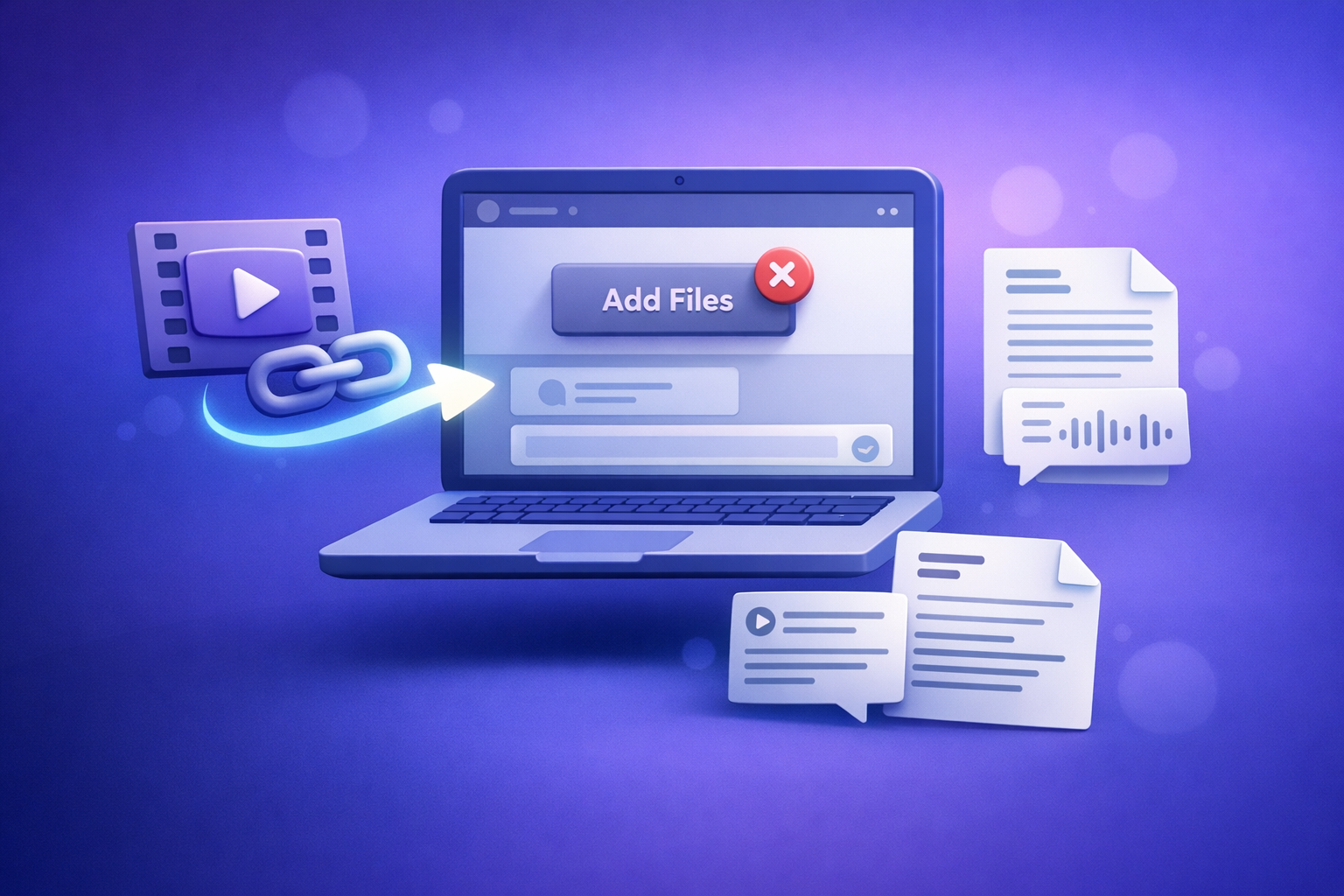
If the “add files” button is unavailable in ChatGPT, don’t troubleshoot the file first—isolate the surface/model, workspace policy, and local browser/network. If uploads are blocked by policy or keep failing, you can still ship today by switching to a no-upload workflow: convert video to transcript + captions and use ChatGPT on text.
What “Add files” Unavailable Means (and What It Doesn’t)
The UI state you’re seeing (greyed out, missing, or blocked)
You’ll typically see one of these:
- The paperclip / “Add files” control is greyed out
- The control is missing entirely
- Clicking it does nothing, or the picker opens but fails to attach
These states often look like “a bug,” but they’re usually a capability or policy signal.
What it usually indicates
Most “add files unavailable chatgpt” cases map to one of these:
- Surface/model doesn’t support uploads in this context
- Plan/workspace policy disables attachments (common in Team/Enterprise)
- Thread-level limitation or temporary restriction tied to that chat
- Browser/network interference (extensions, cookies, VPN, firewall)
What it usually doesn’t indicate
It usually doesn’t mean:
- Your file is “bad”
- The file is corrupted
- You need to re-encode or rename the file (that’s a later check)
In practice, most failures are entitlement/surface/policy, not file integrity.
2-Minute Diagnosis (Fastest Way to Identify the Root Cause)
Step 1 — Confirm where you’re using ChatGPT
Uploads can differ by surface and account context:
- Web app vs desktop app vs mobile app
- Personal account vs Team/Enterprise workspace
If you’re in a managed workspace, assume policy until proven otherwise.
Step 2 — Start a brand-new chat (thread-level isolation)
Old threads can retain limitations due to:
- A model that didn’t support uploads when the thread started
- A temporary restriction applied to that conversation
- UI state that doesn’t refresh cleanly
Create a new chat before changing anything else.
Step 3 — Switch to an upload-capable model/surface (capability check)
Look for the paperclip / “Add files” control in the message composer.
- If it’s missing, you’re likely in a context that doesn’t support attachments
- If it’s present but disabled, you’re likely facing policy, local blocking, or a temporary restriction
Step 4 — Test with a tiny, safe file (rule out size/type edge cases)
Use a control test:
- A small TXT (a few KB) or small PNG
- Simple filename like
test.txt
If a tiny TXT won’t attach, it’s rarely a file constraint issue.
Step 5 — Cross-check in another browser profile/device (local vs account issue)
Do quick isolation tests:
- Incognito/private window
- Another browser profile (no extensions)
- Mobile hotspot (network isolation)
If it works elsewhere, your issue is local browser/network, not your account.
Root Causes (Ordered by Likelihood) + Exact Fixes
1) Model/surface mismatch (uploads not supported here)
This is the most common cause: you’re in a ChatGPT context where attachments aren’t enabled.
Fix
- Start a new chat
- Switch to a model/surface that supports attachments
- Re-check the composer for the paperclip / “Add files” control
If the button is missing, don’t keep debugging the file—change the context first.
Verification
- The “Add files” control appears and accepts a tiny TXT/PNG test file
2) Workspace/admin policy disables attachments (Team/Enterprise)
Many organizations disable attachments for compliance, data loss prevention, or security.
Fix
- Check workspace settings (if you’re an admin)
- If you’re not: ask your admin to enable file uploads/attachments
- If you can’t change policy: use the no-upload workflow below
Verification
- Upload works in a personal account but not in the workspace
3) Temporary account limitation / feature rollout variance
Features can vary by account, region, or surface, and temporary restrictions happen.
Fix
- Log out/in
- Restart the app
- Wait and retry (short delay)
- Try alternate surface: web ↔ desktop ↔ mobile
Verification
- Upload becomes available on one surface but not another
4) Browser extensions or privacy settings blocking upload UI
Script blockers and privacy tools can break the attachment control or the file picker flow.
Fix
- Disable extensions one by one (start with ad/script blockers)
- Allow cookies/site functionality for the ChatGPT domain (if blocked)
- Hard refresh, then clear site data for ChatGPT and re-login
Verification
- Upload works in incognito/clean profile but not in your main profile
5) Network/security filtering (VPN, corporate firewall, DNS filtering)
Corporate networks may block endpoints needed for attachments.
Fix
- Disable VPN and retry
- Try a different network (mobile hotspot)
- If corporate network: request allowlisting for required domains/endpoints
Verification
- Upload works on hotspot but not on corporate Wi‑Fi
6) File constraints (size/type/encoding) causing “unavailable” or failed attach
This is less common when the button is missing/greyed out, but it matters when attaching fails.
Fix
- Convert to a simpler supported type (e.g., TXT/PDF/PNG)
- Reduce size (trim media, compress)
- Rename file with simple ASCII characters (avoid emojis/symbols)
Verification
- Small TXT attaches successfully; large media fails (points to size/type limits)
Step-by-Step Fix Sequence (10 Minutes, No Guessing)
Minute 0–2: Isolate thread/model
- Open a new chat
- Switch to an upload-capable model/surface
- Look for the “Add files” control
Minute 2–5: Isolate local browser issues
- Run an incognito/private window test
- Disable extensions (start with ad/script/privacy blockers)
- Clear site data for ChatGPT and re-login
Minute 5–8: Isolate network/workspace policy
- Try a mobile hotspot (no VPN)
- Compare personal account vs workspace account
Minute 8–10: Decide path
- If still blocked: proceed with the no-upload workflow (next section)
- If fixed: attach a small control file first, then your real file
Ship-Now Alternative: No-Upload Video → Text → ChatGPT Workflow (Production-Safe)
Downloading video files just to re-upload them is an outdated workflow that creates avoidable failure points (UI limits, policy blocks, flaky attachments). Link-based extraction is the future of creator productivity because it’s faster, more repeatable, and less dependent on any single UI.
When to use this
Use this approach when:
- The upload button is unavailable due to policy, surface limitations, or unstable UI
- You need transcripts/captions/repurposing outputs today
- You want a workflow that works even if ChatGPT attachments are disabled tomorrow
Workflow A (Link-based): Video URL → Transcript/Captions → Paste into ChatGPT
- Copy the video link (YouTube, TikTok, Instagram, etc.)
- Generate transcript + captions with VideoToTextAI
- Export:
- TXT for analysis/repurposing
- SRT/VTT for captions/subtitles
- Paste the transcript text into ChatGPT for:
- summaries, outlines, blog drafts, social posts, SEO metadata
- Keep SRT/VTT as the source of truth for timing and caption QA
This is the cleanest way to keep production moving when “add files” is blocked.
Workflow B (File-based without ChatGPT uploads): MP4 → Transcript/Captions → ChatGPT-on-text
- Upload MP4 to your transcription tool (or provide a link if available)
- Export TXT + SRT + VTT
- Paste transcript into ChatGPT (chunk if needed)
- Ask ChatGPT to produce deliverables (chapters, hooks, posts) from text only
If you need tooling references for exports and downstream use, see:
Prompt pack (copy/paste)
Transcript cleanup + structure
“Clean this transcript (remove filler, keep meaning), add headings by topic, and output a structured outline.”
Captions QA
“Review this transcript for proper nouns and technical terms; list likely corrections and a glossary.”
Repurposing
“Turn this transcript into: (1) a 1,200-word blog post, (2) 10 LinkedIn hooks, (3) 5 short-form scripts.”
For a full repurposing flow, also reference: YouTube to blog
Implementation Checklist (Use This Before You Escalate)
- New chat created (thread isolated)
- Upload-capable model/surface selected
- Tested with a tiny TXT/PNG file
- Incognito/private window test completed
- Extensions disabled (ad/script/privacy)
- Site data cleared + re-login
- VPN off; tested on hotspot
- Personal vs workspace account compared
- If policy-blocked: switched to no-upload workflow (TXT/SRT/VTT)
VideoToTextAI vs Competitors
When the “add files” button is unavailable, the real question is: can your workflow still ship without attachments? Evaluate tools on reliability under policy constraints, link-based input, export formats, and how easily outputs flow into downstream writing/SEO.
Comparison criteria (what you should evaluate)
- Reliability when ChatGPT uploads are disabled (no-upload path)
- Input options (link-based vs file-based)
- Export formats (TXT, SRT, VTT) for downstream workflows
- Repurposing readiness (clean transcript for blog/social)
- Repeatability for production (batching, consistent outputs, fewer UI dependencies)
Quick comparison (capabilities-level)
| Tool | Link-based input (URL-first) | Export formats for downstream (TXT/SRT/VTT) | Best fit when ChatGPT uploads are disabled | Notes |
|---|---|---|---|---|
| VideoToTextAI | Yes (designed for link-based workflows) | Yes (transcript + caption-friendly exports) | Strong (paste-ready text + timed captions) | Optimized for operational repeatability: extract once, reuse everywhere. |
| OpenAI Whisper (self-hosted/CLI) | No (typically file-first) | Yes (depends on wrapper; commonly SRT/VTT/TXT) | Medium | Great for engineers who want local control; slower to operationalize for non-technical teams. |
| Descript | Limited (commonly project/file workflow) | Yes (varies by project settings) | Medium | Strong editing environment; can be heavier than needed if you only need exports fast. |
| Otter.ai | Limited (meeting/audio-first) | Yes (transcript exports; caption formats vary by plan/workflow) | Medium | Good for meetings; may be less direct for creator link-first video pipelines. |
Where VideoToTextAI fits best: link-first video → text workflows that don’t depend on ChatGPT’s attachment UI, plus transcript + caption exports you can reuse across tools and teams.
If a competitor is better for a narrower job: Descript can be better when you need deep timeline editing, and Whisper can be better when policy requires fully local processing.
Competitor Gap
What most “fix the add files button” guides miss
- A deterministic diagnosis flow (thread vs model vs policy vs local vs network)
- A production-safe fallback that still ships deliverables when uploads are blocked
- Export-first workflows (TXT/SRT/VTT) that make ChatGPT optional, not critical
How this post closes the gap
- 2-minute isolation test + ordered fixes (no random toggling)
- No-upload workflow that converts video to text first, then uses ChatGPT on text
- Checklist to prevent repeated downtime
If you want adjacent troubleshooting paths, these guides cover related UI states:
- “Add Files” Button Unavailable in ChatGPT: Causes, Fixes, and a No-Upload Workflow (2026)
- “Add Files Is Unavailable” in ChatGPT: Fix It Fast (and Use a No-Upload Video→Text Workflow)
- “Max 0 Uploads at a Time” in ChatGPT: What It Means + Fixes That Work (and a No-Upload Video→Text Workflow)
- “Attachments Disabled for” ChatGPT: What It Means + Fixes That Work (and a No-Upload Video→Text Workflow)
- ChatGPT “Upload Video” Feature (2026): What Works, What Breaks, and the Reliable No-Upload Workflow
FAQ (People Also Ask)
Why is the “Add files” button greyed out in ChatGPT?
Most often, you’re in a model/surface that doesn’t support uploads in that context, or your workspace policy disables attachments. Run the fast isolation: new chat → switch model/surface → tiny TXT test → incognito → hotspot.
How do I enable file uploads in ChatGPT?
You can’t always enable it manually. Uploads depend on:
- The surface (web/desktop/mobile)
- The model/context selected
- Your account/workspace policy
If you’re in Team/Enterprise, ask an admin to enable attachments—or use a text-first workflow.
Is “Add files unavailable” caused by my file type or size?
Usually no when the button is missing or greyed out. File constraints matter more when the UI allows attaching but the upload fails. Confirm by attaching a tiny TXT/PNG first.
Why can I upload files on mobile but not on desktop (or vice versa)?
That points to either:
- A surface-specific capability/rollout difference, or
- A desktop browser issue (extensions, cookies, privacy settings), or
- A network difference (corporate Wi‑Fi vs mobile data)
Use incognito and hotspot tests to isolate quickly.
What can I do if my workplace disables ChatGPT attachments?
Don’t fight the policy with repeated retries. Switch to an export-first pipeline:
- Generate TXT + SRT/VTT
- Paste transcript text into ChatGPT for writing/SEO outputs
- Keep caption files as your timing source of truth
This keeps production reliable even when attachments are permanently disabled.
Related posts
Reel Analyser (Instagram Reels): Transcript‑First Competitor Research, Hook/CTA Extraction, and Repurposing Workflow (VideoToTextAI)
Video To Text AI
A 2026 reel analyser should turn Instagram Reel links into a searchable transcript library you can tag for hooks, CTAs, objections, and topic clusters—then export into repurposing-ready drafts without a download/upload loop.
Traducir video de Instagram (Reels) en 2026: workflow transcript-first para traducir, sacar hooks/CTAs y repurpose (con VideoToTextAI)
Video To Text AI
Aprende a traducir un Reel de Instagram con un flujo URL→transcripción→traducción→subtítulos, y a convertir esa traducción en un activo de investigación para hooks, CTAs, objeciones y clusters de contenido.
Reel Analyzer: Transcript‑First Instagram Reels Research (Hooks, CTAs, Objections) + Workflow Guide (VideoToTextAI)
Video To Text AI
A reel analyzer should turn any public Instagram Reel link into a searchable transcript library you can mine for hooks, CTAs, objections, and topic clusters—then repurpose into original drafts with a repeatable SOP.