
ChatGPT “Upload Video” Feature (2026): What Works, What Breaks, and the Reliable No-Upload Workflow
 Video To Text AI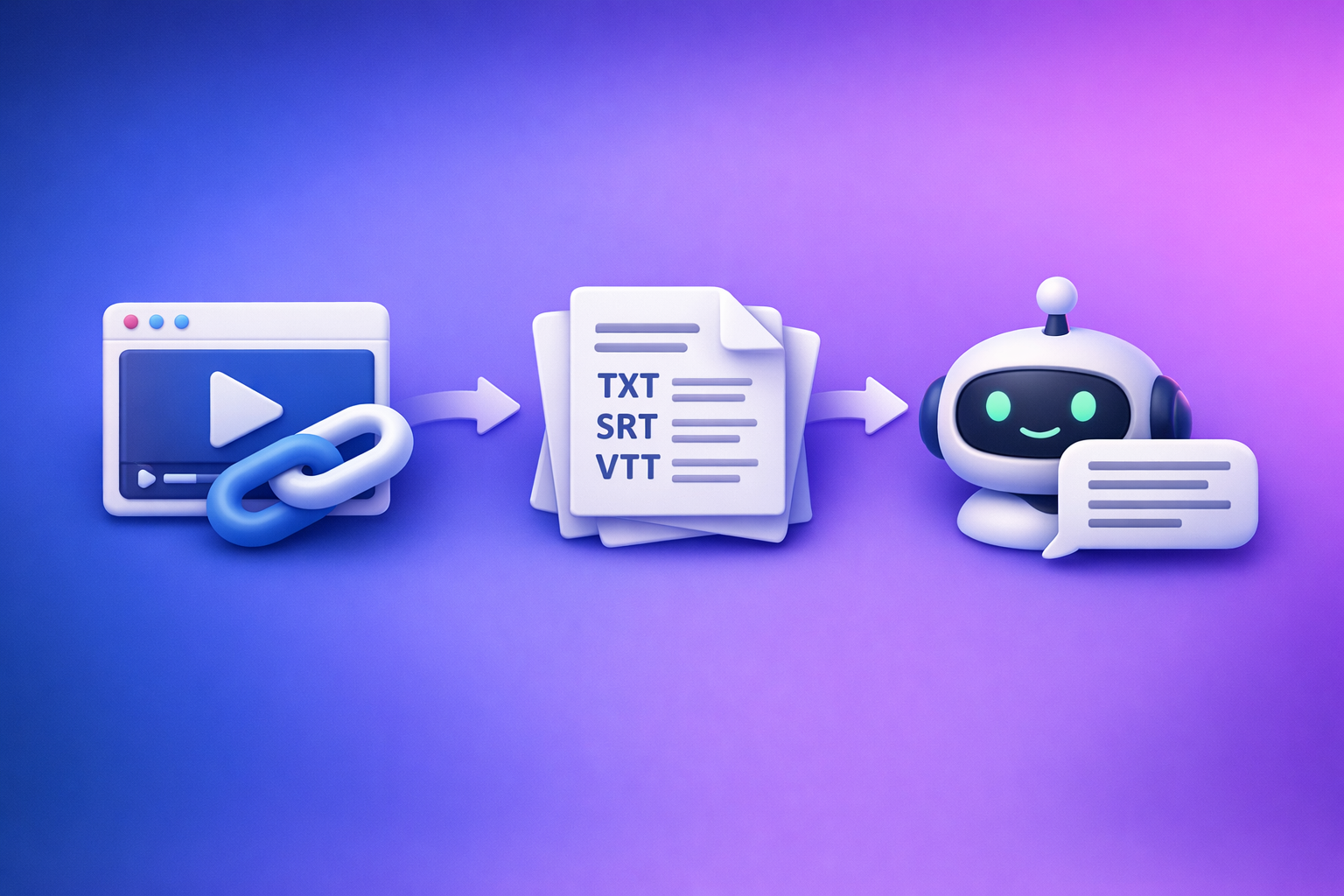
ChatGPT’s “upload video” feature is not a production-safe workflow in 2026 because availability and reliability vary across plans, apps, regions, and workspace policies. The dependable approach is video → transcript/captions (TXT/SRT/VTT) → ChatGPT on text, so you can ship clean outputs every time.
ChatGPT “Upload Video” Feature (2026): What Works, What Breaks, and the Reliable No-Upload Workflow
Quick Answer: Can You Upload Video to ChatGPT?
Yes—sometimes—but “upload video” can mean different things, and each has different failure modes.
What “upload video” can mean (3 different capabilities)
-
Attach a video file (MP4/MOV) in chat
You select a file via an attachment button and ask for analysis. -
Paste a video link and ask ChatGPT to access it
This often fails due to permissions, paywalls, geo blocks, or platform restrictions. -
Provide frames/screenshots for image-based analysis
You upload a few key frames (or a storyboard) and ask for interpretation.
The reality in 2026: availability varies by plan, client (web/iOS/Android), region, and workspace policy
In practice, “video upload” behaves like a rolling rollout:
- The attachment button may appear/disappear depending on the surface and model.
- Team/Enterprise workspaces may disable attachments entirely.
- Some contexts allow images but not video, or allow uploads but fail on processing.
Best default for production: video → transcript/captions → ChatGPT on text
If you need repeatable deliverables (transcripts, subtitles, captions, repurposed content), treat ChatGPT as the post-processing layer, not the ingestion layer.
Brand POV: Downloading giant video files just to “try an upload” is an outdated workflow. Link-based extraction is the future of creator productivity because it’s faster, more repeatable, and produces export-ready assets.
What Works vs. What Breaks (Real-World Scenarios)
Works reliably
Short clips for quick analysis (when the attachment button exists)
If the upload control is present and your clip is short, you can often get:
- A quick summary
- A list of key moments
- Basic QA notes (e.g., “what’s wrong with this ad cut?”)
Image/frame-based analysis (when you can provide frames or screenshots)
If video upload is flaky, frames are the next best option:
- Export 6–12 screenshots (title cards, key scenes, charts)
- Ask ChatGPT to interpret visuals and propose structure/copy
This is especially effective for slide-based videos and screen recordings.
Breaks often (and why)
Upload button missing / disabled in the current surface or model
Common cause: you’re in a context where attachments are not enabled (model, thread type, or workspace policy).
Upload stalls, fails, or times out on larger files
Large files stress:
- Browser memory
- Network stability
- Server-side processing queues
Link access fails (private links, permissions, paywalls, geo blocks)
Even if you paste a URL, ChatGPT may not be able to fetch it if it’s:
- Private (Drive permissions, unlisted platforms with auth)
- Paywalled (subscription content)
- Geo-restricted (region locks)
Output isn’t export-ready (no clean TXT/SRT/VTT, inconsistent timestamps)
Even when analysis works, you often don’t get:
- Clean TXT transcript you can edit
- Proper SRT/VTT caption files
- Consistent timestamps suitable for publishing
That’s why transcript-first workflows win operationally.
Supported Formats, Limits, and Common Errors (What to Check First)
File types users try (MP4/MOV) vs what actually succeeds
Most users attempt MP4 or MOV. “Supported” doesn’t mean “reliable,” because encoding and container details matter.
The first constraints that usually break uploads
File size and duration
Uploads tend to fail first on:
- Long recordings (podcasts, webinars, meetings)
- High-bitrate exports (4K, ProRes, screen recordings)
Network stability, VPNs, corporate proxies
Uploads are sensitive to:
- VPN/proxy inspection
- Corporate firewalls
- Unstable Wi‑Fi (especially on mobile)
Mobile camera roll formats and HEVC edge cases
iPhone/Android camera roll videos may be:
- HEVC/H.265
- Variable frame rate
- HDR variants
These can trigger “upload failed” or “processing stuck” behaviors.
Common symptoms users report
- “Add files” missing
- “Attachments disabled for …”
- “Max 0 uploads at a time”
- “Upload failed” / processing stuck / 403
If you’re seeing these, skip ahead to troubleshooting—or switch immediately to the no-upload workflow.
Step-by-Step: Upload a Video to ChatGPT (When the Feature Is Available)
Step 1 — Confirm you’re in an upload-capable context
Don’t troubleshoot inside a restricted thread. Start clean.
Web vs iOS vs Android differences to verify
- Web: check the attachment/paperclip control near the prompt box.
- iOS/Android: check whether the chat composer shows media/file options.
New chat + model selection check (don’t troubleshoot inside a restricted thread)
- Start a new chat
- Select a model/context that supports attachments (if available)
- Confirm the attachment button appears before you prep the file
Step 2 — Prepare the video to reduce failure risk
Trim to the smallest clip that answers the question
If your goal is “analyze this moment,” don’t upload the whole recording.
- Export a 10–60 second clip
- Remove dead air
- Keep only the segment needed for the task
Re-encode if needed (MP4 H.264 + AAC as the safest baseline)
If you control encoding, the safest baseline is typically:
- Container: MP4
- Video codec: H.264
- Audio codec: AAC
Step 3 — Upload and prompt for the right output
Prompts for: summary, chapters, key moments, action items
Use prompts that produce structured output:
- “Summarize this clip in 5 bullets and include 2 risks and 2 improvements.”
- “Create chapter titles with time ranges and a 1-sentence description each.”
- “List key moments and why they matter to a viewer.”
Prompts for: transcript cleanup (only if you already have text)
ChatGPT is strongest when you provide text:
- “Clean up this transcript, fix punctuation, and keep speaker turns.”
- “Normalize terminology and correct product names.”
If you need a transcript first, use the transcript-first workflow below.
Step 4 — Validate output quality (before you ship it)
Spot-check names, numbers, and timestamps
Always verify:
- Proper nouns (people, brands, tools)
- Numbers (prices, dates, metrics)
- Timestamps (if provided)
Confirm you can export or copy/paste cleanly
If you can’t get clean TXT/SRT/VTT, you’ll spend more time fixing formatting than you saved uploading.
The Production-Safe Workflow: No Upload Needed (Video Link/MP4 → TXT/SRT/VTT → ChatGPT)
This is the workflow you can standardize across a team, regardless of whether ChatGPT’s upload button exists today.
Why this workflow wins (repeatability + export-ready assets)
Deterministic deliverables: transcript + captions/subtitles files
You get assets you can publish and archive:
- TXT transcript for editing and repurposing
- SRT/VTT for captions/subtitles
Faster iteration: ChatGPT works best on text, not fragile media uploads
Text is:
- Easy to paste, chunk, and re-run
- Easy to QA and correct
- Stable across tools and platforms
Easier QA: you can diff text, fix segments, and re-export
When the transcript is the source of truth:
- Fix once (names/terms)
- Re-run repurposing prompts
- Re-export captions without re-uploading video
Implementation (10–15 minutes): VideoToTextAI → ChatGPT
Step 1 — Choose input type in VideoToTextAI
Option A: paste a public video link (YouTube/Instagram/TikTok, etc.)
This is the modern workflow: link in, assets out.
It avoids the download → re-upload loop that slows teams down.
Option B: upload an MP4 you already have
If the video is local (client delivery, recorded webinar), upload the MP4 once to generate exports.
Step 2 — Generate the transcript and captions
Create a clean transcript (TXT) for editing and repurposing
Use the transcript as your master document for:
- Blog drafts
- SEO landing pages
- Email newsletters
- Knowledge base articles
Create subtitles/captions (SRT/VTT) for publishing
Generate caption files for:
- YouTube uploads
- Web players
- Editors that accept SRT/VTT
Step 3 — Export the right format for the job
- TXT for: blog drafts, summaries, outlines, SEO pages
(See: mp4 to transcript) - SRT for: YouTube and most editors
(See: mp4 to srt) - VTT for: web players and some platforms
(See: mp4 to vtt)
Step 4 — Paste transcript into ChatGPT with a production prompt
Use prompts that specify deliverables and formatting.
Prompt: blog post draft + headings + key takeaways
“Using the transcript below, write a blog post with an H1, 6–10 H2s, short paragraphs, and a ‘Key Takeaways’ section. Keep claims grounded in the transcript.”
If your source is YouTube, you can also start from: youtube to blog.
Prompt: social repurposing (threads, LinkedIn, hooks)
“Create 10 hooks, 1 LinkedIn post, and a 12-tweet thread. Use the speaker’s tone. No invented facts.”
Prompt: chapter titles + timestamps (based on transcript timestamps)
“Create chapter titles using the timestamps in the transcript. Output as a table: Start, End, Title, Summary.”
Step 5 — Quality control loop (fast)
Fix proper nouns and terminology once, then re-run repurposing prompts
Do a single cleanup pass, then reuse the corrected transcript for all outputs.
Keep the transcript as the source of truth for future edits
This is how teams avoid rework when the video changes or captions drift.
If you want to implement link-based extraction now, use VideoToTextAI: https://videototextai.com
Troubleshooting: When ChatGPT Video Upload Fails (Fixes by Symptom)
Symptom: You don’t see the upload/attachment button
Fast isolation: new chat + different model + different surface (web vs mobile)
- Start a new chat
- Try a different model (if available)
- Switch surfaces: web ↔ iOS ↔ Android
For a deeper diagnosis, see: “Add Files” Button Unavailable in ChatGPT: Why It Happens + Fixes (and a No-Upload Workflow)
Workspace policy check (ChatGPT Team/Enterprise restrictions)
If you’re in a managed workspace, attachments may be disabled by policy. Confirm with your admin before spending time debugging.
Symptom: “Attachments disabled for …”
What it means (context restriction, not “bad file”)
This usually indicates uploads are blocked in your current context (surface/model/thread/workspace/network).
Fix sequence (ordered): surface → model → thread → workspace → browser/network
- Switch surface (web/mobile)
- Switch model
- New chat thread
- Confirm workspace policy
- Try another browser/network
More detail: “Attachments Disabled for” ChatGPT: Meaning, Root Causes, Fixes, and a No-Upload Workflow (2026)
Symptom: “Max 0 uploads at a time”
What it means (uploads set to zero in the current context)
Your current context has uploads effectively disabled or limited to zero.
Fix sequence (ordered): new chat → model swap → sign out/in → policy confirmation
- New chat
- Swap model
- Sign out/in
- Confirm workspace policy
More detail: “Max 0 Uploads at a Time” in ChatGPT: What It Means, Fixes That Work, and a No-Upload Video→Text Workflow
Symptom: “Upload failed”, stuck processing, or 403
Reduce file size/duration; retry on stable network
- Trim to a short clip
- Re-encode to MP4 H.264/AAC
- Retry on stable Wi‑Fi (or wired)
Disable VPN/proxy; try another browser/device
- Turn off VPN/proxy
- Try a different browser profile
- Try mobile hotspot vs corporate network
If it still fails: switch to transcript-first workflow immediately
Don’t burn an hour on a flaky upload. Ship with deterministic exports.
Checklist: Ship Without the “Upload Video” Button
Before you spend 10+ minutes debugging ChatGPT uploads
- Confirm the upload button exists in your current chat surface/model
- Test with a 10–20s clip (not your full recording)
- If blocked by policy/errors: stop and switch workflows
Production checklist (VideoToTextAI → ChatGPT)
- Video link or MP4 ready
- Export: TXT + SRT (and/or VTT)
- Paste transcript into ChatGPT with a defined deliverable prompt
- QA: names, numbers, timestamps
- Publish: captions/subtitles file + repurposed content outputs
VideoToTextAI vs Competitors
The key difference is operational: VideoToTextAI is built for link-based video-to-text workflows that produce export-ready assets you can reuse, while many tools assume you’ll upload files and work inside their editor.
Below is a fair comparison using only signals available from the researched competitor profiles.
| Tool | Link-based input (paste URL) | Upload-based workflow | Export-ready outputs (TXT/SRT/VTT) | Repurposing workflow | Best fit |
|---|---|---|---|---|---|
| VideoToTextAI | Yes (core workflow) | Yes (optional) | Yes (TXT + SRT + VTT) | Yes (transcript-first → ChatGPT) | Fast, repeatable creator/team pipeline from link/MP4 to publishable assets |
| Reduct Video (reduct.video) | No strong public signal | No strong public signal | Transcript export (subtitles not a strong signal) | Summaries (repurposing not a strong signal) | Collaborative transcript review, research workflows, team analysis |
| PCMag’s recommended transcription tools list (pcmag.com) | Not a tool; editorial list | N/A | N/A | N/A | Good for discovering options; not an execution workflow |
| Choppity (choppity.com) | No strong public signal | Yes | Transcript + subtitles/captions (signals present) | Yes (repurposing signals present) | Clip creation + editing workflows, especially for short-form output |
Why VideoToTextAI wins for workflow speed and repeatability:
- Link-based extraction removes the download → upload loop (outdated and slow).
- Export-ready TXT/SRT/VTT means you can publish and reuse outputs across platforms.
- Transcript-first repurposing is stable: ChatGPT works on text consistently, regardless of whether the “upload video” button exists.
Where competitors may be better (narrower jobs):
- If you need a full transcript-based editing environment for collaboration, Reduct can be a strong fit.
- If your primary goal is AI-driven clipping and editing, Choppity is oriented toward that workflow.
Competitor Gap
What top-ranking pages and tools commonly miss
- They treat “upload video to ChatGPT” as a stable feature (it isn’t).
- They don’t provide an ordered diagnosis for missing/disabled attachments.
- They don’t ship a deterministic fallback that produces TXT/SRT/VTT every time.
What this post adds (differentiators)
- A decision tree: upload if available; otherwise transcript-first immediately
- A production workflow with export formats + QA loop
- Symptom-based troubleshooting mapped to the fastest fix sequence
FAQ
Will ChatGPT let me upload a video?
Sometimes. If the attachment button is missing or disabled, it’s usually a context/policy limitation—not your file.
Can ChatGPT view videos you upload?
In some contexts it can analyze attached media, but results vary. For consistent deliverables, convert to transcript/captions first.
Can I upload videos from my camera roll to ChatGPT?
Sometimes, but camera roll formats (HEVC, variable frame rate) can cause failures. Re-encoding to MP4 H.264/AAC reduces risk.
How do I upload a video to ChatGPT Plus?
If Plus includes attachments in your region/app/model, start a new chat, confirm the attachment button, upload a short clip, and prompt for structured output. If it fails, switch to transcript-first.
Can you upload videos to ChatGPT for free?
Free access is inconsistent and often restricted. If uploads aren’t available, use a no-upload workflow to avoid blocking your deliverables.
Internal Link Plan
- ChatGPT “Upload Video” Feature (2026): What Works, What Breaks, and the Reliable No-Upload Workflow
- “Add Files” Button Unavailable in ChatGPT: Why It Happens + Fixes (and a No-Upload Workflow)
- “Attachments Disabled for” ChatGPT: Meaning, Root Causes, Fixes, and a No-Upload Workflow (2026)
- “Max 0 Uploads at a Time” in ChatGPT: What It Means, Fixes That Work, and a No-Upload Video→Text Workflow
- mp4 to transcript
- mp4 to srt
- mp4 to vtt
- youtube to blog
Related posts
Reel Analyser (Instagram Reels): Transcript‑First Competitor Research, Hook/CTA Extraction, and Repurposing Workflow (VideoToTextAI)
Video To Text AI
A 2026 reel analyser should turn Instagram Reel links into a searchable transcript library you can tag for hooks, CTAs, objections, and topic clusters—then export into repurposing-ready drafts without a download/upload loop.
Traducir video de Instagram (Reels) en 2026: workflow transcript-first para traducir, sacar hooks/CTAs y repurpose (con VideoToTextAI)
Video To Text AI
Aprende a traducir un Reel de Instagram con un flujo URL→transcripción→traducción→subtítulos, y a convertir esa traducción en un activo de investigación para hooks, CTAs, objeciones y clusters de contenido.
Reel Analyzer: Transcript‑First Instagram Reels Research (Hooks, CTAs, Objections) + Workflow Guide (VideoToTextAI)
Video To Text AI
A reel analyzer should turn any public Instagram Reel link into a searchable transcript library you can mine for hooks, CTAs, objections, and topic clusters—then repurpose into original drafts with a repeatable SOP.