
“Attachments Disabled for” ChatGPT: Meaning, Root Causes, Fixes, and a No-Upload Workflow (2026)
 Video To Text AI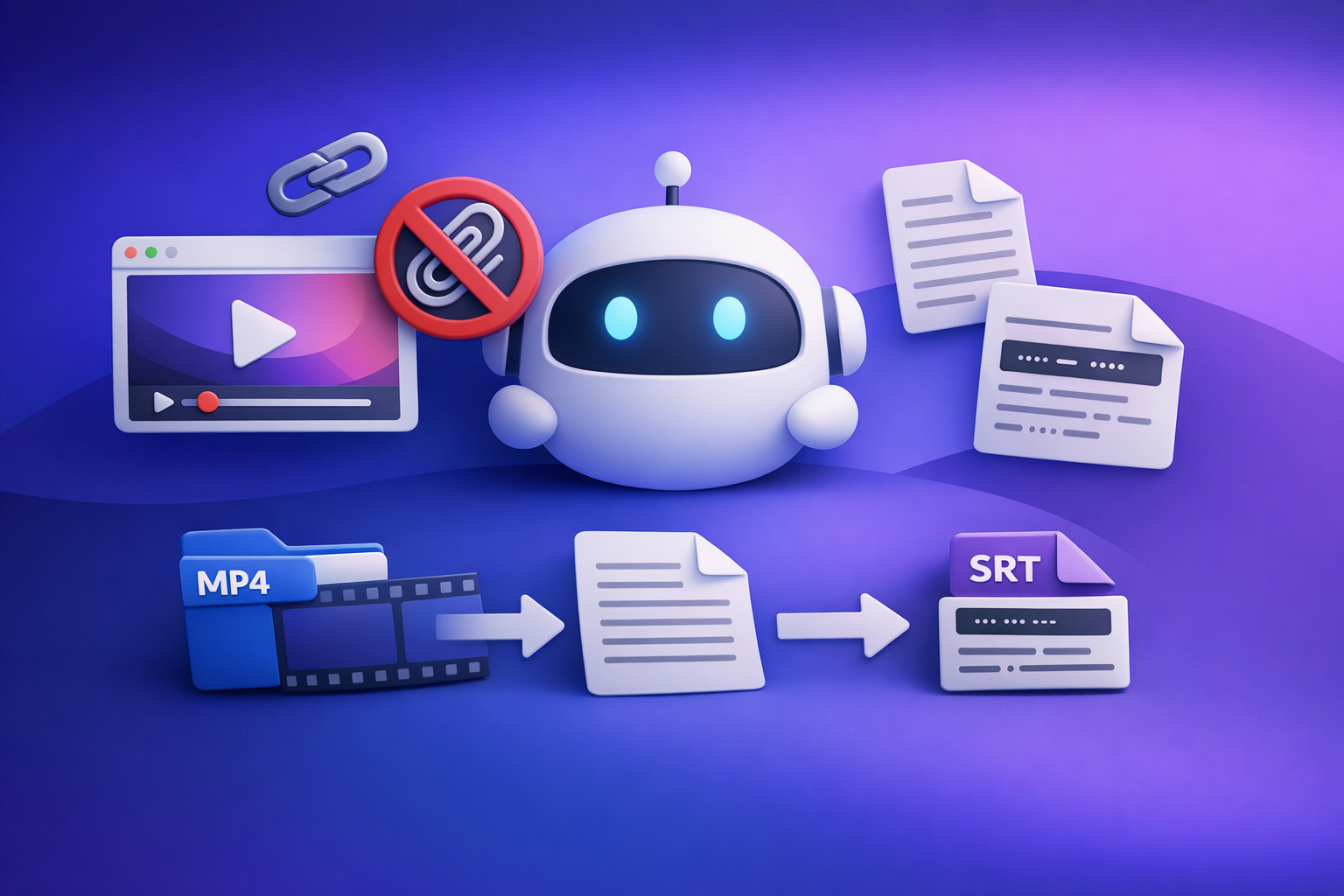
Fix “attachments disabled for” in ChatGPT by starting a new chat, selecting an upload-capable model, and running a quick incognito + alternate-network test to isolate whether it’s your browser, network, or workspace policy. If uploads are still blocked after ~10 minutes, stop troubleshooting and ship via a transcript-first workflow: video link/MP4 → TXT + SRT/VTT → paste into ChatGPT.
Downloading and re-uploading video files is an outdated workflow; link-based extraction is the future of creator productivity because it removes fragile upload UI steps and reduces permissions friction.
“Attachments Disabled for” ChatGPT: Meaning, Root Causes, Fixes, and a No-Upload Workflow (2026)
Quick Answer (What the message means)
What “attachments disabled for …” is actually telling you
It means file uploads are disabled in your current context—typically the current surface (web/desktop/mobile), model, thread, or workspace policy.
Treat it as: “Uploads are disabled here, right now.”
What it does not mean (not a “bad file,” not a permanent ban)
In most cases, it does not mean:
- Your file is corrupted or “unsafe”
- You’re permanently banned from uploading
- ChatGPT can’t help you (it can still process pasted text)
Common UI variants (paperclip missing vs greyed out vs tooltip banner)
You’ll usually see one of these:
- Paperclip missing entirely (uploads not available in that surface/model)
- Paperclip greyed out (uploads disabled in this context)
- Tooltip/banner that literally says “attachments disabled for …” when you hover
If you’re also seeing related upload errors, this guide pairs well with:
- “Add Files” Button Unavailable in ChatGPT: Why It Happens + Fixes (and a No-Upload Workflow)
- “Max 0 Uploads at a Time” in ChatGPT: What It Means + Fixes That Work (and a No-Upload Video→Text Workflow)
2-Minute Diagnosis (before you change settings)
Step 1 — Identify where you are (surface + account type)
Uploads can differ by surface and workspace.
Check:
- Web (browser) vs desktop app vs mobile app
- Personal account vs Team/Enterprise workspace
If you’re in a managed workspace, assume policy until proven otherwise.
Step 2 — Confirm whether the current chat/thread supports uploads
Thread-level restrictions are common.
Do a fast test:
- Open New chat
- Look for the paperclip
- Try attaching a tiny file (e.g., a small TXT)
If it works in a new chat but not the old one, you’ve found the cause.
Step 3 — Confirm whether the selected model supports uploads in this context
Model capability can vary by surface and rollout state.
Test:
- In the same surface, switch models
- Re-check whether the paperclip appears/enables
Signal you’re on the right track: uploads work after a model switch.
Step 4 — Run one isolation test to separate “local issue” vs “account/workspace”
Do this in under 2 minutes:
- Open an incognito/private window
- Log in and check uploads
- If possible, also test an alternate network (phone hotspot)
Interpretation:
- Works in incognito → browser profile/extension/cookies
- Works on hotspot → network/security policy
- Fails everywhere → account/workspace/service issue
Root Causes (ranked) + How to Confirm Each
1) Model/surface mismatch (uploads not supported here)
Most common. Uploads may be unavailable in a specific model or surface.
Confirmation signals:
- Paperclip is absent (not just disabled)
- Tooltip says disabled
- Uploads work in another model or another surface (e.g., mobile)
2) Thread-level limitation (uploads disabled only in one conversation)
Some threads end up in a state where uploads are blocked.
Confirmation signals:
- Uploads work in a brand-new chat
- Uploads fail only in one specific thread
3) Workspace/admin policy (Team/Enterprise restrictions)
Workspaces can restrict uploads for compliance (DLP, data handling).
Confirmation signals:
- Works on personal account, fails in workspace
- Fails across devices consistently when in that workspace
- Colleagues report the same behavior
4) Browser profile breakage (extensions, cookies/storage corruption)
Extensions and corrupted site storage commonly break upload UI.
Confirmation signals:
- Works in incognito/private
- Fails only in your normal browser profile
5) Network/security blocks (VPN, proxy, DLP, content filters)
Corporate networks can block upload endpoints or scripts.
Confirmation signals:
- Works on hotspot
- Fails on corporate Wi‑Fi or with VPN/proxy enabled
6) Temporary service degradation/outage
Sometimes it’s not you.
Confirmation signals:
- Intermittent behavior across devices
- Widespread reports in community channels
- Symptoms change hour-to-hour
Fix Sequence (ordered, fastest-to-verify first)
Fix 1 — Start a new chat and reselect an upload-capable model
Exact steps:
- Click New chat
- Select a model you know supports uploads (in your surface)
- Confirm the paperclip is visible and enabled
- Upload a small file first to validate
If you need deeper context on why this happens, see:
Fix 2 — Switch surface: test the official mobile app
This quickly rules out desktop browser issues.
Why this works:
- No desktop extensions
- Different local storage/session behavior
- Different network path (cellular)
Fix 3 — Incognito/private window test (no extensions, clean session)
If uploads work in incognito, you’ve isolated it to your browser profile.
Next step: proceed to Fix 4–6.
Fix 4 — Disable extensions that commonly break uploads
Disable (temporarily) and retest:
- Ad blockers
- Privacy/script blockers
- Antivirus “web shield” tools
- Download managers
- Corporate browser agents
Re-enable one-by-one after you confirm uploads work.
Fix 5 — Clear ChatGPT site data and re-authenticate
Avoid a full browser wipe.
Do this instead:
- Clear cookies + local storage for the ChatGPT domain only
- Log in again
- Retest uploads in a new chat
Fix 6 — Network swap + remove VPN/proxy
Run a hotspot test:
- Turn off VPN/proxy
- Switch to phone hotspot
- Retest uploads
If hotspot works, your original network is likely enforcing a block.
Fix 7 — Workspace path: what to send your admin (copy/paste request)
Send this to your IT/admin:
We’re seeing “attachments disabled for …” in ChatGPT. Please confirm whether our workspace policy disables file uploads. If uploads are allowed, can you verify: (1) file upload entitlement is enabled, (2) DLP/content filters are not blocking upload endpoints, and (3) required domains are allowed on our network. We can reproduce across devices in the workspace.
Fix 8 — Stop troubleshooting after 10 minutes and use the no-upload workflow
Decision rule: if you can’t isolate the cause quickly, don’t burn the day. Ship via transcript-first.
For video-specific constraints, also see:
Ship-Now Workflow (No Attachments Needed): Video/Audio → Text → ChatGPT
Why transcript-first works when attachments are disabled
Even when uploads are blocked, ChatGPT can reliably process:
- Pasted transcript text
- Time-coded captions (SRT/VTT content pasted as text)
- Structured prompts that tell it exactly what to produce
This is why downloading and re-uploading video files is an outdated workflow. Link-based extraction + exportable text is more reliable, faster, and easier to standardize across teams.
Step-by-step: Link/MP4 → TXT + SRT/VTT → ChatGPT-on-text
- Get a shareable link (YouTube/Instagram/TikTok) or an MP4 file
- Generate transcript + captions (TXT + SRT/VTT) in VideoToTextAI
- Paste transcript into ChatGPT with a structured prompt
- Export deliverables: blog outline, captions, summaries, hooks, repurposed posts
If you want tool-specific paths, these internal resources help:
If you want to run this workflow end-to-end with link-based extraction, use VideoToTextAI: VideoToTextAI
Implementation details that prevent failure
Chunking rules for long transcripts
- Paste in chunks (e.g., 800–1,500 words at a time).
- Start each chunk with: “Chunk 2/6 — continue, don’t summarize yet.”
- After the last chunk, ask for outputs.
Keep speaker labels + timestamps
- Speaker labels improve attribution (“who said what”).
- Timestamps improve quoting and chapter creation.
Use SRT/VTT when you need time-coded work Use SRT/VTT text when you need:
- Chapters and timestamps
- Subtitle QA (spotting missing words)
- Clip selection by time range
Prompt Templates (copy/paste) for when you can’t upload
Template 1 — Clean transcript + key takeaways + action items
You are given a raw transcript. Clean it (remove filler, fix obvious errors) while preserving meaning.
Then produce:
1) 8–12 key takeaways (bullets)
2) Action items (if any) with owner placeholders
3) 5 quotable lines with timestamps (if present)

Transcript:
[PASTE TRANSCRIPT HERE]
Template 2 — Turn transcript into SEO blog outline + sections + meta
Turn this transcript into an SEO blog post plan.
Output:
- Suggested title options (5)
- H1 + H2/H3 outline
- Key points per section (bullets)
- Meta title (<=60 chars) and meta description (<=155 chars)
- Internal link suggestions (where relevant)
- FAQ questions (5) with short answers

Transcript:
[PASTE TRANSCRIPT HERE]
Primary keyword: "attachments disabled for" chatgpt
Template 3 — Generate captions + hooks + short-form scripts from transcript
From this transcript, create:
- 10 short hooks (<=12 words)
- 10 social captions (1–2 sentences each)
- 5 short-form video scripts (30–45 seconds) with a strong opening line and CTA
Keep language punchy and specific; avoid generic advice.

Transcript:
[PASTE TRANSCRIPT HERE]
Template 4 — Create chapters and timestamps from SRT/VTT
Create chapters from the following subtitle file.
Output:
- 6–12 chapters
- Each chapter: timestamp range + title + 1-sentence summary
- Identify 5 best clip moments with exact timestamps

Subtitles (SRT/VTT):
[PASTE SRT OR VTT HERE]
Checklist: Fix or Fallback (printable)
10-minute fix checklist (in order)
- New chat + model reselect (verify paperclip, try small file)
- Mobile app test (rules out desktop browser issues)
- Incognito/private test (isolates extensions/cookies)
- Disable extensions (ad blockers, privacy tools, antivirus web shields)
- Clear site data for ChatGPT domain only + re-login
- Hotspot/no VPN test (isolates network/DLP/proxy)
- Workspace admin confirmation (policy/entitlement)
Ship-now checklist (no uploads)
- Generate TXT + SRT/VTT
- Paste transcript in chunks with labels (Chunk 1/5…)
- Run repurposing prompts (summary, blog, captions, chapters)
- Save outputs to your CMS/content system
VideoToTextAI vs Competitors
Comparison criteria (what we will evaluate)
We’ll compare tools on what matters when ChatGPT attachments are disabled:
- Workflow speed from URL to publishable assets
- Export readiness (TXT, SRT, VTT) for downstream tools
- Repeatability for creators/teams (standard outputs, fewer fragile UI steps)
- Repurposing depth (blog/social assets from the same transcript)
Quick comparison table
| Tool | Link-based input (URL-first) | Upload-based workflow | Export readiness (TXT/SRT/VTT) | Repurposing depth (blog/social from transcript) | Best fit |
|---|---|---|---|---|---|
| VideoToTextAI | Yes (link-based workflows) | Optional (MP4 supported) | Yes (transcript + captions exports) | Strong for transcript-first repurposing workflows | Shipping content when uploads fail; repeatable creator/team pipelines |
| Reduct Video (reduct.video) | No strong public signal | Not positioned as link-first | Transcript export (publicly emphasized) | Limited public positioning on blog/social repurposing | Transcript-centric collaboration and research workflows |
| Choppity (choppity.com) | No strong public signal | Yes (upload-first editing flow) | Captions/transcript supported (publicly emphasized) | Limited public positioning on blog/social repurposing | AI-assisted clipping/editing when uploads are available |
| Canva (canva.com) | No strong public signal | Yes (upload into design ecosystem) | Transcript/captions features emphasized; export portability varies by workflow | Limited public positioning on transcript-to-blog/social systems | Captions + design production inside Canva |
Why VideoToTextAI wins (when attachments are disabled)
When ChatGPT shows “attachments disabled for,” the bottleneck is getting content into ChatGPT without uploads.
VideoToTextAI is built for that reality:
- Link-first extraction means you don’t need to download a video just to re-upload it somewhere else.
- Exportable transcript/captions (TXT + SRT/VTT) are easy to paste into ChatGPT and other tools.
- Operational repeatability: standardized text outputs reduce fragile UI steps and permission issues across devices/workspaces.
Fair note:
- If your primary job is collaborative transcript review (research teams), Reduct may be better suited.
- If your primary job is clip editing with uploads, Choppity can be a strong fit.
- If your primary job is design + captions inside one ecosystem, Canva is convenient.
Competitor Gap
Top-ranking pages about “attachments disabled for” usually stop at generic troubleshooting.
This post adds what’s typically missing:
- A deterministic 2-minute isolation flow (surface/model/thread/workspace/local)
- An ordered fix sequence with stop conditions (don’t waste time)
- A production-safe no-upload workflow that ships transcripts/captions today
- Implementation details that prevent failure: chunking, timestamps, SRT/VTT usage, prompt templates, printable checklist
FAQ
Why are my ChatGPT uploads disabled?
Most often it’s a model/surface mismatch, a thread-level limitation, a workspace policy, a browser profile issue, a network/security block, or a temporary outage.
Why is ChatGPT not letting me attach files?
Because uploads are disabled in that specific context. Start a new chat, switch models, and run an incognito + hotspot test to isolate the cause quickly.
Where is the upload button in ChatGPT?
If uploads are available, you’ll see a paperclip near the message box. If it’s missing or greyed out, uploads are disabled for your current model/surface/thread/workspace.
Does “attachments disabled for” mean my account is restricted?
Not necessarily. It usually indicates a context-level restriction rather than a permanent account restriction.
What’s the fastest workaround if I need a transcript or captions today?
Use a transcript-first workflow: generate TXT + SRT/VTT, then paste into ChatGPT to produce summaries, blogs, captions, hooks, and chapters. For related guidance, see MP4 to Transcript and YouTube to Blog.
Related posts
Reel Analyser (Instagram Reels): Transcript‑First Competitor Research, Hook/CTA Extraction, and Repurposing Workflow (VideoToTextAI)
Video To Text AI
A 2026 reel analyser should turn Instagram Reel links into a searchable transcript library you can tag for hooks, CTAs, objections, and topic clusters—then export into repurposing-ready drafts without a download/upload loop.
Traducir video de Instagram (Reels) en 2026: workflow transcript-first para traducir, sacar hooks/CTAs y repurpose (con VideoToTextAI)
Video To Text AI
Aprende a traducir un Reel de Instagram con un flujo URL→transcripción→traducción→subtítulos, y a convertir esa traducción en un activo de investigación para hooks, CTAs, objeciones y clusters de contenido.
Reel Analyzer: Transcript‑First Instagram Reels Research (Hooks, CTAs, Objections) + Workflow Guide (VideoToTextAI)
Video To Text AI
A reel analyzer should turn any public Instagram Reel link into a searchable transcript library you can mine for hooks, CTAs, objections, and topic clusters—then repurpose into original drafts with a repeatable SOP.