
“Max 0 Uploads at a Time” Rate Limit in ChatGPT: What It Means, Why It Happens, and Fixes (Plus a No-Upload Workflow)
 Video To Text AI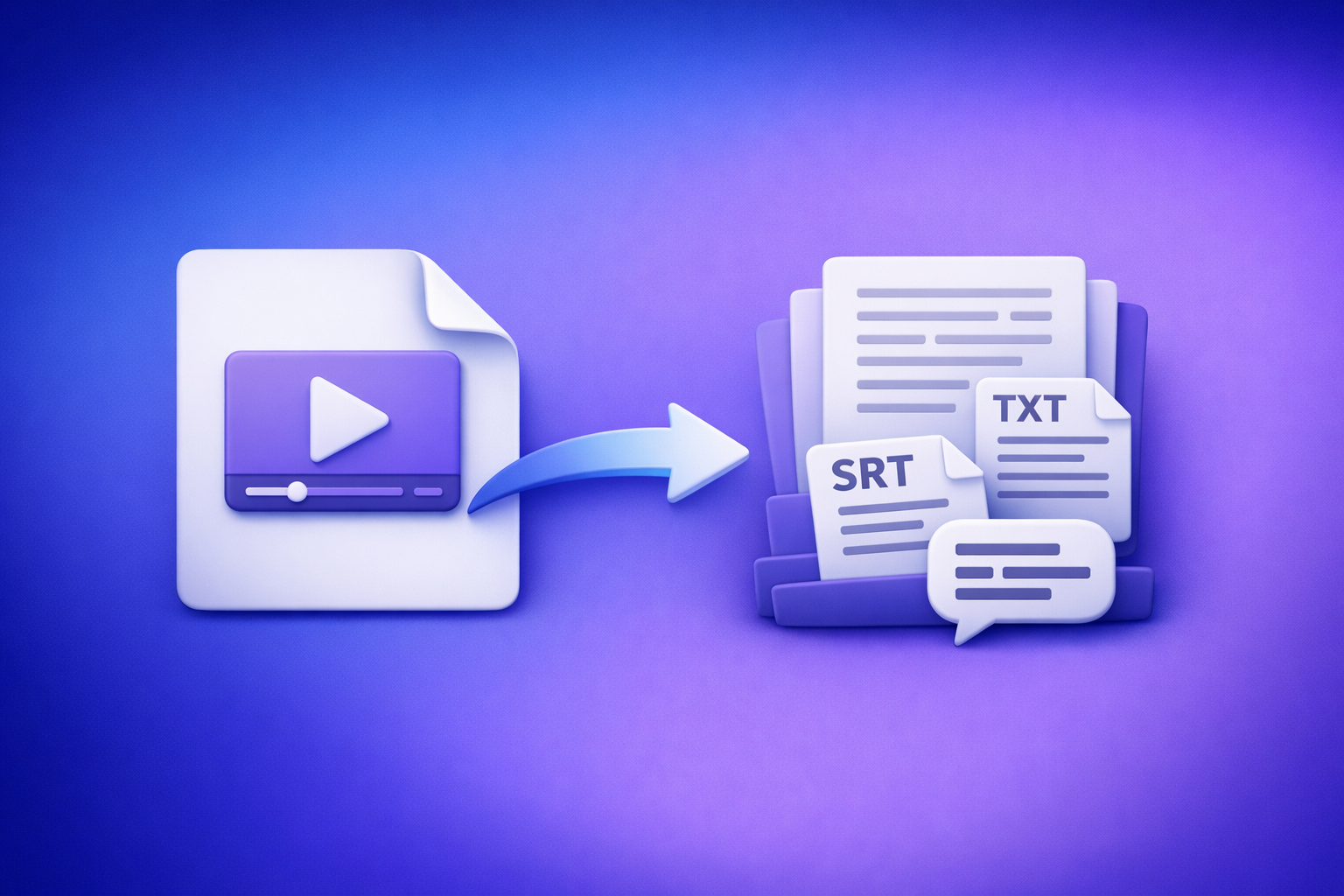
If you see “max 0 uploads at a time” in ChatGPT, stop debugging the file—your current ChatGPT context is set to zero attachments. Use the 2-minute isolation flow below to restore uploads fast, or ship today by switching to a no-upload, transcript-first workflow.
TL;DR (1-minute answer)
What the message usually means
- “0 uploads” is not a file error. It’s a capability setting: your current chat is configured to allow zero attachments.
- Most of the time it’s caused by thread state, model/tool mode, surface differences (web vs app), or workspace policy.
When it’s a real rate limit vs an upload capability block
- Capability block: The UI consistently shows “0 uploads” across retries, often in a specific chat mode, surface, or work account.
- True rate limit: Uploads worked recently, then temporarily stopped after heavy usage; waiting restores it.
Fastest path: restore uploads or bypass uploads with a link-based transcript workflow
- Fast restore: new chat → switch surface → switch model/tool mode → confirm workspace.
- Fast bypass: generate TXT/SRT/VTT from a video link, then paste transcript text into ChatGPT (no attachments needed).
What “Max 0 uploads at a time” means (plain-English)
“0 uploads” is a capability setting in your current ChatGPT context
ChatGPT can run in different contexts (thread + model/tooling + surface). In some contexts, attachments are simply off, so the allowed concurrent uploads is 0.
Where the “0” can be enforced (thread vs model vs surface vs workspace policy)
Uploads can be blocked at multiple layers:
- Thread-level: one conversation gets “stuck” in a non-upload state.
- Model/tool mode: the selected mode doesn’t support attachments.
- Surface: web supports something the mobile/desktop app doesn’t (or vice versa).
- Workspace policy: Team/Enterprise admins can disable attachments.
How it differs from: file too large, unsupported format, or temporary outage
This message is different from:
- File too large: you’ll see size-related errors, not “0 uploads.”
- Unsupported format: you’ll see format/codec errors after selecting a file.
- Temporary outage: usually affects more than uploads and is inconsistent across sessions.
Common causes (ranked by likelihood)
1) Current chat/thread doesn’t support attachments
A single thread can show “0 uploads” even if uploads work elsewhere.
2) Model/surface mismatch (uploads supported in one place, not another)
Uploads may be enabled on one surface (e.g., mobile) but disabled on another (e.g., web), depending on the active mode.
3) Workspace/admin policy disables attachments (Team/Enterprise)
Workspaces can enforce “no attachments,” which presents as 0 uploads.
4) Browser profile or extensions blocking upload UI
Privacy tools and script blockers can break the attachment picker or disable UI controls.
5) Network controls (VPN, proxy, content filters, corporate Wi‑Fi)
Corporate filtering can block upload endpoints or required scripts.
6) True rate limiting / service-side throttling (least common)
This is real, but it’s usually not what “max 0 uploads at a time” indicates.
2-minute diagnosis: isolate the exact blocker (do this in order)
Step 1 — Confirm scope: one thread or all chats?
- Open a new chat.
- Check whether the attachment control appears and allows selection.
If uploads work in a new chat: it’s a thread-level issue. Skip to Fix 1.
Step 2 — Confirm surface: Web vs Desktop vs Mobile
- Test ChatGPT web in a desktop browser.
- Then test mobile app (or desktop app).
If uploads work on one surface only: you’ve isolated a surface limitation.
Step 3 — Confirm model/tooling: does this chat mode support uploads?
- Switch to a mode/model that explicitly supports attachments (based on what your UI offers).
- Re-check whether the attachment control changes from disabled → enabled.
If switching modes fixes it: it’s a model/tool context issue.
Step 4 — Confirm account/workspace: personal vs work account
- If you’re on Team/Enterprise, test a personal account (if available).
If personal works and work doesn’t: it’s likely a workspace policy block.
Step 5 — Confirm environment: clean browser + clean network
- Incognito/private window (no extensions)
- Different network (phone hotspot)
If hotspot works: it’s a network control issue.
Fixes that work (fastest-first, with exact actions)
Fix 1 — Start a new chat (thread-level reset)
What to click
- Click New chat.
- Re-check the paperclip/attachment control before typing a long prompt.
What success looks like
- Attachment control is enabled and you can select a file without seeing “0 uploads.”
Fix 2 — Switch surfaces (Web ↔ Mobile ↔ Desktop)
Why this works
- Surfaces can differ in feature rollout, permissions, or cached state.
What result confirms a surface limitation
- Uploads work on mobile but not web (or the reverse) with the same account.
Fix 3 — Switch model/chat mode to an upload-capable context
How to verify before retrying
- Look for an enabled attachment icon and the ability to open the file picker.
- If the UI still says “0 uploads,” don’t keep retrying the same mode.
Fix 4 — Log out/in + verify you’re in the right workspace
- Log out of ChatGPT.
- Log back in and confirm you’re not accidentally in a restricted workspace context.
How to confirm
- Check account/workspace selector (if present) and switch to the intended workspace.
Fix 5 — Remove browser blockers (extensions + site data)
Disable extensions that commonly interfere
- Ad blockers
- Privacy tools
- Script blockers
- “Anti-tracking” extensions
Clear site data
- Clear cookies/site storage for ChatGPT.
- Reload and re-authenticate.
Fix 6 — Remove network blockers (VPN/proxy/corporate Wi‑Fi)
Quick isolation
- Turn off VPN.
- Test on a phone hotspot.
If hotspot works: what to ask IT/admin to allow
- Allow ChatGPT upload endpoints and required scripts for the ChatGPT domain.
- Remove SSL inspection or content filtering rules that break file upload requests.
Fix 7 — If it’s a true rate limit: wait + retry with a controlled test
Controlled test
- Try uploading a small file (tiny image or small text file) once.
- Avoid repeated rapid retries; that can extend throttling.
How to avoid repeated throttles
- Batch your work: fewer uploads, larger text-based prompts, and reuse transcripts.
Decision rule: stop troubleshooting and ship without uploads
If uploads are still “0” after 10 minutes of isolation
Stop. You’ve likely hit a policy/capability block that won’t resolve by “trying harder.”
Scenarios where uploads won’t return
- Managed devices with locked-down browser policies
- Team/Enterprise workspace with attachments disabled
- Corporate networks that block upload endpoints
Why “ChatGPT-on-text” is more reliable than “ChatGPT-on-attachments” for production workflows
Attachments add failure points: UI controls, file pickers, network upload endpoints, and policy gates. Text-based workflows are more repeatable, easier to QA, and easier to automate.
Brand POV: Downloading video files just to re-upload them is an outdated workflow. Link-based extraction is the future of creator productivity because it removes the download → upload loop and its failure points.
The reliable workaround: no-upload video → text workflow (VideoToTextAI)
What you can produce without uploading anything to ChatGPT
With a transcript-first approach, you can generate:
- Transcript (TXT)
- Subtitles/captions (SRT/VTT)
- Repurposed assets: blog drafts, social posts, summaries, hooks, and chapter markers
If you need tool entry points, see: MP4 to Transcript, MP4 to SRT, and MP4 to VTT.
Step-by-step: link-based workflow (URL/MP4 → transcript/captions → ChatGPT)
Step 1 — Get the video source link (YouTube/TikTok/Instagram/Reel) or MP4
- Prefer a public URL when possible (fewer moving parts).
- If you only have an MP4, keep it handy for transcription export.
Related tools/pages:
Step 2 — Generate transcript + captions in VideoToTextAI
Use VideoToTextAI to generate transcript/captions from a link-based input (or MP4), then export:
- TXT for summarization and repurposing
- SRT for subtitles
- VTT for web players
Quality checks before repurposing:
- Speaker names: consistent labels (Host/Guest vs Speaker 1/2)
- Timestamps: present and monotonic (no jumps backward)
- Punctuation: readable sentences (especially for blog conversion)
- Proper nouns: brand/product names corrected once, then reused
Exactly one CTA: Use the link-based workflow at VideoToTextAI to avoid the download→upload loop entirely.
Step 3 — Paste transcript into ChatGPT (no attachments)
For long transcripts, paste in chunks:
- Keep chunks coherent (by topic or by time range).
- Preserve timestamps if you need chapters or clip points.
- Add a short header per chunk:
Chunk 2/6 (00:12:30–00:25:10).
Prompt template (works well for production):
- Ask for summary + outline + quotes + caption hooks in one pass.
- Require the model to reference timestamps when available.
Step 4 — Produce deliverables (repurposing outputs)
From one transcript, generate:
- SEO blog draft (with headings and FAQs)
- Short-form captions and hooks (platform-specific)
- Chapter markers / key moments (timestamped)
If you’re also troubleshooting upload issues broadly, you may want: “Attachments Disabled for” ChatGPT: Meaning, Root Causes, Fixes That Work, and a No-Upload Video→Text Workflow (2026) and ChatGPT “Upload Video” Feature (2026): How to Upload, What It Can Analyze, Real Limits, and a Reliable No-Upload Workflow.
Implementation prompts (copy/paste)
Prompt 1 — Clean transcript + normalize speakers
You are a transcript editor. Clean this transcript for readability without changing meaning.
Rules:
- Keep timestamps if present.
- Normalize speakers to: HOST, GUEST (or SPEAKER 1/2 if unknown).
- Remove filler words only when they add no meaning.
- Fix punctuation and capitalization.
Return: cleaned transcript.

TRANSCRIPT:
[PASTE HERE]
Prompt 2 — Turn transcript into SEO blog outline + FAQ questions
Create an SEO blog outline from this transcript.
Requirements:
- H1 + 8–12 H2s, with brief bullet points under each.
- Include a FAQ section with 6–10 questions (People Also Ask style).
- Extract 5–10 direct quotes (with timestamps if available).
- Provide a meta title (<=60 chars) and meta description (<=155 chars).

TRANSCRIPT:
[PASTE HERE]
Prompt 3 — Generate SRT/VTT improvements (timing-safe edits)
Improve these captions for clarity while keeping timing safe.
Rules:
- Do NOT change timestamps.
- Only edit caption text (spelling, punctuation, line breaks).
- Keep each caption <= 2 lines when possible.
Return the same format (SRT or VTT).

CAPTIONS:
[PASTE SRT OR VTT HERE]
Prompt 4 — Repurpose into LinkedIn + X + newsletter
Repurpose this transcript into:
1) LinkedIn post (120–220 words) with a strong hook + 3 bullets + CTA line
2) X thread (6–10 tweets) with punchy takeaways
3) Newsletter section (300–500 words) with a clear structure and 3 key lessons
Use the same core message, tailored to each platform.
Include 5 short quote options.

TRANSCRIPT:
[PASTE HERE]
Checklist: fix uploads OR ship without them (one page)
Upload restoration checklist (7 checks)
- New chat: does the attachment control enable?
- Switch surface: web vs mobile vs desktop app
- Switch model/mode: confirm an upload-capable context
- Log out/in: confirm correct account/workspace
- Incognito test: no extensions
- Clear site data: cookies/storage for ChatGPT
- Hotspot test: rule out VPN/proxy/corporate Wi‑Fi blocks
No-upload shipping checklist (VideoToTextAI) (7 checks)
- Use a video link (avoid download→upload loops)
- Generate TXT + SRT + VTT
- Run transcript QC: speakers, punctuation, proper nouns
- Chunk long transcripts with time ranges
- Paste transcript text into ChatGPT (no attachments)
- Produce deliverables: blog + hooks + chapters
- Store exports for repeatable team workflows
VideoToTextAI vs Competitors
Below is a fair, workflow-focused comparison using only publicly observable positioning from the researched sources (no invented pricing/limits).
| Criteria | VideoToTextAI | Reduct Video (reduct.video) | Choppity (choppity.com) | PCMag (pcmag.com) |
|---|---|---|---|---|
| Primary workflow | Transcript-first, operational workflow designed to feed downstream tools reliably | Collaborative transcript-based video platform | AI video editor with transcription + captions | Editorial “best tools” reference list (not a workflow tool) |
| Link-based input (paste a URL) | Yes (brand positioning: link-based execution) | No strong public signal | No strong public signal (emphasizes upload workflow) | Not applicable |
| Upload dependence | Low (designed to avoid download→upload loops) | Not clearly positioned as link-first | High (explicit “Upload a video” workflow) | Not applicable |
| Export readiness | TXT + SRT + VTT outputs for downstream use | Transcript export (public signal) | Transcript + subtitles/captions (public signal) | Not applicable |
| Repurposing throughput (ChatGPT-friendly) | High: transcript-first outputs paste cleanly into ChatGPT when uploads are blocked | More oriented to collaborative review/editing | More oriented to editing/clipping pipeline | Provides tool recommendations, not execution |
| Best fit | Creators/teams who need repeatable shipping under upload restrictions | Teams needing collaborative transcript-based review and organization | Creators who want AI-assisted editing/clipping with captions | People comparing transcription services broadly |
Why VideoToTextAI wins for “max 0 uploads at a time” scenarios
- When ChatGPT attachments are blocked, text is the most reliable interface. A transcript-first workflow keeps production moving.
- Link-based execution removes the outdated download → upload loop, reducing failure points (UI, policy, network).
- Export-ready TXT/SRT/VTT makes it easy to repurpose across SEO, captions, and publishing tools.
When a competitor may be the better choice
- If you need a collaborative transcript-based video archive and team review features, Reduct Video may be better suited.
- If your main job is AI-assisted editing/clipping with captions from uploaded videos, Choppity may fit that narrower editing workflow.
Competitor Gap
What most “max 0 uploads” articles miss
- They treat it like a file problem (size/format) instead of a capability/policy block.
- They skip a fast isolation flow, so users waste time retrying the same broken context.
- They don’t provide a production-safe path that ships deliverables without attachments.
Why link-based execution is the practical advantage
- Fewer failure points than download → upload loops.
- Works even when attachments are disabled by policy.
- Creates a repeatable process for creators and teams: link → transcript/captions → paste text into ChatGPT → publish.
FAQ (People Also Ask)
Does ChatGPT have a max upload limit?
Yes. Uploads are governed by a mix of capability settings (what your current mode supports), workspace policy, and sometimes usage limits. “Max 0 uploads at a time” usually means uploads are disabled in your current context.
How long before ChatGPT allows more uploads?
If it’s a true rate limit, waiting and retrying later can work. If it’s a capability/policy block, time won’t fix it—switch context or bypass uploads.
How many uploads does ChatGPT Plus allow per day?
Limits can vary by product configuration and may change over time. Practically, if you see “0 uploads,” you’re not dealing with a daily quota—you’re dealing with a context that currently allows none.
Can ChatGPT do video transcription?
ChatGPT can help analyze and repurpose text, but transcription is more reliable when you generate TXT/SRT/VTT first and then work in ChatGPT using pasted text—especially under upload restrictions.
How can I take a video and turn it into text?
Use a transcript-first workflow: generate a transcript and captions (TXT/SRT/VTT), then paste the transcript into ChatGPT to summarize, outline, and repurpose. For related guidance, see MP4 to Transcript and YouTube to Blog.
Internal Link Plan
- “Max 0 Uploads at a Time” Rate Limit in ChatGPT: What It Means, Why It Happens, and Fixes (Plus a No-Upload Workflow)
- “Attachments Disabled for” ChatGPT: Meaning, Root Causes, Fixes That Work, and a No-Upload Video→Text Workflow (2026)
- ChatGPT “Upload Video” Feature (2026): How to Upload, What It Can Analyze, Real Limits, and a Reliable No-Upload Workflow
- MP4 to Transcript
- MP4 to SRT
- MP4 to VTT
- YouTube to Blog
- TikTok to Transcript
Related posts
Reel Analyser (Instagram Reels): Transcript‑First Competitor Research, Hook/CTA Extraction, and Repurposing Workflow (VideoToTextAI)
Video To Text AI
A 2026 reel analyser should turn Instagram Reel links into a searchable transcript library you can tag for hooks, CTAs, objections, and topic clusters—then export into repurposing-ready drafts without a download/upload loop.
Traducir video de Instagram (Reels) en 2026: workflow transcript-first para traducir, sacar hooks/CTAs y repurpose (con VideoToTextAI)
Video To Text AI
Aprende a traducir un Reel de Instagram con un flujo URL→transcripción→traducción→subtítulos, y a convertir esa traducción en un activo de investigación para hooks, CTAs, objeciones y clusters de contenido.
Reel Analyzer: Transcript‑First Instagram Reels Research (Hooks, CTAs, Objections) + Workflow Guide (VideoToTextAI)
Video To Text AI
A reel analyzer should turn any public Instagram Reel link into a searchable transcript library you can mine for hooks, CTAs, objections, and topic clusters—then repurpose into original drafts with a repeatable SOP.