
ChatGPT “Upload Video” Feature (2026): What Works, What Breaks, and the Reliable Link → Transcript Workflow
 Video To Text AI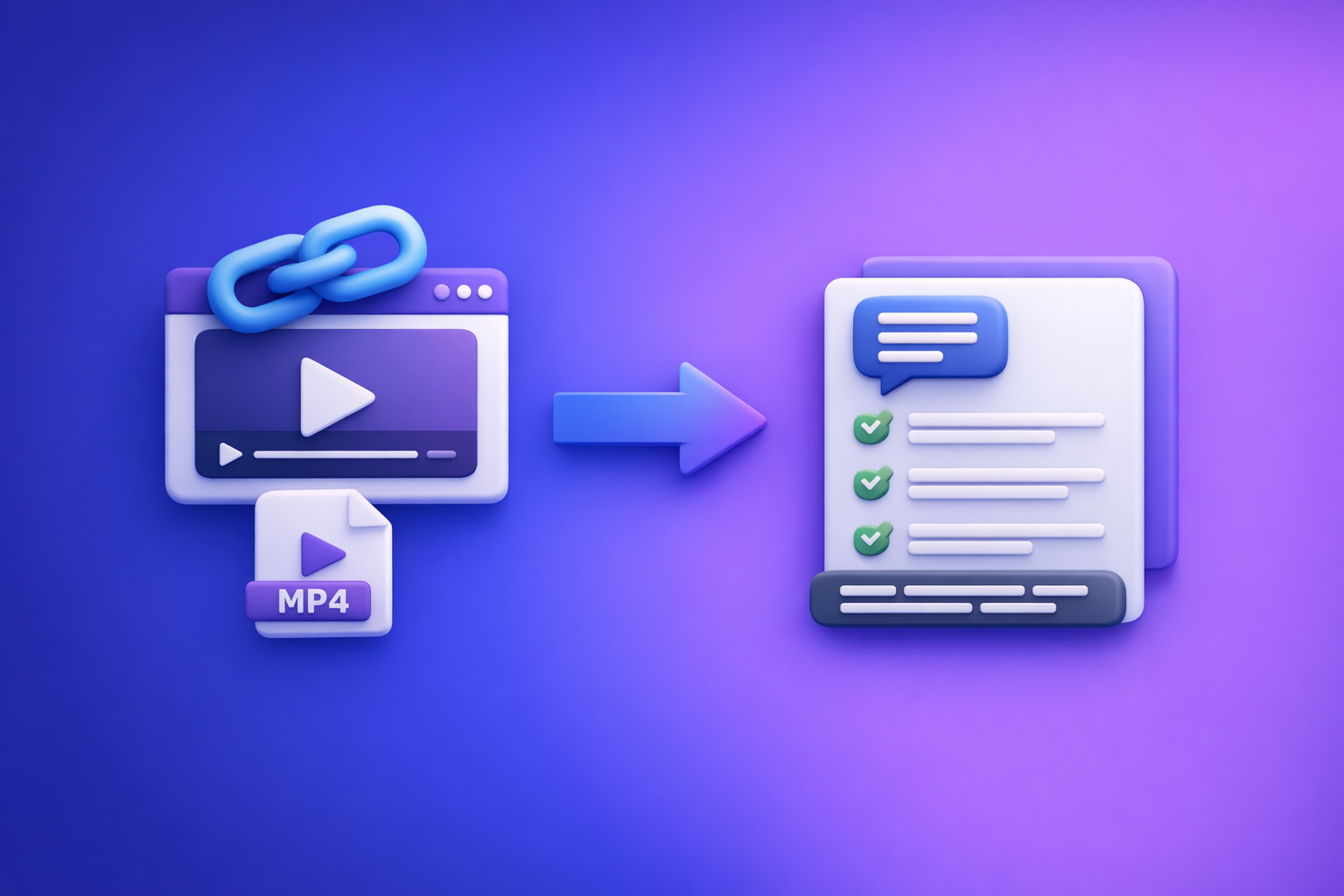
ChatGPT “Upload Video” Feature (2026): What Works, What Breaks, and the Reliable Link → Transcript Workflow
If you need export-ready transcripts, subtitles, and repurposed content, don’t build your workflow around ChatGPT’s “upload video” button. Use a link/MP4 → transcript + captions → ChatGPT-on-text pipeline so your outputs are deterministic, QA-able, and shippable.
Quick Answer: Can ChatGPT Upload Video?
Yes—sometimes—but “upload video” can mean different things, and each has different failure modes.
What “upload video” can mean (file upload vs link access vs frame analysis)
When people search for the "chatgpt" "upload video" feature, they usually mean one of these:
- File upload: attaching an MP4/MOV directly in the chat.
- Link access: pasting a YouTube/Drive/TikTok/Instagram URL and expecting ChatGPT to open it.
- Frame analysis: extracting frames or snippets for best-effort interpretation.
These are not equivalent. A workflow that “worked yesterday” can fail today depending on where you’re using ChatGPT.
The practical reality: availability varies by app, plan, region, and workspace policy
In 2026, video upload behavior is inconsistent across:
- Client surface: web vs iOS vs Android vs desktop.
- Plan/feature rollouts: features can be gated or gradually released.
- Region: availability can differ by geography.
- Workspace policy: enterprise/education accounts may disable attachments.
If you need repeatable output for publishing, assume video upload may be missing or blocked.
When ChatGPT is a fit (quick understanding) vs not a fit (export-ready deliverables)
ChatGPT is a fit when you want:
- Quick Q&A about content you already have in text form.
- Summaries, rewrites, structure, and ideation.
ChatGPT is not a fit when you need:
- Export-ready transcript files (TXT) as a “source of truth.”
- Captions/subtitles (SRT/VTT) you can upload to platforms.
- Reliable timecodes and consistent processing for long videos.
For production work, downloading video files and hoping an LLM processes them is an outdated workflow. Link-based extraction is the future of creator productivity because it’s faster, more repeatable, and easier to automate.
What Works vs What Fails (Real-World Scenarios)
Works reliably
Uploading text outputs (transcript/captions) for analysis, rewriting, and repurposing
Most teams get the best results by giving ChatGPT text, not raw video:
- Paste a transcript and ask for chapters, summaries, FAQs, and rewrites.
- Provide SRT/VTT text for caption cleanup and formatting suggestions.
- Ask for content repurposing (blog, social posts, shorts scripts).
Asking questions about a video when you already have a transcript
If you already have a transcript with timecodes, ChatGPT can:
- Answer questions (“What did they say about X?”)
- Extract quotes and key moments
- Generate clip ideas using timestamps
Often fails or is inconsistent
Missing “Add files” / attachments disabled
Common blockers:
- Wrong model/surface for attachments
- Workspace policy disables uploads
- Managed devices or restricted browsers
If you’re seeing this, also reference:
- “Add Files” Button Unavailable in ChatGPT: Causes, Fixes, and a Ship-Now Workflow (No Uploads Needed)
- “Attachments Disabled for” ChatGPT: What It Means, Why It Happens, and How to Fix It (Plus a Ship-Now Workflow)
Video processing stalls, errors, or timeouts
Even when upload is available, video processing can fail due to:
- Large files
- Long duration
- Server-side timeouts
- Mobile backgrounding (app pauses upload/processing)
Link access failures (YouTube/Drive/Instagram/TikTok permissions and paywalls)
Links fail when they are:
- Private or login-gated
- Region-restricted
- Behind paywalls
- Hosted on platforms that block automated fetching
Long videos, large files, weak networks, and mobile backgrounding
The most common real-world failure pattern is: it starts, then stalls.
- Weak Wi‑Fi + large MP4 = stalled upload
- Switching apps on mobile = background pause
- Corporate proxies/VPNs = blocked media transfer
Supported Formats, Limits, and Common Error Messages (What to Check First)
Typical formats people try (MP4/MOV) and why “supported” still fails
MP4/MOV may be “supported,” but failures still happen because:
- Codec issues (H.265/HEVC vs H.264)
- Variable frame rate edge cases
- Audio track problems (missing/unsupported)
- Corrupted or partially uploaded files
File size/duration constraints that break first (practical thresholds to test)
Instead of guessing limits, test in this order:
- 30–90 seconds clip (baseline)
- 5–10 minutes clip (typical)
- 30–60 minutes (where timeouts often start)
- Full-length episodes (most likely to fail)
If your goal is publishing deliverables, don’t keep retrying uploads. Generate a transcript/captions first and move on.
Account/workspace restrictions (enterprise policies, education workspaces, managed devices)
If you’re on a managed account, uploads may be blocked by:
- Admin policy disabling attachments
- Data loss prevention rules
- Restricted app permissions on managed devices
Browser and network blockers (extensions, VPN, corporate proxies, content filters)
Common culprits:
- Privacy extensions blocking upload endpoints
- VPNs changing routing and causing timeouts
- Corporate proxies/content filters blocking media domains
Privacy/security considerations before uploading any media to an LLM
Before uploading any video:
- Assume it may contain PII (faces, names, emails on screen).
- Confirm your organization’s policy for third-party AI tools.
- Prefer a workflow where you control what text is shared (and can redact it).
Step-by-Step: Production-Safe Video → Text → ChatGPT Workflow (VideoToTextAI)
Goal: deterministic transcripts + captions you can export, QA, and ship
The production-safe approach is:
- Extract text from the video deterministically (transcript + captions).
- QA the text quickly.
- Use ChatGPT for transformation (summaries, blog, social), not extraction.
This is why downloading video files is an outdated workflow. A URL-first workflow is faster, cleaner, and easier to repeat across a content calendar.
Step 1 — Choose your input type (video link or MP4)
Link inputs: YouTube, TikTok, Instagram, podcasts, hosted MP4
Use a link when:
- The video is already published or hosted.
- You want a fast, repeatable pipeline (paste URL → outputs).
- You’re processing multiple videos and don’t want file wrangling.
Relevant tools:
File inputs: when to use MP4 upload instead of a link
Use MP4 upload when:
- The video is not hosted anywhere yet.
- The link is private/login-gated and you can’t change permissions.
- You’re working with local camera footage.
Tools:
Step 2 — Generate export-ready outputs in VideoToTextAI
Transcript (TXT) for editing, summarizing, and repurposing
A TXT transcript becomes your source of truth for:
- Editing and rewriting
- SEO content creation
- Quote extraction and approvals
Captions (SRT/VTT) for publishing and platform uploads
SRT/VTT outputs matter because they are:
- Uploadable to YouTube and many players
- Compatible with editing tools
- Easy to QA with timestamps
Step 3 — QA the text before ChatGPT (fast accuracy pass)
Do a quick pass so ChatGPT isn’t “polishing errors.”
Names/terms glossary (brand names, guests, products)
- List correct spellings for: guest names, product names, acronyms.
- Fix these first—they cascade into every derivative asset.
Speaker changes and punctuation sanity checks
- Confirm speaker labels (if applicable).
- Fix obvious punctuation that changes meaning.
Timestamp/caption sync checks (spot-check 3 segments)
Spot-check:
- Beginning (0:00–0:30)
- Middle (around midpoint)
- End (last 30–60 seconds)
Step 4 — Use ChatGPT for what it’s best at (on verified text)
Summaries, chapters, and key takeaways
- Executive summary
- Bullet takeaways
- Chapter titles + timestamps (from transcript timecodes)
Blog draft + SEO sections from transcript
- H2/H3 structure
- FAQs
- Meta title/description options
- Internal link suggestions
Social repurposing: hooks, threads, LinkedIn posts, shorts scripts
- 10 hooks
- 5 short scripts
- 1 LinkedIn post + 1 thread
Quote extraction + clip timestamps (from transcript timecodes)
- Pull quotable lines
- Attach timecodes for editors
Implementation Walkthrough (10–15 Minutes): From Video Link to Publishable Assets
Example workflow: YouTube link → transcript + captions → blog + social pack
Minute 0–2: paste link into VideoToTextAI and generate transcript
- Paste the YouTube URL.
- Generate transcript output.
If you’re trying to do this inside ChatGPT via “upload video,” this is where workflows often break. URL-first extraction avoids that fragility.
Minute 2–6: export TXT + SRT/VTT
- Export TXT for editing/repurposing.
- Export SRT/VTT for captions.
Minute 6–10: paste transcript into ChatGPT with a structured prompt
- Paste the transcript (or key sections if extremely long).
- Include your glossary and desired output format.
Minute 10–15: produce deliverables (blog outline, captions QA notes, repurposed posts)
- Blog outline + draft sections
- Chapters + timestamps
- Social pack (hooks + scripts)
- QA notes for any unclear lines
Copy/paste prompts (ready to use)
Prompt: “Turn this transcript into an SEO blog post with sections + FAQs”
You are an SEO editor. Using the transcript below, write a publish-ready blog post.

Requirements:
- Clear H2/H3 structure
- Add an FAQ section with 5 questions answered concisely
- Include a short meta title (<=60 chars) and meta description (<=155 chars)
- Keep claims grounded in the transcript; do not invent details
- Provide a “Key takeaways” bullet list near the top

Glossary (use exact spellings): [PASTE NAMES/TERMS]

Transcript:
[PASTE TRANSCRIPT]
Prompt: “Create chapters with timestamps and titles”
Create 8–12 chapters from this transcript.

Rules:
- Use the existing timestamps/timecodes when present
- Each chapter needs: timestamp, short title, 1-sentence summary
- Keep titles action-oriented and specific

Transcript:
[PASTE TRANSCRIPT WITH TIMECODES]
Prompt: “Generate 10 hooks + 5 short-form scripts from these highlights”
From the highlights below, generate:
1) 10 scroll-stopping hooks (1 sentence each)
2) 5 short-form scripts (20–35 seconds each) with a strong opening line, 3 beats, and a closing CTA

Highlights:
[PASTE 10–20 BULLETS OR QUOTES]
Troubleshooting: “ChatGPT Video Upload Failed” (Fixes by Symptom)
Symptom: “Add files” button missing or greyed out
Fixes (in order):
- Confirm the model/surface supports attachments.
- Switch client: web ↔ iOS ↔ Android and retry.
- Test a clean browser profile; disable extensions.
Deep dive:
Symptom: “Attachments disabled for …”
Fixes:
- Check workspace policy (enterprise/education).
- Try a personal workspace or different account.
- Verify managed device restrictions.
Deep dive:
Symptom: Upload stuck / processing failed
Fixes:
- Trim to a shorter clip; retry.
- Compress/re-encode to H.264 if needed.
- Change network (no VPN; different Wi‑Fi).
Symptom: ChatGPT can’t access my link
Fixes:
- Make the link public/unlisted (not private).
- Remove login walls where possible.
- Prefer a direct MP4 URL if you control hosting.
Best fallback:
- Use link-based extraction in VideoToTextAI, then paste the transcript into ChatGPT.
- Reference: ChatGPT “Upload Video” Feature (2026): What Works, Limits, Fixes, and a Production-Safe Video-to-Text Workflow
Checklist: Ship Deliverables Without Depending on ChatGPT Video Upload
Inputs
- Confirm you have a stable video URL or MP4 file.
- Ensure link permissions are public/unlisted (not private/login-gated).
Processing (VideoToTextAI)
- Generate transcript (TXT).
- Export captions (SRT + VTT).
- Spot-check accuracy:
- Names + key terms
- 3 timestamp segments (start/middle/end)
ChatGPT usage (on text)
- Summarize + extract chapters.
- Draft blog + repurpose into social posts.
- Generate title/meta options and internal link suggestions.
Quality control
- Verify quotes against the transcript.
- Validate caption sync after any edits.
- Keep a “source of truth” transcript version for future reuse.
If you want the URL-first workflow that avoids file downloads and produces export-ready outputs, use VideoToTextAI: VideoToTextAI
VideoToTextAI vs Competitors
Downloading video files, re-uploading them, and hoping tools accept them is friction you don’t need. A URL-first workflow is faster to run, easier to repeat, and better aligned with creator publishing pipelines.
Below is a fair comparison using only publicly signaled capabilities from researched competitor pages.
| Criteria | VideoToTextAI | Reduct Video | Otter.ai | Zapier (roundups) |
|---|---|---|---|---|
| URL-first workflow (paste a link) | Yes (core workflow) | No strong public signal | No strong public signal | Not a transcription tool; content is editorial/automation-focused |
| Upload-only flows | Supports MP4 when needed | Not clearly positioned as URL-first | Yes (upload-focused) | N/A |
| Export-ready deliverables (TXT, SRT, VTT) | Yes (transcript + captions exports) | Transcript export mentioned; subtitles not strongly signaled | Transcript export; subtitles not strongly signaled | N/A |
| Repurposing depth (blog/social outputs) | Positioned for content repurposing workflows | More collaboration + transcript-based editing | More meeting/notes orientation | Roundups mention tools; not a workflow product itself |
| Repeatability for teams (consistent outputs + QA steps) | Strong with deterministic transcript/captions-first pipeline | Strong for collaborative review/editing | Strong for meeting-centric capture | Strong for connecting apps, not for transcript/caption generation |
Why VideoToTextAI wins for creator productivity (when research supports it):
- Workflow speed: URL-first ingestion removes file download/upload steps (the slow, failure-prone part).
- Exports: You get TXT + SRT/VTT outputs designed for publishing workflows, not just “notes.”
- Operational repeatability: Transcript/captions-first is deterministic, QA-able, and rerunnable across a content calendar.
Where competitors can be better:
- Reduct Video can be a better fit for annotation-heavy, collaborative transcript review and transcript-based editing environments.
- Otter.ai can be a better fit for meeting-centric transcription stacks where capture, notes, and team usage are the primary goal.
- Zapier is useful when you need automation glue, but it’s not the core engine for video-to-text exports.
Competitor Gap
What top-ranking pages miss
Many pages that rank for the "chatgpt" "upload video" feature focus on whether the button exists, but they:
- Don’t provide a deterministic ship-now workflow.
- Under-specify failure modes (workspace policy, surface/model mismatch, link permissions).
- Skip a QA checklist for transcript/caption accuracy.
What this post adds
- A repeatable link/MP4 → TXT/SRT/VTT → ChatGPT-on-text pipeline.
- Symptom-based troubleshooting mapped to concrete fixes.
- Deliverable-focused outputs (captions + repurposed content), not just “analysis.”
FAQ
Will ChatGPT let me upload a video?
Sometimes. Availability varies by client (web/iOS/Android), plan, region, and workspace policy, so it’s not production-safe for publishing workflows.
Can I upload a video to ChatGPT to analyze?
Sometimes, but results are best-effort and can fail on long videos, large files, or restricted links. For reliable analysis, generate a transcript first and analyze the text.
Can ChatGPT watch videos you upload to it?
In limited scenarios it may interpret video content, but it’s not a deterministic way to produce export-ready transcripts, captions, or consistent timecodes.
Can you upload videos from your camera roll to ChatGPT?
On some mobile clients, attachments may be available, but it’s inconsistent and can be blocked by workspace policy or app limitations. A transcript-first workflow is more reliable.
Can you upload videos to ChatGPT for free?
Free access to attachments varies and changes with rollouts. If you need consistent deliverables, don’t depend on free video upload—use a transcript/captions pipeline and then use ChatGPT on text.
Related posts
Reel Analyser (Instagram Reels): Transcript‑First Competitor Research, Hook/CTA Extraction, and Repurposing Workflow (VideoToTextAI)
Video To Text AI
A 2026 reel analyser should turn Instagram Reel links into a searchable transcript library you can tag for hooks, CTAs, objections, and topic clusters—then export into repurposing-ready drafts without a download/upload loop.
Traducir video de Instagram (Reels) en 2026: workflow transcript-first para traducir, sacar hooks/CTAs y repurpose (con VideoToTextAI)
Video To Text AI
Aprende a traducir un Reel de Instagram con un flujo URL→transcripción→traducción→subtítulos, y a convertir esa traducción en un activo de investigación para hooks, CTAs, objeciones y clusters de contenido.
Reel Analyzer: Transcript‑First Instagram Reels Research (Hooks, CTAs, Objections) + Workflow Guide (VideoToTextAI)
Video To Text AI
A reel analyzer should turn any public Instagram Reel link into a searchable transcript library you can mine for hooks, CTAs, objections, and topic clusters—then repurpose into original drafts with a repeatable SOP.