
“Attachments Disabled for” ChatGPT: What It Means + Fixes (and a Production-Safe Video-to-Text Workflow)
 Video To Text AI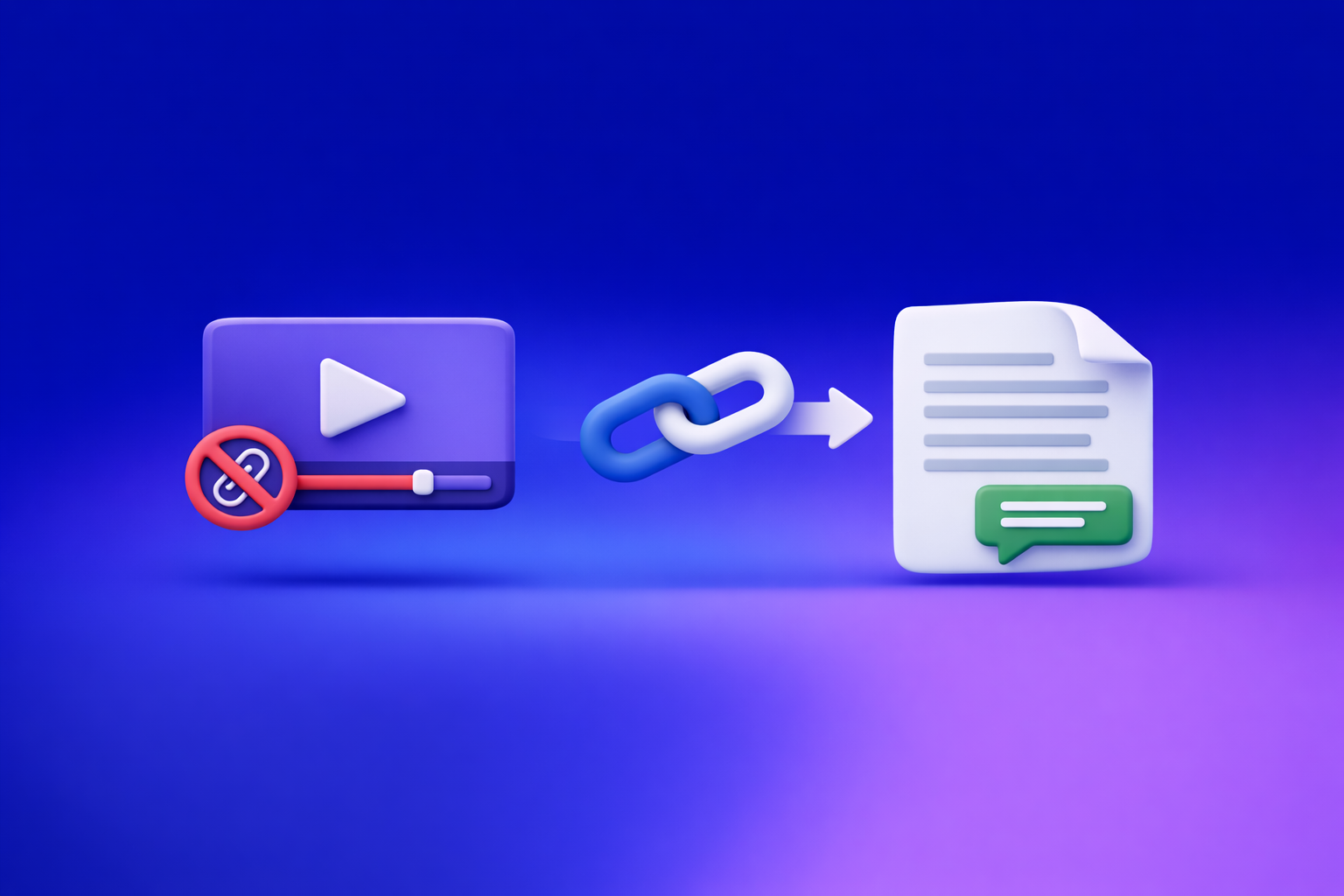
Fix “attachments disabled for” ChatGPT by first confirming you’re in an upload-capable surface/model, then isolating whether the block is entitlement, workspace policy, browser profile, or network security. If you still can’t upload, stop burning time and ship via a transcript-first workflow: URL/MP4 → transcript/captions → ChatGPT-on-text.
Downloading and re-uploading video files is an outdated workflow; link-based extraction is the future of creator productivity because it reduces moving parts, permissions friction, and “upload UI” failures.
What “Attachments Disabled for …” Means (and What It Does Not Mean)
“Attachments disabled for …” is a UI-level restriction on upload actions in the current context. It does not automatically mean your account is banned or that ChatGPT is “down.”
The exact UI states you’ll see (tooltip vs banner vs missing paperclip)
You’ll typically see one of these:
- Disabled paperclip icon (can’t click)
- Missing “Add files” / upload button entirely
- Tooltip text when hovering the paperclip (often the most specific clue)
- Banner-style notice near the input box (less common, but clearer)
What’s actually blocked: files, images, video, or all uploads
Depending on the surface and policy, the block may apply to:
- All file uploads (PDF/DOCX/CSV)
- Images only (camera/gallery disabled)
- Video uploads (MP4/MOV blocked)
- Connectors (Drive/Dropbox/OneDrive) even if local uploads work
Treat it as “uploads are disabled in this context”, not “ChatGPT can’t process content.”
Not an account “ban”: the 4 most common root causes
In practice, “attachments disabled for” usually comes from:
- Model/surface mismatch (uploads not supported there)
- Plan/entitlement limitations (feature differs by account)
- Workspace/admin policy (Team/Enterprise restrictions)
- Browser/network interference (extensions, cookies, VPN/proxy/DLP)
2-Minute Diagnosis (Do This Before You Change Anything)
This is the fastest way to avoid random troubleshooting.
Step 1: Confirm where you’re using ChatGPT (web, desktop, mobile, workspace)
Write down:
- Web app in a browser (which browser + profile)
- Desktop app
- Mobile app
- Logged into personal vs workspace (Team/Enterprise)
Different surfaces can have different upload capabilities even for the same user.
Step 2: Check the model/surface you’re on (upload-capable vs not)
Uploads are often tied to:
- The current model
- The current chat/session
- The current feature surface (some modes/tools don’t expose uploads)
If you changed models inside an existing chat, don’t assume it resets upload permissions.
Step 3: Identify whether it’s workspace policy vs local device/browser
Quick split test:
- If it works on your personal account but not your workspace, it’s likely admin policy.
- If it works in incognito but not your normal profile, it’s likely extensions/cookies/storage.
Step 4: Quick isolation test (incognito + different network)
Do two fast checks:
- Incognito/private window (no extensions by default)
- Hotspot (bypass corporate Wi‑Fi, proxy, and DLP)
These two tests isolate most “mystery” cases in under 2 minutes.
Root Causes (Ranked by Likelihood) + How to Confirm Each
Model/surface mismatch (uploads not supported in that context)
Some ChatGPT contexts simply don’t expose uploads.
Confirmation signals (missing “Add files”, disabled paperclip, tooltip text)
Look for:
- Paperclip is missing or greyed out
- Tooltip indicates uploads aren’t available “for this model” or “in this chat”
- Upload works in a new chat but not the current one
Fix: switch model / start a new chat in an upload-capable surface
Do this in order:
- Start a new chat
- Select a model/surface that supports uploads
- Re-check for Add files before typing anything else
Plan or entitlement limitations
Uploads can differ by account type, region, rollout, or entitlement.
Confirmation signals (feature present on one account, missing on another)
- Same device/browser, but uploads appear on Account A and not Account B
- Mobile app shows uploads but web does not (or vice versa)
Fix: verify plan, sign out/in, test on official app
- Sign out/in to refresh entitlements
- Test the official mobile app (rules out browser-only issues)
- If you manage multiple accounts, confirm you’re in the intended one
Workspace/admin policy (ChatGPT Team/Enterprise restrictions)
Admins can disable uploads and connectors for compliance.
Confirmation signals (works on personal account, fails in workspace)
- Uploads work on personal login
- Uploads fail only when you’re in the workspace tenant
- Tooltip or banner references policy/organization controls
Fix: request admin change; what to ask for (file uploads, connectors, data controls)
Ask for:
- Enable file uploads (and specify which: docs, images, video)
- Enable connectors if needed (Drive/Dropbox/OneDrive)
- Confirm data controls and retention settings that satisfy compliance
Browser profile breakage (extensions, corrupted storage, blocked cookies)
Uploads rely on scripts, cookies, and local storage.
Confirmation signals (works in incognito, fails in normal profile)
- Incognito works immediately
- Normal profile fails consistently
- Only one browser is affected
Fix sequence: disable extensions → clear site data → new profile
- Disable extensions (especially blockers)
- Clear site data for ChatGPT
- Try a fresh browser profile
Network/security blocks (VPN, corporate proxy, content filters, DLP)
Corporate networks can block upload endpoints or inspect traffic.
Confirmation signals (works on hotspot, fails on office Wi‑Fi)
- Works on mobile hotspot
- Fails on office Wi‑Fi or when VPN is enabled
- Upload spinner hangs or errors instantly
Fix: bypass/allowlist domains; test without VPN; try mobile app
- Disable VPN temporarily
- Ask IT to allowlist required domains/endpoints
- Use mobile app on cellular if policy allows
Temporary service degradation
Sometimes it’s just intermittent service behavior.
Confirmation signals (sudden widespread failures; intermittent behavior)
- It worked earlier today, then stopped
- Multiple teammates report the same issue
- Behavior is inconsistent across retries
Fix: wait + use the fallback workflow below
Don’t block production on a UI feature. Use the transcript-first fallback and keep shipping.
Step-by-Step Fix Sequence (Ordered, Fastest-to-Verify First)
1) Hard refresh + new chat + reselect model
- Hard refresh the page
- Start a new chat
- Re-select an upload-capable model/surface
- Confirm the paperclip/Add files appears before proceeding
2) Try official mobile app (rules out browser-only issues)
If mobile uploads work, your issue is likely:
- Browser extensions
- Cookies/storage
- Corporate proxy rules for desktop traffic
3) Incognito test (no extensions, clean cookies)
- Open incognito/private
- Log in
- Check if uploads appear
If yes, you have a browser-profile problem.
4) Disable extensions that commonly break uploads
Disable (temporarily) anything that blocks scripts, requests, or storage:
- Ad blockers
- Privacy tools
- Script blockers
- Antivirus “web shield” features
Re-test after each change so you know the culprit.
5) Clear ChatGPT site data and re-auth
- Clear cookies + site storage for ChatGPT
- Close all tabs
- Re-open and log in again
6) Switch networks (hotspot test) and remove VPN/proxy
- Turn off VPN
- Try a hotspot
- If it works, you likely need IT allowlisting or a policy exception
7) Workspace path: what to send your admin (copy/paste request)
Copy/paste this to your admin/IT:
We’re blocked by “Attachments disabled for …” in ChatGPT within our workspace. Please confirm whether file uploads (documents/images/video) and/or connectors are disabled by org policy. If restricted, please enable uploads for our group (or provide an approved workflow) and confirm any required data controls/retention settings for compliance.
8) If still blocked: stop troubleshooting and ship via transcript-first workflow
At this point, the fastest path is to avoid uploads entirely and move to text-based inputs.
For related deep dives, see:
- “Attachments Disabled” in ChatGPT: Causes, Fixes, and a Production-Safe Transcript Workflow (2026)
- “Add Files” Button Unavailable in ChatGPT: Why It Happens + Fixes (and a Production-Safe Transcript Workflow)
Production-Safe Fallback: Link/MP4 → Transcript/Captions → ChatGPT-on-Text
Why this works even when attachments are disabled
Even when uploads are blocked, you can still paste text into ChatGPT. So the operational move is: convert video to verified text artifacts first, then use ChatGPT for reasoning, rewriting, and repurposing.
This also aligns with the modern standard: stop downloading and re-uploading large media. Link-based extraction is faster, more reliable, and easier to repeat across teams.
What you can still do in ChatGPT without uploads (summaries, outlines, repurposing, QA)
With a transcript pasted into chat, you can still do:
- Summaries and key takeaways
- Topic outlines and chapterization
- Quote extraction
- SEO briefs and blog drafts
- Social repurposing (LinkedIn/X threads)
- QA passes (terminology consistency, missing sections)
For a full walkthrough, see:
- A Production-Safe Link-Based Video-to-Text Workflow (Transcripts, SRT/VTT Captions, and Repurposing)
- ChatGPT “Upload Video” Feature (2026): How It Works, Common Failures, and a Production-Safe Transcript Workflow
Implementation: VideoToTextAI workflow (deterministic, shippable outputs)
If your goal is publishable deliverables (not “it worked once”), use a workflow that outputs TXT + SRT/VTT consistently.
Use VideoToTextAI for link-based video-to-text and caption exports (one CTA link): https://videototextai.com
Step 1: Start with a link or MP4 (YouTube/Drive/local)
Preferred input order for operational speed:
- Video URL (fastest, least brittle)
- Cloud link (if supported in your environment)
- Local MP4 only when necessary
Related tools:
Step 2: Generate a clean transcript (TXT) for editing and QA
Export TXT so you can:
- Fix names/terms once
- Add headings
- Remove filler
- Create a “source of truth” for repurposing
Step 3: Export captions (SRT/VTT) for publishing
Export:
- SRT for many editors/platforms
- VTT for web players and some platforms
These are shippable artifacts that don’t depend on ChatGPT uploads.
Step 4: Paste transcript into ChatGPT for analysis/repurposing (no file upload needed)
Paste in chunks if needed:
- Start with the first section + ask for a structured outline
- Continue with subsequent sections
- Ask ChatGPT to maintain a running outline and glossary
Step 5: QA checklist (timestamps, speaker labels, punctuation, terminology)
Before publishing:
- Verify speaker names and product terms
- Spot-check timestamps around key moments
- Normalize punctuation and casing
- Ensure caption line breaks are readable
Copy/paste prompt templates (use with transcript text)
Use these with pasted transcript text (no attachments required).
Template A: “Clean transcript + headings + key takeaways”
You are an editor. Clean the transcript below without changing meaning.
Requirements:
- Remove filler words and false starts
- Fix punctuation and capitalization
- Add H2-style headings every 2–4 minutes of content (based on topic shifts)
- Provide 8–12 key takeaways at the end
Transcript:
[PASTE TRANSCRIPT]
Template B: “Generate SRT fixes: line length + reading speed”
You are a caption QA specialist. Using the transcript below, propose captioning fixes:
- Keep lines <= 42 characters when possible
- Prefer 1–2 lines per caption
- Flag any segments that would exceed comfortable reading speed
- List recommended re-breaks and any wording tweaks for readability
Transcript:
[PASTE TRANSCRIPT]
Template C: “Repurpose into blog + LinkedIn + X threads from transcript”
You are a content repurposing lead. From the transcript below, produce:
1) SEO blog outline (H1/H2/H3) + a 150–200 word intro + conclusion
2) 1 LinkedIn post (hook, 3–5 bullets, CTA)
3) 1 X thread (8–12 tweets) with a strong opening and a recap tweet
Constraints:
- Keep claims grounded in the transcript
- Extract 5 quotable lines
Transcript:
[PASTE TRANSCRIPT]
Checklist: Fix or Fallback (Print This)
Upload restoration checklist (7 checks)
- Start a new chat (don’t reuse the broken session)
- Confirm you’re on an upload-capable model/surface
- Test official mobile app
- Test incognito/private window
- Disable extensions (ad/privacy/script blockers)
- Clear site data + re-auth
- Hotspot test (bypass VPN/proxy/corporate filters)
Transcript-first shipping checklist (TXT + SRT/VTT + QA + deliverables)
- Convert video → TXT transcript
- Edit/QA transcript (names, terms, punctuation)
- Export SRT and/or VTT
- Paste transcript into ChatGPT for summaries/repurposing
- Final QA: timestamps, line breaks, reading speed
- Deliver: transcript + captions + repurposed drafts
Common Mistakes That Keep Attachments Disabled
Switching models but staying in the same broken chat/session
Uploads can remain disabled in a specific session. Always test in a new chat.
Testing only one browser profile (extensions persist)
Disabling one extension isn’t enough if multiple tools intercept requests. Incognito is the fastest proof.
Confusing workspace policy with personal account entitlement
If personal works and workspace fails, stop debugging your browser. It’s likely admin policy.
Trying to “upload video to ChatGPT” instead of generating captions first
For production, “upload video” is fragile. Generate TXT/SRT/VTT first, then use ChatGPT on text.
VideoToTextAI vs Competitors
When attachments are disabled, the deciding factor is whether your workflow depends on a fragile upload UI—or produces deterministic, exportable assets from links and media.
Only one competitor appears in the provided research dataset, so the table below compares against that source without inventing additional vendors, pricing, or limits.
| Criteria | VideoToTextAI | OpenAI Community forum thread (“Attachments disable and i need to upload word document”) |
|---|---|---|
| Primary purpose | Link-based video-to-text workflows that output transcripts and captions | Troubleshooting discussion about the symptom (“attachments disabled”) |
| Workflow speed (URL → assets) | Designed for URL/MP4 → TXT/SRT/VTT outputs you can publish | No workflow; advice varies and may require trial-and-error |
| Link-based input | Yes (workflow built around links), reducing download/re-upload steps | Not applicable |
| Export readiness (TXT, SRT, VTT) | Yes, supports shippable artifacts for editors and platforms | Not applicable |
| Repurposing support | Transcript-first enables reliable repurposing in ChatGPT without uploads | Not a production workflow |
| Best suited for | Teams/creators who need repeatable deliverables even when uploads fail | Users seeking community discussion and anecdotal fixes |
Fair note: community threads can be useful for edge-case debugging or confirming a widespread issue. They are not a substitute for a production workflow that outputs TXT/SRT/VTT on demand.
Competitor Gap
Most competitor/forum content focuses on the symptom (“attachments disabled”) rather than a fast isolation path and a shippable fallback.
What’s typically missing:
- An ordered 2-minute diagnosis that separates model/surface vs entitlement vs workspace policy vs browser vs network
- A production-safe fallback that produces publishable TXT/SRT/VTT artifacts
- Reusable checklists that teams can standardize
- Prompt templates designed for transcript-first repurposing (no uploads required)
For additional context and related fixes:
FAQ
Why can’t I attach files on ChatGPT?
Because uploads are disabled in your current context—most commonly due to model/surface mismatch, workspace policy, plan/entitlement, browser extensions/cookies, or network security controls.
How do I enable attachments on ChatGPT?
Use the fastest sequence:
- Start a new chat and select an upload-capable surface/model
- Test mobile app and incognito
- Disable extensions, clear site data, and re-auth
- If you’re in a workspace, ask your admin to enable uploads/connectors
Why is my ChatGPT upload disabled?
The most reliable confirmation tests are:
- Works on personal but not workspace → admin policy
- Works in incognito but not normal → extensions/cookies/storage
- Works on hotspot but not office Wi‑Fi → VPN/proxy/DLP/network filter
Why am I unable to upload images to ChatGPT?
Image uploads can be disabled separately from document uploads. Confirm whether:
- The current surface supports image input
- Workspace policy blocks images specifically
- Browser privacy tools are blocking upload endpoints
If you need to keep moving, convert the source into text (or captions) and proceed with ChatGPT-on-text.
Related posts
Reel Analyser (Instagram Reels): Transcript‑First Competitor Research, Hook/CTA Extraction, and Repurposing Workflow (VideoToTextAI)
Video To Text AI
A 2026 reel analyser should turn Instagram Reel links into a searchable transcript library you can tag for hooks, CTAs, objections, and topic clusters—then export into repurposing-ready drafts without a download/upload loop.
Traducir video de Instagram (Reels) en 2026: workflow transcript-first para traducir, sacar hooks/CTAs y repurpose (con VideoToTextAI)
Video To Text AI
Aprende a traducir un Reel de Instagram con un flujo URL→transcripción→traducción→subtítulos, y a convertir esa traducción en un activo de investigación para hooks, CTAs, objeciones y clusters de contenido.
Reel Analyzer: Transcript‑First Instagram Reels Research (Hooks, CTAs, Objections) + Workflow Guide (VideoToTextAI)
Video To Text AI
A reel analyzer should turn any public Instagram Reel link into a searchable transcript library you can mine for hooks, CTAs, objections, and topic clusters—then repurpose into original drafts with a repeatable SOP.