
Upload Video in ChatGPT (2026): What Works, What Breaks, and the Production-Safe Transcript Workflow
 Video To Text AI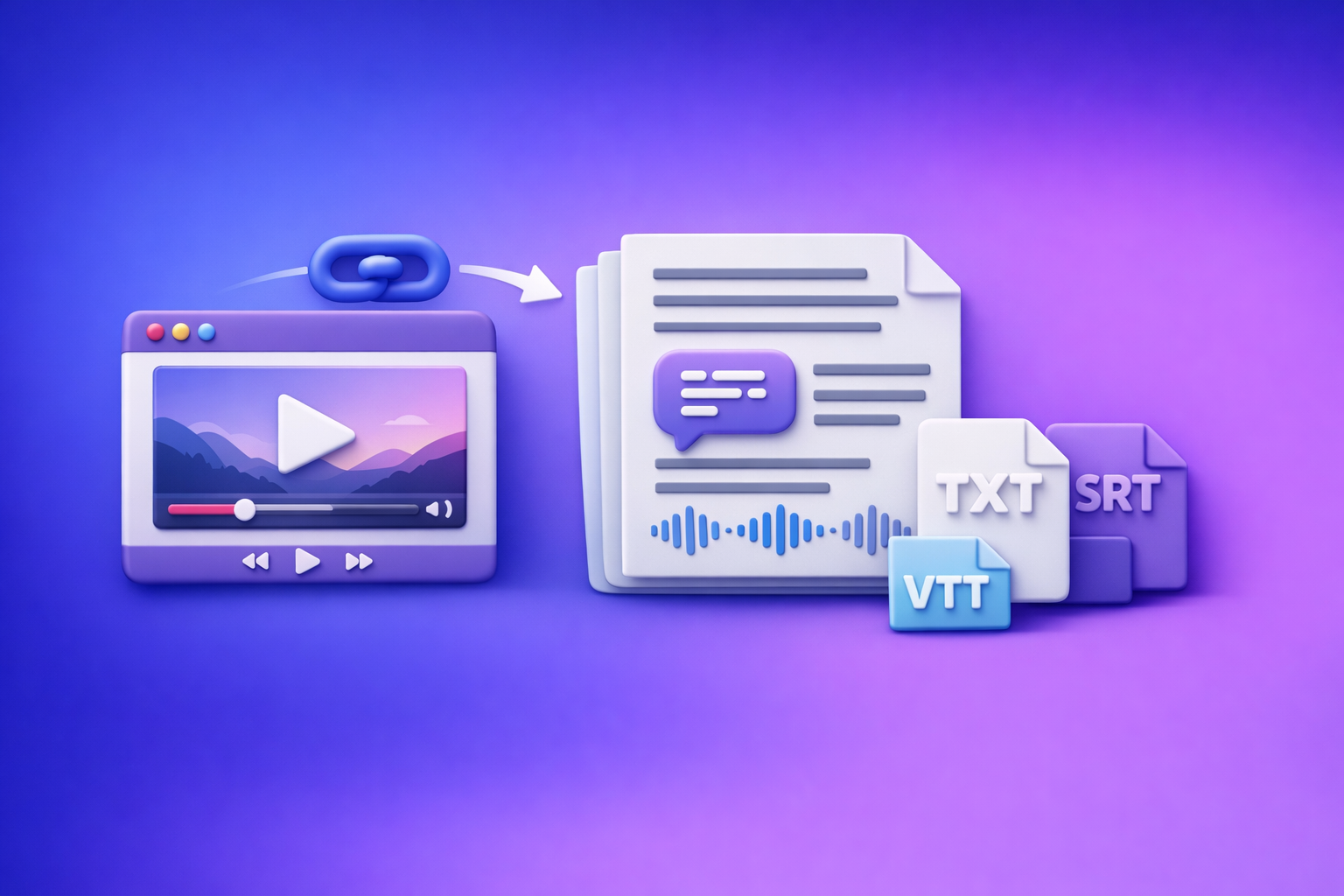
If you’re trying to upload video in ChatGPT, expect inconsistent results in 2026—uploads may be disabled, stall, or produce non-exportable outputs. The production-safe approach is video link/MP4 → exportable transcript/captions (TXT/SRT/VTT) → ChatGPT-on-text for analysis and repurposing.
Upload Video in ChatGPT (2026): What Works, What Breaks, and the Production-Safe Transcript Workflow
Why “upload video” in ChatGPT is unreliable in 2026 (and what to do instead)
What “upload video” can mean (file upload vs link vs screen recording)
People say “upload video” but mean different things:
- File upload: attaching an MP4/MOV file directly in ChatGPT.
- Link input: pasting a YouTube/TikTok/Instagram URL and expecting ChatGPT to “watch it.”
- Screen recording: recording playback and uploading the recording (usually worse quality and larger files).
In practice, file upload availability varies by account, workspace policy, and tool configuration. Link handling is also inconsistent and may not fetch the media reliably.
The real deliverable problem: you need exportable artifacts (TXT/SRT/VTT), not just a chat response
Even when ChatGPT accepts a video, you still need production artifacts:
- Transcript (TXT) for editing, search, and compliance.
- Subtitles (SRT) for most video editors and platforms.
- Captions (VTT) for web players and accessibility workflows.
A chat response is not the same as a versioned, downloadable file you can QA, hand off, and re-use.
When ChatGPT video upload is “good enough” (quick analysis) vs when it’s not (captions, compliance, QA)
ChatGPT video upload can be “good enough” for:
- Quick content understanding (“what’s this video about?”)
- Rough topic extraction
- Drafting questions or a short summary
It’s usually not good enough for:
- Captions/subtitles (formatting + timecodes must be correct)
- Compliance (audit trail, reproducibility, consistent outputs)
- QA workflows (speaker labels, missing sections, timestamp drift)
Brand POV: Downloading video files just to move them between tools is an outdated workflow. Link-based extraction is the future because it’s faster, easier to repeat, and easier to hand off across teams.
Prerequisites: what you need before you try to upload a video
Supported inputs you might have (MP4 file, YouTube link, TikTok/IG link, Zoom recording)
Before you start, identify what you actually have:
- MP4 file (exported from camera, editor, or meeting tool)
- YouTube link (public/unlisted)
- TikTok/Instagram link (public)
- Zoom recording (cloud link or downloaded MP4)
This matters because link-first workflows avoid local file friction and reduce upload failures.
Target outputs to decide upfront
Decide the deliverable before you touch ChatGPT:
- Transcript (TXT)
- Subtitles (SRT)
- Captions (VTT)
- Summary + repurposed posts (but generate these from transcript text, not from raw video)
If you need SRT/VTT, treat “upload video to ChatGPT” as optional—not the core workflow.
Quality controls that affect results (audio clarity, speakers, language, timestamps)
Your output quality depends on:
- Audio clarity (background music and crosstalk reduce accuracy)
- Number of speakers (speaker diarization is harder with overlap)
- Language(s) (mixed languages need explicit handling)
- Timestamp requirements (captions require stable, monotonic timecodes)
Step-by-step: how to upload a video to ChatGPT (and verify it actually attached)
Step 1 — Confirm you’re in an upload-capable environment
Check the constraints that commonly block attachments:
- Account/workspace policy: enterprise/workspace admins can disable attachments.
- Model/tool selection: some configurations support attachments; others don’t.
- Client environment: browser profile, extensions, and network controls can interfere.
If you’re repeatedly blocked, skip ahead to the production-safe workflow and stop burning time.
Step 2 — Try the upload flow (and confirm the attachment is present)
When you attach a video, confirm it truly attached before prompting.
What “success” looks like in the UI:
- A visible filename (or thumbnail) plus file size
- The attachment remains visible after you press send
Common false positives:
- Message sends but no attachment chip/thumbnail appears
- Attachment appears briefly, then disappears on send
- Upload spinner completes but the file never becomes selectable
If you see any false positive, assume the upload failed and don’t proceed.
Step 3 — Prompting for usable outputs (when upload works)
If the upload actually worked, prompt for outputs that are structured and checkable.
Transcript request (with speaker labels + timestamps)
Use a prompt that forces structure:
- Speaker labels (even generic Speaker 1/2 is fine)
- Timestamps at a consistent interval (e.g., every 15–30 seconds or per speaker turn)
- Verbatim vs cleaned preference
Example prompt:
- “Create a verbatim transcript with Speaker 1/Speaker 2 labels. Add timestamps every 20–30 seconds and at each speaker change. If any segment is unclear, mark it as [inaudible].”
Subtitle/caption request (SRT/VTT formatting constraints)
If you need SRT/VTT, specify constraints:
- Short lines (readability)
- No overlong captions
- Consistent timecode formatting
Example prompt:
- “Generate SRT subtitles. Keep each caption to max 2 lines, ~42 characters per line, and aim for 140–180 words per minute reading speed. Use proper SRT numbering and timecodes.”
Content repurposing request (blog outline, LinkedIn post, X thread) from transcript only
For repurposing, first get the transcript, then ask for outputs from the transcript text.
Example prompt:
- “Using only the transcript below, create: (1) a blog outline with H2/H3s, (2) a LinkedIn post, and (3) a 7-tweet X thread. Quote exact phrases where useful.”
Step 4 — Export/hand-off checklist (what to save so work is reproducible)
If you’re doing this for a team or client, save artifacts:
- Save the transcript text in a document (not only in chat)
- Save SRT/VTT as files and run a quick validator
- Save the prompt + model/tool version notes for auditability
For deeper troubleshooting and fallback options, see: ChatGPT “Upload Video” Feature (2026): What Works, What Fails, and the Production-Safe Transcript Workflow
Troubleshooting: “upload video” failures and fast fixes (ordered)
Symptom: upload button missing / greyed out
Fast checks:
- Confirm plan/workspace entitlement (attachments may be disabled by policy)
- Switch model/tool to one that supports attachments
- Try a different browser profile (clean profile, no extensions)
If you need a focused guide: “Add Files” Button Unavailable in ChatGPT (2026): Causes, Fixes, and a Production-Safe Transcript Workflow
Symptom: “Attachments disabled”
This is usually one of three things:
- Workspace policy (admin-controlled)
- Client-side breakage (extensions, corrupted cache)
- Network controls (blocked endpoints, proxy/VPN rules)
Minimal-change fixes:
- Private window / incognito
- Disable extensions (especially privacy/script blockers)
- Clear site data for the ChatGPT domain
Related: “Attachments Disabled” in ChatGPT: Causes, Fixes, and the Production-Safe Transcript Workflow (2026)
Symptom: “Add files” button unavailable
Why it happens:
- Policy/entitlement mismatch
- Blocked upload endpoints
- Tool configuration doesn’t support attachments
Two-minute triage:
- Try a different model/tool configuration.
- Try another browser profile.
- Try another network (mobile hotspot vs corporate network).
- If it works elsewhere, it’s policy/network, not your file.
Symptom: upload stalls / fails mid-way
Common causes:
- File size/format constraints (large MP4s are fragile)
- Network instability
- VPN/proxy interference
Retry strategy that avoids rework:
- Don’t keep re-uploading the same huge file.
- Prefer link-based extraction or split the video into smaller segments.
- If you must upload, use a stable network and disable VPN temporarily.
Symptom: ChatGPT “watched” the video but output is incomplete
This often happens because the workflow becomes audio-first and can drift:
- Missing sections (intro/outro, Q&A)
- Hallucinated transitions
- Timestamp mismatch
Fix: generate a transcript externally, then use ChatGPT on text for deterministic editing and repurposing.
The production-safe workflow (recommended): video link/MP4 → transcript/captions → ChatGPT-on-text
Why transcript-first beats video-upload-first
Transcript-first wins because it produces deterministic, exportable artifacts:
- TXT/SRT/VTT you can download and store
- QA-able outputs (timestamps, speaker labels, missing sections)
- Reusable across tools, editors, and teams
This is also where the industry is going: downloading video files is legacy friction. Link-based extraction is the future of creator productivity because it reduces handling time and makes workflows repeatable.
Implementation: VideoToTextAI workflow (link-based + MP4)
Option A — Use a public link (YouTube/TikTok/Instagram) to generate text outputs
- Paste the video URL into VideoToTextAI.
- Choose output: TXT/SRT/VTT.
- Generate + download artifacts.
- Paste the transcript into ChatGPT for analysis/repurposing.
If your goal is written content, also see: YouTube to Blog
Option B — Use an MP4 file to generate text outputs
- Upload MP4 to VideoToTextAI.
- Generate transcript + SRT/VTT.
- QA timestamps + speaker labels.
- Use ChatGPT on the transcript for summaries, posts, and edits.
Helpful tool pages for production outputs:
Prompts that work best after you have the transcript (copy/paste templates)
Template: clean transcript + speaker labels
You are editing a transcript for publication.

Input: transcript text below.
Tasks:
1) Keep meaning identical; remove only obvious filler words (um/uh) if it improves readability.
2) Preserve speaker turns. If names are unknown, use Speaker 1, Speaker 2 consistently.
3) Keep timestamps exactly as provided; do not invent new ones.
4) Flag uncertain phrases with [unclear] instead of guessing.

Transcript:
[PASTE HERE]
Template: create SRT from transcript constraints (line length, reading speed)
Create SRT subtitles from the transcript below.

Constraints:
- Max 2 lines per caption
- ~42 characters per line
- Target 140–180 WPM reading speed
- Do not change meaning; lightly compress wording only if needed for readability
- Output valid SRT with sequential numbers and timecodes

Transcript:
[PASTE HERE]
Template: repurpose into blog + LinkedIn + short clips plan
Using ONLY the transcript below, produce:
1) Blog post outline (H2/H3) with a clear thesis and 5–8 key takeaways
2) One LinkedIn post (150–250 words) with a strong hook and 3 bullets
3) A short clips plan: 6 clips with titles, start/end timestamps, and the “why it works” angle

Transcript:
[PASTE HERE]
If you want the fastest path to consistent artifacts and repurposing, use VideoToTextAI here: https://videototextai.com
Checklist: ship-ready transcript & captions (no guesswork)
Input checklist (before processing)
- Audio is audible (music doesn’t overpower speech)
- Language(s) identified (including mixed-language segments)
- Desired format selected: TXT / SRT / VTT
- You know whether you need speaker labels and how many speakers exist
Output QA checklist (after processing)
- Speaker names/labels are correct (or consistently “Speaker 1/2”)
- Timestamps are monotonic and aligned to speech
- No missing sections (intro/outro, Q&A, key demos)
- SRT/VTT formatting passes basic validators:
- SRT: sequence numbers,
HH:MM:SS,mmm --> HH:MM:SS,mmm, blank lines - VTT:
WEBVTTheader,HH:MM:SS.mmm --> ..., cue separation
- SRT: sequence numbers,
Repurposing checklist (before publishing)
- Remove filler words only if required by brand style
- Preserve meaning; flag uncertain segments instead of guessing
- Add citations/links if the video references sources or claims
For a related deep-dive on what actually works end-to-end: Upload Video to ChatGPT (2026): What Actually Works + a Production-Safe Transcript & Captions Workflow
VideoToTextAI vs Competitors
Note on competitor data availability
Competitor profiles were not provided for this request, so the table below compares evaluation criteria rather than making feature/pricing claims.
Comparison criteria (what to evaluate side-by-side)
Use this to evaluate alternatives objectively:
- Input support: video links (YouTube/TikTok/IG) vs MP4 uploads
- Output formats: TXT vs SRT vs VTT (export-ready)
- Timestamp accuracy + speaker labeling controls
- Workflow reliability: works when ChatGPT uploads are disabled
- Repurposing features: blog/social outputs from transcript
- Team readiness: repeatability, QA, and hand-off artifacts
| Criteria | VideoToTextAI | ChatGPT (video upload) | Descript | Otter.ai |
|---|---|---|---|---|
| Link-based input (YouTube/TikTok/IG) | Evaluate: does it accept links directly and process without downloading? | Evaluate: link handling may be inconsistent; verify per environment | Evaluate | Evaluate |
| MP4 upload support | Evaluate | Evaluate | Evaluate | Evaluate |
| Exportable TXT/SRT/VTT artifacts | Evaluate: can you download clean files for editors/platforms? | Evaluate: chat output may not equal clean file exports | Evaluate | Evaluate |
| Operational repeatability (QA + handoff) | Evaluate: prompts + artifacts + versioning | Evaluate: upload availability and outputs can vary | Evaluate | Evaluate |
| Repurposing from transcript (blog/social) | Evaluate | Evaluate: strong at text repurposing once transcript exists | Evaluate | Evaluate |
| Best fit (narrow job) | Transcript/captions pipeline + handoff | Quick analysis when upload works | Evaluate | Evaluate |
How to interpret the table: if your priority is workflow speed, link-based input, and exportable artifacts, prioritize tools that reliably generate TXT/SRT/VTT without depending on ChatGPT attachments. If your priority is ideation and rewriting, ChatGPT is strongest after you already have the transcript text.
Competitor Gap
Gap 1: Most “upload video to ChatGPT” guides stop at “it worked for me”
This guide includes ordered triage plus a fallback workflow that still ships TXT/SRT/VTT.
Gap 2: Missing production artifacts
You get explicit export/QA steps for transcript, SRT, and VTT, not just a chat response.
Gap 3: No repeatable repurposing pipeline
You get transcript-first prompting templates and a publish checklist so outputs are consistent across projects.
Gap 4: No decision framework
You get a clear rule: use ChatGPT upload for quick analysis, but bypass it for captions, compliance, and QA.
Use cases: fastest paths by goal (pick one)
Goal: “I just need a transcript”
- Generate TXT via a transcript-first workflow.
- Optionally refine in ChatGPT (cleanup, structure, highlights).
Goal: “I need subtitles/captions for publishing”
- Generate SRT/VTT → QA timecodes → upload to platform/editor.
- Don’t rely on a chat window as your captioning pipeline.
Goal: “I need a blog post from a video”
- Generate transcript → use ChatGPT to outline/write → finalize with quotes + headings.
- Keep the transcript as the source of truth for accuracy.
Goal: “I need multilingual captions”
- Generate transcript/captions → translate while keeping timestamps stable.
- QA reading speed and line breaks per language.
FAQ (People Also Ask-aligned)
Can you upload a video to ChatGPT?
Yes in some environments, but it depends on plan, workspace policy, and tool configuration. Always verify the attachment actually sent, and don’t assume you’ll get export-ready caption files.
Why can’t I upload files or videos in ChatGPT?
Typical causes are workspace restrictions, missing entitlements, blocked endpoints (network/VPN/proxy), or browser extensions interfering. Use the troubleshooting steps above to isolate policy vs client vs network.
What video formats does ChatGPT support for upload?
Support varies by environment and changes over time. Treat format support as non-deterministic and plan for a transcript-first workflow when you need reliable deliverables.
What’s the most reliable way to get a transcript and captions from a video?
Use a production workflow that outputs TXT/SRT/VTT first, then use ChatGPT on the transcript text for summaries and repurposing. This avoids attachment failures and creates QA-able artifacts you can hand off.
Internal Link Plan
- Upload Video to ChatGPT (2026): What Actually Works + a Production-Safe Transcript & Captions Workflow
- ChatGPT “Upload Video” Feature (2026): What Works, What Fails, and the Production-Safe Transcript Workflow
- “Add Files” Button Unavailable in ChatGPT (2026): Causes, Fixes, and a Production-Safe Transcript Workflow
- “Attachments Disabled” in ChatGPT: Causes, Fixes, and the Production-Safe Transcript Workflow (2026)
- MP4 to Transcript
- MP4 to SRT
- MP4 to VTT
- YouTube to Blog
Related posts
Reel Analyser (Instagram Reels): Transcript‑First Competitor Research, Hook/CTA Extraction, and Repurposing Workflow (VideoToTextAI)
Video To Text AI
A 2026 reel analyser should turn Instagram Reel links into a searchable transcript library you can tag for hooks, CTAs, objections, and topic clusters—then export into repurposing-ready drafts without a download/upload loop.
Traducir video de Instagram (Reels) en 2026: workflow transcript-first para traducir, sacar hooks/CTAs y repurpose (con VideoToTextAI)
Video To Text AI
Aprende a traducir un Reel de Instagram con un flujo URL→transcripción→traducción→subtítulos, y a convertir esa traducción en un activo de investigación para hooks, CTAs, objeciones y clusters de contenido.
Reel Analyzer: Transcript‑First Instagram Reels Research (Hooks, CTAs, Objections) + Workflow Guide (VideoToTextAI)
Video To Text AI
A reel analyzer should turn any public Instagram Reel link into a searchable transcript library you can mine for hooks, CTAs, objections, and topic clusters—then repurpose into original drafts with a repeatable SOP.