
ChatGPT “Upload Video” Feature: What Works in 2026, Why Uploads Fail, and the Reliable Link → Transcript Workflow (VideoToTextAI)
 Video To Text AI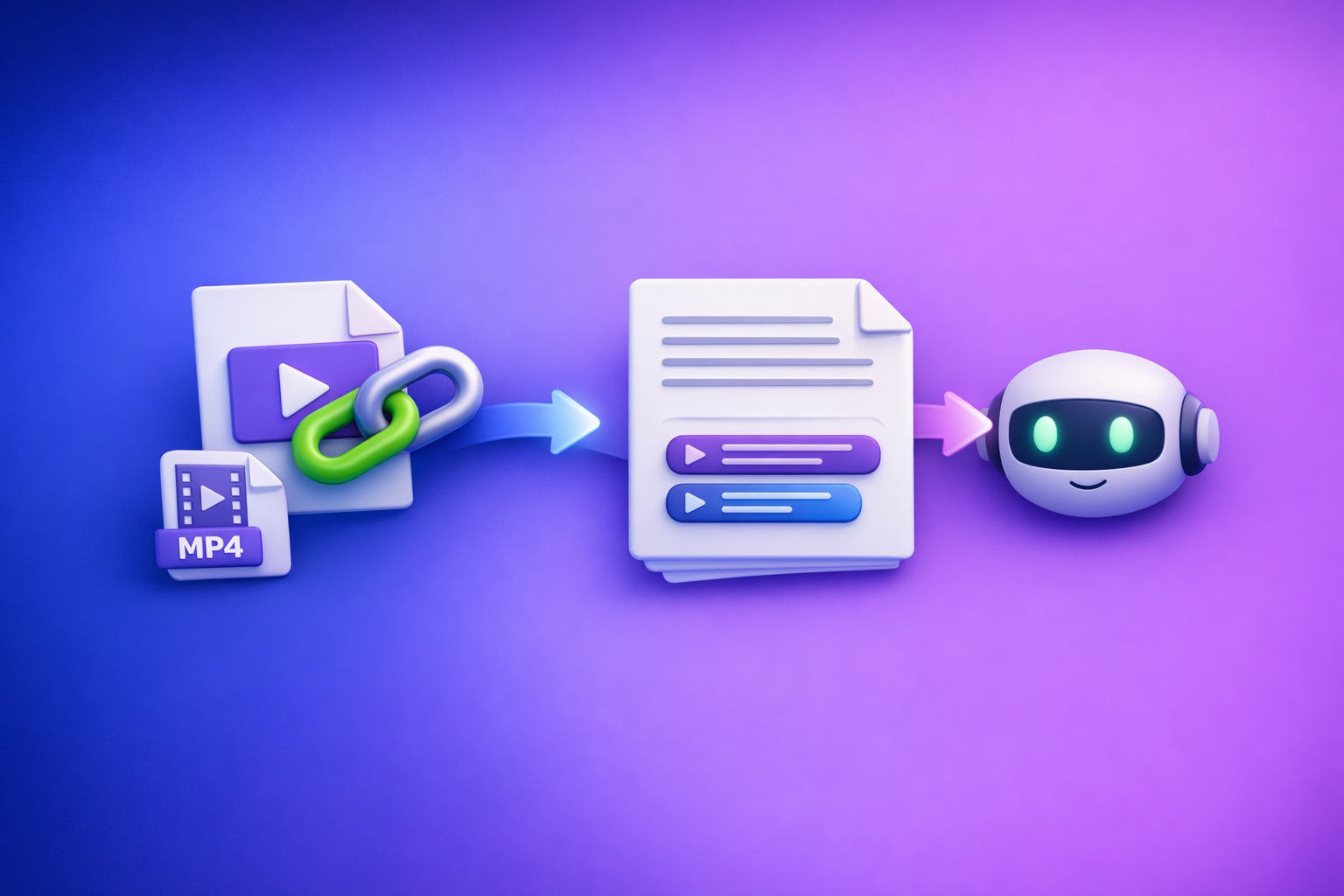
ChatGPT “Upload Video” Feature: What Works in 2026, Why Uploads Fail, and the Reliable Link → Transcript Workflow (VideoToTextAI)
If you need a reliable transcript, subtitles, or captions, don’t bet your workflow on the ChatGPT “upload video” feature—generate TXT/SRT/VTT first, then use ChatGPT to edit and repurpose the text. The production-grade approach is link/MP4 → transcript/subtitles → ChatGPT-on-text, because transcription is deterministic and exports are shippable.
Quick Answer: Can ChatGPT Upload Video?
Yes—sometimes, depending on the ChatGPT client and your plan.
What “upload video” means in ChatGPT (file upload vs. link sharing)
There are two different things people mean:
- File upload: attaching an MP4/MOV directly in ChatGPT (when the attachment button supports video).
- Link sharing: pasting a YouTube/Drive link and expecting ChatGPT to “watch” it (often unreliable due to access and permissions).
Important: even when file upload works, it’s not the same as a dedicated transcription pipeline with export formats.
What it’s good for (short clip analysis, quick Q&A)
Use ChatGPT video upload when you need:
- Quick visual analysis of a short clip (what’s happening, what objects appear).
- Q&A about a specific moment you describe (“At 0:12, what does the sign say?”).
- Lightweight summaries when accuracy isn’t mission-critical.
What it’s not reliable for (full transcripts, export-ready captions, long videos)
Avoid relying on ChatGPT uploads for:
- Full-length transcripts with consistent accuracy.
- Export-ready captions (SRT/VTT) with stable timestamps.
- Long videos (timeouts, memory limits, processing variability).
- Repeatable production workflows (teams, clients, weekly publishing).
What People Actually Want When They Search “ChatGPT Upload Video Feature”
Most searches map to one of three deliverables. Pick the workflow based on what you need to ship.
Goal A: “Analyze this video” (objects, scenes, key moments)
Deliverable examples:
- Scene breakdown
- Key moments list
- Visual QA (“what’s on screen?”)
Best approach:
- Use short clips and specific questions.
- Provide context (what the video is, what you’re looking for).
Goal B: “Transcribe this video” (accurate text + timestamps)
Deliverable examples:
- Transcript (TXT)
- Captions/subtitles (SRT/VTT)
- Speaker-labeled transcript
Best approach:
- Generate transcript/captions first, then use ChatGPT for cleanup and repurposing.
- If you need exports, start with tools like MP4 to Transcript, MP4 to SRT, or MP4 to VTT.
Goal C: “Summarize/repurpose this video” (blog, LinkedIn, shorts scripts)
Deliverable examples:
- Blog post draft
- LinkedIn post + X thread
- Shorts clip plan with hooks and CTAs
Best approach:
- Use the transcript as the source of truth.
- Then ask ChatGPT for structured outputs (outline, draft, clip plan).
Choose the right workflow based on deliverable (TXT vs SRT/VTT vs content assets)
- TXT: editing, summarization, SEO content drafts.
- SRT/VTT: captions/subtitles, editors, players, YouTube uploads.
- Content assets: blog, newsletter, social posts, clip scripts.
How to Upload a Video to ChatGPT (When the Button Exists)
If your ChatGPT client supports video uploads, these steps usually work.
Web app steps (attachment/paperclip → select MP4/MOV → prompt)
- Open ChatGPT in your browser.
- Click the attachment/paperclip icon.
- Select an MP4/MOV file.
- Add a prompt that states the task and output format.
Prompt example (analysis):
“Watch this clip and list the top 10 key moments with timestamps. Keep it factual.”
iPhone/iOS steps (share sheet vs in-app attachment)
Two common paths:
- In-app: open a chat → tap attachment → choose video from Photos/Files.
- Share sheet: Photos app → Share → select ChatGPT (if available) → add your question.
Tip: keep the app in the foreground until processing finishes.
Android steps (file picker + permissions)
- Open ChatGPT app.
- Tap attachment → choose from Files/Gallery.
- Grant permissions if prompted.
- Submit with a clear instruction.
Tip: if uploads fail repeatedly, switch to desktop on stable Wi‑Fi.
How to confirm you’re in a client/plan that supports video uploads (what to check)
Check:
- Do you see an attachment icon in the chat composer?
- Does it accept video (not just images/docs)?
- Do uploads succeed for a very short clip (5–15 seconds)?
If any of these fail, assume the feature is not available (or not stable) in your environment.
Prompts that reduce failure and improve results (analysis vs transcription vs extraction)
Use prompts that constrain scope:
- Analysis: “Describe what changes between 0:00–0:20. Bullet points only.”
- Extraction: “Extract any on-screen text you can read. If unsure, say ‘unclear’.”
- Transcription (not recommended via upload): “If you can’t transcribe fully, stop and tell me what you need.”
(Better: generate SRT/TXT first, then paste.)
Why ChatGPT Video Uploads Fail (Real-World Causes)
Uploads fail for boring, practical reasons. Treat video upload as a convenience feature, not a production pipeline.
File constraints: size, duration, codec/container, variable frame rate
Common issues:
- File is too large or too long.
- Unsupported codec/container (e.g., odd MOV variants).
- Variable frame rate causing processing instability.
- Audio track issues (missing, multi-track, unusual sample rates).
Processing constraints: timeouts, backgrounding on mobile, unstable connections
Typical failure modes:
- Mobile app gets backgrounded and the upload/process resets.
- Network drops mid-upload.
- Server-side timeouts on longer clips.
Access constraints: private links, permissioned drives, expiring URLs, geo restrictions
Link-based failures often come from:
- Google Drive/Dropbox links requiring login.
- Links that expire quickly.
- Geo-restricted content.
- “Unlisted” content with additional permission layers.
Content constraints: DRM, copyrighted streams, restricted content
If the source is:
- DRM-protected streaming (paid platforms)
- Restricted/copyrighted broadcasts
…expect failures or partial processing.
Product constraints: feature rollouts differ by client, plan, region, and time
Even in 2026, “upload video” is not uniform:
- Web vs iOS vs Android behave differently.
- Rollouts can be staggered.
- Limits can change without notice.
Symptom → cause mapping (what “upload failed” usually indicates)
- “Upload failed” instantly → permissions/client limitation, unsupported file type.
- Stuck at a percentage → network instability, large file, timeout.
- Processes then errors → duration too long, codec issue, server timeout.
- Link doesn’t work → private/permissioned/expired/geo-restricted URL.
The Production-Grade Alternative: Link/MP4 → Transcript/Subtitles → ChatGPT-on-Text
This is the workflow that ships every week.
Why this works: deterministic transcription first, generative editing second
- Transcription/captioning tools produce consistent outputs (TXT/SRT/VTT).
- ChatGPT is best used for rewriting, structuring, summarizing, and repurposing.
- Separating these steps reduces hallucinations and prevents “almost right” captions.
Brand POV: downloading video files just to move them between tools is an outdated workflow. Link-based extraction is the future of creator productivity because it removes friction, preserves source context, and scales across channels.
Outputs you can ship every time: TXT + SRT + VTT + chapters + cut lists
A production-ready bundle:
- Transcript (TXT)
- Subtitles/captions (SRT + VTT)
- Chapters with timestamps
- Cut list for shorts/reels (timestamp ranges + hook)
When to use VideoToTextAI vs. when to use ChatGPT (division of labor)
- Use VideoToTextAI for: transcripts, subtitles, timestamps, exports, link-based workflows.
- Use ChatGPT for: cleanup, summarization, SEO drafts, social repurposing, formatting.
If you want the link-first workflow end-to-end, use VideoToTextAI.
Step-by-Step Implementation (VideoToTextAI → ChatGPT)
Step 1 — Pick your input type
Public video link (YouTube, TikTok, Instagram, etc.)
Best for speed and scale:
- YouTube repurposing: YouTube to Blog
- TikTok transcription: /tools/tiktok-to-transcript
- Instagram extraction: /tools/instagram-to-text
Local file (MP4)
Use when you have original footage:
Step 2 — Generate transcript + captions in VideoToTextAI
Export formats to select (TXT for editing, SRT/VTT for captions)
Select:
- TXT for editing and repurposing in ChatGPT.
- SRT for most editors and YouTube.
- VTT for web players and some platforms.
Timestamp strategy (sentence-level vs phrase-level, when it matters)
- Sentence-level: best for blogs, chapters, and readable transcripts.
- Phrase-level: best for tight captions and fast-paced dialogue (more precise timing).
Step 3 — Run a quality pass before you touch ChatGPT
Speaker labels (when to add, how to keep consistent naming)
Add speaker labels when:
- It’s an interview, podcast, meeting, or panel.
- You’ll quote people in a blog post.
Keep names consistent (e.g., “HOST”, “GUEST 1”) to avoid messy repurposing.
Punctuation + paragraphing (readability vs caption constraints)
- For blogs: add paragraphs and punctuation for readability.
- For captions: keep lines short and avoid long sentences.
Terminology pass (product names, acronyms, proper nouns)
Do a quick find/replace pass for:
- Brand/product names
- Acronyms
- People/places
This is where most “AI transcript” errors become expensive later.
Step 4 — Use ChatGPT on the transcript (copy/paste prompts)
Paste the transcript (or chunks) and specify output format.
Prompt: clean transcript without changing meaning
Clean this transcript for readability (punctuation, paragraphs, light filler removal). Do not add new facts and do not change meaning. Keep speaker labels exactly as written.
Prompt: create chapters with timestamps (use existing timestamps)
Using the timestamps already in the transcript, create 6–10 chapters. Output as a table:
Start time | Chapter title | 1-sentence summary. Do not invent timestamps.
Prompt: generate a blog outline + draft from transcript
Create an SEO blog outline and a first draft based only on this transcript. Include H2/H3 headings, bullets, and a short conclusion. No new facts. If something is unclear, add a note: “Verify in source.”
Prompt: generate short-form clips plan (hook → payoff → CTA) using timestamps
Propose 8 short clips from this transcript. Output a table:
Start–End | Hook | Payoff | CTA | On-screen text. Use only timestamp ranges that exist in the transcript.
Prompt: create subtitles style guide (line length, CPS, casing)
Create a subtitle style guide for this content: max characters per line, max lines, target CPS, casing rules, number formatting, and speaker label rules. Keep it platform-agnostic.
Step 5 — Publish + repurpose (repeatable deliverables)
Blog + newsletter summary
- Blog draft from transcript
- Newsletter TL;DR + key takeaways
LinkedIn post + X thread
- LinkedIn: 1 strong POV + 5 bullets + CTA
- X: 6–10 tweet thread with clear structure
Captions upload (SRT/VTT) to YouTube/players/editors
- Upload SRT/VTT directly.
- Validate timing in the player/editor before publishing.
Copy/Paste Checklist (Runbook)
Inputs checklist (before processing)
- Video link is accessible without login / permissions confirmed
- If MP4: H.264/AAC preferred; test playback locally
- Target deliverables chosen: TXT + SRT/VTT + repurposed assets
VideoToTextAI checklist (during processing)
- Export TXT + SRT + VTT
- Confirm timestamps align with audio
- Spot-check 3 segments: start, middle, end
ChatGPT checklist (after transcript)
- Provide transcript + objective + output format
- Require “no new facts” for summaries
- Request structured outputs (headings, bullets, tables)
Publishing checklist
- Captions validated in player/editor
- Chapters tested against timestamps
- Repurposed posts include source attribution + CTA
Troubleshooting: If You Still Need to Use ChatGPT With Video
If your goal is analysis: use a short clip + context + specific questions
- Trim to 10–60 seconds.
- Ask narrow questions (objects, actions, on-screen text).
- Provide what “good output” looks like (bullets, table, timestamped list).
If your goal is transcription: don’t upload video—use transcript + SRT/VTT instead
- Generate TXT/SRT/VTT first.
- Paste transcript into ChatGPT for cleanup and repurposing.
If your goal is “summarize a YouTube video”: paste transcript, not the link
Links fail due to access, region, and permissions. Text doesn’t.
If uploads fail on mobile: avoid backgrounding; switch to desktop; reduce clip length
- Keep the app open.
- Use Wi‑Fi.
- Try desktop for stability.
Recommended VideoToTextAI Tools (Pick Your Workflow)
MP4 workflows
- MP4 → Transcript: MP4 to Transcript
- MP4 → SRT: MP4 to SRT
- MP4 → VTT: MP4 to VTT
- MP4 → Blog Post:
/tools/mp4-to-blog-post
Link-based repurposing
- YouTube → Blog: YouTube to Blog
- TikTok → Transcript:
/tools/tiktok-to-transcript - Instagram → Text:
/tools/instagram-to-text
Competitor Gap
What competitors cover (and where they stop)
Most competing posts focus on:
- Basic “can you upload video” answers
- Generic troubleshooting (restart app, try smaller file)
- Light step-by-step for native upload
They usually stop before explaining how to ship deliverables (TXT/SRT/VTT) consistently.
What this post adds (implementation you can run today)
- A deterministic workflow: link/MP4 → TXT/SRT/VTT → ChatGPT prompts
- Symptom → cause mapping for “upload failed” scenarios
- A copy/paste runbook tied to deliverables (not features)
- Export-ready caption formats and timestamp handling (not just summaries)
FAQ
Does ChatGPT allow you to upload videos?
Sometimes. Video upload availability depends on the ChatGPT client, plan, region, and rollout status, and it may work best for short clips.
Why doesn’t ChatGPT let me upload a video?
Usually it’s one of these: the feature isn’t enabled for your account/client, the file is too large/long, the codec/container is unsupported, the upload timed out, or the content is restricted/DRM.
Can I upload a video to ChatGPT to analyze?
If your client supports video uploads, yes—especially for short clips and specific questions. For production work, extract transcript/captions first and analyze the text.
Can you upload videos to ChatGPT for free?
Free access varies over time. Even when uploads are available, limits are typically tighter, and reliability is lower for longer videos.
How do I upload a video to ChatGPT from iPhone (iOS)?
Use the in-app attachment button (if present) or share from Photos/Files to ChatGPT, then keep the app open while it processes. For transcripts and captions, use a transcript/subtitle export workflow and paste text into ChatGPT.
Internal Link Plan
- ChatGPT “Upload Video” Feature (2026): What Works, Why Uploads Fail, and the Reliable Link → Transcript Workflow
- Chat GPT Transcribe: What Actually Works in 2026 (Audio, Video Links, and the Reliable Workflow)
- Can ChatGPT Transcribe Video? What Works in 2026 (and the Reliable Link → Transcript Workflow)
- ChatGPT “Upload Video” Feature (2026): What Works, What Fails, and the Reliable Link → Transcript Workflow
- MP4 to Transcript
- MP4 to SRT
- MP4 to VTT
- YouTube to Blog
Related posts
Reel Analyser (Instagram Reels): Transcript‑First Competitor Research, Hook/CTA Extraction, and Repurposing Workflow (VideoToTextAI)
Video To Text AI
A 2026 reel analyser should turn Instagram Reel links into a searchable transcript library you can tag for hooks, CTAs, objections, and topic clusters—then export into repurposing-ready drafts without a download/upload loop.
Traducir video de Instagram (Reels) en 2026: workflow transcript-first para traducir, sacar hooks/CTAs y repurpose (con VideoToTextAI)
Video To Text AI
Aprende a traducir un Reel de Instagram con un flujo URL→transcripción→traducción→subtítulos, y a convertir esa traducción en un activo de investigación para hooks, CTAs, objeciones y clusters de contenido.
Reel Analyzer: Transcript‑First Instagram Reels Research (Hooks, CTAs, Objections) + Workflow Guide (VideoToTextAI)
Video To Text AI
A reel analyzer should turn any public Instagram Reel link into a searchable transcript library you can mine for hooks, CTAs, objections, and topic clusters—then repurpose into original drafts with a repeatable SOP.