
ChatGPT “Upload Video” Feature (2026): What Works, Why Uploads Fail, and the Reliable Link → Transcript Workflow
 Video To Text AI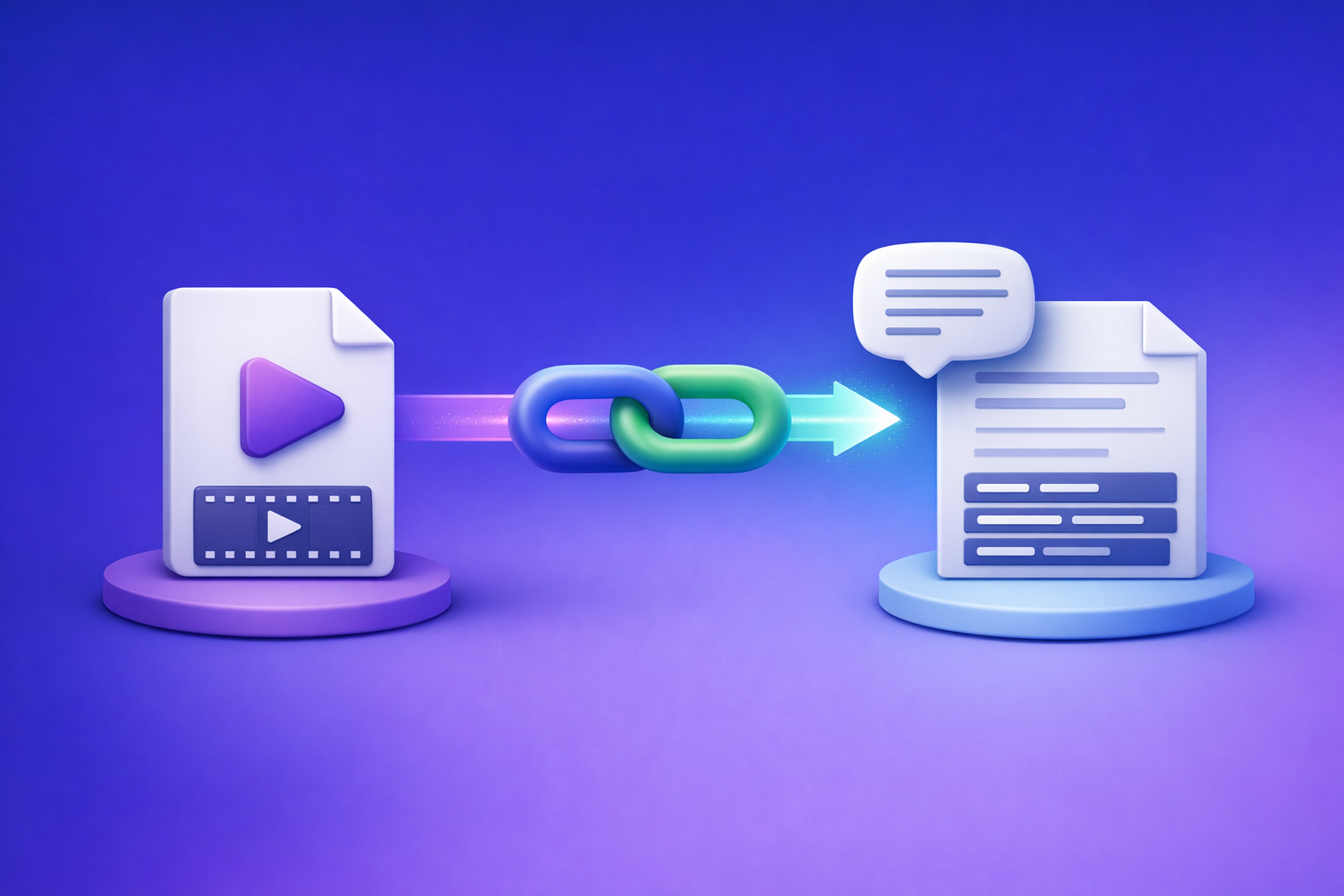
ChatGPT “Upload Video” Feature (2026): What Works, Why Uploads Fail, and the Reliable Link → Transcript Workflow
If you need a transcript, captions, or anything you can publish, don’t start by uploading video to ChatGPT. Start by generating TXT + SRT/VTT from a video link (or MP4), then use ChatGPT on the text for summaries, chapters, and repurposing.
What you’ll get from this guide (and what you won’t)
You’ll get a repeatable, production-grade workflow that ships deliverables (transcript + captions + repurposed drafts) even when ChatGPT’s upload UI is missing or fails.
You won’t get “just upload it and it works” advice, because that’s not how real-world video pipelines behave in 2026.
If your goal is analysis vs. transcription vs. captions
Treat these as different jobs:
- Analysis (visual Q&A): “What’s on screen at 00:32?” “Is the logo visible?”
- Transcription (speech → text): accurate words, speaker turns, punctuation.
- Captions/subtitles (timed text): SRT/VTT with timestamps that match the timeline.
ChatGPT can help with analysis and rewriting, but transcription + captions need deterministic extraction.
The production-grade approach: transcript first, ChatGPT second
Downloading video files is an outdated workflow. It adds friction, breaks on permissions, and wastes time moving large files around.
Link-based extraction is the future of creator productivity: paste a public URL, generate transcript/subtitles, then reuse text everywhere.
Quick Answer: Can ChatGPT upload videos in 2026?
Sometimes—but it’s inconsistent across clients, plans, and file types, and it’s not reliable for long-form transcription or export-ready captions.
When the upload button appears (and why it sometimes doesn’t)
The “upload”/attachment UI can vary by:
- Client: web vs. iOS vs. Android
- Account rollout: features may be enabled gradually
- Model/tool availability: some models support richer inputs than others
- Org/admin settings: enterprise controls can restrict uploads
If you don’t see the button, it’s often not “user error”—it’s availability.
What ChatGPT can reliably do with uploaded video (short clips, Q&A)
When video upload works, it’s best for:
- Short clip Q&A (“What happens after the cut?”)
- High-level summary of a short segment
- Basic extraction (objects, scenes, simple sequences)
What ChatGPT is not reliable for (full transcripts, export-ready captions)
For production deliverables, ChatGPT is not dependable for:
- Full-length transcripts (timeouts, truncation, missing sections)
- Accurate timestamps for editing
- Export-ready captions (clean SRT/VTT formatting, consistent timing)
- Repeatable outputs across many videos
If you need something you can upload to YouTube or drop into an editor, use a transcript/caption workflow first.
What people mean by “ChatGPT upload video feature”
Most searches for the “chatgpt upload video feature” actually mean one of three things.
Uploading a local MP4/MOV vs. sharing a link (YouTube/Drive)
- Local upload (MP4/MOV): you attach a file from your device.
- Link sharing: you paste a YouTube/Drive link and expect ChatGPT to “watch it.”
These are not equivalent. ChatGPT often can’t fetch or process arbitrary links the way people expect.
“Analyze my video” vs. “Transcribe my video” vs. “Summarize my video”
Be explicit:
- Analyze: visual understanding + questions
- Transcribe: word-for-word speech-to-text
- Summarize: compress meaning (best done from transcript)
If you ask for “summarize my video” without providing text, you’re depending on fragile video ingestion.
Why “paste a link” usually fails inside ChatGPT
Links fail because:
- The URL is private, geo-restricted, or expires
- The content is behind login, cookies, or DRM
- The system can’t reliably fetch large media files in time
- The model may not have tool access to retrieve the media
This is why link-based transcript extraction (purpose-built for media) is the better first step.
Why ChatGPT video uploads fail (real-world causes)
When uploads fail, it’s usually one of these operational issues—not your prompt.
Client + rollout differences (web vs. iOS vs. Android)
- Web may support a feature that mobile doesn’t (or vice versa).
- App updates can change what inputs are allowed.
- Some regions/accounts get features later.
Plan/model gating and feature availability
Video-capable inputs can be restricted by:
- Subscription tier
- Selected model
- Workspace policy controls
File constraints: size, duration, codec/container, audio track issues
Common failure points:
- File is too large or too long
- Unsupported codec (e.g., unusual H.265 profile) or container quirks
- No audio track (screen recordings sometimes export “silent” tracks)
- Variable frame rate edge cases
Processing timeouts and partial outputs (why long videos break)
Long videos often produce:
- Partial transcripts
- Abrupt cutoffs mid-sentence
- Missing sections with no clear error
This is why “upload and transcribe” is a poor production bet.
Permissions + access problems (private links, expiring URLs, DRM)
Even if a link plays in your browser, it may fail for tools due to:
- Private/unlisted permissions
- Tokenized URLs that expire
- DRM-protected streams
Policy blocks and restricted content edge cases
Some content types can be blocked or limited, which may appear as “failed processing” rather than a clear policy message.
Failure signals to capture before troubleshooting (error text, file specs, client)
Before you retry, capture:
- Exact error text
- File size, duration, format, codec
- Whether the file has an audio track
- Client: web/iOS/Android, app version, selected model
This saves time and prevents random trial-and-error.
The reliable workflow: Video link/MP4 → transcript/subtitles → ChatGPT-on-text
This is the workflow that consistently ships deliverables.
Why this works: deterministic extraction + flexible rewriting
- Transcription tools are optimized for speech-to-text and timing.
- ChatGPT is optimized for rewriting, structuring, summarizing, and ideation.
- Separating the steps prevents “video ingestion” from being your single point of failure.
Outputs you should generate every time (TXT + SRT/VTT + summary-ready text)
Generate these as your standard deliverables:
- Transcript (TXT) for editing, search, and prompts
- Subtitles (SRT) for YouTube and most editors
- Captions (VTT) for web players and some platforms
- Optional: a cleaned transcript (light formatting, headings) for repurposing
When to use SRT vs. VTT (editing, YouTube, web players)
- SRT: widely supported, simple, best default for YouTube + editors
- VTT: better for web players and styling metadata in some environments
If you’re unsure, export both.
Step-by-step: Turn any video into export-ready text with VideoToTextAI
This pipeline is designed for link-based workflows—because downloading video files is an outdated workflow and slows teams down.
Use VideoToTextAI when you want deterministic outputs (TXT/SRT/VTT) you can ship, then use ChatGPT for the “writing layer.” If you want to run this workflow end-to-end, use VideoToTextAI.
Step 1 — Choose your input type (public URL vs. local MP4)
Pick the input that minimizes friction:
- Best: public video URL (fastest, no file juggling)
- Fallback: local MP4 when the source can’t be accessed by link
Supported sources to prioritize (YouTube/public pages) vs. avoid (permissioned/DRM)
Prioritize:
- YouTube public/unlisted (accessible)
- Public landing pages with embedded video
- Direct MP4 URLs (no auth)
Avoid:
- DRM platforms
- Links requiring login/cookies
- Expiring signed URLs unless you can refresh them
Preflight checks: audio present, language, expected speakers
Before processing:
- Confirm the video has audible speech
- Identify language(s)
- Estimate number of speakers (helps with labeling expectations)
Step 2 — Run VideoToTextAI to generate transcript + captions
Your goal is export-ready files, not “a blob of text.”
Generate transcript (TXT) for editing and ChatGPT prompts
Export a TXT transcript to:
- edit terminology
- paste into ChatGPT in chunks
- store as a source-of-truth document
Export subtitles (SRT/VTT) for publishing and video editors
Export:
- SRT for YouTube and most NLEs
- VTT for web workflows
If you’re doing any editing, timestamps are non-negotiable.
If you need multilingual outputs: when to translate vs. transcribe
- Transcribe when you need accuracy in the original language.
- Translate after transcription when you need localized captions or posts.
Don’t translate first; you’ll compound errors.
Step 3 — Quality pass before you touch ChatGPT (accuracy first)
ChatGPT can polish, but it can’t reliably “fix” missing words you never extracted.
Fix speaker labels, punctuation, and obvious mishears
Do a quick pass for:
- speaker names/roles
- punctuation that changes meaning
- domain terms (product names, acronyms)
Validate timestamps (spot-check 3–5 segments across the timeline)
Spot-check:
- early segment (0–2 min)
- mid segment
- late segment
- any fast-talking section
You’re verifying alignment, not perfection.
Normalize names/terms (product names, acronyms, proper nouns)
Create a small “terms to enforce” list (5–30 items). This improves every downstream asset.
Step 4 — Use ChatGPT on the transcript (what it’s best at)
Now you’re using ChatGPT where it’s strongest: text transformation.
Summaries that don’t hallucinate: constrain to transcript-only
Use a constraint like:
- “Use only the provided transcript. If it’s not in the transcript, say ‘not mentioned.’”
This reduces invented details.
Chapters + timestamps: generate from SRT/VTT or timestamped transcript
Best input:
- SRT/VTT (already timed)
Ask for:
- chapter title
- start timestamp
- 1–2 bullet summary per chapter
Repurposing: blog outline, LinkedIn post, Twitter thread, hooks
From the transcript, generate:
- blog outline with H2/H3
- 3–5 hooks
- LinkedIn post variants (short/long)
- thread outline with key beats
If you want a direct workflow, see YouTube to Blog.
Extract structured data: action items, FAQs, key quotes, takeaways
Ask for structured outputs:
- action items (owner/date if mentioned)
- FAQs (Q/A pairs)
- key quotes (with timestamps if available)
- takeaways (bullets)
Step 5 — Publish + reuse outputs across channels
This is where link-based extraction pays off: one transcript becomes many assets.
YouTube captions upload (SRT) + SEO description from transcript
- Upload SRT to YouTube
- Build the description from transcript sections + chapters
- Pull 5–10 keywords/phrases actually spoken (more authentic SEO)
For related workflows, see MP4 to SRT and MP4 to Transcript.
Blog post + newsletter from transcript sections
- Turn each chapter into a section
- Keep claims tied to what was said
- Add links, CTAs, and examples after the fact
If you’re building a caption pipeline, also reference MP4 to VTT.
Short-form clips: use chapters/cut list to drive editing
Use chapters to create:
- a cut list (timestamp in/out)
- clip titles
- on-screen caption highlights
Copy/paste implementation checklist (ship this workflow every time)
Inputs checklist (before processing)
- Video URL is publicly accessible (or MP4 is local and playable)
- Audio track confirmed (not muted/empty)
- Language(s) identified
- Target outputs selected: TXT + SRT/VTT + summary/chapters
Processing checklist (during transcription)
- Export TXT transcript
- Export SRT and/or VTT
- Spot-check timestamps and speaker turns
- Save final files with consistent naming (video-title + date)
ChatGPT-on-text checklist (after transcription)
- Provide transcript (or paste chunks) + “use transcript only” constraint
- Request structured outputs (headings, bullets, tables)
- Generate: summary, chapters, key quotes, repurposed drafts
- Final human review for claims, names, and numbers
Troubleshooting: If you still need to use ChatGPT with video uploads
Sometimes you truly need visual analysis. Here’s how to reduce failure rates.
If the upload button is missing (client/version/plan checks)
- Try web and mobile (feature parity differs)
- Update the app/browser
- Switch models (if available)
- Check workspace/admin restrictions
If it’s still missing, assume it’s not enabled for your account and move to transcript-first.
If “video upload failed” (format, size, duration, network)
- Re-export as standard MP4 (H.264 + AAC) when possible
- Shorten the clip (trim to the relevant segment)
- Confirm the file has an audio track
- Retry on a stable network
If ChatGPT output is incomplete (chunking strategy + transcript-first fallback)
If you must proceed:
- Split into short clips
- Ask narrow questions per clip
- Expect partial results
For anything transcript-related, fall back to the deterministic pipeline.
If you must analyze visuals (frames/short clips + context + transcript)
Best practice:
- Provide a short clip or key frames
- Provide the transcript for the same segment
- Ask targeted questions (“In frame 3, what text is on screen?”)
Competitor Gap
Most guides stop at “try uploading” and ignore what teams actually need: deterministic deliverables you can publish and reuse.
What’s missing in competitor content:
- Export-ready captions (SRT/VTT) as a standard output
- Preflight checks that prevent failure (audio, access, language)
- Failure signals to capture (error text + file specs + client)
- A repeatable pipeline that separates extraction from rewriting
What this post adds:
- A transcript-first workflow that ships TXT + SRT/VTT every time
- Practical checklists you can hand to a team
- Clear boundaries for when ChatGPT video upload is worth attempting
FAQ
Does ChatGPT allow you to upload videos?
Sometimes. Availability varies by client, plan, model, and rollout, and it’s not consistent enough for production transcription/captions.
Why doesn’t ChatGPT let me upload a video?
Usually it’s one of: missing feature rollout, plan/model gating, file constraints (size/duration/codec), timeouts, or permissions/DRM.
Can I upload a video to ChatGPT to analyze?
Yes—best for short clips and visual Q&A. For transcripts, subtitles, and repurposing, use transcript/subtitle extraction first.
Can you upload videos to ChatGPT for free?
Free access and input capabilities vary over time and by account. Even when possible, free workflows are typically not reliable for long videos and export-ready captions.
How do I upload a video to ChatGPT from iPhone (iOS) or Android?
If available in your app: open a chat, tap the attachment/paperclip icon, and select a video. If the option isn’t present or fails, use a transcript-first workflow and paste the transcript into ChatGPT instead.
Internal Link Plan
- ChatGPT “Upload Video” Feature (2026): What Works, Why It Fails, and the Reliable Link → Transcript Workflow
- Can ChatGPT Upload Video in 2026? What Works, What Fails, and the Reliable Link → Transcript Workflow (VideoToTextAI)
- Can ChatGPT Transcribe Video? What Works in 2026 (and the Reliable Link → Transcript Workflow)
- Chat GPT Transcribe: What Actually Works in 2026 (Audio, Video Links, and the Reliable Workflow)
- MP4 to Transcript
- MP4 to SRT
- MP4 to VTT
- YouTube to Blog
Related posts
Reel Analyser (Instagram Reels): Transcript‑First Competitor Research, Hook/CTA Extraction, and Repurposing Workflow (VideoToTextAI)
Video To Text AI
A 2026 reel analyser should turn Instagram Reel links into a searchable transcript library you can tag for hooks, CTAs, objections, and topic clusters—then export into repurposing-ready drafts without a download/upload loop.
Traducir video de Instagram (Reels) en 2026: workflow transcript-first para traducir, sacar hooks/CTAs y repurpose (con VideoToTextAI)
Video To Text AI
Aprende a traducir un Reel de Instagram con un flujo URL→transcripción→traducción→subtítulos, y a convertir esa traducción en un activo de investigación para hooks, CTAs, objeciones y clusters de contenido.
Reel Analyzer: Transcript‑First Instagram Reels Research (Hooks, CTAs, Objections) + Workflow Guide (VideoToTextAI)
Video To Text AI
A reel analyzer should turn any public Instagram Reel link into a searchable transcript library you can mine for hooks, CTAs, objections, and topic clusters—then repurpose into original drafts with a repeatable SOP.