
Can ChatGPT Upload Video? What Works in 2026 (and the Reliable Link → Transcript Workflow)
 Video To Text AI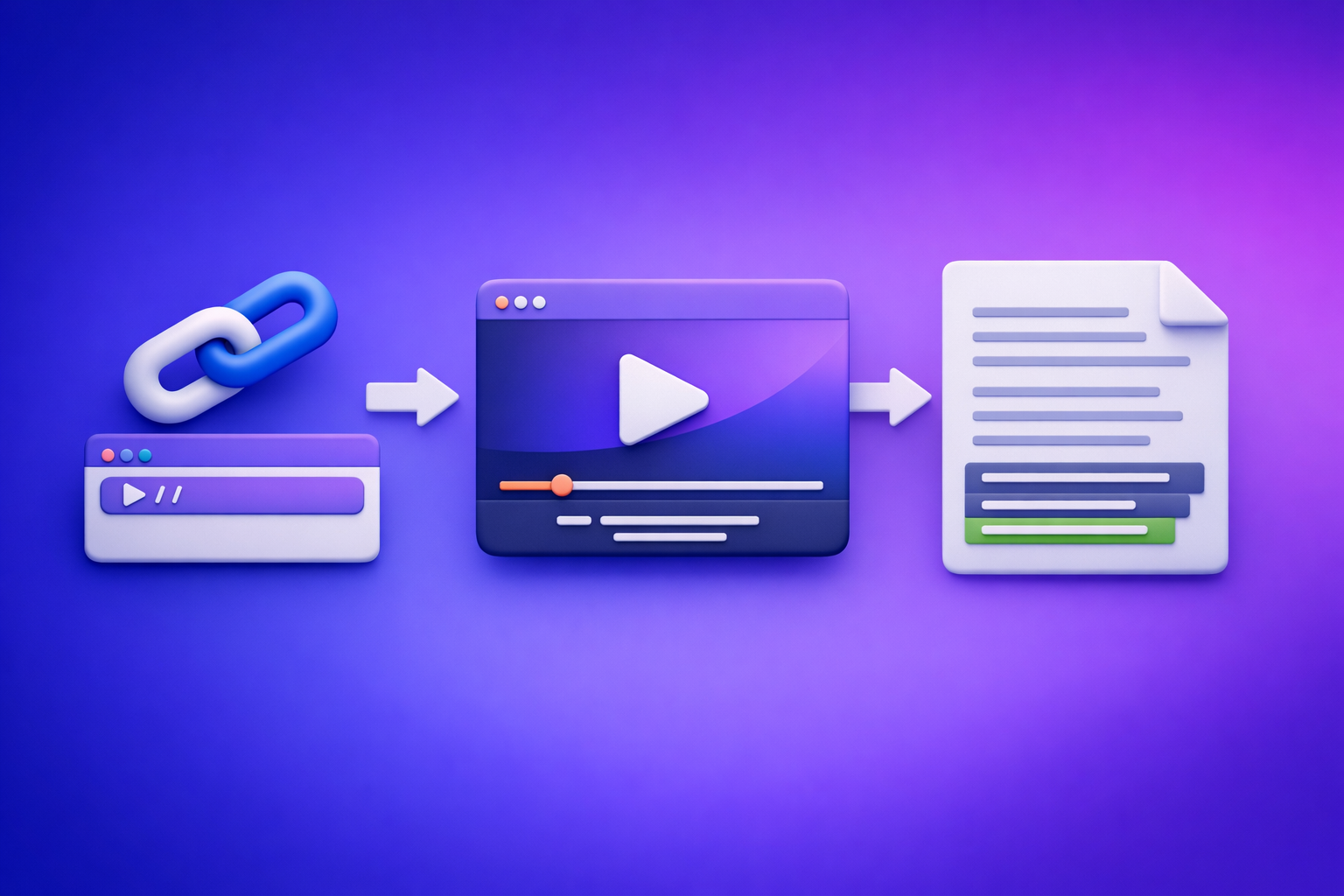
Can ChatGPT Upload Video? What Works in 2026 (and the Reliable Link → Transcript Workflow)
If you need dependable results, don’t try to “upload a video to ChatGPT” as your core workflow. Use a link → transcript/subtitles → ChatGPT pipeline so you always have exportable text (TXT/SRT/VTT) that you can publish and repurpose.
Quick Answer (What You Can and Can’t Do)
Can ChatGPT upload video files?
Sometimes, but it’s not reliable enough to build a process around. Whether video upload works depends on:
- Your plan and client (web vs mobile)
- Current file size/duration limits
- Workspace/admin policies (Team/Enterprise)
- The actual codec inside the file (even if it’s “.mp4”)
If your goal is transcripts, captions, or content repurposing, treat direct upload as a “nice-to-have,” not the foundation.
Can ChatGPT “watch” a video from a link (YouTube/Instagram/TikTok)?
Not consistently. In practice, link access can fail due to:
- Platform restrictions (login walls, region locks, age gates)
- Dynamic pages and anti-bot measures
- Rate limits and intermittent retrieval issues
Creators need repeatability, and link “watching” inside a chat tool isn’t deterministic.
What ChatGPT is reliable for (after you have text)
ChatGPT is excellent when you provide clean inputs:
- Editing: remove filler, fix grammar, preserve meaning
- Repurposing: turn transcripts into posts, threads, newsletters
- Packaging: titles, hooks, descriptions, CTAs, outlines
- SEO structuring: headings, FAQs, internal link suggestions
The key is: get the transcript/subtitles first, then use ChatGPT to transform the text.
Why Video Uploads Fail (Even When You “Have the Feature”)
File size, duration, and processing limits
Video is heavy. Upload limits and processing ceilings vary and change.
Common failure patterns:
- Long videos stall at high percentages
- Large files time out on mobile networks
- Backgrounding the app cancels uploads
If you need a workflow that works every day, avoid making your process depend on a fragile upload step.
Unsupported formats and codecs (MP4 isn’t always “MP4”)
A file ending in .mp4 is a container, not a guarantee of compatibility.
Inside the container you might have:
- Unsupported video codecs
- Unusual audio codecs
- Variable frame rate issues
- Corrupted metadata
Result: “Upload succeeded” but analysis fails, or the file is rejected outright.
Network/timeouts and stalled uploads
Even with a supported file, uploads fail due to:
- Corporate firewalls/VPNs
- Unstable Wi‑Fi
- Mobile data switching networks mid-upload
- Server-side throttling
This is why downloading and re-uploading video files is an outdated workflow for creator productivity. It’s slow, fragile, and hard to standardize across a team.
Privacy/workspace restrictions (Team/Enterprise policies)
In many organizations, admins restrict:
- File uploads
- External link access
- Data retention and logging
- Third-party connectors
So “it works on my personal account” doesn’t translate to a team process.
“It worked once” vs repeatable workflows (why inconsistency matters)
One-off success is not a system.
A repeatable system needs:
- Deterministic inputs (a link or a known file)
- Deterministic outputs (TXT/SRT/VTT)
- A consistent post-processing step (ChatGPT prompts)
That’s why link-based extraction is the future: less file handling, fewer moving parts, faster iteration.
The Reliable Workflow: Video Link (or MP4) → Transcript/Subtitles → ChatGPT
Step 1: Choose your input type (link vs file)
Default to links whenever possible. Downloading videos just to upload them again is wasted time and introduces failure points.
Best for links: YouTube, Instagram Reels, TikTok, podcasts
Use a link when:
- The video is already published
- You’re repurposing creator content you own/manage
- You need fast turnaround without file transfers
If you’re working from social platforms, start here:
Best for files: MP4 fallback when you own the asset
Use an MP4 when:
- The video is private/unlisted and you can’t share a link
- The platform blocks extraction
- You’re working with raw camera exports
Tools to keep handy:
Step 2: Generate export-ready text outputs (TXT/SRT/VTT)
Your goal is publishable and reusable text, not just “a transcript blob.”
When to use TXT vs SRT vs VTT (and what each is for)
- TXT: editing, summarizing, blog posts, documentation, search indexing
- SRT: subtitles/captions for YouTube and many editors (timestamped)
- VTT: web captioning (common for players and some platforms)
Best practice: export TXT + (SRT or VTT) so you can repurpose and publish without rework.
Include speaker labels, timestamps, and line length rules (caption-ready)
For higher quality downstream results:
- Speaker labels (Speaker 1 / Host / Guest)
- Timestamps (for navigation and clip selection)
- Caption line length (readable chunks, not giant sentences)
- Punctuation (improves readability and summarization)
Step 3: Use ChatGPT for cleanup + repurposing (not raw transcription)
ChatGPT is strongest as an editor and strategist, not as your transcription engine.
Clean transcript prompt (remove filler, keep meaning)
Copy/paste your TXT transcript and run:
Prompt:
“Clean this transcript for readability. Remove filler words and false starts, keep the original meaning, keep speaker labels, and preserve any numbers, product names, and URLs exactly. Output as plain text with short paragraphs.”
Create captions prompt (platform-specific variants)
Use your cleaned transcript (or selected excerpts):
Prompt:
“Create short-form captions from this transcript for (1) TikTok, (2) Instagram Reels, and (3) YouTube Shorts. Provide 10 options per platform. Keep each under 120 characters, include strong hooks, avoid hashtags unless requested, and keep the tone direct.”
Create a blog post/summary prompt (structure + SEO)
Prompt:
“Turn this transcript into a blog post outline with H2/H3 headings, a 155-character meta description, and a short FAQ. Keep it factual, remove repetition, and include a clear conclusion. Target keyword: ‘can chat gpt upload video’.”
Step 4: Publish and reuse outputs (captions, subtitles, posts, docs)
Upload SRT/VTT to YouTube
Workflow:
- Upload video to YouTube
- Go to Subtitles
- Upload SRT (or VTT) file
- Spot-check sync on a few sections (start, middle, end)
Add captions to Reels/TikTok edits
For short-form:
- Use SRT/VTT in your editor (or convert as needed)
- Ensure line breaks are readable on mobile
- Keep captions inside safe margins
Store transcript as a content asset (search + reuse)
Treat transcripts like source code:
- Store in a content library (folder, doc system, or CMS)
- Tag by topic, product, and date
- Reuse for: help docs, sales enablement, SEO pages, newsletters
Implementation: Do It with VideoToTextAI (Link-Based, Deterministic)
Link-based extraction is the productivity upgrade: no downloading, no re-uploading, fewer failures, faster outputs. If you want a deterministic workflow for transcripts, subtitles, captions, and repurposing, use VideoToTextAI: VideoToTextAI
A. Link → Transcript/Subtitles in minutes
Paste the video URL into VideoToTextAI
- Copy the URL (YouTube/IG/TikTok/etc.)
- Paste it into the tool
- Confirm you’re using the correct source (final edit vs draft)
Select output format(s): TXT + SRT/VTT
Recommended defaults:
- TXT for editing + repurposing
- SRT for most subtitle workflows
- VTT if your player/platform prefers it
Export and verify (timestamps, speaker turns, punctuation)
Do a quick QA pass:
- Names and brand terms
- Numbers (prices, dates, metrics)
- Jargon/acronyms
- Timestamp alignment (especially after intros/outros)
B. MP4 → Transcript/Subtitles when you can’t use a link
Upload MP4 and export TXT/SRT/VTT
Use MP4 as a fallback when links aren’t possible.
Then export:
- TXT for editing
- SRT/VTT for publishing
If accuracy is low: improve audio first (quick fixes)
Before re-running transcription:
- Normalize audio levels
- Reduce background noise
- Ensure the spoken track isn’t drowned by music
- Prefer the original audio mix over “social export” versions
Troubleshooting: “ChatGPT Video Upload Failed” and What to Do Instead
If you need analysis of a specific moment in the video
Don’t upload the whole file.
Do this instead:
- Generate a transcript with timestamps
- Copy/paste the relevant 30–90 seconds (plus timestamp)
- Ask ChatGPT to analyze that segment
This is faster and avoids upload failures.
If you need “what’s happening on screen”
Text alone won’t capture visuals.
Options:
- Extract key frames/screenshots
- Provide a short description of the scene + the transcript excerpt
- Ask targeted questions (e.g., “What’s the clearest on-screen CTA?”)
If you need subtitles that actually sync
ChatGPT is not a timing engine.
Best practice:
- Generate SRT/VTT first
- Only use ChatGPT to rewrite wording without changing timing, or to propose alternate caption text you then re-time in an editor
If you’re on iPhone and can’t upload
Mobile uploads fail frequently due to:
- iOS backgrounding
- network switching
- file picker quirks
Use a shareable link whenever possible, or generate the transcript from a link-first tool and paste the text into ChatGPT.
Checklist: Repeatable Video → Text → ChatGPT Pipeline (10 Minutes)
Inputs
- Video link available (YouTube/IG/TikTok) or MP4 file ready
- Target outputs chosen: TXT, SRT, VTT
Transcript/Subtitles generation
- Export TXT for editing/repurposing
- Export SRT/VTT for publishing
- Spot-check: names, jargon, numbers, timestamps
ChatGPT post-processing
- Clean transcript prompt run
- Captions prompt run (platform variants)
- Summary/blog prompt run (headings + CTA)
Publish
- Upload SRT/VTT to platform
- Save final transcript in your content library
Competitor Gap
What competitors miss (and what this post includes)
- Deterministic workflow that doesn’t depend on ChatGPT upload availability
- Clear decision tree: link vs MP4, TXT vs SRT vs VTT
- Troubleshooting mapped to real failure modes (size/format/timeouts)
- Copy-paste prompts for cleanup, captions, and repurposing
- A 10-minute checklist to operationalize the process
FAQ
Can you put a video into ChatGPT?
Sometimes you can attach a video file, but it’s inconsistent across devices, plans, and workspaces. For a repeatable workflow, convert video to TXT/SRT/VTT first, then use ChatGPT on the text.
Why can’t you upload a video to ChatGPT?
The most common reasons are:
- File size/duration limits
- Unsupported codecs inside the video container
- Network timeouts and stalled uploads
- Workspace policies blocking uploads
Can ChatGPT handle video from YouTube links?
It may not reliably access or interpret YouTube links end-to-end. The dependable approach is: YouTube link → transcript/subtitles → ChatGPT.
Do ChatGPT do videos (create or edit video files)?
ChatGPT primarily works with text and can help with scripts, shot lists, captions, and editing decisions. For actual video creation/editing, you typically use dedicated video tools, then bring the resulting transcript/captions back into your content workflow.
Can you upload videos to ChatGPT for free?
Capabilities vary by plan and can change. Even when available, free-tier constraints and upload instability make it a poor foundation for production workflows; link-based transcript generation plus ChatGPT post-processing is more reliable.
Related reading (internal)
Related posts
Reel Analyser (Instagram Reels): Transcript‑First Competitor Research, Hook/CTA Extraction, and Repurposing Workflow (VideoToTextAI)
Video To Text AI
A 2026 reel analyser should turn Instagram Reel links into a searchable transcript library you can tag for hooks, CTAs, objections, and topic clusters—then export into repurposing-ready drafts without a download/upload loop.
Traducir video de Instagram (Reels) en 2026: workflow transcript-first para traducir, sacar hooks/CTAs y repurpose (con VideoToTextAI)
Video To Text AI
Aprende a traducir un Reel de Instagram con un flujo URL→transcripción→traducción→subtítulos, y a convertir esa traducción en un activo de investigación para hooks, CTAs, objeciones y clusters de contenido.
Reel Analyzer: Transcript‑First Instagram Reels Research (Hooks, CTAs, Objections) + Workflow Guide (VideoToTextAI)
Video To Text AI
A reel analyzer should turn any public Instagram Reel link into a searchable transcript library you can mine for hooks, CTAs, objections, and topic clusters—then repurpose into original drafts with a repeatable SOP.