
Can ChatGPT Upload Video? What Works in 2026 (and the Reliable Link → Transcript Workflow)
 Video To Text AI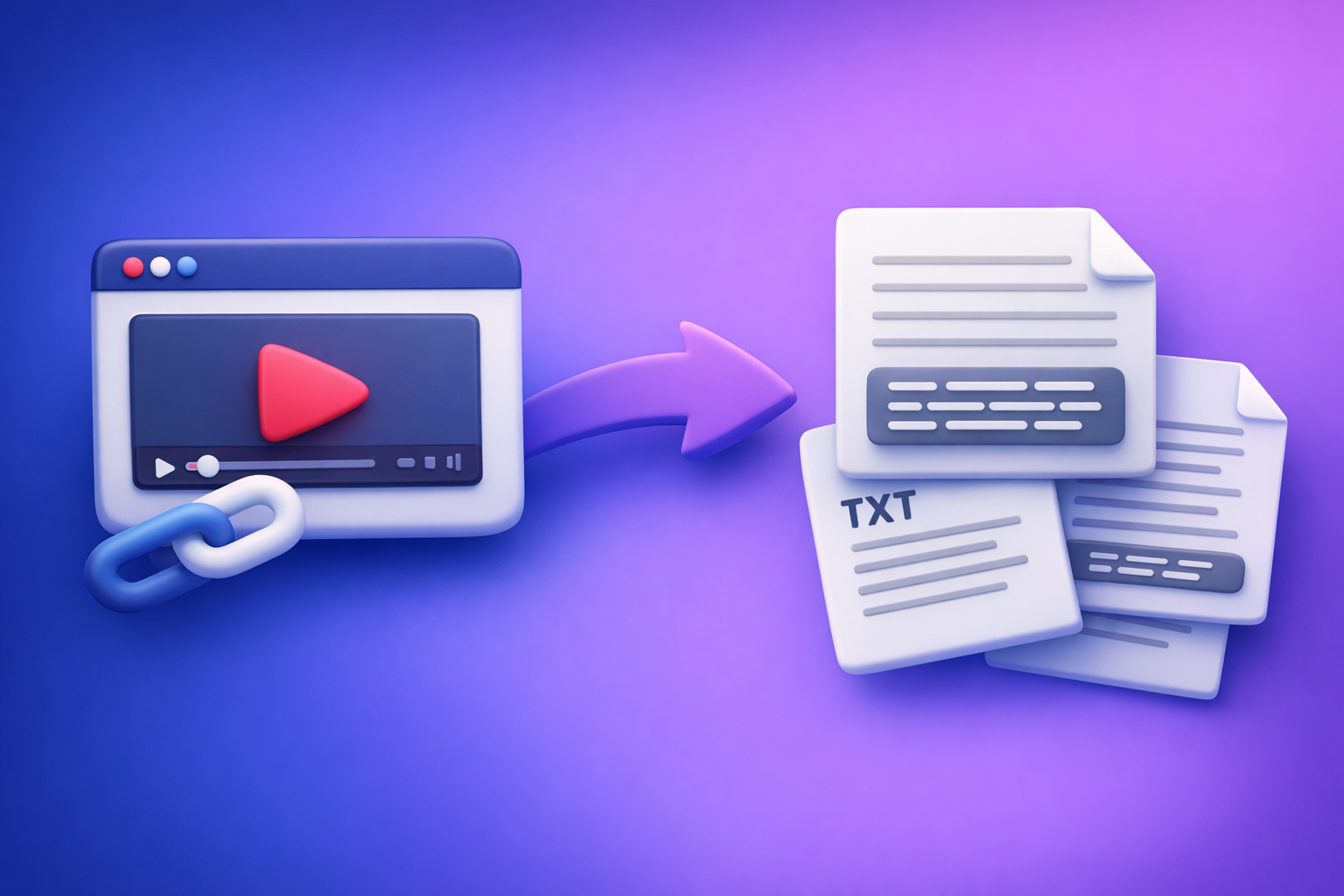
Can ChatGPT Upload Video? What Works in 2026 (and the Reliable Link → Transcript Workflow)
If you need ChatGPT to “use” a video, the fastest reliable path is video link/MP4 → transcript/subtitles → ChatGPT. Direct video upload is still inconsistent in 2026, so build a workflow that doesn’t depend on UI quirks.
Quick Answer (What You Can and Can’t Do)
Can ChatGPT upload video files directly?
Sometimes—but not consistently. Whether you can attach a video file depends on:
- Your plan (free vs paid tiers)
- The client (web vs iOS vs Android vs desktop)
- Region/rollout status
- Current feature flags and model/tool availability
Even when video upload appears, it’s not a deterministic production workflow for long-form content.
Can ChatGPT “watch” a video you send?
Not reliably in the way creators mean “watch.” In practice, most “video understanding” use cases still break down into:
- Extract audio → transcribe → analyze text
- Extract frames → describe visuals (limited, expensive, inconsistent)
- Summarize based on metadata (not the actual content)
If your goal is transcripts, captions, subtitles, chapters, or repurposed posts, text is the stable interface.
What ChatGPT can reliably do with video content (once it’s text)
Once you have a transcript (TXT) or captions (SRT/VTT), ChatGPT is excellent at:
- Cleaning filler words, stutters, and false starts
- Adding speaker labels and consistent formatting
- Creating chapters + timestamps (from time-coded captions)
- Generating short-form captions and platform-specific hooks
- Turning a transcript into an SEO blog outline + draft
- Extracting quotes, FAQs, and social threads
If you’re here because you searched “can chat gpt upload video”, the practical answer is: don’t bet your workflow on upload—convert to text first.
Why “ChatGPT Video Upload” Is Inconsistent (and What That Means for Your Workflow)
Plan/UI differences (features vary by account, region, and client)
The same account can show different capabilities across devices. Common patterns:
- Web app supports a feature; mobile app lags (or vice versa).
- One workspace has file tools enabled; another doesn’t.
- A/B tests change the attachment options without notice.
Workflow implication: if your process requires “click upload video,” you’ll eventually hit a wall.
File size/length limits and timeouts (why long videos fail)
Long videos fail for predictable reasons:
- Upload limits (file size caps)
- Processing timeouts (especially for multi-hour content)
- Codec/container issues (some MP4 variants fail)
- Network instability (mobile uploads are fragile)
Workflow implication: even if upload works today, it may fail on the exact episode you need to ship.
Privacy and permissions (why links and files get blocked)
Links and files can be blocked by:
- 403/401 permissions (private posts, restricted downloads)
- Expiring tokens (signed URLs)
- Platform anti-bot protections
- Corporate network policies
Workflow implication: use a tool that’s designed for link-based extraction and predictable exports, then bring the text to ChatGPT.
The Reliable Workflow: Video Link/MP4 → Transcript/Subtitles → ChatGPT
This is the deterministic workflow we recommend at VideoToTextAI: stop downloading videos as a default. Downloading is an outdated workflow; link-based extraction is the future of creator productivity because it removes storage, transfer, and device friction.
When to use a link-based workflow vs an MP4 upload workflow
Use link-based when:
- The video is already hosted (YouTube/Instagram/TikTok)
- You want speed and repeatability
- You’re processing content at scale (multiple videos/week)
- You want to avoid downloading, renaming, and re-uploading files
Use MP4 upload when:
- The video is private/offline (camera footage, Zoom export)
- The platform link is restricted or inaccessible
- You need to process raw files before publishing
Related tools you may want depending on your input:
Outputs you should generate first (TXT vs SRT vs VTT)
Generate the right artifact before you open ChatGPT:
- TXT: best for editing, summarizing, blog drafts, and knowledge base articles
- SRT: best for captions with timestamps (most editors/platforms accept it)
- VTT: best for web players and accessibility workflows
If you already know your destination, go straight to the matching export:
What to do in ChatGPT after you have text (cleanup, structure, repurpose)
Once you have TXT/SRT/VTT, use ChatGPT for:
- Normalization (punctuation, capitalization, speaker labels)
- Structure (headings, chapters, key takeaways)
- Repurposing (short clips scripts, threads, newsletters, blog drafts)
- SEO packaging (titles, meta descriptions, FAQ blocks)
For a companion guide focused on transcription specifically, see:
Can ChatGPT Transcribe Videos? What Works in 2026 (and the Reliable Link → Transcript Workflow)
Step-by-Step: Turn Any Video Into Export-Ready Text with VideoToTextAI
This workflow is designed to ship outputs even when “ChatGPT video upload” fails.
Step 1 — Choose your input: YouTube/Instagram/TikTok link or MP4
Pick the lowest-friction input:
- Paste a public link when possible (fastest, no file handling)
- Upload an MP4 only when you must
If your goal is “video → blog,” start here:
youtube to blog
Step 2 — Generate the transcript (baseline accuracy pass)
Run a baseline transcript first. Don’t over-edit inside the transcription step.
Best practice:
- Get a complete transcript end-to-end
- Keep timestamps if you’ll need chapters or captions
- Note speaker changes if it’s an interview/podcast
Step 3 — Export in the right format
TXT for editing, notes, and blog drafts
Use TXT when you need:
- Clean copy for docs
- Summaries and outlines
- Blog drafts and newsletters
- Internal notes and knowledge bases
SRT for captions (time-coded)
Use SRT when you need:
- Captions for social platforms
- Video editor imports
- Time-coded review and QA
VTT for web players and accessibility
Use VTT when you need:
- HTML5/web player captions
- Accessibility compliance workflows
- Cleaner web caption formatting
Step 4 — Clean and format the transcript in ChatGPT (copy/paste prompt)
Paste the transcript (or chunks) into ChatGPT and run a cleanup prompt (templates below).
Operational tip:
- If the transcript is long, paste in sections (e.g., 10–15 minutes at a time).
- Keep a consistent style guide: speaker labels, punctuation, and heading rules.
Step 5 — Create repurposed assets (captions, threads, posts, summaries)
From one transcript, generate:
- 10–20 short caption candidates
- 3–5 hooks for different audiences
- 1 thread (X/LinkedIn carousel script)
- 1 newsletter summary
- 1 SEO blog draft (if relevant)
Step 6 — QA before publishing (timing, speaker labels, punctuation)
Do a quick QA pass:
- Captions: timing alignment and line length
- Transcript: names, numbers, acronyms
- Speaker labels: consistent and correct
- Punctuation: readable, not “wall of text”
Implementation Prompts (Copy/Paste)
Use these prompts after you have TXT/SRT/VTT. Replace bracketed text.
Prompt: transcript cleanup + speaker labels
You are an editor. Clean this transcript for readability without changing meaning.
Rules:
- Remove filler words (um, uh) and repeated phrases when safe.
- Keep technical terms and proper nouns.
- Add speaker labels: Speaker 1, Speaker 2 (infer from context).
- Add punctuation, paragraph breaks, and consistent capitalization.
- Output in Markdown with short paragraphs (max 3 sentences).

Transcript:
[PASTE TRANSCRIPT HERE]
Prompt: create chapters + timestamps from transcript
Best with SRT/VTT (because timestamps exist).
Create 6–12 chapters for this video using the timestamps provided.
Rules:
- Each chapter needs: start timestamp + title (max 8 words) + 1-sentence summary.
- Titles should be action-oriented and specific.
- Do not invent topics not present in the transcript.

Captions (SRT/VTT or time-coded transcript):
[PASTE HERE]
Prompt: generate short-form captions from transcript (platform-specific)
Generate short-form caption options from this transcript.
Output:
- TikTok: 10 options (max 120 characters), punchy, casual.
- Instagram Reels: 10 options (max 150 characters), benefit-led.
- YouTube Shorts: 10 options (max 100 characters), curiosity hook.
Rules:
- No hashtags unless I ask.
- Avoid generic phrases like “game changer.”
- Keep claims factual and grounded in the transcript.

Transcript:
[PASTE HERE]
Prompt: turn transcript into an SEO blog outline + draft
Turn this transcript into an SEO blog post.
Requirements:
- Provide: (1) SEO outline (H2/H3), (2) draft, (3) title options (5), (4) meta description (155 chars).
- Use short paragraphs (max 3 sentences) and bullets.
- Include a practical checklist and a short FAQ.
- Keep it factual; do not add unsupported claims.

Transcript:
[PASTE HERE]
Primary keyword:
[YOUR KEYWORD]
Troubleshooting: When “ChatGPT Video Upload” Fails (and How to Ship Anyway)
“Upload failed” / stuck processing: what to do next
Do this in order:
- Stop retrying the same upload (you’ll waste time).
- Switch to the deterministic path: video link/MP4 → transcript → ChatGPT.
- If you only have a file, export audio or re-encode MP4 (H.264/AAC) and retry in your transcription tool.
Shipping rule: if upload blocks you for more than 5 minutes, pivot to transcript-first.
“403” / permission blocked: link access and download restrictions
A 403 usually means the content isn’t accessible to the tool/session.
Fixes:
- Confirm the link is public (or accessible without login)
- Remove tracking parameters and try the canonical URL
- If it’s a private post, use the MP4 fallback
- For expiring links, generate a fresh share link
Audio quality issues: how to improve transcript accuracy fast
Fast wins that matter:
- Prefer the original upload (not a re-recorded screen capture)
- Reduce background noise (basic denoise in an editor)
- Ensure speakers aren’t clipped (distorted audio transcribes poorly)
- If multiple speakers overlap, expect more manual cleanup
If accuracy is critical, generate SRT and QA against the video with timestamps.
Long videos: split strategy vs MP4 fallback
For long-form (60–180+ minutes):
- Split by chapters/segments (15–30 minutes each) for easier QA and editing
- Keep a master transcript, then merge cleaned sections
- If link extraction is blocked, use MP4 upload to your transcription workflow as fallback
Avoid “upload the whole 3-hour file to ChatGPT and hope.” That’s not a production plan.
Checklist: Fast, Repeatable Video → Text Workflow (10 Minutes Setup)
Inputs checklist (link type, permissions, audio quality)
- Use a link when possible (YouTube/Instagram/TikTok)
- Confirm link is accessible (no login, no 403)
- If private/offline, prepare an MP4 fallback
- Audio is clear (no heavy noise, no clipping)
- Identify speakers (names/roles) if it’s an interview
Export checklist (TXT/SRT/VTT selection)
- Export TXT for editing and blog drafts
- Export SRT for captions and time-coded QA
- Export VTT for web players/accessibility
- Keep filenames consistent:
project_episode_date.format
ChatGPT post-processing checklist (cleanup, structure, repurpose)
- Run cleanup + speaker labels prompt
- Generate chapters + timestamps (use SRT/VTT)
- Create short-form captions per platform
- Draft SEO outline + blog (if needed)
- Extract quotes, takeaways, and FAQs
Publishing checklist (captions sync, accessibility, SEO metadata)
- Captions are synced and readable (line length)
- Speaker labels correct; names spelled right
- Add title, description, and keywords (where applicable)
- Include accessibility captions (VTT/SRT)
- Store transcript for future repurposing
Competitor Gap
Most pages ranking for “can chat gpt upload video” stop at “it depends” and forum speculation. A production workflow needs determinism.
What to do instead:
- Add a deterministic workflow: link/MP4 → TXT/SRT/VTT → ChatGPT (not “maybe you can upload”)
- Include a troubleshooting matrix: upload failures, 403, long files, permissions, timeouts
- Provide copy/paste prompts + a QA checklist so execution is immediate
- Map outputs to use cases: TXT for blogs, SRT for captions, VTT for web accessibility
If you want the fastest path that avoids downloading and re-uploading files, use a link-first workflow with VideoToTextAI: VideoToTextAI
FAQ
Can I upload a video to ChatGPT?
Sometimes. It depends on your plan and app UI, and long videos often fail. For reliable results, convert the video to TXT/SRT/VTT first, then use ChatGPT on the text.
Can ChatGPT view video files?
Not reliably as a repeatable workflow. ChatGPT is most dependable when you provide transcripts/captions rather than raw video.
Can ChatGPT watch videos I send?
In limited scenarios, it may analyze some content, but it’s inconsistent and not ideal for long-form. If your goal is transcripts, captions, chapters, or repurposing, use text-first.
Can you upload videos to ChatGPT for free?
Free-tier capabilities vary and change. Even when upload exists, it may be restricted. A link-to-transcript workflow is more predictable than relying on free upload features.
How to upload a video to ChatGPT from iPhone?
If the iOS app shows an attachment option that supports video, you can try. If it fails, use a shareable link (preferred) or generate a transcript from the MP4, then paste the text into ChatGPT.
Related reading:
Related posts
Reel Analyser (Instagram Reels): Transcript‑First Competitor Research, Hook/CTA Extraction, and Repurposing Workflow (VideoToTextAI)
Video To Text AI
A 2026 reel analyser should turn Instagram Reel links into a searchable transcript library you can tag for hooks, CTAs, objections, and topic clusters—then export into repurposing-ready drafts without a download/upload loop.
Traducir video de Instagram (Reels) en 2026: workflow transcript-first para traducir, sacar hooks/CTAs y repurpose (con VideoToTextAI)
Video To Text AI
Aprende a traducir un Reel de Instagram con un flujo URL→transcripción→traducción→subtítulos, y a convertir esa traducción en un activo de investigación para hooks, CTAs, objeciones y clusters de contenido.
Reel Analyzer: Transcript‑First Instagram Reels Research (Hooks, CTAs, Objections) + Workflow Guide (VideoToTextAI)
Video To Text AI
A reel analyzer should turn any public Instagram Reel link into a searchable transcript library you can mine for hooks, CTAs, objections, and topic clusters—then repurpose into original drafts with a repeatable SOP.