
Can ChatGPT Upload Video in 2026? What Works, What Fails, and the Reliable Link → Transcript Workflow (VideoToTextAI)
 Video To Text AI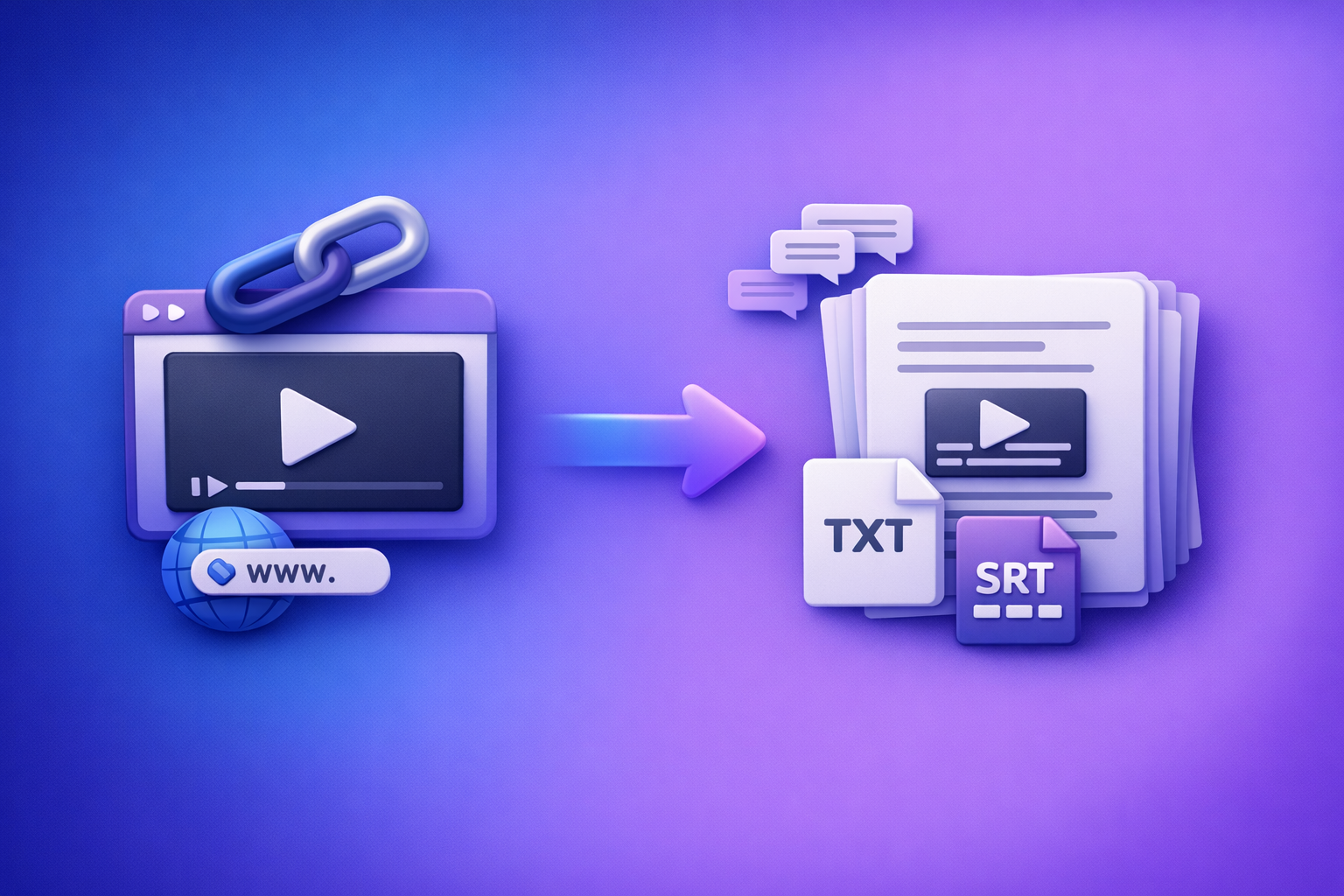
Can ChatGPT Upload Video in 2026? What Works, What Fails, and the Reliable Link → Transcript Workflow (VideoToTextAI)
If your goal is transcripts, subtitles (SRT/VTT), and repurposed content, don’t start by trying to upload a video into ChatGPT. Start with a link-based video → text export, then use ChatGPT on the transcript for summaries, chapters, hooks, and rewrites.
TL;DR (Answer in 30 seconds)
What “upload video to ChatGPT” can mean (and why people get stuck)
People say “upload video to ChatGPT” but they usually mean one of these:
- Attach a video file and ask for a transcript/captions.
- Share a video link and ask ChatGPT to “watch it.”
- Describe what’s on screen (or paste notes) and ask for analysis.
The problem: even when video attachment is available, it’s not a consistent, export-ready captioning workflow—especially for long videos, multi-speaker audio, or when you need SRT/VTT timing.
The reliable workaround: video link/MP4 → transcript/subtitles → ChatGPT for analysis + repurposing
Use a deterministic pipeline:
- Video link (preferred) or MP4
- Generate TXT + SRT/VTT with a video-to-text tool
- Paste the transcript into ChatGPT to produce:
- cleaned transcript
- chapters + takeaways
- caption packs + hooks
- blog/social/email drafts
Brand POV: Downloading and shuffling large video files is an outdated workflow. Link-based extraction is the future of creator productivity because it’s faster, repeatable, and easier to automate.
What ChatGPT Can and Can’t Do With Video (Reality Check)
“Upload” vs “share a link” vs “describe what’s on screen”
These are not the same:
- Upload: you attach a file. This can fail due to size, duration, codec, or feature availability.
- Share a link: ChatGPT may not be able to access the content (private/region-locked) and it won’t reliably “watch” it end-to-end.
- Describe: you provide text context (notes, timestamps, transcript). This is where ChatGPT is strongest.
If you need dependable outputs, treat ChatGPT as a text intelligence layer, not a transcription engine.
When ChatGPT can help vs when it can’t
ChatGPT is great for:
- Summaries, outlines, and chaptering
- Rewriting for clarity and tone
- Q&A over a transcript (“What did they say about pricing?”)
- Repurposing into blog posts, newsletters, and social posts
ChatGPT is not reliable for:
- Deterministic word-for-word transcription
- Accurate speaker diarization at scale
- Export-ready SRT/VTT with correct timing
- Consistent handling of long videos without truncation
Common limitations that break video workflows
File type/size/time limits
Video uploads can fail due to:
- Large file sizes (especially 4K phone footage)
- Long durations (podcasts, webinars, meetings)
- Unsupported codecs/containers (common with mobile exports)
Long videos and multi-speaker accuracy
Even if a system “accepts” the upload, long-form content introduces:
- missed words and name errors
- speaker mix-ups
- inconsistent punctuation and paragraphing
Export formats (SRT/VTT) and timing requirements
Captions aren’t just text. You often need:
- SRT for YouTube and many editors
- VTT for web players and some platforms
- correct timestamps and line lengths
That’s why transcript-first workflows beat “upload and hope.”
Step-by-Step: The Reliable Workflow (Video → Text → ChatGPT)
Step 1: Start with a video link (fastest path)
Link-based processing is the modern workflow because it avoids:
- downloading huge files
- re-uploading to multiple tools
- version confusion (“final_final_v7.mp4”)
Supported sources to try first (YouTube, TikTok, Instagram Reels, podcasts)
Start with platforms that already host your content:
- YouTube (long-form, tutorials, webinars)
- TikTok and Reels (short-form, UGC, hooks)
- Podcast pages or hosted video pages (when publicly accessible)
If you’re building a content pipeline, you’ll also like these internal guides/tools:
What to do if the link is private, age-gated, or region-locked
If the link can’t be accessed:
- Switch to an MP4 fallback (export a shareable file)
- Or publish an unlisted version temporarily (where appropriate)
- Confirm the link works in an incognito browser session
If you must use a file, keep it simple: MP4 (H.264/AAC) is the safest.
Step 2: Generate export-ready text with VideoToTextAI
Use VideoToTextAI to convert a link or MP4 into text outputs you can actually ship.
This is the one step where you want determinism: the same input should produce consistent transcript/caption exports.
Use the tool pages when you need specific formats:
Choose your output: TXT vs SRT vs VTT (what each is for)
Pick based on where the text will go:
- TXT: editing, summaries, blog drafts, search indexing, knowledge bases
- SRT: YouTube captions, many video editors, common subtitle workflows
- VTT: web players, some LMS platforms, HTML5 video captioning
Best practice: export TXT + SRT in one pass so you can repurpose and publish without reprocessing.
Include speaker labels, timestamps, and punctuation (settings to enable)
Turn on the options that reduce manual cleanup:
- Speaker labels (Speaker 1, Speaker 2, or named speakers if supported)
- Timestamps (helpful for chaptering and clip selection)
- Punctuation + paragraphing (critical for readable repurposing)
If you have a list of proper nouns (people, brands, products), keep it handy for QA.
One-time CTA: Use link-based extraction to skip file chaos and get export-ready outputs at scale with VideoToTextAI.
Step 3: Use ChatGPT on the transcript (not the raw video)
Once you have TXT/SRT/VTT, ChatGPT becomes extremely effective because it’s operating on clean, accessible text.
Below are copy/paste prompts designed for outcomes.
Prompt: clean up transcript without changing meaning
You are editing a transcript. Fix punctuation, casing, and paragraph breaks without changing meaning. Keep all technical terms. Do not remove content. If a word is unclear, mark it as [inaudible]. Output as clean readable paragraphs.
Prompt: create chapters + key takeaways
Create YouTube-style chapters from this transcript. Return: (1) chapter timestamps in mm:ss, (2) chapter titles under 60 characters, (3) 5 key takeaways, (4) 3 quotes worth highlighting. Use the transcript’s timestamps if present.
Prompt: generate captions and hooks from the transcript
From this transcript, generate: (1) 10 short hooks (max 12 words), (2) 10 caption options for TikTok/Reels (max 150 characters), (3) 10 CTA lines. Keep the voice consistent with the speaker.
Prompt: repurpose into blog, LinkedIn post, email, and short clips script
Repurpose this transcript into:
- a 900–1200 word blog post with H2s and bullets,
- a LinkedIn post (max 2200 characters) with a strong opening line,
- a short email newsletter (subject + body),
- 3 short-form clip scripts (20–35 seconds) with on-screen text cues.
Keep claims factual and aligned to the transcript.
If you want a deeper companion piece, see:
Step 4: Quality check and publish
Accuracy pass (names, numbers, jargon)
Do a fast QA pass before publishing:
- Verify names (people, companies, products)
- Verify numbers (prices, dates, metrics)
- Verify domain terms (acronyms, jargon, locations)
If something is wrong, correct it in the TXT and regenerate derived assets (chapters, blog, captions) from the corrected version.
Caption timing sanity check (SRT/VTT)
For SRT/VTT:
- Ensure lines aren’t too long (readability)
- Check that timestamps progress correctly
- Spot-check a few segments for sync
Timing issues usually come from noisy audio, cross-talk, or music. If needed, re-export with improved settings or cleaner audio.
Final export and where to upload (YouTube, TikTok, IG, podcast platforms)
Typical destinations:
- YouTube: upload SRT, add chapters, paste description + takeaways
- TikTok/IG: use caption packs and hooks; burn-in captions if required
- Podcast platforms: publish show notes + transcript on your site for SEO
Troubleshooting: Why Video Upload Fails (and What to Do Instead)
“Why can’t I upload videos to ChatGPT?”
Account/app capability mismatch (web vs mobile)
Upload features can differ by:
- plan level
- region
- web vs iOS/Android app versions
- workspace/admin settings
If you don’t see the option, assume it’s not available for your configuration.
Upload button missing or disabled
Common causes:
- you’re in a chat mode that doesn’t accept attachments
- browser extensions interfering
- corporate policy restrictions
- temporary feature rollouts/limits
“Upload failed” causes: size, duration, codec, network, permissions
If you get “upload failed,” check:
- file size and duration (try a shorter clip)
- codec/container (export to MP4 H.264)
- network stability (switch networks)
- device permissions (mobile photo/video access)
Operationally, the fix is usually: stop trying to upload the video and switch to link/MP4 → transcript → ChatGPT.
If you only have an iPhone video
Best practice:
- Export/share as MP4 (avoid “Live Photo” formats and odd containers)
- If it’s huge, export at 1080p for processing speed
- Then run an MP4 → transcript workflow and proceed with ChatGPT prompts
If you need captions/subtitles (SRT/VTT) specifically
Why transcript-first beats “ask ChatGPT to caption a video”
Captions require:
- precise timestamps
- consistent segmentation
- export formats that platforms accept
ChatGPT is excellent at improving caption text (clarity, brevity, style), but it’s not the dependable source of timed subtitle files. Generate SRT/VTT first, then optionally use ChatGPT to refine wording while preserving timing constraints.
Implementation Checklist (Copy/Paste)
Inputs checklist (before you start)
- Video link or MP4 file ready
- Target output: TXT / SRT / VTT
- Language(s) needed
- Speaker count + proper nouns list (names/brands/terms)
Workflow checklist (10–15 minutes)
- Generate transcript from link (or MP4 fallback)
- Export TXT + SRT/VTT as needed
- Run transcript cleanup prompt in ChatGPT
- Create chapters + summary + action items
- Generate repurposed assets (blog/social/email)
- Final QA: names, numbers, timestamps, formatting
- Publish + store transcript for reuse
For a quick refresher on the “upload vs workflow” question, reference:
Competitor Gap
What top-ranking pages miss (and what this post delivers)
Most top results are short, anecdotal, or focused on whether an upload button exists. They typically miss the operational reality: creators need repeatable outputs (transcript + subtitles + repurposed content), not a one-off experiment.
This post delivers:
- A deterministic, repeatable workflow: link/MP4 → export-ready TXT/SRT/VTT → ChatGPT
- Concrete prompts tied to outcomes: cleanup, chapters, captions, repurposing
- Troubleshooting mapped to real failure modes: missing upload, failed upload, private links
- A single checklist that ships outputs in one pass (transcript + subtitles + content)
And it’s aligned with the 2026 productivity truth: downloading video files is outdated; link-based extraction is the future.
Use-Case Playbooks (Pick One)
YouTube video → blog post workflow
- Start with the YouTube link
- Export TXT transcript
- In ChatGPT: generate an outline with H2/H3s, then draft the blog
- Add chapters + key takeaways to the YouTube description
- Publish the blog and embed the video for on-page engagement
Shortcut tool path: youtube to blog
TikTok/Reel → transcript + caption pack workflow
- Paste the TikTok/Reel link
- Export TXT for repurposing + SRT if you need timed captions
- In ChatGPT: generate 10 hooks + 10 caption variants + 5 CTA lines
- Create a “caption pack” doc your team can reuse across posts
Shortcut tool paths:
Podcast episode → transcript + show notes workflow
- Use the episode page link or MP4
- Export TXT transcript
- In ChatGPT: create show notes, timestamps, sponsor slots, and FAQ-style highlights
- Publish transcript + show notes on your site for SEO and accessibility
Internal meeting recording → action items + summary workflow
- Use the recording link (preferred) or MP4
- Export TXT with speaker labels + timestamps
- In ChatGPT: extract decisions, action items (owner + due date), and risks
- Store the transcript for searchable internal knowledge
FAQ
Can you put a video into ChatGPT?
Sometimes, depending on your plan and app features, you can attach a video file. For reliable transcripts and subtitles, use a video → text export first, then use ChatGPT on the transcript.
Why can’t I upload videos to ChatGPT?
It’s usually feature availability, file limits, codec issues, or network/permission problems. When uploads fail, switch to a link/MP4 → transcript → ChatGPT workflow.
Can ChatGPT handle video?
ChatGPT can analyze and repurpose text derived from video (transcripts, notes, described scenes). It’s not a deterministic captioning system that guarantees export-ready SRT/VTT timing.
Do ChatGPT do videos?
ChatGPT doesn’t “make” or “upload” videos as a dependable end-to-end workflow. It excels at scripting, rewriting, summarizing, and repurposing—especially when you provide a transcript.
Internal Link Plan
Related posts
Reel Analyser (Instagram Reels): Transcript‑First Competitor Research, Hook/CTA Extraction, and Repurposing Workflow (VideoToTextAI)
Video To Text AI
A 2026 reel analyser should turn Instagram Reel links into a searchable transcript library you can tag for hooks, CTAs, objections, and topic clusters—then export into repurposing-ready drafts without a download/upload loop.
Traducir video de Instagram (Reels) en 2026: workflow transcript-first para traducir, sacar hooks/CTAs y repurpose (con VideoToTextAI)
Video To Text AI
Aprende a traducir un Reel de Instagram con un flujo URL→transcripción→traducción→subtítulos, y a convertir esa traducción en un activo de investigación para hooks, CTAs, objeciones y clusters de contenido.
Reel Analyzer: Transcript‑First Instagram Reels Research (Hooks, CTAs, Objections) + Workflow Guide (VideoToTextAI)
Video To Text AI
A reel analyzer should turn any public Instagram Reel link into a searchable transcript library you can mine for hooks, CTAs, objections, and topic clusters—then repurpose into original drafts with a repeatable SOP.