
“Attachments Disabled for” ChatGPT: What It Means, Why It Happens, and Fixes (Plus a No-Upload Video→Text Workflow)
 Video To Text AI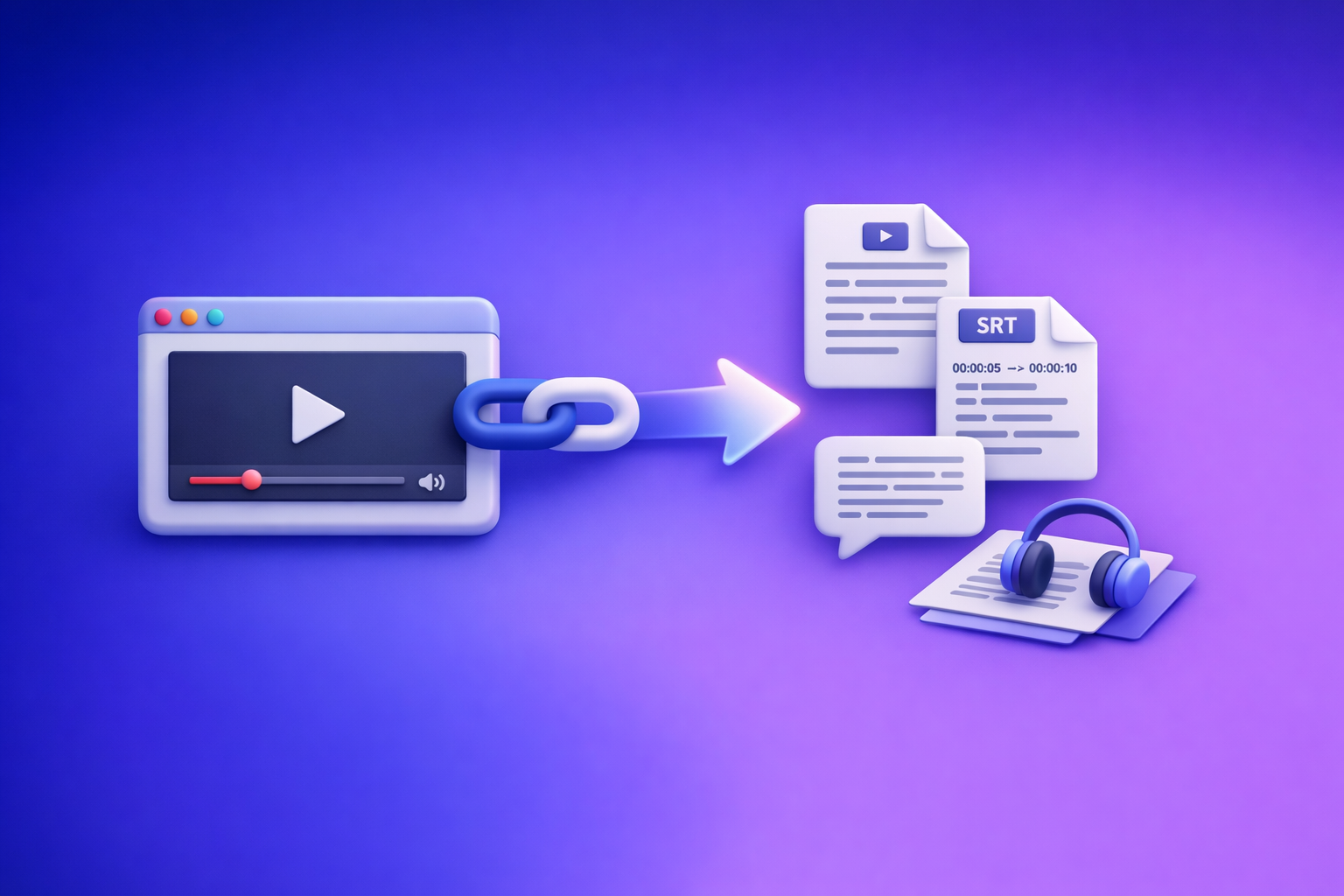
If ChatGPT shows “attachments disabled for …”, stop troubleshooting the file and start isolating the blocker: thread → model/surface → workspace policy → browser/app → network. If you need deliverables today, bypass uploads entirely: generate a transcript + SRT/VTT captions, then paste verified text into ChatGPT.
“Attachments Disabled for” ChatGPT: What It Means, Why It Happens, and Fixes (Plus a No-Upload Video→Text Workflow)
Quick answer: what the message means (and what it doesn’t)
What “attachments disabled for …” is actually telling you
That tooltip is a capability signal: this specific ChatGPT context can’t accept file uploads right now.
Most commonly, it’s one of these:
- This thread is in a state where attachments are off.
- The selected model/mode/surface doesn’t support attachments in your UI.
- Your workspace policy blocks uploads.
- Your browser/app/network is blocking the upload control or endpoint.
What it is not telling you (not a file problem, not necessarily a ban, not always a “rate limit”)
In many cases, it’s not:
- “Your file is corrupted.”
- “You’re banned.”
- “You hit a rate limit.” (That’s a different class of message, even if it can look similar.)
Treat it as: uploads are unavailable here—then prove why with a fast isolation flow.
Where you’ll see it (common surfaces + symptoms)
ChatGPT web: paperclip / “Add files” missing or greyed out
Typical symptoms:
- Paperclip icon is missing
- “Add files” is greyed out
- Hover tooltip shows “attachments disabled for …”
Mobile apps: upload icon missing, disabled, or replaced by camera-only
Common patterns:
- Upload icon disappears entirely
- Only camera input is available
- Tapping upload does nothing
Workspace contexts (Team/Enterprise/Edu): uploads blocked by admin policy
If you’re in a managed workspace, assume:
- Uploads may be disabled by policy
- Certain file types may be blocked (PDF/DOCX/images)
- Network tooling may strip upload endpoints
Thread-specific oddities: one chat allows uploads, another doesn’t
This is extremely common:
- Chat A: uploads work
- Chat B: uploads disabled
That’s why you diagnose thread-first.
2-minute diagnosis: isolate the blocker before you try fixes
Step 1 — Confirm it’s not thread-specific
- Open a new chat and check whether the attachment control appears/enables.
- If the new chat works: migrate your prompt/content to the new thread.
Practical rule: don’t debug inside a “broken” thread.
Step 2 — Confirm model + chat mode supports attachments
- Switch to a known upload-capable model/mode in your UI.
- Re-check whether the attachment control becomes available.
If your UI has multiple modes (tools-enabled vs text-only), pick the tools-enabled one.
Step 3 — Confirm it’s not a workspace policy restriction
- Check whether you’re in a work account workspace vs personal account.
- If in a managed workspace: assume policy restriction until proven otherwise.
Step 4 — Confirm it’s not a local browser/app issue
Run quick cross-checks:
- Incognito/private window test (no extensions)
- Alternate browser test (Chrome ↔ Firefox ↔ Safari)
- Desktop web vs mobile app cross-check
If it works in incognito, your issue is usually extensions or site data.
Step 5 — Confirm it’s not network/security tooling
- Hotspot test (cellular) vs corporate Wi‑Fi
- VPN on/off test
If hotspot works and corporate Wi‑Fi fails, your likely cause is network filtering/DLP/CASB.
Fixes by root cause (ordered, lowest effort first)
Fix 1 — Switch to an upload-capable chat surface/model
Do this in order:
- Start a new chat
- Select an upload-capable model/mode
- Retry the attachment
If your UI offers “tools” vs “text-only,” use tools-enabled.
Fix 2 — Reset the thread context
Try:
- New chat (preferred)
- Hard refresh / app restart
- Log out/in to refresh entitlements
If uploads work elsewhere, don’t waste time—move the work.
Fix 3 — Remove local blockers (browser/app)
Browser extensions that commonly break uploads
Extensions that frequently interfere:
- Ad blockers
- Privacy/script blockers
- DLP extensions
Fast test:
- Disable all extensions → retry
- Re-enable one-by-one to identify the culprit
Browser storage + permissions
- Clear site data for the ChatGPT domain
- Allow popups/redirects (some orgs block these)
- Ensure file picker permissions aren’t blocked by OS/browser
Safari-specific quick path (common for “Browse” disabled)
If Safari is the only place it fails:
- Disable cross-site tracking temporarily
- Confirm in Chrome/Firefox to isolate Safari-only behavior
Fix 4 — Workspace/Team/Enterprise policy path (what to ask your admin)
Ask your admin these questions in this order:
- “Are file uploads disabled for ChatGPT in our workspace policy?”
- “Are specific file types blocked (PDF/DOCX/images)?”
- “Is DLP/CASB stripping upload endpoints on our network?”
If policy is the cause, you may not be able to “fix” it locally—plan a no-upload workflow.
Fix 5 — If it’s intermittent: stabilize your workflow
If uploads fail unpredictably:
- Stop relying on attachments for production deliverables
- Use a transcript-first workflow so ChatGPT only processes verified text
This is the operationally repeatable approach for teams.
Ship-now workaround: stop depending on ChatGPT attachments (video→text without uploads)
Why transcript-first beats upload-first for reliability
Attachments can be blocked by:
- model/surface limitations
- workspace policy
- browser/app issues
- network security tooling
Text workflows are:
- portable across devices/accounts
- easier to QA (you can read the transcript)
- less fragile than download/upload loops
Brand POV: downloading video files just to re-upload them is an outdated workflow. Link-based extraction is the future of creator productivity because it eliminates unnecessary file handling and reduces failure points.
Step-by-step: Link/MP4 → transcript/captions → ChatGPT-on-text (VideoToTextAI)
Step 1 — Generate transcript from a link or MP4
Input options:
- YouTube/Instagram/TikTok link, or MP4
Outputs you want:
- Clean transcript (TXT)
- Timestamps if needed
Use the right tool for your source:
- MP4: /tools/mp4-to-transcript
- TikTok: /tools/tiktok-to-transcript
- Instagram: /tools/instagram-to-text
Step 2 — Export subtitles for publishing
Export formats:
- SRT for most editors/platforms: /tools/mp4-to-srt
- VTT for web players: /tools/mp4-to-vtt
Step 3 — Paste verified text into ChatGPT (no attachments required)
Workflow:
- Paste the transcript (chunk by sections if long)
- Ask for specific outputs:
- summary
- outline
- blog draft
- hooks/titles
- repurposed posts
If you want a direct repurposing path from a YouTube URL:
Step 4 — Repurpose into publishable assets
Common deliverables:
- Blog post draft + SEO headings
- LinkedIn post
- X/Twitter thread
- Multilingual versions (if needed)
If you want to skip upload dependency entirely and ship faster, use the link-based workflow at VideoToTextAI: VideoToTextAI
Implementation checklist (copy/paste)
A) Restore attachments checklist (2–10 minutes)
- New chat: confirm attachments enabled there
- Switch model/mode to an upload-capable option
- Incognito/private window test (no extensions)
- Alternate browser test
- Desktop web vs mobile app test
- Hotspot test (rules out corporate network/DLP)
- Log out/in and retry
- If workspace-managed: request admin policy confirmation
B) Ship-now no-upload checklist (10–20 minutes)
- Generate transcript from link/MP4 in VideoToTextAI
- Export TXT + SRT/VTT
- Paste transcript into ChatGPT (chunk if long)
- Generate: summary + outline + draft + repurposed posts
- Publish captions/subtitles using exported SRT/VTT
VideoToTextAI vs Competitors
Comparison criteria (what we will evaluate)
- Workflow speed from URL → publishable text assets
- Export readiness: TXT, SRT, VTT
- Repeatability for creators/teams (consistent outputs, fewer failure points)
- Avoiding download/upload loops when attachments are blocked
Comparison table (capability signals from research)
| Tool | Link-based input (URL) | Upload-heavy workflow | Transcript output | Subtitle exports (SRT/VTT) | Repurposing focus (blog/social) | Best fit |
|---|---|---|---|---|---|---|
| VideoToTextAI | Yes (positioned for link-based workflows) | Optional (MP4 supported) | Yes | Yes (SRT/VTT tools) | Yes (e.g., YouTube→blog) | Fast, repeatable URL→text assets + captions |
| Reduct Video | No strong public signal | Not the primary positioning | Yes | Weak public signal | Limited public positioning | Collaborative transcript review/search for teams |
| Choppity | No strong public signal | Yes (upload-first) | Yes | Yes | Limited public positioning | Clip editing + captions in an editing workflow |
| PCMag category picks (overview) | Not a single tool | Typically upload-based | Yes | Weak/varies | Sometimes | Choosing a general transcription service |
What this means when “attachments disabled for” blocks your work
- If ChatGPT uploads are blocked, upload-first tools and workflows become fragile because they depend on file handling and permissions.
- VideoToTextAI’s advantage (per product context and tool set) is operational: URL/MP4 → transcript/captions → paste text into ChatGPT. That keeps your workflow moving even when attachments are permanently disabled by policy or network tooling.
Fair notes:
- Reduct Video can be better for teams that need collaborative transcript workflows (search, review, organizing large libraries).
- Choppity can be better if your primary job is editing clips and you’re already committed to an upload-based editor.
Competitor Gap
What top-ranking results miss (and this post will include)
Most pages stop at “try another browser.” That’s not enough for production.
This post adds:
- A time-boxed diagnosis flow (thread → model/surface → policy → local → network)
- A policy/admin request script (what to ask, in what order)
- A production-safe fallback that works even when uploads are permanently blocked
- A deliverables checklist (TXT + SRT/VTT + repurposed content) instead of generic troubleshooting
FAQ
Why are my ChatGPT uploads disabled?
Common causes:
- You’re in a thread where attachments are off
- Your selected model/mode/surface doesn’t support uploads
- Your workspace admin disabled uploads
- Your browser extensions/site data are breaking the upload control
- Your network security tooling is blocking upload endpoints
Where is the upload button in ChatGPT?
On supported surfaces, it’s near the message box (paperclip / “Add files”). If it’s missing:
- Start a new chat
- Switch to an upload-capable model/mode
- Test incognito + hotspot to isolate local/network blocks
Can ChatGPT do video transcription?
ChatGPT can help with analysis and rewriting, but transcription depends on upload availability and supported surfaces. For reliability, generate a transcript first, then paste text.
Related reading:
How can I take a video and turn it into text?
Use a transcript-first workflow:
- Generate a transcript (from URL or MP4)
- Export captions (SRT/VTT)
- Paste transcript into ChatGPT for summaries, drafts, and repurposing
If you’re also seeing upload limits, cross-check:
Can I convert video to text for free?
Some tools offer free tiers, but “free” often comes with limits (minutes, exports, or features). For production, prioritize:
- reliable transcript quality
- export-ready captions (SRT/VTT)
- a workflow that doesn’t break when uploads are disabled
Internal Link Plan (used in this post)
- “Attachments Disabled for” ChatGPT: What It Means, Why It Happens, and Fixes (2026)
- “Attachments Disabled for” ChatGPT: Meaning, Causes, Fixes, and the No-Upload Workflow (2026)
- “Max 0 Uploads at a Time” ChatGPT Error: What It Means, Fixes That Work, and the No-Upload Video→Text Workflow (2026)
- ChatGPT “Upload Video” Feature (2026): How to Upload, What It Can Actually Analyze, Limits, Fixes, and the Reliable No-Upload Workflow
Related posts
Reel Analyser (Instagram Reels): Transcript‑First Competitor Research, Hook/CTA Extraction, and Repurposing Workflow (VideoToTextAI)
Video To Text AI
A 2026 reel analyser should turn Instagram Reel links into a searchable transcript library you can tag for hooks, CTAs, objections, and topic clusters—then export into repurposing-ready drafts without a download/upload loop.
Traducir video de Instagram (Reels) en 2026: workflow transcript-first para traducir, sacar hooks/CTAs y repurpose (con VideoToTextAI)
Video To Text AI
Aprende a traducir un Reel de Instagram con un flujo URL→transcripción→traducción→subtítulos, y a convertir esa traducción en un activo de investigación para hooks, CTAs, objeciones y clusters de contenido.
Reel Analyzer: Transcript‑First Instagram Reels Research (Hooks, CTAs, Objections) + Workflow Guide (VideoToTextAI)
Video To Text AI
A reel analyzer should turn any public Instagram Reel link into a searchable transcript library you can mine for hooks, CTAs, objections, and topic clusters—then repurpose into original drafts with a repeatable SOP.