
“Attachments Disabled for” ChatGPT: Meaning, Root Causes, Fixes, and the No-Upload Transcript Workflow (2026)
 Video To Text AI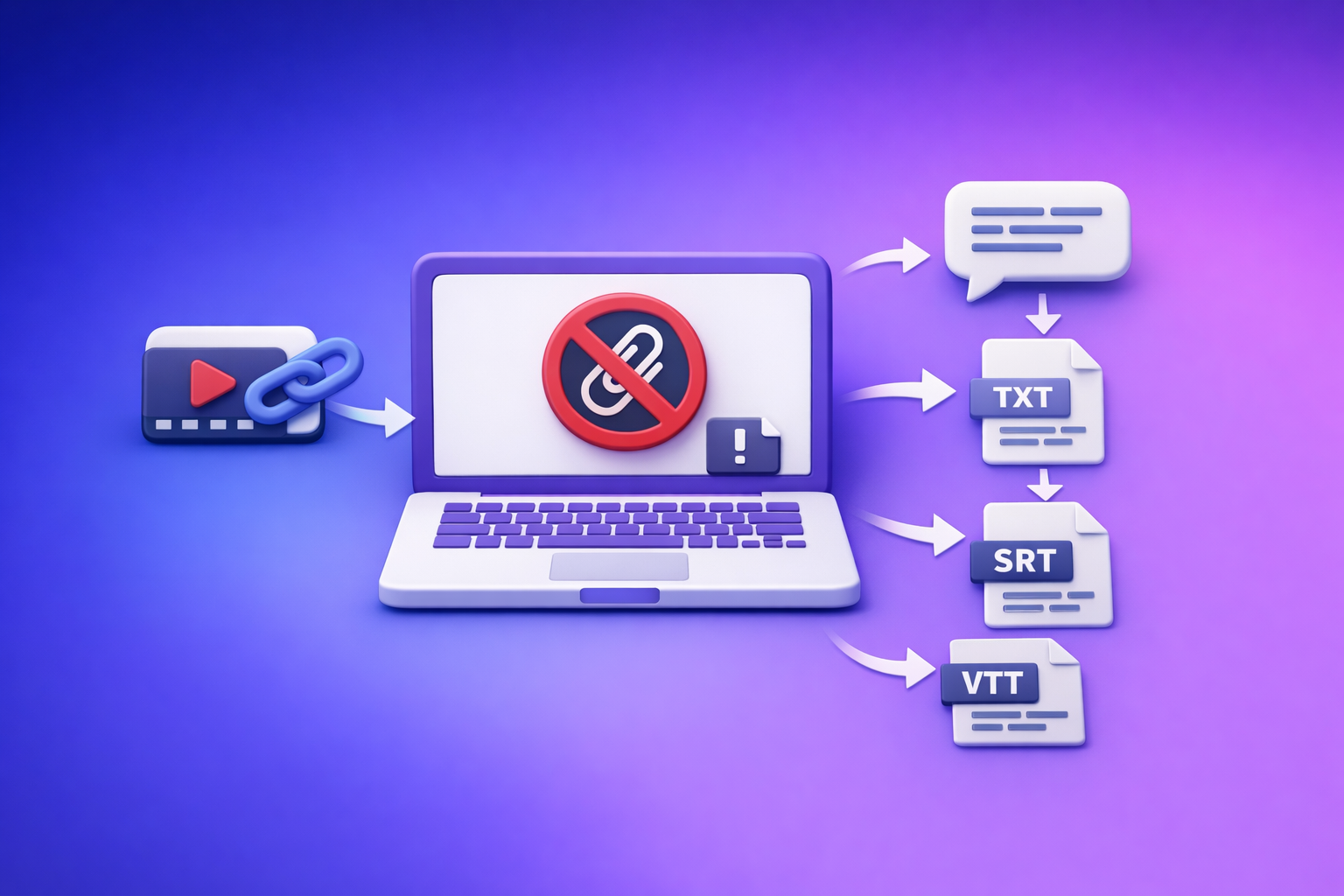
Fix “attachments disabled for” ChatGPT by starting a new chat, selecting an upload-capable model/surface, and running a fast incognito + alternate-network test to isolate whether it’s account, workspace policy, browser, or network. If it’s still blocked after ~10 minutes, stop troubleshooting and ship via a transcript-first workflow: video link/MP4 → TXT/SRT/VTT → ChatGPT-on-text.
Downloading and re-uploading video files is an outdated workflow; link-based extraction is the future of creator productivity because it removes fragile upload UI steps and reduces permissions friction.
What “Attachments Disabled for …” Means (and What It Does Not Mean)
“Attachments disabled for …” is a context-level restriction. Treat it as: “Uploads are disabled in this place, right now.”
The exact UI states you’ll see (banner, tooltip, missing paperclip/+ button)
Common states include:
- A top-of-chat banner that says “Attachments disabled for …”
- A tooltip when hovering the upload icon (or where it should be)
- The paperclip / “+” button missing entirely
- The upload button greyed out or non-clickable
What’s actually blocked: files vs images vs video vs all uploads
What’s blocked depends on the context:
- All uploads blocked (most common): no files, images, or video
- Files blocked but images allowed (less common)
- Thread/model gating: attachments allowed only when using a specific model or starting a new chat
What it usually isn’t: “account ban,” “shadowban,” or a “bad file”
In most cases, it’s not:
- A permanent account ban
- A “shadowban”
- Proof your file is corrupted
It’s usually a surface/model/policy/network mismatch.
2-Minute Diagnosis (Before You Change Anything)
Do this triage before clearing cookies, reinstalling apps, or messaging IT.
Step 1 — Identify the surface: Web vs Desktop vs Mobile (and Workspace vs Personal)
Write down:
- Surface: Web / Desktop app / iOS / Android
- Account context: Personal vs Workspace (Team/Enterprise)
This matters because attachments can be enabled on one surface and disabled on another.
Step 2 — Check whether this thread supports uploads (thread-level limitation)
Thread-level issues are real.
- If uploads worked yesterday in another chat, but not in this one, start a new chat and re-check the icon.
- If the icon appears in a new chat, the problem is likely thread state (not your account).
Step 3 — Confirm the model/context supports attachments in this chat
Uploads can be model-gated.
- Switch models (if available) and see whether the attachment icon returns.
- If you see a message like “You need GPT-4o to continue this chat because there’s an attachment”, you’re hitting model gating.
Step 4 — Run one isolation test: incognito/private + alternate network (hotspot)
This single test isolates most causes fast:
- Open ChatGPT in incognito/private browsing
- Try an alternate network (phone hotspot)
Interpretation:
- Works in incognito → likely extensions/cookies/profile
- Works on hotspot → likely corporate network/VPN/DLP
- Fails everywhere → likely entitlement/model/surface or service degradation
Root Causes (Ranked) + How to Confirm Each
Model/surface mismatch (uploads not supported in that context)
Some surfaces/models simply don’t expose attachments in that context.
Confirm:
- Start a new chat
- Switch models
- Check whether the paperclip/+ appears
If it appears only after switching, you’ve confirmed a context mismatch.
Plan/entitlement limitations (feature not enabled on your account)
Uploads can be tied to account entitlements.
Confirm:
- Test on another account/plan (if available)
- Compare web vs mobile behavior on the same account
If one account has uploads and the other doesn’t (same device/network), it’s likely entitlement.
Workspace/admin policy (Team/Enterprise restrictions)
Workspaces can disable uploads via admin policy, compliance controls, or DLP.
Confirm:
- Uploads work on a personal account but not in the workspace
- The restriction is consistent across devices on the same workspace login
Browser profile breakage (extensions, cookies/storage corruption)
Extensions and corrupted site storage commonly break upload UI.
Confirm:
- Incognito works
- Another browser works
- Only one browser profile fails
Network/security blocks (VPN, proxy, DLP, content filters)
Corporate networks can block upload endpoints or scripts.
Confirm:
- Hotspot works
- VPN off works
- Corporate network fails consistently
Temporary service degradation (status/outage symptoms)
Sometimes it’s just intermittent.
Confirm:
- Intermittent behavior across devices
- Widespread reports from other users
- Symptoms change without you doing anything
Fix Sequence (Ordered, Fastest-to-Verify First)
Stop after ~10 minutes. If you’re still blocked, jump to the no-upload workflow and ship.
1) Start a new chat and reselect an upload-capable model
Do this first because it’s the fastest and fixes thread/model gating.
- New chat → check for paperclip/+
- Switch model → check again
2) Switch surfaces: try the official mobile app (rules out browser-only issues)
If mobile works and desktop doesn’t, you’ve narrowed it to:
- Browser profile
- Desktop network
- Extensions
3) Incognito/private window test (no extensions, clean session)
If incognito works:
- Don’t keep debugging the model.
- Go straight to extensions/site data.
4) Disable extensions that commonly break uploads (ad blockers, privacy/script blockers)
Disable (temporarily):
- Ad blockers
- Script blockers
- Privacy tools that block third-party scripts/storage
Re-test after disabling.
5) Clear site data for ChatGPT and re-authenticate (cookies + local storage)
Clear site data for the ChatGPT domain:
- Cookies
- Local storage
- Cached files (optional)
Then log in again and re-test.
6) Switch networks (hotspot test) and remove VPN/proxy
- Turn off VPN/proxy
- Try hotspot
- Try a different Wi‑Fi
If hotspot works, your fix is likely network policy, not ChatGPT.
7) Workspace path: what to send your admin (copy/paste request)
Send this to your admin/IT:
We’re seeing “Attachments disabled for …” in ChatGPT. Please confirm whether file uploads are restricted by workspace policy/DLP.
Details: timestamp: ___; surface: (web/desktop/mobile) ___; model: ; exact message: “”; network type: (corp Wi‑Fi/VPN/home/hotspot) ___; reproducible: (yes/no) ___; screenshots attached.
Include:
- Timestamp
- Surface
- Model
- Exact error text
- Network type
- Screenshots
8) Stop troubleshooting after ~10 minutes and ship via the no-upload workflow
This is the operational rule that keeps teams moving.
If you’re blocked, don’t wait on UI permissions—switch inputs.
Edge Cases You’ll See in Real Use (and What to Do)
Upload button missing only in one thread (thread-level state issues)
Fix:
- Start a new chat
- Re-select the model
- Paste your content again (or use transcript-first)
Related: “Add Files” Button Unavailable in ChatGPT: Why It Happens + Fixes (and a No-Upload Workflow)
Uploads work on mobile but not desktop (local browser/network culprit)
Likely causes:
- Desktop extensions
- Desktop browser storage corruption
- Desktop network/VPN
Fix:
- Incognito test
- Disable extensions
- Clear site data
- Hotspot test
Uploads work on personal account but not workspace (policy culprit)
This is almost always:
- Workspace admin restriction
- DLP/security policy
Fix:
- Send the admin request (above)
- Use the no-upload workflow meanwhile
“You need GPT-4o to continue this chat because there’s an attachment” (model gating)
Fix:
- Switch to the required model or
- Remove the attachment dependency by using text-only inputs (transcript-first)
Ship-Now Workflow (No Attachments Needed): Video Link/MP4 → TXT/SRT/VTT → ChatGPT-on-Text
When attachments are disabled, the reliable move is to stop trying to upload media and instead feed ChatGPT what it handles best: text.
This is why downloading and re-uploading video files is an outdated workflow; link-based extraction is the future of creator productivity because it’s deterministic and works even when upload UI is blocked.
Why transcript-first works when attachments are disabled
ChatGPT can still do high-value work without uploads:
- Summaries and key takeaways
- Structured outlines
- SEO sections and metadata drafts
- Caption variants and hooks
- Repurposed posts and email drafts
- QA and fact-check prompts (against the transcript text you provide)
Step-by-step implementation with VideoToTextAI (production-safe)
Use a workflow that doesn’t depend on ChatGPT’s attachment UI.
Step 1 — Get the source video link (YouTube/Instagram/TikTok) or MP4
- Prefer a shareable URL when possible
- If you only have an MP4, that’s fine—your goal is still text outputs
Step 2 — Generate outputs you can paste anywhere (TXT + SRT/VTT)
Generate:
- TXT transcript (paste-ready)
- SRT (caption timing + line breaks)
- VTT (web caption standard)
Helpful tools to keep this deterministic:
Step 3 — Paste transcript into ChatGPT with a structured prompt
Paste a “minimum viable transcript package” (below), then use one of the templates.
Step 4 — Export deliverables: summary, outline, captions, repurposed posts
Common deliverables:
- Executive summary + action items
- Blog outline + section drafts
- Social posts (X/LinkedIn/IG)
- Caption variants (short/medium/long)
If you want to skip upload friction entirely and run link-based video-to-text workflows end-to-end, use exactly one production link here: VideoToTextAI.
What to paste into ChatGPT (minimum viable transcript package)
Paste this, in order:
- Transcript (TXT) (cleaned if possible)
- Optional: timestamps every 30–60 seconds
- Optional: speaker labels (Speaker 1 / Speaker 2) if available
When timing matters (captions, reels, shorts), paste:
- SRT/VTT snippets for the relevant segment(s)
Tip: If the transcript is long, paste it in chunks and ask ChatGPT to confirm it has “Part 1 of N” before continuing.
Prompt templates (copy/paste)
Template A — Clean transcript + extract key takeaways + action items
You are an editor. Clean up this transcript for readability without changing meaning.
Then produce:
1) 8-12 key takeaways (bullets)
2) 5 action items (imperative verbs)
3) 5 quotable lines (verbatim if possible)
Constraints: keep names/terms consistent; do not invent facts.

TRANSCRIPT:
[paste TXT here]
Template B — Turn transcript into SEO blog outline + sections + meta
You are an SEO strategist. Using ONLY the transcript, create:
- A blog title (3 options)
- A detailed outline (H2/H3) with brief notes per section
- A meta description (155-160 chars)
- 5 internal link suggestions (generic placeholders are fine)
- 10 long-tail keywords implied by the transcript
Constraints: no claims not supported by transcript; write for informational intent.

TRANSCRIPT:
[paste TXT here]
Template C — Generate captions variants (short/medium/long) from transcript text
You are a social caption writer. Create 3 caption sets from this transcript:
- Short (<= 90 characters)
- Medium (2-3 lines)
- Long (6-10 lines with line breaks)
Also provide: 10 hook options + 10 hashtag suggestions.
Constraints: keep it faithful to transcript; no invented details.

TRANSCRIPT:
[paste TXT here]
Checklist: Fix or Fallback (Print This)
Quick checks (2 minutes)
- Surface confirmed (web/desktop/mobile; workspace vs personal)
- New chat tested with upload-capable model
- Incognito/private test completed
- Hotspot/alternate network test completed
Fix actions (up to 10 minutes)
- Extensions disabled
- Site data cleared + re-login
- VPN/proxy removed
- Admin request sent (if workspace)
Fallback actions (ship today)
- Transcript generated (TXT)
- Captions exported (SRT/VTT)
- Transcript pasted into ChatGPT with chosen template
Related: “Attachments Disabled for” ChatGPT: What It Means, Why It Happens, and Fixes That Work (2026)
VideoToTextAI vs Competitors
Below is a fair, workflow-focused comparison using only publicly signaled strengths from the research set. The key operational point: when ChatGPT says “attachments disabled for”, upload-heavy tools and upload-dependent workflows become fragile—link-first + export-first stays reliable.
| Tool | Input workflow signal | Export readiness signal | Best fit (from research signals) | Where it can be weaker |
|---|---|---|---|---|
| VideoToTextAI | Link-based video-to-text workflows (product context) | Clean TXT + standards-based SRT/VTT (product context) | Fast, repeatable “link/MP4 → transcript/captions → paste into ChatGPT” workflows; operational fallback when uploads are blocked | Not positioned as a full design suite or full collaborative video editor |
| Reduct Video | Transcript-centric platform (research signals: transcript, summaries, team) | Transcript export (feature claims) | Teams doing transcript collaboration, searching, highlighting | Less emphasis (public signal) on link-first extraction and export-first caption workflow |
| Canva (Video to Text) | Upload-centric (research signals: uploads) | Transcript export (feature claims) | When you want captions inside a design/video editing environment | Upload-first flow is more fragile when attachments are disabled; weaker signal on export-first subtitle standards |
| Choppity | Upload-first (research signals: uploads) | Transcript + subtitles/captions (feature claims) | Creator repurposing and captioning inside a clip/edit workflow | Generally upload-first; less aligned to “no-upload” operational fallback |
Why VideoToTextAI wins for “attachments disabled for” scenarios (operationally):
- Workflow speed: link-based extraction removes download/upload loops that commonly break on restricted surfaces.
- Repeatability: you can always fall back to paste-ready TXT and SRT/VTT outputs, then run ChatGPT on text.
- Export-first: standards-based caption files (SRT/VTT) are portable across tools and surfaces, even when ChatGPT uploads are blocked.
Where competitors can be better (narrower jobs):
- If you need design + captions in one place, Canva can be a better fit.
- If you need collaborative transcript review/search across a team, Reduct Video can be better suited.
Competitor Gap
Most “attachments disabled” search results are forum threads, not actionable troubleshooting.
What’s usually missing:
- Ordered isolation tests (surface → thread → model → incognito/hotspot)
- A stop-rule (don’t burn an hour on UI permissions)
- A deterministic fallback that still ships deliverables: TXT/SRT/VTT → ChatGPT-on-text
Competitors also tend to emphasize upload-heavy workflows, which are fragile when ChatGPT blocks attachments. The differentiator here is a practical ceiling: 2-minute diagnosis, 10-minute fix limit, then ship via transcript-first.
FAQ
Why are my ChatGPT uploads disabled?
Because uploads are disabled in your current context: surface (web/app), model, thread, workspace policy, browser profile, or network security. Confirm with a new chat + model switch, then incognito + hotspot.
Why is ChatGPT not letting me attach files?
Most commonly:
- You’re in a thread/model that doesn’t support attachments
- Your workspace admin policy blocks uploads
- Your browser extensions/cookies are breaking the upload UI
- Your network/VPN/DLP blocks upload endpoints
Where is the upload button in ChatGPT?
Usually next to the message box as a paperclip or “+”. If it’s missing/greyed out, test a new chat, switch models, then try incognito and a hotspot.
Can ChatGPT do video transcription?
Sometimes, but it’s not the most reliable production workflow—especially when attachments are disabled. A transcript-first approach (generate TXT/SRT/VTT, then paste text) is more deterministic.
How can I take a video and turn it into text?
Use a transcript generator to produce TXT (and SRT/VTT if you need timing), then paste into ChatGPT to create summaries, outlines, captions, and repurposed content. For related workflows, see MP4 to Transcript and YouTube to Blog.
Related posts
Reel Analyser (Instagram Reels): Transcript‑First Competitor Research, Hook/CTA Extraction, and Repurposing Workflow (VideoToTextAI)
Video To Text AI
A 2026 reel analyser should turn Instagram Reel links into a searchable transcript library you can tag for hooks, CTAs, objections, and topic clusters—then export into repurposing-ready drafts without a download/upload loop.
Traducir video de Instagram (Reels) en 2026: workflow transcript-first para traducir, sacar hooks/CTAs y repurpose (con VideoToTextAI)
Video To Text AI
Aprende a traducir un Reel de Instagram con un flujo URL→transcripción→traducción→subtítulos, y a convertir esa traducción en un activo de investigación para hooks, CTAs, objeciones y clusters de contenido.
Reel Analyzer: Transcript‑First Instagram Reels Research (Hooks, CTAs, Objections) + Workflow Guide (VideoToTextAI)
Video To Text AI
A reel analyzer should turn any public Instagram Reel link into a searchable transcript library you can mine for hooks, CTAs, objections, and topic clusters—then repurpose into original drafts with a repeatable SOP.