
“Max 0 Uploads at a Time” in ChatGPT: What It Means, Fixes That Work, and a No-Upload Video→Text Workflow
 Video To Text AI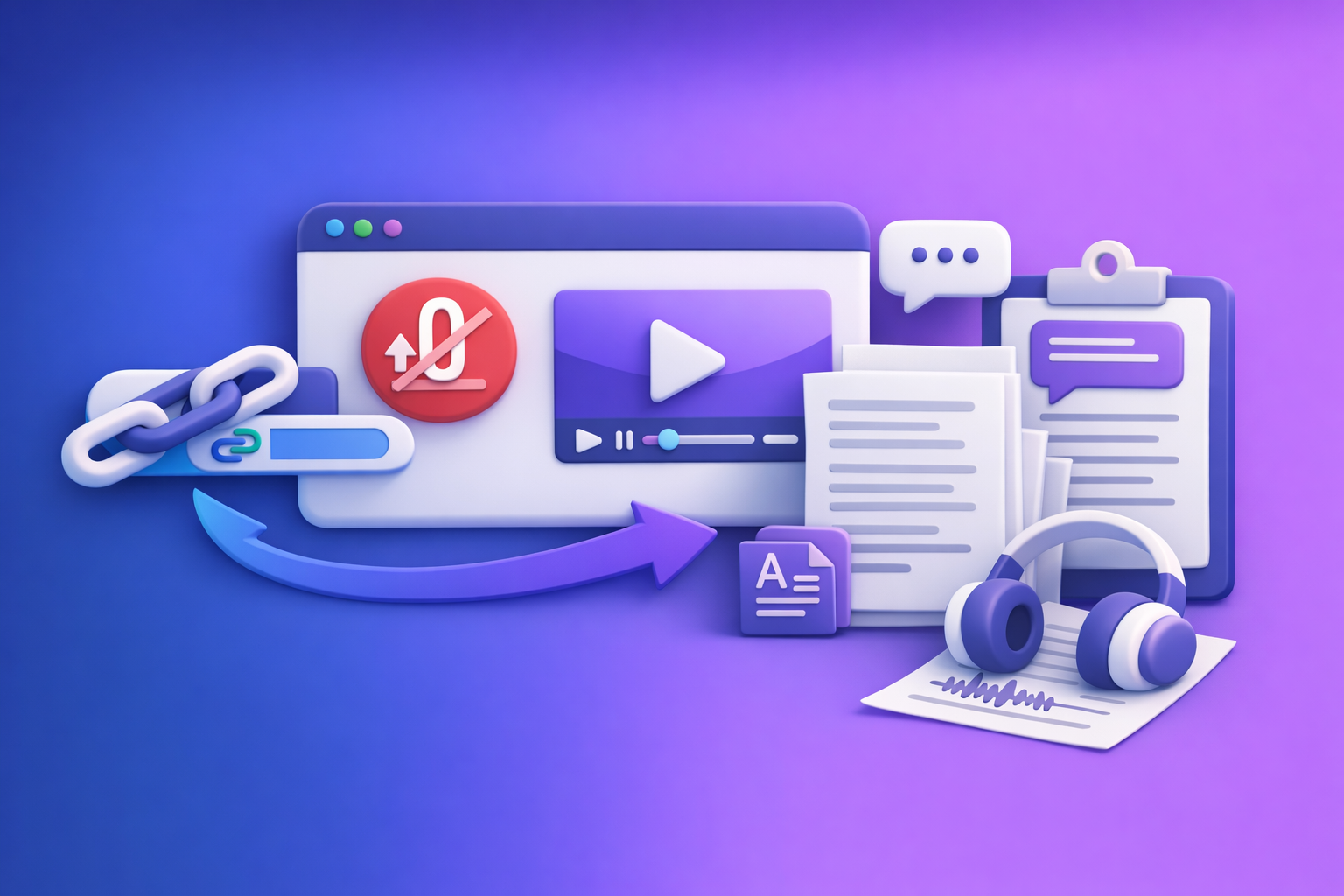
If ChatGPT says “Max 0 uploads at a time”, uploads are disabled in your current ChatGPT context (surface/model/workspace), so no file will ever succeed until that context changes. Use the 2-minute triage below to isolate the blocker, then either re-enable uploads or switch to a no-upload, transcript-first workflow that’s more reliable for production.
What “Max 0 uploads at a time” Means (Plain-English)
The message is a capability limit, not a file error
This message is ChatGPT telling you: “In this chat, you’re allowed to upload 0 files.”
It’s not primarily about your file type, file size, or a corrupt upload.
Where the limit is enforced (surface vs model vs workspace)
Uploads can be disabled at multiple layers:
- Surface/app layer: web vs desktop vs mobile can differ.
- Chat/model/tooling layer: some chats/models/tools expose attachments; others don’t.
- Workspace/org layer: enterprise/workspace policies can disable uploads globally.
What “0” typically indicates (uploads fully disabled for this context)
“0” almost always means uploads are turned off, not “you hit a quota.”
If you were rate-limited, you’d typically see a temporary limit message rather than a hard “0.”
Fast Triage (2 Minutes): Identify What’s Blocking Uploads
Step 1 — Confirm where you’re using ChatGPT (Web, Desktop, Mobile, API)
Write down the exact surface:
- Web browser
- Desktop app
- Mobile app
- API (if applicable)
This matters because capabilities can differ by surface.
Step 2 — Start a brand-new chat (thread-level capability check)
Create a new chat and immediately check whether the attachment UI is present/enabled.
Some limitations are thread-specific and disappear in a new conversation.
Step 3 — Check the model/tooling in the chat (upload-capable vs not)
In the new chat, verify the selected model/tools.
If the UI shows no attachment option, you’re likely in a context where uploads aren’t supported.
Step 4 — Determine if you’re in a workspace (policy restrictions)
If you’re signed into a company/org workspace, uploads may be disabled by policy.
Test with a personal account if you can.
Step 5 — Rule out browser/network interference (extensions, VPN, corporate proxy)
If the UI exists but uploads fail or the picker won’t open, suspect:
- Extensions (ad blockers, script blockers, privacy tools)
- VPN/proxy
- Corporate firewall controls
Root Causes (Most Common) + How to Confirm Each One
Cause A — Model/surface mismatch (uploads not supported here)
Confirmation signals (missing paperclip/add-files UI, disabled attachment state)
- No paperclip / “Add files” button anywhere in the composer.
- Attachment icon is present but greyed out or non-clickable.
- The same account works on another surface (e.g., mobile) but not here.
Fix approach (switch surface/model; new chat)
- Start a new chat.
- Switch to a surface/model that supports attachments (when available).
- Re-check the UI before attempting an upload.
Cause B — Workspace/admin policy disables uploads
Confirmation signals (consistent across devices; other users in org affected)
- Uploads are disabled on every device you try while in the workspace.
- Coworkers report the same limitation.
- You see other tool restrictions in the workspace.
Fix approach (admin settings; use personal account; alternate workflow)
- Ask your admin to review workspace data/tool controls.
- If you need output today, use a personal account or a no-upload workflow.
Cause C — Thread-level limitation or temporary feature gating
Confirmation signals (only one thread affected; new chat works)
- One chat shows “max 0 uploads,” but a new chat has attachments enabled.
- The issue appears after a long session or after switching tools mid-thread.
Fix approach (new chat; clear cache; sign out/in)
- Create a new chat.
- Sign out/in.
- Clear site data (details below).
Cause D — Browser extensions or privacy settings blocking file picker
Confirmation signals (works in incognito/another browser)
- Upload works in incognito but not normal mode.
- Clicking “Add files” does nothing (no picker opens).
Fix approach (disable extensions; allow popups; reset site permissions)
- Disable extensions one by one (start with blockers).
- Ensure popups and file picker permissions aren’t blocked.
- Reset site permissions for the ChatGPT domain.
Cause E — Network/security tools blocking uploads
Confirmation signals (fails on corporate Wi‑Fi; works on hotspot)
- Upload fails only on office Wi‑Fi.
- Upload works on mobile hotspot or home network.
Fix approach (switch network; remove VPN; allowlist domains)
- Turn off VPN/proxy temporarily.
- Try a different network.
- Ask IT to allowlist required domains (see below).
Cause F — Account/plan entitlements or regional rollout differences
Confirmation signals (feature absent across all surfaces; other accounts differ)
- Your account never shows upload UI anywhere.
- A colleague’s personal account shows uploads on the same device.
Fix approach (verify plan; try alternate surface; use no-upload workflow)
- Try another surface (mobile/desktop).
- If still blocked, assume uploads aren’t available for your account/context and move to transcript-first.
Fixes That Work (In Priority Order)
1) New chat + switch to an upload-capable model/surface
Exact steps (web UI) to validate upload availability
- Open ChatGPT in your browser.
- Click New chat.
- Look for the paperclip / Add files control in the message composer.
- If missing/disabled, switch model/tools (if your UI allows) and re-check.
- If still “0,” move to surface testing.
What success looks like (attachment UI enabled; no “0 uploads” message)
- Paperclip/Add-files is visible and clickable.
- Selecting a file opens the picker and begins upload without the “max 0” warning.
2) Test in another surface (mobile app vs web vs desktop)
Why this isolates surface-level restrictions
If uploads work on mobile but not web, you’ve isolated a surface/browser issue.
If uploads fail everywhere, suspect workspace policy or account entitlement.
3) Eliminate browser issues (fast isolation)
Incognito test
- Open an incognito/private window.
- Sign in and test uploads in a new chat.
If it works in incognito, the culprit is usually extensions or cached site data.
Disable extensions (ad blockers, script blockers, privacy tools)
Temporarily disable:
- Ad blockers
- Script blockers
- Privacy/security extensions
- Download managers that hook file dialogs
Re-test after each change.
Clear site data for chat.openai.com (or relevant domain)
- Clear cookies/site storage for the ChatGPT domain.
- Reload, sign in, and test again.
4) Eliminate network/security issues
Hotspot test
Use a mobile hotspot and retry.
If it works, your corporate network is likely blocking upload endpoints.
VPN/proxy off test
Turn off VPN/proxy and retry.
Some VPNs interfere with file upload handshakes or block required domains.
Corporate firewall allowlist request (what to ask IT for)
Ask IT to:
- Allowlist the ChatGPT web app domain you use
- Allowlist required API/CDN endpoints used for uploads
- Confirm SSL inspection isn’t breaking upload requests
Keep the request specific: “Uploads fail; we need the upload endpoints unblocked for our account.”
5) Workspace policy resolution (if you’re in an org)
What to ask your admin to check (file uploads, data controls, tools)
Ask your admin to verify:
- File upload permissions for the workspace
- Any data controls that disable attachments/tools
- Whether restrictions apply to specific user groups
Temporary workaround (personal account + no-upload workflow)
If policy changes take time, don’t wait.
Use a transcript-first workflow and paste text into ChatGPT (no attachments).
If Uploads Stay Disabled: The Production-Safe No-Upload Workflow (Video → Text → ChatGPT)
Why “transcript-first” beats fragile uploads for repeatable deliverables
For real deliverables (captions, subtitles, blog drafts), downloading and uploading video files is an outdated workflow.
Link-based extraction is the future of creator productivity because it’s faster, easier to standardize, and less likely to break due to UI/policy limits.
Workflow overview (link/MP4 → TXT + SRT/VTT → ChatGPT-on-text)
A reliable pipeline looks like this:
- Video source (link or MP4)
- Generate transcript (TXT) + captions (SRT/VTT)
- Paste transcript text into ChatGPT for:
- summaries
- chapters
- blog posts
- short-form clip scripts and captions
If you want a link-based workflow designed for this, use VideoToTextAI.
Step-by-step: Generate text outputs with VideoToTextAI
Step 1 — Provide a link or MP4 (what inputs work best)
Best inputs:
- Public video links (fastest for teams because no file shuffling)
- Clean audio, minimal background noise
- If MP4 is required, keep it trimmed to the needed segment
Related tools you can reference internally:
Step 2 — Export formats you can ship (TXT, SRT, VTT)
Export:
- TXT for summaries, blogs, SEO outlines, and repurposing prompts
- SRT for captions/subtitles (most editors support it)
- VTT for web players and platforms that prefer WebVTT
Internal tools:
Step 3 — Quality pass (speaker labels, timestamps, punctuation)
Before you paste into ChatGPT, do a quick QA pass:
- Fix speaker names (Speaker 1 → “Alex”)
- Correct product terms/jargon
- Ensure timestamps align (especially for chapters and clip selection)
- Normalize punctuation for readability
Step-by-step: Use ChatGPT on the transcript (no attachments needed)
Paste the transcript directly into the chat.
If it’s long, paste in chunks and ask ChatGPT to confirm it has “Part 1/Part 2/Part 3” before generating outputs.
Prompt template: clean transcript → summary + key points
You are an editor. Using the transcript below, produce:
1) A 5-sentence executive summary
2) 10 bullet key points (actionable, non-redundant)
3) 5 direct quotes (verbatim) that are safe to use in marketing copy

Transcript:
[PASTE TRANSCRIPT]
Prompt template: transcript → chapters + titles + timestamps
Create YouTube-style chapters from this transcript.
Rules:
- 6–12 chapters
- Each chapter has: timestamp (mm:ss), short title, 1-sentence description
- Use the transcript’s timing cues if present; otherwise infer logical breaks.

Transcript:
[PASTE TRANSCRIPT]
Prompt template: transcript → blog post + SEO sections
Turn this transcript into an SEO blog post.
Include:
- H1 title (benefit-led)
- Meta description (155–160 chars)
- H2/H3 structure with short paragraphs
- A “Key takeaways” bullet list
- A short FAQ (5 questions)

Audience: SaaS operators and creators.
Transcript:
[PASTE TRANSCRIPT]
Prompt template: transcript → short-form clips + captions + hooks
From this transcript, identify 8 short-form clip ideas.
For each clip provide:
- Hook line (<= 12 words)
- Clip start/end timestamps (if available) or the exact start/end sentences
- On-screen caption text (2 lines max, punchy)
- Suggested title

Transcript:
[PASTE TRANSCRIPT]
Implementation Checklist (Copy/Paste)
Uploads troubleshooting checklist
- New chat created; upload UI checked
- Model/surface switched and re-tested
- Mobile vs web vs desktop tested
- Incognito test passed/failed recorded
- Extensions disabled and re-tested
- Hotspot test completed
- VPN/proxy off test completed
- Workspace policy confirmed (admin or personal account test)
No-upload workflow checklist (VideoToTextAI → ChatGPT)
- Video link/MP4 processed in VideoToTextAI
- TXT exported for ChatGPT prompts
- SRT/VTT exported for captions/subtitles
- Transcript QA done (names, jargon, timestamps)
- Repurposing prompts run (blog, LinkedIn, X, shorts)
- Final assets saved (doc + caption files)
VideoToTextAI vs Competitors
Comparison criteria (what you should evaluate)
Evaluate tools on operational fit, not just “accuracy”:
- Input methods (link-based vs upload-only)
- Export formats (TXT, SRT, VTT) and caption readiness
- Workflow reliability when ChatGPT uploads are disabled
- Repurposing outputs (blog/social) from transcript
- Speed and repeatability (SOP-friendly)
- Privacy/workspace friendliness (minimal file movement)
Note: Your provided research block has competitor profiles disabled, so the table below compares widely used categories without pricing/limits claims and focuses on workflow characteristics that are commonly documented.
| Criteria | VideoToTextAI | OpenAI Whisper (self-host / scripts) | Descript | Otter.ai |
|---|---|---|---|---|
| Link-based input (avoid downloading files) | Yes (link-based workflows) | No (typically file-based) | Sometimes (often file/project-based) | Sometimes (often meeting/import-based) |
| Export-ready captions (SRT/VTT) | Yes (TXT + SRT/VTT) | Possible (depends on tooling) | Yes | Yes (varies by plan/workflow) |
| Works when ChatGPT shows “max 0 uploads at a time” | Yes (paste transcript text; no attachments) | Yes (you generate text locally) | Yes (export text then paste) | Yes (export text then paste) |
| Repurposing pipeline (video → transcript → blog/social prompts) | Strong fit (transcript-first SOP) | DIY (you build the pipeline) | Strong for editing workflows | Strong for meeting notes/summaries |
| Operational repeatability for teams | High (standard exports + prompt templates) | Medium (engineering required) | Medium-High (tooling learning curve) | Medium (best for meetings) |
| Best suited for | Creators/marketers who need shippable transcript + captions fast | Engineers/teams wanting full control | Creators editing audio/video with text-based editing | Teams capturing meetings and notes |
Where VideoToTextAI fits best
When you need transcripts/captions you can ship (not just “analysis”)
If your deliverable is a transcript file plus caption files you can hand to an editor, you want consistent exports (TXT/SRT/VTT) and a workflow that doesn’t depend on ChatGPT attachments.
When uploads are blocked (“Max 0 uploads at a time”) and you still need output today
When ChatGPT uploads are disabled, the fastest path is:
- generate transcript + captions externally
- paste transcript into ChatGPT for repurposing
When you want a repeatable pipeline (video → text exports → ChatGPT prompts)
Transcript-first is easier to standardize across a team.
It also aligns with the reality that downloading video files is an outdated workflow and link-based extraction is the future of creator productivity.
Competitor Gap
What most “fix” articles miss (and this post will cover)
Most posts stop at “try a different browser.” That’s not enough when you’re on a deadline.
This guide adds:
- A 2-minute isolation flow (surface/model/thread vs policy vs browser vs network)
- A production-safe fallback that doesn’t depend on ChatGPT attachments
- Export-ready deliverables (TXT + SRT/VTT) and how to use them in ChatGPT
- Copy/paste prompt templates for repurposing from transcript text
- A checklist that turns troubleshooting into a repeatable SOP
If you want adjacent troubleshooting guides, see:
- “Add Files” Button Unavailable in ChatGPT: Why It Happens + Fixes (and a No-Upload Workflow)
- “Attachments Disabled for” ChatGPT: What It Means, Why It Happens, and Fixes That Work (2026)
- ChatGPT “Upload Video” Feature (2026): What Works, What Breaks, and the Reliable No-Upload Workflow
- “Max 0 Uploads at a Time” in ChatGPT: What It Means + Fixes That Work (and a No-Upload Video→Text Workflow)
FAQ (People Also Ask)
Why does ChatGPT say “Max 0 uploads at a time”?
Because uploads are disabled for your current chat context—commonly due to the surface you’re using, the model/tools selected, or workspace policy. “0” means no uploads are permitted there.
How do I enable file uploads in ChatGPT?
Try, in order:
- New chat → check attachment UI
- Switch surface (mobile/desktop/web)
- Incognito test → disable extensions → clear site data
- Hotspot test → VPN/proxy off
- If in a workspace, ask an admin to enable uploads/tools
Is “Max 0 uploads at a time” a bug or a policy restriction?
It can be either, but most cases are capability/policy (workspace controls or surface/model limitations). If a new chat on another surface works, it’s likely not a global bug.
Can I still summarize or transcribe a video if uploads are disabled?
Yes. Use a transcript-first approach: generate TXT + SRT/VTT, then paste the transcript into ChatGPT for summaries, chapters, and repurposing.
What’s the fastest workaround if I need captions today?
Skip ChatGPT uploads entirely:
- Generate captions as SRT/VTT
- Do a quick QA pass
- Ship the caption files and use ChatGPT on the transcript text for titles, chapters, and clip hooks
Related posts
Reel Analyser (Instagram Reels): Transcript‑First Competitor Research, Hook/CTA Extraction, and Repurposing Workflow (VideoToTextAI)
Video To Text AI
A 2026 reel analyser should turn Instagram Reel links into a searchable transcript library you can tag for hooks, CTAs, objections, and topic clusters—then export into repurposing-ready drafts without a download/upload loop.
Traducir video de Instagram (Reels) en 2026: workflow transcript-first para traducir, sacar hooks/CTAs y repurpose (con VideoToTextAI)
Video To Text AI
Aprende a traducir un Reel de Instagram con un flujo URL→transcripción→traducción→subtítulos, y a convertir esa traducción en un activo de investigación para hooks, CTAs, objeciones y clusters de contenido.
Reel Analyzer: Transcript‑First Instagram Reels Research (Hooks, CTAs, Objections) + Workflow Guide (VideoToTextAI)
Video To Text AI
A reel analyzer should turn any public Instagram Reel link into a searchable transcript library you can mine for hooks, CTAs, objections, and topic clusters—then repurpose into original drafts with a repeatable SOP.