
ChatGPT “Upload Video” Feature (2026): What Works, What Breaks, and the Reliable No-Upload Workflow
 Video To Text AI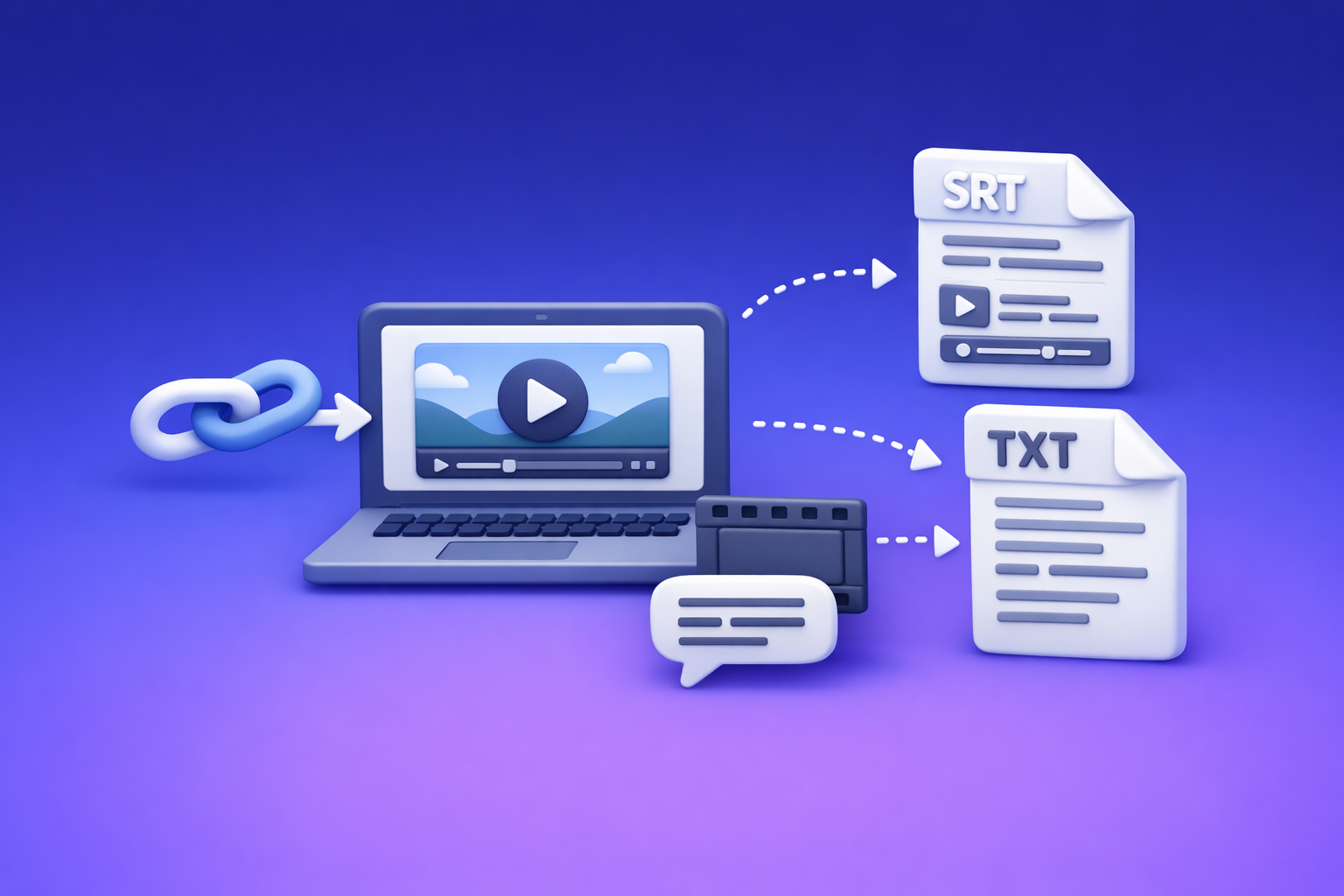
ChatGPT “Upload Video” Feature (2026): What Works, What Breaks, and the Reliable No-Upload Workflow
If you need export-ready transcripts/captions, don’t rely on the ChatGPT “upload video” feature—convert video → TXT/SRT/VTT first, then use ChatGPT on the text. If you only need quick understanding of a short clip, native upload can work (when it’s available).
Why people search “ChatGPT upload video feature” (and what they actually want)
Most searches for the "chatgpt" "upload video" feature aren’t about uploading for its own sake. People want deliverables they can publish, edit, or repurpose.
The 3 different meanings of “upload video”
When someone says “upload video to ChatGPT,” they usually mean one of these:
- Upload a file (MP4/MOV) via the paperclip / “Add files”
- Paste a link (YouTube, TikTok, Drive, Loom, etc.) and ask questions about it
- Ask ChatGPT to “watch” the video like a human would (visual + audio comprehension)
These are different capabilities with different failure modes.
The real deliverables users need (transcript, captions, summary, repurposed content)
In practice, users want:
- Transcript (TXT/Doc) for editing, search, and repurposing
- Captions/subtitles (SRT/VTT) for publishing workflows
- Summary + chapters for navigation and SEO
- Repurposed content (blog post, LinkedIn, X thread, newsletter)
Native “upload video” is rarely the most reliable path to those outputs.
Quick answer: Can you upload a video to ChatGPT in 2026?
Yes, sometimes—but it’s inconsistent. Availability and quality depend on the client, model, rollout status, and workspace policy.
When it works (and what “works” realistically means)
Native upload tends to work best when:
- The clip is short
- The request is analysis-only (not “perfect transcription”)
- You can tolerate approximate timestamps and occasional omissions
Good “works” outputs:
- Scene/shot descriptions
- High-level summaries
- Quick Q&A about what’s happening
- Extracting visible text from frames (when the model supports vision)
When it fails (most common failure modes)
It fails most often when you need:
- Long-form transcription
- Multi-speaker accuracy
- Export-ready captions (SRT/VTT timing, line length, speaker changes)
- Repeatability (same input → consistent output across runs)
What ChatGPT can and can’t do with video vs audio vs text artifacts
Think in artifacts:
- Video: heavy, fragile, client-dependent, often inconsistent for long content
- Audio: lighter than video, still can be inconsistent depending on tooling
- Text artifacts (TXT/SRT/VTT): easiest to QA, easiest to version, easiest to reuse
For production work, artifact-first wins because you can validate and ship.
What “upload video” looks like across devices (Web, iPhone, Android)
Feature availability varies by surface. Don’t assume “it works on my phone” means “it works on web,” or vice versa.
ChatGPT upload video feature on iPhone (common constraints)
Common iPhone constraints:
- Upload UI appears/disappears depending on model selection
- Large files fail on cellular or when the app is backgrounded
- iOS share-sheet exports can create huge MOVs that are upload-hostile
ChatGPT upload video feature on Android (common constraints)
Common Android constraints:
- File picker differences across OEMs can cause permission or path issues
- Uploads can stall on unstable networks
- Some devices aggressively manage background tasks, interrupting uploads
Web app differences: model selection, thread state, and attachment availability
On web, the biggest gotchas are:
- Thread state: an older chat may not allow attachments even if a new chat does
- Model/tool availability: some models support attachments; others don’t
- Browser memory: large videos can choke the tab before upload completes
If you’re seeing missing UI, start with: new chat → confirm paperclip → confirm model.
What works vs what breaks (real-world scenarios)
Works best: short clips, low-stakes analysis, quick Q&A
Use native upload when you need:
- “What is happening in this 20-second clip?”
- “List the steps shown on screen.”
- “Summarize the key points discussed in this short segment.”
Breaks first: long videos, noisy audio, multi-speaker, export-ready captions
Avoid native upload when you need:
- 1-hour webinar transcription
- Meeting-style audio (overlaps, crosstalk)
- Noisy environments (street interviews, events)
- Captions you can publish without re-timing everything
“Upload succeeded but output is wrong” (incomplete, missing sections, wrong timestamps)
The most expensive failure is silent failure:
- Missing sections (model “skips” parts)
- Wrong names/terms (especially jargon)
- Timestamps that don’t align
- Confident but incorrect summaries
If you plan to ship the output, you need a workflow that supports QA and re-export.
Supported formats, limits, and the error messages that matter
Formats users try (MP4/MOV) and why “supported” still fails
Even if MP4/MOV is “supported,” uploads can fail due to:
- Codec/encoding quirks (variable frame rate, unusual audio tracks)
- Very high bitrate/resolution
- Container issues from screen recorders or social apps
Practical constraints: duration, size, network, browser memory
The real constraints are operational:
- Duration: longer videos increase failure probability
- Size: large files stall or time out
- Network: corporate firewalls/VPNs break uploads
- Browser memory: tabs crash mid-upload
Common symptoms → likely cause mapping
“Add files” missing / paperclip not shown
Likely causes:
- Wrong model/tool selection
- Feature not enabled on that client/plan/region
- Workspace policy restrictions
See: “Add Files” Button Unavailable in ChatGPT: Causes, Fixes, and a No-Upload Workflow (2026)
“Attachments disabled for …”
Likely causes:
- Workspace/admin policy (Team/Enterprise)
- Model/tool restrictions in that thread
- Temporary service limitation
“Max 0 uploads at a time”
Likely causes:
- Tooling disabled for the selected model
- Workspace policy or account limitation
- Bugged thread state
Upload stalls / fails / never finishes
Likely causes:
- File too large / too long
- Network instability
- Browser extensions interfering
- Tab memory pressure
Link can’t be accessed / “can’t open URL”
Likely causes:
- Private link permissions (Drive/Dropbox)
- Geo restrictions
- Bot protection / login walls
- Corporate firewall blocking the domain
Step-by-step: How to upload a video to ChatGPT (when you must)
Use this when you’re forced into native upload (e.g., quick analysis, no need for export-ready captions).
Step 1 — Confirm you’re using an upload-capable surface/model
Checklist:
- Start a new chat
- Confirm the paperclip / Add files is visible
- Confirm you’re on a model that supports attachments/tools
- If on Team/Enterprise, confirm workspace policy allows uploads
Step 2 — Prep the file for the highest success rate
Trim to the smallest clip that answers the question
Don’t upload a 45-minute file to ask one question. Clip to:
- 15–90 seconds for visual analysis
- 2–5 minutes for “what did they say?” style questions
Export settings that reduce failure risk (resolution/bitrate/audio track)
Practical export guidance:
- Prefer MP4 (H.264) with a single audio track
- Reduce resolution if possible (e.g., 720p)
- Avoid extremely high bitrates
- If it’s a screen recording, consider re-exporting to a simpler MP4
Step 3 — Upload + prompt for analysis-only outputs (not “perfect transcription”)
Ask for outputs that match the tool’s strengths.
Prompt template: scene-by-scene summary
Summarize this clip scene-by-scene.
For each scene, include: (1) what’s visible, (2) what’s said (approx), (3) the purpose of the scene.
Keep it concise.
Prompt template: extract claims, steps, and key timestamps (approximate)
Extract the key claims and steps shown in the clip.
Include approximate timestamps (mm:ss) and label any uncertain parts as “unclear”.
Prompt template: generate a content brief from the clip
Turn this clip into a content brief:
- target audience
- main promise
- 5 key points
- suggested title options
- CTA ideas
Step 4 — Validate output fast (don’t ship without QA)
Spot-check method: compare 3–5 moments against the video
- Check the beginning, middle, and end
- Verify names, numbers, and technical terms
- Confirm the summary matches what’s actually said
Red flags that require switching workflows
Switch to artifact-first if you see:
- Missing sections
- Confident but wrong details
- Unusable timestamps
- Captions that don’t match speech
The production-safe workflow (recommended): Link/MP4 → TXT/SRT/VTT → ChatGPT-on-text (VideoToTextAI)
Downloading video files, re-encoding, and re-uploading is an outdated workflow that wastes time and increases failure risk. Link-based extraction is the future of creator productivity because it’s faster, more repeatable, and easier to QA.
Why “artifact-first” beats native video upload for repeatable deliverables
Artifact-first means you generate export-ready text assets first, then use ChatGPT for what it’s best at: rewriting, structuring, and repurposing.
Benefits:
- Repeatability: same input → consistent outputs
- QA: you can spot-check text and timestamps
- Portability: TXT/SRT/VTT works across tools and teams
- Speed: URL → assets without download/upload loops
Step-by-step implementation (10–15 minutes)
Step 1 — Choose your input type (video link or MP4)
Pick the fastest path:
- If the video is online: use a link
- If it’s local: use MP4
Step 2 — Generate export-ready text artifacts in VideoToTextAI
Create the assets you actually need to ship.
Transcript (TXT) for analysis + repurposing
Use: MP4 to Transcript
Captions (SRT/VTT) for publishing workflows
Use:
Step 3 — Paste the transcript into ChatGPT with a structured prompt
Now ChatGPT is operating on stable input (text), not fragile video uploads.
Prompt: clean transcript + fix punctuation + preserve meaning
Clean this transcript for readability.
Rules:
- preserve meaning; don’t add new facts
- fix punctuation and casing
- keep speaker changes if present
- flag any unclear jargon as [unclear]
Transcript:
[PASTE]
Prompt: create chapters + titles + key takeaways
Create chapters for this transcript.
Output:
- Chapter title
- Start time (use the transcript timestamps if present; otherwise estimate)
- 2–3 bullet takeaways per chapter
Transcript:
[PASTE]
Prompt: repurpose into blog post + LinkedIn + X thread
Repurpose this transcript into:
1) a blog post outline with H2/H3s
2) a LinkedIn post (max ~1,300 chars)
3) an X thread (8–12 tweets)
Keep claims faithful to the transcript.
Transcript:
[PASTE]
For link-based repurposing, use: YouTube to Blog
Step 4 — Quality control checklist (accuracy + formatting + deliverable readiness)
- Spot-check 5–10 transcript moments against the audio
- Validate names, numbers, and domain terms
- Confirm captions have sane line breaks and timing
- Only then repurpose into publishable content
Recommended VideoToTextAI tool paths (pick based on goal)
- MP4 → transcript/captions: start with MP4 to Transcript, then export SRT/VTT
- YouTube/short-form link → blog/social repurposing: start with YouTube to Blog
If you want to implement the no-upload workflow end-to-end, use VideoToTextAI here: https://videototextai.com
Troubleshooting: “Can’t upload videos to ChatGPT” (fixes in priority order)
2-minute diagnosis: isolate surface/model vs workspace policy vs browser/network
Answer these quickly:
- Is the paperclip visible in a new chat?
- Does it fail on web and mobile, or only one?
- Are you on a corporate network/VPN?
- Are you in a Team/Enterprise workspace with admin controls?
Fix sequence (fastest first)
Start a new chat and re-check attachment availability
Old threads can be “stuck” without attachments.
Switch to a model that supports attachments (if available)
If the UI changes when you switch models, it’s a model/tool issue.
Try another client (web vs mobile) to isolate surface restrictions
If web fails but mobile works (or vice versa), it’s surface-specific.
Disable extensions / try incognito / clear site data
Extensions can block upload endpoints or break the UI.
Test another network (VPN/corporate firewall blocks)
If it works on hotspot but not on office Wi‑Fi, you found the cause.
Confirm workspace/admin policy restrictions (ChatGPT Team/Enterprise)
If policy blocks attachments, you won’t fix it locally.
If uploads stay blocked: ship anyway with the no-upload workflow
Convert video → TXT/SRT/VTT first, then use ChatGPT on text. This avoids being blocked by attachment policies entirely.
Related deep dives:
- “Attachments Disabled for” ChatGPT: What It Means + Fixes That Work (and a No-Upload Video→Text Workflow)
- “Add Files” Button Unavailable in ChatGPT: Causes, Fixes, and a No-Upload Workflow (2026)
Checklist: Fastest reliable path to transcript + captions + repurposing
If your goal is quick understanding of a short clip
- Trim to the smallest clip possible
- Upload (if available)
- Ask for summary/Q&A, not “perfect transcription”
- Spot-check 3–5 moments before using the output
If your goal is production deliverables (recommended)
- Use link/MP4 → TXT + SRT/VTT first
- QA the transcript/captions
- Use ChatGPT on the text artifacts for repurposing
- Export and publish
Deliverable checklist (copy/paste)
Transcript checklist (names, jargon, punctuation, missing sections)
- Names and brands spelled correctly
- Numbers, dates, and units verified
- Jargon/technical terms validated
- No missing sections (check beginning/middle/end)
- Punctuation and paragraphing readable
Caption checklist (line length, timing sanity, speaker changes, formatting)
- Lines not overly long (readable on mobile)
- Timing aligns with speech (spot-check)
- Speaker changes handled consistently (if needed)
- No overlapping captions or broken timecodes
- Correct format for platform (SRT vs VTT)
Repurposing checklist (hooks, CTA, structure, platform constraints)
- Hook matches the actual content (no invented claims)
- Clear structure (H2/H3s or thread beats)
- Platform constraints respected (length, tone)
- CTA matches the video’s intent
- Final pass for factual accuracy vs transcript
VideoToTextAI vs Competitors
Comparison criteria (what we will evaluate)
We’ll compare on workflow realities that affect shipping:
- Workflow speed (URL → assets) vs download/upload loops
- Export readiness (TXT, SRT, VTT) for publishing
- Repeatability for creators/teams (same inputs → consistent outputs)
- Reliability under constraints (long videos, multi-speaker, noisy audio)
Comparison table
| Tool | Link-based input (paste URL) | Upload-based workflow | Export-ready transcript/captions | Repurposing support | Best fit |
|---|---|---|---|---|---|
| VideoToTextAI | Yes (core workflow) | Optional | Yes (TXT/SRT/VTT workflow) | Yes (via artifact-first + ChatGPT-on-text) | Creators/marketers who want repeatable URL → assets → repurpose without download/upload loops |
| Reduct Video | No strong public signal | Not emphasized publicly | Transcript export (captions not a public focus) | Summaries (public signal) | Teams doing collaborative transcript-based review/editing and research workflows |
| Maestra AI | No strong public signal | Yes | Transcript + subtitles/captions + translation (public signal) | Repurposing (public signal) | Multilingual transcription/translation and subtitle generation, especially when you want broad language support |
| VOMO AI | No strong public signal | Yes | Transcript (public signal) | Repurposing (public signal) | “Upload and summarize” style workflows; good when you’re already operating in their ecosystem |
Why VideoToTextAI wins (when speed + repeatability matter)
Where the research supports it, VideoToTextAI’s advantage is operational:
- Link-based execution: URL → text artifacts without the download → re-upload loop.
- Export-first deliverables: TXT/SRT/VTT are built for publishing workflows, not just reading.
- Repeatability: artifact-first makes QA and re-runs predictable (critical for teams and creators shipping weekly).
Fair note: if your primary need is translation/localization at scale, Maestra AI may be a better narrow fit. If your primary need is collaborative qualitative analysis inside a transcript-centric workspace, Reduct Video can be a strong option.
Competitor Gap
What top-ranking pages miss about the “upload video” problem
Most pages miss the real issue: uploading is not the goal—shipping is.
Common gaps:
- They treat “upload” as the goal instead of export-ready artifacts
- They under-specify failure modes: surface/model/thread/workspace policy
- They skip QA steps, causing people to ship wrong transcripts/captions
What this post adds (differentiators)
- A symptom → cause triage map for upload failures
- A production-safe no-upload workflow with TXT/SRT/VTT outputs
- Copy/paste prompt pack + deliverable checklists
FAQ
Can I upload a video to ChatGPT?
Sometimes. If you don’t see the attachment UI, it’s usually a surface/model/plan limitation or a workspace policy restriction.
Can ChatGPT watch videos you upload?
It can sometimes analyze content from uploaded media, but “watching” like a human (perfect comprehension + perfect timestamps) is not a reliable expectation for production deliverables.
Can you upload recordings to ChatGPT?
Often yes for smaller media, but reliability varies. For anything you need to ship, convert to text artifacts first.
Can ChatGPT do video transcription?
It can produce transcript-like output in some cases, but it’s inconsistent for long/noisy/multi-speaker content and rarely produces publish-ready SRT/VTT without cleanup.
What is the best software to convert video to text?
Choose based on whether you need publishable exports and repeatable workflows. For creator productivity, link-based extraction plus export-ready TXT/SRT/VTT is typically the fastest path.
Internal Link Plan
- ChatGPT “Upload Video” Feature (2026): What Works, What Breaks, and the Production-Safe No-Upload Workflow
- “Add Files” Button Unavailable in ChatGPT: Causes, Fixes, and a No-Upload Workflow (2026)
- “Attachments Disabled for” ChatGPT: What It Means + Fixes That Work (and a No-Upload Video→Text Workflow)
- “Max 0 Uploads at a Time” in ChatGPT: What It Means + Fixes That Work (and a No-Upload Video→Text Workflow)
- MP4 to Transcript
- MP4 to SRT
- MP4 to VTT
- YouTube to Blog
Related posts
Reel Analyser (Instagram Reels): Transcript‑First Competitor Research, Hook/CTA Extraction, and Repurposing Workflow (VideoToTextAI)
Video To Text AI
A 2026 reel analyser should turn Instagram Reel links into a searchable transcript library you can tag for hooks, CTAs, objections, and topic clusters—then export into repurposing-ready drafts without a download/upload loop.
Traducir video de Instagram (Reels) en 2026: workflow transcript-first para traducir, sacar hooks/CTAs y repurpose (con VideoToTextAI)
Video To Text AI
Aprende a traducir un Reel de Instagram con un flujo URL→transcripción→traducción→subtítulos, y a convertir esa traducción en un activo de investigación para hooks, CTAs, objeciones y clusters de contenido.
Reel Analyzer: Transcript‑First Instagram Reels Research (Hooks, CTAs, Objections) + Workflow Guide (VideoToTextAI)
Video To Text AI
A reel analyzer should turn any public Instagram Reel link into a searchable transcript library you can mine for hooks, CTAs, objections, and topic clusters—then repurpose into original drafts with a repeatable SOP.