
“Attachments Disabled” in ChatGPT: Why It Happens + Fixes (and a Reliable Video-to-Text Workflow)
 Video To Text AI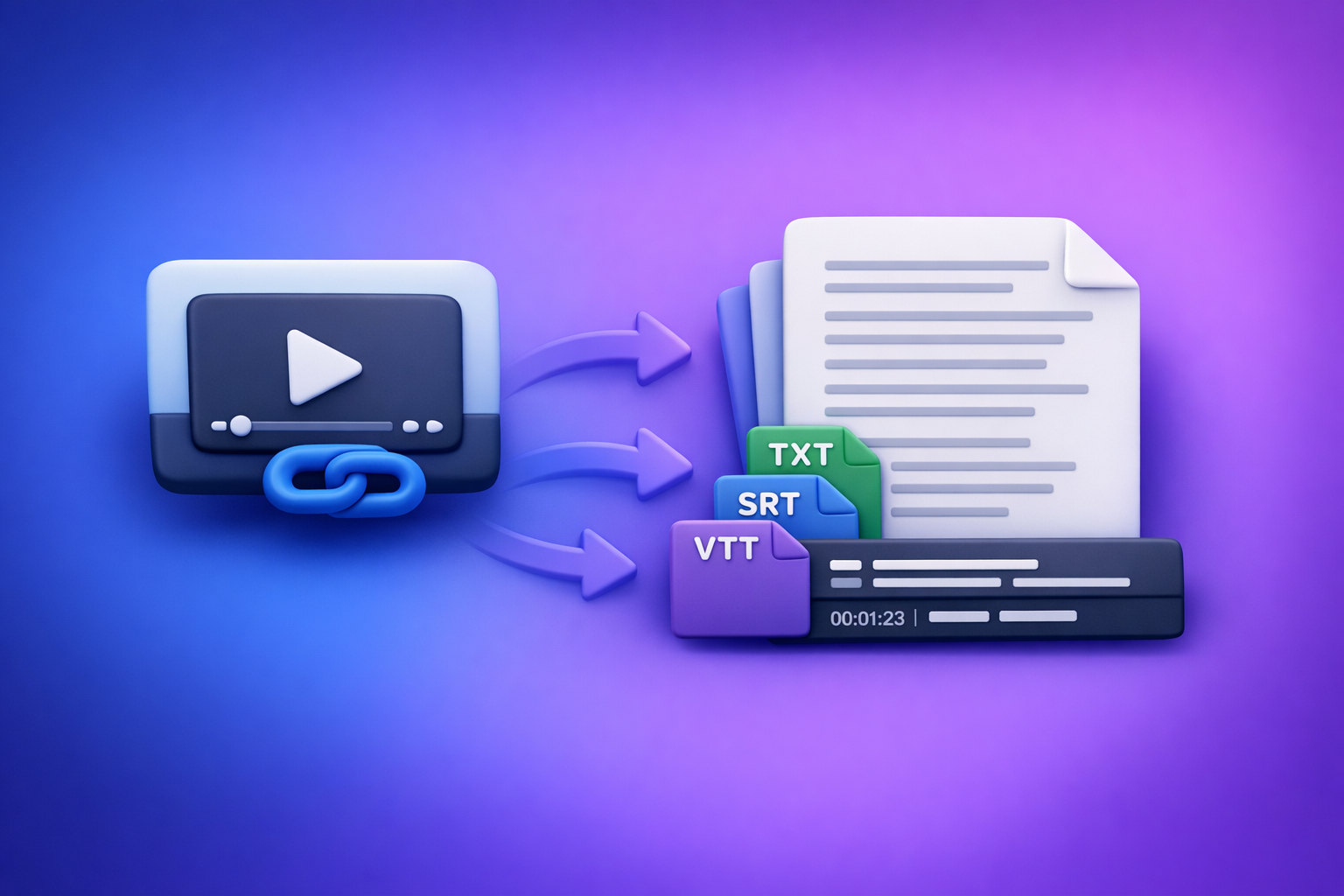
ChatGPT “attachments disabled” is almost always a capability mismatch (model/session/workspace) or a blocker (browser/network/admin policy). Fix it by isolating the cause in a strict order—then switch to a transcript-first workflow so your output doesn’t depend on fragile in-chat uploads.
“Attachments Disabled” in ChatGPT: Why It Happens + Fixes (and a Reliable Video-to-Text Workflow)
What “Attachments Disabled” Means in ChatGPT (and What It Doesn’t)
“Attachments disabled” means this chat cannot accept file uploads right now. It does not necessarily mean your account is broken, your file is corrupt, or you need to reinstall anything.
The exact UI states you might see
You’ll usually see one of these:
- Paperclip/upload button missing entirely
- Upload button present but greyed out
- “Attachments disabled” banner/toast after clicking upload
Each UI state points to a different class of cause (capability vs client vs network).
What’s actually being blocked
When attachments are disabled, one (or more) of these is happening:
- File upload capability is off for the current model/session/workspace
- Client-side restrictions are interfering (browser, extensions, device permissions)
- Network/policy restrictions are blocking upload requests (workspace admin controls, VPN/proxy inspection, corporate firewall)
Why this often looks “random”
It feels random because:
- Feature flags and model availability can vary by account and workspace
- You may be hitting temporary service degradation (intermittent) vs a persistent policy restriction (consistent)
The key is to test in a way that tells you which category you’re in—fast.
Fast Triage (2 Minutes): Identify the Root Cause Before You “Try Everything”
This sequence is designed to change the state (or prove you can’t) with minimal thrash.
Step 1 — Confirm you’re in the right account/workspace
Uploads often differ between:
- Personal workspace vs Team/Enterprise workspace
- Managed orgs with data controls that disable attachments
Do this first:
- Check the workspace switcher and confirm you’re not in a restricted org workspace.
- If you have both, test the same action in your personal workspace.
Step 2 — Check whether the selected model supports attachments
Even if your account supports uploads, the selected model (or the current chat session) may not.
Do this:
- Switch to a model that shows upload capability (if available).
- Start a new chat after switching models. Some sessions don’t inherit capabilities mid-thread.
Step 3 — Test a known-good file type and size
Don’t debug with a 2GB video first. Use a control test:
- A small PNG/JPG (fastest control)
- Or a short MP4 (if your goal is video)
Also:
- Rename the file to remove special characters (e.g.,
test-upload.png). - Avoid cloud “placeholders” (files not fully downloaded locally).
Step 4 — Isolate client vs network
Run two quick isolation tests:
- Incognito/private window (removes most extension interference)
- Different network (mobile hotspot) to rule out corporate filtering
If it works on hotspot but not office Wi‑Fi, you’ve found the category: network/policy.
Root Causes (Ordered by Likelihood) + Fixes That Actually Change the State
1) Model/feature availability (most common)
Symptoms
- Upload UI is missing or disabled only in certain models
- Another model (or another chat) shows the paperclip normally
Fix
- Switch models → start a new chat → re-check upload UI
- Log out/in to refresh entitlements and UI state
If the UI changes immediately after a model switch + new chat, it was capability-level—not your file.
2) Workspace/admin policy restrictions (Team/Enterprise)
Symptoms
- Uploads are disabled across devices/browsers for the same workspace
- Teammates report the same limitation
- The UI may be consistently missing/disabled regardless of model
Fix
- Switch to personal workspace (if permitted)
- Ask your admin to enable file uploads / data controls that allow attachments
- Verify org security tools aren’t stripping multipart/form-data uploads
If you’re in a managed environment, assume policy first—then prove otherwise.
3) Browser extensions and privacy tools blocking upload endpoints
Symptoms
- Upload button exists, but clicking it fails instantly
- You may see console/network errors (blocked requests, CORS issues, canceled uploads)
Fix (ordered)
- Disable ad blockers/privacy extensions (common culprits: uBlock, Ghostery, Brave Shields)
- Allow third-party cookies/site data for the ChatGPT domain
- Clear site data/cache for the ChatGPT domain and retry
Incognito is the fastest way to validate this category.
4) Network/VPN/proxy inspection breaking uploads
Symptoms
- Works on hotspot, fails on office Wi‑Fi
- Upload starts then stalls, or fails at a consistent percentage
- VPN users see inconsistent behavior across regions
Fix
- Disable VPN/proxy temporarily (test only)
- Whitelist required domains in firewall/proxy (org IT task)
- Try a DNS change only as a test to confirm filtering (not a permanent fix)
If your org inspects traffic, uploads are often the first thing to break.
5) Device permissions / OS-level restrictions
Symptoms
- File picker opens but upload never starts
- Mobile share sheet fails or the selected file never attaches
Fix
- Grant browser file access permissions (OS privacy settings)
- Update OS/browser
- Retry with a local file (not a cloud placeholder)
On managed devices, OS policies can silently block file access.
6) Temporary platform incident or rate limiting
Symptoms
- Sudden widespread failures
- Intermittent behavior that resolves without changes
- Uploads fail more often during peak usage
Fix
- Wait and retry; reduce file size
- Avoid peak times
- Use a deterministic fallback workflow (below) so production doesn’t stop
If you need deliverables today, don’t bet your workflow on a transient UI state.
Step-by-Step: Production-Safe Workflow When ChatGPT Attachments Are Disabled
The goal is simple: stop depending on fragile uploads for transcripts, subtitles, captions, and repurposing.
Brand POV: Downloading video files just to “upload them again” is an outdated workflow. Link-based extraction is the future of creator productivity because it’s faster, more repeatable, and easier to standardize across a team.
Outcome artifacts you can ship
A production-safe pipeline should output:
- TXT transcript
- SRT captions
- VTT subtitles
These artifacts are reviewable, reusable, and compatible with editors, CMSs, and caption tools.
Workflow A — Video link → transcript/captions → ChatGPT-on-text
- Copy the video URL (YouTube/TikTok/Instagram/Reel, etc.).
- Generate transcript + SRT/VTT in VideoToTextAI.
- QA the transcript (speaker names, punctuation, timestamps).
- Paste the transcript into ChatGPT for summarization, repurposing, and SEO drafts.
- Export final deliverables from text-based prompts (blog, LinkedIn post, clips plan).
Primary CTA: Generate TXT/SRT/VTT from a link or MP4 in VideoToTextAI, then use ChatGPT on the transcript.
If you want a direct next step for this workflow, see:
Workflow B — MP4 file → transcript/captions → ChatGPT-on-text
- Export MP4 from your editor.
- Convert MP4 to TXT/SRT/VTT in VideoToTextAI.
- Validate timing and line length for captions.
- Use ChatGPT on the transcript (not the video) for reliable outputs.
Related internal tools:
Why this works operationally:
- You’re no longer blocked by “attachments disabled.”
- You get timestamped artifacts you can QA and reuse.
- You can standardize prompts and outputs because the input is consistent text.
Implementation Checklist (Copy/Paste)
Upload troubleshooting checklist
- Correct account/workspace selected
- Upload-capable model selected
- New chat started after model switch
- Control test file (small PNG/JPG) succeeds/fails
- Incognito test run (no extensions)
- Alternate browser/device test
- Alternate network test (hotspot)
- VPN/proxy disabled test
- Site data cleared for ChatGPT domain
Production workflow checklist (recommended)
- Generate TXT transcript
- Generate SRT and/or VTT
- Spot-check 3–5 random timestamp segments
- Fix obvious names/terms (glossary)
- Run ChatGPT prompts on transcript (summary, outline, repurpose)
- Store artifacts in project folder (source URL, TXT, SRT, VTT, final copy)
If you’re building a team SOP, link these related posts in your internal documentation:
- Upload Video to ChatGPT (2026): What Actually Works + a Production-Safe Transcript & Captions Workflow
- ChatGPT “Upload Video” Feature (2026): What Works, Why It Fails, and the Production-Safe Transcript Workflow
- “Attachments Disabled” in ChatGPT Image Upload: Causes, Fixes, and a Production-Safe Video-to-Text Workflow (2026)
VideoToTextAI vs Competitors
When attachments are disabled, the question isn’t “Which tool can upload a file today?” It’s “Which workflow produces reliable, reviewable artifacts without depending on in-chat uploads?”
Comparison criteria (what actually matters when attachments are disabled)
- Input reliability: link-based ingestion vs fragile in-chat uploads
- Export formats: TXT/SRT/VTT availability and quality
- QA workflow: timestamped artifacts you can review and reuse
- Repurposing speed: transcript-first pipeline for blog/social outputs
- Team readiness: repeatable, production-safe steps
Comparison table
| Tool | Best for | Inputs (link-based vs file) | Exports (TXT/SRT/VTT) | When it breaks | Practical takeaway when ChatGPT says “attachments disabled” |
|---|---|---|---|---|---|
| VideoToTextAI | Transcript-first production workflows (captions + repurposing) | Link-based + MP4 (designed for link-first ingestion) | TXT + SRT + VTT (artifact-first workflow) | Less dependent on ChatGPT UI state | Use it to generate shippable artifacts first, then run ChatGPT on text for repeatable outputs |
| OpenAI ChatGPT (uploads) | Quick, low-stakes analysis when uploads are available | Often file upload inside chat (varies by model/workspace) | Not primarily an export tool for caption formats | Model/session/workspace policies and client/network blockers | Useful when stable, but not a dependable production pipeline for captions/subtitles |
| YouTube built-in transcripts | Basic transcript access for YouTube content | Link-based (YouTube only) | Limited export/format control | Not designed for caption QA or multi-platform reuse | Fine for quick reference, but weak for standardized TXT/SRT/VTT deliverables |
Where VideoToTextAI fits
- Best when you need deterministic transcript/captions artifacts first, then use ChatGPT on text.
- Best for link-based workflows (especially when downloading/uploading files is slowing teams down).
- Best when you need operational repeatability: same steps, same outputs, fewer “it worked yesterday” surprises.
Where ChatGPT uploads can still be useful
- Quick analysis when attachments are available and stable
- Short, low-risk tasks where export-ready captions aren’t required
Keep it fair: ChatGPT is excellent at reasoning and rewriting, but it’s not a production captioning pipeline—and its upload availability can be policy-gated.
Competitor Gap
Most “attachments disabled” guides stop at generic advice like “try another browser.” That doesn’t help when you have deadlines.
What this post covers that most guides miss:
- A strict, ordered triage that isolates model vs policy vs client vs network in under 2 minutes
- A production-safe fallback that produces shippable artifacts (TXT/SRT/VTT), not just “maybe uploads will work later”
- A transcript-first repurposing pipeline that works even when uploads are unavailable
- A QA checklist for captions/subtitles (timing, line length, terminology) so outputs are usable
If you want the canonical reference version of this guide for your team wiki, use:
- “Attachments Disabled” in ChatGPT: Causes, Fixes, and the Production-Safe Transcript Workflow (2026)
FAQ
Why does ChatGPT say “attachments disabled”?
Because the current session/model/workspace doesn’t allow uploads, or your browser/network/admin policy is blocking the upload flow.
How do I enable attachments in ChatGPT?
- Switch to an upload-capable model (if available)
- Start a new chat after switching models
- Confirm you’re in the correct workspace
- Remove browser/network blockers
If your org disables uploads, only an admin can change that.
Why is the upload button missing in ChatGPT?
You’re likely using a model or workspace where uploads aren’t enabled, or a client-side blocker is hiding/breaking the upload UI.
What’s the most reliable way to get a transcript if ChatGPT uploads don’t work?
Generate TXT/SRT/VTT from a video link or MP4 using a transcript tool, then paste the transcript into ChatGPT for analysis and repurposing. This avoids the fragile dependency on in-chat attachments and keeps your workflow shippable.
Related posts
Reel Analyser (Instagram Reels): Transcript‑First Competitor Research, Hook/CTA Extraction, and Repurposing Workflow (VideoToTextAI)
Video To Text AI
A 2026 reel analyser should turn Instagram Reel links into a searchable transcript library you can tag for hooks, CTAs, objections, and topic clusters—then export into repurposing-ready drafts without a download/upload loop.
Traducir video de Instagram (Reels) en 2026: workflow transcript-first para traducir, sacar hooks/CTAs y repurpose (con VideoToTextAI)
Video To Text AI
Aprende a traducir un Reel de Instagram con un flujo URL→transcripción→traducción→subtítulos, y a convertir esa traducción en un activo de investigación para hooks, CTAs, objeciones y clusters de contenido.
Reel Analyzer: Transcript‑First Instagram Reels Research (Hooks, CTAs, Objections) + Workflow Guide (VideoToTextAI)
Video To Text AI
A reel analyzer should turn any public Instagram Reel link into a searchable transcript library you can mine for hooks, CTAs, objections, and topic clusters—then repurpose into original drafts with a repeatable SOP.