
ChatGPT “Upload Video” Feature (2026): What Works, Why It Fails, and the Production-Safe Transcript Workflow
 Video To Text AI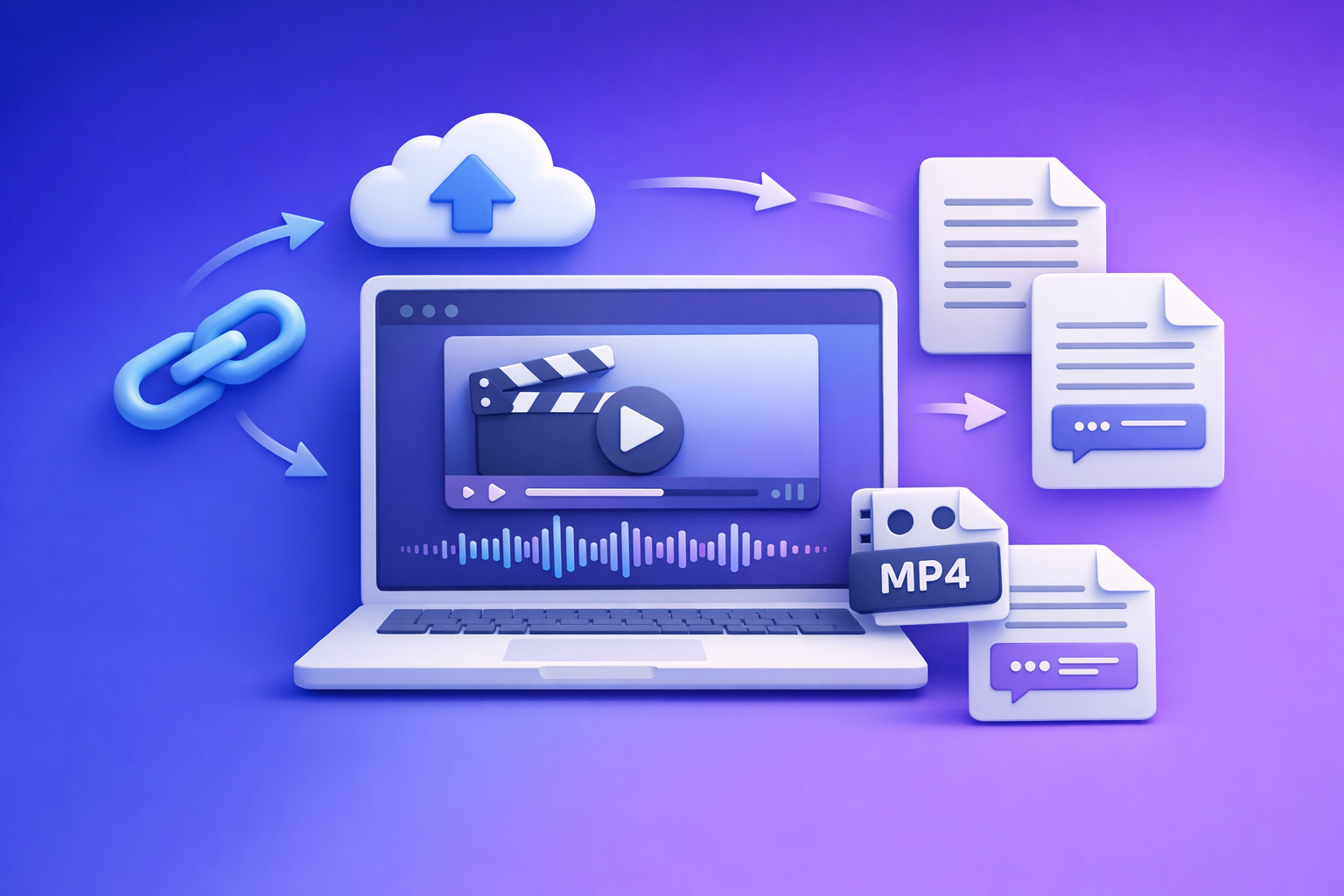
ChatGPT “Upload Video” Feature (2026): What Works, Why It Fails, and the Production-Safe Transcript Workflow
If you need export-ready transcripts/captions, don’t bet your workflow on the ChatGPT “upload video” feature—generate TXT/SRT/VTT artifacts first, then use ChatGPT on the text. If you only need quick, low-stakes analysis of a short clip, native upload can be acceptable when it’s available.
Quick Answer: Can ChatGPT Upload and Analyze Video?
What “upload video” can mean (3 different inputs)
When people search for the “chatgpt” “upload video” feature, they usually mean one of these:
- Upload a file (MP4/MOV) via an attachment/paperclip button.
- Paste a link (YouTube, Drive, Loom, etc.) and ask ChatGPT to “watch it.”
- Screen recording / frames (you record your screen or share key frames and ask questions).
These are not equivalent, and mixing them up causes most “it doesn’t work” outcomes.
What ChatGPT can realistically do with video vs what it can’t
What tends to work (when upload is enabled and the clip is short):
- High-level Q&A about visible content (basic scene understanding).
- Rough summaries of short segments.
- Simple extraction (e.g., “list the steps shown on screen”).
What often fails for production deliverables:
- Accurate, complete transcripts (especially long videos, noisy audio, multiple speakers).
- Export-ready captions/subtitles (SRT/VTT timing, consistency, re-export needs).
- Repeatable team workflows (standard steps, QA, reprocessing, handoff).
When native video upload is acceptable (short, low-stakes analysis)
Use ChatGPT video upload when:
- The clip is short and you can tolerate errors.
- You need ideas, not deliverables (e.g., “what’s the main point?”).
- You can validate quickly and move on.
When you should not use it (export-ready transcripts/captions, repeatability, QA)
Avoid native upload when you must ship:
- Client-ready transcripts (names, numbers, jargon must be correct).
- Captions/subtitles that must sync (SRT/VTT).
- Compliance-sensitive work requiring consistent outputs and auditability.
- Team production where steps must be repeatable.
If your goal is “publish,” downloading and re-uploading videos is an outdated workflow. Link-based extraction is the future of creator productivity because it removes file handling, reduces failure points, and produces reusable artifacts.
How the ChatGPT Video Upload Feature Works (In Practice)
Availability varies by plan, client, workspace policy, region, and rollout
In 2026, “I can upload video to ChatGPT” is not a universal truth. It can vary by:
- Plan/tier
- Client (web vs iOS vs Android vs desktop)
- Workspace/admin policy (attachments disabled)
- Region/rollout timing
- Model/tooling selection inside the chat
“Upload” vs “paste a link” vs “screen recording” (why users get stuck)
Common stuck point: users paste a link and assume ChatGPT can access it. Often it can’t.
- A link may require login, be geo-blocked, or be blocked by robots/permissions.
- Even if ChatGPT can open a link, it may not “watch” the full video end-to-end.
- Uploading a file is different from link access, and both differ from analyzing a screen recording.
Typical constraints that break first
File size / duration ceilings
Long videos are the first to fail. Even if the UI accepts the file, processing may time out or truncate.
Codec/container mismatches (MP4/MOV isn’t enough)
“MP4” describes a container, not guaranteed codecs. A file can be .mp4 and still fail due to:
- Unsupported video codec
- Unsupported audio codec
- Variable frame rate edge cases
Network/browser interference (extensions, VPN, corporate proxies)
Uploads are sensitive to:
- Ad blockers / privacy extensions
- VPNs and traffic inspection
- Corporate proxies and DLP tools
Model/tooling mismatch (upload-capable vs not)
Even with an upload button, the selected model/tool may not support the same inputs. Result: “can’t process” or partial output.
Supported Formats, Limits, and Common Failure Modes (Triage First)
Formats users try (MP4/MOV) and why “supported” still fails
Most users try MP4 or MOV. “Supported” can still fail because:
- The file is too large/long for the current session limits.
- The audio track is encoded in a way the toolchain can’t parse reliably.
- The upload succeeds but analysis truncates due to context/processing limits.
Common symptoms → likely cause → fastest fix
Upload button missing / “attachments disabled”
Likely cause: account/workspace policy, client mismatch, or feature not enabled.
Fastest fix: switch client (web vs mobile), check workspace policy, or use a production-safe fallback. See: “Attachments Disabled” in ChatGPT: Causes, Fixes, and the Production-Safe Transcript Workflow (2026)
Upload stalls or fails mid-way
Likely cause: network interference, file too large, browser extensions.
Fastest fix: try incognito, disable extensions, switch networks, trim the clip.
“File type not supported” / “can’t process”
Likely cause: codec mismatch or corrupted file.
Fastest fix: re-export to a standard H.264/AAC MP4, reduce resolution, or extract audio.
Link won’t open / “can’t access”
Likely cause: permissions/login required, private link, blocked host.
Fastest fix: use a publicly accessible link or generate transcript/captions from the source directly.
Output is incomplete, inaccurate, or inconsistent
Likely cause: long duration, noisy audio, multi-speaker overlap, model limitations.
Fastest fix: stop asking for “perfect transcription” from video; generate artifacts (TXT/SRT/VTT) first, then use ChatGPT on the text.
Step-by-Step: Upload a Video to ChatGPT (When You Must)
Step 1 — Confirm you’re using an upload-capable client and model
Before you troubleshoot the file, confirm the basics:
- You see an attachment/paperclip option.
- Your workspace doesn’t block attachments.
- You’re using a model/tool that accepts uploads in that chat.
If you’re stuck at “attachments disabled,” use the dedicated fix guide above.
Step 2 — Prepare the video for the highest success rate
Keep a short clip for analysis (trim, reduce resolution, simplify audio)
For best odds:
- Trim to 30–120 seconds.
- Reduce to 720p (or lower if needed).
- Prefer one continuous segment (avoid lots of cuts/transitions).
- If possible, normalize audio and reduce background noise.
Prefer a single-speaker or clean-audio segment when possible
If your goal is speech understanding, pick a segment with:
- One speaker
- Minimal cross-talk
- Minimal music under dialogue
Step 3 — Upload + prompt for analysis (not “perfect transcription”)
The prompt is where most users lose accuracy. Don’t ask for “a perfect transcript” from a raw video upload.
Use prompts that force structure and admit uncertainty:
-
Structured extraction prompt
- “Analyze this clip and return: (1) a 5-bullet summary, (2) key claims, (3) any numbers/names you’re unsure about flagged as
UNCERTAIN, (4) a list of questions you need answered to be confident.”
- “Analyze this clip and return: (1) a 5-bullet summary, (2) key claims, (3) any numbers/names you’re unsure about flagged as
-
Timestamped notes prompt
- “Create timestamped notes every ~10 seconds. If audio is unclear, write
[INAUDIBLE]rather than guessing.”
- “Create timestamped notes every ~10 seconds. If audio is unclear, write
-
No-hallucination constraint
- “Do not invent content. If you can’t determine something from the clip, say
UNKNOWN.”
- “Do not invent content. If you can’t determine something from the clip, say
Step 4 — Validate output fast (QA in minutes)
Spot-check 5–10 random segments
Pick random moments and verify the output matches what’s said/shown.
Verify names, numbers, and domain terms
These are the highest-risk errors. If they matter, don’t ship without verification.
Confirm the model didn’t invent sections
Look for:
- Confident claims not present in the clip
- “Smooth” transitions that hide missing content
- Overly complete transcripts from noisy audio
The Production-Safe Workflow (Recommended): Link/MP4 → TXT/SRT/VTT → ChatGPT-on-Text (VideoToTextAI)
Native video upload is a convenience feature. Production workflows need artifacts you can QA, reuse, and re-export.
Why artifact-first beats native video upload
Deterministic deliverables (TXT/SRT/VTT) you can QA and reuse
Artifacts give you:
- A stable transcript file (TXT) for editing and approvals
- Caption files (SRT/VTT) for publishing pipelines
- A reusable source for repurposing (blog, social, chapters)
Faster iteration than download → upload loops
Download/upload loops are slow and fragile. Link-based extraction removes:
- Local file management
- Re-exports for every iteration
- Upload failures due to browser/network policies
Cleaner handoff to editors, PMs, and clients
Artifacts are easy to:
- Version
- Review
- Correct
- Re-export
Step-by-step implementation (10–15 minutes)
Step 1 — Start with a video link or MP4
Use the source you already have:
- YouTube/Vimeo link
- Loom link
- Cloud storage link
- Or an MP4 from your camera/export
If you’re starting from a local file, these tool pages help define the deliverable you need:
Step 2 — Generate transcript + captions in VideoToTextAI
This is where link-based extraction wins: you generate export-ready text and captions without turning your workflow into “download, convert, upload, retry.”
Use VideoToTextAI for transcript/caption generation, then keep ChatGPT focused on what it’s best at: structuring and writing from text.
One-time CTA: VideoToTextAI
Step 3 — Export formats by use case (TXT vs SRT vs VTT)
Pick the artifact that matches the job:
- TXT: editing, approvals, knowledge base, LLM prompting
- SRT: broad caption compatibility (many editors/platforms)
- VTT: web players and modern publishing stacks
Step 4 — Run ChatGPT on the text for structured outputs
Once you have clean text, ChatGPT becomes consistent and fast.
Use it for:
- Chapters + titles
- Summary + key takeaways
- Quote pulls + social snippets
- Blog outline + SEO sections (example workflow: YouTube to Blog)
For related deep dives, see:
- Upload Video to ChatGPT (2026): What Actually Works, Why Uploads Fail, and the Production-Safe Link → Transcript Workflow
- ChatGPT “Upload Video” Feature (2026): What Works, Why Uploads Fail, and the Production-Safe Link → Transcript Workflow
Step 5 — Final QA checklist before publishing
Before you ship:
- Confirm speaker names, numbers, product terms
- Check captions for timing drift and line breaks
- Ensure the summary doesn’t introduce claims not in the transcript
- Re-export after corrections (don’t “patch” captions manually if you can regenerate)
Checklist: Fastest Reliable Path to Transcript + Captions + Repurposing
If your goal is “understand a short clip”
- Trim to <2 minutes
- Upload if available
- Prompt for structured notes, not “perfect transcript”
- Spot-check a few moments and move on
If your goal is “deliver transcript/captions + repurpose content”
- Don’t use native upload as the core workflow
- Generate TXT/SRT/VTT first
- Use ChatGPT on the text artifacts
- QA, correct, re-export, then publish
Pre-flight checklist (before you touch ChatGPT)
- Do you need SRT/VTT deliverables? If yes, start artifact-first.
- Is the video longer than a few minutes? If yes, avoid native upload.
- Is the link private/login-gated? If yes, expect access failures.
- Are you on a restricted network/workspace? If yes, uploads may be disabled.
Output checklist (what to verify before shipping)
- Completeness: no missing sections
- Accuracy: names, numbers, acronyms, domain terms
- Captions: timing, segmentation, readability
- Consistency: same output when re-run (or explainable differences)
- Traceability: you can point to the transcript line for every claim
VideoToTextAI vs Competitors
Below is a fair, workflow-focused comparison using only publicly signaled capabilities from the research set (not invented pricing/limits).
| Criteria | VideoToTextAI | Reduct Video (reduct.video) | Otter AI (otter.ai) | PCMag buyer guide (pcmag.com) |
|---|---|---|---|---|
| Link-based input (paste a URL) | Yes (core workflow) | No strong public signal | No strong public signal | Not a tool; editorial benchmark |
| Avoids download → upload loops | Yes (link-first) | More platform/editor oriented | More meeting/transcription oriented | N/A |
| Export-ready artifacts (TXT/SRT/VTT) | Yes (workflow built around reusable exports) | Transcript export signaled; subtitle exports not strongly signaled | Transcript export signaled; subtitle exports not strongly signaled | N/A |
| Repurposing depth (transcript → blog/social assets) | Strong fit when paired with ChatGPT-on-text | Summaries signaled; repurposing positioning limited | Summaries signaled; repurposing positioning limited | Provides evaluation criteria across tools |
| Operational repeatability (team can follow steps) | High: standard artifacts + re-export loop | Team/collaboration signaled | Team workflow signaled | N/A |
Why VideoToTextAI wins (when your goal is production output):
- Workflow speed: link-first means you skip the outdated “download, convert, upload, retry” cycle.
- Exports: artifact-first outputs (TXT/SRT/VTT) are the unit of work you can QA, correct, and re-export.
- Repeatability: teams can standardize on “generate artifacts → QA → ChatGPT-on-text → publish.”
Where competitors can be better (narrower jobs):
- Reduct Video can be a strong fit for teams who want a collaborative transcript-centric platform with highlighting and synthesis.
- Otter AI is often a fit for meeting-style transcription and summaries, especially when your input is recordings rather than link-based creator workflows.
- PCMag is useful as a buyer-guide benchmark to understand categories (human vs automated, editing needs), not as an execution workflow.
Competitor Gap
What top-ranking pages typically miss
- They blur “upload” vs “link” vs “watching” and don’t define constraints.
- They don’t provide a production-safe fallback when uploads are disabled.
- They don’t include an artifact QA process (verifying TXT/SRT/VTT before shipping).
What this post adds (differentiators)
- Symptom-based troubleshooting mapped to fastest fixes.
- A deterministic workflow that produces reusable deliverables.
- A ship-ready checklist for transcripts, captions, and repurposing.
FAQ
Will ChatGPT let me upload a video?
Sometimes. It depends on your plan, client, region, and workspace policy, and it can change over time.
Can ChatGPT watch videos that I upload?
It can analyze some uploaded video content, but it’s not a guaranteed “watch the entire video perfectly” capability—especially for long videos.
Can I upload a video to ChatGPT for analysis?
Yes, when the upload feature is enabled. Keep clips short and ask for structured analysis with uncertainty markers.
Can ChatGPT transcribe video to text?
It can produce transcript-like output, but it’s not production-safe for export-ready transcripts/captions. For deliverables, generate TXT/SRT/VTT first, then use ChatGPT on the text.
What is the best tool to transcribe video to text?
The best tool is the one that produces reusable artifacts (TXT/SRT/VTT) and supports link-based input so you can avoid download/upload loops and run a repeatable QA + re-export process.
Related posts
Reel Analyser (Instagram Reels): Transcript‑First Competitor Research, Hook/CTA Extraction, and Repurposing Workflow (VideoToTextAI)
Video To Text AI
A 2026 reel analyser should turn Instagram Reel links into a searchable transcript library you can tag for hooks, CTAs, objections, and topic clusters—then export into repurposing-ready drafts without a download/upload loop.
Traducir video de Instagram (Reels) en 2026: workflow transcript-first para traducir, sacar hooks/CTAs y repurpose (con VideoToTextAI)
Video To Text AI
Aprende a traducir un Reel de Instagram con un flujo URL→transcripción→traducción→subtítulos, y a convertir esa traducción en un activo de investigación para hooks, CTAs, objeciones y clusters de contenido.
Reel Analyzer: Transcript‑First Instagram Reels Research (Hooks, CTAs, Objections) + Workflow Guide (VideoToTextAI)
Video To Text AI
A reel analyzer should turn any public Instagram Reel link into a searchable transcript library you can mine for hooks, CTAs, objections, and topic clusters—then repurpose into original drafts with a repeatable SOP.