
Attachments Disabled in ChatGPT Image Upload (2026): Fixes
 Video To Text AI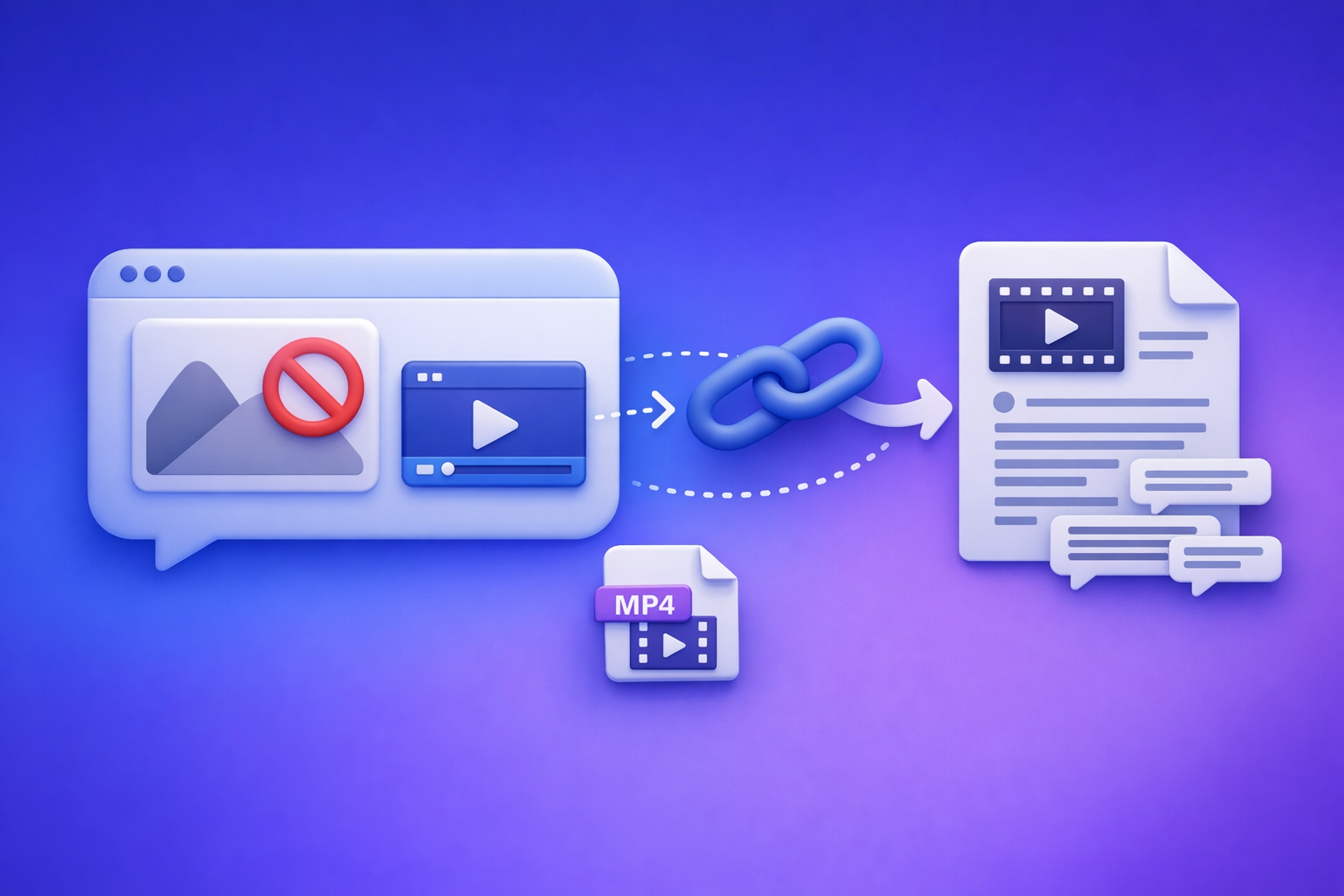
“Attachments Disabled” in ChatGPT Image Upload (2026): Fixes, Root Causes, and the Production-Safe Link → Transcript Workflow
Fix “attachments disabled” by identifying whether the block is policy, client/model, or network—then apply the one change that actually affects that class. If you need to ship work today, bypass uploads entirely with a link/MP4 → transcript/captions → ChatGPT-on-text workflow.
What “Attachments Disabled” Means (and What It Doesn’t)
The exact UI states you’ll see
You might see one of these, depending on client and workspace:
- “Attachments disabled” message near the composer
- Paperclip/upload button missing
- Upload button greyed out
- Drag-and-drop blocked (cursor shows “not allowed” or nothing happens)
What it usually indicates
In practice, “attachments disabled” is a permission or capability gate, not a single error:
- Feature not enabled for your account/workspace
- Admin policy restriction (common in Enterprise/Education)
- Client/app limitation (web vs desktop vs mobile differences)
- Network/security interference (VPN, proxy, SSL inspection, DLP)
What it’s rarely caused by
It’s rarely fixed by a single refresh:
- Not usually a one-off “temporary bug” that disappears after reloading once
- If it persists across new chats, it’s almost always policy/client/network
2-Minute Triage: Identify the Failure Class Before You “Try Random Fixes”
The goal is to answer one question fast: Is this blocked by workspace policy, your client/model, or your network?
Step 1 — Confirm the surface: Web vs Desktop vs Mobile
Test one alternate client:
- If you’re on web, test mobile app (or desktop).
- If you’re on desktop, test web in a clean browser.
Record two facts:
- Does the paperclip appear?
- Does the model/chat mode in that client support image input?
If it works in one client but not another, you’re likely in client/app territory.
Step 2 — Check account/workspace constraints
Attachments are often disabled only in managed workspaces.
- Are you in Personal or Team/Enterprise/Education?
- If you can switch workspaces, test uploads in each.
If it works in personal but not in a company workspace, it’s almost certainly admin policy.
Step 3 — Is it image-only or all files?
Try the smallest, simplest test:
- Upload a small PNG/JPG (ideally <1MB).
- If your plan supports it, try a non-image file too.
If images fail but other files work (or vice versa), you’re likely hitting capability/model or policy rules.
Step 4 — Is it network-specific?
Fastest network test:
- Try on a mobile hotspot.
- Toggle VPN off/on (one change at a time).
If it works on hotspot but fails on corporate Wi‑Fi, it’s network/security.
Step 5 — Capture evidence for escalation
If you need admin/IT support, bring proof:
- Screenshot the disabled state
- Record: client, OS, browser/app version, workspace, time, network type
This prevents endless “try clearing cache” loops.
Root Causes (Ordered by Likelihood) + Fixes That Actually Change the Outcome
1) Workspace/Admin Policy Disables Attachments
Symptoms
- Upload UI missing/disabled only in a managed workspace
- Works in personal but not in company/school account
Fix
- Ask your admin to enable attachments/file uploads for the workspace.
- If you can’t change policy, move to the production-safe fallback workflow below.
Verification
- After policy change, test in a new chat (don’t reuse the old thread).
2) Feature Availability / Plan / Model Limitations
Symptoms
- Upload option appears only for some models or not at all
- Works intermittently after model switching
Fix
- Switch to a model/chat mode that supports image input (if available).
- Start a new chat after switching.
Verification
- Confirm the paperclip is visible before attempting upload.
3) Browser or App Restrictions (Permissions, Extensions, Corrupt Cache)
Symptoms
- Button is present but clicking does nothing
- Drag-and-drop is blocked
- “ChatGPT image upload not working” only in one browser profile
Fix (web)
Apply in order, stopping when it works:
- Disable extensions that touch requests/content scripts (ad blockers, privacy tools, script blockers)
- Try an incognito/private window (no extensions)
- Clear site data for the domain (cookies + cache)
- Try a different browser profile or another browser
Fix (desktop/mobile)
- Update the app
- Log out/in
- Reinstall if the upload component is broken
Verification
- Upload a small image first (reduce variables).
4) Network/Security Interference (VPN/Proxy/SSL Inspection/DLP)
Symptoms
- Upload UI present but fails silently or instantly disables
- Works on hotspot but not on corporate Wi‑Fi
- “Paperclip greyed out” only on one network
Fix
- Turn off VPN and retry
- Switch networks (hotspot test is fastest)
- If corporate network: ask IT about SSL inspection/DLP rules blocking uploads
Verification
- Successful upload on an alternate network confirms a network cause.
5) Temporary Service Degradation
Symptoms
- Uploads fail across multiple clients/networks
- Other users report similar issues at the same time
Fix
- Wait and retry later
- Use the production-safe workflow so deliverables aren’t blocked
Verification
- Upload works again without any local changes.
Step-by-Step: Production-Safe Fallback When Image Upload Is Blocked
Why the fallback works
This approach is operationally safer because:
- You stop depending on UI-level attachment permissions
- You generate deterministic artifacts (TXT/SRT/VTT) you can QA, store, and reuse
- You avoid the outdated “download files → re-upload files” loop; link-based extraction is the future of creator productivity
Workflow A — If your goal is extracting info from a video (recommended)
If your “image upload” is really about understanding a video (screenshots, frames, slides), don’t fight the attachment UI. Extract the source truth: the transcript + timecodes.
Step 1 — Generate transcript/captions with VideoToTextAI
Input:
- A video link (YouTube/TikTok/Instagram) or an MP4
Output:
- TXT transcript
- SRT/VTT captions (timecoded)
If your deliverable is specific, go straight to the tool you need:
Step 2 — Paste transcript into ChatGPT for analysis
Once you have text, ChatGPT becomes reliable again:
- Summaries and key takeaways
- Chapter outlines and timestamps
- SEO briefs and content angles
- Repurposed posts (LinkedIn/X threads/newsletters)
For content repurposing from a link, you can also route through:
Step 3 — Keep artifacts for production
Treat outputs as production assets:
- Store TXT/SRT/VTT in Drive/Notion/Git
- QA with spot checks:
- timestamps align with key moments
- speaker turns look sane
- obvious proper nouns corrected once, then reused
This is how teams avoid rework when “upload button missing” happens mid-sprint.
Workflow B — If your goal is extracting text from an image
When attachments are blocked, do OCR outside ChatGPT.
Step 1 — Use OCR outside ChatGPT (if attachments are blocked)
Use an OCR tool your org allows (local or approved SaaS). The key is to produce plain text.
Step 2 — Paste extracted text into ChatGPT
Ask for:
- Cleanup and normalization
- Tables/CSV formatting
- Translation
- Structured output (JSON, bullet lists, SOP steps)
Step 3 — If the “image” is a screenshot of a video
Prefer the video transcript workflow:
- It’s more complete than OCR
- It’s timecoded (SRT/VTT)
- It supports auditing and reuse
If your source is long-form audio/video, see: podcast transcription
Implementation Checklist (Copy/Paste)
Quick fixes checklist (try in order)
- Test web vs desktop vs mobile (one alternate client)
- Switch workspace (personal vs managed) and re-test
- Start a new chat after switching model/mode
- Incognito window (no extensions)
- Disable extensions that modify pages/requests
- Clear site data for the domain
- Try another browser
- Hotspot test (bypass corporate network)
- VPN off/on (one change at a time)
- If managed workspace: request admin enable attachments
Production-safe deliverables checklist (when uploads stay blocked)
- Generate TXT transcript
- Generate SRT and/or VTT captions
- QA: spot-check timestamps + speaker turns
- Use ChatGPT on text for summaries/chapters/repurposing
- Archive artifacts for reuse (content ops)
VideoToTextAI vs Competitors
If your workflow depends on a UI paperclip, you’re exposed to policy toggles, client differences, and network controls. For production teams, the better evaluation criteria is: Can I reliably go from link/MP4 to versionable artifacts (TXT/SRT/VTT) every time?
Comparison criteria (what you should evaluate)
- Input reliability: link-based ingestion vs UI attachments
- Artifact outputs: TXT, SRT, VTT availability and consistency
- Production readiness: repeatability, QA workflow, versionable outputs
- Repurposing workflows: blog/social outputs from transcripts
- Speed and failure modes: deterministic processing vs UI gating
Competitor note (research availability)
Your provided research block has enabled: false, so there are no competitor profiles to cite without guessing. To keep comparisons fair and factual, the table below compares workflow approaches rather than making brand-specific claims.
| Criteria | VideoToTextAI | ChatGPT attachments workflow | Typical “upload-first” transcription tools |
|---|---|---|---|
| Link-based input (YouTube/TikTok/IG) | Yes (core workflow) | No (depends on upload UI) | Sometimes (varies), often upload-centric |
| Works when “attachments disabled” | Yes (doesn’t rely on ChatGPT uploads) | No | Sometimes (if link ingestion exists) |
| Export artifacts (TXT/SRT/VTT) | Yes (artifact-first) | Not the primary output | Often yes, but may be less workflow-focused |
| Operational repeatability | High (deterministic outputs you can archive) | Low (UI/policy/network gating) | Medium (depends on ingestion + exports) |
| Best fit | Teams shipping transcripts/captions + repurposed content | Quick ad-hoc analysis when uploads are available | Narrow transcription jobs when upload is acceptable |
Where VideoToTextAI fits best: teams that need repeatable transcript/caption artifacts (not “maybe the upload works today”), and workflows that start from a link or MP4 and end in export-ready text/captions.
If you share competitor profiles (names + verified capabilities), this section can be updated to a brand-level comparison without speculation.
Competitor Gap
Most “attachments disabled fix” posts fail because they treat every case like a browser glitch. What actually helps is:
- A triage-first approach that identifies the failure class in 2 minutes
- Clear separation of policy vs client vs network causes (so fixes aren’t random)
- A production-safe fallback that ships deliverables even when ChatGPT uploads are blocked
- An artifact-first workflow: link/MP4 → TXT/SRT/VTT → ChatGPT-on-text (QA + reuse)
This is also why “download the video and re-upload it” is an outdated workflow. Link-based extraction is faster, cleaner for compliance, and easier to standardize across a team.
FAQ (People Also Ask)
Why does ChatGPT say “attachments disabled” for image upload?
Most commonly: your workspace has uploads disabled by policy, your current client/model doesn’t support image input, or your network/security stack is blocking uploads. It’s rarely a one-time glitch.
How do I enable attachments in ChatGPT?
If you’re in a managed workspace, only an admin can enable attachments/file uploads. If you’re personal, switching client/model, clearing site data, and disabling extensions are the highest-impact fixes.
Why is the upload button missing or greyed out in ChatGPT?
Common causes include: you’re in a restricted workspace, you’re using a client/model that doesn’t support image input, or a browser extension/network policy is interfering. Use the triage steps to isolate which.
Does “attachments disabled” mean ChatGPT is down?
Not necessarily. If text chat works but uploads don’t, it’s often a policy/client/network issue. Service degradation is more likely when uploads fail across multiple clients and networks at the same time.
What’s the best workaround if I need a transcript or captions but uploads are blocked?
Use a link/MP4 → transcript/captions workflow, then run ChatGPT on the text. This produces QA-able artifacts (TXT/SRT/VTT) and avoids being blocked by attachment permissions.
CTA Section: Ship Work Even When Uploads Are Blocked
If you’re losing time to “attachments disabled,” stop tying deliverables to a paperclip UI. Use VideoToTextAI to generate TXT/SRT/VTT from a link or MP4, then run ChatGPT on the text for summaries, chapters, and repurposing.
Internal Link Plan (Related Reading)
Related posts
Reel Analyser (Instagram Reels): Transcript‑First Competitor Research, Hook/CTA Extraction, and Repurposing Workflow (VideoToTextAI)
Video To Text AI
A 2026 reel analyser should turn Instagram Reel links into a searchable transcript library you can tag for hooks, CTAs, objections, and topic clusters—then export into repurposing-ready drafts without a download/upload loop.
Traducir video de Instagram (Reels) en 2026: workflow transcript-first para traducir, sacar hooks/CTAs y repurpose (con VideoToTextAI)
Video To Text AI
Aprende a traducir un Reel de Instagram con un flujo URL→transcripción→traducción→subtítulos, y a convertir esa traducción en un activo de investigación para hooks, CTAs, objeciones y clusters de contenido.
Reel Analyzer: Transcript‑First Instagram Reels Research (Hooks, CTAs, Objections) + Workflow Guide (VideoToTextAI)
Video To Text AI
A reel analyzer should turn any public Instagram Reel link into a searchable transcript library you can mine for hooks, CTAs, objections, and topic clusters—then repurpose into original drafts with a repeatable SOP.