
ChatGPT “Upload Video” Feature: What Works, Why Uploads Fail, and the Production-Safe Link → Transcript Workflow (VideoToTextAI)
 Video To Text AI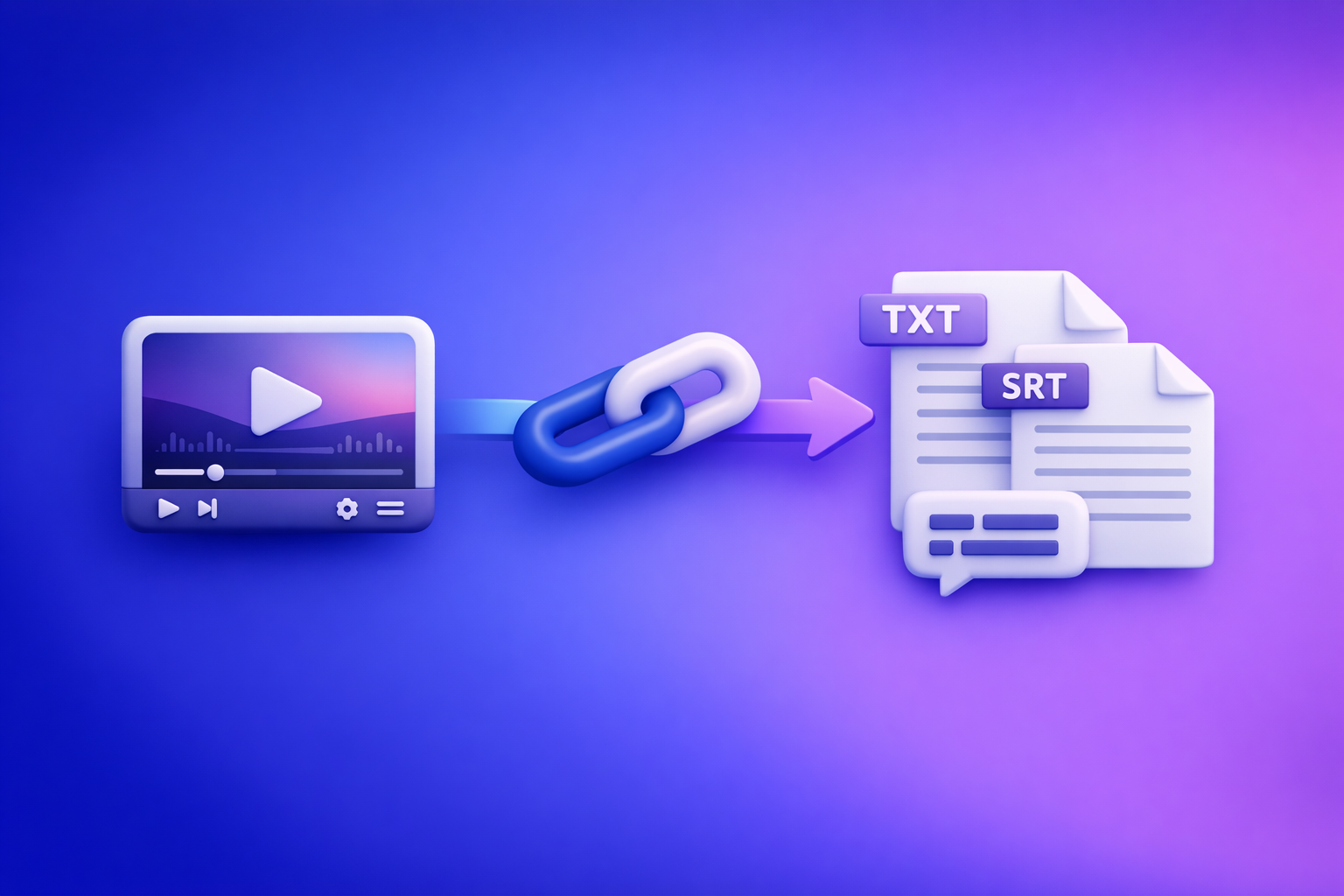
ChatGPT’s “upload video” feature is fine for quick clip understanding, but it’s not dependable for export-ready transcripts, captions, timecodes, or repeatable outputs. The production-safe approach is artifact-first: generate TXT + SRT/VTT from a video link (or MP4 when you must), then use ChatGPT on the text.
This is the workflow we recommend at VideoToTextAI: stop downloading files as your default. Link-based extraction is the future of creator productivity because it’s faster, more repeatable, and easier to QA and reuse across teams.
Who this is for (and what you’ll get)
If you’re searching for the “chatgpt upload video feature,” you usually want one of two outcomes:
- Quick understanding: “What’s happening in this clip?” “Summarize this video.”
- Production deliverables: “Give me a transcript I can ship.” “Generate captions that stay in sync.”
This guide covers deliverables you can actually ship:
- TXT transcript (source-of-truth text for editing, search, and reuse)
- SRT/VTT captions (platform uploads + NLE/editor workflows)
- Repurposed content outputs (blog, social posts, chapters, hooks—generated from the transcript)
What people mean by “ChatGPT upload video” (3 different capabilities)
“Upload video” gets used to describe three different things. Mixing them up is why people hit dead ends.
1) Uploading a video file (MP4/MOV) into ChatGPT
This is a true file upload (attachment). It may appear in some clients and plans, but it’s not universally available and can be sensitive to file constraints.
Use it only when:
- You control the file
- The clip is short
- You only need analysis, not export-ready caption artifacts
2) Pasting a video link (YouTube/Drive/Instagram/TikTok) for analysis
This is not the same as uploading. Link access can fail due to permissions, geo restrictions, login walls, or expiring URLs.
Even when link access works, “analysis” doesn’t automatically mean:
- a complete transcript
- stable timecodes
- export formats like SRT/VTT
3) “Watching” video vs. extracting speech vs. generating timecodes (not the same)
There are three separate tasks:
- Understanding visuals (“watching” frames)
- Extracting speech (speech-to-text transcript)
- Generating timecodes (caption alignment, segmentation rules)
A tool can be good at one and weak at the others. Production workflows require all three to be consistent.
Can ChatGPT upload and analyze video reliably in 2026?
When it’s good enough (analysis-only use cases)
ChatGPT video handling can be “good enough” when you want:
- A quick summary of a short clip
- A list of topics discussed
- Rough Q&A: “What did they say about pricing?”
- Idea generation based on what you provide
In these cases, imperfect access and occasional failures are tolerable.
When it breaks (production deliverables: transcripts, captions, timecodes, exports)
It breaks down when you need:
- Complete transcripts (no missing sections)
- Consistent timecodes (captions that stay in sync)
- Exports (TXT, SRT, VTT) you can upload to platforms or editors
- Repeatability (same input → same output quality, every time)
The core constraint: nondeterministic availability + inconsistent access to media
The biggest issue isn’t “AI quality.” It’s availability and access:
- The upload/link capability may not exist in your client today.
- The same link may be accessible one day and blocked the next.
- Processing can time out, stall, or truncate outputs.
If you’re shipping content weekly, you need a workflow that doesn’t depend on “maybe it works.”
Requirements & limits that cause most failures (check before troubleshooting)
Account/client availability (plan, region, rollout, web vs. iOS vs. Android)
Common blockers:
- Feature not rolled out to your account
- Attachments disabled in your workspace/org
- Different capabilities across web vs. iOS vs. Android
If you don’t see an upload option, it’s often not “user error.”
File constraints (size, duration, codec/container, bitrate, audio track)
Uploads fail when:
- File is too large or too long
- Codec/container is unsupported (or unusual)
- Bitrate is high (slow upload + processing)
- Audio track is missing or corrupted
Link constraints (permissions, login walls, expiring URLs, geo restrictions)
Link-based failures usually come from:
- “Only people in my org can view”
- Drive links requiring login
- Private social posts
- Expiring signed URLs
- Geo-blocked content
Network + processing constraints (timeouts, backgrounding on mobile, stalled processing)
Even valid inputs can fail due to:
- Unstable network
- Mobile app backgrounding (upload stops)
- Server-side timeouts on long processing jobs
Step-by-step: Production-safe workflow (Link/MP4 → TXT + SRT/VTT → ChatGPT-on-text)
This is the pipeline that stays stable under real-world constraints.
Step 1 — Choose input type based on where the video lives
Use a link when the video is hosted (YouTube/Instagram/TikTok/etc.)
Brand POV: downloading video files is an outdated workflow. Links are the modern source-of-truth because they’re shareable, auditable, and faster to process across teams.
Use a link when:
- The video already lives on a platform
- You want to avoid re-uploads and file wrangling
- Multiple stakeholders need the same input
Use MP4 upload when you control the file and need deterministic processing
Use MP4 when:
- The video is not publicly accessible
- You have the final cut locally
- You need a controlled, stable input for captions
Step 2 — Generate artifacts in VideoToTextAI (artifact-first)
Generate the outputs you’ll ship before asking ChatGPT to rewrite anything.
- Export transcript (TXT) for editing, search, and reuse
- Export captions (SRT/VTT) for platform uploads and editors
If you want to go deeper on link-based extraction, see: Give Me the Text: How to Extract Text From Any Video Link (Transcripts, Captions, and Repurposing) with VideoToTextAI
Step 3 — QA in 5 minutes (before you ask ChatGPT to rewrite anything)
Do a fast QA pass so you don’t scale errors into every downstream asset.
- Names/terms pass: proper nouns, product names, acronyms
- Timestamp sync spot-check: beginning, middle, end
- Speaker/section structure: confirm breaks and labels (if applicable)
Step 4 — Use ChatGPT on the text (what it’s best at)
ChatGPT is strongest when the input is clean text and the task is writing/structuring.
Use it for:
- Summaries, chapters, titles, hooks, SEO outlines
- Repurposing: blog post, LinkedIn post, X thread, newsletter draft
- Compliance-safe prompting: “Use only the provided transcript.”
Step 5 — Ship deliverables
- Upload SRT/VTT to YouTube/LinkedIn/IG where supported
- Store TXT + SRT/VTT as your source-of-truth for future edits and re-renders
Related tools you may want handy:
Implementation walkthrough (10–15 minutes): One video → transcript, captions, repurposed content
Goal, inputs, and expected outputs
Goal: turn one video into:
- TXT transcript
- SRT or VTT captions
- Repurposed content generated from the transcript
Inputs: either a video link or an MP4.
Walkthrough A: Start from a video link
-
Paste link → generate transcript → export TXT
If your source is YouTube, you may also like: YouTube to Blog -
Generate captions → export SRT/VTT
Pick the format based on where it’s going:
- SRT: common for many platforms/editors
- VTT: common for web players and some platform workflows
- Prompt ChatGPT with transcript to produce: summary + chapters + 5 social posts
Use a strict prompt to prevent hallucinations:
- Input: “Here is the transcript. Use only this transcript as your source.”
- Outputs:
- 5-bullet summary
- Chapters with timestamps (use the transcript’s time ranges if present)
- 5 social posts (specify platform + character limits)
If your source is short-form, these may fit better:
Walkthrough B: Start from an MP4 file
-
Upload MP4 → generate transcript/captions → export artifacts
Use this when the video is private or you’re working from a final cut. -
Fix names/terms once → reuse corrected transcript for all downstream content
Do one terminology correction pass in TXT, then reuse it for:
- blog drafts
- social posts
- email newsletters
- chapter outlines
This avoids “fixing the same name” in five different places.
Troubleshooting: “ChatGPT video upload failed” (fixes by symptom)
Symptom: No upload button / can’t attach video
Fixes:
- Confirm client support: web vs. iOS vs. Android
- Confirm plan/rollout status and attachment permissions (workspace/org)
- Try a different client (web often differs from mobile)
Fast fallback:
- Switch to a deterministic workflow: link/MP4 → transcript artifacts → ChatGPT-on-text
Symptom: Upload stuck / processing failed / timeouts
Fixes:
- Reduce file size (re-encode) or clip duration
- Avoid backgrounding on mobile during upload/processing
- Use stable Wi‑Fi
Best practice:
- Prefer deterministic artifact generation outside ChatGPT for long videos and deliverables
Symptom: “Failed to fetch” / “403” / ChatGPT can’t access my link
Fixes:
- Set permissions to public/unlisted where appropriate
- Remove login walls (Drive/Dropbox auth)
- Avoid expiring URLs and signed links
- Check geo restrictions
Best practice:
- Use link ingestion designed for extraction rather than hoping ChatGPT can fetch the media
Symptom: Output is incomplete or inaccurate
Fixes:
- If audio is messy (music, crosstalk, low volume), regenerate transcript from the best available source
- Run a proper nouns/terminology correction pass on the TXT
- Then repurpose from the corrected transcript (not the raw output)
Symptom: Captions out of sync after editing the video
Fix:
- Regenerate SRT/VTT from the final cut
- Don’t “patch” old timecodes after you change timing
Checklists (copy/paste)
Practical checklist section
Input readiness checklist (link/file)
- Link is accessible without login, not geo-blocked, not expiring
- If file: MP4/MOV plays locally; audio track present; reasonable duration/size
- You know the target output: TXT only vs. TXT + SRT/VTT
Transcript readiness checklist (TXT)
- Proper nouns verified (people, brands, places)
- Acronyms expanded or standardized
- Obvious mishears corrected (numbers, URLs, product terms)
Caption readiness checklist (SRT/VTT)
- Sync checked at start/middle/end
- Line breaks readable; no run-on captions
- Platform format chosen (SRT vs. VTT)
ChatGPT-on-text checklist (safe + repeatable)
- Provide transcript as the only source
- Specify output format (H2/H3, bullets, character limits)
- Require quotes/time ranges when making claims (optional)
Competitor Gap
What top-ranking pages miss (and what this guide adds)
Most pages ranking for “chatgpt upload video feature” focus on whether a button exists. That’s not the real problem for creators and teams shipping content.
This guide adds what’s usually missing:
- Clear separation of “video understanding” vs. export-ready transcript/captions workflows
- Deterministic artifact-first pipeline (TXT + SRT/VTT) that survives edits and QA
- Symptom-based troubleshooting mapped to constraints (client/plan, codec, permissions, timeouts)
- Copy/paste checklists for input readiness, transcript QA, caption QA, and ChatGPT prompting
If you want the canonical reference version of this guide, see: ChatGPT “Upload Video” Feature (2026): What Works, Why Uploads Fail, and the Production-Safe Link → Transcript Workflow
FAQ
Does ChatGPT allow you to upload videos?
Sometimes. Availability depends on your plan, region, and whether you’re using web, iOS, or Android. Even when it works, treat it as analysis-first, not a dependable transcript/caption export pipeline.
Why can’t I upload videos to ChatGPT anymore?
Common causes:
- Feature not enabled for your account/client
- Attachments restricted by workspace settings
- File too large/long or unsupported codec
- Processing timeouts or stalled uploads
If you need deliverables, don’t wait on feature availability—use an artifact-first workflow.
Can I upload a video to ChatGPT to analyze?
Yes, in many cases, for summaries and Q&A. For production outputs (TXT + SRT/VTT), generate artifacts first, then use ChatGPT to rewrite and repurpose from the transcript.
Can you add videos from your camera roll to ChatGPT?
On some mobile clients, you may be able to attach media from your device. Reliability varies, and long clips often hit size/time constraints. For repeatable results, use a link-based workflow whenever possible.
Can I upload a video to ChatGPT and get a transcript?
You might get a rough transcript, but it’s not consistently export-ready or timecode-stable. The production-safe method is: link/MP4 → TXT + SRT/VTT → ChatGPT-on-text.
If you want a production-safe link → transcript workflow that outputs TXT + SRT/VTT and then lets ChatGPT do what it’s best at (rewriting and repurposing), use VideoToTextAI: VideoToTextAI
Related posts
Reel Analyser (Instagram Reels): Transcript‑First Competitor Research, Hook/CTA Extraction, and Repurposing Workflow (VideoToTextAI)
Video To Text AI
A 2026 reel analyser should turn Instagram Reel links into a searchable transcript library you can tag for hooks, CTAs, objections, and topic clusters—then export into repurposing-ready drafts without a download/upload loop.
Traducir video de Instagram (Reels) en 2026: workflow transcript-first para traducir, sacar hooks/CTAs y repurpose (con VideoToTextAI)
Video To Text AI
Aprende a traducir un Reel de Instagram con un flujo URL→transcripción→traducción→subtítulos, y a convertir esa traducción en un activo de investigación para hooks, CTAs, objeciones y clusters de contenido.
Reel Analyzer: Transcript‑First Instagram Reels Research (Hooks, CTAs, Objections) + Workflow Guide (VideoToTextAI)
Video To Text AI
A reel analyzer should turn any public Instagram Reel link into a searchable transcript library you can mine for hooks, CTAs, objections, and topic clusters—then repurpose into original drafts with a repeatable SOP.