
ChatGPT “Upload Video” Feature: What Works in 2026, Why Uploads Fail, and the Reliable Link → Transcript Workflow
 Video To Text AI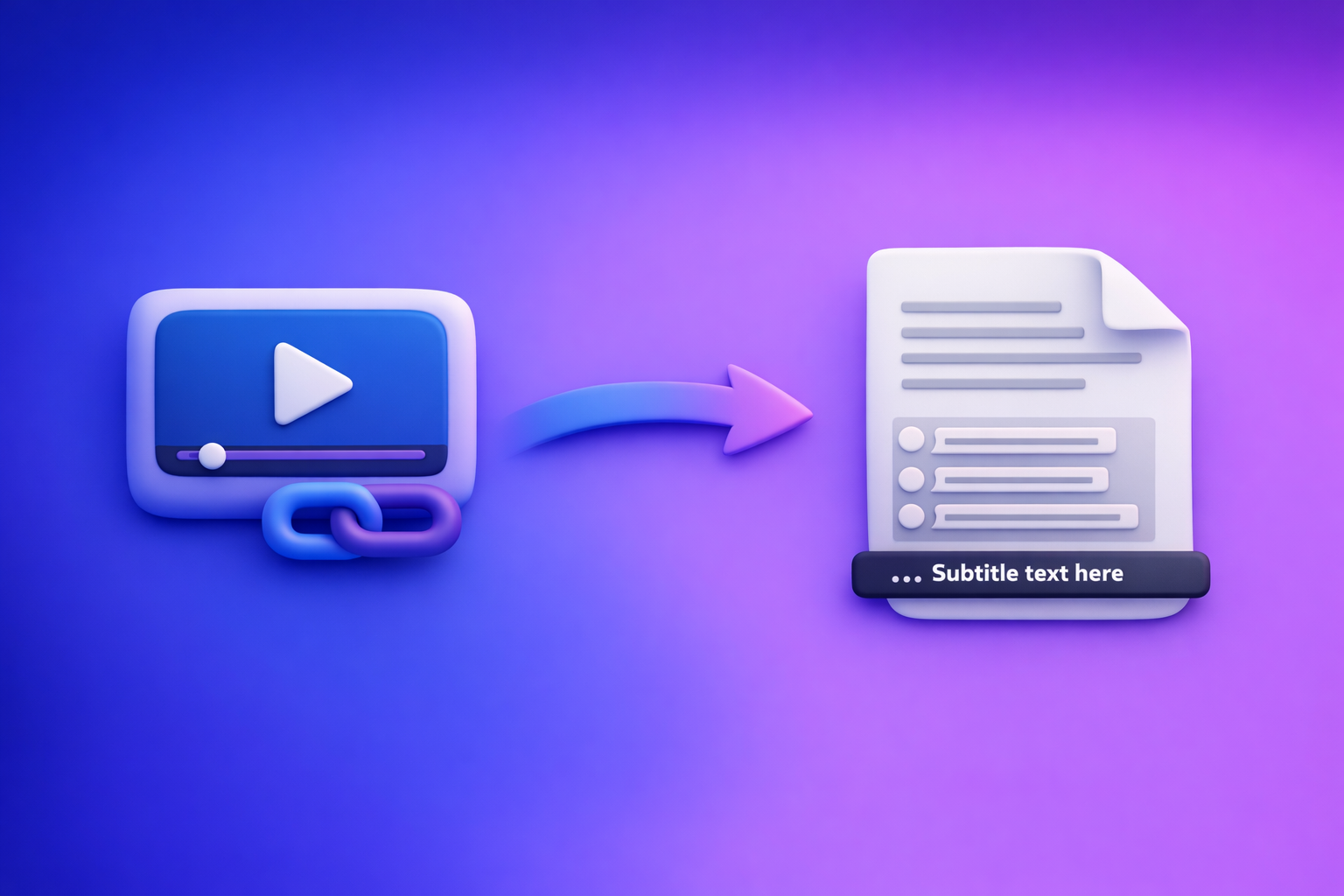
ChatGPT’s “upload video” feature is useful for quick understanding of short clips, but it’s not dependable for export-ready transcripts or accurate SRT/VTT captions. If you need outputs you can ship, use a link → transcript (TXT) → captions (SRT/VTT) → ChatGPT-on-text workflow.
Downloading and re-uploading video files is an outdated workflow that adds friction, failure points, and version confusion. Link-based extraction is the future of creator productivity because it’s faster, repeatable, and easier to standardize across a team.
What the “Upload Video” feature in ChatGPT actually does (and doesn’t)
ChatGPT can sometimes interpret video content you upload, but the experience varies by app, plan, rollout, and file characteristics. Treat it as a lightweight analysis tool, not a production pipeline.
What you can realistically use it for
Use uploads when you need fast, low-stakes insight:
- Quick understanding of short clips
- High-level description of what happens
- Rough Q&A about visible actions or on-screen text
- Basic scene identification (“intro,” “demo,” “outro”)
- Extracting a few quotes
- Useful for pulling 1–3 lines if the audio is clear
- Not reliable for full coverage
- Basic content ideation (hooks, titles) after you provide text
- Upload video → ask for ideas → then paste your transcript for accuracy
- ChatGPT performs best when it can reference clean text
What it does not reliably do
If you need consistent outputs, uploads are the wrong foundation:
- Export-ready transcripts (TXT) with consistent completeness
- Missing sections, paraphrasing, or skipped segments can happen
- Production captions/subtitles (SRT/VTT) with accurate timestamps
- Timestamp precision and formatting are not deterministic
- Long videos, mixed codecs, or large files deterministically
- Longer duration increases timeouts, partial processing, and variability
When ChatGPT video uploads work vs. when they break
Uploads can work, but only within a narrow “happy path.” Outside that path, you’ll spend time troubleshooting instead of publishing.
Works best when
- Short duration
- Common container/codec
- Stable connection
- Low-stakes analysis
- No compliance requirements
- No publishing deadlines
- No need for exact wording or timestamps
Common failure modes (what you’ll see + why it happens)
Here’s what typically goes wrong and what it usually means:
- Upload fails or stalls
- What you see: progress bar stuck, “upload failed,” repeated retries
- Why: timeouts, file size limits, flaky network, background throttling
- “Unsupported format/codec” errors
- What you see: file rejected even though it “plays fine” locally
- Why: container vs codec mismatch (e.g., MP4 container but unsupported codec profile)
- Partial processing
- What you see: summary stops early, missing middle sections, incomplete answers
- Why: length limits, processing constraints, context/memory boundaries
- No usable timestamps
- What you see: captions without timecodes, or timecodes that drift
- Why: caption export constraints and non-deterministic alignment
- Inconsistent results across devices/plans/apps
- What you see: works on mobile but not desktop (or vice versa)
- Why: staged rollouts, feature flags, plan differences, app version variance
Fast triage: fix upload failures in under 10 minutes
If you’re determined to use the upload video feature, do this quick triage. If your goal is captions/subtitles, skip to the transcript-first workflow.
Step 1: Confirm basics (file + environment)
Validate that the feature works at all in your environment:
- Try a 30–120 second clip first
- Switch browser/app
- Disable extensions and VPN
- Retry on a different network
- Close other heavy tabs/apps to reduce throttling
If a tiny clip fails, the issue is likely availability/rollout or environment—not your file.
Step 2: Normalize the file (if you must upload)
If uploads fail due to format/size, normalize to a standard baseline:
- Re-export to MP4 (H.264 video + AAC audio)
- Reduce resolution/bitrate to shrink file size
- Trim to only the segment you need analyzed
This improves compatibility, but it still doesn’t make transcripts/captions deterministic.
Step 3: Decide if upload is the wrong tool
Stop troubleshooting uploads if any of these are true:
- You need SRT/VTT for publishing
- You need a complete transcript (not a summary)
- You need repeatable results for a team workflow
- You’re working with long-form content (webinars, podcasts, interviews)
At that point, switch to an artifact-first workflow.
The production-safe workflow: Link/MP4 → TXT + SRT/VTT → ChatGPT-on-text
The reliable approach is to generate artifacts first (transcript + captions), then use ChatGPT for transformation and repurposing. This is how you avoid “it worked yesterday” variability.
Why “artifact-first” beats “upload-first”
Artifact-first wins because it produces outputs you can actually ship:
- Deterministic deliverables
- TXT transcript for editing and approvals
- SRT/VTT captions for publishing
- Easier QA
- Searchable text
- Spot-checking is fast
- Fix names/terms once, then reuse everywhere
- Reusable across tools
- Editors, CMS, localization, compliance, and content ops
If you want a deeper breakdown of this approach, see: ChatGPT “Upload Video” Feature: What Works, Why Uploads Fail, and the Production-Grade Link → Transcript Workflow (VideoToTextAI)
Step-by-step implementation (VideoToTextAI)
This workflow is designed for link-based extraction so you don’t waste time downloading, renaming, and re-uploading files across tools.
Step 1: Start with a link or MP4
Choose the input that matches your reality:
- Use a public video URL (YouTube/Instagram/TikTok)
- Or upload an MP4 if the video is private/local
For MP4-based workflows, start here: MP4 to Transcript
Step 2: Generate the transcript (TXT)
Export a clean transcript you can edit and reuse:
- Use TXT as the source of truth
- Fix spelling, names, product terms, and acronyms once
- Keep a versioned transcript in your content folder
Step 3: Generate subtitles/captions (SRT/VTT)
Export captions in the format your destination expects:
- SRT for most editors and platforms: MP4 to SRT
- VTT for web players and some platforms: MP4 to VTT
This is the step that “upload video” workflows usually can’t do reliably.
Step 4: Use ChatGPT on the transcript (not the video)
Now use ChatGPT where it’s strongest: transforming text into assets.
- Summaries and key takeaways
- Chapters and section headers
- Cut lists for short-form
- Hooks, titles, descriptions
- Blog drafts and FAQs
Keep the transcript/captions as the ground truth so outputs stay accurate.
If you want the fastest path from long-form video to an article, see: YouTube to Blog
Exactly one CTA: Use VideoToTextAI to turn a video link into TXT + SRT/VTT you can publish, then run ChatGPT on the text for repurposing: VideoToTextAI
Copy/paste prompt pack (built for transcripts)
These prompts assume you already have a TXT transcript and/or SRT/VTT captions. That’s intentional: text-in produces consistent, auditable outputs.
Chaptering + timestamps (from SRT/VTT)
Input: VTT or SRT
Output: chapter titles + start times + 1–2 sentence summaries per chapter
You are given subtitle captions in SRT/VTT format with timestamps.

Task:
1) Create 6–12 chapters.
2) Each chapter must include:
   - Start time (HH:MM:SS)
   - Chapter title (max 8 words)
   - 1–2 sentence summary
3) Chapters must cover the full content with no gaps.
4) Use the earliest timestamp that matches the start of each topic.

Return as a markdown table: Start Time | Chapter | Summary.

Captions:
[PASTE SRT/VTT HERE]
Cut list for short-form
Input: transcript
Output: 10–20 clip candidates with “why it works” + suggested on-screen text
You are given a verbatim transcript.

Task:
Generate 10–20 short-form clip candidates.
For each candidate, provide:
- Clip title
- Start/end cue (quote the first and last sentence of the segment)
- Why it works (hook, controversy, payoff, novelty, clarity)
- Suggested on-screen text (max 8 words)
- Suggested caption (1–2 sentences)

Constraints:
- Each clip should be 15–45 seconds when spoken.
- Prefer segments with a clear setup → payoff.

Transcript:
[PASTE TRANSCRIPT HERE]
Repurposing to blog + SEO structure
Input: transcript
Output: H1/H2 outline, key takeaways, FAQs, meta title/description
You are given a transcript of a video.

Task:
1) Propose an SEO-friendly blog structure:
   - H1
   - 6–10 H2s (and H3s where needed)
2) Provide:
   - Key takeaways (5–8 bullets)
   - FAQs (5 questions + concise answers)
   - Meta title (<= 60 chars) and meta description (<= 155 chars)
3) Keep claims grounded in the transcript. If something is not stated, mark it as "not specified".

Transcript:
[PASTE TRANSCRIPT HERE]
Checklist: choose the right workflow (upload vs transcript-first)
Use this to decide quickly whether to keep troubleshooting uploads or switch to a production workflow.
Use ChatGPT “Upload Video” when
- You’re analyzing a short clip
- You don’t need export-ready captions
- You can tolerate retries and variability
- You only need high-level understanding or rough notes
Use VideoToTextAI transcript-first when
- You need TXT + SRT/VTT exports
- You’re publishing captions/subtitles
- You’re repurposing at scale (blog, LinkedIn, X, newsletters)
- You need repeatable results for a team workflow
- You want link-based extraction instead of downloading and re-uploading files
Pre-publish QA checklist (captions + transcript)
- Transcript is complete (no missing sections)
- Names/brands/terms corrected
- Speaker changes marked (if needed)
- SRT/VTT timing looks correct on a spot-check (start/middle/end)
- Line length is readable (no walls of text)
- Export format matches destination (SRT vs VTT)
Use cases: where the link → transcript workflow wins
Link-first workflows remove the “download → rename → upload → fail → retry” loop. They also standardize outputs so your team can reuse the same artifacts everywhere.
YouTube → blog post pipeline
Turn long-form video into a structured article:
- Generate transcript + captions
- Build an outline with headings and FAQs
- Add internal links and a clean summary
Implementation shortcut: YouTube to Blog
Podcasts and interviews
Audio-heavy content benefits most from artifact-first:
- Clean transcript for approvals and quote extraction
- Show notes, chapters, and sponsor callouts
- Consistent formatting for publishing
If podcasts are your main input, use: Podcast Transcription
Instagram/TikTok repurposing
Short-form still benefits from text artifacts:
- Pull hooks and on-screen text variants
- Generate post-ready captions and comment prompts
- Create a repeatable “clip → transcript → post pack” workflow
For TikTok sources: TikTok to Transcript
Competitor Gap
Most guides stop at “try a different browser” and “reduce file size,” which doesn’t solve the real problem: uploads are not deterministic for transcript/caption production.
This guide closes the gap by providing:
- Failure-mode mapping (what you see + why it happens)
- A 10-minute triage to avoid wasting hours on retries
- A production workflow that outputs real artifacts (TXT + SRT/VTT)
- A practical decision checklist for when to stop troubleshooting uploads
- Transcript-ready prompt templates (chapters, cut lists, repurposing) that work without video ingestion
FAQ
Can ChatGPT transcribe a video I upload?
Sometimes for short clips, but it’s inconsistent for complete, export-ready transcripts. For reliable transcription, generate a TXT transcript first, then use ChatGPT on the text.
Why does ChatGPT fail to upload or process my video?
Common causes include file size limits, timeouts, unsupported codecs/containers, and inconsistent feature availability across apps/plans. If you need captions, switch to a transcript-first workflow.
Can ChatGPT generate SRT or VTT captions from an uploaded video?
Not reliably. A production workflow is: video link/MP4 → generate SRT/VTT → then use ChatGPT for summaries, chapters, and repurposing based on the transcript/captions.
Further reading (internal)
Related posts
Reel Analyser (Instagram Reels): Transcript‑First Competitor Research, Hook/CTA Extraction, and Repurposing Workflow (VideoToTextAI)
Video To Text AI
A 2026 reel analyser should turn Instagram Reel links into a searchable transcript library you can tag for hooks, CTAs, objections, and topic clusters—then export into repurposing-ready drafts without a download/upload loop.
Traducir video de Instagram (Reels) en 2026: workflow transcript-first para traducir, sacar hooks/CTAs y repurpose (con VideoToTextAI)
Video To Text AI
Aprende a traducir un Reel de Instagram con un flujo URL→transcripción→traducción→subtítulos, y a convertir esa traducción en un activo de investigación para hooks, CTAs, objeciones y clusters de contenido.
Reel Analyzer: Transcript‑First Instagram Reels Research (Hooks, CTAs, Objections) + Workflow Guide (VideoToTextAI)
Video To Text AI
A reel analyzer should turn any public Instagram Reel link into a searchable transcript library you can mine for hooks, CTAs, objections, and topic clusters—then repurpose into original drafts with a repeatable SOP.