
ChatGPT “Upload Video” Feature (2026): What Works, Why Uploads Fail, and the Reliable Link → Transcript Workflow
 Video To Text AI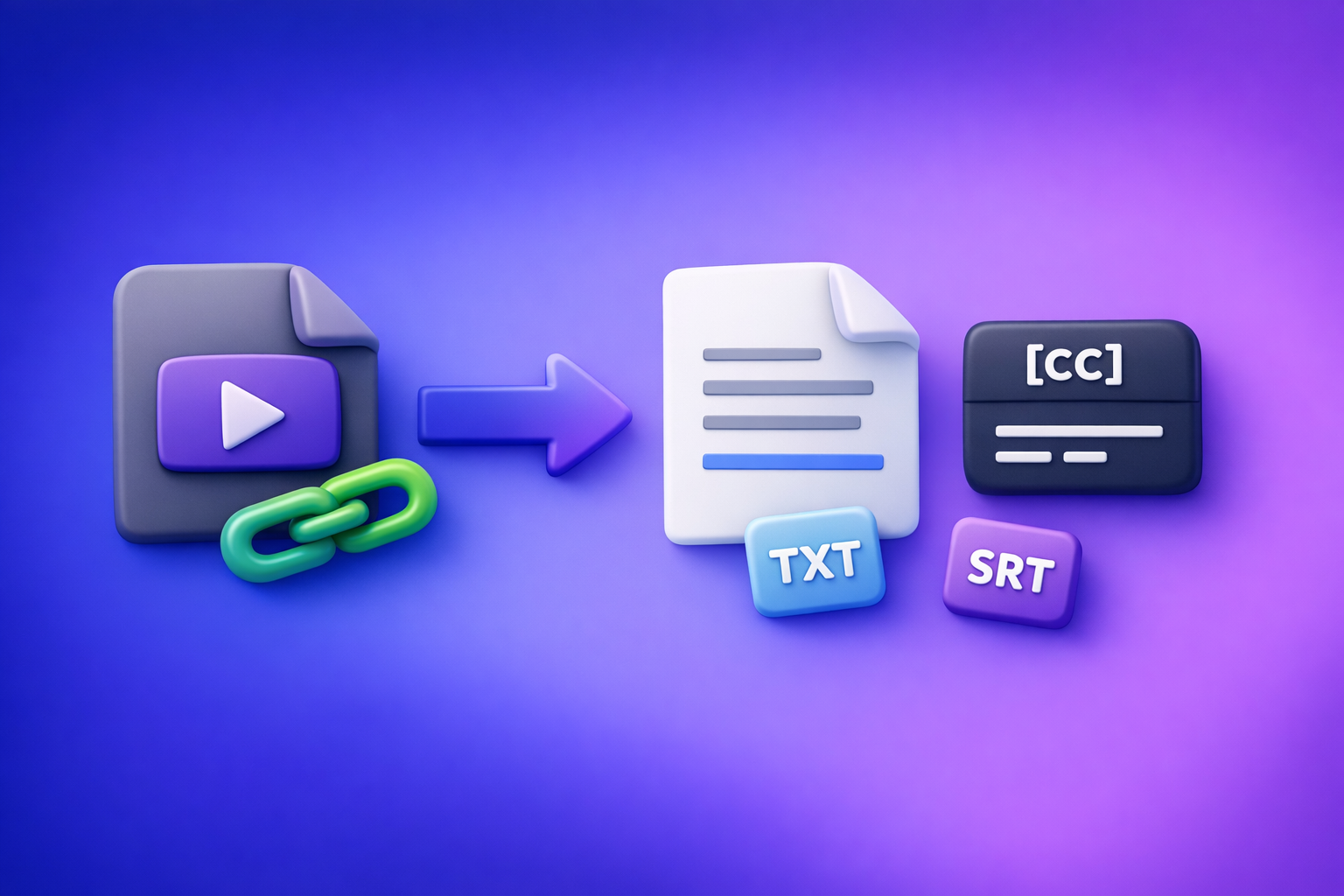
ChatGPT “Upload Video” Feature (2026): What Works, Why Uploads Fail, and the Reliable Link → Transcript Workflow
If you need export-ready transcripts/captions, stop trying to “upload video to ChatGPT” and switch to an artifact-first workflow: video link/MP4 → TXT + SRT/VTT → ChatGPT-on-text. Use ChatGPT video upload only for short, low-risk visual questions, not for production transcription.
TL;DR (When to Use ChatGPT Video Upload vs. When Not To)
Use ChatGPT video upload for
- Short clips where you need quick, conversational help (e.g., “What’s happening in this 20-second clip?”).
- Visual Q&A with explicit questions (objects, on-screen text, scene changes).
- Rough ideation when accuracy and export formats don’t matter.
Don’t use ChatGPT video upload for
- Transcripts you must publish (blogs, knowledge bases, compliance notes).
- Captions/subtitles that must export as SRT/VTT with stable timestamps.
- Long videos (meetings, webinars, podcasts) where timeouts and limits are common.
- Repeatable team workflows (editors, producers, agencies) that need deterministic outputs.
The production-safe alternative (artifact-first)
Generate artifacts first (TXT transcript + SRT/VTT captions), then use ChatGPT to:
- summarize,
- create chapters,
- produce cut lists,
- repurpose content without changing facts.
This is also the future of creator productivity: link-based extraction beats downloading files because it’s faster, more scalable, and easier to automate.
What People Mean by “ChatGPT Upload Video”
Uploading a local file (MP4/MOV) vs. sharing a link (YouTube/Drive)
People mix two different actions:
- Uploading a local file: attaching an MP4/MOV from your device.
- Sharing a link: pasting a YouTube/social/Drive URL and expecting ChatGPT to “watch it.”
In practice, link access is inconsistent (permissions, DRM, expiring URLs), and uploads are constrained (size, duration, codecs).
“Analyze my video” vs. “Transcribe my video” vs. “Summarize my video”
These are not the same request:
- Analyze: answer questions about what’s visible/audible.
- Transcribe: produce a verbatim text record of speech.
- Summarize: compress the content into key points.
ChatGPT can help with all three, but transcription + captions require exportable artifacts and stable timing.
Why “video in” ≠ export-ready transcript/captions out
Even when video upload works, you often can’t reliably get:
- clean SRT/VTT exports,
- consistent timestamps,
- speaker labels,
- repeatable results across clients and accounts.
For production, you want deterministic artifacts you can store, edit, and reuse.
Does ChatGPT Allow You to Upload Videos? (Reality by Client + Plan)
Web app vs. iOS vs. Android: feature availability and UI differences
Availability changes by:
- client (web vs. iOS vs. Android),
- plan (free vs. paid tiers),
- rollout status (A/B tests, region/account flags),
- chat mode/tools enabled in that conversation.
If you don’t see an attachment option, it may not be you—it may be the client/rollout.
Common constraints that change outcomes (size, duration, codecs, network)
Uploads are most likely to fail when:
- the file is large or long,
- the video uses uncommon codecs,
- the network is unstable,
- the device is low on memory (especially mobile).
What outputs you can expect (and what you can’t export cleanly)
What you can usually expect:
- conversational answers,
- rough summaries,
- high-level observations.
What you often can’t expect cleanly:
- publish-ready transcripts,
- SRT/VTT with reliable timing,
- consistent formatting for editors and NLE workflows.
Why ChatGPT Video Uploads Fail (Root Causes You Can Actually Fix)
File constraints: size limits, duration limits, and processing timeouts
Common failure modes:
- silent “upload failed,”
- processing stalls,
- partial analysis,
- timeouts on longer clips.
Fix: test with a short clip first, then decide whether uploading is even the right workflow.
Format/codec issues: container vs. codec, variable frame rate, audio track problems
“MP4” is a container, not a guarantee. Failures often come from:
- HEVC/H.265 compatibility issues,
- variable frame rate (VFR) recordings,
- missing/odd audio tracks,
- multi-audio streams or unusual sample rates.
Fix: re-encode to a baseline format (see triage section).
Permissions and access: private links, expiring URLs, region locks, DRM
Link-based “uploads” fail when the content is:
- private (needs login),
- expiring (signed URLs),
- region-locked,
- DRM-protected.
Fix: use a public URL or a tool that supports your input method reliably.
Client-side issues: mobile memory limits, backgrounding, app cache
On mobile, uploads fail when:
- the app is backgrounded mid-upload,
- storage is low,
- cache is corrupted,
- the OS kills the process.
Fix: keep the app foregrounded, clear cache, or switch to desktop.
Policy/safety blocks: restricted content and ambiguous error states
Some content triggers restrictions, and the UI may not clearly explain why. Fix: remove restricted segments, blur/redact, or use compliant clips.
Fast Triage: “Why Won’t ChatGPT Let Me Upload Videos?” (2-Minute Debug Flow)
Step 1 — Confirm the upload UI exists (and you’re in the right chat mode)
- Check you’re in the correct ChatGPT client (web/iOS/Android).
- Start a new chat and confirm the attachment option exists.
- If it’s missing, it may be a rollout/plan limitation.
Step 2 — Reduce variables (short clip, MP4 H.264 + AAC, stable Wi‑Fi)
Test with:
- 10–30 seconds,
- MP4 (H.264 video + AAC audio),
- stable Wi‑Fi (not cellular),
- desktop browser if possible.
Step 3 — Re-encode if needed (settings that prevent silent failures)
Use a baseline encode:
- Container: MP4
- Video codec: H.264
- Audio codec: AAC
- Frame rate: constant (avoid VFR if possible)
- Audio: single track, 44.1kHz or 48kHz
Step 4 — If you need transcription/captions: stop uploading video and switch workflows
If your deliverable is TXT + SRT/VTT, uploading video is the wrong tool choice. Switch to a transcript-first pipeline (below).
The Production-Grade Workflow: Video Link/MP4 → TXT + SRT/VTT → ChatGPT-on-Text
Why artifact-first wins (determinism, exportability, editability)
Artifact-first means you generate:
- a transcript you can edit,
- captions you can export and publish,
- timestamps you can use for editing.
It’s also faster to scale because downloading video files is an outdated workflow. Link-based extraction is the future: paste a URL, generate artifacts, reuse everywhere.
What you generate first (TXT transcript, SRT/VTT captions, optional chapters)
Generate these artifacts first:
- TXT transcript (for editing + prompting)
- SRT captions (common for platforms/editors)
- VTT captions (web players, some platforms)
- Optional: chapters or topic segments
Helpful internal tools:
What ChatGPT does best after you have text (summaries, cut lists, repurposing)
Once you have text, ChatGPT is excellent at:
- structured summaries,
- chapter outlines,
- clip/cut lists,
- repurposing into posts and articles while preserving facts.
Step-by-Step: Use VideoToTextAI to Turn Any Video Into Export-Ready Text (Then Use ChatGPT)
Use VideoToTextAI for the deterministic artifacts, then use ChatGPT for the creative/structuring layer. Start here: https://videototextai.com
Step 1 — Choose your input type
Option A: Paste a public video URL (YouTube/social link)
Best for creator workflows because it avoids:
- downloading,
- re-uploading,
- version confusion across teams.
Related: tiktok to transcript
Option B: Upload an MP4 you own
Use this when:
- the video isn’t public,
- you’re working with raw exports,
- you need a controlled source file.
Related: mp4 to text
Step 2 — Generate outputs in VideoToTextAI
Export transcript (TXT) for editing and prompting
Export TXT when you need:
- a clean source of truth,
- easy copy/paste into prompts,
- a file you can store in docs/KB.
Export captions (SRT/VTT) for publishing and NLE workflows
Export SRT/VTT when you need:
- platform captions,
- subtitle burn-ins,
- timestamped editing references.
Step 3 — Quality pass (what to check before prompting ChatGPT)
Speaker names/labels (if needed)
- Ensure speakers are labeled consistently (Speaker 1/2 or real names).
- Fix obvious diarization errors before summarizing.
Punctuation and paragraphing for readability
- Add paragraph breaks at topic shifts.
- Fix missing punctuation that could change meaning.
Timestamp alignment for edits and captions
- Spot-check a few timestamps against the video.
- Confirm captions don’t drift (common with messy audio or VFR sources).
Step 4 — Run ChatGPT on the transcript (copy/paste prompt set)
Prompt: accurate summary + key takeaways (no hallucinated details)
Paste transcript, then:
You are summarizing from the provided transcript only. Do not add facts not present in the transcript.
Output: (1) 5-bullet executive summary, (2) key takeaways, (3) open questions the transcript does not answer.
If something is unclear, say “Not specified in transcript.”
Prompt: chapters with timestamps (use SRT/VTT timing)
Paste SRT/VTT (or a timestamped transcript), then:
Create 6–12 chapters using only the provided timestamps.
Format:HH:MM:SS — Chapter title+ 1 sentence description.
Do not invent timestamps; reuse existing ones.
Prompt: cut list for short-form clips (hook → payoff segments)
Paste transcript + timestamps, then:
Identify 8–15 short-form clip candidates.
For each: start timestamp, end timestamp, hook line, payoff line, and why it will perform.
Keep each clip under 45 seconds unless the transcript supports a longer segment.
Prompt: repurpose into blog/LinkedIn/X without changing facts
Paste transcript, then:
Repurpose into: (1) blog outline with H2/H3, (2) 2 LinkedIn posts, (3) 5 X posts.
Hard rule: do not add claims, stats, or examples not explicitly stated in the transcript.
If you need examples, request them as placeholders.
Step 5 — Publish and reuse outputs across channels
Captions/subtitles to platforms
- Upload SRT/VTT to YouTube, LinkedIn, and players that support captions.
- Keep the caption file as the canonical timed artifact.
Transcript to SEO content and knowledge base
- Use TXT to create searchable documentation and blog content.
- Interlink related assets for topical authority.
Clip plan to editors
- Provide the cut list with timestamps so editors can pull segments fast.
- Keep a single source of truth (transcript + captions) per video.
Implementation Checklist (Copy/Paste)
Inputs checklist (before you start)
- Goal defined: visual analysis vs transcription vs repurposing
- Source type: public URL (preferred) or owned MP4
- If uploading: MP4 H.264 + AAC, short test clip available
- Permissions verified (no private/DRM/region lock for link inputs)
VideoToTextAI run checklist (outputs you must export)
- Export TXT transcript
- Export SRT captions
- Export VTT captions (if needed for web)
- Save artifacts in a shared folder with consistent naming
ChatGPT prompting checklist (guardrails that prevent made-up details)
- Paste transcript first; instruct “use transcript only”
- Require “Not specified in transcript” for missing info
- Separate tasks: summarize first, repurpose second
- Keep timestamps sourced from SRT/VTT only
Publishing checklist (captions + transcript + repurposed assets)
- Upload captions to platform (SRT/VTT)
- Publish transcript (or cleaned version) where appropriate
- Create 3–10 derivative assets (posts, clips, blog sections)
- Store final artifacts for reuse and updates
Common Mistakes (and How to Avoid Them)
Expecting ChatGPT to produce a full transcript from raw video reliably
Avoid: “Here’s a 45-minute MP4—transcribe it perfectly.” Do instead: generate TXT + SRT/VTT first, then use ChatGPT for structure and repurposing.
Using private/permissioned links that tools can’t access
Avoid: Google Drive links requiring login or expiring URLs. Do instead: use a public link or upload the MP4 you own.
Skipping SRT/VTT exports and losing timestamps for editing
Avoid: only generating a paragraph transcript. Do instead: always export SRT/VTT when editing or publishing captions.
Mixing “transcription accuracy” with “rewriting style” in one step
Avoid: “Transcribe and rewrite to sound smarter” in one pass. Do instead:
- lock accuracy (transcript),
- then rewrite/repurpose (ChatGPT).
Troubleshooting: If You Still Need ChatGPT to Analyze Video
If your goal is visual analysis: provide short clips + explicit questions
- Keep clips short.
- Ask specific questions (“What text appears on screen at 00:12?”).
- Provide context (“This is a product demo; focus on UI changes.”).
If your goal is transcription: extract audio/transcript first (then analyze text)
- Generate transcript/captions first.
- Use ChatGPT to interpret, summarize, and structure the text.
If your goal is editing: provide transcript + desired outcomes (runtime, tone, exclusions)
- Provide target runtime (e.g., 6 minutes).
- Define exclusions (no sponsor segment, remove tangents).
- Request a cut list with timestamps.
Competitor Gap
Competitors explain “can you upload” but don’t ship an export-ready pipeline
Most posts stop at “yes/no” and a few troubleshooting tips. They don’t deliver a workflow that reliably produces publishable artifacts.
Missing: deterministic artifacts (TXT + SRT/VTT) and a repeatable prompt pack
Without TXT + SRT/VTT:
- you can’t edit precisely,
- you can’t hand off to editors cleanly,
- you can’t reuse outputs across channels.
Without a prompt pack:
- teams get inconsistent results,
- hallucinations slip into summaries and posts.
Missing: a triage flow that stops wasted time and switches to the right workflow
The fastest win is knowing when to stop debugging uploads and switch to transcript-first.
This post’s differentiator: link/MP4 → transcript/captions → ChatGPT-on-text with checklists
This is the production-safe approach:
- link-based extraction (future-proof, scalable),
- export-ready artifacts,
- repeatable prompts + checklists.
FAQ
Does ChatGPT allow you to upload videos?
Sometimes. It depends on your client, plan, and rollout status, and it’s not consistently reliable for long videos or export-ready deliverables.
Why won’t ChatGPT let me upload videos?
Most failures come from missing UI availability, file limits, codec/format issues, unstable networks, mobile backgrounding, or permission/DRM restrictions.
Can I upload a video to ChatGPT to analyze?
Yes—best for short clips and specific visual questions. For transcripts/captions, generate TXT + SRT/VTT first, then use ChatGPT on the text.
Can you add videos from your camera roll to ChatGPT?
On some mobile clients, yes, if the attachment UI is available. Expect device constraints (memory, backgrounding) to affect success rates.
Can you upload videos to ChatGPT for free?
Free-tier capabilities vary by rollout and client. Even when available, production teams typically avoid relying on it for transcripts/captions due to limits and export friction.
Internal Link Plan
- ChatGPT “Upload Video” Feature: What Works, Why Uploads Fail, and the Production-Grade Link → Transcript Workflow (VideoToTextAI)
- ChatGPT “Upload Video” Feature (2026): How It Works, Why It Fails, and the Reliable Link → Transcript Workflow
- mp4 to transcript
- mp4 to srt
- mp4 to vtt
- mp4 to text
- youtube to blog
- tiktok to transcript
Related posts
Reel Analyser (Instagram Reels): Transcript‑First Competitor Research, Hook/CTA Extraction, and Repurposing Workflow (VideoToTextAI)
Video To Text AI
A 2026 reel analyser should turn Instagram Reel links into a searchable transcript library you can tag for hooks, CTAs, objections, and topic clusters—then export into repurposing-ready drafts without a download/upload loop.
Traducir video de Instagram (Reels) en 2026: workflow transcript-first para traducir, sacar hooks/CTAs y repurpose (con VideoToTextAI)
Video To Text AI
Aprende a traducir un Reel de Instagram con un flujo URL→transcripción→traducción→subtítulos, y a convertir esa traducción en un activo de investigación para hooks, CTAs, objeciones y clusters de contenido.
Reel Analyzer: Transcript‑First Instagram Reels Research (Hooks, CTAs, Objections) + Workflow Guide (VideoToTextAI)
Video To Text AI
A reel analyzer should turn any public Instagram Reel link into a searchable transcript library you can mine for hooks, CTAs, objections, and topic clusters—then repurpose into original drafts with a repeatable SOP.