
ChatGPT “Upload Video” Feature (2026): What Works, Why Uploads Fail, and the Production-Safe Link → Transcript Workflow
 Video To Text AI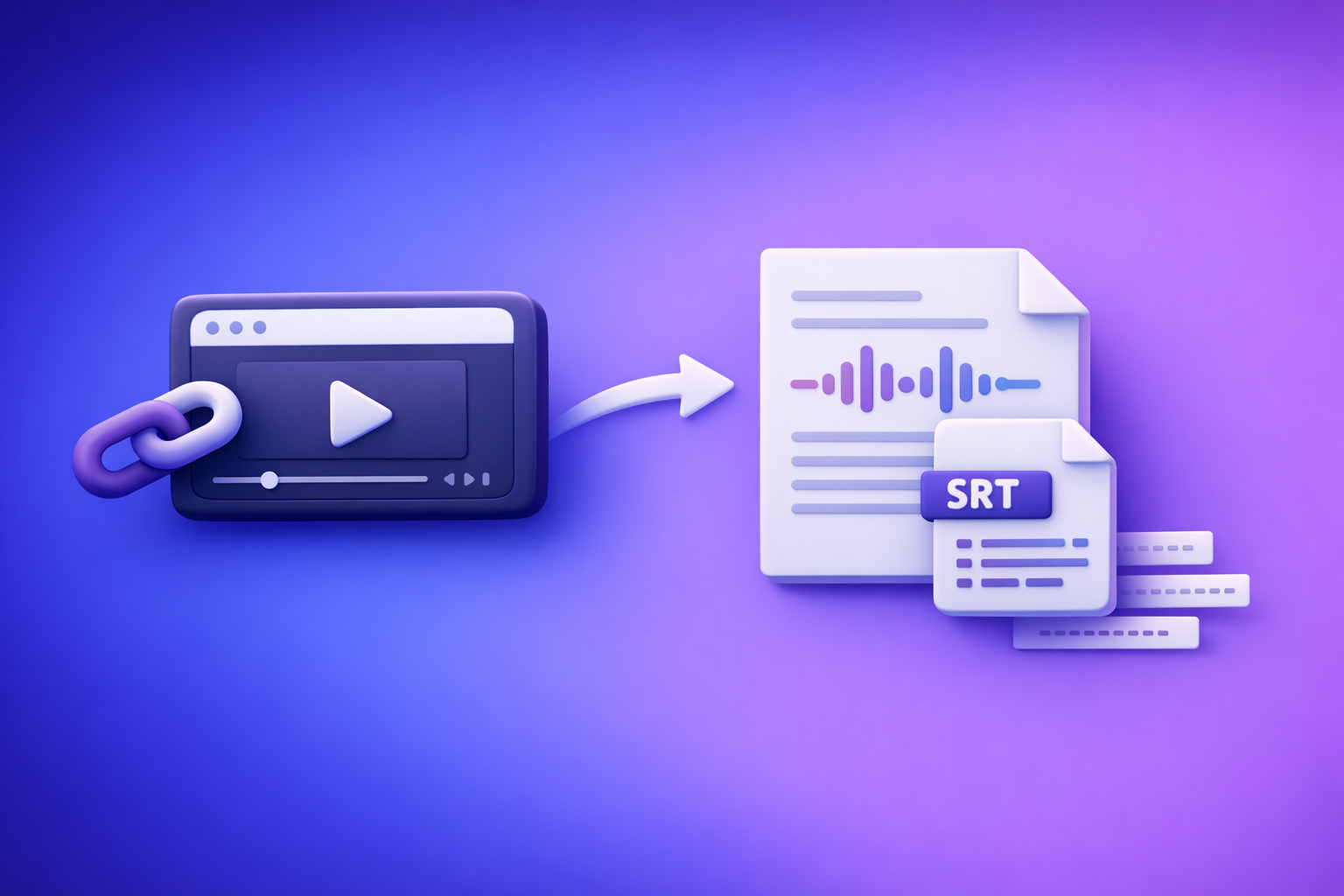
ChatGPT “Upload Video” Feature (2026): What Works, Why Uploads Fail, and the Production-Safe Link → Transcript Workflow
If you need a transcript or captions you can publish, don’t rely on ChatGPT video uploads—they’re inconsistent and rarely produce deterministic SRT/VTT. The production-safe workflow is video link/MP4 → export-ready TXT + SRT/VTT → ChatGPT-on-text for summaries, chapters, cut lists, and repurposing.
Quick Answer: Can ChatGPT Upload Video?
When “upload video” is available (and why you might not see it)
In 2026, “upload video” may appear in ChatGPT as an attachment option, but availability varies by:
- Web vs iOS vs Android (features often land on web first)
- Plan and feature flags (rollouts are staged and can be revoked)
- Temporary service constraints (peak load can change what’s enabled)
If you don’t see a video option today, it’s usually not “user error”—it’s rollout reality.
What ChatGPT can reliably do with video after you convert it to text
ChatGPT is most reliable when the input is complete, clean text. Once you have a transcript (plus timestamps), ChatGPT can consistently generate:
- Summaries and key takeaways
- Chapters and titles aligned to timestamps
- Clip/cut lists for short-form edits
- Repurposed content (blog posts, newsletters, social threads)
- Rewrite passes (tone, clarity, structure)
The production-safe approach (TL;DR): Video link/MP4 → TXT + SRT/VTT → ChatGPT-on-text
For teams shipping content weekly, the winning pattern is artifact-first:
- Generate TXT + SRT/VTT from a link (preferred) or MP4.
- Spot-check accuracy and timestamps.
- Use ChatGPT on the transcript to produce structured outputs.
This is also why downloading video files is an outdated workflow. Link-based extraction is faster, more scalable, and closer to how creators actually work across platforms.
What People Mean by “ChatGPT Upload Video”
Uploading a local file (MP4/MOV) vs. pasting a link (YouTube/Drive)
“Upload video” can mean two different things:
- Local upload: attaching an MP4/MOV from your device
- Link sharing: pasting a YouTube/Drive/Instagram/TikTok URL
In practice, link-based workflows are the future because they remove the slowest step: download → convert → upload.
“Analyze my video” vs. “Transcribe my video” vs. “Create captions/subtitles”
These are not the same job:
- Analyze: interpret content, themes, structure, visuals (often needs short clips)
- Transcribe: convert speech to text accurately and completely
- Captions/subtitles: transcription plus timestamps, line breaks, and export format rules
If your goal is publishing, “analyze” is optional. Export-ready captions are the requirement.
Why export-ready outputs (SRT/VTT, speaker labels, timestamps) are the real requirement
A transcript in a chat window is not a deliverable. Production needs:
- SRT/VTT for players and editors
- Timestamps that align with cuts
- Speaker labels (when relevant)
- Consistency across runs (deterministic artifacts)
If the tool can’t guarantee those, it’s not a production workflow.
How the ChatGPT “Upload Video” Feature Works (In Practice)
Typical flow inside ChatGPT (attach → process → respond)
When it works, the flow is usually:
- Attach video (or sometimes a link)
- Wait for processing
- Ask for transcription/summary/analysis
- Receive a response (often as plain text)
Where it breaks: processing time, context limits, and non-deterministic outputs
Common breakpoints:
- Processing timeouts on longer videos
- Context limits (long content gets truncated or summarized)
- Non-deterministic outputs (two runs can differ)
- Dropped sections without clear warnings
What you can expect it to return (and what it won’t): no guaranteed SRT/VTT, inconsistent timestamps
Even when ChatGPT returns “captions,” you often get:
- No strict SRT/VTT compliance
- Inconsistent or invented timestamps
- Missing lines when audio is unclear
- Formatting that breaks in YouTube/players/editors
If you need captions you can upload today, treat ChatGPT as a post-processing tool, not the transcription engine.
Why ChatGPT Video Uploads Fail (Root Causes + Fast Triage)
File constraints
Size limits and duration thresholds (why long videos time out)
Long videos are the #1 failure mode. Symptoms include:
- “Upload succeeded” but processing never finishes
- Partial transcript (beginning only)
- Generic summaries that skip entire segments
Triage: if it’s longer than a few minutes, assume you’ll hit timeouts or truncation.
Codecs/containers (MP4 vs MOV, H.264/H.265, variable frame rate)
“MP4” isn’t one format—it’s a container. Failures often come from:
- H.265/HEVC compatibility issues
- Variable frame rate exports from phones
- Unusual audio codecs inside MP4/MOV
Triage: re-encode to MP4 (H.264 video + AAC audio) before retrying.
Audio track issues (missing track, low bitrate, multi-track confusion)
Transcription quality depends on audio. Uploads fail or degrade when:
- Audio track is missing or muted
- Bitrate is too low (artifacting)
- Multiple tracks exist (wrong track selected)
Triage: export a single primary track, prioritize clarity over “studio loudness.”
Access + permissions constraints
Private links, expiring URLs, login walls
If you paste a link, access can fail due to:
- Private/unlisted content requiring login
- Expiring signed URLs
- Geo restrictions
Triage: test the link in an incognito window. If it doesn’t load there, it won’t load for tools.
DRM/restricted content and policy blocks
DRM and restricted content can be blocked at ingestion or analysis time.
Triage: if it’s paid/streaming/DRM, assume you need a permitted source file or a compliant workflow.
Client + rollout constraints
Web vs iOS vs Android differences
Mobile apps can lag behind web features, or show different attachment options.
Feature flags, plan differences, and intermittent availability
Even on the same plan, features can appear/disappear due to staged rollouts.
Triage: if it worked yesterday and not today, it’s likely rollout variance—not your file.
Reliability constraints
“Upload succeeded” but output is incomplete (dropped sections)
This is the most dangerous failure because it looks successful.
Signal: transcript ends abruptly, or summary references only early topics.
Hallucinated details when audio is unclear
When audio is noisy, models may “smooth over” gaps with plausible text.
Signal: confident statements that aren’t actually said.
No deterministic export format for captions
Even if you get “captions,” you may not get valid SRT/VTT with stable timestamps.
Signal: YouTube rejects the file, or captions drift out of sync.
The Reliable Workflow: Link/MP4 → Transcript/Subtitles → ChatGPT-on-Text (VideoToTextAI)
Why “artifact-first” wins (deterministic TXT + SRT/VTT you can ship)
A production workflow starts with export-ready artifacts. That means:
- You generate TXT + SRT/VTT first
- You verify completeness and timing
- Then you use ChatGPT for what it’s best at: rewriting, structuring, repurposing
This is also why downloading videos is outdated. The future is link-based extraction: paste a URL, generate artifacts, ship.
If you want a link-based workflow built for transcripts, subtitles, captions, and repurposing, use VideoToTextAI.
What you get at the end
Clean transcript (TXT)
A readable transcript you can edit, prompt against, and publish for SEO.
Captions/subtitles (SRT/VTT)
Export-ready subtitle files for YouTube, players, and editors.
Repurposed assets (blog, LinkedIn, Twitter/X, summaries)
Structured outputs derived from the transcript—without missing sections.
Step-by-Step Implementation (VideoToTextAI → ChatGPT)
Step 1 — Choose your input type
Use a video URL when possible (YouTube/Instagram/TikTok)
Link-based input is the modern workflow because it avoids file handling overhead. Examples:
- Use tiktok to transcript for TikTok URLs
- Use instagram to text for Instagram links
- Turn long-form into content with youtube to blog
Use MP4 upload when you control the file
If you own the file (webinars, interviews, courses), upload MP4 and generate artifacts:
Step 2 — Generate export-ready text outputs in VideoToTextAI
Create a transcript (TXT) for editing and prompting
Generate TXT first. This becomes your “source of truth” for:
- Summaries
- Blog drafts
- Quote extraction
- Compliance (“no invention” rule)
Export subtitles (SRT/VTT) for publishing and video editors
Export SRT/VTT so you can:
- Upload captions to YouTube
- Hand off to editors
- Keep timestamps stable across revisions
Step 3 — Quality pass before you involve ChatGPT
Do a quick pass to prevent downstream errors.
Fix speaker labels (if needed)
If it’s an interview or meeting:
- Ensure speakers are consistently labeled
- Merge duplicate speaker names (e.g., “Host” vs “HOST”)
Normalize punctuation + paragraphing
Small cleanup improves every prompt:
- Add paragraph breaks every 2–4 sentences
- Fix obvious punctuation errors
- Standardize acronyms and product names
Confirm timestamps align with cuts
Spot-check:
- Beginning (first 60 seconds)
- Middle (a random 60 seconds)
- End (last 60 seconds)
Step 4 — Run ChatGPT on the transcript (not the raw video)
Summaries that don’t miss sections (because the transcript is complete)
Prompt against the full transcript so summaries reflect the entire video, not just what processed before a timeout.
Chapters + titles from timestamps
With timestamps present, you can generate:
- Chapters for YouTube descriptions
- Section headers for blogs
- Navigation for course modules
Cut list: “best moments” with time ranges
Ask for:
- 5–15 clip candidates
- Start/end timestamps
- Hook + payoff per clip
Content repurposing: blog post, LinkedIn post, tweet thread
Because the transcript is deterministic, repurposing becomes repeatable.
For related reading, see:
- ChatGPT “Upload Video” Feature (2026): What Works, Why Uploads Fail, and the Reliable Link → Transcript Workflow
- ChatGPT “Upload Video” Feature (2026): How It Works, Why It Fails, and the Reliable Link → Transcript Workflow
Step 5 — Publish outputs
Upload SRT/VTT to YouTube or your player
Use the exported SRT/VTT directly. Avoid copy/pasting captions from chat responses.
Paste transcript into CMS for SEO (with proper formatting)
Best practice:
- Add an on-page “Transcript” section
- Use headings for chapters
- Keep speaker labels consistent
Reuse repurposed assets across channels
Ship the same content in multiple formats:
- Blog post
- Newsletter summary
- LinkedIn post
- Short-form clip scripts
Copy/Paste Prompt Pack (Run on Transcript + Timestamps)
Use these prompts only after you have TXT + timestamps (or SRT/VTT). Add: “Do not invent details; only use the transcript.”
Prompt 1 — Chapterization (timestamped)
You are given a transcript with timestamps. Create 8–12 chapters.
Requirements:
- Each chapter must include a timestamp (mm:ss or hh:mm:ss) taken from the transcript.
- Title each chapter in 3–7 words.
- Add a 1-sentence summary per chapter.
- Do not invent content; only use what’s in the transcript.
Output as a markdown table: Timestamp | Chapter Title | Summary.
Prompt 2 — Cut list for short-form clips (time ranges + hook + payoff)
From this timestamped transcript, propose 10 short-form clips.
For each clip provide:
- Start time and end time
- 1-sentence hook (first 2 seconds)
- Payoff (what the viewer learns)
- On-screen caption suggestion (max 12 words)
Rules: only use transcript content; no invented claims.
Prompt 3 — SEO blog draft from transcript (outline → draft → meta)
Turn this transcript into an SEO blog post.
Step 1: Provide an outline with H2/H3s.
Step 2: Write the full draft in short paragraphs (max 3 sentences).
Step 3: Provide:
- Meta title (max 60 chars)
- Meta description (max 155 chars)
- 5 internal link opportunities (anchor text only)
Rules: cite timestamps for key claims; do not add facts not present in the transcript.
Prompt 4 — Captions cleanup rules (line length, readability, profanity handling)
Clean these captions for readability.
Requirements:
- Max 42 characters per line, max 2 lines per caption
- Keep timestamps unchanged
- Fix punctuation and casing
- If profanity appears, replace vowels with * (e.g., sh*t)
Output valid SRT.
Implementation Checklist (Production-Safe)
Inputs checklist (before processing)
- Video link works without login/permissions issues (or MP4 is local and playable)
- Audio is present and clear (single primary track preferred)
- Target outputs defined: TXT + SRT or VTT (or both)
VideoToTextAI run checklist
- Generate transcript (TXT)
- Export subtitles (SRT/VTT)
- Verify timestamps and completeness (spot-check beginning/middle/end)
ChatGPT-on-text checklist
- Provide transcript + desired output format (chapters, cut list, blog, etc.)
- Require timestamp references for any claims
- Keep a “no invention” rule: only use transcript content
Troubleshooting: If You Still Need to Use ChatGPT With Video
If the upload button is missing
- Try web app vs mobile app (features differ)
- Check whether attachments are enabled for your account
- Assume staged rollout; don’t block production on it
If “video upload failed” appears
- Reduce duration: clip to 1–5 minutes for analysis-only tasks
- Convert to a standard MP4: H.264 video + AAC audio
- Remove extra audio tracks; export a single track
If you need analysis (not transcription)
- Provide a short clip plus context and specific questions
- If visuals matter, extract key frames and ask targeted questions about what’s on screen (when applicable)
Competitor Gap
Most guides stop at “try uploading” and ignore what production teams actually need: deterministic exports.
What’s usually missing:
- A repeatable workflow that produces TXT + SRT/VTT every time
- Implementation details: codec triage, completeness checks, timestamp validation
- A clear separation of concerns: transcription first, rewriting second
This post’s differentiator is the production-safe pipeline: link/MP4 → export-ready artifacts → ChatGPT-on-text for repurposing at scale—because downloading video files is an outdated workflow, and link-based extraction is the future of creator productivity.
FAQ
Does ChatGPT allow you to upload videos?
Sometimes. Availability varies by device, plan, and rollout status, and it’s not dependable for export-ready captions.
Why won’t ChatGPT let me upload videos?
Typical causes include size/duration timeouts, unsupported codecs, audio track issues, permissions/login walls on links, or the feature not being enabled for your client/account.
Can I upload a video to ChatGPT to analyze?
Yes for short clips when the feature is available. For anything you need to ship (transcripts/subtitles), generate TXT + SRT/VTT first, then analyze the text.
Can you add videos from your camera roll to ChatGPT?
On some mobile clients, you may be able to attach a local file. If it fails, re-encode to MP4 (H.264 + AAC) or switch to a link-based workflow.
Can you upload videos to ChatGPT for free?
Free access varies and changes over time. Even when available, production teams should not depend on it for deterministic transcript/subtitle exports.
Related posts
Reel Analyser (Instagram Reels): Transcript‑First Competitor Research, Hook/CTA Extraction, and Repurposing Workflow (VideoToTextAI)
Video To Text AI
A 2026 reel analyser should turn Instagram Reel links into a searchable transcript library you can tag for hooks, CTAs, objections, and topic clusters—then export into repurposing-ready drafts without a download/upload loop.
Traducir video de Instagram (Reels) en 2026: workflow transcript-first para traducir, sacar hooks/CTAs y repurpose (con VideoToTextAI)
Video To Text AI
Aprende a traducir un Reel de Instagram con un flujo URL→transcripción→traducción→subtítulos, y a convertir esa traducción en un activo de investigación para hooks, CTAs, objeciones y clusters de contenido.
Reel Analyzer: Transcript‑First Instagram Reels Research (Hooks, CTAs, Objections) + Workflow Guide (VideoToTextAI)
Video To Text AI
A reel analyzer should turn any public Instagram Reel link into a searchable transcript library you can mine for hooks, CTAs, objections, and topic clusters—then repurpose into original drafts with a repeatable SOP.