
Can ChatGPT Upload Video in 2026? What Works, What Fails, and the Reliable Link → Transcript Workflow (VideoToTextAI)
 Video To Text AI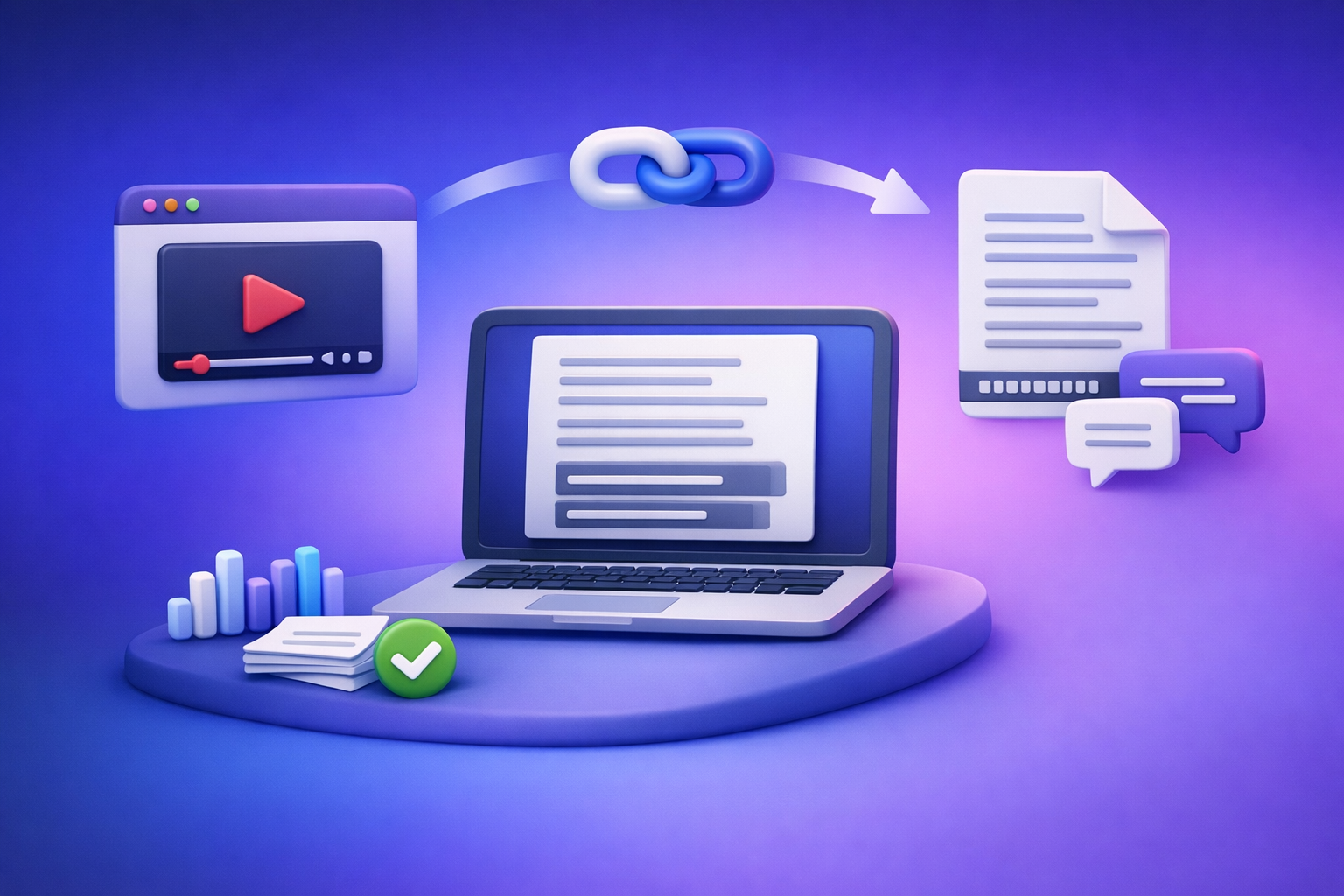
Can ChatGPT Upload Video in 2026? What Works, What Fails, and the Reliable Link → Transcript Workflow (VideoToTextAI)
If you need ChatGPT to “work with a video,” don’t bet your workflow on uploading the video file. Use a link/MP4 → transcript/subtitles → ChatGPT on text pipeline so results are consistent, searchable, and easy to repurpose.
Quick Answer (So You Don’t Waste Time)
ChatGPT video upload support in 2026 is inconsistent across plans, apps, and file types, and it often breaks on long videos or restricted links. The reliable path is to extract text first (transcript/subtitles with timestamps), then use ChatGPT for summarizing, structuring, and repurposing.
What “upload video to ChatGPT” can mean (and why people get stuck)
People usually mean one of these:
- Attach a video file in chat and ask for analysis.
- Paste a YouTube/Drive link and ask ChatGPT to “watch it.”
- Share a screen and ask ChatGPT to comment live.
- Upload a clip hoping it will transcribe and summarize.
The problem: these are different capabilities with different limits, and the UI often makes them look interchangeable.
The reliable workaround: video link/MP4 → transcript/subtitles → ChatGPT on text
A production-grade workflow is:
- Use a shareable link (best) or MP4 (fallback).
- Generate export-ready transcript/subtitles (TXT/SRT/VTT).
- Paste the text into ChatGPT for deterministic outputs: summaries, chapters, posts, emails, scripts.
Brand POV: Downloading video files is an outdated workflow. Link-based extraction is the future of creator productivity because it’s faster, more scalable, and avoids permission/file-size chaos.
What ChatGPT Can and Can’t Do With Video Uploads (Reality Check)
“Upload” vs “analyze” vs “watch” a video
These are not the same:
- Upload: you attach a file to a chat.
- Analyze: the model extracts meaning from content it can access (often via text or frames).
- Watch: continuous temporal understanding (harder, more failure-prone, and not guaranteed).
Even when “upload” appears available, “watching” a long video end-to-end is rarely reliable.
Common limitations you’ll hit
File size/time limits and long-video failures
Typical failure modes:
- Upload succeeds, but analysis times out.
- Only the first portion is processed.
- Audio-heavy content is missed or summarized inaccurately.
Long-form podcasts, webinars, and courses are the most likely to break.
Inconsistent support across plans/clients
What works in one environment may fail in another:
- Web vs mobile differences
- Feature rollouts that vary by region/account
- Temporary regressions or “feature not available” states
If your workflow depends on consistency, don’t anchor it to a feature that changes week to week.
Link access issues (private videos, expiring links, geo blocks)
Links fail for reasons unrelated to AI:
- “Anyone with the link” is not enabled
- Tokenized/expiring URLs
- Geo restrictions
- Login-required pages
- Rate limits and bot protections
This is why text exports are the safest handoff format.
When Video Upload to ChatGPT Does Work (And When It Doesn’t)
Scenarios where it may work
Video upload/link analysis may work when:
- The clip is short (think minutes, not hours).
- The file is a common format (MP4) and small enough.
- The content is publicly accessible without login.
- You only need high-level feedback (not precise quotes/timestamps).
Scenarios where it typically fails
YouTube/Drive links without proper permissions
Common issues:
- Google Drive set to “restricted”
- YouTube set to unlisted/private with limited access
- Corporate storage links requiring SSO
If ChatGPT can’t access it instantly, it won’t “watch” it.
Protected/DRM content
DRM and protected streams are designed to prevent extraction. Expect failure.
“Video upload failed” errors (including 403-style access blocks)
403-style blocks usually mean:
- The server denied access (permissions, bot protection, region)
- The link is expired or requires cookies/session
- The platform blocks automated fetching
In these cases, stop fighting the upload and switch to transcript/subtitles.
The Production-Grade Workflow: Link/MP4 → Transcript/Subtitles → ChatGPT (VideoToTextAI)
This workflow is built for creators, marketers, and teams who need repeatable outputs (blogs, captions, chapters, show notes) without upload roulette.
Step 1: Choose your input (best option first)
Use a shareable video link (YouTube/TikTok/Instagram/Reels)
Link-based input is the modern workflow because it:
- avoids downloading and re-uploading large files
- preserves the original source for reference
- scales across many videos quickly
If you’re doing platform-specific conversions, keep these tools handy:
Use an MP4 when links aren’t possible
Use MP4 when:
- the video is internal/private and can’t be shared by link
- you’re working from a camera file or exported recording
- you need a controlled source file for compliance
Related tools:
Step 2: Generate export-ready text with VideoToTextAI
Use VideoToTextAI when you want a link-based, AI-driven workflow that outputs clean text assets you can ship. One CTA only: Start with VideoToTextAI here: https://videototextai.com
Output types to pick (based on your goal)
- Transcript (TXT) for analysis and repurposing
Best for: summaries, blog drafts, knowledge base articles, sales enablement. - Subtitles (SRT/VTT) for publishing
Best for: YouTube captions, course platforms, accessibility, engagement. - Captions/chapters for navigation and SEO
Best for: on-page UX, skimmability, clip finding, topical indexing.
Quality settings that matter
Choose settings that make downstream ChatGPT work cleaner:
- Speaker labels: essential for interviews, podcasts, panels.
- Timestamps: required for chapters, clip extraction, and “quote with time.”
- Language selection/translation: pick the source language first, then translate if needed.
Step 3: Paste the transcript into ChatGPT for deterministic work
Once you have text, ChatGPT becomes predictable:
- You can verify outputs against the transcript.
- You can re-run prompts with the same input.
- You can cite exact lines and timestamps.
Best prompts for analysis (copy/paste ready)
- “Summarize this transcript into 10 bullet takeaways. Keep each bullet under 18 words. Then list 5 direct quotes with timestamps.”
- “Create chapters with timestamps from this transcript. Output as: 00:00 Title — 1 sentence summary.”
- “Extract action items, tools mentioned, and definitions. Output as three sections with bullets.”
Best prompts for repurposing (copy/paste ready)
- “Turn this into a blog post outline with H2/H3 headings. Include a short intro and conclusion.”
- “Write 5 LinkedIn posts from these sections. Each post: hook, 3 bullets, CTA question.”
- “Generate 12 short-form hooks + captions. Keep hooks under 8 words. Add 3 relevant hashtags each.”
Step-by-Step: Turn a Video Into a Blog Post (End-to-End)
This is the fastest path from “video exists” to “SEO asset published.”
1) Convert video → transcript (VideoToTextAI)
- Input: shareable link (preferred) or MP4.
- Output: TXT transcript + SRT/VTT if you’ll publish captions.
- Enable timestamps if you want chapters and internal anchors.
If you specifically want a blog workflow from a YouTube URL, use: youtube to blog
2) Clean transcript for structure (remove filler, fix speaker turns)
Do a quick pass before prompting ChatGPT:
- Remove repeated filler (“um,” “you know”) if it’s heavy.
- Ensure speaker turns are consistent (Speaker 1 / Speaker 2).
- Keep timestamps if you’ll generate chapters.
Goal: make the transcript scan-friendly so the model produces cleaner headings.
3) Create a blog draft from the transcript (ChatGPT)
Use a structured prompt:
- “Using the transcript below, write a blog post draft. Requirements: H2/H3 structure, short paragraphs, include a ‘Key Takeaways’ section, and keep claims grounded in the transcript.”
Then paste the transcript.
If the transcript is long, paste in chunks and ask ChatGPT to maintain a running outline.
4) Add SEO elements (title, headings, FAQ, internal links)
Add on-page SEO in a second pass:
- Title: include the primary keyword naturally.
- Headings: map H2s to subtopics people search (upload, analyze, failures, workaround).
- FAQ: answer PAA-style questions directly.
- Internal links: add relevant tool and post links.
Suggested internal reading:
- Can ChatGPT Transcribe Videos? What Works in 2026 (and the Reliable Link → Transcript Workflow)
- Can ChatGPT Upload Video? What Works in 2026 (and the Reliable Link → Transcript Workflow)
5) Publish with subtitles/captions as supporting assets
Treat subtitles as an asset, not an afterthought:
- Upload SRT/VTT to your video platform.
- Reuse chapters as jump links on the blog page.
- Pull 3–5 timestamped clips for social.
This is where link-based extraction wins: you’re producing a content system, not a one-off file upload.
Troubleshooting: “ChatGPT Video Upload Failed” (Fast Fixes)
Fix link access first (permissions checklist)
Before blaming the model, validate access:
- Is the link public or set to anyone with the link can view?
- Does it require login/SSO?
- Is it geo-restricted?
- Is it an expiring URL?
- Does it open in an incognito window?
If any answer is “yes,” expect failures.
Reduce complexity (short clip vs full file)
If you must test video upload:
- Trim to a 1–3 minute clip.
- Use MP4.
- Avoid 4K/huge bitrates.
This isolates whether the issue is size/timeout vs permissions.
Use transcript/subtitles instead of video
Fastest reliable fix:
- Generate transcript/subtitles.
- Paste text into ChatGPT.
- Ask for outputs with timestamps for traceability.
This avoids “upload failed,” “processing failed,” and link fetching issues entirely.
If you must share video context: send timestamps + transcript excerpts
When you can’t share the full transcript:
- Provide 3–7 key excerpts with timestamps.
- Add a one-line description of what happens visually at those times.
- Ask targeted questions (chapters, hooks, objections, summary).
Checklist: The Fastest Reliable Setup (Copy This)
Inputs
- Public/shareable link OR MP4 available
- Confirm link permissions (anyone with link can view)
- Confirm video has clear audio (no heavy background music)
VideoToTextAI outputs
- Export transcript (TXT) for ChatGPT
- Export subtitles (SRT or VTT) for publishing
- Enable timestamps if you need chapters/clip finding
ChatGPT workflow
- Summarize + extract key points from transcript
- Generate chapters/sections
- Repurpose into blog/social/email scripts
- Final pass: tighten, fact-check, add CTAs
Competitor Gap
What top-ranking pages miss
Most pages ranking for “can chat gpt upload video” stop at “you can’t” or “it depends,” then end.
They usually miss:
- No deterministic workflow (they don’t give a repeatable system)
- No implementation steps for link/MP4 → transcript → analysis
- No troubleshooting for permissions/403-style failures
- No reusable checklist or prompt set
How this post is better (what you’ll implement)
You now have:
- A repeatable VideoToTextAI pipeline with export-ready TXT/SRT/VTT
- A step-by-step repurposing path (video → transcript → blog)
- Troubleshooting tied to real failure modes (permissions, geo, expiring links)
- Copy/paste checklist + prompt templates you can reuse
FAQ
Does ChatGPT let you upload videos?
Sometimes, but it’s not consistent across plans and clients, and it’s unreliable for long videos. For dependable results, convert the video to transcript/subtitles and work from text.
Can I upload a video to ChatGPT to analyze?
In limited cases, yes, but analysis often fails due to file limits, timeouts, and access restrictions. A transcript-first workflow is easier to verify and iterate.
Does ChatGPT support video?
ChatGPT can support some video-related tasks, but “support” doesn’t mean it can reliably watch any link or process any file. Text inputs (transcripts, captions) remain the most stable interface.
Can I upload a recording to ChatGPT?
You may be able to attach a recording file, but success depends on size, format, and the app you’re using. If it fails, generate a transcript and paste it in.
Can you upload videos to ChatGPT for free?
Free access is typically the least reliable for video features and may not support larger files or advanced analysis. If you need predictable output, use a transcript/subtitles workflow and have ChatGPT operate on the text.
Related posts
Reel Analyser (Instagram Reels): Transcript‑First Competitor Research, Hook/CTA Extraction, and Repurposing Workflow (VideoToTextAI)
Video To Text AI
A 2026 reel analyser should turn Instagram Reel links into a searchable transcript library you can tag for hooks, CTAs, objections, and topic clusters—then export into repurposing-ready drafts without a download/upload loop.
Traducir video de Instagram (Reels) en 2026: workflow transcript-first para traducir, sacar hooks/CTAs y repurpose (con VideoToTextAI)
Video To Text AI
Aprende a traducir un Reel de Instagram con un flujo URL→transcripción→traducción→subtítulos, y a convertir esa traducción en un activo de investigación para hooks, CTAs, objeciones y clusters de contenido.
Reel Analyzer: Transcript‑First Instagram Reels Research (Hooks, CTAs, Objections) + Workflow Guide (VideoToTextAI)
Video To Text AI
A reel analyzer should turn any public Instagram Reel link into a searchable transcript library you can mine for hooks, CTAs, objections, and topic clusters—then repurpose into original drafts with a repeatable SOP.