
Can ChatGPT Upload Video? What Works in 2026 (and the Reliable Link → Transcript Workflow)
 Video To Text AI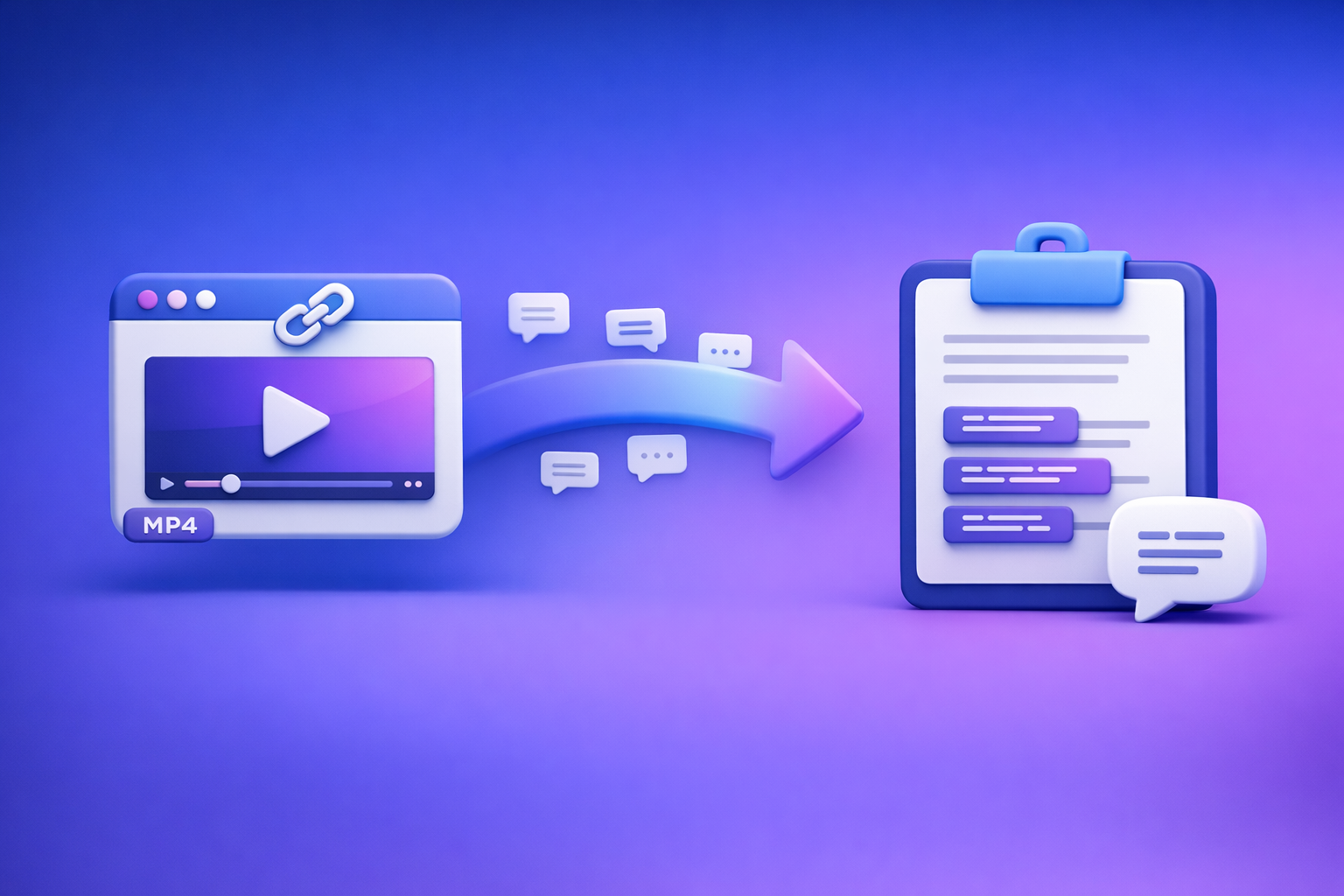
Can ChatGPT Upload Video? What Works in 2026 (and the Reliable Link → Transcript Workflow)
If you’re trying to figure out can chat gpt upload video, the practical answer is: don’t bet your workflow on it. In 2026, the reliable path is video link/MP4 → transcript/subtitles → ChatGPT for summaries, captions, chapters, and repurposed drafts.
Downloading huge files and “trying again” is an outdated workflow. Link-based extraction is the future of creator productivity because it’s faster, more repeatable, and easier to automate across platforms.
Quick Answer (What You Can and Can’t Do)
Can ChatGPT “upload” a video file?
Sometimes, but it’s inconsistent.
What typically happens in real use:
- Short clips may upload on some clients/plans.
- Longer videos often fail with timeouts, size limits, or processing errors.
- Even when an upload “works,” you may not get full-scene understanding—you’ll often get partial analysis.
If your goal is transcripts, subtitles, captions, summaries, or repurposing, you’ll get more predictable outcomes by converting video to text first.
Can ChatGPT analyze a video you link (YouTube/Drive/etc.)?
A link alone is not a guarantee.
Common outcomes:
- Public YouTube links may be usable in some contexts, but access and tool behavior vary.
- Google Drive/Dropbox links frequently fail due to permissions, login walls, expiring tokens, or region restrictions.
- Many “link analyses” end up being best-effort guesses unless you provide text (transcript) and timestamps.
What “video support” usually means in practice (files vs. frames vs. text)
“Video support” is often misunderstood. In practice, tools may support:
- Files: direct upload of a video file (often limited).
- Frames: analysis of selected frames or short segments (not the full timeline).
- Text: the most reliable input—transcripts, captions, scene notes, timestamps.
For content workflows, text is the deterministic layer you can store, search, edit, and reuse.
Why Video Uploads Fail (Common Limits + Real-World Symptoms)
File size, duration, and processing timeouts
Video is heavy. Uploading and processing it inside a chat UI is fragile.
Typical failure triggers:
- Large file sizes (especially 1080p/4K)
- Long durations (webinars, podcasts, meetings)
- Slow uploads or unstable connections
- Server-side processing timeouts
Symptoms you’ll see:
- “Upload failed”
- “Something went wrong”
- Processing stuck at a percentage
- The chat returns a generic error after waiting
Client/plan differences (web vs. mobile vs. enterprise)
Capabilities can differ by:
- Web app vs. mobile app
- Personal vs. team/enterprise environments
- Feature rollouts by region/account
Operationally, this means a workflow that works for one user may fail for another, even with the same file.
Permissions and access errors (private links, expired shares, region blocks)
Links fail more often than people expect.
Common causes:
- The link requires login (Drive, Dropbox, Loom, internal portals)
- The share link expires
- The content is region-blocked
- The video is unlisted/private without proper access
- The host blocks automated fetching
“Upload failed” patterns users report (including 403-style access issues)
A frequent pattern is 403-style access issues—the system can “see” the URL but cannot retrieve the media.
What to do when you see this pattern:
- Assume the link is not truly public.
- Remove login requirements.
- Use a transcript-first handoff (more below) to avoid repeated failures.
The Reliable Workflow: Video Link/MP4 → Transcript/Subtitles → ChatGPT
This is the workflow that keeps working even when “video upload” features change:
- Start with a video link (YouTube/TikTok/Instagram/etc.) or an MP4.
- Generate transcript + subtitles (TXT + SRT/VTT).
- Paste the transcript into ChatGPT for analysis, rewriting, and repurposing.
When to use this workflow (transcripts, captions, summaries, repurposing)
Use it when you need:
- Accurate transcripts for editing and search
- Subtitles/captions for publishing
- Summaries and key takeaways
- Chapters and timestamped outlines
- Repurposed assets (blog drafts, social posts, email copy)
This is why downloading video files is outdated: you don’t need the whole binary to do most knowledge work. You need the text layer.
What you’ll get at the end (TXT + SRT/VTT + structured outputs)
A solid pipeline produces:
- TXT transcript (editable, promptable)
- SRT subtitles (platform-friendly)
- VTT captions (web-player friendly)
- Optional structured outputs you can ask ChatGPT to generate:
- Chapters
- Hooks
- Post variants
- Action items
Step-by-Step: Turn Any Video Into Text with VideoToTextAI (Link-Based)
VideoToTextAI is designed for AI link-based video-to-text workflows—the modern alternative to downloading, re-uploading, and troubleshooting file limits. It’s built for transcripts, subtitles, captions, and content repurposing from links and MP4s.
Step 1 — Choose your input type (YouTube/Instagram/TikTok link vs. MP4)
Pick the input that matches your source:
- Public video URL (creator platforms, hosted pages)
- Short-form links (Reels/TikTok)
- Local file (MP4) when a link isn’t available
If you’re starting from a platform link, you’ll also like these fast paths:
Step 2 — Generate the transcript (accuracy + speaker/format options to decide)
Before generating, decide what “good” looks like:
- Language: original + any translation needs
- Speaker labeling: yes/no (useful for interviews, meetings, podcasts)
- Formatting: paragraphs vs. line breaks, timestamps vs. clean text
- Vocabulary: names, acronyms, product terms (plan to spot-check)
Operational tip: spot-check 2–3 sections (start, middle, end) for names, numbers, and jargon. Fixing a few terms early improves everything downstream.
Step 3 — Export the right format for your use case
Export based on where the text will be used next.
TXT for editing, notes, and LLM prompts
Use TXT when you want:
- Clean editing in docs
- Searchable notes
- The best input for ChatGPT prompts
If you’re starting from a local file, see: mp4 to transcript
SRT for subtitles
Use SRT when you need:
- Upload-ready subtitles for YouTube and many editors
- Timecoded lines for quick review
Tool path: mp4 to srt
VTT for web players
Use VTT when you need:
- Captions for web players
- HTML5 video workflows
Tool path: mp4 to vtt
Step 4 — Paste transcript into ChatGPT for analysis/rewrites (what to ask for)
Once you have TXT, you can get consistent outcomes because you’re giving ChatGPT the actual content.
Use prompts like these.
Prompt: clean up transcript without changing meaning
You are editing a transcript. Clean up grammar, remove filler words, and fix obvious transcription errors.
Do not change meaning or add new facts.
Keep speaker labels if present.
Return: (1) cleaned transcript, (2) a list of uncertain terms/names you want me to confirm.
Transcript:
[PASTE TRANSCRIPT]
Prompt: create chapters/timestamps from transcript
Create a chapter outline from this transcript.
Rules:
- 6–12 chapters
- Each chapter: title + 1 sentence summary
- If timestamps are present, use them; if not, infer approximate sections and label them as "approx."
Transcript:
[PASTE TRANSCRIPT]
Prompt: generate captions + hooks + post variants
Turn this transcript into social assets.
Deliverables:
1) 10 short hooks (<=12 words)
2) 15 caption options (1–2 sentences)
3) 5 LinkedIn post variants (80–150 words)
Constraints:
- Keep claims factual and aligned to transcript
- Avoid jargon unless defined
Transcript:
[PASTE TRANSCRIPT]
Step-by-Step: If You Must Use ChatGPT First (Workarounds That Sometimes Help)
Sometimes you’re forced to start inside ChatGPT (policy, team habit, or urgency). These workarounds can help, but they’re not as reliable as transcript-first.
Option A — Upload short clips (what “short” means operationally)
“Short” means:
- A single segment focused on one question
- Minimal duration (think seconds to a few minutes, not a full episode)
- Lower resolution if possible
If you need a full-video outcome, don’t split into 30 clips unless you enjoy manual work. Switch to link → transcript.
Option B — Share key frames/screenshots + transcript snippets
If the question is visual (UI walkthrough, slide deck, chart):
- Share 3–10 key frames (screenshots)
- Add the relevant transcript snippet
- Ask one specific question per batch
This reduces ambiguity and avoids full-video processing.
Option C — Provide a public link + a written description + timestamps
If you share a link, include:
- A 2–3 sentence description of what’s in the video
- The exact timestamps you want analyzed
- Any constraints (tone, audience, output format)
Decision rule: when to stop troubleshooting and switch to link → transcript
Stop troubleshooting and switch when:
- You’ve seen two upload failures
- You hit 403/access issues
- The video is longer than a few minutes
- You need subtitles/captions anyway
At that point, transcript-first is faster and more deterministic.
Implementation Checklist (Copy/Paste)
Inputs checklist (before you start)
- Video URL is public/accessible (or MP4 is available locally)
- Target output: transcript / SRT / VTT / summary / blog / social posts
- Language(s) needed + any translation requirement
- Speaker labeling needed (yes/no)
Processing checklist (during)
- Generate transcript from link/MP4 in VideoToTextAI
- Spot-check 2–3 sections for accuracy (names, numbers, jargon)
- Export TXT + SRT/VTT as needed
Repurposing checklist (after)
- Run transcript cleanup in ChatGPT
- Create: summary, chapters, title ideas, hooks, and post variants
- Store final assets: transcript + subtitles + repurposed drafts
Troubleshooting: “How to Share a Video with ChatGPT?” (Without Wasting Time)
Fix link access first (public permissions, login walls, expiring URLs)
Before blaming the model, verify:
- The link opens in an incognito window
- No login is required
- The URL won’t expire in 10 minutes
- The video isn’t region-blocked
If any of these fail, don’t keep retrying. Convert to text and proceed.
Reduce complexity (shorter clip, lower resolution, fewer attachments)
If you must attempt upload/link analysis:
- Trim to the relevant segment
- Reduce resolution
- Avoid multiple attachments in one message
Use text-first handoff (transcript + timestamps) for deterministic results
Text-first handoff wins because:
- It’s searchable and auditable
- It avoids access issues
- It produces consistent outputs across clients/plans
Minimal handoff template (what to paste into ChatGPT)
Template: context + goal + constraints + transcript + timestamp questions
Context:
- Video topic:
- Audience:
Goal:
- What I want you to produce (summary/chapters/captions/blog/etc.):

Constraints:
- Tone:
- Length:
- Must keep claims factual:
- Include timestamps? (yes/no)

Transcript (with timestamps if available):
[PASTE]

Questions:
1) What are the 5 key points?
2) What should the title and 3 thumbnail hooks be?
3) What are 8 chapter headings (with timestamps if present)?
Use Cases (Fast Paths)
Create subtitles/captions for publishing
Best path:
- Generate transcript + SRT/VTT
- Spot-check names/terms
- Publish with captions, then use ChatGPT for caption variants and hooks
Related tools:
Turn a YouTube video into a blog post draft
Best path:
- Extract transcript
- Ask ChatGPT to create a structured draft with headings, FAQs, and takeaways
Tool path: youtube to blog
Convert an MP4 recording into meeting notes + action items
Best path:
- MP4 → transcript
- Ask ChatGPT for decisions, owners, deadlines, and risks
Tool path: mp4 to transcript
Repurpose a Reel/TikTok into LinkedIn posts
Best path:
- Link → transcript
- Ask ChatGPT for 3–5 LinkedIn angles and a short thread
Tool paths:
Competitor Gap
What competitors miss
- No deterministic “video link → transcript” workflow users can execute end-to-end
- Weak/no troubleshooting for access errors, timeouts, and plan/client differences
- Missing reusable checklists and copy/paste templates tied to PAA queries
How this post closes the gap
- Provides a step-by-step implementation path that works even when ChatGPT uploads fail
- Adds a decision tree for when to troubleshoot vs. switch workflows
- Includes an execution checklist + handoff templates for ChatGPT repurposing
FAQ
Can I upload a video to ChatGPT to analyze?
Sometimes, but it’s not dependable for longer videos or strict requirements. If you need consistent results, convert the video to TXT/SRT/VTT first and then use ChatGPT on the text.
Does ChatGPT support video?
In limited ways depending on the client and plan. In practice, “video support” often means partial handling (short uploads or frame-level inputs), not robust end-to-end video processing.
How to share a video with ChatGPT?
Use a publicly accessible link (no login, no expiration) and include a transcript or timestamped notes. If you want deterministic output, share transcript + timestamps instead of the raw video.
Can I upload a recording to ChatGPT?
You may be able to upload a short recording, but for meetings/webinars/podcasts, the reliable workflow is recording → transcript/subtitles → ChatGPT.
Internal Link Plan
- Can ChatGPT Upload Video in 2026? What Actually Works (Plus a Reliable Link → Transcript Workflow)
- Can ChatGPT Upload Video? What Works in 2026 (and the Reliable Link → Transcript Workflow)
- mp4 to transcript
- youtube to blog
- tiktok to transcript
- instagram to text
If you want the workflow that avoids upload failures entirely, use link-based extraction and generate transcripts/subtitles first with VideoToTextAI.
Related posts
Reel Analyser (Instagram Reels): Transcript‑First Competitor Research, Hook/CTA Extraction, and Repurposing Workflow (VideoToTextAI)
Video To Text AI
A 2026 reel analyser should turn Instagram Reel links into a searchable transcript library you can tag for hooks, CTAs, objections, and topic clusters—then export into repurposing-ready drafts without a download/upload loop.
Traducir video de Instagram (Reels) en 2026: workflow transcript-first para traducir, sacar hooks/CTAs y repurpose (con VideoToTextAI)
Video To Text AI
Aprende a traducir un Reel de Instagram con un flujo URL→transcripción→traducción→subtítulos, y a convertir esa traducción en un activo de investigación para hooks, CTAs, objeciones y clusters de contenido.
Reel Analyzer: Transcript‑First Instagram Reels Research (Hooks, CTAs, Objections) + Workflow Guide (VideoToTextAI)
Video To Text AI
A reel analyzer should turn any public Instagram Reel link into a searchable transcript library you can mine for hooks, CTAs, objections, and topic clusters—then repurpose into original drafts with a repeatable SOP.