
Can ChatGPT Upload Video in 2026? What Actually Works (Plus a Reliable Link → Transcript Workflow)
 Video To Text AI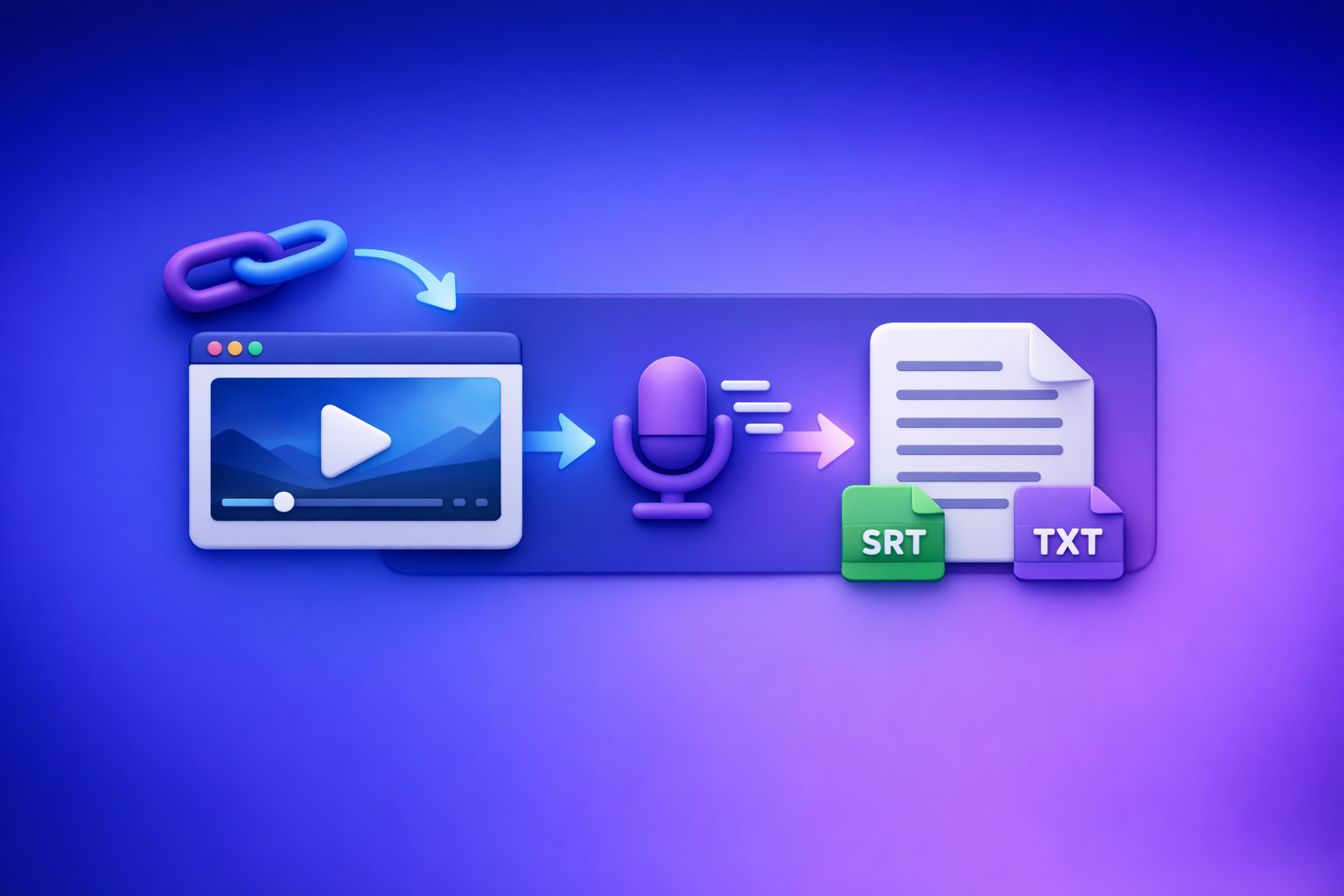
ChatGPT is not a reliable “upload a video and get a transcript” tool in 2026 across all accounts and clients. The dependable approach is video link/MP4 → transcript/subtitles → ChatGPT for rewriting, summaries, SEO content, and repurposing.
Quick Answer (What You Can and Can’t Do)
Can ChatGPT upload video files?
Sometimes—but it’s inconsistent.
Availability depends on:
- Plan and region
- Client (web vs iOS vs Android)
- Feature rollouts (what you see today may differ tomorrow)
- File constraints (size, duration, codec)
If your goal is production output (transcript/subtitles), treat video upload as best-effort, not a workflow.
Can ChatGPT “watch” a video you upload?
In certain configurations, ChatGPT can analyze visual content, but it’s not a deterministic “watch the whole video flawlessly” system.
Common limitations:
- Partial processing (only some segments)
- Missed context due to timeouts
- Inability to access audio cleanly from some uploads
- Safety/policy blocks
What ChatGPT can reliably do with video today (once it’s text)
Once you provide accurate text, ChatGPT becomes extremely reliable for:
- Cleaning transcripts (remove filler, normalize punctuation)
- Summaries and key takeaways
- Chapters with titles and timestamps (when timestamps exist)
- Blog posts, newsletters, show notes
- Short-form caption variants and hooks
- SEO repurposing (FAQs, snippets, outlines)
That’s why transcript-first is the practical standard.
What People Mean by “Upload Video to ChatGPT” (3 Different Use Cases)
1) Upload a video file for analysis (MP4/MOV)
This usually means: “Here’s an MP4—tell me what happens and what’s said.”
Reality:
- Upload may not be available.
- Even if available, long videos can fail or produce shallow analysis.
- You still need exportable text (TXT/SRT/VTT) for publishing workflows.
2) Paste a video link (YouTube/Drive/social) and ask for a transcript
This usually means: “Here’s a link—transcribe it.”
Reality:
- ChatGPT often cannot access private/expiring links.
- Many platforms block automated fetching.
- Even when it responds, it may guess instead of extracting.
If you need a transcript you can ship, use a tool designed for link-based extraction (the modern workflow).
3) Extract captions/transcript first, then use ChatGPT for rewriting/repurposing
This is the workflow that consistently works:
- Use a transcription engine to generate TXT/SRT/VTT
- Use ChatGPT as the writing and structuring engine
- Publish across YouTube, blogs, and social—fast
Brand POV: Downloading video files just to move them between tools is an outdated workflow. Link-based extraction is the future of creator productivity because it reduces friction, avoids file chaos, and scales across teams.
Why Video Uploads Fail or Feel Inconsistent
Client differences (web vs mobile) and feature rollouts
You might see upload on desktop but not on mobile (or vice versa). Teams often waste time troubleshooting “missing buttons” that are simply rollout differences.
File constraints: size, duration, codec, and processing timeouts
Video is heavy. Common failure modes include:
- Large files exceeding limits
- Long duration causing timeouts
- Unsupported codecs or variable frame rates
- Slow upstream bandwidth on mobile
Permissions and access issues (private links, expiring URLs, paywalled content)
If the model can’t access the content, it can’t transcribe it.
Typical blockers:
- Google Drive links requiring login
- Unlisted/private YouTube videos
- Social links that expire or require cookies
- Paywalled courses and membership content
Policy and safety restrictions (copyrighted content, sensitive content)
Even if you own the content, automated systems may restrict processing when content appears copyrighted or sensitive.
Bottom line: video upload is not a stable foundation for deliverables.
The Reliable Workflow: Video Link/MP4 → Transcript/Subtitles → ChatGPT
When to use this workflow (transcripts, subtitles, summaries, blog posts, SEO content)
Use transcript-first when you need:
- Accurate transcripts for documentation or compliance
- Subtitles/captions for publishing (SRT/VTT)
- Show notes and chapters
- Blog posts and SEO pages from video
- Repurposed social content at scale
If the output must be correct and reusable, don’t gamble on direct video upload.
What you’ll get at the end (TXT + SRT/VTT + repurposed assets)
A production-ready pipeline yields:
- Transcript (TXT) for editing and writing
- Subtitles (SRT) for YouTube and players
- Captions (VTT) for web workflows
- Repurposed assets: blog, LinkedIn post, X thread, email, hooks
For specific formats, see: mp4 to transcript, mp4 to srt, and mp4 to vtt.
Step-by-Step: Turn Any Video Into Text with VideoToTextAI (Then Use ChatGPT)
Step 1 — Choose your input: video URL or MP4
Prioritize links whenever possible. Links are faster to manage, easier to share with teammates, and avoid “where is the file?” problems.
Supported sources to prioritize:
- YouTube (great for long-form): youtube to blog
- TikTok (short-form): tiktok to transcript
- Instagram/Reels: instagram to text
- Podcasts (video or audio links)
- Direct MP4 (when a link isn’t available)
Modern workflow principle: If the content already lives online, don’t download it just to re-upload it. Link-based extraction is the scalable path.
Step 2 — Generate export-ready text in VideoToTextAI
Run transcription and select outputs based on where you’ll publish.
Output options to select:
- Transcript (TXT) for editing, summaries, and repurposing
- Subtitles (SRT) for YouTube uploads and video editors
- Captions (VTT) for web players and accessibility workflows
Accuracy levers to set:
- Language selection (don’t leave it ambiguous if you know it)
- Speaker labeling (if available) for interviews/podcasts
- Punctuation for readability and downstream summarization
If you want a single place to run link-based extraction and export formats, use VideoToTextAI: VideoToTextAI
Step 3 — Export and validate the transcript/subtitles
Do a quick validation pass before you ask ChatGPT to “make it perfect.” Fixing upstream errors once saves time across every repurposed asset.
Quick validation checklist:
- Timestamps: do they progress smoothly (no jumps or overlaps)?
- Speaker names: consistent labels (Speaker 1/2 or real names)
- Missing sections: intros/outros often get clipped in bad runs
- Obvious mishears: brand names, product terms, acronyms
Step 4 — Paste the transcript into ChatGPT with a production prompt
ChatGPT performs best when you give it:
- The full transcript
- The target format
- Clear constraints (tone, length, audience)
- A request to avoid inventing details
Below are copy/paste prompts you can reuse.
Prompt: clean + structure transcript
You are an editor. Clean this transcript without changing meaning.
Rules:
- Remove filler words and false starts.
- Keep technical terms and names exactly as written.
- Normalize punctuation and paragraph breaks.
- Do NOT add facts that aren’t in the transcript.
Output:
1) Clean transcript
2) Bullet list of unclear phrases you suspect are misheard

TRANSCRIPT:
[paste transcript here]
Prompt: create chapters + titles + timestamps
Works best if your transcript includes timestamps (or you paste time markers).
Create YouTube chapters from this transcript.
Rules:
- 6–12 chapters.
- Each chapter needs: timestamp (mm:ss) + short title (max 55 chars).
- Titles should be specific and keyword-friendly.
- Do NOT invent segments that aren’t present.

TRANSCRIPT (with timestamps if available):
[paste here]
Prompt: generate captions variants (short/medium/long)
Generate caption sets for social from this transcript.
Output 3 sets:
- Short: 8–12 words each, punchy, 10 options
- Medium: 18–28 words each, 10 options
- Long: 35–55 words each, 10 options
Rules:
- Keep claims faithful to the transcript.
- Avoid hashtags unless I ask.
- Write in a clear, professional creator tone.

TRANSCRIPT:
[paste here]
Prompt: repurpose into blog + LinkedIn + X threads (from the same transcript)
Repurpose this transcript into:
A) Blog post (900–1200 words) with H2/H3s, SEO-friendly, no fluff
B) LinkedIn post (150–220 words) with a strong hook + 5 bullets + CTA line
C) X thread (8–12 tweets) with a clear narrative and takeaways

Rules:
- Only use information from the transcript.
- If something is missing, write [NEEDS SOURCE] instead of guessing.
- Keep terminology consistent.

TRANSCRIPT:
[paste here]
Step 5 — Publish or ship deliverables (captions, blog, show notes, docs)
Where to use outputs:
- YouTube description: summary, chapters, key links
- Blog CMS: transcript-based article + FAQ
- Subtitle upload: SRT/VTT to YouTube or your player
- Social scheduling: caption variants + hooks
- Internal docs: meeting notes, training, SOPs
If you want more background on the workflow, see:
- Can ChatGPT Upload Video in 2026? What Actually Works (and the Reliable Link → Transcript Workflow)
- Can ChatGPT Upload Video? What Works in 2026 (and the Reliable Link → Transcript Workflow)
Implementation Checklist (Copy/Paste)
Inputs
- Video URL works in an incognito window (or MP4 is playable locally)
- Confirm language(s) and target output format (TXT/SRT/VTT)
VideoToTextAI run
- Generate transcript
- Generate subtitles (SRT) and/or captions (VTT) if needed
- Export files and store in a project folder
QA
- Spot-check 3 segments (start/middle/end) for accuracy
- Confirm timestamps align (if using SRT/VTT)
- Fix names/terms once (then reuse in ChatGPT prompts)
ChatGPT post-processing
- Clean transcript (remove filler, normalize punctuation)
- Create chapters + summary + key takeaways
- Produce repurposed assets (blog, social, email)
Troubleshooting: If You Still Want to Try “Upload Video to ChatGPT”
If upload isn’t available in your account/client
- Try the web client if mobile doesn’t show upload (or the reverse).
- Confirm you’re signed into the intended workspace/account.
- Assume it’s a rollout issue and don’t block production on it.
Best practice: keep a transcript-first workflow ready so you’re never waiting on UI availability.
If the upload fails (size/timeouts)
- Trim the video into smaller segments (e.g., 5–15 minutes).
- Re-encode to a common codec (H.264 + AAC) if you control the file.
- Use a link-based transcription workflow instead of repeated uploads.
If ChatGPT output is vague or hallucinates details
- Provide the transcript and require: “If not in transcript, write [NEEDS SOURCE].”
- Ask for quotes with timestamps (if available) to force grounding.
- Don’t ask “What happens in this video?” without giving text—this invites guessing.
If you only need “what’s said” (use transcript-first every time)
If the requirement is dialogue accuracy, skip video upload experiments. Generate TXT/SRT/VTT first, then use ChatGPT for editing and repurposing.
Competitor Gap
Most pages ranking for “can chat gpt upload video” stop at a yes/no answer or a forum anecdote. This guide closes the practical gaps with a production workflow.
- Step-by-step workflow instead of “it depends” replies
- Deterministic outputs (TXT/SRT/VTT) vs inconsistent “video understanding”
- Troubleshooting mapped to real failure modes (permissions, timeouts, formats)
- Reusable checklist + prompts you can execute immediately
- Clear separation of tasks: transcription engine vs writing/repurposing engine
FAQ
Can I upload a video to ChatGPT?
Sometimes. It depends on your plan, client, and current feature availability. For reliable deliverables, use a transcript-first workflow and give ChatGPT text.
Does ChatGPT work with videos?
It can help with video tasks, but it’s most reliable when working from transcripts/captions. Use ChatGPT to structure, summarize, and repurpose once the video is converted to text.
Does ChatGPT not accept videos?
Some accounts/clients won’t show video upload, and uploads can fail due to size, codec, or timeouts. That’s why link-based extraction plus exportable formats is the safer workflow.
Can ChatGPT watch videos you upload?
In some configurations it may analyze visual content, but it’s not consistent enough for a production pipeline. If you need “what’s said,” generate a transcript (TXT/SRT/VTT) first, then use ChatGPT for editing and content creation.
Related posts
Reel Analyser (Instagram Reels): Transcript‑First Competitor Research, Hook/CTA Extraction, and Repurposing Workflow (VideoToTextAI)
Video To Text AI
A 2026 reel analyser should turn Instagram Reel links into a searchable transcript library you can tag for hooks, CTAs, objections, and topic clusters—then export into repurposing-ready drafts without a download/upload loop.
Traducir video de Instagram (Reels) en 2026: workflow transcript-first para traducir, sacar hooks/CTAs y repurpose (con VideoToTextAI)
Video To Text AI
Aprende a traducir un Reel de Instagram con un flujo URL→transcripción→traducción→subtítulos, y a convertir esa traducción en un activo de investigación para hooks, CTAs, objeciones y clusters de contenido.
Reel Analyzer: Transcript‑First Instagram Reels Research (Hooks, CTAs, Objections) + Workflow Guide (VideoToTextAI)
Video To Text AI
A reel analyzer should turn any public Instagram Reel link into a searchable transcript library you can mine for hooks, CTAs, objections, and topic clusters—then repurpose into original drafts with a repeatable SOP.