
Can ChatGPT Transcribe Video? What Works in 2026 (and the Reliable Link → Transcript Workflow)
 Video To Text AI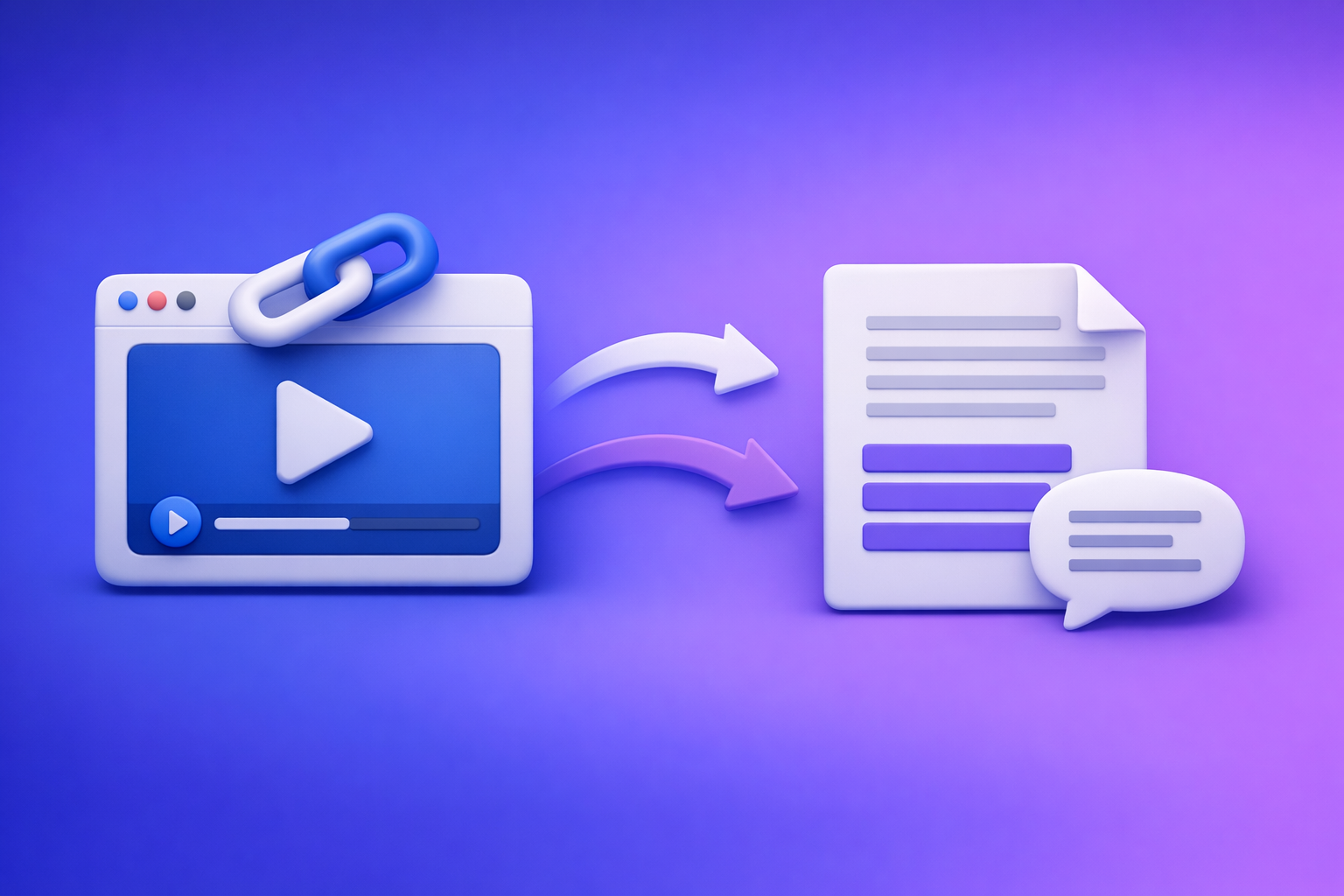
Can ChatGPT Transcribe Video? What Works in 2026 (and the Reliable Link → Transcript Workflow)
If you want a reliable transcript or subtitles, generate the transcript first with a purpose-built tool, then use ChatGPT to clean and repurpose the text. The most dependable 2026 workflow is video link/MP4 → transcript/subtitles → ChatGPT (not “paste a link into ChatGPT and hope”).
Quick Answer (What You Can Expect From ChatGPT)
What ChatGPT can do well with video transcription
ChatGPT is excellent after you already have text.
Use it to:
- Fix formatting (paragraphs, punctuation, readability)
- Summarize long transcripts into key points
- Create chapters and titles from timestamps
- Repurpose into blog posts, newsletters, LinkedIn posts, and short-form hooks
- Extract action items and decisions from meetings/interviews
What ChatGPT cannot reliably do end-to-end
ChatGPT is not a production-grade “video → transcript” engine by itself.
Common failure points:
- Inconsistent access to video links (permissions, geo restrictions, login walls)
- Unreliable handling of long videos (timeouts, size limits, context limits)
- No guaranteed subtitle exports (SRT/VTT with stable timestamps)
- No deterministic QA controls (speaker labels, diarization, verbatim rules)
The reliable workflow in one line: Video link/MP4 → transcript/subtitles → ChatGPT cleanup + repurposing
This is the modern creator workflow:
- Link-based extraction first (fast, scalable, no file wrangling)
- Transcript/subtitles as the source of truth
- ChatGPT as the editor and content engine
If you’re building a repeatable pipeline, treat ChatGPT as the post-processing layer, not the transcription layer.
What “Transcribe a Video With ChatGPT” Actually Means
People mean different things when they ask “can chat gpt transcribe video.” Clarify the deliverable first.
Scenario A: You want a timestamped transcript (TXT)
You want:
- A readable transcript (often with speaker labels)
- Optional timestamps (every paragraph or every N seconds)
- A format you can publish or feed into other tools
Best practice: generate the transcript in a transcription tool, then use ChatGPT to clean it without changing meaning.
Scenario B: You want subtitles/captions (SRT/VTT)
You want:
- SRT for most video editors and platforms
- VTT for web players and accessibility workflows
- Accurate timestamps that don’t drift
This is where “ChatGPT-only” workflows break most often, because subtitles require timing precision and consistent formatting.
If you specifically need subtitle outputs, see:
Scenario C: You want repurposed content (blog, LinkedIn, X) from the transcript
This is ChatGPT’s sweet spot.
You provide:
- A clean transcript (TXT)
- Context (audience, offer, tone)
- Constraints (length, structure, CTA rules)
Then ChatGPT generates drafts quickly and consistently.
A direct workflow example: YouTube to Blog
Scenario D: You want to “paste a YouTube link into ChatGPT” and get a transcript (why this fails)
This fails because:
- ChatGPT may not be able to fetch the video or audio stream
- Even if it can, it may not produce timestamped output
- Long videos exceed practical limits for end-to-end processing
- You can’t count on stable SRT/VTT formatting
In 2026, downloading video files just to transcribe them is an outdated workflow. Link-based extraction is the future of creator productivity because it removes file handling, reduces friction, and scales across channels.
When ChatGPT Transcription Works vs. Breaks (Real-World Constraints)
Upload/link access limitations (client differences, permissions, timeouts)
Even if one device or account can upload a file, another may not.
Typical blockers:
- Private videos (unlisted, login-required, team drives)
- Expiring links and signed URLs
- Rate limits and timeouts on long processing tasks
File size, duration, and format constraints (why long videos fail)
Long videos create compounding issues:
- Upload time + processing time + response size limits
- Context window constraints (you can’t “hold” hours of audio reliably)
- Increased risk of partial outputs or truncated transcripts
Accuracy risks: accents, crosstalk, music, low audio quality
Transcription accuracy drops when:
- Multiple speakers overlap (crosstalk)
- Background music competes with speech
- Microphones are distant or clipped
- Speakers have strong accents or code-switching
You need a workflow that supports QA and correction, not just “one-shot output.”
Compliance risks: copyrighted content and private videos
Be careful with:
- Copyrighted media you don’t own rights to
- Client recordings under NDA
- Sensitive personal data
A production workflow should include access control and a clear policy for what you upload and where.
The Production-Grade Workflow (VideoToTextAI): Link/MP4 → Transcript/Subtitles → ChatGPT
VideoToTextAI is designed for AI link-based video-to-text workflows so you can go from a URL (or MP4) to transcripts, subtitles, captions, and repurposed content without the “download, rename, re-upload” mess.
Step 1 — Choose input: video URL vs MP4 upload (which to use when)
Use a video URL when:
- The video is public or accessible via a stable link
- You want the fastest workflow with the least friction
- You’re processing multiple videos at scale
Use an MP4 upload when:
- The video is private/local (client files, internal recordings)
- The link is restricted or expires
- You need full control over the source file
Related tools:
Step 2 — Generate the transcript in VideoToTextAI
Output options: TXT vs SRT vs VTT (what to pick for your use case)
Pick based on where the text will live:
- TXT: editing, publishing on a page, feeding ChatGPT for repurposing
- SRT: YouTube uploads, Premiere/Final Cut workflows, most caption pipelines
- VTT: web players, accessibility tooling, HTML5 video
If you’re unsure, generate TXT + SRT so you have both the readable transcript and the subtitle file.
Speaker labels + punctuation (what to enable for readability)
Enable:
- Speaker labels if it’s an interview, podcast, meeting, or panel
- Punctuation for readability and faster editing
- Paragraphing (or chunking) to make ChatGPT prompts more effective
Step 3 — Quality pass: fix the 5 most common transcript errors
Do a fast QA pass before you repurpose anything.
Names/brands/terms
- Correct proper nouns (people, products, locations)
- Standardize brand capitalization
- Add a short glossary for recurring terms
Numbers, dates, and units
- Verify prices, percentages, dates, and measurements
- Fix “fifteen” vs “fifty” type errors
- Ensure consistency (USD vs $, metric vs imperial)
Speaker turns
- Confirm speaker boundaries
- Fix merged speakers in fast back-and-forth sections
- Relabel speakers consistently (Host/Guest, Speaker 1/2)
Filler words vs verbatim requirements
- Remove filler words for publishable content
- Keep verbatim if required for legal/compliance or research
Missing lines from noisy sections
- Re-check segments with music, laughter, applause, or side conversations
- If needed, re-run those segments after basic audio cleanup
Step 4 — Use ChatGPT on the transcript (not the video)
This is the key: ChatGPT performs best when you give it clean text.
Prompt: clean up without changing meaning
You are an editor. Clean up this transcript for readability (punctuation, paragraphs, light filler removal) without changing meaning. Do not add new facts. Preserve speaker labels. Output in Markdown.
Prompt: create chapters + titles from timestamps
Create 6–12 chapters from this transcript. Use the existing timestamps to anchor each chapter. Output:
00:00 Title — 1 sentence summary.
Prompt: extract key takeaways + action items
From this transcript, extract: (1) top 10 takeaways, (2) decisions made, (3) action items with owner + due date if mentioned. If owner/due date is not stated, write “TBD”.
Prompt: generate captions and hooks for short-form clips
Generate 15 short-form clip ideas from this transcript. For each: a hook (max 12 words), a 1–2 sentence caption, and suggested clip start/end timestamps.
For short-form sources, you may also want:
Step 5 — Export and publish
Subtitles: SRT/VTT export and where to upload them
- YouTube: upload SRT in Subtitles/CC
- LinkedIn: burn-in captions or upload where supported
- Web players: use VTT tracks for accessibility
SEO: publish transcript as an indexable page section (best practice)
For SEO and discoverability:
- Publish the transcript on the same URL as the video (when possible)
- Add chapters and a summary above the transcript
- Use headings (H2/H3) for major sections
- Keep the transcript crawlable (not hidden behind heavy JS)
If you’re building a content hub, also link to related workflows like Podcast Transcription.
Step-by-Step: Transcribe a YouTube Video (Fastest Path)
1) Paste the YouTube link into VideoToTextAI
This is the modern workflow: link in, text out.
It avoids:
- Downloading large files
- Renaming and re-uploading assets
- Losing time to file management
2) Export transcript + SRT/VTT
Export:
- TXT for editing and repurposing
- SRT/VTT for captions and accessibility
3) Paste transcript into ChatGPT for formatting + repurposing
Use the prompts above to generate:
- Chapters
- Summary
- Clip hooks
- Blog draft
4) Publish: transcript, summary, and clip-ready captions
Ship a complete package:
- Video page with summary + chapters + transcript
- Caption files uploaded to platforms
- 5–10 short clips queued with captions
Step-by-Step: Transcribe an MP4 File (Best for Private/Local Videos)
1) Upload MP4 to VideoToTextAI
Use MP4 upload when the content is private or link access is restricted.
2) Choose transcript + subtitle format
- TXT for editing/repurposing
- SRT/VTT for captions
3) Run a quick accuracy review
Focus on:
- Proper nouns
- Numbers
- Speaker labels
- Any noisy segments
4) Use ChatGPT to generate deliverables (blog, LinkedIn, email)
Work from the final transcript to produce:
- Blog outline + draft
- LinkedIn carousel copy or post thread
- Email newsletter summary + CTA blocks
Troubleshooting (Fixes Competitors Don’t Cover)
If the transcript misses sections: split the video and re-run
- Split long videos into smaller parts (e.g., 15–30 minutes)
- Re-run only the missing segment
- Merge transcripts after QA
If timestamps drift: regenerate as SRT/VTT and re-export
- Generate SRT/VTT first (timing-anchored)
- Convert to TXT after if needed
- Avoid manual timestamp editing unless absolutely necessary
If speakers are mixed: force speaker diarization + manual relabel pass
- Enable speaker detection/diarization
- Do a quick manual relabel for the first 2–3 minutes to set the pattern
- Re-check fast back-and-forth sections
If accuracy is low: improve audio first (noise reduction, normalize levels)
Before re-transcribing:
- Apply noise reduction
- Normalize levels
- Reduce background music under speech
- Prefer a clean mono vocal track when available
If you need verbatim/legal: define “verbatim” rules before generating
Define upfront:
- Keep filler words? (um/uh)
- Keep false starts?
- Mark inaudible sections as
[inaudible 03:21]? - Include non-speech events like
[laughter]?
This prevents rework and makes QA objective.
Checklist: Reliable Video → Text Delivery (Copy/Paste)
Inputs checklist (before you start)
- Video link works (public/accessible) or MP4 is available
- Audio is clear (no heavy music over speech)
- Target output chosen: TXT / SRT / VTT
- Language(s) confirmed
Transcript QA checklist (before you ship)
- Proper nouns verified (people, brands, locations)
- Numbers verified (prices, dates, stats)
- Speaker labels correct (if required)
- Timestamps aligned (if subtitles)
- Sensitive/copyrighted sections handled appropriately
Repurposing checklist (after transcript is final)
- Chapters + summary created
- 5–10 short clips/captions drafted
- Blog/LinkedIn/X drafts generated from transcript
- Final outputs reviewed by a human
Competitor Gap
Most “ChatGPT transcription” articles still recommend a fragile approach: upload something, paste a link, and hope it works.
A production-grade guide must include:
- Deterministic workflow (link/MP4 → transcript/subtitles → ChatGPT), not guesswork
- Troubleshooting for failure modes (timestamps, long videos, speaker mix-ups)
- Reusable prompts + ship-ready checklist (inputs → QA → repurposing)
- Format decision guidance (TXT vs SRT vs VTT) tied to real publishing needs
If you want the link-first workflow that scales across YouTube, podcasts, and short-form without file downloads, use VideoToTextAI: VideoToTextAI
FAQ
Which AI can transcribe video?
Dedicated transcription tools are best for video because they support long durations, timestamps, speaker labels, and subtitle exports. Use ChatGPT after transcription to polish and repurpose.
Can you put a video into ChatGPT?
Sometimes, depending on your client and plan, but it’s not consistent for long videos or subtitle deliverables. For reliable output, transcribe via a link/MP4 workflow and then use ChatGPT on the text.
Can ChatGPT read text from video?
ChatGPT can help interpret frames or extracted text in some setups, but that’s different from speech-to-text transcription. For spoken audio, generate a transcript first, then use ChatGPT for editing and content generation.
What’s the best way to transcribe a video?
Use a workflow that starts with a video link (preferred) or MP4, outputs TXT/SRT/VTT, then uses ChatGPT for cleanup, chapters, summaries, and repurposing. This avoids outdated “download and re-upload” loops and scales better for creators and teams.
Internal Link Plan
Related posts
Reel Analyser (Instagram Reels): Transcript‑First Competitor Research, Hook/CTA Extraction, and Repurposing Workflow (VideoToTextAI)
Video To Text AI
A 2026 reel analyser should turn Instagram Reel links into a searchable transcript library you can tag for hooks, CTAs, objections, and topic clusters—then export into repurposing-ready drafts without a download/upload loop.
Traducir video de Instagram (Reels) en 2026: workflow transcript-first para traducir, sacar hooks/CTAs y repurpose (con VideoToTextAI)
Video To Text AI
Aprende a traducir un Reel de Instagram con un flujo URL→transcripción→traducción→subtítulos, y a convertir esa traducción en un activo de investigación para hooks, CTAs, objeciones y clusters de contenido.
Reel Analyzer: Transcript‑First Instagram Reels Research (Hooks, CTAs, Objections) + Workflow Guide (VideoToTextAI)
Video To Text AI
A reel analyzer should turn any public Instagram Reel link into a searchable transcript library you can mine for hooks, CTAs, objections, and topic clusters—then repurpose into original drafts with a repeatable SOP.