
Can ChatGPT Upload Video in 2026? What Works, What Fails, and the Reliable Link → Transcript Workflow
 Video To Text AI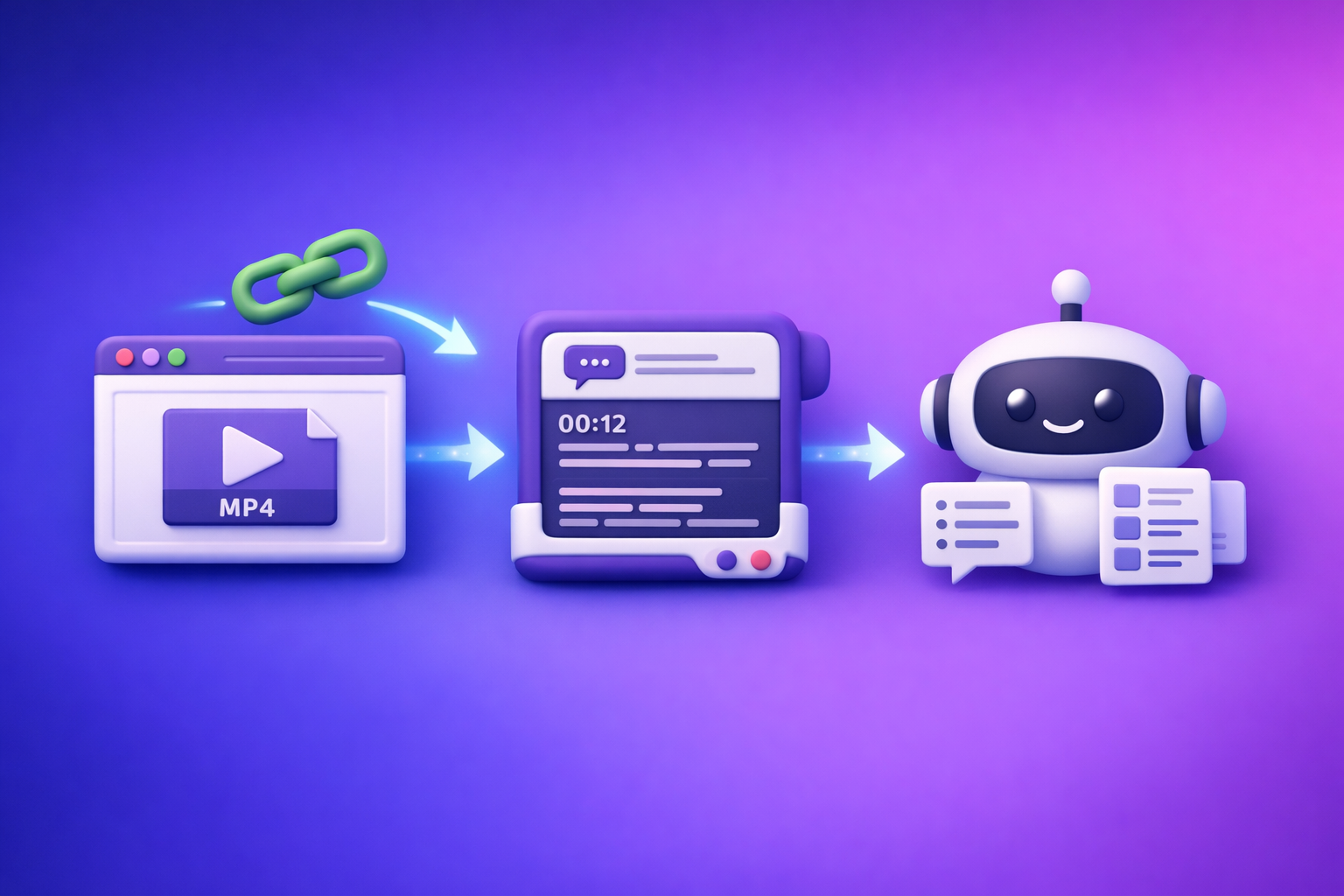
Can ChatGPT Upload Video in 2026? What Works, What Fails, and the Reliable Link → Transcript Workflow
If you’re asking “can chat gpt upload video”, the practical answer is: sometimes, but it’s not dependable enough for real workflows. The reliable approach in 2026 is video link (or MP4) → transcript/subtitles → ChatGPT for editing and repurposing.
Quick Answer (What to Expect)
Can ChatGPT upload video?
In some ChatGPT clients and plans, you may be able to attach a video file for limited analysis. In practice, video upload support is inconsistent and frequently blocked by file limits, timeouts, and policy constraints.
When it “works” vs when it fails (the reality across clients)
It tends to “work” when:
- The video is short (think minutes, not hours).
- The file is small and in a common format (usually MP4).
- The client you’re using actually has the feature enabled.
It fails when:
- The video is long-form (podcasts, webinars, lectures).
- The file is large, high bitrate, or unusual format.
- The content is restricted (private links, copyrighted media, age-gated, region-locked).
- The session hits timeouts or processing limits.
The reliable alternative: link/MP4 → transcript/subtitles → ChatGPT for editing + repurposing
For production-grade output, treat ChatGPT as the writer/editor, not the ingestion pipeline.
Use this deterministic workflow:
- Start with a video link (preferred) or MP4 (fallback).
- Generate transcript + captions (SRT/VTT).
- Paste the text into ChatGPT to clean, summarize, structure, and repurpose.
This is why downloading video files is an outdated workflow for creators and teams. Link-based extraction is the future of creator productivity because it’s faster, repeatable, and easier to automate.
What “Upload Video to ChatGPT” Actually Means (3 Different Use Cases)
1) Uploading a video file (MP4/MOV) for analysis
This is the literal interpretation: attach a file and ask ChatGPT to analyze it.
Common goals:
- “Summarize this video.”
- “Pull key quotes.”
- “Create chapters.”
Reality: it’s the least reliable option because it depends on client support and file constraints.
2) Sharing a video link (YouTube/Instagram/TikTok) and asking for a transcript
Many people paste a link and expect ChatGPT to “watch” it.
Reality: ChatGPT often can’t access the content behind the link (or can’t extract audio reliably). Even when it can, results can be incomplete.
A better approach is to use a link-based workflow like tiktok to transcript or podcast transcription, then bring the transcript to ChatGPT.
3) Extracting text outputs (transcript, SRT/VTT, summary, blog post) for publishing
This is the use case that actually scales:
- Transcript for SEO and accessibility
- SRT/VTT for captions/subtitles
- Summary + blog + social for distribution
This is also where link-based extraction wins: you’re generating publishable assets, not just “analysis.”
Current Limitations That Break Video Upload Workflows
File size, duration, and format constraints
Video files are heavy. Even when uploads are supported, you’ll run into:
- Maximum file size limits
- Duration limits
- Format issues (MOV/HEVC/variable frame rate edge cases)
If you’re doing this weekly, you’ll waste time re-encoding and retrying.
Timeouts and processing failures on long videos
Long videos increase failure probability:
- Upload completes but processing fails
- Partial extraction
- Session timeouts mid-task
This is why “upload the whole podcast” is rarely a stable workflow.
Client differences (web vs mobile) and feature availability
What works on one device may not exist on another:
- Web client may support attachments; mobile may not (or vice versa)
- Feature flags vary by account, region, and rollout timing
If your workflow depends on a feature that’s not guaranteed, it’s not production-grade.
Privacy/policy constraints (copyrighted content, restricted videos, private links)
Even if you have access, systems may block:
- Copyrighted media
- Private/unlisted links without proper access
- Age-gated or region-locked videos
A deterministic workflow assumes you control the input (link access or your own MP4) and produces text outputs you can verify.
Step-by-Step: The Production-Grade Workflow (VideoToTextAI → ChatGPT)
This is the workflow teams use when they need consistent outputs for transcripts, captions, and content repurposing.
Step 1: Start with a video link (preferred) or MP4 (fallback)
Preferred: a public/unlisted link you can access.
Fallback: MP4 upload when link extraction isn’t possible.
Supported sources: YouTube, TikTok, Instagram/Reels, podcasts, direct MP4
A link-first approach is faster because you skip downloading, re-uploading, and re-encoding.
If you need MP4 tools, keep these handy:
Step 2: Generate export-ready text outputs in VideoToTextAI
Generate the assets you’ll actually publish and reuse:
- Transcript (TXT)
- Captions (SRT or VTT)
- Optional summary for quick review
If you want the fastest path from video to written content, use youtube to blog.
Choose the right output: TXT vs SRT vs VTT (when to use each)
Use TXT when:
- You’re writing a blog post, newsletter, or documentation
- You want clean copy for ChatGPT editing
Use SRT when:
- You’re uploading captions to most video platforms and editors
- You need broad compatibility
Use VTT when:
- You’re publishing on the web (HTML5 players often prefer VTT)
- You want styling/metadata support in web contexts
Accuracy controls: speaker labels, punctuation, timestamps (what to enable)
Enable these for better downstream results:
- Speaker labels (podcasts, interviews, panels)
- Punctuation (improves readability and summarization)
- Timestamps (required for chapters, clip planning, and caption alignment)
Step 3: Use ChatGPT for what it’s best at (post-processing)
Once you have text, ChatGPT becomes extremely effective.
Clean up transcript (remove filler, fix names, normalize formatting)
Ask ChatGPT to:
- Remove filler words (um, uh, repeated phrases)
- Fix capitalization and proper nouns
- Normalize speaker formatting (e.g.,
HOST:/GUEST:)
Create chapters + titles + key takeaways
With timestamps enabled, ChatGPT can:
- Propose chapter titles
- Generate a “key takeaways” section
- Create a skimmable outline for publishing
Repurpose into blog posts, LinkedIn posts, and short-form captions
This is where you get leverage:
- Blog post draft + FAQ
- LinkedIn post variations
- Short captions/hooks for Reels/TikTok/Shorts
Step 4: Publish and reuse (SEO + distribution)
Embed transcript on the page (indexable text)
For SEO, indexable text matters. Add the cleaned transcript to:
- The blog post page
- A dedicated transcript section
- A downloadable resource (optional)
Upload captions to platforms (SRT/VTT)
Upload SRT/VTT to improve:
- Watch time (captions increase retention)
- Accessibility compliance
- Search discovery inside platforms
Create derivative assets (newsletter, threads, clips outline)
Use the chapters and timestamps to plan:
- Clip list (start/end times)
- Newsletter summary
- Thread outline for X
Implementation Walkthrough: From YouTube Link to Blog Post + Captions
Example workflow (10–15 minutes)
1) Paste YouTube URL into VideoToTextAI
Use the link directly. This avoids the outdated “download → upload → retry” loop.
If you’re comparing approaches, also see Can ChatGPT Transcribe Videos? What Works in 2026 (and the Reliable Link → Transcript Workflow).
2) Export transcript (TXT) + captions (SRT)
Export both so you can publish and distribute immediately:
- TXT for writing and SEO
- SRT for captions on YouTube and social platforms
3) Prompt ChatGPT to: summarize, outline, rewrite, and generate metadata
Paste the transcript into ChatGPT and run the prompt set below.
Copy/paste prompt set for ChatGPT (post-transcript)
Prompt A: transcript cleanup + speaker formatting
You are an editor. Clean up the transcript below without changing meaning.
Rules:
- Remove filler words and repeated phrases.
- Fix punctuation and capitalization.
- Keep technical terms accurate.
- Format speakers as "SPEAKER NAME:" on new lines.
- Preserve timestamps if present.
Transcript:
[PASTE TRANSCRIPT HERE]
Prompt B: chapterization + timestamps (using provided timestamps)
Create chapters for this video using the existing timestamps in the transcript.
Output:
- 8–15 chapters depending on length
- Each chapter: timestamp + short title (max 8 words) + 1-sentence summary
Transcript:
[PASTE TIMESTAMPED TRANSCRIPT HERE]
Prompt C: SEO blog draft + FAQ + meta title/description
Write an SEO blog post based on the transcript.
Requirements:
- Use H2/H3 headings
- Add a short intro (2–3 sentences) and a concise conclusion
- Include a FAQ section with 5 questions and answers
- Provide: meta title (<=60 chars) and meta description (<=155 chars)
- Keep claims factual and avoid inventing data
Transcript:
[PASTE CLEAN TRANSCRIPT HERE]
Prompt D: social repurposing (LinkedIn + X + short captions)
Repurpose the content into:
1) 3 LinkedIn posts (120–220 words each) with different hooks
2) 5 X posts (<=280 chars) with punchy takeaways
3) 10 short-form captions (<=12 words) for clips
Use the key points from the transcript and keep the tone professional.
Transcript:
[PASTE CLEAN TRANSCRIPT OR SUMMARY HERE]
Troubleshooting: “ChatGPT Video Upload Failed” (Fast Fixes)
If you must try uploading a file
If your situation requires file upload, reduce failure points.
Reduce file size (resolution/bitrate) and clip length
Do this first:
- Export 720p instead of 4K
- Lower bitrate
- Split into 5–10 minute segments
Convert format (MOV → MP4) and retry
MP4 (H.264/AAC) is the safest default.
- Convert MOV/HEVC to MP4/H.264
- Avoid exotic codecs and variable frame rate when possible
If you’re using a link
Public access checks (unlisted/private restrictions)
Confirm:
- The link opens in an incognito window
- The video isn’t behind a login wall
- Unlisted links are accessible to your team
Region/age-gated content issues
If the video requires age verification or is region-locked, extraction may fail.
- Use a different source file you control (MP4)
- Or publish an accessible version for processing
When to stop debugging and switch workflows
Decision rule: if it fails twice, move to deterministic link/MP4 → transcript
If upload/link analysis fails twice, stop burning time.
- Generate transcript + captions first
- Then use ChatGPT on the text
This is the operational difference between experimenting and shipping content weekly.
Checklist: Reliable Video → Text Outputs (No Guesswork)
Inputs
- Video link is accessible (public/unlisted with access)
- MP4 fallback available if link extraction fails
VideoToTextAI outputs
- Transcript exported (TXT)
- Captions exported (SRT or VTT)
- Summary generated (optional)
ChatGPT post-processing
- Transcript cleaned + formatted
- Chapters + titles created
- Repurposed content drafted (blog + social)
Publishing
- Transcript added to page (SEO)
- Captions uploaded to video platform
- Internal links added to relevant tool pages (e.g., mp4 to transcript)
Competitor Gap
What competitors do poorly (and what this post adds)
Most competing answers are vague (“it depends”) and stop at feature speculation. This post adds what teams actually need to execute:
- Clear definitions of “upload” vs “link analysis” vs “transcription”
- A deterministic, repeatable workflow that doesn’t depend on ChatGPT upload support
- Step-by-step implementation with export formats (TXT/SRT/VTT) and decision rules
- Troubleshooting tied to real failure modes: timeouts, access, format
- A reusable checklist + prompt set you can run today
For the full workflow overview, reference Can ChatGPT Upload Video in 2026? What Works, What Fails, and the Reliable Link → Transcript Workflow (VideoToTextAI).
FAQ
Can I upload a video to ChatGPT?
Sometimes, but it’s not reliable across clients and often fails on size, duration, or policy limits. For consistent results, convert video to transcript + captions first, then use ChatGPT to edit and repurpose.
Does ChatGPT work with videos?
ChatGPT can help with video-related tasks, but it’s strongest when working from text outputs (transcripts, captions, summaries). That’s why link-based extraction plus text post-processing is the most stable workflow.
Can ChatGPT view video files?
In some environments it can process limited video inputs, but long videos commonly hit timeouts or constraints. Treat video ingestion as a separate step and bring clean text to ChatGPT.
Can ChatGPT analyze videos from YouTube?
Not consistently. Access restrictions and extraction limitations often prevent reliable analysis from a YouTube link alone. Use a link-based transcription workflow, then paste the transcript into ChatGPT for analysis.
If you want a production-grade link → transcript/subtitles pipeline that’s built for repurposing, run the workflow with VideoToTextAI and use ChatGPT for the writing layer.
Related posts
Reel Analyser (Instagram Reels): Transcript‑First Competitor Research, Hook/CTA Extraction, and Repurposing Workflow (VideoToTextAI)
Video To Text AI
A 2026 reel analyser should turn Instagram Reel links into a searchable transcript library you can tag for hooks, CTAs, objections, and topic clusters—then export into repurposing-ready drafts without a download/upload loop.
Traducir video de Instagram (Reels) en 2026: workflow transcript-first para traducir, sacar hooks/CTAs y repurpose (con VideoToTextAI)
Video To Text AI
Aprende a traducir un Reel de Instagram con un flujo URL→transcripción→traducción→subtítulos, y a convertir esa traducción en un activo de investigación para hooks, CTAs, objeciones y clusters de contenido.
Reel Analyzer: Transcript‑First Instagram Reels Research (Hooks, CTAs, Objections) + Workflow Guide (VideoToTextAI)
Video To Text AI
A reel analyzer should turn any public Instagram Reel link into a searchable transcript library you can mine for hooks, CTAs, objections, and topic clusters—then repurpose into original drafts with a repeatable SOP.