
Can ChatGPT Transcribe Videos? What Works in 2026 (and the Reliable Link → Transcript Workflow)
 Video To Text AI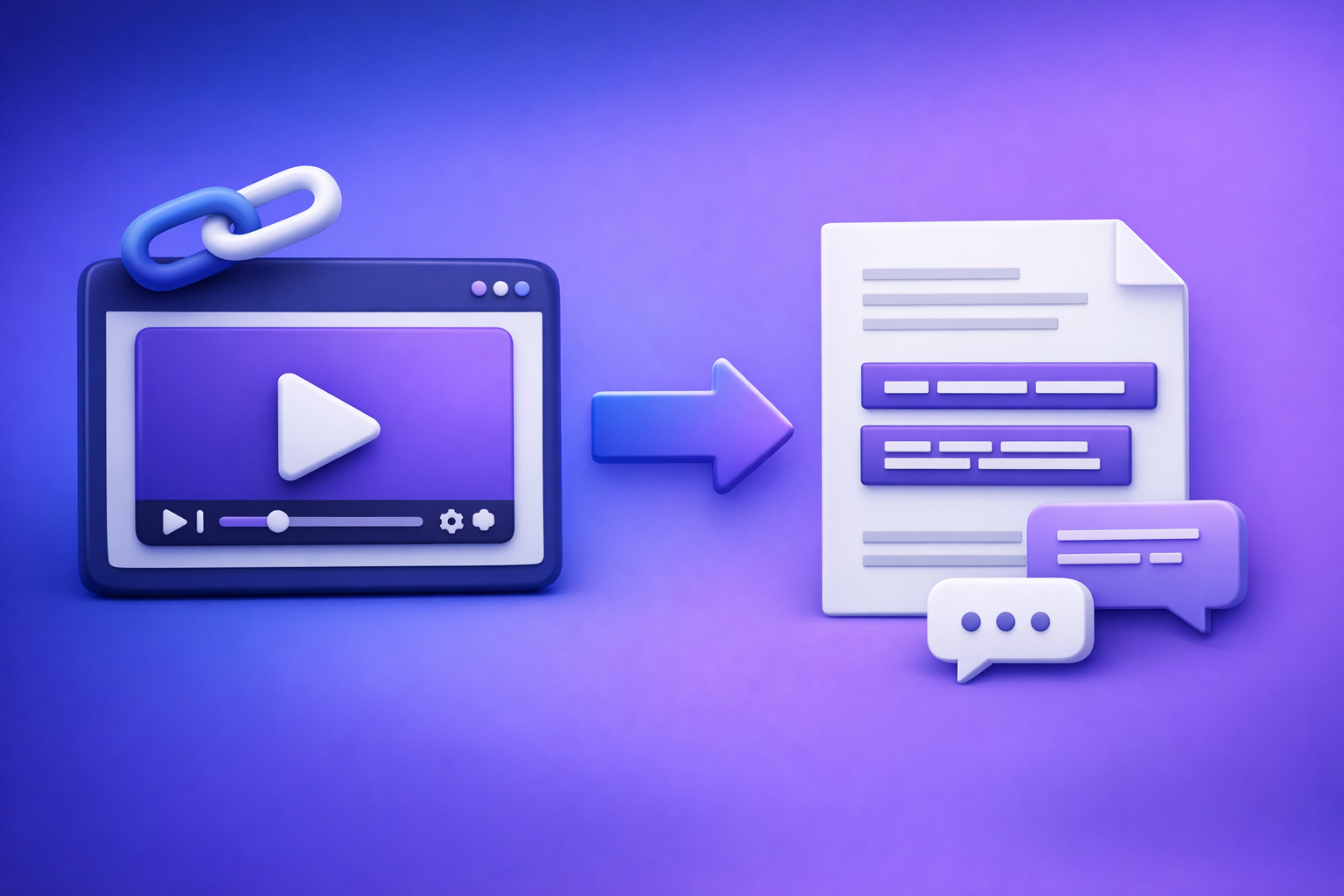
Can ChatGPT Transcribe Videos? What Works in 2026 (and the Reliable Link → Transcript Workflow)
If you want a dependable transcript or subtitles, don’t rely on ChatGPT to “open a link and transcribe”—use a link/MP4 transcription workflow first, then use ChatGPT to clean and repurpose the text. The most reliable 2026 setup is video URL/MP4 → export-ready TXT/SRT/VTT → ChatGPT for formatting, summaries, and publish assets.
Quick Answer (What You Can Expect From ChatGPT)
When ChatGPT can help
ChatGPT is excellent when you already have text.
Use it for:
- Cleaning messy transcripts (punctuation, paragraphs, speaker labels)
- Summarizing long recordings into briefs, chapters, and takeaways
- Repurposing into blogs, newsletters, social posts, and show notes
- Standardizing terminology (product names, acronyms, style guides)
When ChatGPT fails (and why “paste a link” usually doesn’t work)
“Paste a YouTube/TikTok link and transcribe it” is unreliable because:
- ChatGPT often can’t fetch external video URLs end-to-end.
- Even when it can access something, it may not decode audio consistently.
- Long media can hit timeouts, file limits, or context limits.
- Results vary by client/app, model availability, and permissions.
In practice, you’ll get partial outputs, summaries instead of verbatim text, or a refusal to access the link.
The reliable alternative: video link/MP4 → transcript/subtitles → ChatGPT for cleanup + repurposing
A deterministic workflow looks like this:
- Extract speech to text from a video link (preferred) or MP4 (fallback).
- Export TXT/DOC for writing or SRT/VTT for subtitles.
- Use ChatGPT to polish and repurpose the exported text.
This is also the modern productivity stance: downloading video files is an outdated workflow. Link-based extraction is faster, more repeatable, and better aligned with creator pipelines.
What “Transcribe a Video” Actually Means (So You Choose the Right Output)
Transcript (TXT/DOC): best for blogs, notes, SEO pages
Choose a transcript when your goal is:
- Blog posts, landing pages, knowledge bases
- Meeting notes, research, internal documentation
- SEO content and searchable archives
A transcript should prioritize readability (paragraphs, punctuation) and optionally speaker labels.
Subtitles (SRT/VTT): best for YouTube, TikTok, Reels, accessibility
Choose subtitles when your goal is:
- Uploading captions to YouTube or a player
- Accessibility compliance
- Editing workflows that need timecodes
Subtitles require timestamps and line breaks that match reading speed.
Captions vs subtitles: burned-in vs sidecar files
- Sidecar captions/subtitles: SRT/VTT files you upload alongside the video (recommended).
- Burned-in captions: text rendered into the video itself (harder to edit later).
If you want flexibility, choose sidecar first, burn-in only at the final edit stage.
Timestamps, speaker labels, and diarization: what to request (and what to skip)
Request:
- Timestamps for subtitles and clip planning
- Speaker labels for interviews, podcasts, panels
Skip (sometimes):
- Speaker detection/diarization when audio is messy (crosstalk, room echo), because it can mis-attribute lines and create more editing work than it saves.
Can ChatGPT Transcribe Videos Directly?
Video links: why ChatGPT can’t reliably fetch and decode them
Even in 2026, link transcription is not a guaranteed ChatGPT feature because it depends on:
- Whether the environment allows external fetching
- Whether the system can access the media stream
- Whether it can extract audio and run speech recognition reliably
That’s why “it worked once” is common—and why it breaks the next day.
Uploads: why results vary by client, limits, and timeouts
Some clients allow video/audio uploads, but reliability varies due to:
- File size limits and upload failures
- Long processing times and timeouts
- Inconsistent support across desktop vs mobile vs workspace accounts
If you need a repeatable workflow for a team, uploads are a fragile dependency.
Accuracy reality check: accents, crosstalk, music, low bitrate audio
Transcription quality drops fast when you have:
- Strong accents + fast speech
- Multiple speakers talking over each other
- Background music or crowd noise
- Low bitrate audio (common in reposted clips)
A dedicated transcription workflow gives you better controls (language selection, diarization toggles, timestamp granularity) and more consistent exports.
Privacy/compliance considerations (what not to upload)
Avoid uploading:
- Protected health information (PHI)
- Payment card data
- Confidential legal or HR recordings
- Customer secrets or unreleased product plans
If compliance matters, use tools and settings designed for controlled processing, and keep only the minimum text needed for publishing.
The Reliable Workflow (VideoToTextAI): Link/MP4 → Export-Ready Transcript/Subtitles
VideoToTextAI is built for link-based video-to-text workflows—because downloading files, renaming them, and re-uploading is a time sink. The future of creator productivity is URL in → transcript/subtitles out, with MP4 only as a fallback.
Step 1 — Choose input type: URL vs MP4 (fallback rules)
Use these rules:
- Use a URL when the video is hosted (YouTube, TikTok, podcasts, public links). This is faster and avoids local file juggling.
- Use MP4 only when the content is private/offline or link access is restricted.
If you’re converting platform content, start with purpose-built tools like:
Step 2 — Generate the transcript (settings that affect quality)
Language selection and multilingual audio
Set the correct language up front.
- If the video switches languages, note that in your workflow and consider splitting by segment for best results.
Speaker detection (when it helps vs hurts)
Turn on speaker detection when:
- You have clean audio and distinct voices (podcasts, interviews)
Turn it off when:
- There’s crosstalk, echo, or lots of short interruptions (it can merge or flip speakers)
Timestamp granularity (sentence vs phrase-level)
- Sentence-level timestamps: best for readability + clip planning
- Phrase-level timestamps: best for tight subtitle sync, but can be noisier to edit
Step 3 — Export the right format (TXT vs SRT vs VTT)
Pick based on where the text will live:
- TXT/DOC for writing and SEO pages
- SRT for most subtitle upload workflows
- VTT for web players and some platforms
If you already know your target, go straight to:
Step 4 — Quality pass: fix the 5 highest-impact errors first
Don’t “perfect edit” everything. Fix what changes meaning and credibility.
Names/brands/terms
- Correct product names, people names, and acronyms
- Add a consistent spelling list (e.g., “VideoToTextAI”, not variations)
Numbers, dates, and units
- Prices, metrics, dates, URLs, and step counts must be exact
- Spot-check any section with claims or instructions
Punctuation for readability
- Add paragraph breaks every 2–4 sentences
- Convert run-ons into short, scannable lines
Speaker attribution
- Ensure the right speaker is attached to quotes and commitments
- If uncertain, label as Speaker 1 / Speaker 2 rather than guessing
Removing filler words (only when publishing)
Remove “um,” “like,” and false starts only when:
- You’re publishing the transcript as content
- You’re turning it into a blog/newsletter
Keep fillers if you need a verbatim legal/QA record.
Step-by-Step: Use ChatGPT After Transcription (Cleanup + Repurposing)
Step 1 — Paste transcript + context (audience, goal, tone)
Provide:
- Audience (e.g., “YouTube creators,” “B2B SaaS marketers”)
- Goal (blog post, show notes, clip plan)
- Tone (direct, technical, friendly, formal)
- Any must-keep terms and spellings
Step 2 — Run a cleanup prompt (punctuation, paragraphs, speaker labels)
Ask for:
- Paragraphing
- Light punctuation normalization
- Speaker labels (if present)
- A “do not change meaning” constraint
Step 3 — Create structured outputs (chapters, summary, key takeaways)
Generate:
- Chapter titles with timestamps (if available)
- 5–10 key takeaways
- A 150-word summary and a 1-sentence hook
Step 4 — Generate publish assets (SEO blog, newsletter, social, show notes)
Turn one transcript into a minimum viable content pack:
- SEO blog draft + FAQ
- Newsletter version
- 5–10 social posts
- Show notes with links and timestamps
If your source is YouTube, a dedicated workflow helps: YouTube to Blog
Step 5 — Final verification (spot-check against audio for critical sections)
Spot-check:
- Claims, numbers, and instructions
- Any controversial or compliance-sensitive statements
- Quotes attributed to a specific person
Implementation Templates (Copy/Paste)
Prompt: transcript cleanup + formatting (with speaker labels)
You are an editor. Clean and format the transcript below without changing meaning.

Requirements:
- Keep speaker labels (or infer Speaker 1/Speaker 2 if missing).
- Add punctuation and paragraph breaks for readability.
- Fix obvious transcription errors for names/brands using this glossary: [PASTE GLOSSARY].
- Do NOT add new facts. If something is unclear, mark it as [unclear].

Output:
1) Clean transcript
2) A list of 10 terms/names you corrected

Transcript:
[PASTE TRANSCRIPT]
Prompt: convert transcript → SRT/VTT fixes (line length + reading speed)
You are a subtitle editor. Improve the subtitle text for readability.

Rules:
- Keep existing timestamps exactly as-is.
- Max 42 characters per line, max 2 lines per caption.
- Remove filler words when they reduce clarity.
- Keep numbers, dates, and proper nouns exact.

Return the corrected subtitles in the same format (SRT or VTT).

Subtitles:
[PASTE SRT OR VTT]
Prompt: transcript → blog post (outline, headings, FAQs, meta)
Turn this transcript into an SEO blog post.

Context:
- Audience: [WHO]
- Primary keyword: "can chat gpt transcribe videos"
- Goal: explain what works, what doesn’t, and a reliable workflow
- Tone: professional, direct, actionable

Deliver:
- Title + meta description (155 chars max)
- Outline with H2/H3
- Full draft (short paragraphs, bullets)
- 5 FAQs with concise answers

Transcript:
[PASTE TRANSCRIPT]
Prompt: transcript → short clips plan (timestamps + hooks + titles)
Create a short-form clip plan from this transcript.

Requirements:
- 10 clip ideas
- For each: timestamp range (use existing timestamps), hook line, clip title, on-screen caption, and CTA
- Prioritize moments with clear takeaways or strong opinions

Transcript (with timestamps if available):
[PASTE TRANSCRIPT]
Troubleshooting: Common Failure Points (and Fixes)
“ChatGPT won’t open my YouTube link”
Fix:
- Don’t treat ChatGPT as a link fetcher.
- Generate the transcript via a link-based workflow first, then paste the text into ChatGPT.
- If you need a repeatable process, use a dedicated URL → transcript tool instead of manual downloading.
“Upload fails / times out / file too large”
Fix:
- Prefer URL input over uploads whenever possible (faster, fewer failures).
- If you must upload, trim the video or extract audio first, then transcribe.
- Split long recordings into parts and merge transcripts afterward.
“Transcript has missing sections”
Fix:
- Check if the source has muted segments, music-only sections, or very low volume.
- Re-run with correct language settings.
- If the video has multiple languages, split by segment.
“Subtitles drift out of sync”
Fix:
- Use phrase-level timestamps for tighter sync when needed.
- Avoid editing timestamps manually; edit text only.
- If the source video was re-encoded, regenerate subtitles from the final cut.
“Multiple speakers are merged into one”
Fix:
- Turn on speaker detection only when audio is clean.
- If diarization is wrong, switch to Speaker 1 / Speaker 2 and correct only the key sections (intros, Q&A, quotes).
Checklist: Reliable Video → Text in Under 10 Minutes
Input checklist (before you transcribe)
- Use a video URL whenever available (avoid downloading files)
- Confirm the video has clear audio (no heavy music over speech)
- Note language(s) and number of speakers
- Identify the required output: TXT (writing) or SRT/VTT (subtitles)
Transcription settings checklist (to reduce edits)
- Set the correct language
- Enable speaker detection only for clean multi-speaker audio
- Choose timestamp granularity: sentence-level (general) vs phrase-level (tight subtitles)
- Decide whether you need verbatim (keep fillers) or publish-ready (remove fillers)
Export checklist (choose the right file type)
- TXT/DOC for blogs, notes, SEO pages
- SRT for most subtitle uploads
- VTT for web players and some platforms
- Keep a “source transcript” copy before heavy editing
QA checklist (what to review before publishing)
- Names/brands/terms are correct
- Numbers/dates/units are correct
- Speaker labels are not misleading
- 2–3 critical sections spot-checked against audio
Repurposing checklist (minimum viable content pack)
- 150-word summary + 5 key takeaways
- Chapters/sections (with timestamps if available)
- Blog draft + FAQ
- 5 social posts + 3 clip hooks
Competitor Gap
Most pages ranking for “can chat gpt transcribe videos” imply ChatGPT will do the whole job if you paste a link or upload a file. That advice fails in real workflows because it’s not deterministic.
What to do instead:
- Deterministic workflow: URL/MP4 → export-ready TXT/SRT/VTT → ChatGPT for editing (repeatable, team-friendly).
- Troubleshooting matrix: plan for link access issues, upload limits, missing sections, and subtitle drift.
- Reusable assets: prompts + checklists so the process is consistent across videos and teammates.
- Output-first guidance: decide transcript vs subtitles vs captions based on publishing goal, not tool hype.
For related implementation details, see:
- Can ChatGPT Upload Video? What Works in 2026 (and the Reliable Link → Transcript Workflow)
- Can ChatGPT Transcribe Videos? What Works in 2026 (and the Reliable Link → Transcript Workflow)
FAQ
Can ChatGPT transcribe text from video?
ChatGPT can help after transcription—cleaning, formatting, summarizing, and repurposing. For reliable transcription, generate TXT/SRT/VTT from a video URL/MP4 first, then bring the text into ChatGPT.
Can you put a video into ChatGPT?
Sometimes, but uploads can fail, time out, or be unavailable depending on the client and limits. For consistent results, use a link-based transcription workflow and only use ChatGPT on the exported text.
How to make ChatGPT read videos?
Treat ChatGPT as the post-processing layer, not the ingestion layer. Use a dedicated tool to convert video → text, then ask ChatGPT to edit and produce publish-ready outputs.
Is there an AI that can transcript a video?
Yes—dedicated transcription tools can produce export-ready transcripts and subtitles from URLs or MP4s. If you want a modern, creator-friendly workflow, use link-based extraction and avoid downloading files whenever possible—try VideoToTextAI: https://videototextai.com
Related posts
Reel Analyser (Instagram Reels): Transcript‑First Competitor Research, Hook/CTA Extraction, and Repurposing Workflow (VideoToTextAI)
Video To Text AI
A 2026 reel analyser should turn Instagram Reel links into a searchable transcript library you can tag for hooks, CTAs, objections, and topic clusters—then export into repurposing-ready drafts without a download/upload loop.
Traducir video de Instagram (Reels) en 2026: workflow transcript-first para traducir, sacar hooks/CTAs y repurpose (con VideoToTextAI)
Video To Text AI
Aprende a traducir un Reel de Instagram con un flujo URL→transcripción→traducción→subtítulos, y a convertir esa traducción en un activo de investigación para hooks, CTAs, objeciones y clusters de contenido.
Reel Analyzer: Transcript‑First Instagram Reels Research (Hooks, CTAs, Objections) + Workflow Guide (VideoToTextAI)
Video To Text AI
A reel analyzer should turn any public Instagram Reel link into a searchable transcript library you can mine for hooks, CTAs, objections, and topic clusters—then repurpose into original drafts with a repeatable SOP.