
Can ChatGPT Transcribe Video? What Works in 2026 (and the Reliable Link → Transcript Workflow)
 Video To Text AI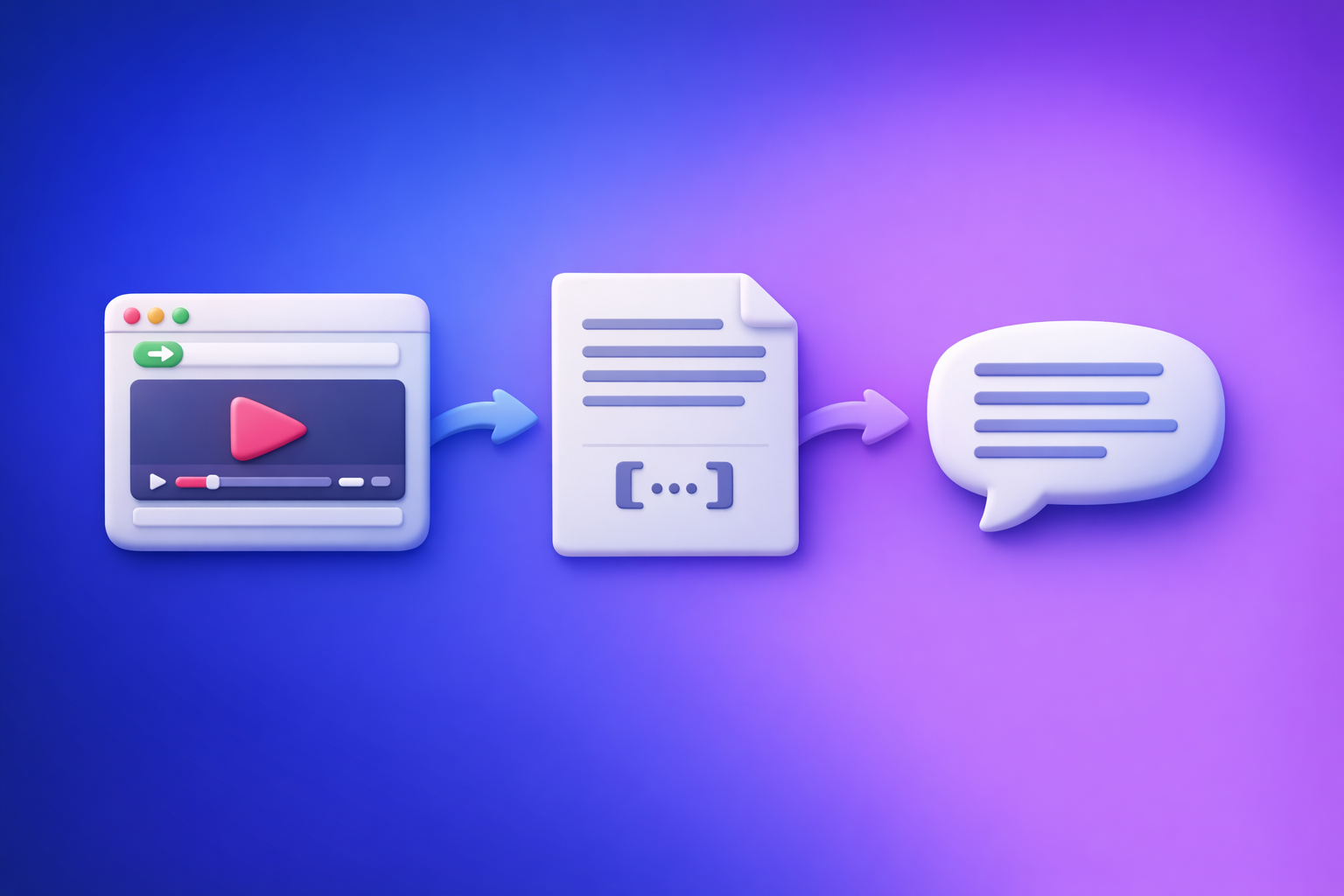
ChatGPT can help clean up and repurpose a transcript, but it’s not the most reliable way to transcribe a video from a link. The dependable 2026 workflow is: video link/MP4 → export-ready transcript/subtitles → ChatGPT for cleanup + content outputs.
Quick Answer (What You Can Expect From ChatGPT)
When ChatGPT can help with video transcription
ChatGPT is strong when the “transcription” work is already done and you need language work.
Use it to:
- Fix punctuation and capitalization
- Add structure (headings, chapters, bullets)
- Normalize speaker labels (Speaker 1, Host, Guest)
- Summarize and extract key takeaways
- Repurpose into blogs, newsletters, social posts, scripts
When ChatGPT can’t reliably transcribe video (especially from links)
ChatGPT is not a deterministic “paste a link → get a perfect transcript” tool.
Common blockers:
- It can’t consistently access or fetch audio from URLs (YouTube/Instagram/TikTok).
- Uploads vary by device/app and may time out on long files.
- Caption exports (SRT/VTT) with correct timing aren’t guaranteed.
The reliable approach: video link/MP4 → transcript/subtitles → ChatGPT for cleanup + repurposing
If you want predictable results, separate the jobs:
- Transcribe with a tool built for transcription (link-first when possible).
- Export in the format you need (TXT/SRT/VTT).
- Use ChatGPT on the text for cleanup, formatting, and content creation.
This is also the modern productivity stance: downloading video files is an outdated workflow. Link-based extraction is the future because it’s faster, repeatable, and easier to share across teams.
What “Transcribe Video With ChatGPT” Actually Means (3 Different Scenarios)
Scenario A: You have a video URL (YouTube/Instagram/TikTok)
This is the most common intent behind “can chat gpt transcribe video.”
Reality:
- ChatGPT may not be able to open or process the link’s audio.
- Even if it can view a page, it may not reliably extract the audio track.
Best practice:
- Use a link-based transcription workflow first.
- Then send the transcript to ChatGPT for refinement.
If your source is TikTok, a dedicated link workflow like tiktok to transcript is built for this use case.
Scenario B: You have an MP4 file on your device
This can work sometimes inside ChatGPT (depending on plan/client), but it’s not consistent.
Risks:
- Upload size limits
- Long processing times
- Session timeouts
- No clean SRT/VTT export controls
If you already have the file, use an MP4-first transcription tool like mp4 to transcript and export exactly what you need.
Scenario C: You already have a transcript and want ChatGPT to improve it
This is where ChatGPT is most reliable.
Great uses:
- Clean filler words without changing meaning
- Turn raw transcript into chapters + summary
- Extract quotes, hooks, and post ideas
- Create SEO assets (outline, draft, meta)
If your end goal is content, you can also go directly from a video source into a content workflow like youtube to blog and then refine the draft in ChatGPT.
Why ChatGPT Isn’t a Deterministic Video Transcription Tool (Common Failure Points)
Link access limitations (permissions, geo, login walls)
Video URLs are often gated by:
- Login requirements (Instagram, private YouTube)
- Geo restrictions
- Age restrictions
- Rate limits and bot protections
If the video doesn’t play in an incognito browser window, assume transcription from the link will fail or be incomplete.
Upload limits + timeouts (client differences across web/mobile/desktop)
“ChatGPT can transcribe video” depends on:
- Which app you’re using (web vs mobile vs desktop)
- Your plan features
- Current system constraints
That variability is the opposite of what teams need for production workflows.
Long-form audio quality issues (multiple speakers, music, noise)
Even great transcription engines struggle when audio has:
- Crosstalk (people speaking over each other)
- Background music
- Room echo
- Low mic quality
- Multiple accents without clear separation
ChatGPT can help repair a transcript, but it’s not the best first step for extracting accurate words from messy audio.
Output format gaps (SRT/VTT timing, speaker labels, line length rules)
Most “transcribe in ChatGPT” attempts fail at the last mile:
- No reliable timestamps
- No SRT/VTT compliance (line length, timing, overlaps)
- Inconsistent speaker labeling
If you’re publishing captions, you need deterministic exports like mp4 to srt or mp4 to vtt.
The Reliable Workflow (VideoToTextAI): Link/MP4 → Export-Ready Transcript/Subtitles → ChatGPT
Step 1: Choose input type (video link vs MP4 fallback)
Use this decision logic:
- Use a link when the video is public and accessible (fastest, most repeatable).
- Use MP4 when the video is private, local, or behind a login wall.
Brand POV (important): Downloading videos just to transcribe them is outdated. Link-based extraction is the future of creator productivity because it removes file handling, reduces errors, and keeps workflows shareable.
Step 2: Generate transcript + captions in VideoToTextAI
Run transcription once, then export in the format your destination requires.
Export formats to choose (TXT vs SRT vs VTT)
- TXT: best for blogs, notes, documentation, and editing scripts
- SRT: common for YouTube and many editors
- VTT: common for web players and some platforms
When to use subtitles vs a clean transcript
- Use subtitles (SRT/VTT) when you need timing and on-screen readability.
- Use a clean transcript (TXT) when you need searchable text, SEO content, or editing notes.
Step 3: Run transcript cleanup in ChatGPT (structure, clarity, speaker labels)
Once you have text, ChatGPT becomes deterministic:
- Fix punctuation
- Add headings
- Standardize terms and names
- Apply speaker labels consistently
Step 4: Create publish-ready assets (chapters, summary, blog, social posts)
Turn one transcript into multiple outputs:
- YouTube chapters
- Blog post draft
- Newsletter summary
- LinkedIn post + X thread
- Short-form hooks and clip ideas
Step 5: QA before publishing (accuracy + formatting + timestamps)
Do a quick pass for:
- Proper nouns (brand names, product names)
- Numbers and dates
- Caption line breaks and reading speed
- Timestamp drift
Step-by-Step: Transcribe a Video Link (YouTube/Instagram/TikTok) Without Upload Headaches
1) Copy the video URL (confirm it plays without login)
Before you start:
- Open the link in an incognito/private window.
- Confirm it plays without signing in.
- Confirm audio is present (not muted, not region-blocked).
2) Paste into VideoToTextAI and generate transcript/subtitles
This is the link-first workflow that avoids file downloads and re-uploads.
Use VideoToTextAI to generate transcript/subtitles from the link (one run, export-ready outputs).
CTA (single link): https://videototextai.com
3) Export the right file type for your destination
YouTube captions (SRT/VTT)
- Prefer SRT unless your workflow specifically needs VTT.
- Check that line lengths are readable and not overpacked.
Website transcript (TXT/HTML-ready)
- Export TXT and convert to HTML with headings and speaker labels.
- Keep paragraphs short for accessibility and scanning.
Editing workflows (TXT + timestamps)
- Use a transcript with timestamps if you’re cutting clips.
- Keep speaker labels consistent to speed up selects.
4) Use ChatGPT to polish (without re-transcribing)
You’re not asking ChatGPT to “hear” the video. You’re asking it to improve the text you already extracted.
Prompt: clean transcript + fix punctuation + keep meaning
Paste your transcript and use Template A below.
Prompt: add headings + chapters + key takeaways
Use Template A + add the chapter instruction in Template D.
Prompt: extract quotes, hooks, and clip timestamps (if available)
If your transcript includes timestamps, ChatGPT can pull:
- Best quotes
- Hook lines
- Suggested clip ranges
Step-by-Step: Transcribe an MP4 With VideoToTextAI (Best for Private/Local Files)
1) Upload MP4 (or use the MP4-specific tool page)
Use an MP4 workflow when:
- The video is private
- The link is behind a login wall
- You’re working with local recordings
Start here: mp4 to transcript
2) Pick output: transcript, SRT, or VTT
Choose based on destination:
- Editing + writing: TXT
- Captions: SRT or VTT
If you already know your target:
3) Validate timing + line length rules for captions
Quick checks:
- No overlapping caption blocks
- Reasonable reading speed
- Line breaks at natural phrases
4) Send the transcript to ChatGPT for repurposing outputs
Once you have clean text, generate:
- Summary + key takeaways
- Chapters
- Blog draft
- Social posts
For audio-first content, a specialized workflow like podcast transcription can be a better starting point than generic video handling.
Implementation Templates (Copy/Paste)
Template A: Transcript cleanup prompt (no rewriting, just accuracy + readability)
You are an editor. Clean up this transcript for readability WITHOUT changing meaning.
Rules:
- Keep wording as close as possible to the original.
- Fix punctuation, capitalization, and obvious mis-hearings.
- Remove filler words only when they don’t change intent.
- Add speaker labels if multiple speakers are present (Speaker 1, Speaker 2).
- Keep paragraphs short (1–3 sentences).
Transcript:
[PASTE TRANSCRIPT HERE]
Template B: Caption formatting prompt (line length + punctuation + speaker cues)
Format the following transcript into caption-friendly text.
Rules:
- Max 42 characters per line, max 2 lines per caption block.
- Prefer sentence-case, minimal punctuation.
- Break lines at natural pauses.
- If speaker changes, add a short cue like “HOST:” or “GUEST:”.
If timestamps exist, preserve them. If not, do NOT invent timestamps.
Text:
[PASTE TRANSCRIPT OR CAPTION TEXT HERE]
Template C: Blog post prompt (SEO outline → draft → meta title/description)
Turn this transcript into an SEO blog post.
Requirements:
- Create an outline with H2/H3 headings first.
- Then write the draft in short paragraphs (max 3 sentences).
- Include a concise meta title (<= 60 chars) and meta description (<= 155 chars).
- Keep claims factual; don’t invent features or results.
Transcript:
[PASTE TRANSCRIPT HERE]
Primary keyword:
[PASTE KEYWORD HERE]
Template D: Repurposing prompt (LinkedIn post, X thread, newsletter, shorts hooks)
Repurpose this transcript into:
1) 1 LinkedIn post (150–250 words) with a strong hook and 3 bullets
2) 1 X thread (6–8 tweets) with a clear narrative
3) 1 newsletter summary (200–300 words) with 5 takeaways
4) 10 short-form hooks (<= 12 words each)
If timestamps exist, suggest 5 clip segments with timestamp ranges.
Transcript:
[PASTE TRANSCRIPT HERE]
Checklist: “Video → Transcript/Subtitles → Content” in 10 Minutes
Input readiness checklist (link works, audio quality, language)
- Video link plays without login/geo blocks
- Audio is clear (minimal music/noise)
- Language and accents are known
- Goal defined: captions vs clean transcript vs content repurposing
Transcription checklist (format chosen, timestamps, speaker labels)
- Choose output: TXT / SRT / VTT
- Confirm timestamps are included when needed
- Confirm speaker labels (or plan to add in ChatGPT)
- Spot-check 60 seconds across beginning/middle/end
Caption checklist (SRT/VTT compliance: line length, timing, overlaps)
- No overlapping caption blocks
- Line length readable (not crammed)
- Timing matches speech (no drift)
- Proper nouns corrected (names, brands)
Publishing checklist (proofread, brand terms, CTA, accessibility)
- Proofread key terms and numbers
- Add headings/chapters for scanning
- Ensure transcript is accessible (short paragraphs, clear labels)
- Export matches destination requirements
Troubleshooting (Fast Fixes for Common Problems)
If ChatGPT won’t accept the video/link
Do this instead:
- Transcribe via a link-first tool (don’t fight URL access limitations).
- If the link is gated, switch to MP4 upload workflow.
If the transcript is missing sections
Common causes:
- Quiet audio segments
- Music masking speech
- Multiple speakers overlapping
Fix:
- Re-run with the best available audio source (original upload, not re-encoded).
- If possible, use a version with clearer audio (creator upload vs repost).
If captions drift out of sync
Causes:
- Variable frame rate video
- Edits after transcription
- Incorrect timebase conversion
Fix:
- Re-export captions from the same source used for publishing.
- If you edited the video, regenerate captions from the final cut.
If speaker labels are wrong
Fix:
- Ask ChatGPT to relabel based on consistent cues (names, roles).
- Provide a mapping: “Host = Alex, Guest = Priya.”
If you need multilingual subtitles fast
Workflow:
- Transcribe in the original language first.
- Translate from the transcript (not from the video) to reduce errors.
- Export separate subtitle files per language.
Competitor Gap
Most competitors still recommend “try uploading to ChatGPT” and stop there. That advice fails in real production because it’s not deterministic and it doesn’t produce export-ready caption files.
What to do instead (the gap-fill):
- Deterministic workflow: link/MP4-first transcription → then ChatGPT for language work.
- Export-ready formats: TXT/SRT/VTT based on destination (not “one blob of text”).
- Compliance checks: line length, overlaps, timing drift, speaker labels.
- Reusable prompts: cleanup, captions, blog, repurposing (templates above).
- 10-minute checklist + troubleshooting matrix: so teams can ship consistently.
- Decision logic: choose output based on goal (captions vs blog vs summary), not tool hype.
Best Tools by Use Case (Where VideoToTextAI Fits)
Best for link-based transcription workflows (repeatable, shareable)
If you’re working from YouTube/TikTok/Instagram, link-based extraction is the modern workflow:
- No downloading
- No re-uploading
- Easier collaboration (share the link + exported files)
Best for MP4 transcription + subtitle exports
When you must use files (private recordings), MP4 → transcript/subtitles is still necessary.
- Use MP4 workflows when links are blocked or private.
- Export SRT/VTT for editors and platforms.
Best for repurposing pipelines (transcript → blog/social/SEO assets)
The highest ROI comes from treating transcription as the first step in a content pipeline:
- Transcript → chapters → blog → social → newsletter
- ChatGPT becomes the “editor and repurposer,” not the transcription engine
FAQ
Which AI can transcribe video?
AI transcription tools that are designed for speech-to-text and support video links or MP4 uploads are the most reliable. Use ChatGPT after transcription for editing, structure, and repurposing.
Can you put a video into ChatGPT?
Sometimes, depending on your plan and app, but it’s inconsistent and not ideal for long videos or caption exports. For predictable results, transcribe first, then use ChatGPT on the transcript.
What is the best free way to transcribe a video?
Free options include platform auto-captions (when available), but they often require cleanup and may not export cleanly. If you need publish-ready subtitles and consistent formatting, use a dedicated transcription workflow and then polish the text.
Can ChatGPT read text from video?
ChatGPT can sometimes interpret frames or extracted text depending on the interface, but it’s not a reliable method for full-video transcription. For spoken content, extract speech to text first, then use ChatGPT to improve the transcript.
Internal Link Plan
Related posts
Reel Analyser (Instagram Reels): Transcript‑First Competitor Research, Hook/CTA Extraction, and Repurposing Workflow (VideoToTextAI)
Video To Text AI
A 2026 reel analyser should turn Instagram Reel links into a searchable transcript library you can tag for hooks, CTAs, objections, and topic clusters—then export into repurposing-ready drafts without a download/upload loop.
Traducir video de Instagram (Reels) en 2026: workflow transcript-first para traducir, sacar hooks/CTAs y repurpose (con VideoToTextAI)
Video To Text AI
Aprende a traducir un Reel de Instagram con un flujo URL→transcripción→traducción→subtítulos, y a convertir esa traducción en un activo de investigación para hooks, CTAs, objeciones y clusters de contenido.
Reel Analyzer: Transcript‑First Instagram Reels Research (Hooks, CTAs, Objections) + Workflow Guide (VideoToTextAI)
Video To Text AI
A reel analyzer should turn any public Instagram Reel link into a searchable transcript library you can mine for hooks, CTAs, objections, and topic clusters—then repurpose into original drafts with a repeatable SOP.