
Can ChatGPT Transcribe Video? What Works in 2026 (and the Reliable Link → Transcript Workflow)
 Video To Text AI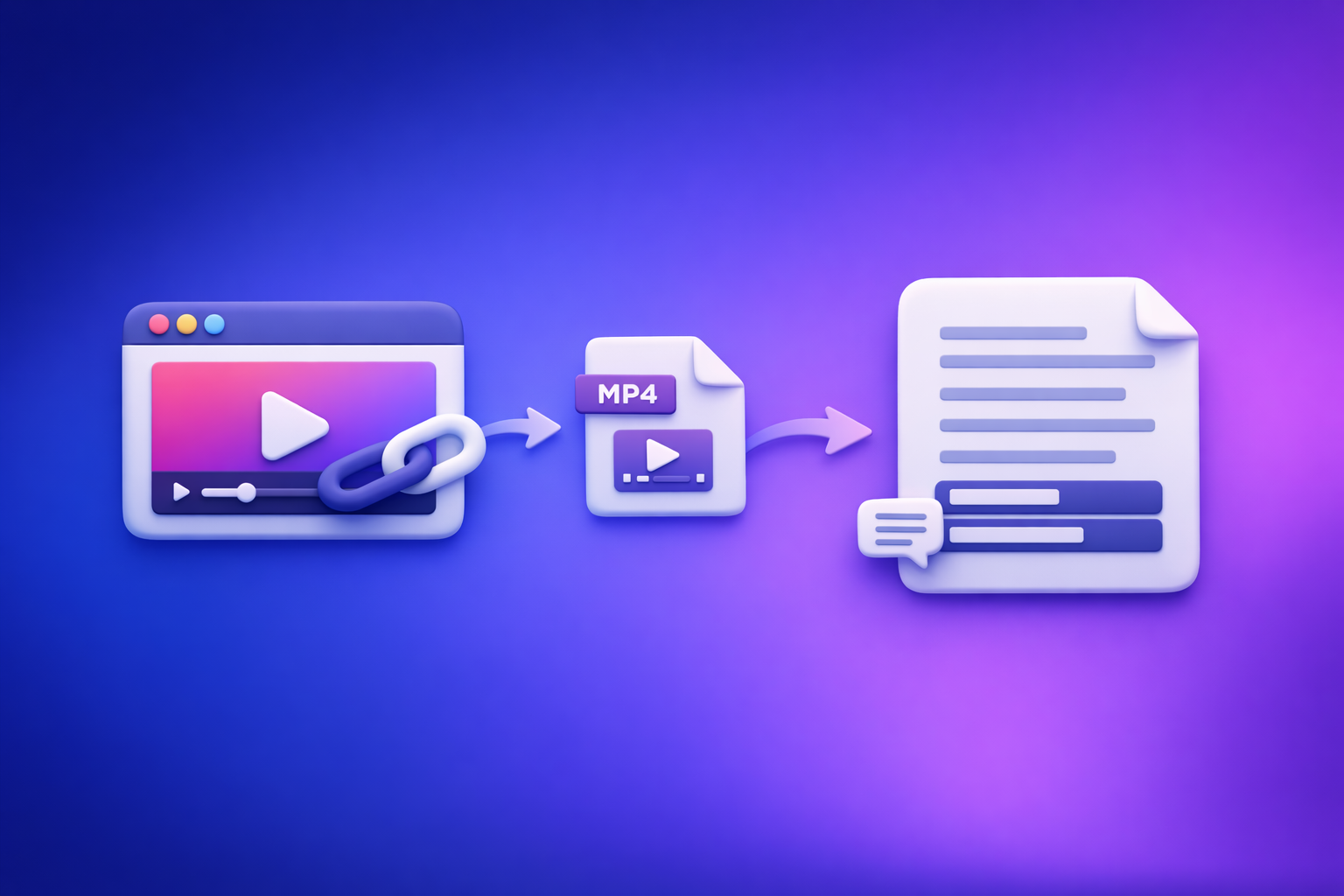
Can ChatGPT Transcribe Video? What Works in 2026 (and the Reliable Link → Transcript Workflow)
If you need a reliable transcript from a video, don’t use ChatGPT as the transcription engine—use a deterministic video-to-text workflow that outputs TXT/SRT/VTT, then use ChatGPT to polish. In 2026, link-based extraction beats downloading files for speed, repeatability, and creator productivity.
Quick Answer: Can ChatGPT Transcribe Video?
What ChatGPT can do (reliably)
ChatGPT is reliable for text-in → text-out work once you already have words on the page.
Use it to:
- Clean up raw transcripts (punctuation, casing, filler words)
- Standardize formatting (speaker labels, headings, consistent style)
- Summarize and extract key takeaways
- Create chapters (when you provide timestamps from SRT/VTT)
- Repurpose into blogs, posts, scripts, and captions
What ChatGPT can’t do (reliably) for video transcription
ChatGPT is not consistently reliable for video link → transcript or long video file → full transcript across clients.
Common limitations:
- Can’t access your link (private videos, paywalls, permissions, geo restrictions)
- Can’t “watch” the video unless the client/tooling supports it
- Cuts off on long files or long conversations
- Produces non-export-ready captions (no timestamps, no line-length rules)
When it works anyway (and why results vary by client/app)
Sometimes it works because:
- You’re using a ChatGPT client that supports file uploads or tool-enabled GPTs
- The video is short and the audio is clean
- The platform link is public and accessible without authentication
Results vary because capabilities differ by app, plan, region, and feature flags, and because link access is not deterministic.
How ChatGPT “Transcribes” Video: The 3 Practical Paths
Path A: You already have a transcript (best case)
This is the best workflow for ChatGPT.
- Generate transcript elsewhere (or export from captions)
- Paste transcript into ChatGPT
- Ask for cleanup, structure, chapters, and repurposing
If your goal is content reuse, pair this with a YouTube-to-content workflow like youtube to blog.
Path B: You have an MP4 file (sometimes possible, often limited)
Sometimes you can upload an MP4 to ChatGPT, but:
- File size/time limits vary
- Long videos often fail or truncate
- You still may not get SRT/VTT exports or consistent timestamps
If you need predictable outputs, use a dedicated MP4 workflow like mp4 to transcript and export captions via mp4 to srt or mp4 to vtt.
Path C: You only have a video link (most common, least reliable in ChatGPT)
This is the modern creator reality: the video lives on YouTube/IG/TikTok, and you want text fast.
In ChatGPT, link transcription is usually unreliable because:
- The link may require login
- The platform may block scraping
- The client may not have browsing/tool access
- Even when it “works,” you often don’t get export-ready captions
For link-first workflows, use tools built for link ingestion like instagram to text and tiktok to transcript.
Why “Paste a Video Link into ChatGPT” Usually Fails
Link access limitations (platform permissions, paywalls, private videos)
ChatGPT often cannot access:
- Private/unlisted videos without permission
- Videos behind paywalls or memberships
- Content requiring cookies/session authentication
- Region-locked media
Even if you can open the link in your browser, ChatGPT may not be able to.
File/time limits and long-video timeouts
Transcription is compute-heavy. In practice, you’ll see:
- Partial transcripts
- Missing middle sections
- “I can’t process that” errors
- Silent failures where output looks plausible but is incomplete
Inconsistent support across ChatGPT clients and accounts
Capabilities differ across:
- Web vs mobile apps
- Enterprise vs consumer accounts
- Tool-enabled GPTs vs standard chat
- Temporary rollouts and feature flags
That inconsistency is why teams struggle to standardize results.
Output problems: no timestamps, no speaker labels, no export-ready captions
Even when you get text, it’s often not usable for publishing:
- No SRT/VTT formatting
- No consistent speaker separation
- No timestamped chapters
- Captions exceed reading speed (bad for retention)
The Reliable Workflow (VideoToTextAI): Video Link/MP4 → Transcript/Subtitles → ChatGPT Polish
The modern workflow is link-first: stop downloading videos as a default. Downloading is an outdated workflow because it adds friction, duplicates files, and breaks repeatability across teams and devices.
A reliable pipeline looks like this:
Step 1: Choose input type (YouTube/Instagram/TikTok link vs MP4 upload)
- Use a link when the video is already published (fastest, most scalable)
- Use MP4 upload only when you truly don’t have a link (internal recordings, raw exports)
Step 2: Generate the transcript in VideoToTextAI
Generate a transcript and captions from the source media, deterministically.
Use VideoToTextAI for link-based video-to-text workflows and exports: one input → multiple outputs (transcript + subtitles + repurposing-ready text). Use it here: VideoToTextAI
Step 3: Export the right format (TXT vs SRT vs VTT)
- TXT for editing, SEO reuse, and content repurposing
- SRT for timed subtitles on most platforms
- VTT for web players and HTML5 workflows
Step 4: Use ChatGPT for cleanup (not transcription)
ChatGPT is best at:
- Fixing punctuation and casing
- Normalizing terminology
- Creating chapters and summaries
- Generating derivative content
Step 5: Repurpose into publish-ready assets (blog, LinkedIn, X, shorts captions)
Once you have a clean transcript, you can produce:
- Blog drafts and outlines
- Social posts and threads
- Short-form hooks and captions
- Newsletter summaries and internal notes
For a related deep dive, see: Can ChatGPT Upload Video? What Works in 2026 (Plus the Reliable Link → Transcript Workflow)
Step-by-Step: Transcribe a Video Link with VideoToTextAI (Fastest Path)
1) Copy the video URL (YouTube/Instagram Reel/TikTok)
Grab the public link from the platform.
Tip: if it’s private/unlisted, make sure you have the right access level or use an upload workflow.
2) Paste into VideoToTextAI and run transcription
Paste the URL and start transcription.
This is the productivity unlock: link in, transcript out—no downloading, no renaming files, no re-uploading across tools.
3) Select output format based on your goal
TXT for editing + SEO reuse
Use TXT when you want:
- A “source-of-truth” transcript for editing
- Copy/paste into docs and CMS
- SEO-driven content reuse (FAQs, headings, quotes)
SRT for subtitles (timed captions)
Use SRT when you need:
- Timed captions for YouTube and many editors
- Subtitle files for social video workflows
- Timestamp accuracy for chapters and highlights
VTT for web players
Use VTT when you need:
- Web player compatibility
- Styling/metadata support in web contexts
- HTML5 video captioning workflows
4) Download/export and store a “source-of-truth” transcript
Store:
- The TXT transcript (editing master)
- The SRT/VTT captions (publishing master)
This prevents “version drift” across editors and teams.
5) Send transcript to ChatGPT with a cleanup prompt (template below)
Use ChatGPT after export to standardize and repurpose, not to guess what the audio said.
Step-by-Step: Transcribe an MP4 When You Don’t Have a Link
1) Upload MP4 to VideoToTextAI
Use MP4 upload for:
- Zoom recordings
- Webinar exports
- Internal training videos
- Raw camera files
If you’re doing this often, consider moving upstream to a link-first workflow as soon as the video is hosted.
2) Generate transcript + captions
Generate both transcript and captions in one pass so you don’t redo work later.
3) Export TXT/SRT/VTT
Pick formats based on where the content will live:
- TXT for editing and reuse
- SRT for most subtitle pipelines
- VTT for web players
4) Run QA pass (names, acronyms, timestamps)
Do a quick pass for:
- Proper nouns (people, brands, products)
- Acronyms and technical terms
- Speaker switches
- Timestamp drift (if captions are required)
5) Use ChatGPT to format into chapters, highlights, and summaries
Once the transcript is correct, ChatGPT becomes a multiplier for distribution.
Prompts: Use ChatGPT to Improve a Transcript (Copy/Paste Templates)
Prompt 1: Clean transcript without changing meaning (no paraphrasing)
You are editing a verbatim transcript. Fix punctuation, capitalization, and obvious mis-hearings.
Do NOT paraphrase or change meaning. Keep wording as close to original as possible.
Remove filler words only when they do not change meaning (e.g., “um”, “uh”).
Return the cleaned transcript as plain text.
Prompt 2: Add speaker labels + consistent formatting
Add speaker labels and consistent formatting to this transcript.
Rules:
- Use "Speaker 1:", "Speaker 2:" if names are unknown.
- Start a new paragraph when the speaker changes.
- Keep the original wording (no paraphrasing).
Transcript:
[PASTE HERE]
Prompt 3: Create chapters with timestamps (from SRT/VTT)
Create 6–10 chapter headings for this video using the timestamps provided.
Use the timestamp format already present (e.g., 00:03:12).
Output:
- Timestamp — Chapter title (max 8 words)
Captions (SRT/VTT text):
[PASTE HERE]
Prompt 4: Turn transcript into SEO blog outline + draft
Turn this transcript into an SEO blog post.
Requirements:
- Provide an outline (H2/H3) first, then a draft.
- Keep claims factual; do not invent data.
- Include a short FAQ section based on the transcript.
Transcript:
[PASTE HERE]
Prompt 5: Create short-form captions + hooks from the transcript
From this transcript, generate:
1) 10 short hooks (max 12 words each)
2) 10 caption options (max 140 characters each)
3) 5 highlight quotes (1–2 sentences)
Keep wording faithful to the transcript; do not invent new claims.
Transcript:
[PASTE HERE]
Common Mistakes + Troubleshooting (What to Fix First)
“ChatGPT says it can’t access the link”
Fix order:
- Confirm the video is publicly accessible
- Avoid links requiring login, cookies, or memberships
- Use a link-to-transcript tool first, then paste the exported text into ChatGPT
If you want the deterministic approach, use a link workflow (see tiktok to transcript or instagram to text).
“The transcript is missing sections / cuts off”
Most common causes:
- Long duration hitting processing limits
- Silent sections or low audio quality
- Multi-speaker overlap confusing diarization
Fixes:
- Prefer a dedicated transcription workflow that exports complete files
- Re-run with higher quality audio if available
- QA against the video for missing segments before repurposing
“Timestamps are wrong or drifting”
Drift usually comes from:
- Variable frame rate video
- Edits/cuts after captions were generated
- Mismatched timebase between tools
Fixes:
- Generate captions from the final video version
- Prefer SRT/VTT exports and validate in the target player/editor
- If you edit the video, regenerate captions after the final render
“Multiple speakers are merged”
Fixes:
- Ensure the audio track is clear (reduce background music)
- Ask ChatGPT to add speaker labels only after transcription
- Manually correct speaker changes in the “source-of-truth” transcript once, then reuse
“Captions exceed reading speed” (line length + CPS fixes)
Symptoms:
- Captions flash too fast
- Lines are too long on mobile
Fixes:
- Keep captions to 1–2 lines
- Break long sentences into shorter caption units
- Target reasonable characters-per-second (CPS) for your platform/editor
Checklist: Export-Ready Transcript/Subtitles in 10 Minutes
Input checklist (before you start)
- Video link is public/accessible (or MP4 is final version)
- Audio is clear (music not overpowering speech)
- You know the target output: TXT, SRT, or VTT
- You have correct spelling for names/brands/acronyms
Transcription checklist (during generation)
- Use link-first input when possible (avoid downloading as default)
- Generate transcript + captions in the same workflow
- Confirm language and speaker conditions (single vs multi-speaker)
Quality checklist (after export)
- Scan first 60 seconds for obvious errors (names, jargon)
- Spot-check 2–3 random sections for cutoffs
- Validate timestamps in your target player/editor (SRT/VTT)
- Save a “source-of-truth” TXT transcript for reuse
Publishing checklist (YouTube/IG/TikTok/web player)
- Upload SRT/VTT and preview on mobile
- Ensure captions don’t exceed reading speed
- Confirm line breaks and punctuation are readable
- Reuse the TXT transcript for descriptions, posts, and blog drafts
Use Cases: What to Generate After Transcription (High-ROI Outputs)
Subtitles/captions for accessibility + retention
Captions improve:
- Accessibility and compliance
- Watch time (especially on mobile and silent autoplay)
- Comprehension for technical content
Blog post for search traffic
A transcript is a content asset. Turn it into:
- A structured article with H2/H3s
- FAQs and definitions
- Quote blocks and examples
If your workflow starts from YouTube, see youtube to blog.
LinkedIn post + X thread for distribution
Extract:
- 3–5 contrarian points
- A short story + lesson
- A thread of key takeaways with clear hooks
Summary + key takeaways for newsletters and internal docs
Use transcripts to produce:
- Weekly newsletter summaries
- Customer call highlights
- Training docs and SOPs
Competitor Gap
Most pages answering “can chat gpt transcribe video” stop at prompt advice and ignore execution details. A better answer includes a deterministic workflow that works across platforms, teams, and video lengths.
What this guide adds (and most competitors miss):
- A deterministic “link → export” workflow (not prompt-only advice)
- Format selection tied to outcomes (TXT vs SRT vs VTT)
- Reusable prompts for cleanup/chapters/repurposing (copy/paste templates)
- Troubleshooting for link access, cutoffs, timestamps, and speaker separation
- A 10-minute checklist to standardize results across videos and teams
FAQ
Which AI can transcribe video?
Use an AI workflow designed for transcription that accepts a video link or MP4 and exports TXT/SRT/VTT. ChatGPT is strongest after transcription for editing, structuring, and repurposing.
Can you put a video into ChatGPT?
Sometimes you can upload a video file or use a tool-enabled GPT, but it’s inconsistent across clients and often limited for long videos. For reliable results, transcribe first, then use ChatGPT on the exported text.
What is the best free way to transcribe a video?
Free options include platform auto-captions (like YouTube), but exports and accuracy vary. If you need consistent outputs (TXT/SRT/VTT) and repeatable team workflows, use a dedicated transcription workflow and then polish with ChatGPT.
Can ChatGPT read text from video?
ChatGPT can sometimes extract text from frames or interpret content depending on the client and features, but it’s not a dependable method for full video transcription. For transcripts and captions, use a transcription workflow first.
Related reading: Can ChatGPT Transcribe Video? What Works in 2026 (and the Reliable Link → Transcript Workflow)
Related posts
Reel Analyser (Instagram Reels): Transcript‑First Competitor Research, Hook/CTA Extraction, and Repurposing Workflow (VideoToTextAI)
Video To Text AI
A 2026 reel analyser should turn Instagram Reel links into a searchable transcript library you can tag for hooks, CTAs, objections, and topic clusters—then export into repurposing-ready drafts without a download/upload loop.
Traducir video de Instagram (Reels) en 2026: workflow transcript-first para traducir, sacar hooks/CTAs y repurpose (con VideoToTextAI)
Video To Text AI
Aprende a traducir un Reel de Instagram con un flujo URL→transcripción→traducción→subtítulos, y a convertir esa traducción en un activo de investigación para hooks, CTAs, objeciones y clusters de contenido.
Reel Analyzer: Transcript‑First Instagram Reels Research (Hooks, CTAs, Objections) + Workflow Guide (VideoToTextAI)
Video To Text AI
A reel analyzer should turn any public Instagram Reel link into a searchable transcript library you can mine for hooks, CTAs, objections, and topic clusters—then repurpose into original drafts with a repeatable SOP.