
Can ChatGPT Transcribe Video? What Works in 2026 (and the Reliable Link → Transcript Workflow)
 Video To Text AI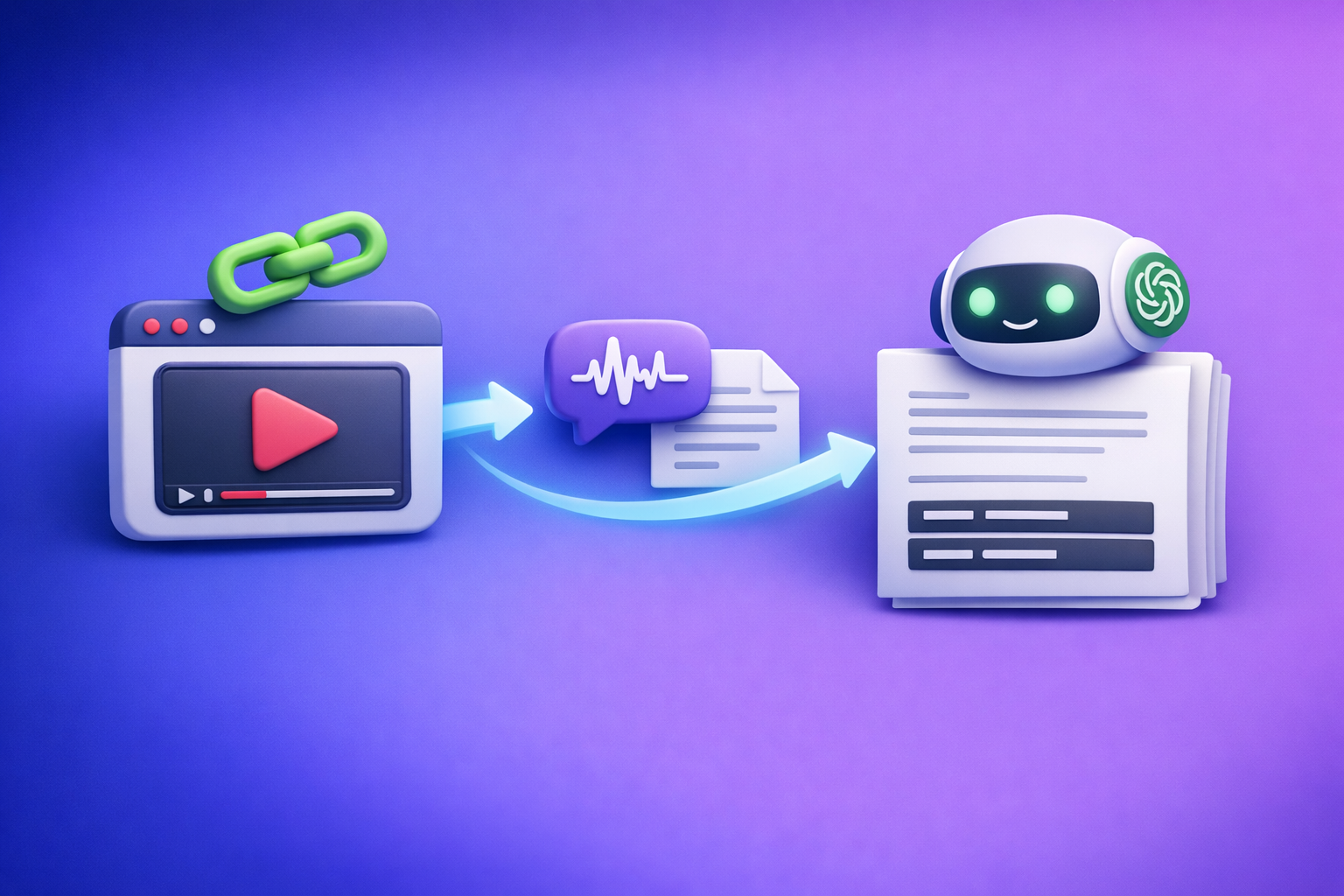
Can ChatGPT Transcribe Video? What Works in 2026 (and the Reliable Link → Transcript Workflow)
If you need a reliable transcript or captions file, don’t bet your workflow on “ChatGPT, transcribe this video link.” Use a deterministic pipeline: video link (or MP4 fallback) → export-ready transcript/subtitles (TXT/SRT/VTT) → ChatGPT cleanup + repurposing.
Quick Answer (So You Don’t Waste Time)
What ChatGPT can do well
ChatGPT is excellent after you already have text.
Use it to:
- Fix punctuation, paragraphs, and readability
- Normalize speaker labels and remove filler words (when appropriate)
- Summarize and extract key takeaways
- Repurpose into blog posts, emails, social posts, and video chapters
What ChatGPT can’t reliably do (especially from a video link)
ChatGPT is not a deterministic “URL in → transcript out” engine.
Common limitations:
- No guaranteed access to audio/video behind arbitrary URLs
- Inconsistent handling of long videos and large files
- Not export-ready by default (SRT/VTT formatting and timestamp rules matter)
- Unpredictable failures (timeouts, partial outputs, stalled processing)
The deterministic workflow (recommended)
Stop downloading files as your default. Downloading is an outdated, manual workflow that slows creators down and breaks automation.
Use this instead:
- Video link (or MP4) → export-ready transcript/subtitles (TXT/SRT/VTT) → ChatGPT cleanup + repurposing
If you want a link-first workflow built for creators, use VideoToTextAI once to generate clean exports, then use ChatGPT for what it’s best at: editing and writing.
CTA: VideoToTextAI
What “Transcribe a Video” Actually Means (Pick Your Output)
Before you choose tools, choose the output you actually need.
Transcript (TXT) vs captions (SRT/VTT) vs subtitles (translated)
- Transcript (TXT): Best for blogs, notes, SEO pages, documentation, and search indexing.
- Captions (SRT/VTT): Best for uploading to platforms (YouTube, players, LMS) and accessibility.
- Subtitles (translated): Captions in another language (often requires translation + timing preservation).
If your end goal is “upload captions,” you need SRT or VTT, not just a paragraph of text.
When you need timestamps (and when you don’t)
- You need timestamps when:
- Uploading captions/subtitles (SRT/VTT)
- Creating chapters, clip timestamps, or searchable video moments
- Auditing accuracy quickly (jump to a timecode)
- You don’t need timestamps when:
- You only need a readable transcript for a blog or internal notes
Accuracy expectations: speakers, jargon, background noise, music
Accuracy is not one number.
Expect accuracy to drop when you have:
- Multiple speakers with similar voices
- Domain jargon (product names, acronyms, technical terms)
- Background noise (street audio, crowd, echo)
- Music under speech (especially loud intros/outros)
Your workflow should include a terminology pass and a spot-check, not blind trust.
Can ChatGPT Transcribe a Video Link (YouTube/Instagram/TikTok)?
Why “paste a link and transcribe” is inconsistent
Even in 2026, “paste a link” fails for predictable reasons.
- Access/permissions: Private videos, region locks, login walls, age gates.
- Length/size limits: Long-form content can exceed processing limits.
- Format and policy constraints: Platforms change delivery formats and restrictions.
- No guaranteed audio extraction from arbitrary URLs: A chat interface is not a universal media extractor.
If you’re building a repeatable content pipeline, “maybe it works” is not a workflow.
What works instead: link-based transcription tool → ChatGPT for editing
Use a tool designed to extract audio from a link and output TXT/SRT/VTT, then hand that text to ChatGPT.
This is the modern creator workflow: link-based extraction is the future of productivity because it removes downloading, file naming, storage, and re-uploading from the loop.
Related tools/workflows you can plug in immediately:
- tiktok to transcript
- youtube to blog
- Insta Transcript: How to Get an Instagram Reel Transcript From a Link (TXT/SRT/VTT) + Repurposing Workflow
Can You Upload a Video to ChatGPT to Transcribe It?
When uploads may work (and why it still isn’t deterministic)
Uploads can work for short clips with clear audio.
But it’s still not deterministic because:
- File handling varies by environment (web vs mobile vs workspace)
- Long videos can exceed time or size constraints
- Output formatting is rarely “ready to upload” without manual cleanup
If you need consistent deliverables (TXT + SRT/VTT), treat uploads as a convenience—not your production pipeline.
Common failure modes
- Upload rejected / processing stalls
- Long videos time out
- Output isn’t export-ready (no strict SRT/VTT formatting, missing timestamps, inconsistent line breaks)
Decision rule: when to stop trying and switch workflows
Switch to a link/MP4 transcription workflow when any of these are true:
- The video is >10–15 minutes
- You need SRT/VTT for upload
- You need speaker labels
- You’re doing this weekly or daily (repeatability matters)
- The content has jargon and you need a terminology pass
For MP4-first cases, start here:
The Reliable Workflow (VideoToTextAI): Link/MP4 → Transcript/Subtitles → ChatGPT
This workflow is built for repeatable output: export-ready files first, then writing and repurposing.
Step 1 — Get the source video link (or download MP4 as fallback)
Prefer links whenever possible.
- YouTube: Use the canonical watch URL.
- Instagram Reels: Use the Reel link (public where possible).
- TikTok: Use the share link.
- Podcasts / long-form video: Use the episode/video URL if publicly accessible.
Brand POV: Downloading is the old way. Link-based extraction is faster, easier to automate, and avoids file management overhead.
Step 2 — Generate export-ready text outputs in VideoToTextAI
Generate the output you’ll actually ship.
- Choose output: TXT, SRT, VTT
- Include speaker labels when:
- Interviews, podcasts, panels, sales calls
- Preserve punctuation vs “raw” transcript:
- Use punctuated for blogs, emails, readable transcripts
- Use raw when you plan to do heavy editing or custom formatting
Step 3 — Quality check the transcript before you touch ChatGPT
Do a fast, systematic check.
- Spot-check timestamps:
- First 60 seconds
- Middle 60 seconds
- Last 60 seconds
- Verify names/brands/technical terms
- Confirm speaker changes happen at the right points
This prevents you from “polishing” a transcript that’s wrong in the places that matter.
Step 4 — Use ChatGPT for cleanup (not transcription)
Use ChatGPT as an editor and formatter.
Prompt: fix punctuation + paragraphs without changing meaning
You are editing a transcript for readability.
Rules: Do not add new facts. Do not remove meaning.
Fix punctuation, capitalization, and paragraph breaks.
Keep the original wording as much as possible.
Output: a clean readable transcript.
Prompt: normalize speaker labels + remove filler words (optional)
Normalize speaker labels to HOST: and GUEST:.
Remove filler words (um, uh, like) only when it doesn’t change meaning.
Keep technical terms and product names unchanged.
Output: cleaned transcript with speaker labels.
Prompt: create a clean “readable transcript” and a “verbatim transcript”
Create two versions:
- Readable transcript (light cleanup, paragraphs, minimal filler removal)
- Verbatim transcript (keep wording exactly, only fix obvious mishears)
Do not invent missing sections. If unclear, mark as [inaudible].
Step 5 — Repurpose into publishable assets
Once the transcript is clean, repurpose quickly.
Blog post outline + draft (from transcript)
- Extract:
- H2/H3 outline
- Key points and examples
- A draft intro + conclusion
- If you want a direct pipeline, use: youtube to blog
YouTube description + chapters
- Create:
- 2–3 paragraph description
- Bullet takeaways
- Chapters from timestamps (use transcript timecodes)
Social clips: hooks, captions, and post variants
- Generate:
- 10 hooks
- 5 post variants (short/medium/long)
- On-screen caption suggestions (without touching timestamps)
Email newsletter summary + CTA
- Create:
- Subject line options
- 150–250 word summary
- One clear CTA to the full video/post
Step-by-Step: Turn a Video Into Captions (SRT/VTT) You Can Upload Anywhere
Step 1 — Export SRT or VTT from VideoToTextAI
Pick based on destination:
- SRT is widely supported.
- VTT is common for web players and some platforms.
Step 2 — Validate formatting (what to check)
Before uploading, validate the file.
- Sequential numbering (SRT)
- Timestamp format:
- SRT:
00:00:01,000 --> 00:00:04,000 - VTT:
00:00:01.000 --> 00:00:04.000
- SRT:
- Line length for readability:
- Aim for 1–2 lines per caption
- Avoid overly long lines that cover the screen
Step 3 — Upload to your platform (YouTube/LinkedIn/IG where supported)
Upload the captions file in the platform’s subtitle/captions area.
If a platform doesn’t support uploads, you can still use the transcript to create burned-in captions in your editor.
Step 4 — Use ChatGPT to rewrite captions for readability (without breaking timestamps)
Rule: never change timestamps; only edit caption text lines.
Prompt:
I will paste an SRT/VTT file.
Rules: Do not change any timestamps or numbering.
Only rewrite caption text for readability and correct obvious errors.
Keep meaning the same. Keep each caption to max 2 lines.
Troubleshooting: The Most Common “ChatGPT Transcription” Mistakes
Mistake 1: asking ChatGPT to transcribe from a URL it can’t access
If ChatGPT can’t access or extract audio from the URL, it can’t transcribe it.
Fix: use a link-based transcription workflow first, then edit the resulting text.
Mistake 2: expecting accurate timestamps from a text-only workflow
Timestamps come from aligning text to audio.
Fix: generate SRT/VTT from a transcription tool that produces timecodes, then edit text only.
Mistake 3: pasting huge transcripts without chunking
Large transcripts can get truncated or degraded.
Chunking method: by timestamp ranges
- 00:00–05:00
- 05:00–10:00
- 10:00–15:00
Keep each chunk self-contained, and ask ChatGPT to output in the same structure.
Mistake 4: editing SRT timestamps (breaks sync)
If you change timestamps, captions drift.
Fix: edit only caption text lines, never the timecodes.
Mistake 5: skipping a terminology pass (names, acronyms, product terms)
Most “accuracy issues” are actually terminology issues.
Fix:
- Create a glossary (names, brands, acronyms)
- Run a find/replace pass
- Re-check the 3 spot-check sections
Checklist: 10-Minute Video → Transcript/Captions Workflow
Inputs
- Video URL or MP4
- Target output: TXT / SRT / VTT
- Language(s) (and whether translation is required)
Execution checklist
- Generate transcript/subtitles via link-based workflow (prefer link over download)
- Export TXT + SRT (or VTT)
- Spot-check 3 sections for accuracy (start/middle/end)
- Run ChatGPT cleanup prompt (readability + structure)
- Create repurposed assets (blog + social + email)
- Final pass: terminology + links + CTA
Deliverables checklist (copy/paste)
- Clean transcript (TXT)
- Captions file (SRT/VTT)
- Summary + key takeaways
- Blog draft + title options
- Social hooks + 5 post variants
Competitor Gap
What competitors miss (and what this post includes)
Most pages ranking for “can chat gpt transcribe video” either overpromise (“just paste a link”) or stop at generic advice.
This post includes what’s usually missing:
- A deterministic link/MP4 → TXT/SRT/VTT workflow (not “maybe it works”)
- Export-ready caption formatting rules (SRT vs VTT) + validation steps
- Troubleshooting decision rules (when to stop fighting ChatGPT limitations)
- Reusable prompts for cleanup and repurposing (without breaking timestamps)
- A 10-minute execution checklist with concrete deliverables
For deeper dives, see:
- Can ChatGPT Upload Video? What Works in 2026 (and the Reliable Link → Transcript Workflow)
- Can ChatGPT Transcribe Video? What Works in 2026 + The Reliable Link → Transcript Workflow (VideoToTextAI)
FAQ
Can AI make a transcript of a video?
Yes. AI transcription tools can generate TXT transcripts and SRT/VTT captions from video audio, often with timestamps and speaker labels.
Can you put a video into ChatGPT?
Sometimes. Upload support and limits vary, and long videos often fail or produce non-export-ready output. For repeatable work, use a transcription tool first, then ChatGPT for editing.
Can ChatGPT read text from video?
ChatGPT can sometimes interpret frames or extracted text depending on the interface, but reading on-screen text is not the same as transcribing audio. For audio transcription, use a tool that extracts audio and generates timed text.
Can ChatGPT take notes from a video?
Yes—if you provide a transcript (or a reliable text extraction). The best workflow is: generate transcript first, then ask ChatGPT for notes, action items, and summaries.
Can ChatGPT transcribe a YouTube video?
Not reliably from a pasted link. The dependable approach is: YouTube link → transcript/captions export (TXT/SRT/VTT) → ChatGPT cleanup and repurposing.
Related posts
Reel Analyser (Instagram Reels): Transcript‑First Competitor Research, Hook/CTA Extraction, and Repurposing Workflow (VideoToTextAI)
Video To Text AI
A 2026 reel analyser should turn Instagram Reel links into a searchable transcript library you can tag for hooks, CTAs, objections, and topic clusters—then export into repurposing-ready drafts without a download/upload loop.
Traducir video de Instagram (Reels) en 2026: workflow transcript-first para traducir, sacar hooks/CTAs y repurpose (con VideoToTextAI)
Video To Text AI
Aprende a traducir un Reel de Instagram con un flujo URL→transcripción→traducción→subtítulos, y a convertir esa traducción en un activo de investigación para hooks, CTAs, objeciones y clusters de contenido.
Reel Analyzer: Transcript‑First Instagram Reels Research (Hooks, CTAs, Objections) + Workflow Guide (VideoToTextAI)
Video To Text AI
A reel analyzer should turn any public Instagram Reel link into a searchable transcript library you can mine for hooks, CTAs, objections, and topic clusters—then repurpose into original drafts with a repeatable SOP.