
Can ChatGPT Upload Video? What Works in 2026 (and the Reliable Link → Transcript Workflow)
 Video To Text AI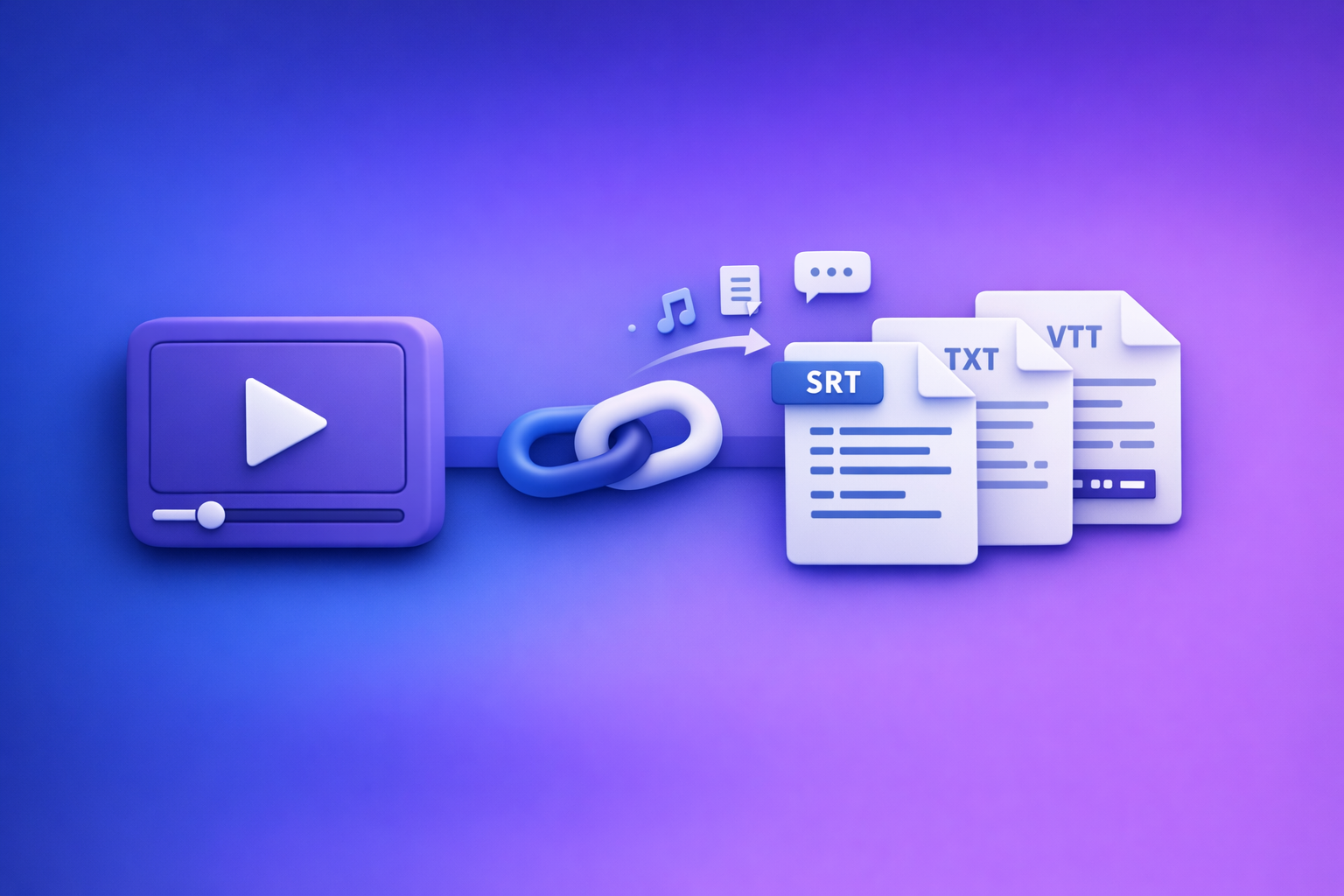
ChatGPT video upload is not a dependable workflow in 2026 for turning videos into transcripts or captions. The reliable solution is link → transcript/subtitles (TXT/SRT/VTT) first, then use ChatGPT to polish, summarize, and repurpose the text.
Why people ask “can ChatGPT upload video?”
The real job-to-be-done: “I want captions/transcripts/summary from a video”
Most people don’t actually care about “uploading a video.” They want usable text outputs:
- Transcript (TXT) for editing, search, and documentation
- Subtitles/captions (SRT/VTT) for YouTube, TikTok, Instagram, courses, and editors
- Summary + key takeaways for stakeholders
- Repurposed content (clips, hooks, blog posts, LinkedIn posts)
The fastest path is to treat ChatGPT as a text intelligence layer, not the ingestion layer.
What “upload” can mean (file upload vs. video link vs. screen recording)
When someone says “upload video to ChatGPT,” they usually mean one of these:
- File upload: MP4/MOV uploaded into a chat
- Video link: YouTube/TikTok/Instagram URL pasted into a prompt
- Screen recording: a recorded clip shared as a file (often huge)
In creator workflows, downloading and re-uploading video files is outdated. Link-based extraction is the future because it’s faster, repeatable, and built for iteration.
Can ChatGPT upload video in 2026? (Reality check)
When video upload is available (and why it’s inconsistent)
In some ChatGPT experiences, video/file upload may appear to work. In practice, availability varies by:
- Plan and feature rollouts
- Region and account settings
- Client/app (web vs. mobile vs. enterprise)
- Current system load and processing constraints
That inconsistency is exactly why “upload to ChatGPT” is a weak foundation for production captioning.
Common failure modes (what users experience)
Here’s what typically breaks when you try to use ChatGPT as the video ingestion + transcription engine.
-
File size/length limits
Long-form content (podcasts, webinars, trainings) quickly hits limits. -
Timeouts and processing stalls
Upload succeeds, then analysis fails, stalls, or returns partial results. -
No export-ready caption formats (SRT/VTT) from the workflow you need
Even when you get text, you often don’t get timed captions in a clean, importable file. -
Privacy/compliance constraints for client content
Client videos may require controlled handling, retention policies, or tool-specific agreements.
What ChatGPT is good at after you have text
Once you have a transcript/captions file, ChatGPT becomes extremely useful for:
- Cleanup (punctuation, casing, filler words)
- Formatting (speaker labels, paragraphs, readability)
- Summarization (executive summary, bullet takeaways)
- Repurposing (clips, hooks, posts, blog drafts)
- SEO structuring (headings, FAQs, internal links, metadata)
So the winning approach is: deterministic transcription first, generative editing second.
What to use instead: a deterministic video → text pipeline
The reliable workflow (overview)
A production-safe pipeline looks like this:
- Start with a video link (or MP4 fallback)
- Generate export-ready transcript/subtitles (TXT/SRT/VTT)
- Use ChatGPT to polish + repurpose outputs
This is the workflow VideoToTextAI is designed around: link-based video-to-text that feeds directly into content operations.
Why link-based transcription beats “upload to ChatGPT”
Link-based extraction is the future of creator productivity because it’s built for speed and repeatability.
-
Repeatable results
Same input link → consistent outputs you can regenerate. -
Export formats for editors/platforms
You need TXT/SRT/VTT, not just a paragraph in a chat window. -
Faster iteration
Re-run transcription/captions without re-uploading massive files or re-explaining context.
If you’re still downloading videos just to upload them elsewhere, you’re adding friction that modern workflows don’t need.
Step-by-step: Link → transcript/subtitles with VideoToTextAI
Step 1 — Choose your input type (link first, MP4 second)
Use a public video URL whenever possible:
- YouTube (long-form, podcasts, tutorials)
- TikTok / Instagram (short-form, UGC, ads)
- Any accessible hosted video page
Use MP4 only when the link is:
- Private, age-restricted, or geo-blocked
- Behind a login/paywall
- Failing due to platform throttling or temporary errors
If you need an MP4 workflow, see: MP4 to Transcript.
Step 2 — Generate the transcript (TXT) for editing and search
Generate a clean transcript you can actually work with:
- Select the language explicitly when detection is unreliable
- Enable speaker labeling (diarization) if available and needed
- Decide whether you want timestamps (helpful for review and chapters)
Output target:
- Paragraph transcript (TXT) for editing, search indexing, and repurposing
- Optional timestamps for navigation and QA
For TikTok-specific workflows, reference: TikTok to Transcript.
Step 3 — Generate captions/subtitles (SRT/VTT) for publishing
Captions are not just “text.” They’re timed, formatted, and platform-sensitive.
When to choose SRT vs VTT
-
SRT: widely supported across editors and platforms; simplest interchange format
- Tooling: MP4 to SRT
-
VTT: common for web players and some modern pipelines; supports additional metadata
- Tooling: MP4 to VTT
Caption formatting rules that prevent rejections
Keep captions readable and compliant:
- Line length: avoid long lines; aim for short, scannable phrases
- Reading speed: don’t cram too many words into short durations
- Punctuation: use it to improve comprehension, not to “decorate”
- Speaker changes: new line when the speaker changes (when relevant)
Step 4 — Export and QA in 3 minutes
Don’t skip QA. A fast spot-check prevents embarrassing errors.
Spot-check these first:
- Names (people, companies, products)
- Numbers (prices, dates, metrics)
- Acronyms and industry terms
- Brand terms and capitalization rules
Fix the top 10 caption issues:
- Timing drift (captions lag or lead the audio)
- Missing words at cut points
- Run-on captions (too dense)
- Incorrect punctuation that changes meaning
- Wrong casing for proper nouns
- Misheard homophones (their/there, two/too)
- Speaker attribution errors
- Music/noise interpreted as speech
- Repeated lines
- Truncated last caption
If you’re building a content pipeline from YouTube, also see: YouTube to Blog.
Step-by-step: Use ChatGPT after transcription (prompts that ship)
Use these prompts on your exported transcript (TXT) or captions text. Replace bracketed fields.
Prompt 1 — Clean transcript without changing meaning
You are an editor. Clean this transcript for readability without changing meaning.
Rules: keep all facts, keep technical terms, remove filler words only when safe, fix punctuation and casing, preserve speaker labels if present.
Output: clean transcript with short paragraphs.
Transcript:
[PASTE TRANSCRIPT]
Prompt 2 — Create chapters + timestamps (YouTube-ready)
Create YouTube chapters from this transcript.
Rules: 6–12 chapters, concise titles (max 55 chars), include timestamps in mm:ss, ensure chronological order, no spoilers in titles.
If timestamps are missing, infer approximate breakpoints and label them “approx.”
Transcript:
[PASTE TRANSCRIPT]
Prompt 3 — Turn transcript into short-form clips + hooks
From this transcript, propose 10 short-form clip ideas.
For each: (1) clip title, (2) 1-sentence hook, (3) start/end cue (quote the first/last line), (4) target audience, (5) why it will perform.
Transcript:
[PASTE TRANSCRIPT]
Prompt 4 — Generate a blog post outline + SEO sections from the transcript
Turn this transcript into an SEO blog outline.
Include: H1, 6–10 H2s, suggested FAQs, internal link opportunities, and a short meta description.
Keep it factual and implementation-focused.
Transcript:
[PASTE TRANSCRIPT]
If you want a related reference post, see: Can ChatGPT Transcribe Videos? What Works in 2026 (Plus a Reliable Link → Transcript Workflow).
Prompt 5 — Create platform-specific captions (TikTok/IG/LinkedIn)
Create platform-specific post copy from this transcript.
Output 3 versions:
- TikTok caption (max 150 chars + 5 hashtags)
- Instagram caption (hook + short body + CTA + 8 hashtags)
- LinkedIn post (strong POV, 5–8 short paragraphs, 3 bullets, no hashtags)
Keep claims grounded in the transcript.
Transcript:
[PASTE TRANSCRIPT]
Implementation checklist (copy/paste)
Input & access
- Confirm you have a working video URL (preferred) or MP4 file (fallback)
- Confirm audio is clear (speech not buried under music)
- Identify target language(s) and any required dialect
- Collect a glossary of proper nouns (names, brands, acronyms)
Transcription & captions
- Generate TXT transcript for editing and search
- Generate SRT and/or VTT for publishing
- Verify timestamps align in your editor/player
- Fix proper nouns + domain terms (use your glossary)
- Confirm caption readability (line length + reading speed)
Repurposing
- Produce summary + key takeaways
- Produce chapters + titles
- Produce 3–10 clip ideas + hooks
- Produce a blog draft or LinkedIn post from the transcript
For TikTok-specific export guidance, see: TikTok Transcript: How to Extract, Generate, and Export Accurate Text (TXT/SRT/VTT).
Troubleshooting: why your video won’t “upload” or process
If ChatGPT upload fails
- Try link-based transcription first (it’s built for this job)
- Split long videos if you must upload anywhere (e.g., 10–20 minute chunks)
- Remove dead air and normalize audio to reduce processing issues
- Prefer transcript-first workflows; use ChatGPT only once text exists
If a link fails in transcription tools
- Private/age-restricted/geo-blocked content → use MP4
- Platform throttling → retry later or switch source (alternate upload/location)
- Audio track issues → re-export MP4 with standard settings (AAC audio, common sample rate)
If captions look wrong
- Wrong language detected → force language selection
- Multiple speakers → enable diarization (if available) or post-edit speaker labels
- Timing drift → regenerate captions from the same engine (avoid mixing sources)
Competitor Gap
What most posts miss (and what this post includes)
Most “can ChatGPT upload video” articles stop at feature speculation. This post focuses on what actually ships in real workflows:
- Clear distinction between uploading video vs processing a link vs getting export-ready captions
- A deterministic workflow that produces TXT/SRT/VTT (not just “ask ChatGPT to summarize”)
- Step-by-step implementation with QA checks (names/numbers/timing) and format selection (SRT vs VTT)
- Copy/paste prompts for chapters, hooks, blog drafts, and platform captions
- A practical fallback path when links fail: MP4 → transcript → captions → ChatGPT
This is also the core brand POV: downloading video files is an outdated workflow. Link-based extraction is the future because it reduces friction and increases throughput for creators and teams.
FAQ (People Also Ask aligned)
Can ChatGPT upload a video file directly?
Sometimes, but it’s not consistent enough to build a production workflow around. Even when upload works, you may hit limits, timeouts, or lack export-ready SRT/VTT outputs.
Can I paste a YouTube link into ChatGPT and get a transcript?
Not reliably. ChatGPT may not access the video behind the link, and it typically won’t produce timed caption files you can import. Use a link-based transcription tool, then bring the transcript into ChatGPT for editing and repurposing.
What’s the best way to generate SRT/VTT captions from a video?
Use a transcription workflow that exports SRT/VTT directly, then QA timing, names, and reading speed. If you’re starting from a file, use MP4 to SRT or MP4 to VTT.
Is it better to upload MP4 or use a video link for transcription?
Use a video link first whenever possible. It’s faster, more repeatable, and avoids the outdated download → upload loop. Use MP4 only when the link is private, blocked, or failing.
How do I turn a video into a blog post using AI?
Run link → transcript first, then use ChatGPT to create an outline and draft from the transcript. For a direct workflow, see YouTube to Blog.
If you want a production-ready link → transcript → captions workflow (TXT/SRT/VTT) built for repurposing, use VideoToTextAI.
Internal Link Plan
- Can ChatGPT Upload Video? What Works in 2026 (and the Reliable Link → Transcript Workflow)
- Can ChatGPT Transcribe Videos? What Works in 2026 (Plus a Reliable Link → Transcript Workflow)
- TikTok Transcript: How to Extract, Generate, and Export Accurate Text (TXT/SRT/VTT)
- MP4 to Transcript
- MP4 to SRT
- MP4 to VTT
- YouTube to Blog
- TikTok to Transcript
Related posts
Reel Analyser (Instagram Reels): Transcript‑First Competitor Research, Hook/CTA Extraction, and Repurposing Workflow (VideoToTextAI)
Video To Text AI
A 2026 reel analyser should turn Instagram Reel links into a searchable transcript library you can tag for hooks, CTAs, objections, and topic clusters—then export into repurposing-ready drafts without a download/upload loop.
Traducir video de Instagram (Reels) en 2026: workflow transcript-first para traducir, sacar hooks/CTAs y repurpose (con VideoToTextAI)
Video To Text AI
Aprende a traducir un Reel de Instagram con un flujo URL→transcripción→traducción→subtítulos, y a convertir esa traducción en un activo de investigación para hooks, CTAs, objeciones y clusters de contenido.
Reel Analyzer: Transcript‑First Instagram Reels Research (Hooks, CTAs, Objections) + Workflow Guide (VideoToTextAI)
Video To Text AI
A reel analyzer should turn any public Instagram Reel link into a searchable transcript library you can mine for hooks, CTAs, objections, and topic clusters—then repurpose into original drafts with a repeatable SOP.