
ChatGPT “Upload Video” Feature (2026): How to Use It, Real Limits, Fixes, and the Reliable No-Upload Workflow
 Video To Text AI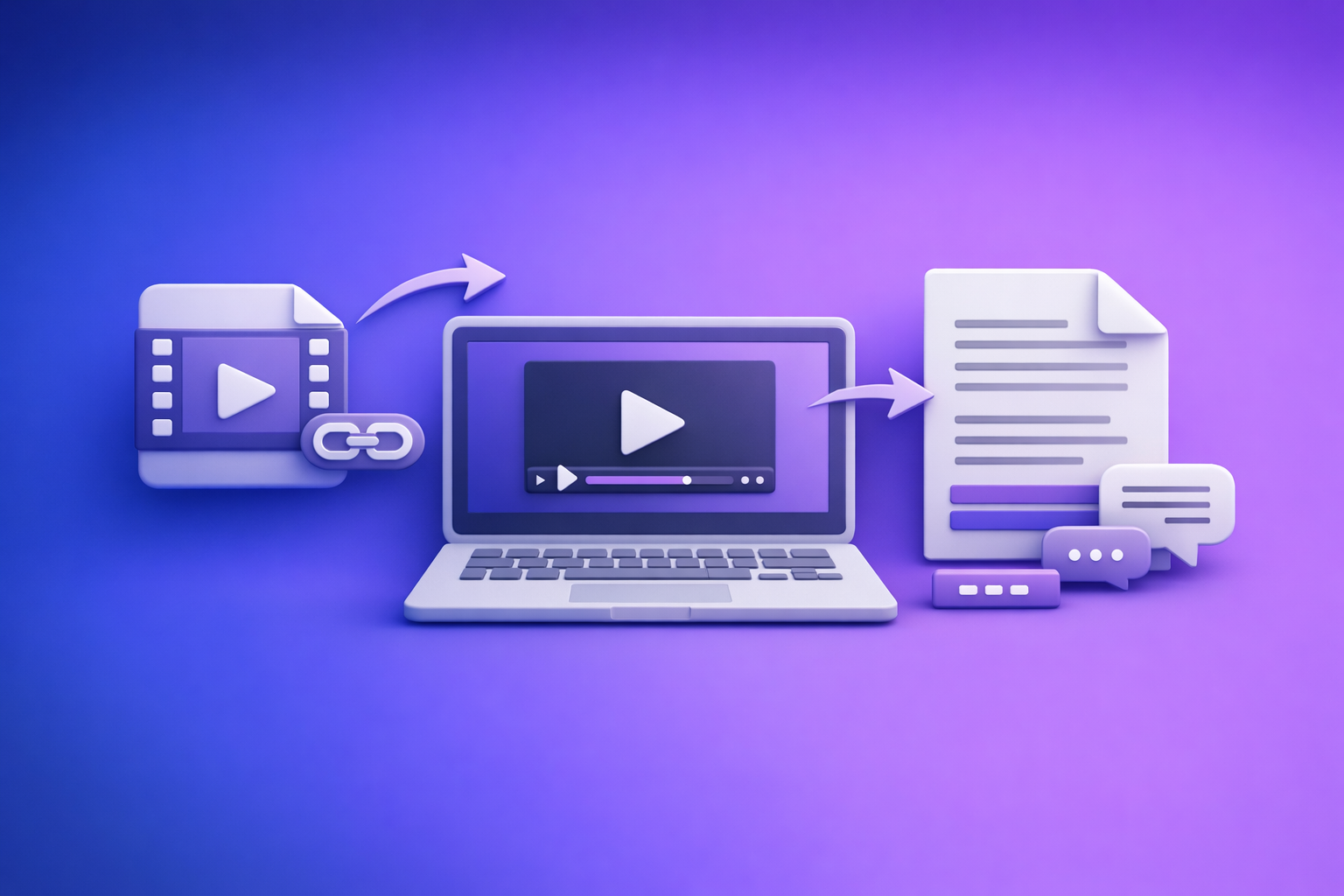
ChatGPT “Upload Video” Feature (2026): How to Use It, Real Limits, Fixes, and the Reliable No-Upload Workflow
If you need publishable transcripts/captions today, don’t build your workflow around ChatGPT’s “upload video” button—it’s inconsistent and often can’t produce export-ready timing. Use ChatGPT for analysis and repurposing on text, and use a link-based video-to-text workflow to generate TXT/SRT/VTT deterministically.
Quick Answer: Can ChatGPT Upload Video?
What “upload video” can mean (3 different capabilities)
When people say “chatgpt upload video feature”, they usually mean one of these:
- File attachment upload: attaching an MP4/MOV directly in chat.
- Pasting a video link: YouTube, Drive, social URLs.
- Vision analysis: analyzing frames/clips (useful for what’s visible), not a guaranteed full transcription pipeline.
These are different capabilities with different failure modes.
The reality in 2026: availability varies by plan, surface, model, region, and workspace policy
In practice, the “upload” UI can change based on:
- Plan (consumer vs Teams/Enterprise)
- Surface (web vs iOS vs Android)
- Model you select in that chat
- Region/rollout status
- Workspace policy (admins can disable attachments)
When to use ChatGPT video upload vs when to avoid it (transcripts/captions/production deliverables)
Use ChatGPT video upload when you need:
- Quick visual QA: “What’s on screen at 02:10?”
- Scene descriptions (when supported)
- High-level notes from a short clip
Avoid it when you need:
- Export-ready transcript (TXT) you can ship
- Captions/subtitles with timing (SRT/VTT)
- Repeatable production workflows (teams, clients, deadlines)
If your goal is transcripts/captions, treat downloading and re-uploading large files as an outdated workflow. Link-based extraction is the future of creator productivity because it removes fragile download/upload loops.
How the ChatGPT Video Upload Feature Works (What’s Actually Happening)
What ChatGPT can and can’t do with uploaded video
Depending on the model/surface, ChatGPT may be able to:
- Can: describe scenes, objects, text on screen, and answer questions about visible content.
- Can: extract structured notes if you provide clear formatting instructions.
- Can’t reliably: produce export-ready transcripts/captions with accurate timing (SRT/VTT) across long videos.
Why “video transcription in ChatGPT” is inconsistent
Common reasons results vary:
- Upload UI disappears per thread/model/surface.
- Processing fails on longer/heavier files.
- Link access restrictions block content (private/auth/robots/geo).
If you need consistent deliverables, use a transcript-first workflow and then run ChatGPT on the text.
Supported Formats, Practical Limits, and Common Failure Modes
Formats users try (and why “supported” still fails)
Most users try:
- MP4 and MOV
Even if a format is “supported,” failures often come from:
- Codec incompatibilities
- Missing/odd audio tracks
- Variable frame rate edge cases
Practical constraints that break first
The first things to break in real usage:
- File size and duration
- Bitrate and resolution
- Network stability (especially on mobile)
- Browser memory (large attachments can choke tabs)
- Mobile backgrounding (OS pauses the app mid-upload)
Privacy/security considerations before uploading any media to an LLM
Before uploading any recording, decide if it contains:
- Client confidential info
- Personal data
- Internal meetings, financials, medical/legal content
A safer pattern for sensitive media:
- Convert video → text first, then analyze the text in ChatGPT.
- Keep the “heavy media” step inside a workflow designed for transcription outputs and QA.
Step-by-Step: How to Upload a Video to ChatGPT (Web, iPhone, Android)
Web app steps (attachment workflow)
- Start a new chat and select an upload-capable model.
- Click attachment / add files → choose your MP4/MOV.
- Add a specific instruction (format + what to extract).
- Validate output with a spot-check prompt.
Spot-check prompt (fast QA):
- “Quote the exact spoken sentence at ~01:10 and ~03:40. If unsure, say so.”
iPhone/iOS steps (camera roll → ChatGPT)
- Confirm the ChatGPT app is updated.
- New chat → upload/attach → select from Photos or Files.
- Keep the app foregrounded until processing completes.
Android steps (gallery/files → ChatGPT)
- New chat → attach → choose Files/Gallery.
- Disable battery saver and avoid backgrounding during upload/processing.
Prompt templates that reduce rework (copy/paste)
Use prompts that force structure and make QA easier:
- Scene outline
- “Return a scene-by-scene outline with timestamps (mm:ss) and key quotes.”
- Clean transcript
- “Extract all spoken dialogue as a clean transcript; mark unclear words as [inaudible].”
- Clip ideas
- “Create 10 short clip ideas with time ranges and hook lines.”
If you need real captions, skip the gamble and use a dedicated export workflow like MP4 to SRT or MP4 to VTT.
Troubleshooting: “ChatGPT Video Upload Failed” (Fixes by Symptom)
Symptom: Upload button missing / Add files unavailable
Try in this order:
- Switch to a different model that supports attachments.
- Start a new chat (thread-level capability can differ).
- Check workspace policy (Teams/Enterprise may block attachments).
- Test another browser/profile; disable extensions that block uploads.
Deep dive: “Add Files” Button Unavailable in ChatGPT: Why It Happens + Fixes (and a No-Upload Workflow)
Symptom: “Max 0 uploads at a time” / upload limit reached
What it usually means:
- Uploads are disabled in the current context, not that your file is wrong.
Fast isolation steps:
- New chat → different model → different surface (web vs mobile) → different network
Symptom: “Attachments disabled for …”
Common root causes:
- Model mismatch
- Thread limitation
- Workspace policy
- Network filtering
Fix order:
- New chat → model swap → sign out/in → browser swap → network swap
Symptom: Stuck processing / never finishes
Fixes that work most often:
- Reduce file size (trim, lower resolution/bitrate)
- Upload via desktop instead of mobile
- Split long videos into parts (e.g., 10–15 minutes)
Symptom: Link pasted but ChatGPT can’t access it
Typical reasons:
- Private/auth-required links
- Geo restrictions
- Robots/anti-bot blocks
- Platform-specific access limits
Fix:
- Use a truly public URL, or export locally.
- Best alternative: link/MP4 → transcript export → paste text into ChatGPT.
If your goal is content repurposing, go straight to YouTube to blog and skip the download/upload loop.
The Reliable No-Upload Workflow (Production-Safe): Video Link/MP4 → TXT/SRT/VTT → ChatGPT-on-Text
Why this workflow wins (repeatability + export-ready outputs)
This is the production-safe approach because it’s deterministic:
- Transcript + captions/subtitles files you can export and ship
- Works even when ChatGPT uploads are missing/disabled
- Easier QA: search text, fix names, regenerate captions
It also aligns with the modern creator stack: link-based extraction beats downloading video files because it’s faster, less fragile, and easier to operationalize across a team.
Step-by-step implementation (10–15 minutes)
Step 1 — Choose input type in VideoToTextAI (link or MP4)
- Prefer a share link to avoid download/upload loops.
- Use MP4 upload only when link access isn’t possible.
If you want to implement this workflow now, use VideoToTextAI: VideoToTextAI
Step 2 — Generate transcript + captions in VideoToTextAI
Generate:
- Clean transcript (TXT) for analysis/repurposing
- Captions/subtitles (SRT/VTT) for publishing
Related tools:
Step 3 — Export the right format for your use case
Choose based on where the asset ships:
- TXT: summaries, blog drafts, outlines, quote extraction
- SRT: YouTube/IG/TT caption workflows
- VTT: web players, accessibility, LMS platforms
Step 4 — Use ChatGPT for what it’s best at (on text)
Once you have text, ChatGPT becomes consistent and fast:
- Summaries, chapters, titles, hooks, SEO briefs
- Rewrite for tone, shorten, translate, create social posts
Practical prompt (paste transcript + ask):
- “Create: (1) a 7-bullet summary, (2) 6 chapter titles with timestamps, (3) 15 hooks for short clips, (4) a 900-word blog draft.”
Step 5 — Quality control (2-minute QA)
Do quick QA before shipping:
- Spot-check 3 timestamps/sections against the video
- Verify names/brands/technical terms
- Confirm caption timing after edits (especially if you removed filler words)
For more context on the overall approach, see: ChatGPT “Upload Video” Feature (2026): How It Works, Limits, Fixes, and the Reliable No-Upload Workflow
Checklist: Do This Instead of Relying on ChatGPT Video Upload
Before you try uploading video to ChatGPT
- Confirm upload-capable model + new chat
- Test a small file first (30–60 seconds)
- Use stable Wi‑Fi; keep mobile app foregrounded
- Write a specific output spec (format, timestamps, sections)
If upload fails (10-minute decision rule)
- Run ordered fixes: model → surface → new thread → browser → network
- If still blocked after ~10 minutes: switch to transcript-first workflow and keep moving
Deliverables checklist (what to ship)
- Transcript (TXT) finalized
- Captions (SRT) exported
- Subtitles (VTT) exported
- Repurposed assets drafted in ChatGPT (blog + social + hooks)
VideoToTextAI vs Competitors
Below is a fair, workflow-focused comparison using only publicly signaled strengths from researched competitors (no invented pricing/limits).
| Tool | Best for | Link-based input (URL-first) | Export-ready outputs (TXT/SRT/VTT) | Repurposing workflow (transcript → blog/social) | Where it may be better than VideoToTextAI |
|---|---|---|---|---|---|
| VideoToTextAI | Operational, repeatable video→text workflows for transcripts, captions, subtitles, and repurposing | Yes (positioned as link-based workflows) | Yes (explicit TXT/SRT/VTT workflow in this guide + tools) | Yes (designed to feed ChatGPT-on-text) | — |
| Reduct Video (reduct.video) | Collaborative transcript-centric video work (searching, highlighting, team workflows) | No strong public signal | Transcript export is emphasized; subtitle export not strongly signaled | Some synthesis/summaries are signaled | Better if you need team collaboration and transcript-based review/editing inside a platform |
| Videotranscriber AI (videotranscriber.ai) | Fast, simple conversions with no-login/free-tier emphasis | Yes (YouTube link workflows are highlighted) | Transcript + subtitles are signaled | Limited public positioning around blog/social repurposing | Better if you want quick, no-login conversions and lightweight usage |
| PCMag benchmark set (pcmag.com) | Broad landscape + editorial testing context for transcription services | Not a tool; editorial comparison | Varies by service | Not the focus | Better if you’re procuring human accuracy or need editorially tested service comparisons |
Why VideoToTextAI wins for creator productivity (when you need to ship):
- Workflow speed: URL-first processing avoids the outdated “download → re-upload” loop.
- Operational repeatability: you can standardize outputs (TXT/SRT/VTT) even when ChatGPT upload UI disappears.
- Repurposing-ready: transcript-first makes ChatGPT consistently useful for summaries, chapters, SEO drafts, and social assets—without reprocessing media.
Fair tradeoffs:
- If your primary need is collaborative review/editing around transcripts, Reduct Video may fit better.
- If you want no-login quick conversions, Videotranscriber AI may be more convenient for one-off use.
Competitor Gap
What top-ranking pages miss
Most pages ranking for the “chatgpt upload video feature” topic miss three practical realities:
- They treat “upload video” as one feature, but it’s three different capabilities with different failure modes.
- They don’t provide an ordered diagnosis for missing upload UI / disabled attachments.
- They don’t define a production-safe fallback that outputs TXT/SRT/VTT consistently.
What this post adds (differentiators)
- Symptom-based troubleshooting mapped to root causes (surface/model/thread/policy/network)
- A deterministic no-upload workflow that still uses ChatGPT (on text) for repurposing
- Implementation walkthrough + QA checklist for publishable assets
FAQ
Will ChatGPT let me upload a video?
Sometimes. In 2026, availability varies by plan, model, surface, region, and workspace policy, so you may see the option in one chat and not another.
Can ChatGPT view videos you upload?
In some contexts, it can analyze visible content (frames/clips) and answer questions about what’s on screen. That’s different from producing a reliable, export-ready transcript/caption file.
How long of a video can you upload to ChatGPT?
There isn’t a single dependable limit because failures depend on file size, duration, bitrate, resolution, network stability, and device constraints. For anything you must ship, use a transcript-first workflow.
Why can’t I upload video to ChatGPT (button missing or disabled)?
Most common causes:
- Wrong model or surface
- Thread-level capability differences (new chat fixes it)
- Workspace policy restrictions (Teams/Enterprise)
- Browser extensions or network filtering
Use the ordered troubleshooting steps above, or switch to the no-upload workflow.
What is the best software to convert video to text?
If you need publishable deliverables, choose software that reliably outputs TXT + SRT + VTT, then use ChatGPT to repurpose the text into blogs, chapters, hooks, and social posts. For a direct implementation path, start with MP4 to transcript or YouTube to blog.
Related posts
Reel Analyser (Instagram Reels): Transcript‑First Competitor Research, Hook/CTA Extraction, and Repurposing Workflow (VideoToTextAI)
Video To Text AI
A 2026 reel analyser should turn Instagram Reel links into a searchable transcript library you can tag for hooks, CTAs, objections, and topic clusters—then export into repurposing-ready drafts without a download/upload loop.
Traducir video de Instagram (Reels) en 2026: workflow transcript-first para traducir, sacar hooks/CTAs y repurpose (con VideoToTextAI)
Video To Text AI
Aprende a traducir un Reel de Instagram con un flujo URL→transcripción→traducción→subtítulos, y a convertir esa traducción en un activo de investigación para hooks, CTAs, objeciones y clusters de contenido.
Reel Analyzer: Transcript‑First Instagram Reels Research (Hooks, CTAs, Objections) + Workflow Guide (VideoToTextAI)
Video To Text AI
A reel analyzer should turn any public Instagram Reel link into a searchable transcript library you can mine for hooks, CTAs, objections, and topic clusters—then repurpose into original drafts with a repeatable SOP.