
“Attachments Disabled for” ChatGPT: What It Means, Why It Happens, and Fixes + a No-Upload Transcript Workflow (2026)
 Video To Text AI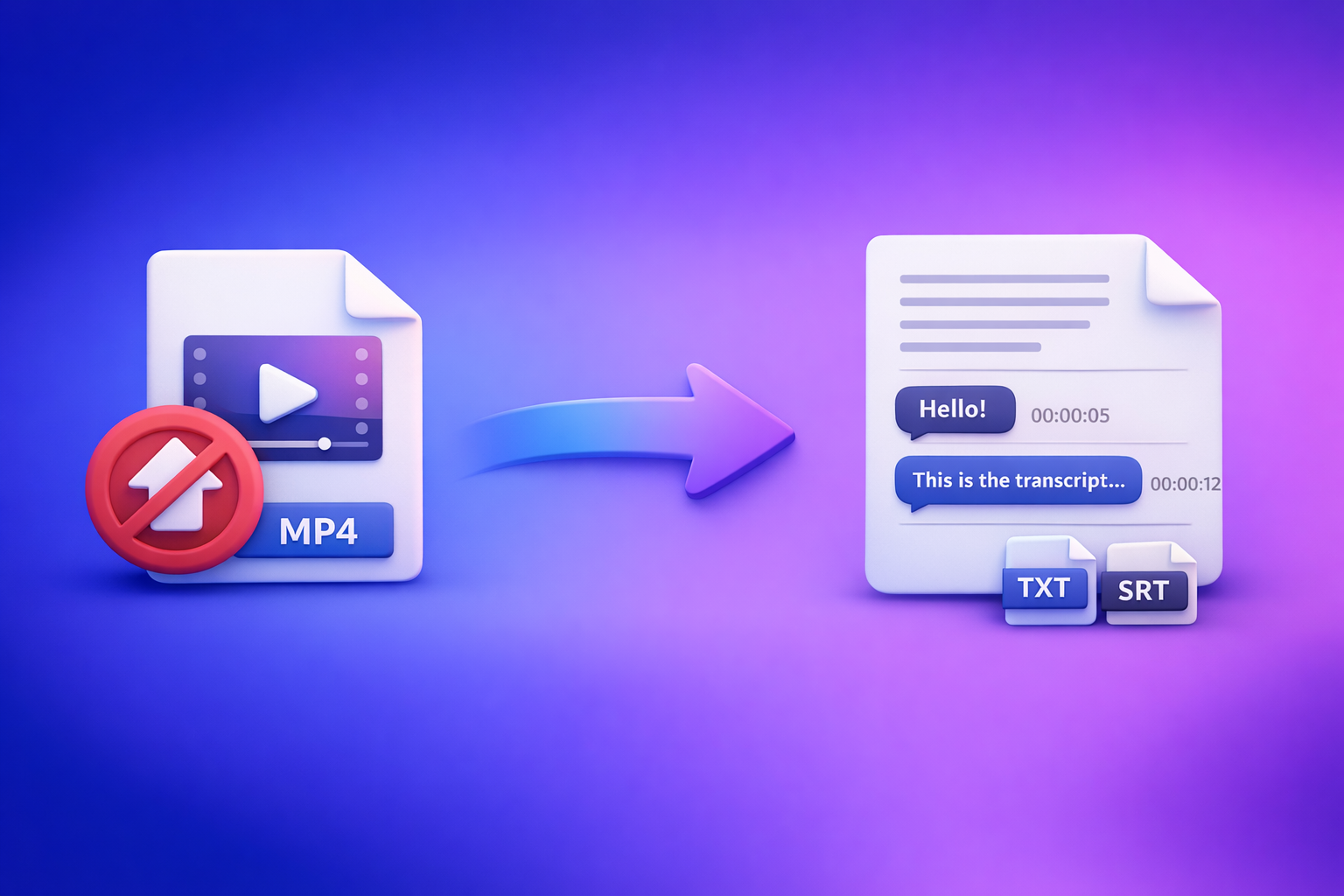
If you see “attachments disabled for …” in ChatGPT, stop trying different files—uploads are blocked in that specific context, not “broken.” Use the 2-minute diagnosis + ordered fixes below, and if it’s still blocked after ~10 minutes, ship via a no-upload transcript-first workflow (link/MP4 → TXT/SRT/VTT → ChatGPT-on-text).
Downloading and re-uploading video files is an outdated workflow; link-based extraction is the future of creator productivity because it removes fragile upload UI steps and reduces permissions friction.
What “Attachments Disabled for …” Means (and What It Does Not Mean)
“Attachments disabled for …” is a context-level restriction. Treat it as: “Uploads are disabled here, right now.”
The exact UI states you’ll see (banner, tooltip, missing paperclip / “Add files”)
Common states include:
- A top banner that reads “Attachments disabled for …”
- A tooltip when you hover the upload area
- A missing or greyed-out paperclip / “Add files” button
What’s actually blocked: files vs images vs video vs all uploads
What’s blocked depends on the surface/model/policy:
- Files (PDF/DOCX/CSV) may be blocked while text chat still works
- Images may be allowed in some contexts but not others
- Video uploads are often the most restricted due to size/policy
- In some workspaces, all uploads are disabled by admin policy
What it usually isn’t: a “bad file,” account ban, or permanent restriction
In most cases, it’s not:
- A corrupted file
- A “shadowban” or permanent account restriction
- Something you can fix by renaming the file
It’s typically a surface/model/thread/policy mismatch you can isolate quickly.
2-Minute Diagnosis (Before You Change Anything)
Do this in order. Don’t clear cookies or reinstall apps until you’ve isolated the scope.
Step 1: Identify the surface (Web vs Desktop app vs Mobile app)
Write down where it happens:
- Web browser (Chrome/Safari/Firefox/Edge)
- Desktop app
- Mobile app (iOS/Android)
Step 2: Confirm the chat context (new thread vs existing thread with restrictions)
Check whether it’s:
- Only one existing thread
- Every new chat
- Only chats inside a workspace
Step 3: Confirm the model supports attachments in this context
Uploads can be model- and context-dependent.
- If the model selector changes behavior, you may be in a non-upload-capable context
- If a thread contains an attachment, you can also hit thread/model mismatch later (see edge cases)
Step 4: Determine scope: only this thread, this device/browser, this network, or this workspace
Quick scope map:
- Thread-only → likely thread state or model mismatch
- Device/browser-only → likely extensions/site data
- Network-only → likely firewall/VPN/DNS filtering
- Workspace-only → likely admin policy
Step 5: Run one isolation test (incognito/private + alternate network hotspot)
One fast test answers a lot:
- Open incognito/private window and log in
- If possible, try an alternate network (phone hotspot)
If it works in incognito or on hotspot, you’ve already narrowed the cause.
Root Causes (Ranked by Likelihood) + How to Confirm Each
Model/surface mismatch (uploads not supported here)
Uploads may be disabled on a specific surface/model combination.
Confirmation signals: upload icon missing only on one surface/model
- Upload control missing on web, but present on mobile (or vice versa)
- Upload control appears only after switching models or starting a new chat
Fast verification: start a new chat and switch model/surface
- Start a new chat
- Switch model (if available)
- Compare web vs mobile app behavior
Workspace/admin policy (Team/Enterprise restrictions)
Many “attachments disabled” cases are simply org policy.
Confirmation signals: works on personal account but not workspace
- Personal account: uploads available
- Workspace account: uploads disabled everywhere
What to ask your admin to check (uploads, connectors, DLP/content controls)
Ask your admin to review:
- Attachment/upload permissions
- Data loss prevention (DLP) or content controls
- Connector restrictions (if your org uses them)
- Any security posture that disables file transfer
Browser profile breakage (extensions, cookies/storage corruption)
This is common when uploads work in incognito.
Confirmation signals: works in incognito but not normal window
- Incognito: upload button appears
- Normal profile: upload button missing/disabled
Common culprits: ad blockers, privacy/script blockers, security extensions
Typical offenders:
- Ad blockers with aggressive rules
- Script/privacy blockers
- Endpoint security browser extensions
- “Disable third-party scripts” style tools
Network/security blocks (VPN, proxy, corporate firewall, content filters)
Uploads can be blocked by network controls even when chat works.
Confirmation signals: works on hotspot but not office Wi‑Fi
- Office Wi‑Fi: attachments disabled / upload fails
- Hotspot: uploads work
Typical blockers: SSL inspection, upload endpoints blocked, restrictive DNS
Common enterprise causes:
- SSL inspection breaking upload endpoints
- Proxy rules blocking large POST requests
- DNS filtering categories that block file transfer/CDN endpoints
Plan/entitlement limitations (feature not enabled on your account)
Sometimes the feature simply isn’t enabled for your account/region.
Confirmation signals: consistent disablement across devices/networks
- Same behavior on mobile + desktop + multiple networks
What to check: account type, region availability, org entitlements
Check:
- Account type and entitlements
- Region availability
- Whether you’re in a restricted workspace tenant
Temporary service degradation (status/outage symptoms)
Sometimes it’s not you.
Confirmation signals: widespread reports + intermittent UI failures
- UI elements missing intermittently
- Multiple users reporting the same issue at the same time
What to do: stop troubleshooting; use fallback workflow
Don’t burn time. Use the ship-now workflow below.
Step-by-Step Fix Sequence (Ordered, Fastest-to-Verify First)
Timebox this to ~10 minutes. If you’re still blocked, move to the fallback.
1) Start a new chat and reselect an upload-capable model
- Create a new thread
- Reselect the model (if available)
- Check whether the upload control returns
2) Switch surface: try the official mobile app (rules out browser-only issues)
- If mobile works, the issue is likely browser profile or desktop network
3) Incognito/private window test (no extensions, clean session)
- If incognito works, you’re looking at extensions or site data
4) Disable extensions that commonly break uploads (one-by-one)
Disable, refresh, retest:
- Ad blockers
- Script/privacy blockers
- Security extensions
5) Clear site data for ChatGPT and re-authenticate (cookies + local storage)
Clear site data for the ChatGPT domain, then log back in.
- This fixes corrupted storage and stale auth states
6) Switch networks (hotspot test) and remove VPN/proxy
- Turn off VPN/proxy
- Try hotspot
- If hotspot works, escalate as a network policy issue
7) Workspace path: copy/paste request to admin (what to include)
Send your admin a tight payload:
Include: timestamp, surface, model, screenshot, network type, policy suspicion
- Timestamp + timezone
- Surface (web/desktop/mobile) + browser version
- Model name (as shown)
- Screenshot of the banner/UI state
- Network type (office Wi‑Fi, home, hotspot, VPN)
- Suspected policy area (uploads/DLP/proxy)
8) Stop after ~10 minutes: move to the ship-now workflow (don’t burn time)
If you’re trying to transcribe or analyze video, don’t wait on uploads. Use a transcript-first workflow that doesn’t depend on ChatGPT’s attachment UI.
Edge Cases You’ll See in Real Use (and What to Do)
Upload button missing only in one thread (thread-level state issues)
Fix:
- Start a new chat
- Avoid continuing the “broken” thread for upload tasks
Uploads work on mobile but not desktop (local browser/network culprit)
Fix:
- Incognito test
- Disable extensions
- Clear site data
- Try hotspot from desktop
Uploads work on personal account but not workspace (policy culprit)
Fix:
- Ask admin to confirm upload/DLP settings
- Use the ship-now workflow for production work
“You need GPT‑4o to continue this chat because there’s an attachment” (thread/model mismatch)
This is a thread constraint: the chat expects a model/context that supports the attachment state.
Fix:
- Continue in a compatible model (if available), or
- Start a new thread and paste text instead of attaching files
Ship-Now Workflow (No Attachments Needed): Video Link/MP4 → TXT/SRT/VTT → ChatGPT-on-Text
When attachments are disabled, the reliable path is: transcript first, ChatGPT second.
Why transcript-first works when attachments are disabled
- ChatGPT can always process plain text
- You avoid fragile upload UI and policy constraints
- You get export-ready files (TXT/SRT/VTT) you can reuse across tools
Most importantly: downloading and re-uploading video files is an outdated workflow; link-based extraction is the future of creator productivity because it’s faster, repeatable, and less permission-dependent.
Implementation: URL-first extraction with VideoToTextAI (fast, repeatable)
Use VideoToTextAI for deterministic outputs, then paste the text into ChatGPT.
- Option A: Paste a video link → export transcript (TXT) for analysis
- Option B: Export captions/subtitles (SRT/VTT) for publishing
- Option C: Repurpose transcript into blog/social assets (prompt + structure)
Exactly one place to start: VideoToTextAI.
Recommended outputs by use case
Blog/SEO: TXT + section timestamps
- TXT transcript
- Add section timestamps for easy citation and internal linking
Subtitles: SRT for editors, VTT for web players
- SRT for Premiere/Final Cut/CapCut workflows
- VTT for web players and platforms that prefer WebVTT
Clips/shorts planning: timestamped highlights list
- Pull a list of “moments” with timestamps
- Use it to plan shorts without scrubbing timelines
Quality controls before you paste into ChatGPT
Before pasting:
- Fix speaker labels (if needed)
- Remove filler words if you want cleaner summaries
- Normalize punctuation for readability
- Keep timestamps when you need citations or clip mapping
Helpful tools and related guides:
- mp4 to transcript
- mp4 to srt
- mp4 to vtt
- ChatGPT “Upload Video” Feature (2026): How It Works, Limits, Fixes, and the Reliable No-Upload Workflow
Copy/Paste Prompt Templates (Use With Transcript Text)
Paste your transcript (or a chunk) and use one of these.
Template: summarize + key takeaways + action items (with timestamp citations)
You are an analyst. Summarize the transcript below.
Requirements:
- 8–12 bullet summary
- 5 key takeaways
- 5 action items
- Include timestamp citations like [MM:SS] for every takeaway and action item
Transcript:
[PASTE TRANSCRIPT HERE]
Template: extract quotes + build a clip list (start/end timestamps)
From the transcript below, extract:
1) 10 strong quotable lines (each with [start timestamp])
2) A clip list of 8–12 moments with:
   - title
   - start timestamp
   - end timestamp
   - why it matters
Transcript:
[PASTE TRANSCRIPT HERE]
Template: convert transcript into an SEO blog outline (H2/H3 + meta)
Turn this transcript into an SEO blog outline.
Output:
- SEO title (60 chars max)
- Meta description (155 chars max)
- H2/H3 outline with brief bullet notes under each
- Suggested internal links (placeholders)
- FAQ section (5 Q&As)
Transcript:
[PASTE TRANSCRIPT HERE]
Template: create captions + hooks + platform variants (TikTok/IG/LinkedIn)
Create platform-specific outputs from this transcript:
- 10 hooks (short, punchy)
- 10 caption options for TikTok/IG (<= 150 chars)
- 5 LinkedIn post drafts (120–180 words)
- 1 CTA line per platform (non-pushy)
Transcript:
[PASTE TRANSCRIPT HERE]
Checklist: Fix or Fallback (Print This)
Quick fix checklist (surface/model/thread → incognito → extensions → site data → network)
- New chat + reselect model
- Try mobile app (isolates browser issues)
- Incognito/private test
- Disable extensions one-by-one
- Clear site data + re-login
- Hotspot test + disable VPN/proxy
Workspace checklist (policy confirmation + admin request payload)
- Confirm personal vs workspace behavior
- Send admin: timestamp, surface, model, screenshot, network type
- Ask about: uploads permission, DLP/content controls, proxy/SSL inspection
Ship-now checklist (link/MP4 → TXT/SRT/VTT → paste → prompts → export)
- Generate TXT transcript (keep timestamps if needed)
- Export SRT/VTT for publishing
- Paste transcript into ChatGPT in chunks if long
- Run summary/clip/SEO prompts
- Save outputs into your content system
Related internal reads for deeper troubleshooting:
- “Attachments Disabled for” ChatGPT: Meaning, Root Causes, Fixes, and the No-Upload Transcript Workflow (2026)
- “Add Files” Button Unavailable in ChatGPT: Why It Happens + Fixes (and a No-Upload Workflow)
- “Max 0 Uploads at a Time” Upload Limit Reached in ChatGPT: Meaning, Fixes, and the No-Upload Video→Text Workflow (2026)
VideoToTextAI vs Competitors
Evaluate tools on what actually matters when ChatGPT attachments are blocked: workflow speed, link-based input, export readiness (TXT/SRT/VTT), reliability, and repeatable repurposing.
Downloading and re-uploading video files is an outdated workflow; link-based extraction is the future of creator productivity because it avoids upload UI failures and policy constraints.
Comparison table (workflow signals from public positioning)
| Tool | Link-based input | Upload-centric workflow | Export-ready subtitles (SRT/VTT) | Team/collab focus | Best fit |
|---|---|---|---|---|---|
| VideoToTextAI | Yes (URL-first workflows) | No | Yes (TXT/SRT/VTT outputs) | Yes (workflow repeatability) | Creators/marketers who need fast transcript → captions → repurposing without relying on ChatGPT uploads |
| Videotranscriber AI | Yes | No | Yes (subtitles mentioned) | No strong signal | Quick, no-login style transcription and basic outputs when you don’t need a structured repurposing workflow |
| Reduct Video | No strong public signal | Not positioned as link-first | No strong public signal | Yes | Teams doing collaborative transcript-based review, highlighting, and organizing large libraries |
| PCMag-recommended stacks (Rev/Otter-style workflows) | No strong public signal | Often upload-based | Not consistently positioned | Varies | When you need human transcription options or established editorial workflows (but expect more upload steps) |
Why VideoToTextAI wins (when attachments are disabled)
- Workflow speed: URL-first extraction removes the slow loop of downloading, converting, and re-uploading.
- Operational repeatability: You can standardize outputs (TXT/SRT/VTT) and reuse the same prompt templates every time.
- Export readiness: Clean transcript + subtitle formats reduce “format wrangling” before publishing.
- Repurposing-friendly: Transcript-first makes it trivial to generate blogs, clip lists, captions, and summaries from text.
When a competitor may be better
- Choose Reduct Video if your primary need is collaborative review, highlighting, and organizing a searchable video archive.
- Choose Rev/Otter-style services (as commonly recommended in editorial roundups) if you specifically need human transcription or established enterprise procurement patterns.
- Choose Videotranscriber AI if you want a simple, quick transcription experience and don’t need a repeatable repurposing pipeline.
Competitor Gap
Most “attachments disabled” search results are forum threads. They rarely provide an ordered diagnosis, a timeboxed fix sequence, and a production-safe fallback.
What’s typically missing:
- Ordered isolation tests (incognito + hotspot) to pinpoint browser vs network vs policy
- Admin request template that speeds up enterprise resolution
- A real ship-now path that doesn’t depend on uploads: deterministic transcript/caption exports (TXT/SRT/VTT) + ChatGPT-on-text
- The key operational insight: downloading and re-uploading video files is an outdated workflow; link-based extraction is the future of creator productivity
FAQ
Why are my ChatGPT uploads disabled?
Most commonly: model/surface mismatch, workspace policy, browser extensions/site data, or network security controls. Confirm scope with incognito + hotspot.
Why is ChatGPT not letting me attach files?
Because attachments are disabled in your current context (thread/model/surface) or blocked by policy. Start a new chat, switch surface, then isolate with incognito.
Where is the upload button in ChatGPT?
When enabled, it appears as a paperclip / “Add files” near the message box. If it’s missing or greyed out, uploads are disabled in that context.
Can ChatGPT do video transcription?
Sometimes, but it’s not a production-safe workflow when uploads are blocked or inconsistent. A transcript-first workflow (video link/MP4 → TXT/SRT/VTT → ChatGPT-on-text) is more reliable.
What is the best software to convert video to text?
Pick based on outputs and repeatability. If you need export-ready TXT/SRT/VTT and a no-upload, link-based workflow you can run every day, use a transcript-first tool and then use ChatGPT for analysis and repurposing.
Related posts
Reel Analyser (Instagram Reels): Transcript‑First Competitor Research, Hook/CTA Extraction, and Repurposing Workflow (VideoToTextAI)
Video To Text AI
A 2026 reel analyser should turn Instagram Reel links into a searchable transcript library you can tag for hooks, CTAs, objections, and topic clusters—then export into repurposing-ready drafts without a download/upload loop.
Traducir video de Instagram (Reels) en 2026: workflow transcript-first para traducir, sacar hooks/CTAs y repurpose (con VideoToTextAI)
Video To Text AI
Aprende a traducir un Reel de Instagram con un flujo URL→transcripción→traducción→subtítulos, y a convertir esa traducción en un activo de investigación para hooks, CTAs, objeciones y clusters de contenido.
Reel Analyzer: Transcript‑First Instagram Reels Research (Hooks, CTAs, Objections) + Workflow Guide (VideoToTextAI)
Video To Text AI
A reel analyzer should turn any public Instagram Reel link into a searchable transcript library you can mine for hooks, CTAs, objections, and topic clusters—then repurpose into original drafts with a repeatable SOP.