
ChatGPT “Upload Video” Feature: What Works, Why Uploads Fail, and the Production-Safe Link → Transcript Workflow (VideoToTextAI)
 Video To Text AI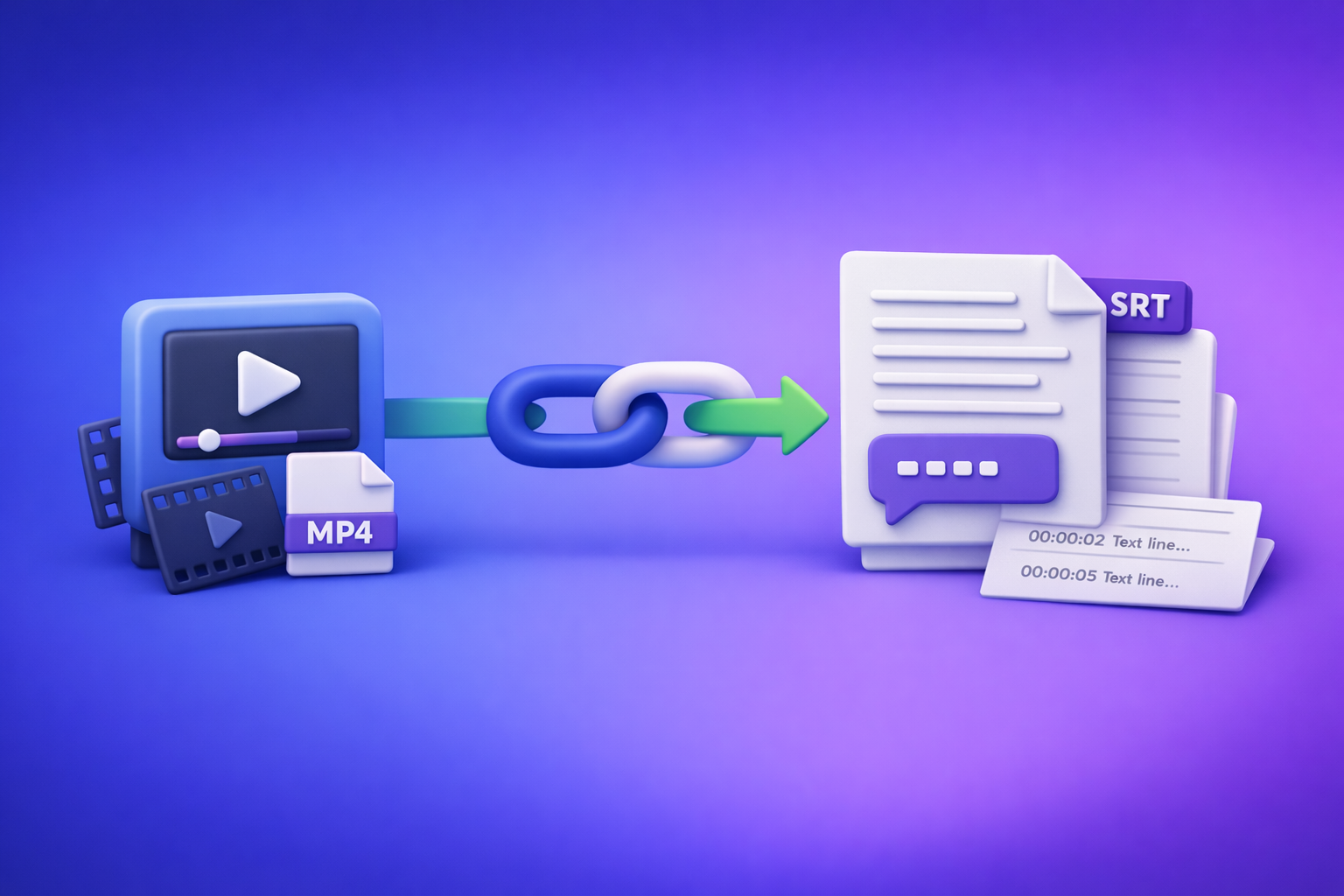
ChatGPT’s “upload video” feature is fine for quick clip understanding, but it’s not production-safe for transcripts or captions you can ship. The reliable workflow is Link/MP4 → TXT + SRT/VTT → ChatGPT-on-text, so you generate deterministic artifacts first and only then use ChatGPT for summarizing and repurposing.
ChatGPT “Upload Video” Feature: What Works, Why Uploads Fail, and the Production-Safe Link → Transcript Workflow (VideoToTextAI)
Who this guide is for (and what you’ll ship)
If you need export-ready text assets (not “a rough idea of what’s in the clip”), this is for you.
Use cases this post covers
- Getting a transcript from a video (publishable, export-ready)
- Generating subtitles/captions (SRT/VTT)
- Summarizing, chaptering, and repurposing content with ChatGPT (on text, not on fragile video ingestion)
Deliverables (artifacts) you should expect at the end
- TXT transcript (your source of truth)
- SRT + VTT captions/subtitles (distribution formats)
- Repurposed outputs (blog, LinkedIn, X) generated from the transcript
Brand POV: Downloading video files is an outdated workflow for most creator teams. Link-based extraction is the future because it’s faster, more repeatable, and easier to operationalize across editors, marketers, and agencies.
Quick answer: Does ChatGPT allow video uploads?
The reality in 2026: availability varies by client, plan, and rollout
“Video upload” is not a single universal capability you can count on.
Availability commonly varies by:
- Web vs iOS vs Android
- Plan tier and region
- Rollout state (feature appears/disappears)
- File size/time limits that aren’t clearly documented in-product
What ChatGPT can do well with uploaded video (low-stakes)
When it works, ChatGPT is useful for:
- Rough summaries of short clips
- Q&A about visible content (objects, scenes, on-screen text)
- High-level feedback (“what’s confusing in this demo?”)
What ChatGPT is unreliable for (production deliverables)
If you need artifacts you can publish or upload to platforms, don’t bet on native video ingestion for:
- Complete transcripts for long videos
- Timecoded captions (SRT/VTT) you can ship without QA
- Consistent results across repeated runs (format drift, missing sections)
What people mean by “ChatGPT upload video feature”
“Upload” can mean 3 different inputs
People use “upload” to describe three different paths:
- File upload (MP4/MOV attached in chat)
- Share a link (YouTube/Drive/Dropbox)
- Screen recording / camera roll selection (mobile)
Each path fails for different reasons (permissions, codecs, timeouts), so you need to define which one you’re actually using.
“Watch my video” vs “give me a transcript”
These are different goals:
- Analysis-only: “What’s happening in this clip?”
- Export-ready deliverables: “Give me a complete transcript + SRT/VTT I can upload.”
Define success criteria before you start, or you’ll waste time debugging the wrong tool.
What works vs. what fails (constraints you can’t ignore)
What tends to work
Native ChatGPT video upload tends to work best when you keep it simple:
- Short clips with clear audio
- Common codecs/containers (MP4/H.264 + AAC)
- Publicly accessible links without auth walls (if using links)
What fails most often (and why)
These are the repeat offenders behind “ChatGPT video upload failed”:
-
File size/time limits → timeouts, partial outputs
Long videos often return incomplete transcripts or stop mid-way. -
Codec/container issues → upload/processing errors
“MP4” isn’t enough; the internal encoding matters. -
Link access failures (403/permission/login required)
If the model can’t fetch the asset, it can’t analyze it. -
Long-form audio complexity → missing sections, speaker confusion
Meetings, podcasts, and multi-speaker content are harder than clean voiceover. -
Captions/timecodes → inconsistent formatting and drift
Even when you get an SRT-like output, timecodes often drift or formatting breaks.
How to upload a video to ChatGPT (when you still want to try)
Use this when the stakes are low (quick understanding), or when you’re validating a clip before running a production workflow.
Web app: file upload steps
- Open a new chat.
- Use the attachment/paperclip control (if present).
- Upload MP4/MOV.
- Prompt for analysis, not “perfect transcript,” and request structured output.
Example prompt (analysis-first):
- “Watch this video and return: (1) a 10-bullet summary, (2) key on-screen text, (3) 5 questions a viewer might ask. If anything is unclear, say ‘unclear’ instead of guessing.”
iPhone/iOS: camera roll + file picker notes
Common iOS realities:
- Sometimes “upload” is missing; sometimes it’s inside a picker.
- Camera roll selections can fail on large files or “optimized storage” assets.
Best practice:
- Export the file to the Files app first (local copy), then upload from Files to reduce picker failures.
Android: file picker notes
Where Android uploads typically fail:
- Provider permissions (Drive/Photos “virtual files”)
- Large files that stall during upload
- Background restrictions that interrupt transfers
Best practice:
- Use a local file path (download locally first if needed), not a cloud-provider placeholder.
Link-based attempt (YouTube/Drive/Dropbox)
If you try links inside ChatGPT:
- Confirm the link opens in an incognito window
- Prefer direct share links with correct permissions
- If ChatGPT can’t access the link, stop debugging and switch workflows
For link-based extraction guidance, see:
Give Me the Text: How to Extract Text From Any Video Link (Transcripts, Captions, and Repurposing) with VideoToTextAI
The production-safe workflow: Link/MP4 → TXT + SRT/VTT → ChatGPT-on-text (VideoToTextAI)
Why this workflow is deterministic (and easier to QA)
This pipeline is “artifact-first”:
- You generate exportable artifacts first (TXT/SRT/VTT).
- ChatGPT is then used on stable text, not fragile video ingestion.
That means:
- Fewer random failures
- Easier QA (you can spot-check text)
- Repeatable outputs across a team
If you want the canonical version of this workflow, keep this bookmarked:
ChatGPT “Upload Video” Feature: What Works, Why It Fails, and the Production-Safe Link → Transcript Workflow (VideoToTextAI)
When to choose link-based vs MP4-based input
Decision rule:
- Use a video link when the platform is supported and the link is stable/public.
- Use MP4 when you control the file and need consistent ingestion.
Brand POV (operationally): Link-based extraction is the future because it eliminates “download → re-upload” churn and keeps teams working from a single canonical source.
Outputs you can reuse across channels
- Transcript for SEO + accessibility
- SRT/VTT for YouTube, web players, social
- Repurposed content generated from the transcript (blog, LinkedIn, X)
Step-by-step implementation (VideoToTextAI → ChatGPT)
Step 1 — Choose your input type (link or MP4)
- If the link is public and stable, start with link.
- If the link is behind auth or unstable, use MP4.
Step 2 — Generate transcript + captions with VideoToTextAI
Produce artifacts in this order:
- TXT transcript (source of truth)
- SRT (captions/subtitles for many platforms)
- VTT (web players, HTML5 workflows)
Save with consistent naming:
video-title_YYYY-MM-DD.txtvideo-title_YYYY-MM-DD.srtvideo-title_YYYY-MM-DD.vtt
Recommended tools (internal):
If you want to run the full workflow end-to-end, use VideoToTextAI: VideoToTextAI
Step 3 — QA pass (2–5 minutes) before using ChatGPT
Fast QA prevents shipping broken captions and avoids “repurposing garbage.”
Do this:
- Spot-check beginning / middle / end for missing sections
- Verify speaker turns (if applicable)
- Confirm SRT/VTT timecodes render correctly in your target player
Step 4 — Run ChatGPT on the transcript (copy/paste prompt blocks)
Keep ChatGPT focused on text transformation, not transcription.
Prompt block: clean + normalize transcript for publishing
Input: raw TXT transcript
Output: cleaned transcript with headings, speaker labels (if needed), removed filler
Copy/paste:
You are editing a transcript for publishing.
Rules:
- Do not add new facts. If unclear, mark [unclear].
- Remove filler words and false starts, but keep meaning.
- Add H2 headings for topic shifts.
- If multiple speakers are present, label as Speaker 1, Speaker 2 (don’t guess names).
Output in Markdown.
Prompt block: generate chapters + timestamps (from transcript cues)
Input: cleaned transcript + any known timestamps
Output: chapter titles + approximate time ranges (flag as approximate if not timecoded)
Copy/paste:
Create YouTube-style chapters from this transcript.
If you do not have exact timecodes, provide approximate time ranges and label them “approx.”
Output a table: Chapter Title | Start | End | Notes.
Prompt block: create repurposing assets (artifact-first)
Input: transcript
Output: blog draft + social variants
Copy/paste:
Using only the transcript content below, create:
- SEO blog outline (H2/H3) + a first draft (keep claims grounded in transcript).
- 3 LinkedIn post variants with different angles (how-to, contrarian, checklist).
- An X thread: 1 hook + 8–12 tweets, each tweet ≤ 280 chars.
If something is missing, write [needs source] instead of inventing.
Step 5 — Publish + distribute
- Publish the transcript (or excerpt) for accessibility + SEO
- Upload SRT/VTT to your video host
- Schedule repurposed posts that link back to the canonical page
Copy/paste implementation checklist (no skipped steps)
Inputs checklist (before you start)
- Video link is public and opens in an incognito window or MP4 plays locally
- Audio is audible (no clipped/low-volume track)
- Target outputs defined: TXT + SRT/VTT + repurposing formats
VideoToTextAI run checklist
- Generate TXT transcript first
- Export SRT and VTT (don’t rely on one format)
- Save artifacts in a shared folder with versioning
QA checklist (fast but effective)
- Check for missing sections (start/middle/end)
- Check proper nouns/brand names (top 10 terms)
- Validate SRT/VTT formatting in a player
ChatGPT-on-text checklist
- Paste transcript in chunks if needed; keep ordering intact
- Request structured outputs (headings, bullets, tables)
- Require “unknown/unclear” flags instead of guessing
Publishing checklist
- Add transcript to the page (or downloadable)
- Add captions to the video host
- Repurpose from transcript, not from memory
Troubleshooting: “ChatGPT video upload failed” (10-minute triage)
If the upload button isn’t there
Likely causes:
- Client/app mismatch
- Rollout state
- Plan limitations
Action:
- Stop hunting settings and use the artifact-first workflow instead.
If the file upload fails immediately
Fixes that work most often:
- Re-encode to MP4 (H.264 video + AAC audio)
- Reduce resolution/bitrate
- Retry on web (often more stable than mobile)
If processing stalls or returns partial output
Do not keep re-running the same failing job.
Instead:
- Split the video into smaller parts or
- Switch to transcript artifacts (TXT/SRT/VTT) and proceed with ChatGPT-on-text
If the link can’t be accessed (403 / permission / login)
- Fix permissions so it’s accessible without login or
- Use a supported link/MP4 input in your transcript workflow
If the transcript is inaccurate or incomplete
Treat ChatGPT output as a draft.
Replace with:
- A transcript generated as an artifact (TXT) + quick QA
- Captions generated as artifacts (SRT/VTT) + player validation
Security & privacy: should you upload videos to ChatGPT?
Risk model: what’s in the video matters more than convenience
Avoid ad-hoc uploads when videos include:
- Internal meetings
- Customer data
- Unreleased product details
- Sensitive financial or HR information
Safer default for teams
- Generate transcript artifacts first.
- Share only the necessary excerpt of text to ChatGPT for summarization/repurposing.
This reduces exposure while keeping the workflow fast.
Competitor Gap
Most competitors stop at “here’s how to upload a video” and ignore what teams actually need: repeatable deliverables.
What this post includes (and most miss):
- A deterministic artifact-first pipeline (TXT → SRT/VTT → repurposing) instead of “just upload and hope”
- A 10-minute failure triage that tells you when to stop debugging and switch workflows
- Copy/paste prompt blocks designed for transcript-based processing (not video ingestion)
- A QA checklist that prevents shipping broken captions/timecodes
- Clear decision rules for when ChatGPT upload is acceptable vs when it’s the wrong tool
Recommended VideoToTextAI tools (pick your workflow)
Link-based workflows
- YouTube → transcript/repurposing: /tools/youtube-to-blog
- Podcast-style video/audio: /tools/podcast-transcription
File-based workflows (MP4)
- Transcript: /tools/mp4-to-transcript
- Captions (SRT): /tools/mp4-to-srt
- Subtitles (VTT): /tools/mp4-to-vtt
- Repurposing: /tools/mp4-to-blog-post
FAQ
Does ChatGPT allow video uploads?
Sometimes, depending on your client/app, plan, and rollout state. Even when available, it’s best for analysis, not guaranteed export-ready transcripts or captions.
Why can’t I upload videos to ChatGPT anymore?
Common reasons include: the upload control isn’t enabled for your account, the file is too large, the codec/container isn’t supported, or processing times out. If you’re losing time, switch to an artifact-first transcript workflow.
Can ChatGPT watch videos that I upload?
It can often analyze short clips and answer questions about what’s visible. For long videos and precise deliverables (full transcript, SRT/VTT), results are inconsistent and require QA.
How to import video into ChatGPT?
If the attachment control is available, upload an MP4/MOV in the web app or mobile app. If you’re using a link, ensure it’s publicly accessible without login; otherwise ChatGPT may fail to fetch it.
Can I upload a video to ChatGPT and get a transcript?
You can request it, but for production use you should generate TXT + SRT/VTT artifacts first, then use ChatGPT to clean, summarize, chapter, and repurpose the transcript text.
Related posts
Reel Analyser (Instagram Reels): Transcript‑First Competitor Research, Hook/CTA Extraction, and Repurposing Workflow (VideoToTextAI)
Video To Text AI
A 2026 reel analyser should turn Instagram Reel links into a searchable transcript library you can tag for hooks, CTAs, objections, and topic clusters—then export into repurposing-ready drafts without a download/upload loop.
Traducir video de Instagram (Reels) en 2026: workflow transcript-first para traducir, sacar hooks/CTAs y repurpose (con VideoToTextAI)
Video To Text AI
Aprende a traducir un Reel de Instagram con un flujo URL→transcripción→traducción→subtítulos, y a convertir esa traducción en un activo de investigación para hooks, CTAs, objeciones y clusters de contenido.
Reel Analyzer: Transcript‑First Instagram Reels Research (Hooks, CTAs, Objections) + Workflow Guide (VideoToTextAI)
Video To Text AI
A reel analyzer should turn any public Instagram Reel link into a searchable transcript library you can mine for hooks, CTAs, objections, and topic clusters—then repurpose into original drafts with a repeatable SOP.