
ChatGPT “Upload Video” Feature: What Works, Why Uploads Fail, and the Production-Safe Link → Transcript Workflow (VideoToTextAI)
 Video To Text AI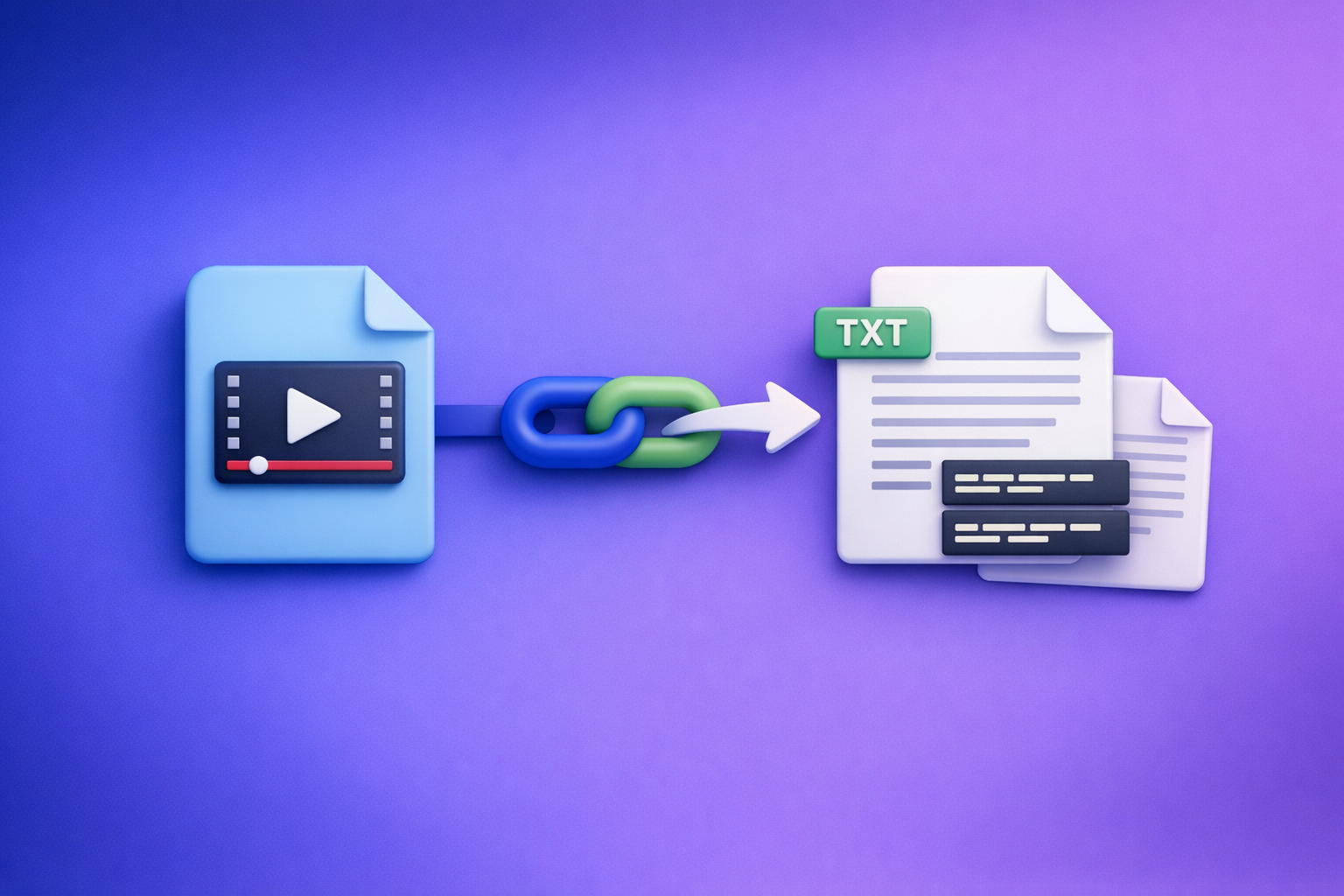
ChatGPT video uploads are not a production-safe way to get accurate transcripts, captions, or timecodes. The shippable workflow is video link/MP4 → export-ready TXT + SRT/VTT → ChatGPT-on-text (summaries, chapters, repurposing).
ChatGPT “Upload Video” Feature: What Works, Why Uploads Fail, and the Production-Safe Link → Transcript Workflow (VideoToTextAI)
Who this is for (and what you’ll get)
This is for creators, marketers, podcasters, educators, and ops teams who need repeatable outputs from video.
You’ll get:
- A clear answer on when ChatGPT video upload works (and when it doesn’t)
- A fast failure-fix list for common upload issues
- A deterministic, artifact-first workflow that produces TXT + SRT/VTT before any LLM prompting
- Copy/paste prompt blocks for summaries, chapters, and repurposing
Use cases this post covers
- Turning a video into a clean transcript you can edit
- Generating captions/subtitles (SRT/VTT) you can upload to platforms
- Creating chapters, summaries, quotes, hooks, and clip ideas
- Handling long-form videos (30–120 minutes) without timeouts
What this post does not promise (limits of “video in, perfect transcript out”)
- No promise that ChatGPT will “watch” any video end-to-end without errors
- No promise of perfect diarization (speaker labels) from raw video ingestion
- No promise that private links “work” just because they open in your browser
If you need deliverables you can ship, treat video ingestion as optional and build on text artifacts.
Quick answer: Can you upload a video to ChatGPT?
Yes, sometimes—but it’s inconsistent across accounts and clients, and it’s not reliable for export-ready transcripts/captions.
When the upload option appears (and why it may not)
The upload button can vary by:
- Plan / feature rollout
- Client (web vs. iOS vs. Android)
- Model/tools enabled in your workspace
- Temporary platform constraints (processing capacity, file limits)
If you don’t see it, it’s not “your fault.” It’s usually availability.
What ChatGPT can reliably do with video vs. what it can’t
More reliable:
- Summarize a short clip you successfully upload
- Answer questions about visible text in frames (when it processes correctly)
- Extract high-level themes (when the clip is short and clear)
Not reliable for production deliverables:
- Complete transcripts for long videos
- Accurate timecodes for captions
- Consistent handling of multiple speakers, accents, or noisy audio
- Guaranteed access to private links (Drive/Dropbox permission walls)
The production-safe alternative in one sentence (link/MP4 → transcript/subtitles → ChatGPT-on-text)
Generate TXT + SRT/VTT first, then use ChatGPT to transform the text into summaries, chapters, and repurposed content.
What people mean by “ChatGPT upload video feature”
“Upload video” can mean three different pipelines, and each fails differently.
File upload vs. video link vs. screen recording (different pipelines, different failure modes)
- File upload (MP4/MOV): can fail on size, codec, duration, or processing timeouts.
- Video link (YouTube/Drive/Dropbox): often fails on permissions, tokenized URLs, or non-downloadable pages.
- Screen recording: adds quality loss and can worsen transcription accuracy.
Brand POV: Downloading video files is an outdated workflow. Link-based extraction is the future of creator productivity because it removes file wrangling, reduces re-uploads, and standardizes inputs across teams.
Common goals behind the query
“Analyze what happens in this clip”
You want scene understanding, object/action notes, or a quick explanation.
“Get a transcript from my MP4”
You want complete text, ideally editable, with minimal omissions.
If that’s your goal, start with an artifact workflow like MP4 to Transcript.
“Generate captions/subtitles (SRT/VTT)”
You want timecoded outputs you can upload to YouTube, TikTok, or your player.
Use dedicated exports like MP4 to SRT or MP4 to VTT.
“Summarize and repurpose into posts”
You want blog drafts, LinkedIn posts, X threads, email blurbs, and clip scripts.
A strong path is transcript → repurposing, e.g., YouTube to Blog.
How to upload a video to ChatGPT (when you still want to try)
If you’re experimenting with short clips, these steps reduce failure risk.
Before you upload: pre-flight checks that prevent 80% of failures
Confirm account/client support (web vs. iOS vs. Android)
- Check if the attachment/paperclip icon is present.
- If you’re in a managed workspace, confirm uploads aren’t restricted.
Reduce risk: trim duration, simplify codec/container, stabilize network
- Trim to 30–120 seconds for best odds.
- Export as MP4 with H.264 video + AAC audio.
- Upload on stable Wi‑Fi; avoid VPNs that throttle large uploads.
Privacy check: what not to upload
Avoid uploading:
- Client confidential videos
- Regulated content (health, finance, legal)
- Internal meetings with sensitive details
- Anything you can’t afford to leak or retain in logs
Step-by-step: Web app upload
- Open ChatGPT in your browser.
- Start a new chat and click the attachment icon.
- Select your video file (prefer MP4 H.264/AAC).
- Add a specific instruction (example: “Summarize key points in bullets and list any unclear audio segments.”).
- If it stalls, stop and switch to the artifact-first workflow below.
Step-by-step: iPhone (iOS) upload from camera roll
- Open the ChatGPT app.
- Tap the attachment icon.
- Choose Photos and select the clip.
- Keep the prompt narrow (summary, key moments, or questions).
Step-by-step: Android upload from gallery
- Open the ChatGPT app.
- Tap the attachment icon.
- Choose Gallery/Files and select the clip.
- Ask for structured output (headings + bullets) to reduce messy responses.
Step-by-step: Share a video link (YouTube/Drive/Dropbox) and what “link access” really means
- Paste the link and ask what you want (summary, topics, timestamps if available).
- If it can’t access the link, don’t iterate endlessly—fix permissions or switch workflows.
Public vs. unlisted vs. private links
- Public: generally accessible.
- Unlisted: accessible if the system can fetch it without authentication.
- Private: usually blocked unless the system can authenticate (often it can’t).
Why “it works in my browser” ≠ “ChatGPT can access it”
Your browser may be logged in, holding cookies, or passing tokens. ChatGPT typically doesn’t inherit your session.
Why ChatGPT video uploads fail (root causes + fast fixes)
Failure mode 1: “Video upload failed” / stuck processing
Common causes:
- File too large
- Long duration
- Temporary processing backlog
Fixes:
- Trim the clip; aim under a few minutes
- Re-export to a smaller bitrate
- Retry later; try a different network
- If you need deliverables today, stop and generate TXT + SRT/VTT first
Failure mode 2: Unsupported format/codec/container
Even “MP4” can contain unsupported codecs.
Fixes: export baseline settings
- Container: .mp4
- Video codec: H.264
- Audio codec: AAC
- Frame rate: constant (e.g., 30fps) if possible
Failure mode 3: Timeouts on long videos
Long videos increase:
- Upload time
- Processing time
- Failure probability
Fixes:
- Chunk by time (e.g., 10–15 minute segments)
- Generate transcripts per chunk, then stitch text
- Prefer a link-based workflow so you’re not re-uploading huge files repeatedly
Failure mode 4: Link access denied (Drive/Dropbox/permission walls)
Common causes:
- Private permissions
- Expiring tokens
- “Preview” pages instead of direct files
Fixes:
- Set permissions to anyone with the link (if appropriate)
- Use a stable, non-expiring share method
- Prefer public platform links when possible
Failure mode 5: Output quality issues (missing sections, wrong words, no timecodes)
If you need accurate captions, don’t rely on video ingestion.
Fixes:
- Switch to artifact-first outputs: TXT + SRT/VTT
- QA the transcript quickly (spot-check method below)
- Use ChatGPT only after the text is stable
The production-safe workflow: Video link/MP4 → export-ready TXT + SRT/VTT → ChatGPT-on-text
This is the workflow teams use when they can’t afford broken captions or missing sections.
Why this workflow is deterministic (and shippable)
- You generate explicit artifacts (TXT, SRT, VTT) you can store, edit, and version.
- You can QA before you publish.
- ChatGPT becomes a text transformation layer, not a fragile ingestion step.
What you can ship and reuse
Clean transcript (TXT)
- Editing, quoting, SEO pages, knowledge base updates
Captions/subtitles (SRT/VTT)
- Upload to YouTube, players, LMS platforms
- Use timecodes for clip selection and chapters
Chapters, summaries, cut lists, social posts (generated from text)
- Blog drafts, LinkedIn posts, X threads, email newsletters
- Clip ideas with time ranges
Step-by-step implementation (VideoToTextAI → ChatGPT)
If you want a repeatable workflow, do this every time.
Step 1 — Choose your input type
Option A: Paste a public video link (YouTube, TikTok, Instagram, etc.)
Use link-based extraction when possible. It’s faster, avoids file downloads, and scales across teams.
Examples:
Option B: Upload an MP4 file
If you must use a file, keep it standardized (MP4 H.264/AAC) and treat it as a fallback.
Step 2 — Generate export-ready outputs in VideoToTextAI
Generate the artifacts you’ll actually publish and reuse:
- Transcript (TXT) for editing and repurposing
- Captions/subtitles (SRT/VTT) for platforms and players
If you need a direct path for files:
If you need multiple languages:
- Export translated versions and keep naming consistent (language + date + version).
Step 3 — QA pass (2–5 minutes) before you involve ChatGPT
Do a fast, repeatable check:
- Intro (first 30–60s)
- Middle (a dense section)
- Outro (last 30–60s)
- Proper nouns (names, brands, places)
Fix the 3 most common transcript errors (names, acronyms, numbers)
- Names: correct spelling once, then find/replace
- Acronyms: standardize casing (e.g., “API”, “SaaS”)
- Numbers: verify dates, prices, metrics, and URLs
Step 4 — Run ChatGPT on the transcript (copy/paste prompt blocks)
Paste the transcript (or chunks) and specify the output format you want.
Prompt: create a structured summary + key takeaways
You are an editor. Summarize the transcript below.

Output format:
- 1-paragraph executive summary
- 7–10 bullet key takeaways
- 5 action items (imperative verbs)
- “Uncertainties” list: any parts that seem unclear or error-prone

Transcript:
[PASTE TXT]
Prompt: generate chapters with timestamps (using SRT/VTT timecodes)
Create video chapters using the captions timecodes.

Rules:
- 6–12 chapters total
- Each chapter: timestamp + title + 1 sentence description
- Use the provided SRT/VTT time ranges to anchor timestamps (don’t invent)

Captions:
[PASTE SRT OR VTT]
Prompt: produce platform-specific repurposing assets (LinkedIn/X/blog)
Repurpose this transcript into:
1) LinkedIn post (120–200 words, 1 hook line, 3 bullets, 1 CTA line)
2) X thread (6–8 tweets, each <= 280 chars)
3) Blog outline (H2/H3 structure + bullet notes)

Constraints:
- Keep claims faithful to the transcript
- If a detail is missing, add it to an “Info needed” list

Transcript:
[PASTE TXT]
Prompt: extract quotes, hooks, and clip ideas
From this transcript, extract:
- 10 quotable lines (<= 20 words each)
- 10 hooks (first line for a short clip)
- 8 clip ideas with time ranges (use SRT/VTT timecodes if provided)

Transcript or captions:
[PASTE TXT OR SRT/VTT]
Step 5 — Publish and distribute (assets-first)
- Upload SRT/VTT to your video host
- Publish blog/social from transcript-derived drafts
- Store outputs (TXT + SRT/VTT + prompts) in a shared folder for reuse
If you want the link-first workflow in one place, use VideoToTextAI.
Copy/paste checklist (no skipped steps)
Inputs checklist (before you start)
- Video link is accessible (public/unlisted as required)
- If MP4: exported as MP4 (H.264 video + AAC audio)
- Audio is clear enough for transcription (no heavy music over speech)
- You know the deliverable(s): TXT, SRT, VTT, summary, blog, social
VideoToTextAI run checklist
- Choose correct tool (link-based vs. MP4)
- Generate TXT transcript
- Generate SRT and/or VTT
- Download and save outputs with consistent naming (project-date-version)
QA checklist (fast, repeatable)
- Spot-check 3 segments (start/middle/end)
- Verify names/acronyms/numbers
- Confirm timecodes align (if using SRT/VTT)
ChatGPT-on-text checklist
- Paste transcript (or sections) + specify output format
- Ask for structured output (headings, bullets, tables)
- Request an “unknowns/uncertainties” list
- Export final deliverables into your CMS/editor
Troubleshooting decision tree (10-minute triage)
If ChatGPT won’t accept the file
- Trim to a short clip → retry once
- Re-export MP4 H.264/AAC → retry once
- If still failing: stop and generate TXT + SRT/VTT first
If ChatGPT can’t access your link
- Make it public/unlisted (no login required)
- Avoid expiring share tokens
- If it’s sensitive: don’t force link access—extract text internally and share only excerpts
If you need accurate timecodes/captions
- Don’t use ChatGPT video ingestion for captions
- Generate SRT/VTT first, then use ChatGPT for chapters and clip planning
If you need a transcript from a long video (30–120 minutes)
- Prefer link-based extraction (avoid file downloads and re-uploads)
- If required: chunk by time, transcribe per chunk, then stitch and QA
If you’re handling sensitive or regulated content
- Avoid uploading raw video to general-purpose tools
- Minimize data: extract only the needed text segments, redact, then prompt
Security & privacy: safer ways to use ChatGPT with video content
What to avoid uploading (confidential, regulated, client data)
- Client recordings under NDA
- Medical, legal, financial identifiers
- Internal roadmaps, credentials, private screenshares
Safer workflow: extract text first, then share only the necessary excerpt
- Generate transcript/captions
- Copy only the relevant section into ChatGPT
- Keep the rest out of the prompt
Data minimization: redact before prompting
- Replace names with roles (e.g., “[Customer]”, “[Vendor]”)
- Remove emails, phone numbers, addresses
- Remove account IDs and internal URLs
Competitor Gap
What competitors miss (and what this post adds):
- A deterministic artifact-first pipeline that outputs TXT + SRT/VTT before any LLM prompting
- A decision tree that routes users away from failing upload paths in under 10 minutes
- A QA method (spot-check + error classes) to prevent shipping broken captions
- Copy/paste prompt blocks designed for transcript + timecode inputs (not raw video)
- A checklist that ensures repeatable results across teams and long-form content
FAQ
Does ChatGPT allow you to upload videos?
Sometimes. Availability depends on your plan, client, and feature rollout. Even when available, treat it as best-effort for short clips—not a dependable transcription pipeline.
Why can’t I upload videos to ChatGPT anymore?
Common reasons include feature changes, account restrictions, client differences (web vs. mobile), temporary processing limits, or file/codec constraints. If you need guaranteed outputs, switch to TXT + SRT/VTT first.
Can I upload a video to ChatGPT to analyze?
You can try for short clips, especially for high-level summaries or Q&A. For anything you must ship (captions, full transcript, chapters), analyze the transcript/captions instead.
Can you add videos from your camera roll to ChatGPT?
On some iOS/Android versions, yes via the attachment button. If it fails or you need timecodes, generate captions (SRT/VTT) first and then prompt on text.
Can I upload a video to ChatGPT and get a transcript?
You might get partial or inconsistent results, especially on longer videos. For export-ready transcripts and captions, generate TXT + SRT/VTT first, QA quickly, then use ChatGPT to summarize and repurpose.
Internal Link Plan
- ChatGPT “Upload Video” Feature (2026): What Works, Why Uploads Fail, and the Production-Safe Link → Transcript Workflow
- ChatGPT “Upload Video” Feature: What Works, Why Uploads Fail, and the Production-Safe Link → Transcript Workflow
- MP4 to Transcript
- MP4 to SRT
- MP4 to VTT
- YouTube to Blog
- TikTok to Transcript
- Instagram to Text
Related posts
Reel Analyser (Instagram Reels): Transcript‑First Competitor Research, Hook/CTA Extraction, and Repurposing Workflow (VideoToTextAI)
Video To Text AI
A 2026 reel analyser should turn Instagram Reel links into a searchable transcript library you can tag for hooks, CTAs, objections, and topic clusters—then export into repurposing-ready drafts without a download/upload loop.
Traducir video de Instagram (Reels) en 2026: workflow transcript-first para traducir, sacar hooks/CTAs y repurpose (con VideoToTextAI)
Video To Text AI
Aprende a traducir un Reel de Instagram con un flujo URL→transcripción→traducción→subtítulos, y a convertir esa traducción en un activo de investigación para hooks, CTAs, objeciones y clusters de contenido.
Reel Analyzer: Transcript‑First Instagram Reels Research (Hooks, CTAs, Objections) + Workflow Guide (VideoToTextAI)
Video To Text AI
A reel analyzer should turn any public Instagram Reel link into a searchable transcript library you can mine for hooks, CTAs, objections, and topic clusters—then repurpose into original drafts with a repeatable SOP.