
ChatGPT “Upload Video” Feature: What Works, Why Uploads Fail, and the Production-Safe Link → Transcript Workflow (VideoToTextAI)
 Video To Text AI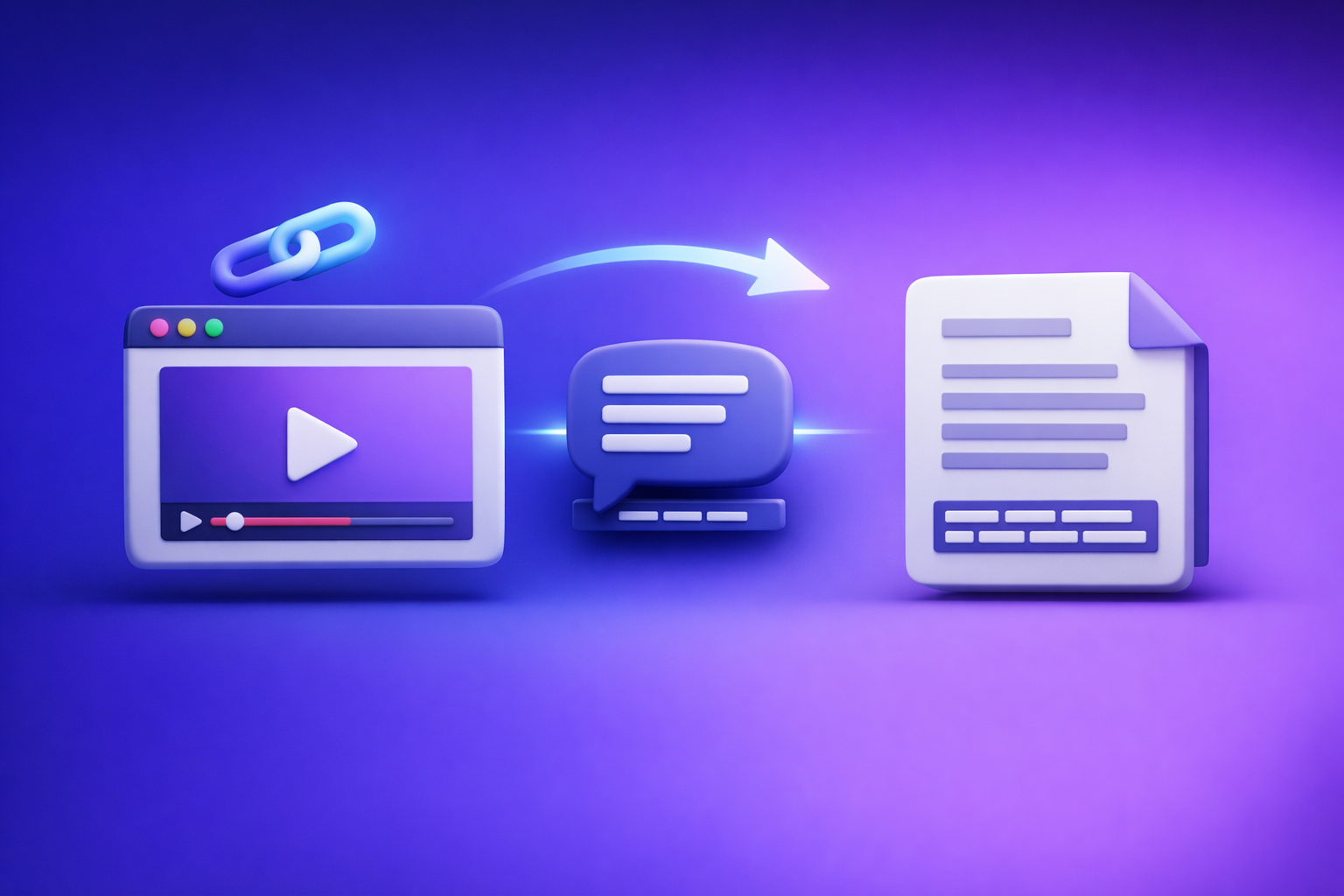
ChatGPT “Upload Video” Feature: What Works, Why Uploads Fail, and the Production-Safe Link → Transcript Workflow (VideoToTextAI)
If you need a reliable transcript, captions (SRT/VTT), and repurposed content, don’t start by uploading video to ChatGPT—start by generating exportable text artifacts first. Use a link → transcript/subtitles workflow, then use ChatGPT on the transcript for summaries, chapters, and content repurposing.
Quick Answer: Can ChatGPT Upload Video?
What “upload video” means (file upload vs link access vs frame-based analysis)
When people search for the "chatgpt" "upload video" feature, they usually mean one of these:
- File upload: You attach an MP4/MOV directly in the chat UI.
- Link access: You paste a YouTube/Drive/TikTok link and expect ChatGPT to fetch it.
- Frame-based analysis: The model analyzes visual frames (and sometimes audio) to answer questions.
These are not equivalent. A link paste is not the same as a file upload, and “video understanding” is not the same as export-ready transcription.
When it works (short clips, supported clients, stable network)
Uploads tend to work best when:
- The upload button exists in your client.
- The clip is short (think seconds to a few minutes).
- The file is a common format and codec.
- Your network is stable and the app stays foregrounded.
When it’s the wrong tool (transcripts, captions, long-form, repeatable workflows)
ChatGPT video upload is the wrong default when you need:
- Long-form transcripts (podcasts, webinars, interviews).
- Captions/subtitles with consistent timestamps (SRT/VTT).
- Repeatable production workflows for teams.
- QA-able deliverables you can reuse across tools.
For creator productivity, downloading video files is an outdated workflow. Link-based extraction is the future because it removes file juggling, reduces failures, and speeds up iteration.
What Works vs. What Fails (Real-World Scenarios)
Works reliably
Short MP4/MOV clips uploaded directly (when the button exists)
Most reliable scenario:
- You have the attachment/paperclip icon.
- You upload a short MP4/MOV.
- You ask a narrow question (e.g., “What does the slide say at 00:12?”).
Basic Q&A about visible on-screen content (when processing completes)
Good use cases:
- Identify on-screen text (titles, labels).
- Describe a scene.
- Extract a few key moments from a short clip.
Often fails or is inconsistent
Missing upload button (plan/rollout/client mismatch)
Common reality:
- Web has it, mobile doesn’t (or vice versa).
- One account has it, another doesn’t.
- Rollouts change without notice.
Upload completes but analysis is partial (timeouts, length caps)
Symptoms:
- The model answers for the first portion only.
- It skips sections or returns generic summaries.
- It “forgets” earlier parts mid-response.
Link pasted but inaccessible (permissions, geo, auth walls)
Typical blockers:
- Private/unlisted links without proper access.
- Google Drive links requiring login.
- Geo-restricted videos.
- Platforms that block scraping/embedding.
“Supported format” still fails (codec/container mismatch)
MP4 is a container, not a guarantee. A file can be “MP4” and still fail due to:
- Unsupported codec (video or audio).
- Variable frame rate edge cases.
- HDR profiles or unusual audio formats.
How to Upload a Video to ChatGPT (Web, iOS, Android)
These steps describe the typical flow when the feature is available. UI labels can vary.
Web app steps (attachment → upload → prompt)
- Open ChatGPT in your browser.
- Click the attachment/paperclip icon.
- Select your video file (MP4/MOV).
- Wait for upload + processing to complete.
- Prompt with a structured request (see below).
iPhone/iOS steps (camera roll → share/upload → prompt)
- Open the ChatGPT app.
- Tap + / attachment.
- Choose Photos (Camera Roll) or Files.
- Select the video and keep the app in the foreground.
- Send a prompt that specifies output format.
Android steps (file picker → upload → prompt)
- Open the ChatGPT app.
- Tap attachment.
- Choose from Gallery or Files.
- Upload and wait for processing.
- Ask for a structured output.
Prompts that reduce rework (ask for constraints + output format)
Use prompts that specify structure, scope, and format.
“Summarize with timestamps”
- “Summarize this video in 8–12 bullets and include timestamps for each bullet. If you’re unsure about a timestamp, say ‘approx.’.”
“Extract chapters + key quotes”
- “Create chapters with titles and timestamps, then list 5 key quotes with timestamps and speaker labels if possible.”
“List action items + owners”
- “Extract action items as a table:
Action | Owner | Due date | Timestamp | Notes. If owner/due date isn’t stated, leave blank.”
“Generate a shot list / b-roll suggestions”
- “Create a shot list:
Timestamp | What’s on screen | Suggested b-roll | On-screen text.”
Why ChatGPT Video Uploads Fail (Root Causes You Can Actually Diagnose)
Availability issues
Feature not enabled for your account/region
If you don’t see upload controls, it may simply not be enabled for your account or region yet.
Client mismatch (web vs iOS vs Android)
Even when enabled, feature parity varies. Always test:
- Web app
- iOS app
- Android app
File issues
Container vs codec (MP4 ≠ universally compatible)
“MP4” can contain many codecs. A common failure pattern is:
- MP4 container + uncommon video codec
- MP4 container + unsupported audio codec
Variable frame rate, HDR, or uncommon audio codecs
Creators often export from phones or editors with:
- Variable frame rate (VFR)
- HDR profiles
- Multichannel or unusual audio codecs
These can trigger “processing failed” even when the file “plays fine.”
Size/duration/network issues
Large files, long duration, unstable upload
Long videos are more likely to hit:
- Upload timeouts
- Processing caps
- Memory constraints
Backgrounding on mobile interrupts processing
If you switch apps or lock your phone, uploads can stall or fail. Keep the app foregrounded until processing completes.
Access issues (links)
Private YouTube/Drive links, expiring tokens, login walls
If ChatGPT can’t fetch the content, it can’t analyze it. Common causes:
- Drive links requiring authentication
- Expiring signed URLs
- Private videos
Instagram/TikTok restrictions and embed blocking
Many social platforms restrict automated access. Even if you can view it, ChatGPT may not be able to fetch it.
Output limitations
No export-ready captions (SRT/VTT) or inconsistent timestamps
Even when analysis works, you may not get:
- Clean SRT/VTT formatting
- Consistent timestamps
- Stable segmentation rules (line length, reading speed)
Hallucinated details when audio is unclear
If audio is noisy or speakers overlap, the model may guess. That’s unacceptable for production captions and transcripts.
Supported Formats, Limits, and Error Messages (What to Check First)
Pre-flight checks (before you retry)
Before you re-upload and waste time:
- Re-encode to H.264 (video) + AAC (audio) inside an MP4 container.
- Trim to a short clip if your goal is visual Q&A, not transcription.
- Confirm the video has a real audio track and isn’t muted/DRM-protected.
Common errors → likely cause → fastest fix
“Upload failed / processing failed”
- Likely cause: network interruption, duration cap, codec issue.
- Fastest fix: re-encode + try a shorter clip + switch networks.
“Unsupported format”
- Likely cause: codec mismatch (even if MP4).
- Fastest fix: export H.264/AAC MP4 from your editor.
“Can’t access this link”
- Likely cause: permissions/auth wall/geo restriction.
- Fastest fix: make it public/unlisted or use a tool that supports link ingestion and transcription artifacts.
“The file is too large”
- Likely cause: size limit.
- Fastest fix: compress, trim, or split—then consider an artifact-first workflow for the full video.
The Production-Safe Workflow: Video Link/MP4 → Transcript + SRT/VTT → ChatGPT-on-Text (VideoToTextAI)
Why “artifact-first” beats “upload-first”
Uploading video into ChatGPT is a novelty workflow. Production teams need deterministic artifacts.
Artifact-first means you generate:
- TXT transcript for editing, search, and reuse
- SRT/VTT captions for publishing
Then you use ChatGPT where it’s strongest: transforming text into structured outputs.
Benefits:
- Deterministic outputs (TXT + SRT/VTT) you can QA and reuse.
- Faster iteration: edit text once, repurpose everywhere.
- Lower risk: fewer retries, fewer rollout surprises, fewer “processing failed” dead ends.
This is also why downloading video files is an outdated workflow. Link-based extraction removes the slowest step (file wrangling) and keeps your pipeline consistent.
Step-by-step implementation (10–15 minutes)
Step 1 — Choose input: paste a public link or upload MP4
Pick the fastest input you have:
- A public/unlisted link (preferred for speed and repeatability)
- A clean MP4 if you must
If you’re working from a platform link, use a dedicated tool page like TikTok to Transcript or YouTube to Blog depending on the output you need.
Step 2 — Generate transcript in VideoToTextAI (include punctuation + paragraphs)
Generate a transcript with:
- Punctuation
- Paragraph breaks
- Optional speaker labels (if available in your workflow)
Use the transcript as your “source of truth.” Don’t treat ChatGPT’s video analysis output as a source transcript.
Step 3 — Export the right deliverables
TXT for editing, search, and ChatGPT prompts
Export TXT when you need:
- Editing and cleanup
- Feeding ChatGPT for summaries, outlines, FAQs
- Building SEO content
If your starting point is a file, MP4 to Transcript is the cleanest artifact-first entry.
SRT/VTT for captions/subtitles
Export SRT/VTT when you need:
- YouTube captions
- TikTok/IG subtitle workflows
- Video editors and players
Use:
Step 4 — Use ChatGPT on the transcript (not the video)
Once you have clean text, ChatGPT becomes predictable.
Create a clean summary + key takeaways
- “Summarize in 10 bullets, then list 5 takeaways for beginners.”
Generate chapters with timestamps (from transcript markers)
- “Create chapters using the transcript timestamps. Output:
Timestamp | Chapter title | 1-sentence description.”
Produce repurposed assets (blog, LinkedIn, X, email)
- Turn one transcript into multiple assets.
- For a direct workflow, see MP4 to Blog Post.
Step 5 — QA checklist (accuracy + timing + formatting)
QA is what makes the workflow production-safe.
Names/terms pass, speaker labels, missing sections
- Spot-check proper nouns, product names, and numbers.
- Verify speaker changes and any inaudible sections.
Caption line length and reading speed
- Keep captions readable (avoid long lines).
- Ensure segmentation doesn’t break mid-phrase.
Timestamp alignment after edits
- If you edit transcript text heavily, re-export captions from the final transcript source.
If you want to operationalize this as a standard, keep this post bookmarked: ChatGPT “Upload Video” Feature (2026): How It Works, Why It Fails, and the Reliable Link → Transcript Workflow
Troubleshooting: “ChatGPT Video Upload Failed” (Fixes by Symptom)
Symptom: No upload button
Fix
- Confirm client/app version.
- Test web vs mobile.
- Don’t wait on rollout: use the link → transcript workflow and move on.
Symptom: Upload stuck / never finishes
Fix
- Reduce file size and duration.
- Switch networks (Wi‑Fi ↔ cellular).
- Keep the app foregrounded.
- Split into clips for analysis-only tasks; use artifact-first transcription for the full video.
Symptom: ChatGPT can’t access my YouTube/Drive link
Fix
- Set permissions to public/unlisted.
- Remove login requirements.
- Prefer direct link ingestion via a transcript workflow rather than hoping ChatGPT can fetch it.
Symptom: Transcript is incomplete or inaccurate
Fix
- Improve audio (noise reduction, normalize levels) and rerun transcription.
- In ChatGPT post-processing, provide a glossary/terms list:
- “Use these terms exactly: {ProductName, Acronym, PersonName}.”
Symptom: Captions out of sync after editing
Fix
- Re-export SRT/VTT from the final transcript source.
- Avoid manual timestamp edits inside ChatGPT (it’s not a caption editor).
Checklist: Do This Instead of Trying to Upload Video to ChatGPT
Inputs
- Confirm you have a shareable link (public/unlisted) or a clean MP4 (H.264/AAC).
- If you need captions/transcripts, skip ChatGPT upload and start with an artifact-first workflow.
Processing
- Generate transcript + SRT/VTT.
- Spot-check 60–90 seconds across beginning/middle/end for accuracy.
ChatGPT usage (on text)
- Summaries
- Chapters
- Hooks
- Cut lists
- FAQs
- Repurposed posts
Quality control
- Verify names, numbers, and domain terms.
- Validate caption timing in your target player/editor.
For a production-ready link-based workflow, use VideoToTextAI: VideoToTextAI
Use Cases: What to Generate After You Have the Transcript
Captions/subtitles for publishing
- Export SRT/VTT.
- Apply platform-specific styling in your editor if needed.
- Keep a “final transcript” versioned so captions can be regenerated cleanly.
Blog post + SEO sections from a single video
- Turn transcript into:
- H1/H2 outline
- FAQ section
- Key takeaways
- Meta title/description drafts
If the source is YouTube, YouTube to Blog is the fastest path to a first draft.
Social repurposing (hooks, threads, LinkedIn posts)
From one transcript, generate:
- 10 hooks (first 2 seconds)
- A 6–10 tweet/X thread
- A LinkedIn post with 3 takeaways + CTA
- A short email newsletter
Multilingual versions (translate transcript first, then localize)
Best practice:
- Translate the transcript first.
- Then localize phrasing (don’t do literal translation).
- Regenerate captions from the localized transcript to preserve timing rules.
Competitor Gap
What top-ranking pages miss
Most pages ranking for the "chatgpt" "upload video" feature focus on “how to upload” and skip what teams actually need:
- A concrete triage flow (symptom → cause → fix) for upload failures
- A repeatable artifact-first pipeline that outputs TXT + SRT/VTT every time
- Implementation details for repurposing (what to ask ChatGPT after transcription)
What this post adds
- A production-safe workflow designed for transcripts/captions, not novelty analysis
- Export-ready deliverables + QA steps teams can operationalize
- A clear tool map for common outputs:
FAQ
Does ChatGPT allow you to upload videos?
Sometimes. Availability depends on plan, region, and client, and it’s most reliable for short clips and simple Q&A.
Why won’t ChatGPT let me upload videos?
Usually one of these:
- The feature isn’t enabled for your account/client.
- The file is too large/long.
- Codec incompatibility inside an MP4/MOV.
- Network instability or mobile backgrounding.
Can I upload a video to ChatGPT to analyze?
Yes, when upload is available and processing succeeds. It’s best for visual questions and short clips, not for production transcription/caption deliverables.
Can you add videos from your camera roll to ChatGPT?
On iOS/Android, you can sometimes select a video from Photos/Gallery via the attachment button. Keep the app foregrounded to avoid interrupted uploads.
Can I upload a video to ChatGPT and get a transcript?
You might get transcript-like text, but it’s often incomplete and not export-ready. For consistent transcripts and captions, use an artifact-first workflow and then use ChatGPT on the transcript text.
Internal Link Plan
- ChatGPT “Upload Video” Feature: What Works, Why Uploads Fail, and the Reliable Link → Transcript Workflow (VideoToTextAI)
- ChatGPT “Upload Video” Feature (2026): How It Works, Why It Fails, and the Reliable Link → Transcript Workflow
- MP4 to Transcript
- MP4 to SRT
- MP4 to VTT
- MP4 to Blog Post
- YouTube to Blog
- TikTok to Transcript
Related posts
Reel Analyser (Instagram Reels): Transcript‑First Competitor Research, Hook/CTA Extraction, and Repurposing Workflow (VideoToTextAI)
Video To Text AI
A 2026 reel analyser should turn Instagram Reel links into a searchable transcript library you can tag for hooks, CTAs, objections, and topic clusters—then export into repurposing-ready drafts without a download/upload loop.
Traducir video de Instagram (Reels) en 2026: workflow transcript-first para traducir, sacar hooks/CTAs y repurpose (con VideoToTextAI)
Video To Text AI
Aprende a traducir un Reel de Instagram con un flujo URL→transcripción→traducción→subtítulos, y a convertir esa traducción en un activo de investigación para hooks, CTAs, objeciones y clusters de contenido.
Reel Analyzer: Transcript‑First Instagram Reels Research (Hooks, CTAs, Objections) + Workflow Guide (VideoToTextAI)
Video To Text AI
A reel analyzer should turn any public Instagram Reel link into a searchable transcript library you can mine for hooks, CTAs, objections, and topic clusters—then repurpose into original drafts with a repeatable SOP.