
ChatGPT “Upload Video” Feature: What Works, Why Uploads Fail, and the Reliable Link → Transcript Workflow (VideoToTextAI)
 Video To Text AI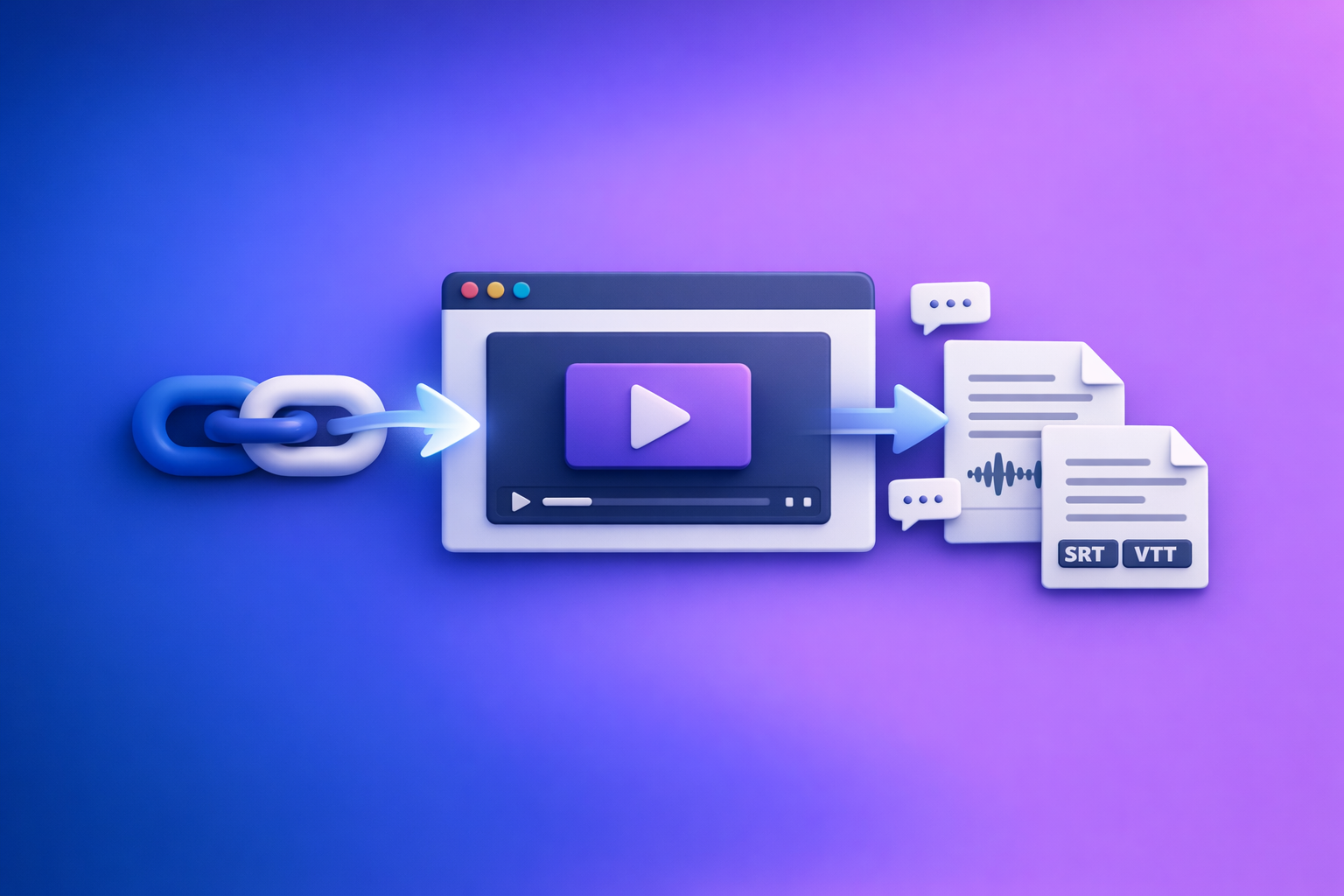
ChatGPT “Upload Video” Feature: What Works, Why Uploads Fail, and the Reliable Link → Transcript Workflow (VideoToTextAI)
If you need reliable transcripts, subtitles, and captions, don’t start by uploading video into ChatGPT—start by generating exportable artifacts (TXT + SRT/VTT) and then use ChatGPT on the text. The production-safe workflow is video link/MP4 → transcript/subtitles → ChatGPT for rewriting and repurposing, not “upload and hope.”
TL;DR: The production-safe approach
When ChatGPT video upload is “good enough”
ChatGPT’s “upload video” experience can be fine when you need:
- A quick visual sanity check (e.g., “what’s on screen?”)
- A rough summary of a short clip
- Light Q&A about obvious moments in the video
If the output can be approximate and you don’t need exports, it’s “good enough.”
When it’s the wrong tool (transcripts, captions, long videos, compliance)
Avoid relying on ChatGPT video upload when you need:
- Exportable transcripts for editing, search, or compliance
- Captions/subtitles with timing you can trust (SRT/VTT)
- Long videos (lectures, podcasts, webinars)
- Multi-speaker audio or noisy recordings
- Repeatable workflows for teams (same input → same deliverables)
In these cases, “upload video” becomes a retry loop.
The deterministic workflow: video link/MP4 → TXT + SRT/VTT → ChatGPT on text
The production pattern is:
- Use a link-first extractor (future-proof creator workflow; downloading files is the outdated step).
- Generate TXT transcript + SRT/VTT subtitles.
- Use ChatGPT to structure, rewrite, summarize, and repurpose the text.
For related workflows, see: MP4 to Transcript, MP4 to SRT, and MP4 to VTT.
Does ChatGPT allow you to upload videos? (What “upload video” actually means)
When people search for the "chatgpt" "upload video" feature, they’re usually describing one of three different capabilities.
File upload vs. link access vs. frame-based analysis (why users get different results)
“Upload video” can mean:
- File upload: attaching an MP4/MOV directly in the chat UI.
- Link access: pasting a URL and expecting ChatGPT to fetch and analyze it.
- Frame-based analysis: the model processes limited frames or a constrained representation, not a full “watch” of the video.
These are not equivalent, which is why two users can follow “the same steps” and get different outcomes.
Availability differences: web vs iOS vs Android, plan/region/rollout
In practice, access varies by:
- Client: web app vs iOS vs Android
- Account tier and feature flags
- Region and staged rollouts
- App version (older builds often lack the upload UI)
If you don’t see an upload button, it’s often not “user error”—it’s availability.
What ChatGPT can reliably do with video today (and what it can’t)
What tends to be reliable:
- High-level summaries of short clips
- Simple visual descriptions (what appears on screen)
- Basic Q&A about obvious content
What is not reliably production-ready:
- Complete transcripts for long videos
- Speaker-accurate diarization across noisy audio
- Exportable captions (SRT/VTT) with stable timing
- Deterministic outputs (same input → same length/coverage)
What works vs. what fails (real-world scenarios)
Works: short clips, quick visual checks, rough summaries
Most consistent wins:
- 10–90 second clips
- Clear audio, one speaker
- Minimal background noise
- Simple “tell me what happens” prompts
Often fails: long videos, multi-speaker audio, noisy audio, screen recordings, lectures
Common failure modes show up with:
- 30–120 minute podcasts/webinars
- Multiple speakers talking over each other
- Noisy rooms or distant mics
- Screen recordings with tiny text and rapid context shifts
- Lectures where accuracy and completeness matter
Not production-ready: exportable transcripts/captions with timing guarantees
If your deliverable is:
- A transcript you can edit (TXT)
- Captions you can publish (SRT/VTT)
- A repeatable pipeline for content ops
…then “upload video to ChatGPT” is the wrong foundation.
Why ChatGPT video uploads fail (root causes mapped to symptoms)
Missing upload button (account/app/version limitations)
Symptoms:
- No paperclip/attachment icon
- Only image upload appears
- Video file picker is absent
Likely causes:
- Feature not enabled for your account
- Outdated app version
- Client mismatch (web has it; mobile doesn’t, or vice versa)
Upload stuck / processing failed (timeouts, bandwidth, server-side limits)
Symptoms:
- Upload reaches 100% then errors
- “Processing failed” or endless spinner
- Analysis returns instantly with shallow output
Likely causes:
- Network instability (especially mobile background uploads)
- Server-side timeouts
- File too large for the current pipeline
Unsupported codec/container (MP4/MOV isn’t enough—codec matters)
Symptoms:
- “Unsupported format” even though it’s MP4
- Upload succeeds but audio/video is unreadable
Reality: MP4 is a container, not a codec. Inside the MP4 you might have:
- Video codec: H.264, H.265/HEVC, VP9, AV1
- Audio codec: AAC, MP3, Opus, PCM
Some combinations fail even when the filename ends in .mp4.
Audio track issues (muted track, variable bitrate, multi-track confusion)
Symptoms:
- “No audio detected”
- Transcript is empty or extremely short
- Only one channel is captured
Likely causes:
- Muted or silent audio track
- Multiple audio tracks (language tracks, commentary tracks)
- Variable bitrate or unusual sampling rates
Link access failures (private YouTube, signed URLs, Drive permissions, geo blocks)
Symptoms:
- “Can’t access link”
- “I don’t have permission”
- ChatGPT summarizes the title/description instead of the content
Likely causes:
- Private/unlisted videos with restricted access
- Signed URLs that expire
- Google Drive permissions not set to “anyone with link”
- Geo-restrictions or platform blocks
Output limitations (no clean SRT/VTT, inconsistent timestamps, truncation)
Symptoms:
- Transcript stops early
- Timestamps jump or drift
- No usable SRT/VTT export
- Hallucinated “chapters” that don’t match the video
This is why teams ship with artifact-first workflows.
Supported formats, practical limits, and pre-flight checks
Format checklist (container vs codec vs audio)
Before you attempt any upload-based workflow, verify:
- Container: MP4 or MOV
- Video codec: H.264 is the safest default
- Audio codec: AAC is the safest default
- Audio present: not muted, not empty
- Single primary audio track (when possible)
If you’re doing creator ops at scale, link-based extraction is the future because it avoids repeated downloads, re-uploads, and format roulette.
Size/duration constraints (what breaks first in real use)
In real-world use, what breaks first is usually:
- Duration (long videos time out or truncate)
- Bandwidth (mobile uploads stall)
- Processing limits (server-side constraints)
- Memory/context (analysis becomes shallow or partial)
Privacy/security checks before uploading any media to an LLM
Before uploading any media:
- Confirm you have rights to share the content.
- Avoid uploading sensitive customer data, internal meetings, or regulated content unless your policy allows it.
- Prefer workflows that let you control what text is shared (e.g., redact transcript sections before sending to ChatGPT).
Step-by-step: How to upload a video to ChatGPT (and how to test if it will work)
Web app steps (attachment flow + prompt pattern)
- Open ChatGPT in your browser.
- Start a new chat.
- Click the attachment icon (if available) and select your video file.
- Use a prompt that forces coverage checks, not just a summary.
Prompt pattern:
- “First, confirm the video duration you processed and whether any segments were skipped. Then summarize.”
iPhone/iOS steps (camera roll upload + common iOS failure points)
- Open the ChatGPT iOS app.
- Start a new chat.
- Tap + / attachment and choose Photo Library (or Files).
- Select the video and keep the app in the foreground until upload completes.
Common iOS failure points:
- Backgrounding the app pauses upload
- Low Power Mode throttles background tasks
- iCloud “optimized storage” can delay file availability
Android steps (file picker + background upload issues)
- Open the ChatGPT Android app.
- Start a new chat.
- Tap the attachment icon and pick the video from Files.
- Keep the screen on during upload if you see stalls.
Common Android failure points:
- Battery optimization kills background upload
- Weak Wi‑Fi causes partial uploads
- File picker selects a cloud placeholder instead of a local file
3-minute validation prompt to detect truncation and missed segments
Use this after ChatGPT responds:
- “List the first 3 events from minute 0–1, then 3 events from the middle minute, then 3 events from the final minute. If you cannot access any segment, say ‘MISSING SEGMENT’ and specify which minute range.”
If it can’t reliably reference beginning/middle/end, don’t trust it for transcripts or captions.
The reliable workflow: Link/MP4 → transcript/subtitles → ChatGPT-on-text (VideoToTextAI)
Why “artifact-first” beats “upload-first” for teams shipping captions and content
For production, you want:
- Deterministic outputs (TXT + SRT/VTT)
- Exportable files that plug into editors and platforms
- Repeatable QC (spot-checks, terminology passes)
- A link-first pipeline that avoids constant downloading and re-uploading
Downloading video files is an outdated workflow. Link-based extraction is the future of creator productivity because it reduces friction, preserves source-of-truth URLs, and scales across teams.
What you get from VideoToTextAI (TXT transcript + SRT/VTT subtitles + repurposing outputs)
VideoToTextAI is built for AI link-based video-to-text workflows:
- TXT transcripts for editing, search, and downstream AI
- SRT/VTT subtitles for publishing and post-production
- A workflow designed for repurposing (blogs, clips, social copy) without relying on fragile “video upload” behavior
Use it here (single CTA): https://videototextai.com
When to use ChatGPT in the workflow (structure, rewriting, ideation—not extraction)
Use ChatGPT after you have text:
- Turn transcript into chapters
- Rewrite into platform-specific captions
- Extract hooks, cut lists, and blog drafts
- Generate SEO structure without guessing what was said
For repurposing examples, see: YouTube to Blog, TikTok to Transcript, and Podcast Transcription.
Implementation walkthrough (10–15 minutes): from video to publishable assets
Step 1 — Choose your input: public link vs downloadable MP4
Best default: use the public link (YouTube, TikTok, hosted MP4 URL).
Use a downloadable MP4 only when:
- The video is internal/private and cannot be linked
- You must process a local recording
- You control the encoding and audio tracks
Step 2 — Generate transcript in VideoToTextAI (accuracy + speaker handling expectations)
Generate your transcript and expect:
- High accuracy improves with clean audio
- Multi-speaker content may require speaker labeling review
- Proper nouns and brand terms benefit from a quick terminology pass
Step 3 — Export the right deliverable
TXT for editing, search, and ChatGPT post-processing
Use TXT when you need:
- Clean editing in docs
- Fast search and quoting
- ChatGPT rewriting without truncation from video processing
SRT for captions (editing in Premiere/CapCut/Descript workflows)
Use SRT when you need:
- Standard caption import/export
- Editing in common video tools
- Platform uploads that accept SRT
Related: MP4 to SRT
VTT for web players and platforms that prefer WebVTT
Use VTT when you need:
- Web players (HTML5) and some LMS tools
- Cleaner web caption workflows
Related: MP4 to VTT
Step 4 — Use ChatGPT on the transcript (prompt templates that don’t break)
Prompt: clean transcript + fix punctuation + preserve terminology
- “Clean this transcript for readability. Fix punctuation and casing. Do not remove content. Preserve these terms exactly: [TERMS]. Output as plain text.”
Prompt: chapters/timestamps from transcript (without inventing content)
- “Create chapter headings using only what appears in the transcript. If a timestamp is unclear, mark it as ‘approx’. Do not invent segments.”
Prompt: cut list + hooks + social captions from transcript
- “From this transcript, propose 10 clip candidates. For each: hook line, start/end quote, and why it works. Use only transcript wording for quotes.”
Prompt: blog outline + draft from transcript (SEO-safe structure)
- “Create an SEO outline and a draft blog post based strictly on the transcript. Add headings, bullets, and a concise conclusion. Do not add facts not present in the transcript.”
If you want a dedicated pipeline, see: MP4 to Transcript and YouTube to Blog.
Step 5 — Quality control (fast checks that catch 80% of issues)
Spot-check beginning/middle/end for truncation
- Compare transcript coverage against:
- First 60 seconds
- A middle segment
- Final 60 seconds
Proper nouns + brand terms pass
- Search for:
- Product names
- People names
- Acronyms
- Locations
- Fix once in TXT, then re-use across outputs.
Caption timing sanity check after edits
- After any video cuts:
- Re-check the first caption
- Re-check a mid caption
- Re-check the last caption
- If timing drift appears, re-export captions from the updated source.
Troubleshooting: “ChatGPT video upload failed” fixes by symptom (fast triage)
Symptom: no upload option
Try:
- Update the app (iOS/Android)
- Switch clients (web vs mobile)
- Check account/plan availability
- Test with an image upload to confirm attachments are enabled
If you need deliverables today, skip the feature and use a transcript-first workflow.
Symptom: upload completes but analysis is shallow/incorrect
Try:
- Shorten the clip and re-test
- Ask for beginning/middle/end validation (see prompt above)
- Ensure audio is clear and present
If you need accuracy and completeness, generate TXT + SRT/VTT first.
Symptom: “can’t access link” (YouTube/Instagram/Drive)
Try:
- Make the video public/unlisted (as appropriate)
- Remove geo restrictions
- For Drive: set to “anyone with the link can view”
- Avoid signed URLs that expire quickly
Symptom: transcript is missing sections or stops early
Try:
- Assume truncation and stop retrying uploads
- Use a transcript generator and verify coverage with spot-checks
- Feed ChatGPT the transcript in chunks if needed
Symptom: captions drift out of sync after cutting the video
Fix:
- Captions must match the edited timeline.
- Re-export SRT/VTT from the final cut (or re-time captions in your editor).
- Avoid manual timestamp edits unless you have a clear timing reference.
Checklist: Stop trying to brute-force ChatGPT video uploads (use this instead)
Input checklist (link permissions, file format, audio track)
- Use a shareable link when possible (downloading is the outdated step)
- If file-based: MP4 container + H.264 video + AAC audio
- Confirm audio is present, not muted, and not multi-track confusion
- Confirm link permissions (public/unlisted, correct Drive settings)
Processing checklist (generate TXT + SRT/VTT first)
- Generate TXT transcript for editing and AI post-processing
- Export SRT for standard caption workflows
- Export VTT for web players/platforms that prefer WebVTT
- Spot-check beginning/middle/end coverage
ChatGPT checklist (use transcript-only prompts, enforce “no guessing”)
- Paste transcript (or chunk it) instead of uploading video
- Add: “Do not invent content not in the transcript.”
- Request structured outputs (chapters, clip list, blog outline)
Delivery checklist (final exports + platform-ready formats)
- Final TXT saved for search, quotes, and reuse
- SRT/VTT validated against the final edit
- Proper nouns and brand terms verified
- Repurposed assets generated from transcript (not from video upload)
Competitor Gap
What top-ranking pages miss
Most pages ranking for the "chatgpt" "upload video" feature gloss over the operational details that cause retries:
- Concrete codec/audio failure modes, not just “file too big”
- A deterministic, export-ready workflow for TXT + SRT/VTT
- A real triage path (symptom → cause → fix) that reduces wasted attempts
What this post adds
This guide provides:
- An implementation walkthrough with validation prompts and QC steps
- A production checklist for transcripts, subtitles, and repurposing
- A clear decision rule: use ChatGPT for text transformation, and use a transcript/subtitle workflow for extraction
For deeper reading and related posts, see:
- ChatGPT “Upload Video” Feature (2026): What Works, Why Uploads Fail, and the Production-Safe Link → Transcript Workflow
- ChatGPT “Upload Video” Feature (2026): How It Works, Why It Fails, and the Reliable Link → Transcript Workflow
FAQ
Does ChatGPT allow you to upload videos?
Sometimes. It depends on your client (web/iOS/Android), plan, region, and rollout, and “upload” may mean file upload or limited analysis rather than full transcription.
Why won’t ChatGPT let me upload videos?
Usually it’s one of these: missing feature access, outdated app, upload timeouts, unsupported codecs, audio track issues, or link permissions (private videos, Drive restrictions, geo blocks).
Can I upload a video to ChatGPT to analyze?
You can often get rough summaries for short clips, but results vary. For production deliverables (transcripts/captions), use a transcript-first workflow and then analyze the text.
Can you add videos from your camera roll to ChatGPT?
On iOS, you may be able to attach from Photos/Files if the feature is enabled. Uploads commonly fail when the app is backgrounded or the file is only in iCloud.
Can I upload a video to ChatGPT and get a transcript?
You might get partial text, but it’s not consistently export-ready or complete for long videos. For reliable TXT + SRT/VTT outputs, generate the transcript/subtitles first, then use ChatGPT for rewriting and repurposing.
Internal Link Plan
- ChatGPT “Upload Video” Feature (2026): What Works, Why Uploads Fail, and the Production-Safe Link → Transcript Workflow
- ChatGPT “Upload Video” Feature (2026): How It Works, Why It Fails, and the Reliable Link → Transcript Workflow
- MP4 to Transcript
- MP4 to SRT
- MP4 to VTT
- YouTube to Blog
- TikTok to Transcript
- Podcast Transcription
Related posts
Reel Analyser (Instagram Reels): Transcript‑First Competitor Research, Hook/CTA Extraction, and Repurposing Workflow (VideoToTextAI)
Video To Text AI
A 2026 reel analyser should turn Instagram Reel links into a searchable transcript library you can tag for hooks, CTAs, objections, and topic clusters—then export into repurposing-ready drafts without a download/upload loop.
Traducir video de Instagram (Reels) en 2026: workflow transcript-first para traducir, sacar hooks/CTAs y repurpose (con VideoToTextAI)
Video To Text AI
Aprende a traducir un Reel de Instagram con un flujo URL→transcripción→traducción→subtítulos, y a convertir esa traducción en un activo de investigación para hooks, CTAs, objeciones y clusters de contenido.
Reel Analyzer: Transcript‑First Instagram Reels Research (Hooks, CTAs, Objections) + Workflow Guide (VideoToTextAI)
Video To Text AI
A reel analyzer should turn any public Instagram Reel link into a searchable transcript library you can mine for hooks, CTAs, objections, and topic clusters—then repurpose into original drafts with a repeatable SOP.