
ChatGPT “Upload Video” Feature (2026): What Works, Why Uploads Fail, and the Production-Safe Link → Transcript Workflow
 Video To Text AI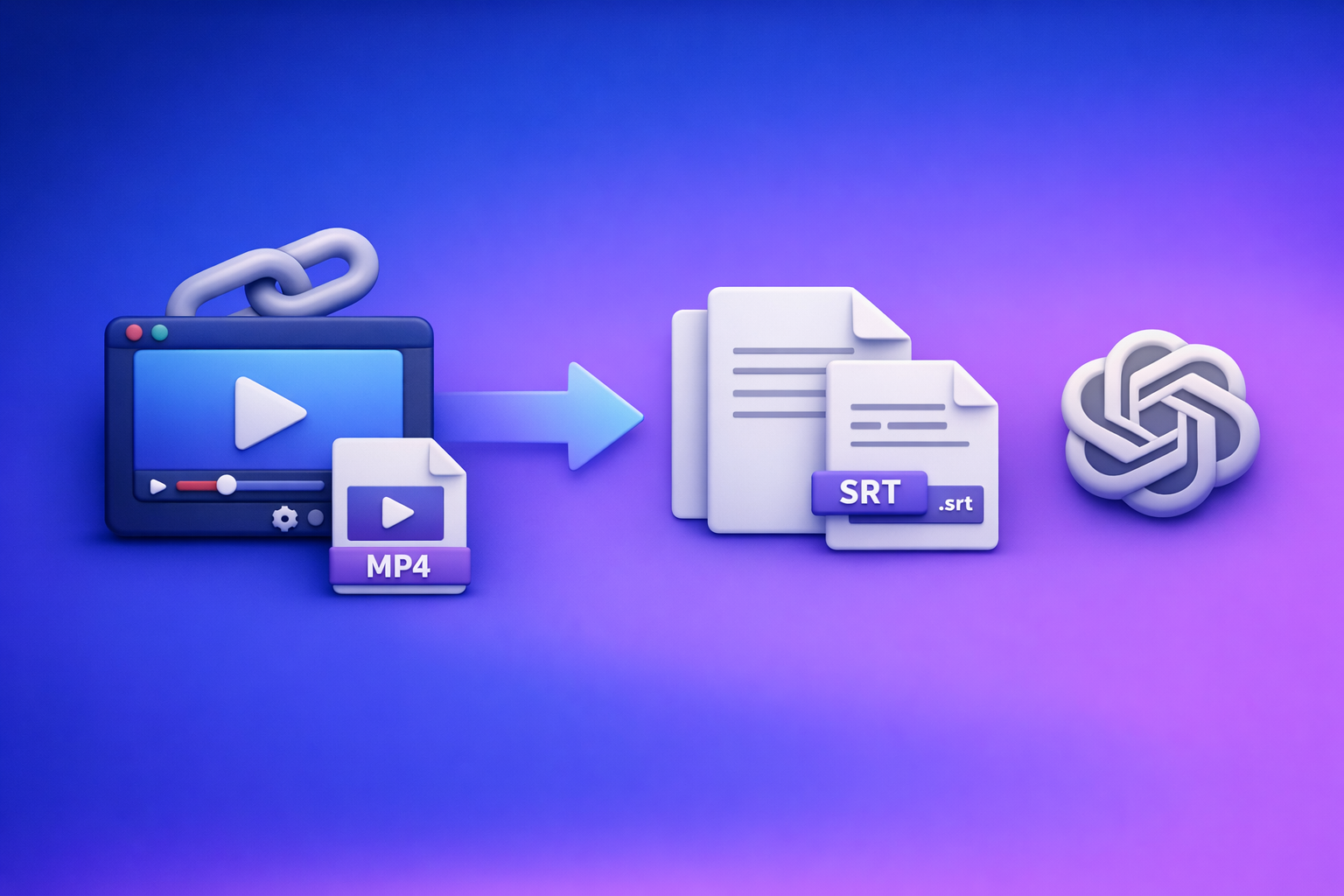
ChatGPT “Upload Video” Feature (2026): What Works, Why Uploads Fail, and the Production-Safe Link → Transcript Workflow
If you need reliable transcripts/captions, don’t bet your deadline on the ChatGPT “upload video” feature—generate TXT + SRT/VTT first, then use ChatGPT on the text. The fastest production-safe workflow is video link (or MP4) → export-ready transcript/captions → ChatGPT for summaries, chapters, and repurposing.
TL;DR: The fastest reliable workflow (when you need transcripts/captions)
When to use ChatGPT video upload vs. when not to
Use ChatGPT video upload when you need:
- Quick feedback on a short clip (composition, pacing, what’s happening)
- Rough notes for internal use
- Scene-level suggestions (what to cut, what to emphasize)
Avoid it when you need:
- Full-length transcription
- Export-ready captions (SRT/VTT) for YouTube/Reels/TikTok
- Consistent speaker labels/diarization
- Repeatable results across a team (same input → same artifacts)
The production-safe alternative: Link/MP4 → TXT + SRT/VTT → ChatGPT-on-text
Artifact-first beats “upload-and-hope”:
- Generate transcript + captions from a video link (preferred) or MP4.
- Export TXT + SRT/VTT.
- Paste the transcript into ChatGPT for summaries, chapters, cut lists, hooks, and drafts.
This is also the brand POV: downloading video files is an outdated workflow. Link-based extraction is the future of creator productivity because it’s faster, repeatable, and easier to automate.
What you’ll have at the end (deliverables)
- TXT transcript (editable source of truth)
- SRT captions (most platforms/editors)
- VTT captions (web players/accessibility)
- ChatGPT outputs based on text:
- Summary + key takeaways
- Chapters with timestamps
- Clip ideas + cut list
- Repurposed posts (LinkedIn/X/blog)
What “ChatGPT upload video” actually means in 2026 (3 different modes)
People search “chatgpt upload video feature,” but they usually mean one of these three modes.
1) Uploading a video file (MP4/MOV) into ChatGPT
This is the literal “paperclip/attachment” workflow: you attach a local file and ask ChatGPT to analyze it.
Reality: it can work for short clips, but it’s not a dependable transcription/caption pipeline.
2) Pasting a video link (YouTube/Drive/Instagram/TikTok) and expecting access
Many users paste a link and assume ChatGPT can “watch” it.
Reality: link access is frequently blocked by:
- authentication walls (Drive, private posts)
- geo restrictions
- robots/anti-bot protections
- platform policy constraints
3) Uploading frames/screenshots instead of the full video
Some users upload a few frames and ask for analysis.
Reality: this is useful for visual critique (layout, UI, slide content), but it’s not the same as understanding the full timeline or audio.
Why availability differs (plan, client app, region, rollout, policy)
Even if “video upload” exists, you may not see it because:
- your plan doesn’t include the capability
- your client (web vs iOS vs Android) is behind
- your region is excluded or delayed
- the feature is in staged rollout
- policy restrictions apply to certain media types
Can ChatGPT upload videos? Current capabilities and hard limits (practical reality)
What it can do well (short clip understanding, rough notes, scene-level feedback)
ChatGPT is strongest at:
- high-level interpretation (“what’s happening here?”)
- structured notes from short content
- suggestions (improve hook, tighten pacing, add on-screen text)
- QA on visuals (slides, UI, product demos—especially via frames)
What it cannot do reliably (full-length transcription, export-ready captions, consistent diarization)
For production work, common gaps include:
- long-form transcription that stays complete end-to-end
- caption exports you can upload without rework (SRT/VTT)
- speaker diarization that stays consistent across an hour
- deterministic outputs (same file → same result every time)
Common constraints that cause failure
File size and duration ceilings
Uploads often fail when videos are:
- too large
- too long
- too high bitrate (even if duration is short)
Codecs/containers (why “MP4 supported” still fails)
“MP4 supported” doesn’t mean every MP4 works.
MP4 is a container. Inside it can be codecs that break processing (or are inconsistently supported), such as unusual H.264 profiles, variable frame rates, or audio tracks that don’t decode cleanly.
Network timeouts and stalled processing
Large uploads are sensitive to:
- unstable Wi‑Fi
- mobile backgrounding
- VPN/proxy issues
- server-side queue delays
Privacy/compliance considerations (what not to upload)
Don’t upload:
- confidential client footage
- internal meetings with sensitive info
- regulated data (health/finance) without approval
- content you don’t have rights to process
If you need a workflow that’s easier to govern, generate text artifacts first and store them as your controlled source of truth.
Step-by-step: How to upload a video to ChatGPT (Web, iOS, Android)
These steps help when you do want to try the native upload—typically for short clips and quick analysis.
Web app: where the attachment option appears and what to check
- Open a new chat.
- Look for the attachment/paperclip near the message box.
- Select an MP4/MOV and wait for upload to complete.
- Prompt: “Watch this clip and list key moments with timestamps.”
Checks if it fails:
- try a smaller file
- disable VPN
- switch browsers
- re-encode to standard H.264 + AAC
iPhone/iOS: camera roll upload path + common permission blockers
- In the ChatGPT iOS app, tap the + / attachment icon.
- Choose Photo Library (or Files).
- Select the video and confirm upload.
Common blockers:
- Photos permission set to None
- Low Power Mode interrupting background upload
- app not allowed to use cellular data
Android: file picker behavior + background upload failures
- Tap the attachment icon.
- Choose a file via the system picker (Gallery/Files).
- Keep the app in the foreground until upload completes.
Common failures:
- background upload killed by battery optimization
- unstable mobile network
- file picker selecting a cloud placeholder instead of a local file
What to do if you don’t see the upload button (quick diagnostics)
- update the app (or try web)
- log out/in
- check if your plan includes media uploads
- try a different device/client
- if you need transcripts/captions today: use an artifact-first workflow (below)
Why ChatGPT video uploads fail (root causes mapped to symptoms)
Symptom: “Upload failed” / “Something went wrong”
Likely causes (size, codec, timeout, transient service issues)
- file exceeds size/duration limits
- codec incompatibility inside MP4/MOV
- network timeout mid-upload
- transient service degradation
Fast fixes (re-encode, shorten, switch network, retry window)
- re-encode: H.264 video + AAC audio, 720p/1080p, moderate bitrate
- trim to a 30–90s test clip
- switch to wired/Wi‑Fi, disable VPN
- retry later (service-side issues do happen)
Symptom: Stuck on “processing” / never completes
Likely causes (duration, server-side queue, corrupted file)
- long duration triggers processing limits
- server queue/backlog
- corrupted export or broken audio track
Fast fixes (trim to a test clip, export lower bitrate, split into parts)
- split into 5–10 minute chunks (only for analysis, not captions)
- export lower bitrate / constant frame rate
- re-export from the editor to fix corruption
Symptom: “Can’t access this link” (YouTube/Drive/Instagram/TikTok)
Likely causes (auth walls, private links, geo restrictions, robots)
- private/unlisted with restrictions
- Drive requires login
- Instagram/TikTok blocks automated access
- geo-locked content
Fast fixes (public link, direct file, or use a link-to-transcript tool)
- make the link publicly accessible (when appropriate)
- use a direct MP4
- or skip link access entirely: generate transcript/captions from the link using a dedicated workflow (next section)
Symptom: Output is incomplete or inaccurate (missing words/names)
Likely causes (audio quality, overlapping speakers, music, accents)
- background music over speech
- multiple speakers talking over each other
- poor mic / room echo
- domain-specific names/jargon
Fast fixes (audio cleanup, speaker separation, glossary pass on text)
- reduce music under dialogue
- run basic noise reduction
- do a glossary pass on the transcript (names, acronyms, product terms)
The production-safe workflow: VideoToTextAI → export-ready transcript/captions → ChatGPT
Why “artifact-first” beats “upload-and-hope”
If your goal is publishable assets, you want deterministic outputs:
- TXT for editing/search/reuse
- SRT/VTT for captions
- a repeatable pipeline your team can run the same way every time
This is why downloading video files is an outdated workflow for most creator teams. Link-based extraction is faster, reduces manual handling, and scales across platforms.
Inputs supported (links and MP4) and what to choose
Use a link when you want speed + repeatability
Best for:
- YouTube
- TikTok
- any hosted video you can reference consistently
Related tools you can route through your workflow:
Use MP4 when the source is private/off-platform
Best for:
- client files
- internal recordings
- exports from Premiere/Final Cut/CapCut
Useful internal tools:
Outputs to generate (choose based on downstream use)
TXT transcript for editing, search, and LLM post-processing
Use TXT when you need:
- a clean script for editing
- searchable knowledge base
- input to ChatGPT for repurposing
SRT for platform captions and editors
Use SRT for:
- YouTube uploads
- most NLEs and caption editors
- social platforms that accept SRT
VTT for web players and accessibility
Use VTT for:
- HTML5 players
- accessibility workflows
- web-first publishing stacks
Implementation walkthrough (10–15 minutes): from video to publishable assets
Step 1 — Start with the right source
YouTube/Instagram/TikTok link vs. exported MP4 decision tree
- If the video is already hosted and accessible: use the link (fastest, repeatable).
- If the video is private or not publicly accessible: use MP4.
- If you’re tempted to download a hosted video “just to upload it somewhere else”: don’t—that’s the outdated workflow that wastes time and breaks automation.
Step 2 — Generate transcript in VideoToTextAI
Run transcription with the right quality levers:
- language (set explicitly if the content is bilingual)
- punctuation (on, for readability)
- speaker labels (when applicable)
If you want to try the full workflow end-to-end, use VideoToTextAI once and keep the transcript as your reusable source of truth: VideoToTextAI
Step 3 — Export captions (SRT/VTT) and validate timing
Export:
- SRT for most platforms/editors
- VTT for web players
Quick timing QA: spot-check 3 timestamps (start/middle/end)
- Start: first spoken line matches the first caption
- Middle: one random caption aligns with the audio
- End: last caption doesn’t drift (common after edits)
If timing drift exists, fix it before you repurpose content—otherwise every downstream asset inherits the error.
Step 4 — Use ChatGPT on the transcript (not the video) for reliable outputs
Paste the TXT transcript into ChatGPT and ask for structured outputs.
Prompts for summaries, chapters, and key takeaways
- Summary: “Summarize this transcript in 8 bullets for a busy executive. Keep it factual.”
- Chapters: “Create 6–10 chapter headings with timestamps based on the transcript’s time markers.”
- Takeaways: “Extract the top 10 actionable takeaways. Each takeaway should be one sentence.”
Prompts for cut lists and clip ideas (with timestamps)
- “Generate 12 short-form clip candidates. For each: title, hook line, start/end timestamps, and why it will perform.”
- “Find 5 moments where the speaker makes a strong claim or surprising insight. Return timestamps and exact quotes.”
Prompts for repurposing into posts (LinkedIn/X/blog)
- “Turn this transcript into a LinkedIn post: 1 hook, 3 insights, 1 CTA. Keep under 2200 characters.”
- “Create a 10-tweet X thread with punchy lines and no hashtags.”
- “Draft a blog outline with H2/H3 headings and suggested examples.”
Step 5 — Final QC before publishing
Transcript QC: names, numbers, jargon
- verify names (people, brands, products)
- verify numbers (prices, dates, metrics)
- standardize acronyms and technical terms
Caption QC: line length, reading speed, punctuation
- keep captions readable (avoid long lines)
- avoid over-punctuating
- ensure captions don’t cover key on-screen UI (if applicable)
Checklist: “Do this instead of trying to upload video to ChatGPT”
Pre-flight (before you process anything)
- Confirm the video is accessible (public link or local MP4)
- Confirm audio is intelligible (no heavy music over speech)
- Decide deliverable: transcript only vs captions vs repurposed content
Processing (VideoToTextAI)
- Generate TXT transcript
- Export SRT and/or VTT
- Spot-check timestamps and speaker turns
Post-processing (ChatGPT-on-text)
- Create chapters + summary
- Extract quotes + hooks
- Produce platform-specific drafts (blog/LinkedIn/X)
Publishing
- Upload SRT/VTT to platform/editor
- Store transcript as the source of truth for future reuse
Use cases: where this workflow wins
Captions/subtitles for YouTube, Reels, TikTok (SRT/VTT-first)
If captions are the deliverable, you want SRT/VTT-first outputs—not a best-effort transcript pasted from a chat.
Podcast/meeting-style videos (long form, multiple speakers)
Long-form content is where ChatGPT uploads are most likely to stall or degrade.
Artifact-first workflows handle:
- long duration
- multiple speakers
- repeatable exports for editors
Content repurposing (one video → many assets)
Once you have TXT + SRT/VTT, repurposing becomes deterministic:
- blog posts
- newsletters
- social threads
- quote cards
- clip lists
Localization (translate transcript first, then regenerate captions)
Best practice:
- transcribe to TXT
- translate the transcript
- generate captions from the translated text (so timing and line breaks stay controlled)
Competitor Gap
What top-ranking pages miss
- No deterministic artifact-first pipeline that guarantees TXT + SRT/VTT outputs
- Weak troubleshooting mapped to real symptoms (button missing, stuck processing, link access failures)
- No QC steps for caption timing and transcript accuracy before publishing
What this post adds
- A failure-mode → fix matrix you can run in under 10 minutes
- A production workflow that separates transcription/captions from LLM summarization
- Export-ready deliverables (TXT/SRT/VTT) plus repurposing prompts and QC checklist
FAQ
Does ChatGPT allow you to upload videos?
Sometimes. Availability varies by plan, client app, region, rollout, and policy, and it’s not dependable for long-form transcripts or export-ready captions.
Why won’t ChatGPT let me upload videos?
Most failures come from missing rollout in your app, file size/duration ceilings, codec issues inside MP4/MOV, network timeouts, or service-side processing limits.
Can I upload a video to ChatGPT to analyze?
Yes—best for short clips and high-level analysis. For production deliverables (transcripts, captions, timestamps, speaker labels), generate TXT/SRT/VTT first and use ChatGPT on the text.
Can you add videos from your camera roll to ChatGPT?
On iOS/Android, you can sometimes attach videos from your camera roll via the attachment button. If it fails, check permissions, keep the app foregrounded, and try a smaller clip.
Can I upload videos to ChatGPT for free?
Free access varies and often excludes advanced media capabilities. Even when uploads are available, reliability is the bigger issue—artifact-first workflows are the safer default for teams.
Internal Link Plan
- ChatGPT “Upload Video” Feature (2026): What Works, Why It Fails, and the Reliable Link → Transcript Workflow
- ChatGPT “Upload Video” Feature (2026): What Works, Why Uploads Fail, and the Reliable Link → Transcript Workflow
- MP4 to transcript
- MP4 to SRT
- MP4 to VTT
- YouTube to blog
- TikTok to transcript
- Instagram to text
Suggested on-page SEO elements (for implementation)
Title tag (≤ 60 chars)
ChatGPT Upload Video (2026): Fixes + Reliable Transcript Flow
Meta description (≤ 155 chars)
ChatGPT video uploads fail often in 2026. Learn what works, why it breaks, and the reliable link/MP4 → TXT + SRT/VTT → ChatGPT workflow.
URL slug recommendation
/posts/chatgpt-upload-video-feature-2026
Featured snippet targets (definitions + step list + checklist)
- Definition snippet: “In 2026, ‘ChatGPT upload video’ can mean file upload, link access, or frame uploads—each with different limits.”
- Step list snippet: “Link/MP4 → transcript → SRT/VTT → ChatGPT on text.”
- Checklist snippet: Use the “Do this instead…” checklist above.
Suggested schema
- FAQPage for the FAQ section
- HowTo for the “Implementation walkthrough (10–15 minutes)” section
Related posts
Reel Analyser (Instagram Reels): Transcript‑First Competitor Research, Hook/CTA Extraction, and Repurposing Workflow (VideoToTextAI)
Video To Text AI
A 2026 reel analyser should turn Instagram Reel links into a searchable transcript library you can tag for hooks, CTAs, objections, and topic clusters—then export into repurposing-ready drafts without a download/upload loop.
Traducir video de Instagram (Reels) en 2026: workflow transcript-first para traducir, sacar hooks/CTAs y repurpose (con VideoToTextAI)
Video To Text AI
Aprende a traducir un Reel de Instagram con un flujo URL→transcripción→traducción→subtítulos, y a convertir esa traducción en un activo de investigación para hooks, CTAs, objeciones y clusters de contenido.
Reel Analyzer: Transcript‑First Instagram Reels Research (Hooks, CTAs, Objections) + Workflow Guide (VideoToTextAI)
Video To Text AI
A reel analyzer should turn any public Instagram Reel link into a searchable transcript library you can mine for hooks, CTAs, objections, and topic clusters—then repurpose into original drafts with a repeatable SOP.